Install the app and sign in
Get the Signivent app for Windows, macOS, Linux or Android, sign in with your Client ID, and turn the device into a kiosk or a sign for your event.
The Signivent app runs the same dashboard you use in the browser, plus what a venue needs: it keeps a copy of your event on the device so check-in and presentations keep working when the internet drops, it prints badges to a local printer, and nearby devices share updates over the venue network. Use it on every computer and tablet that will be a kiosk, a presenter station or a check-in desk.
Download the app
- Go to the Download page of the Signivent website (Download in the top menu), or click the download icon in the dashboard's top bar.
- Pick your platform: Windows App (Windows 10 or later), macOS App, Linux App or Android App (Android 6.0 or later). The page marks the one that fits the computer you are on as Recommended. A platform without a current release says Coming Soon.
- Install it the usual way for that platform.
On Android the app comes as an APK file. The first time, Android asks you to allow installs from your browser or file manager; allow it for this install.
The dashboard's download panel is described in Devices and diagnostics.
Sign in
The app opens on the sign-in page. Sign in the way you do on the web:
- Email first: enter your email and click Continue, or
- Client ID: enter your organization's Client ID, your Email and Password, and click Login.
- Sign in with a magic link instead emails you a one-time sign-in link.
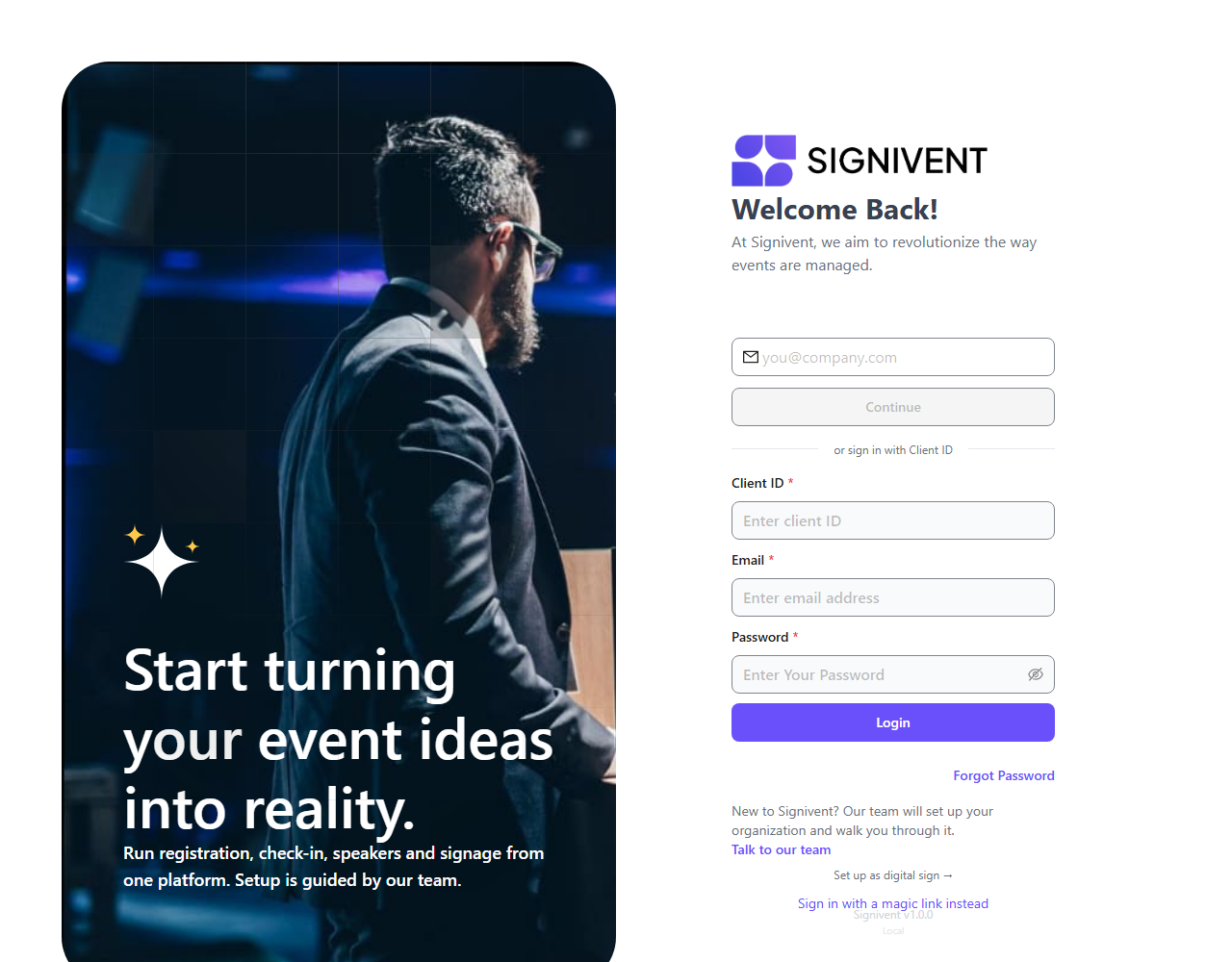
Sign in with internet at least once on each device. After that, the app opens your events from its own copy even without a connection.
Set up as digital sign at the bottom does not sign in: it turns the device into a screen for digital signage. See The signage player.
Turn the device into a station
To make the device a kiosk, open the event, switch it to Onsite and click Launch a station. Pick the station, choose what it covers (a room, a session or a sign), and click Launch station.
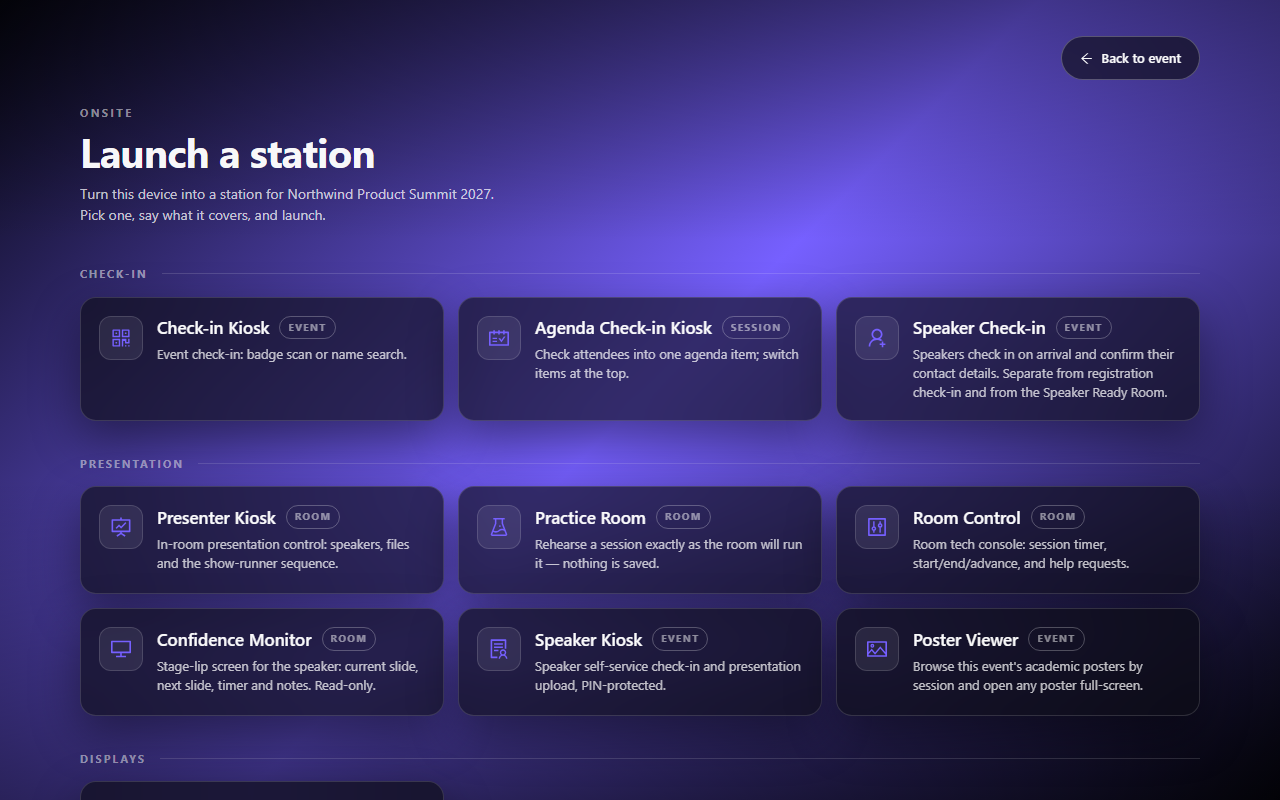
Every station of an event shares one station PIN, shown when you launch. Staff need it, or the password of the account the station is signed in with, to leave the station.
For a tablet you leave unattended, pair it instead, so it runs without your account on it: see Pair a device to your event.
Next steps
- The check-in kiosk on the day
- The presenter kiosk on the day
- The signage player
- Offline mode and sync
- Setting stations up on the dashboard: Kiosks and stations
Troubleshooting
| You see | Why | Fix |
|---|---|---|
| A platform says Coming Soon | There is no release for it yet | Use a platform that has a download, or run the station in a browser |
| Sign-in fails with no internet | A device must sign in online once | Connect it and sign in; afterwards it works offline |
| The app opens the sign-in page every time | You signed out, or the session expired | Sign in again; a paired kiosk never needs this |