The presenter kiosk on the day
Start the presenter kiosk on a meeting room's computer, find the session that is on, play its files, use the room menu, and exit with the PIN.
The presenter kiosk is the computer in a meeting room that plays each session's slides and videos. It shows only that room's sessions, keeps their files on the computer so a show runs without internet, and stays locked so speakers can't wander into the rest of the computer. This guide covers running it. Its settings (theme, launch sequence, file rules) are on the dashboard; see Kiosks and stations.
Start the kiosk in a room
On the room's computer, in the Signivent app:
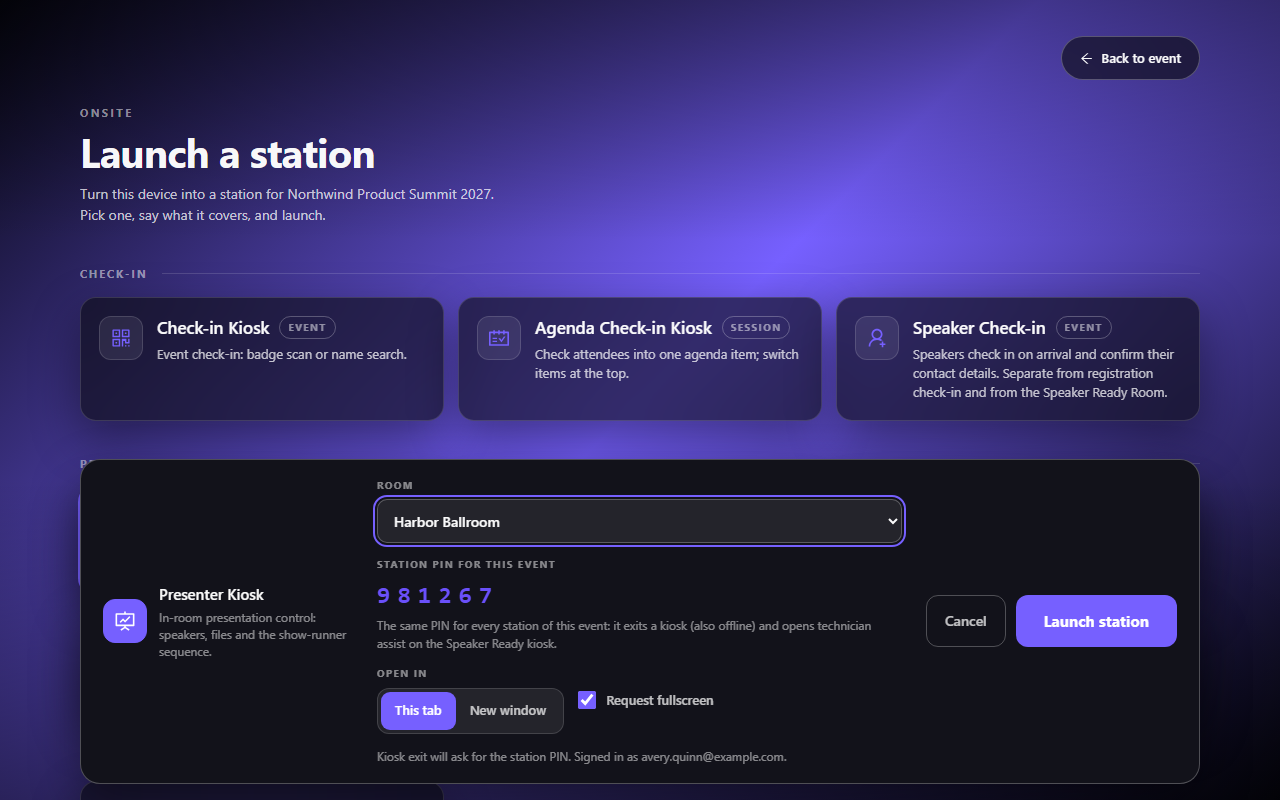
- Open the event, switch it to Onsite and click Launch a station.
- Click Presenter Kiosk and choose the Room.
- Note the Station PIN for this event; you need it to exit.
- Under Open in, choose This tab or New window, and leave Request fullscreen on.
- Click Launch station.
A computer you hand over for the whole event can be paired instead, so it runs without your account: pair it as Presenter (one room), see Pair a device to your event.
Open the kiosk once with internet before the event, so the room's sessions and files are copied to the computer.
The room screen
The kiosk opens on Welcome to and the room name, with the date. Use the arrows to move between days, the magnifier to search speakers or titles, and the keyboard icon to see the keyboard shortcuts. Each row is an agenda item in this room, with its speakers, its track and its time.
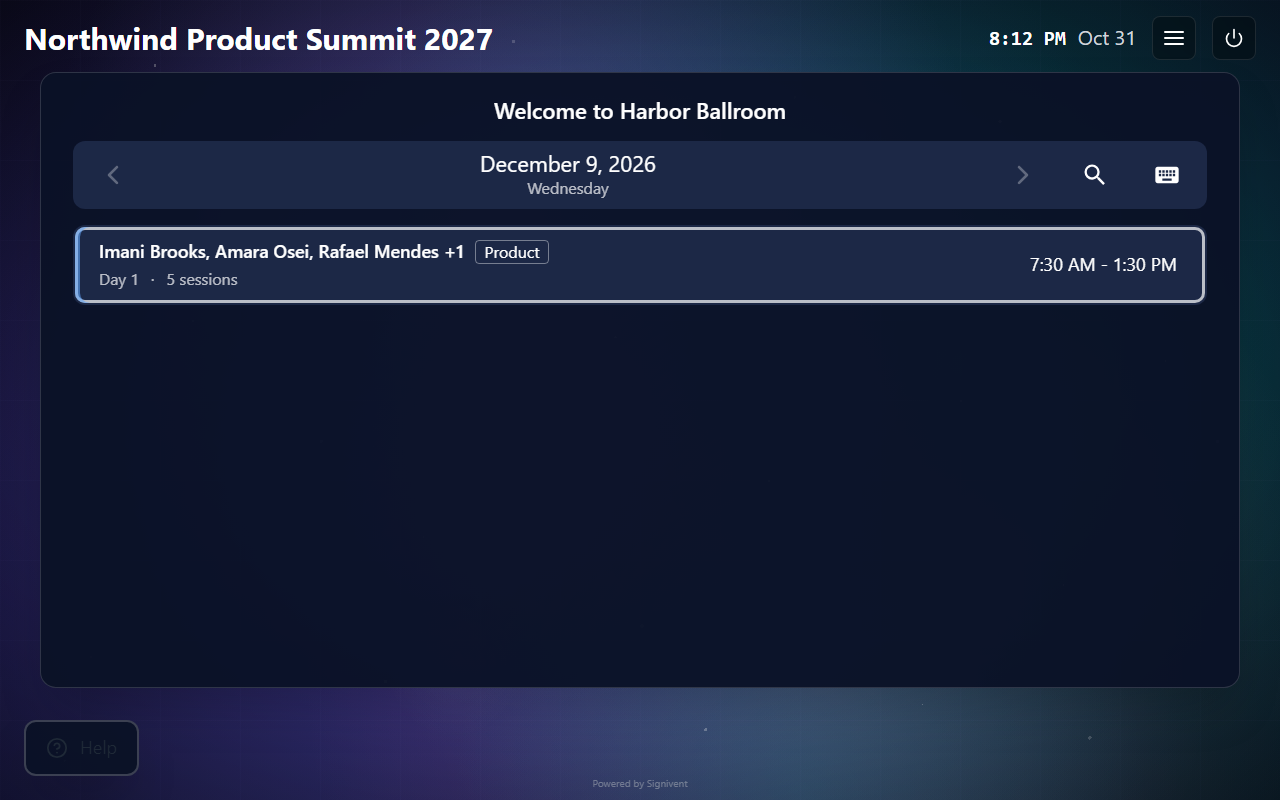
Tap an agenda item to see its sessions. Each session shows its speakers, title, time and how many files it has. Tap a session to open its files, then a file to present it full screen. A session with No Files has nothing uploaded yet; speakers upload at the speaker kiosk or in the speaker portal.
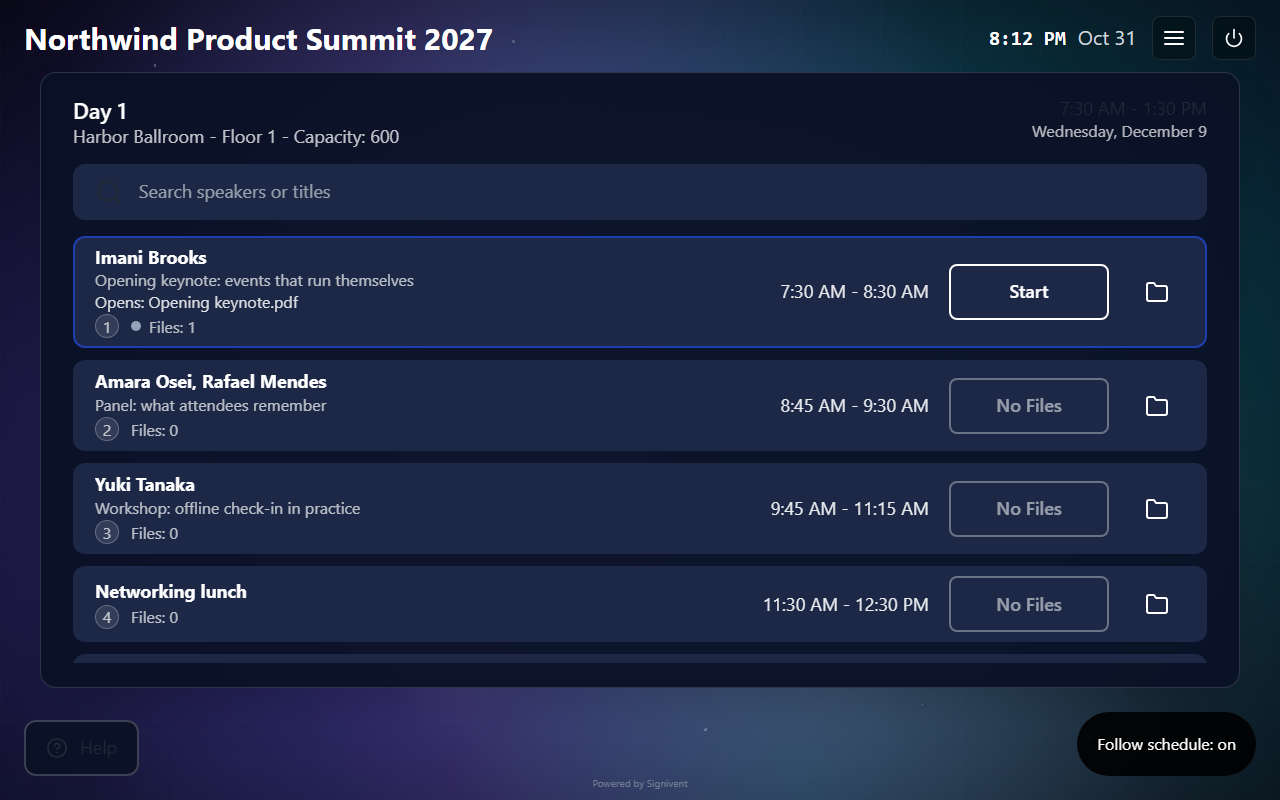
Follow schedule: on (bottom right) moves the kiosk on to the next session when its time comes. Tap it to turn it off, for example when a session runs over.
Help (bottom left) calls the room's technician. The button shows when the request has been seen, and the presenter can cancel it with No longer needed.
The room menu
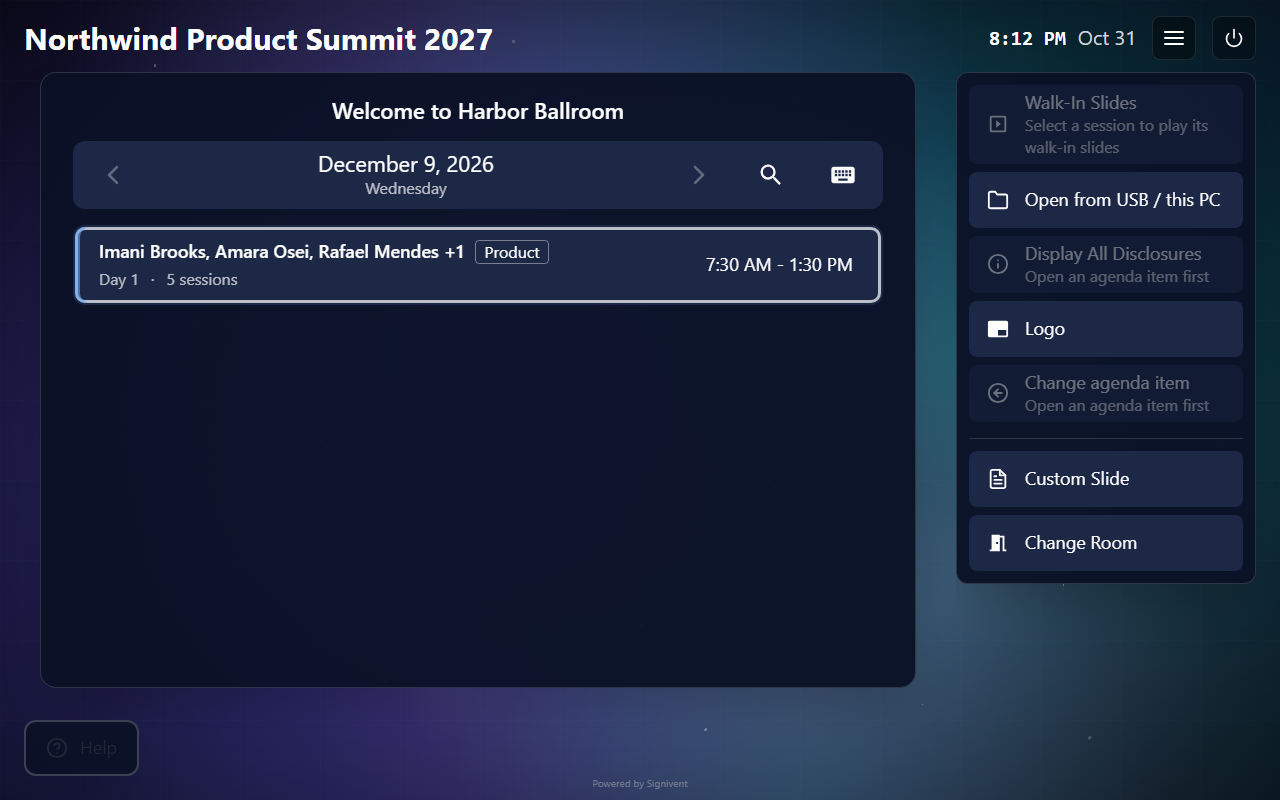
Tap the menu icon at the top right:
| Item | What it does |
|---|---|
| Walk-In Slides | Plays the walk-in slides while the room fills |
| Open from USB / this PC | Opens a file from a USB stick or the computer, for a speaker who brought one |
| Display All Disclosures | Shows the speakers' disclosures (open an agenda item first) |
| Logo | Shows the event logo full screen |
| Change agenda item | Switches to another agenda item in this room |
| Custom Slide | Shows a custom slide |
Room and kiosk settings are folded under Preferences at the bottom of the menu. Tap Preferences to open them; they are closed again each time the menu opens.
| Preference | What it does |
|---|---|
| Change Room | Moves this kiosk to another room |
| Live captions | Turns captions on or off for this room (when the event has captioning) |
| Video feed | Shows a camera or capture device on the room screen (Windows kiosk app) |
| Room production | This room's own production settings, overriding the event's |
| Audience screen | Picks which display the audience sees, on a computer with two screens |
Exit the kiosk
- Tap the power icon at the top right.
- Enter the kiosk's exit PIN. A kiosk started from Launch a station uses the event's station PIN; a paired kiosk uses the PIN set when it was paired.
- Tap Exit.
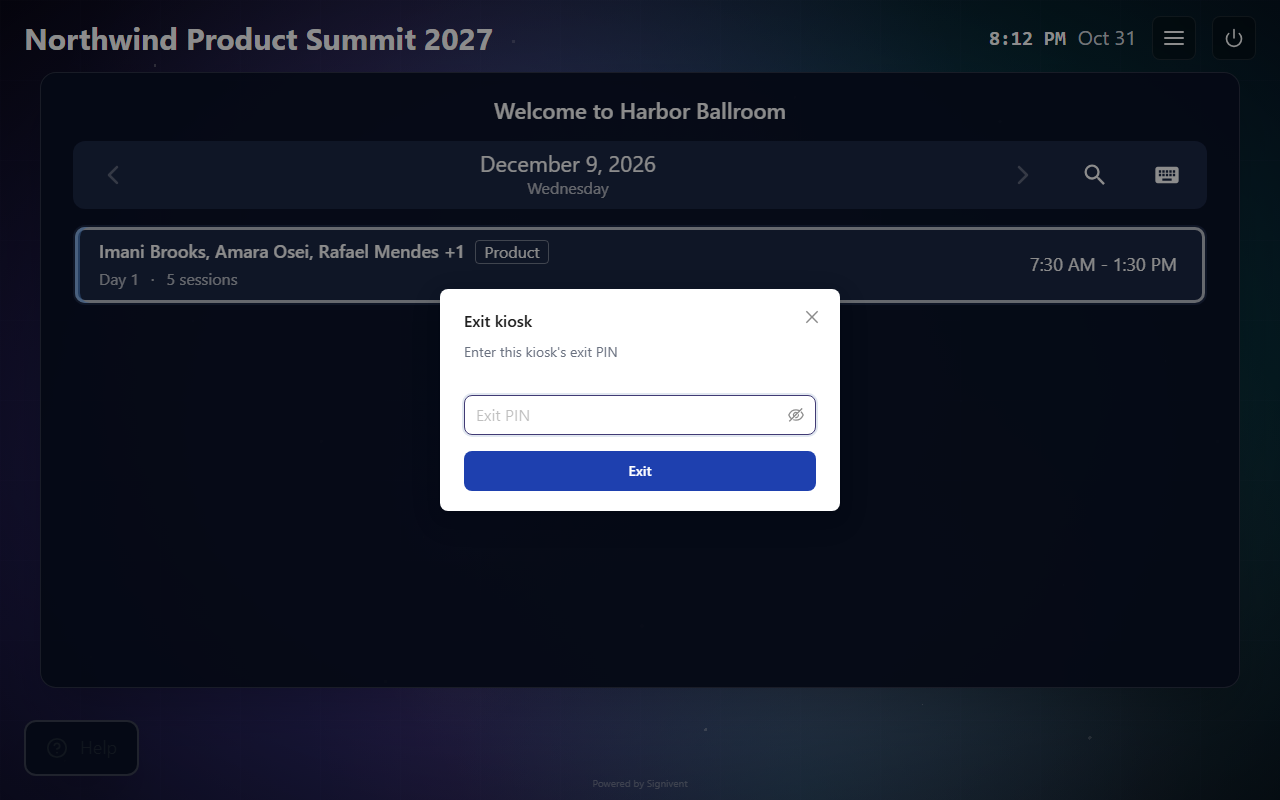
A kiosk opened some other way (from a saved link, say) also accepts your account password, and its menu offers Set exit PIN so it can be exited offline.
When the internet drops
The kiosk keeps running from the files it already has: sessions and their files that were copied to the computer play as usual. Files uploaded after the connection dropped arrive when it is back. To check a room computer, open Onsite Settings > Diagnostics on it; see Offline mode and sync.
Troubleshooting
| You see | Why | Fix |
|---|---|---|
| "This kiosk is being set up" | The computer has never loaded this event | Sign in on it and open the event once with internet |
| A session says No Files | Nothing was uploaded for it, or not yet copied to this computer | Check the session's files on the dashboard; connect the computer so it can copy them |
| The kiosk jumps to another session | Follow schedule is on | Turn it off while a session runs over |
| The exit PIN is refused | It is not this event's station PIN, or the kiosk was paired with its own PIN | Use the PIN shown on Launch a station; for a paired kiosk an organizer can set a new one on Stations > Paired kiosks |