Pair a device to your event
Turn a tablet or computer into a check-in or presenter kiosk that stays signed in to one event without a staff login, and cut it off again if it goes missing.
You can run a kiosk in two ways:
- Signed in as staff. Sign in on the device with your own account, open the event and launch a station (Onsite > Launch a station). The kiosk runs as you, and exiting it needs your password or the event's station PIN.
- Paired. The device gets its own login for one event, with no staff account on it. Use this for tablets you hand to volunteers or leave unattended: nobody can reach the dashboard from them, and you can cut one off from the dashboard at any time.
This guide covers pairing. A paired device stays signed in until the event ends, plus seven days. To pair a TV or screen for digital signage instead, see The signage player.
1. Open the kiosk on the device
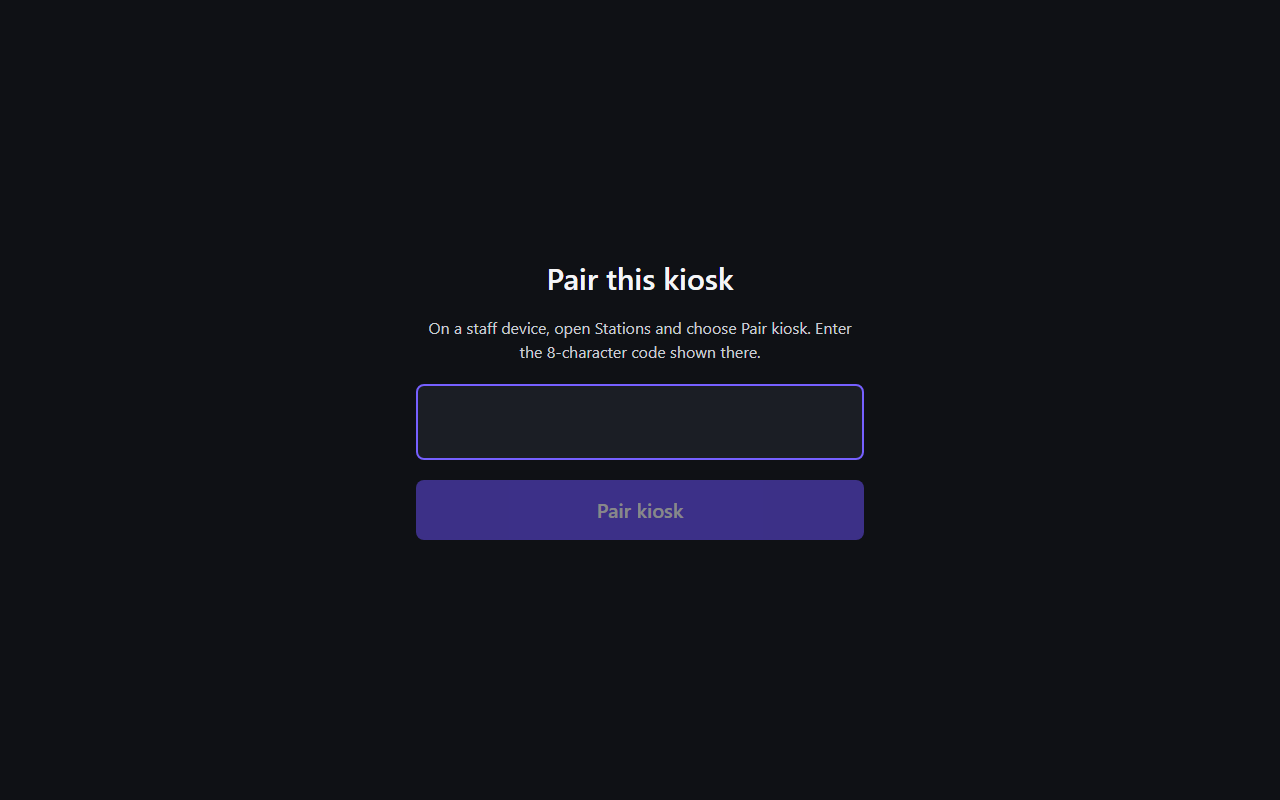
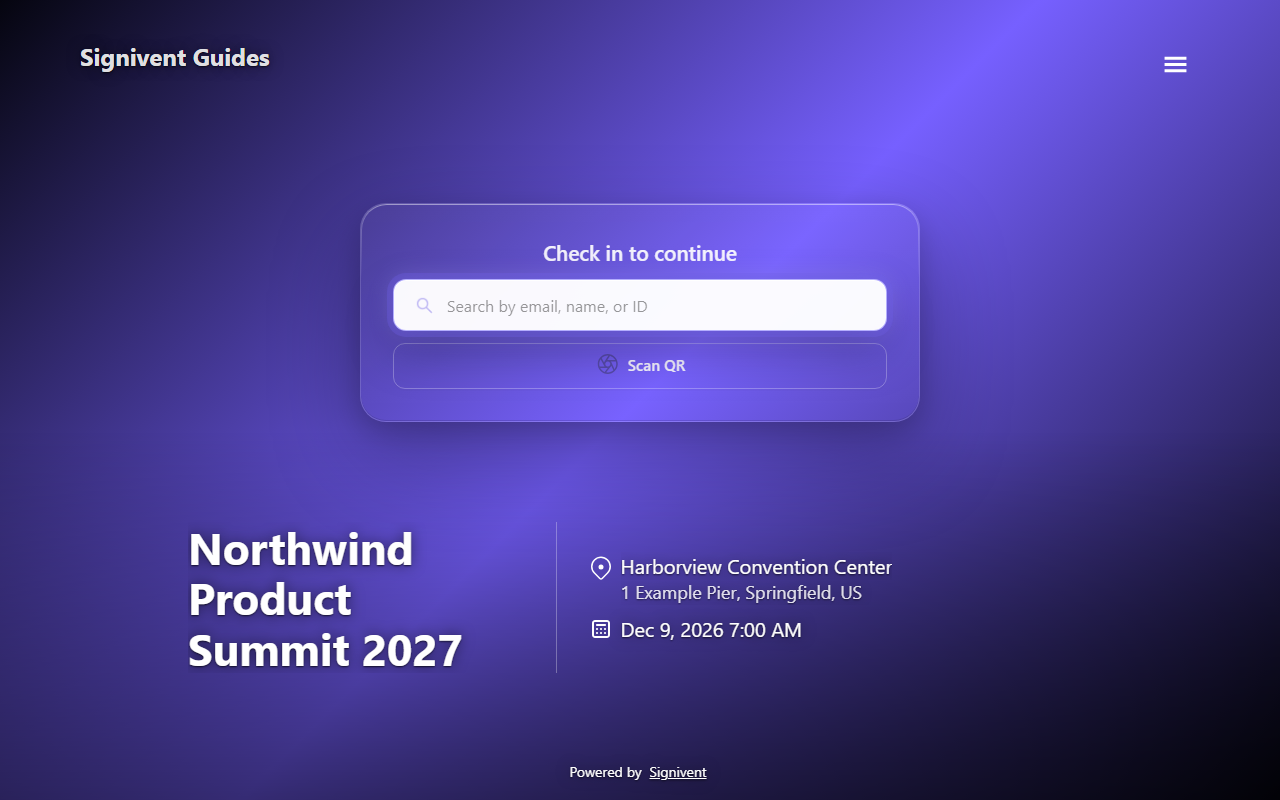
On the tablet or computer, open the Signivent app (or a browser) at the event's check-in kiosk or presenter kiosk. A device with no session shows Pair this kiosk and asks for an 8-character code.
2. Create a pairing code on the dashboard
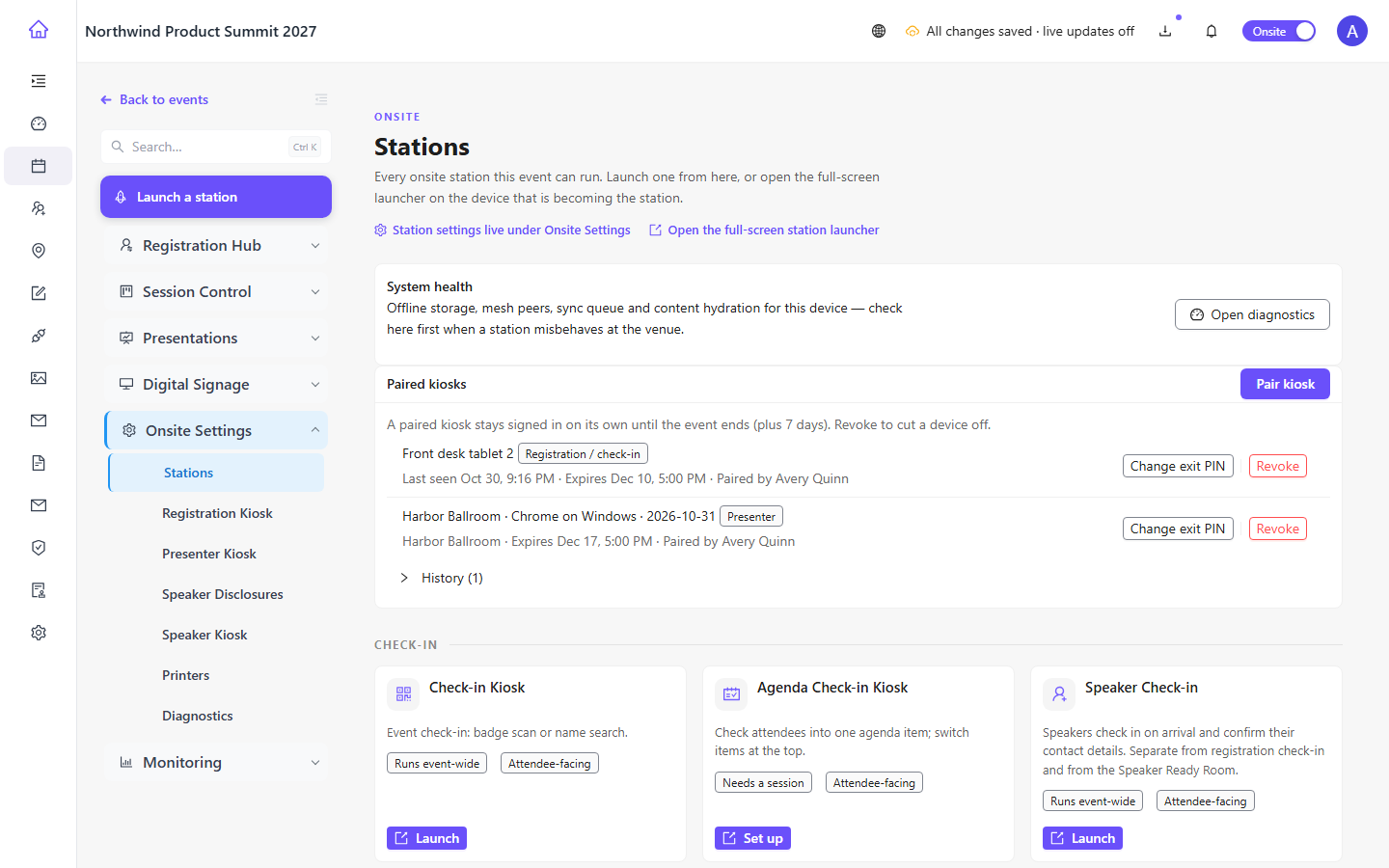
On your own computer, switch the event to Onsite and open Onsite Settings > Stations.
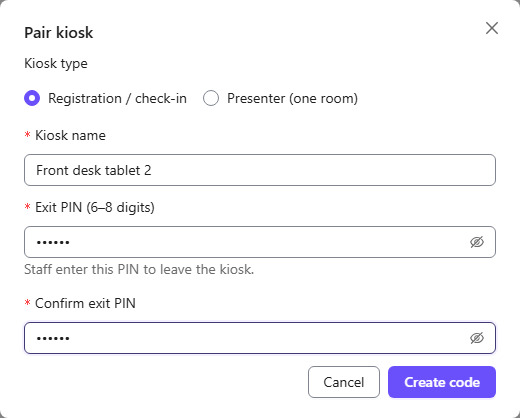
- Under Paired kiosks, click Pair kiosk.
- Choose the Kiosk type: Registration / check-in, or Presenter (one room) and its Room.
- Enter a Kiosk name your crew will recognize, for example "Front desk tablet 2".
- Enter an Exit PIN of 6 to 8 digits, twice. Staff need it to leave the kiosk, even when it is offline.
- Click Create code.
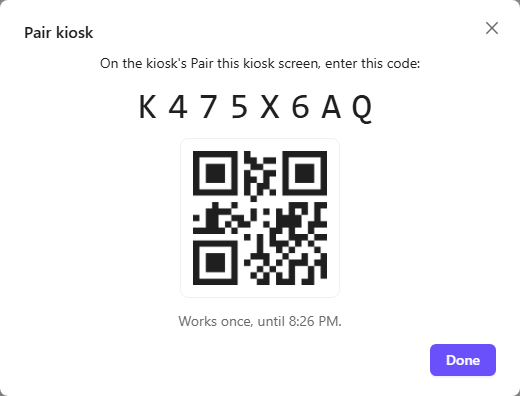
The dialog shows the code and a QR code. The code works once and expires after 10 minutes (the dialog shows until when).
3. Enter the code on the device
- Type the code into Pairing code on the device. Letters are not case-sensitive.
- Tap Pair kiosk.
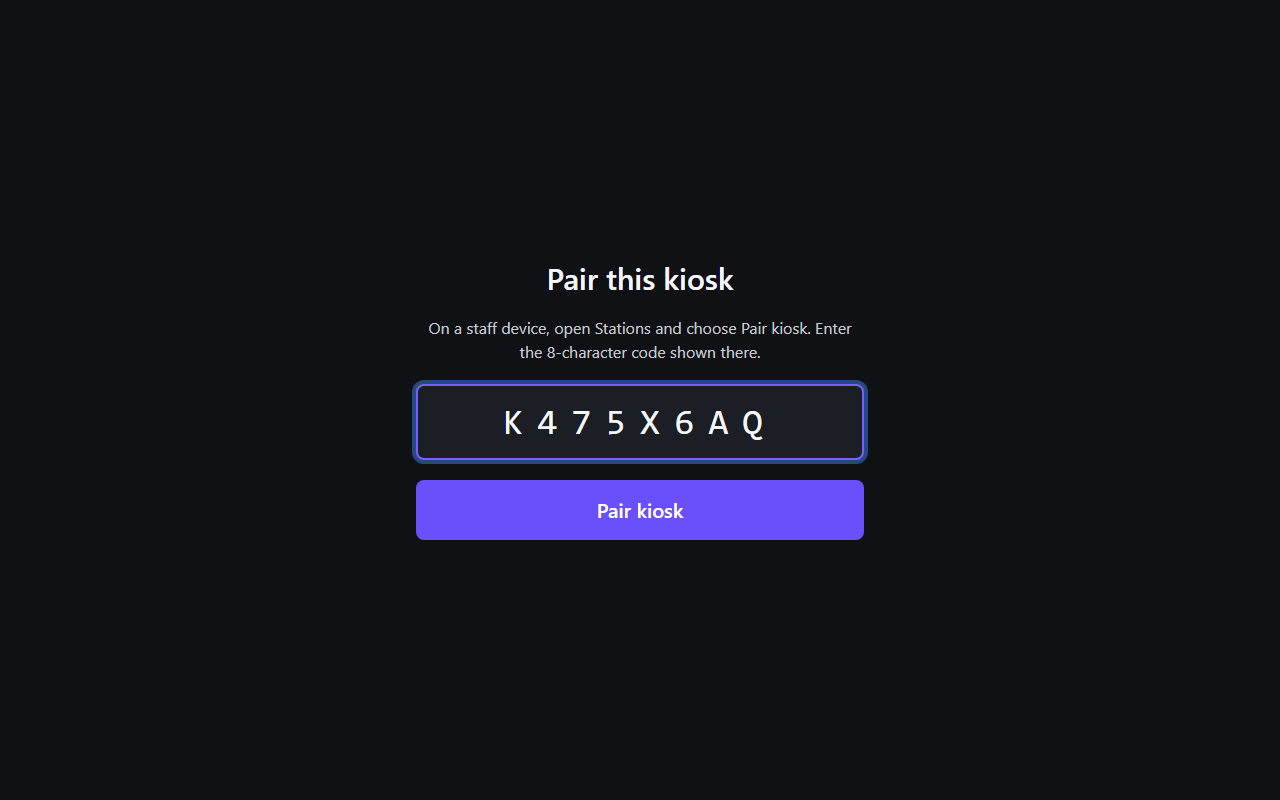
The device opens the kiosk straight away, without anyone signing in. Click Done on the dashboard.
From now on the device opens the kiosk by itself, also after a restart. For what guests and staff do on it, see The check-in kiosk on the day and The presenter kiosk on the day.
Manage paired devices
Paired kiosks on the Stations page lists every paired device with its type, when it was last seen, when its login expires and who paired it.
- Change exit PIN sets a new PIN, for example if a volunteer forgot it.
- Revoke cuts the device off at once. Use it if a tablet goes missing, or when you take a device out of service. The device goes back to Pair this kiosk and says its login was revoked, and the row moves to History under the list.
Troubleshooting
| You see | Why | Fix |
|---|---|---|
| "That code was not accepted" | It was already used, it is more than 10 minutes old, or it was mistyped | Create a new code |
| "This kiosk's login was revoked or has expired" | Someone clicked Revoke, or the event ended more than seven days ago | Pair it again with a new code |
| "This kiosk is offline" | Pairing needs the internet once | Connect the device and pair it; after that it can run offline |
Note: The kiosk keeps a copy of the event's attendees on the device so it can keep checking people in when the internet drops. Revoking a device stops it syncing and signs it out.