The signage player: put a sign on a TV
Set a TV, streaming device or spare screen up as a digital sign, pair it to your event with the code it shows, and know what it does when the internet drops.
Any screen at the venue can run a sign: a TV with a streaming device, a smart TV, a spare monitor on a small computer. This guide covers the screen side: getting the screen to show its pairing code, pairing it, and what it shows. What a sign shows (the design, the rooms, emergency alerts) is set on the dashboard; see Digital signage.
1. Show the pairing screen on the TV
Use one of these on the screen:
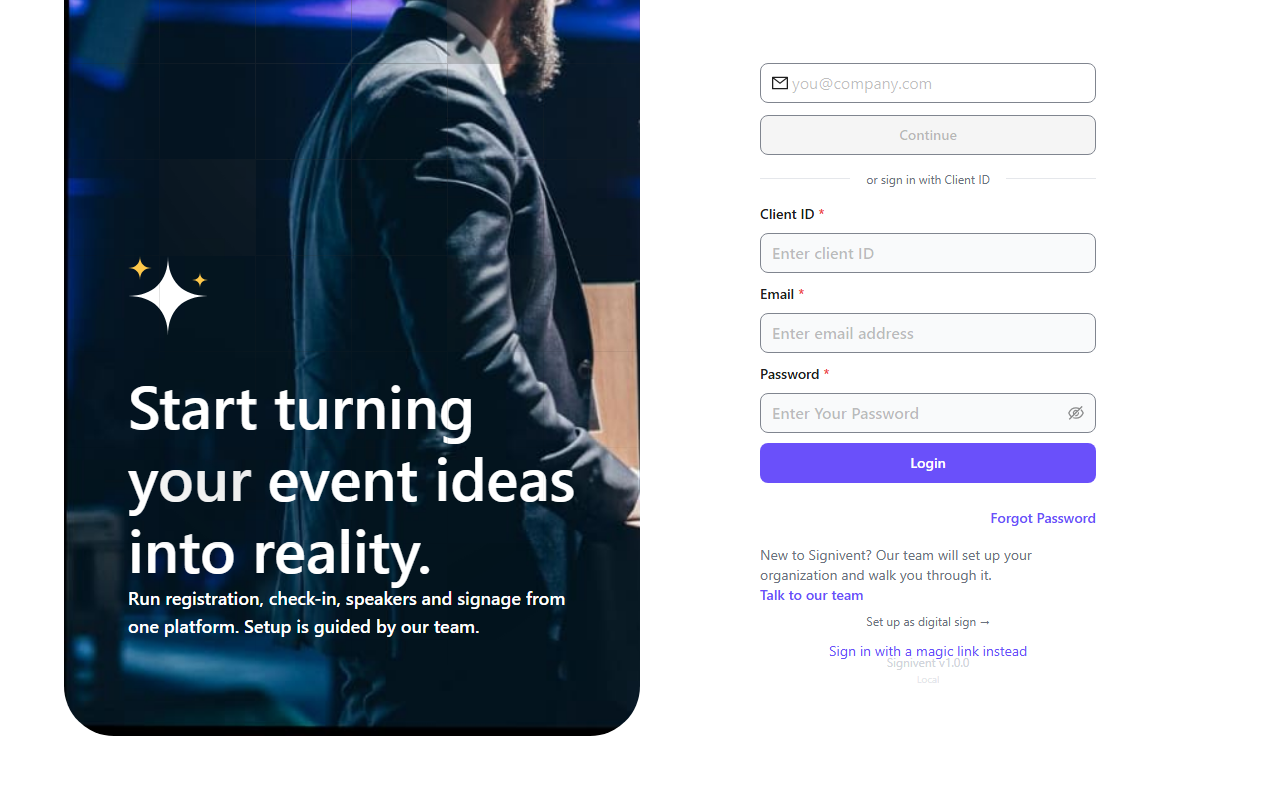
- The Signivent app: on a TV or streaming device, the signage app opens the pairing screen by itself. On a computer or tablet, click Set up as digital sign on the sign-in page.
- A browser: open
/signage/tvon your Signivent site, full screen.
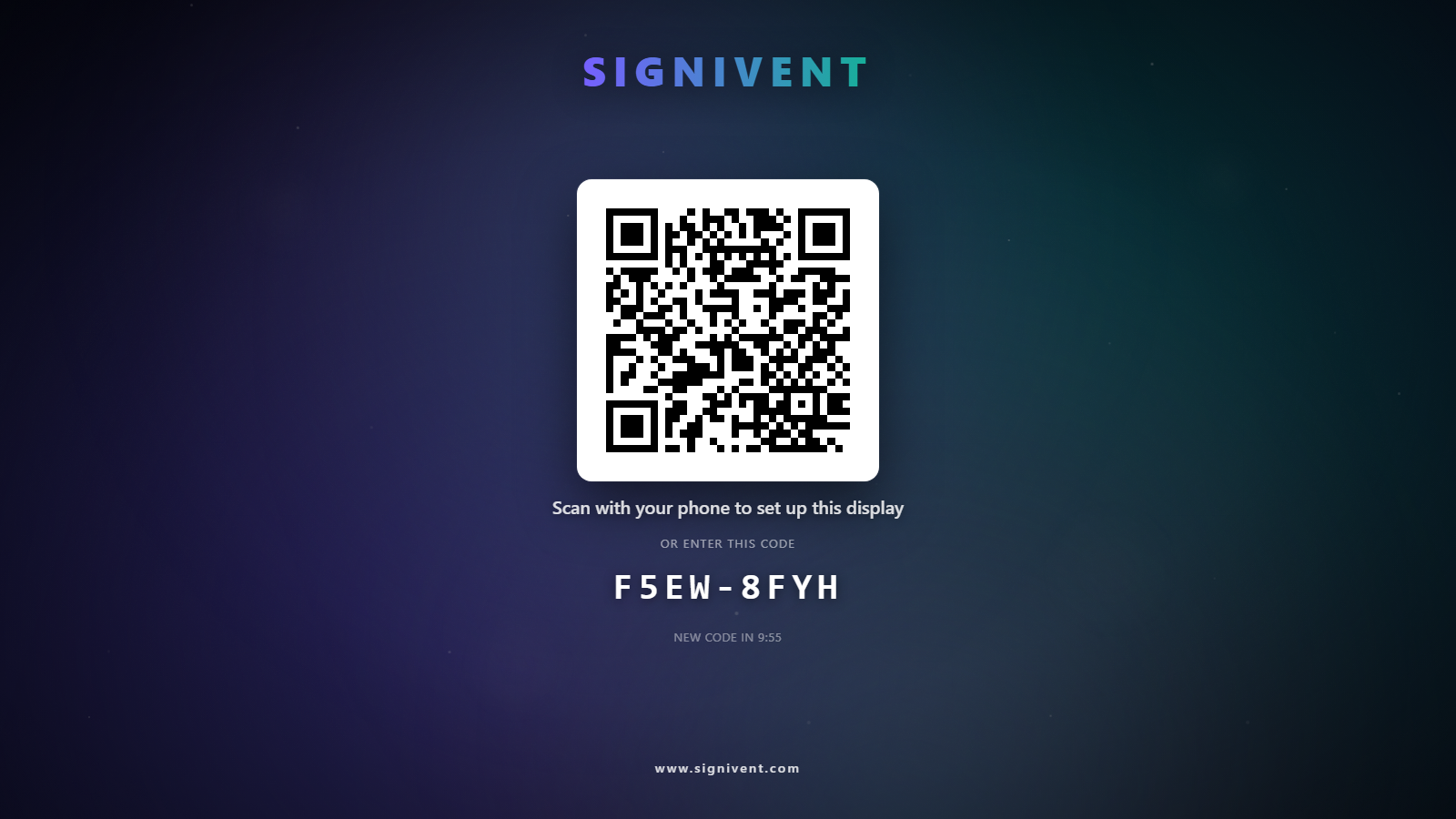
The pairing screen shows a QR code and an 8-character code. The code changes every 10 minutes (NEW CODE IN counts down); either one works while it is shown. The screen keeps itself awake while it waits.
2. Pair it from the dashboard
On your computer or phone, open the event, switch it to Onsite and go to Digital Signage > Displays.
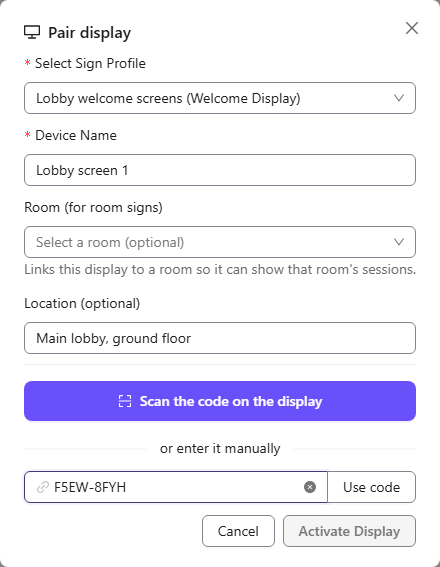
- Click Pair display.
- Select Sign Profile: the sign this screen runs.
- Enter a Device Name your crew will recognize, for example "Lobby screen 1".
- For a sign outside a meeting room, pick the Room. Add a Location if it helps people find the screen.
- Click Scan the code on the display and point your phone's camera at the QR code, or type the code shown on the TV and click Use code.
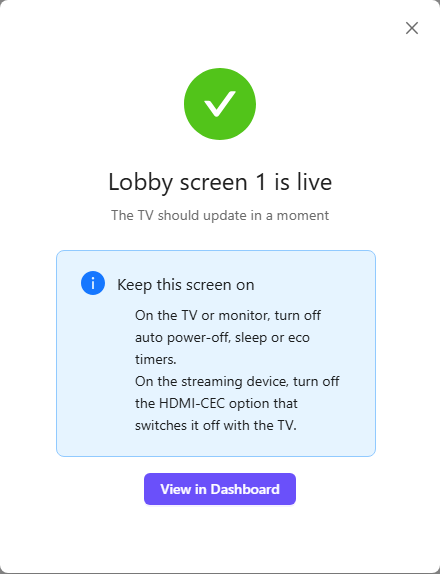
The dialog confirms that the screen is live. If you scanned the QR code instead, click Activate Display.
3. The sign runs
Within a few seconds the TV leaves the pairing screen and runs the sign: here, the welcome screen with the event name, dates, the time and the event's sponsors.

Changes you make to the sign on the dashboard reach the screen by themselves. To change which sign a screen runs, use Manage assignments on the Displays page; to take a screen out of service, remove it there.
Keep the screen on
TVs and streaming devices like to save power. On each screen:
- Turn off auto power-off, sleep and eco timers on the TV or monitor.
- On the streaming device, turn off the HDMI-CEC option that switches it off with the TV.
When the internet drops
A paired screen keeps showing its sign from what it has stored, and picks up changes when the connection is back. An emergency alert sent while a screen is offline shows when it reconnects, if the alert is still active. The Displays page counts the screen as offline meanwhile.
Troubleshooting
| You see | Why | Fix |
|---|---|---|
| The code on the TV changed before you typed it | Codes refresh every 10 minutes | Type the code the TV shows now, or scan the QR code |
| "Create a sign first" in the Pair display dialog | The event has no signage profile yet | Create one on the Signs tab, then pair |
| The TV went dark | The TV or streaming device went to sleep | Turn off its sleep timers and HDMI-CEC power-off |
| The screen shows old content | It has not synced | Check its network, or click Sync on the Displays page |