Digital signage: screens, signs and room signs
Pair TVs and screens, design what they show with signage profiles, put a sign outside every room, add wayfinding, and push an emergency alert to every screen.
Digital signage turns any TV or screen at the venue into a sign: a welcome loop in the lobby, the schedule outside each room, directions, sponsor logos. Switch the event to Onsite and open Digital Signage > Displays.
The bar at the top shows how many screens are online, offline and with no sign assigned. The buttons above it are the common jobs: Quick Setup, Pair display, Manage assignments, Sync, Emergency Alert and More.
Pair a screen
- On the TV or screen, open the Signivent signage display page. It shows a QR code and a pairing code.
- On the dashboard, click Pair display (or Pair Device).
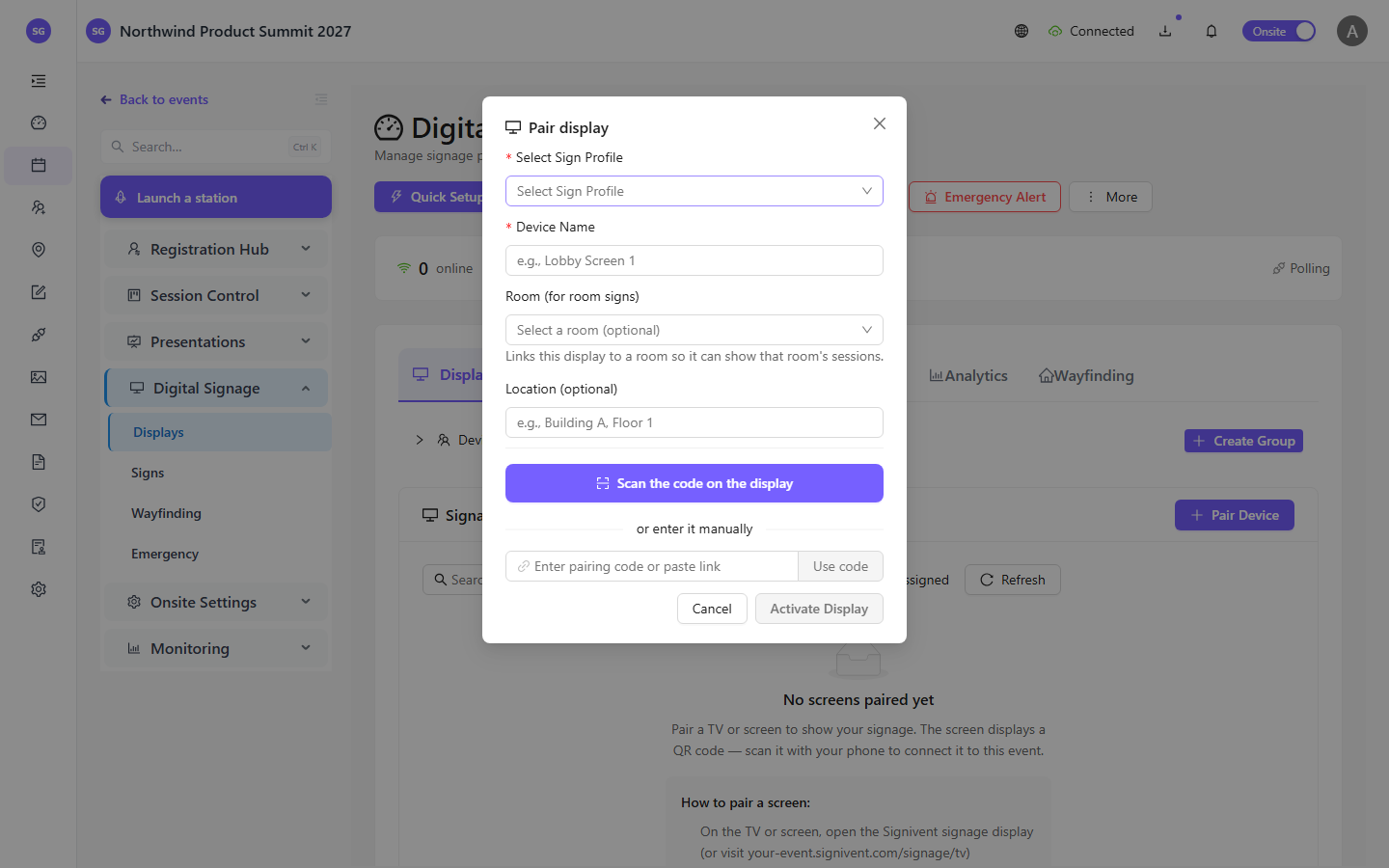
- Select Sign Profile: the sign this screen will run.
- Give it a Device Name, for example "Lobby Screen 1". For a sign outside a meeting room, pick the Room so it shows that room's sessions; add a Location if it helps your crew find it.
- Click Scan the code on the display and point your phone or laptop camera at the QR code, or type the pairing code (or paste the pairing link) and click Use code.
- Click Activate Display. The screen goes live within seconds.
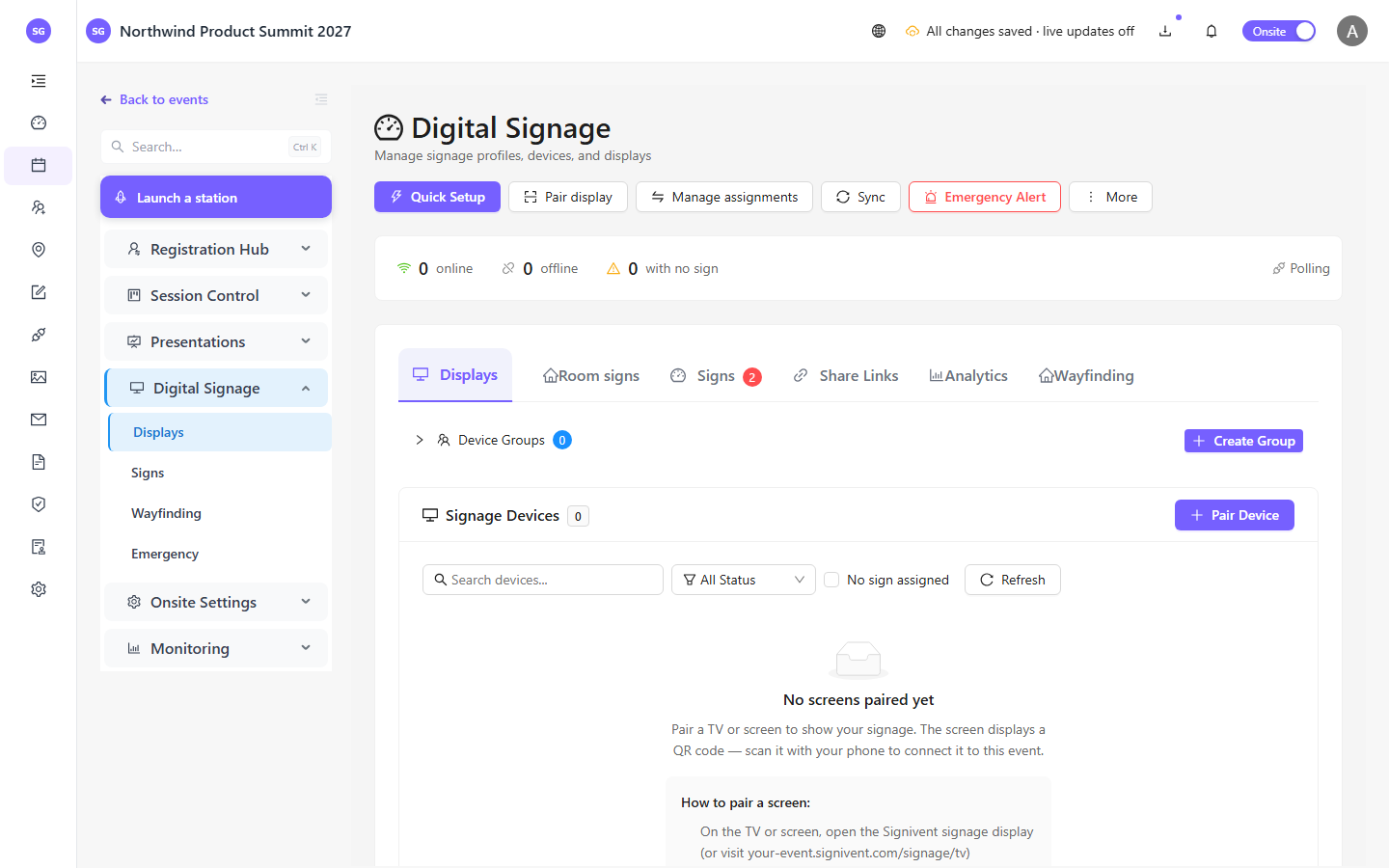
Paired screens are listed under Signage Devices, where you can filter by status, find screens with no sign, and group them (Device Groups > Create Group) to change many at once.
Design what screens show: Signs
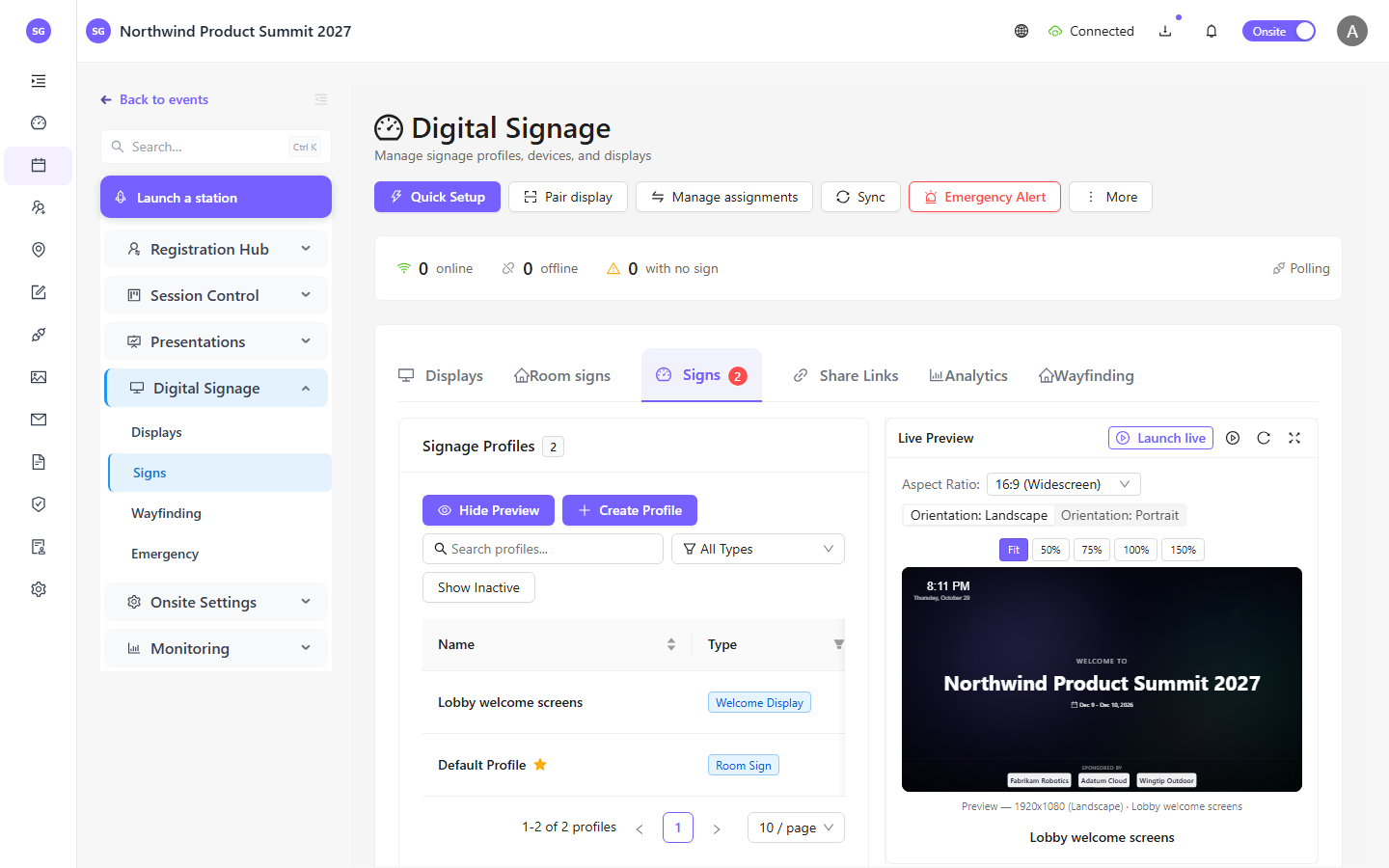
A sign (signage profile) is a design a screen runs: the event logo and name, a welcome message, the current time, rotating content, sponsor logos, announcements and its colors and orientation. One sign can run on many screens.
The Signs tab lists the event's signs (Signage Profiles) with their type, such as a welcome display or a room sign. Click one to edit it, or Create Profile for a new one. The Live Preview beside the list shows what the selected sign looks like, in the aspect ratio and orientation you pick; Launch live opens it full screen. Quick Setup walks you through a first sign and screen in a few steps.
Sponsor breaks
Any sign except a content playlist can cut to sponsor content on a schedule and then go back to the sign, for example "every 10 minutes, show 30 seconds of sponsor ads". Open the sign, expand Sponsor break and turn on Show a sponsor break.
- Set Every (minutes between breaks, 1 to 120) and for (seconds per break, 5 to 600).
- Click Add from media library and pick sponsor images and videos. Set how many seconds each image stays up; a video can Play to end. Use the arrows to change the order.
- Leave Include paid sponsor spots on to add approved paid sponsor spots that are running now after your items.
- Click Preview break to play it in the live preview.
The line under the controls says what will happen, such as "Every 10 minutes this screen shows 30 seconds of sponsor content (3 items), then goes back to the sign." If the items run longer than the break, the break ends on time; if they are shorter, they repeat until it ends.
Background music: click Add music to pick one or more audio files (MP3, WAV, OGG or M4A). They play in order and repeat for the whole break, at the Music volume you set. Music is meant for images and videos with no sound of their own; with Lower the music when a video has its own sound on, the music fades out while an unmuted video plays.
Good to know:
- Every screen breaks at the same clock times (counted from midnight), so screens next to each other break together.
- Breaks play images, videos and direct video links only, not web pages or live streams. The files are downloaded to the screen ahead of time, so a break still plays when the screen goes offline; anything not downloaded yet is skipped, and with nothing to play the screen skips the break.
- An emergency alert always shows over a break.
- Content playlists don't have this option: paid sponsor spots already join their rotation.
- In a plain web browser (not the Signivent app), the browser may block music that starts by itself; the break then plays without music.
Room signs
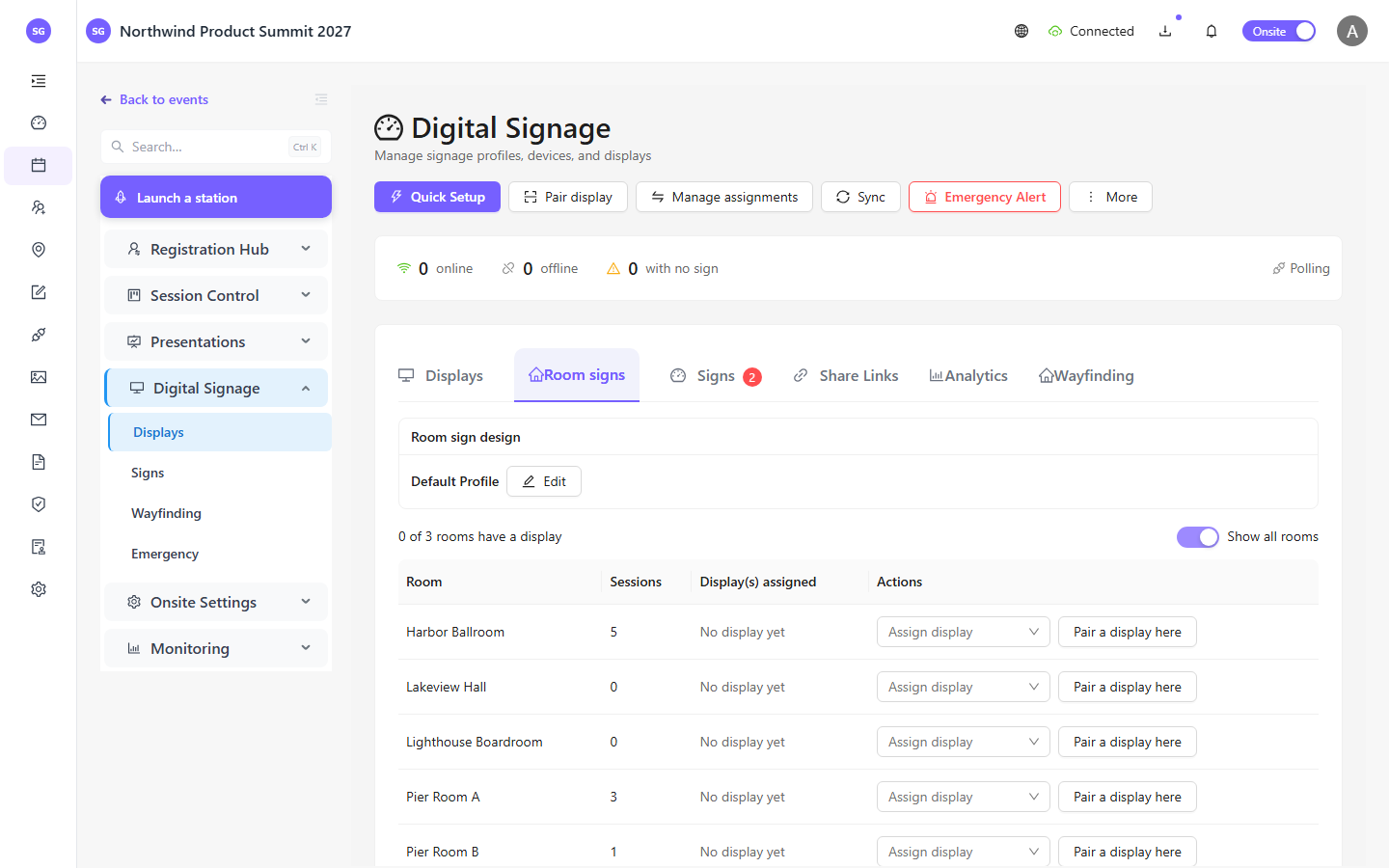
The Room signs tab is the sign outside each meeting room: the room's name and its sessions for the day. Pick the Room sign design all rooms share (Edit opens it). Below, each room lists its sessions and the displays assigned to it; use Pair a display here or Assign display to put a screen on a room. The list shows rooms that have sessions; switch on Show all rooms to see the rest.
Wayfinding
The Wayfinding tab places rooms on your floor plan so signs can light up where each room is. Under Room map placement, select a floor plan, click Place next to each room, drag its marker into position, then Save. Upload floor plans first, and link each plan to a venue floor so the placed rooms appear on signage (see Event venue, rooms and floor plans).
Emergency alerts
Emergency Alert shows an alert on connected screens immediately, over whatever they are showing.
- Click Emergency Alert.
- Pick an Alert Template, or Custom Message, and the Alert Type (its color, for example Warning (Orange)).
- Enter the Alert Title and Alert Message. The Alert Preview shows how it will look.
- Choose Send to: All displays, By room, By display group or Specific displays. Offline screens show the alert when they reconnect, if it is still active.
- Set the Duration (minutes), or leave it Until manually cleared, and send it.
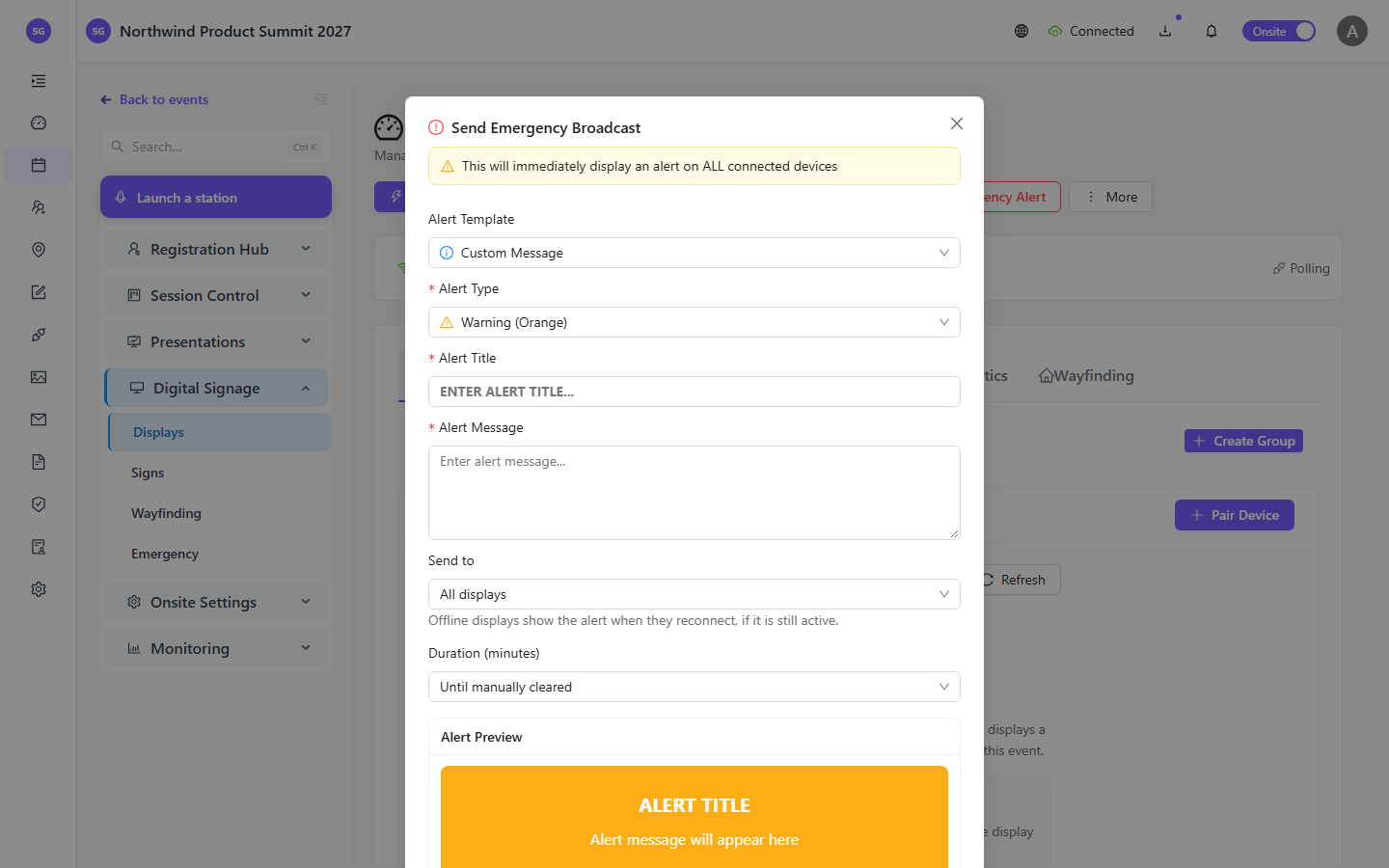
Afterwards the dialog lists any screens that did not receive the alert.
Use it for real emergencies and evacuation notices. For routine announcements, add them to a sign instead.
Also on this page
- Share Links lists links that open a sign in a browser, for a screen you cannot pair: Create Link, then Copy Link, and Revoke it when you are done. A link can expire, have a limited number of uses or need a password.
- Analytics shows each screen's uptime, how often each sign was viewed, errors and sync health.
- Manage assignments sets which sign each screen runs, in one place.
To see every screen alongside the room kiosks during the event, use Monitoring > Room Status; see Onsite equipment and room status.
Troubleshooting
| You see | Why | Fix |
|---|---|---|
| "No screens paired yet" | No screen has been paired | Open the signage display on the TV and pair it |
| A screen counts as with no sign | It is paired but nothing is assigned | Assign a sign in Manage assignments |
| A screen shows old content | It has not synced | Click Sync, or check the screen's network |
| A room has no sign | No display is assigned to the room | Use Pair a display here on the Room signs tab |