Session Control: run sessions, speakers and slides between talks
Watch every session and room from the Session Control Center, check speakers into the ready room, and set the walk-in and housekeeping slides each room shows between talks.
Session Control is where the program team runs the day: which sessions are live, which rooms are ready, which speakers have arrived and what each room shows between talks. Switch the event to Onsite and open Session Control > Control Dashboard.
The Session Control Center
The cards at the top sum up the event: Total Sessions (with how many are active and upcoming), Total Attendees and how full sessions are, Total Revenue, Average Rating, Total Speakers with their uploaded files, and the Next Session. Top Speakers lists who speaks most.
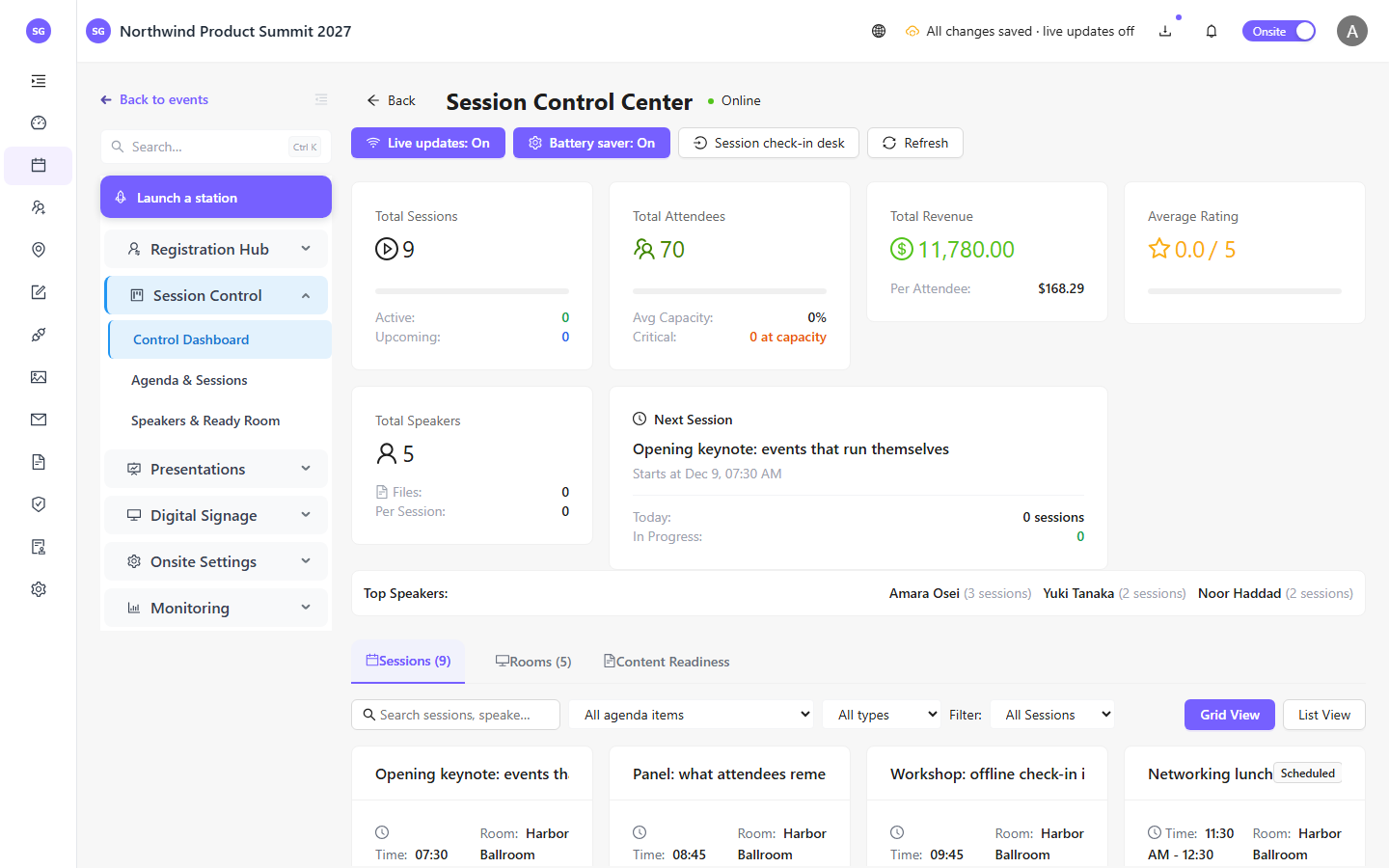
The buttons along the top:
- Live updates keeps the page up to date as things change. Battery saver checks for changes less often while nothing is happening, to save battery and data on a tablet running all day; turn it off to always check at full speed.
- Session check-in desk opens the staffed desk for checking people into a session (see Registration Hub).
- Refresh reloads now.
If the device is offline, the page keeps working from its local copy and says so; Sync now catches it up once the connection is back.
Sessions, rooms and content readiness
The Sessions tab shows every session as a card with its time, room, status and speakers. Search by session, speaker or room, narrow the list by agenda item, session type or status (Live, Paused, Starting Now), and switch between Grid View and List View. Each card links to its Registered attendees and its Check-in desk.
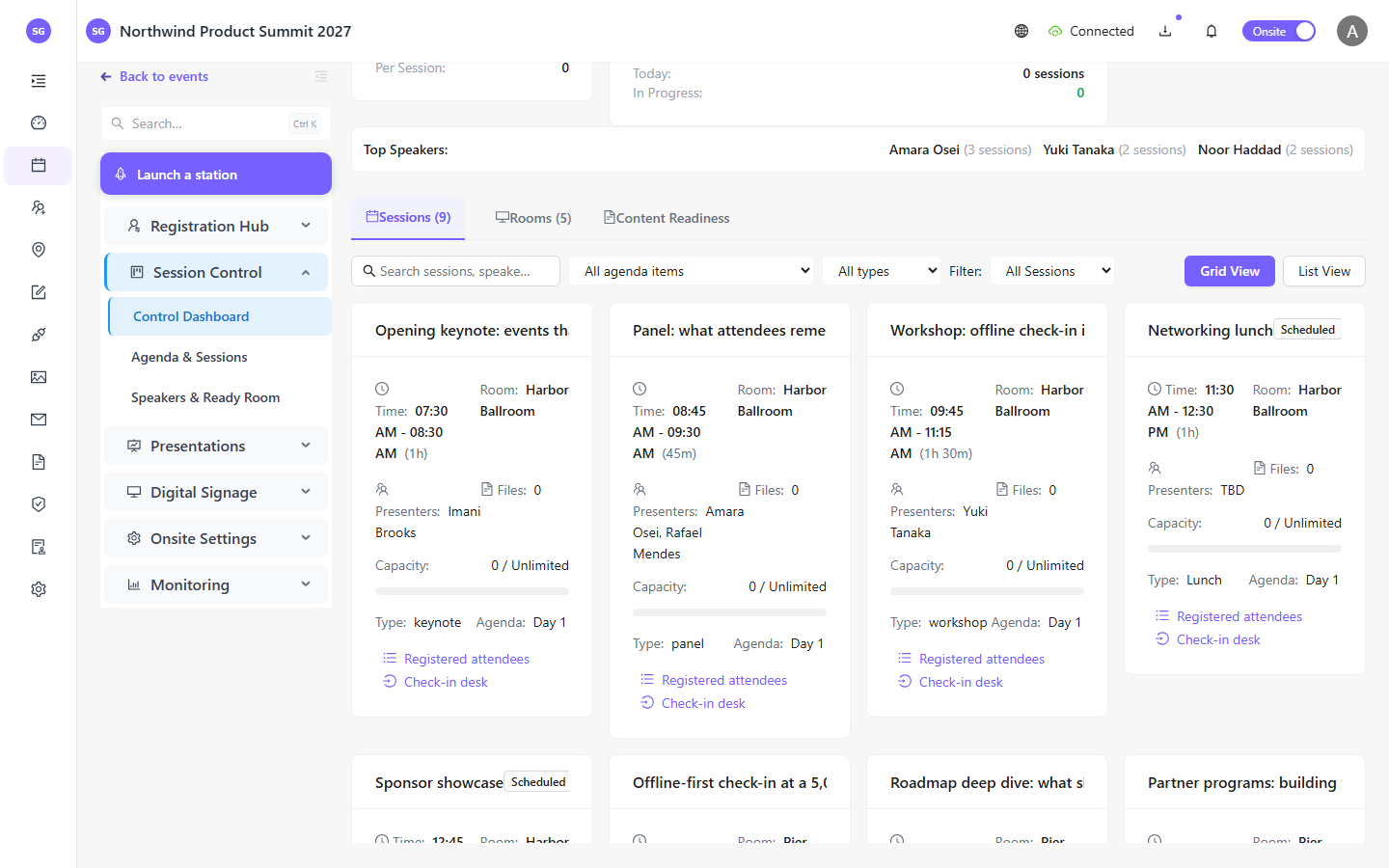
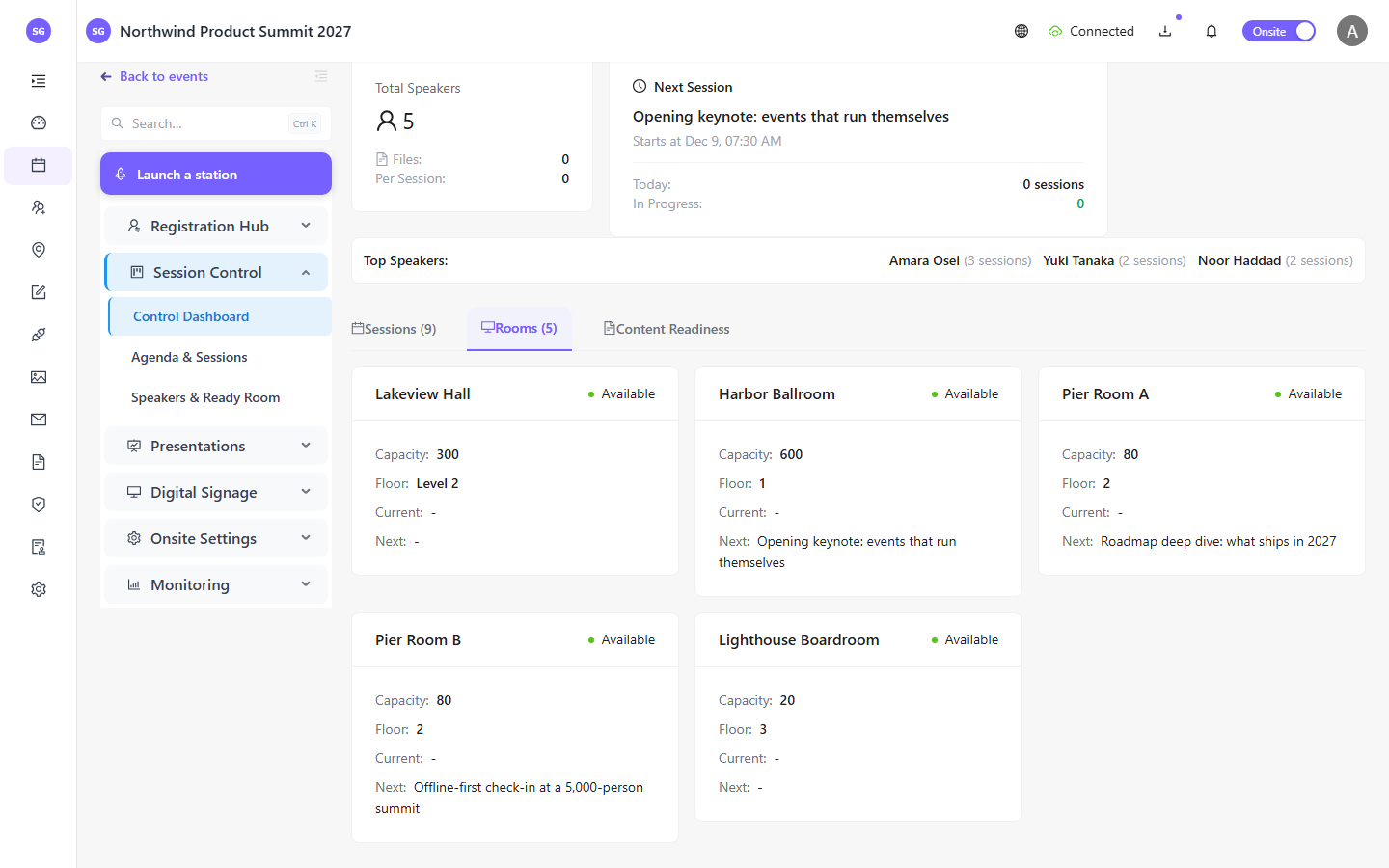
The Rooms tab shows each room with its capacity and floor, whether it is available, and the session on now and next.
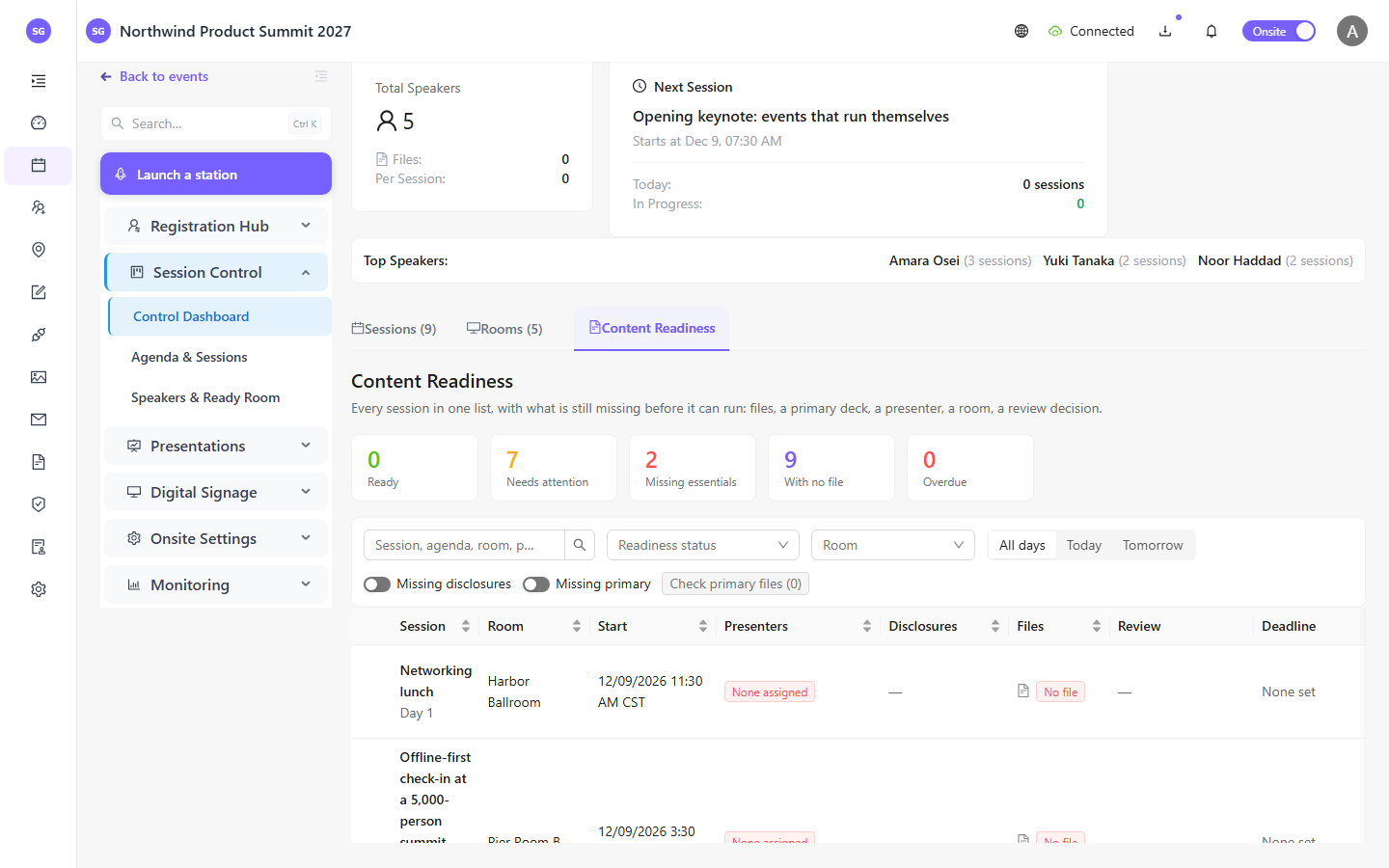
Content Readiness lists every session with what is still missing before it can run: files, a primary deck, a presenter, a room or a review decision. The counts at the top show how many sessions are Ready, Needs attention, are Missing essentials, have no file or are Overdue. You can narrow the list by readiness status, room or day, or to sessions with Missing disclosures or a Missing primary file.
Sessions themselves are created and edited in Session Control > Agenda & Sessions; see Agenda, sessions and tracks.
Speakers and the ready room
Session Control > Speakers & Ready Room lists every speaker with their contact details, sessions, status, ready-room visits and whether they have checked in. Click Check in on a speaker's row when they arrive, or tick several and use Check in selected.
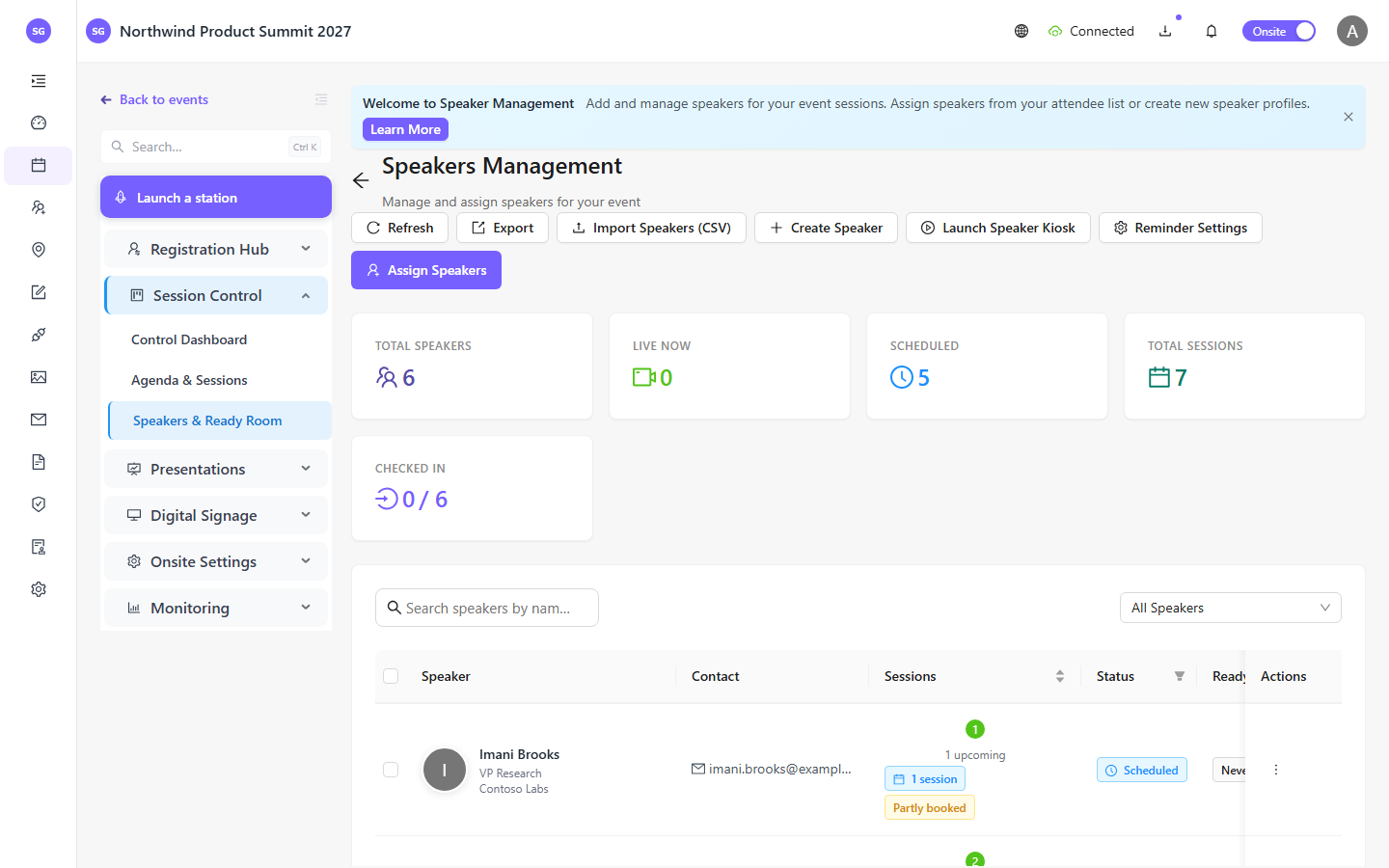
From the top of the page you can also Import Speakers (CSV), Create Speaker, Assign Speakers to sessions, Export the list and Launch Speaker Kiosk, the self-service ready-room station (see Kiosks and stations). Reminder Settings controls the reminders speakers get about their sessions and uploads. Managing speaker profiles in depth is covered in Speakers at your event.
Slides between talks
Presentations > Slides between talks holds the walk-in and housekeeping slides each room shows before and between sessions: announcements, a sponsor loop, Wi-Fi details.
- Click Upload a walk-in or between-talks slide and drop in a slide, deck, image or video: PDF, PPT, PPTX, images and videos up to 2.5 GB.
- Assign it to every agenda block, or pick blocks by room or time, and choose how many minutes before each session it starts showing.
- The presenter kiosk in each room downloads it ahead of time and shows it before and between talks.
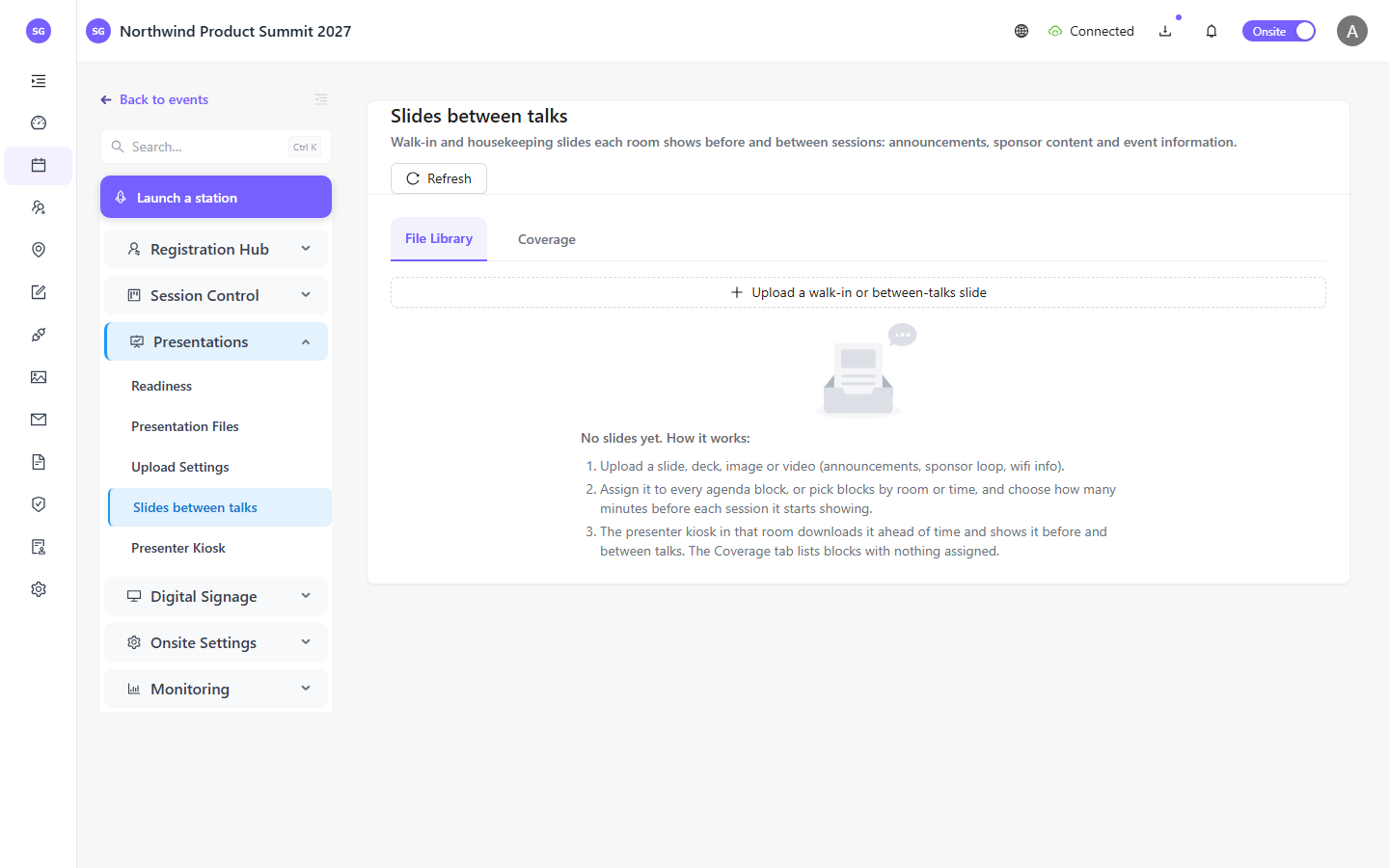
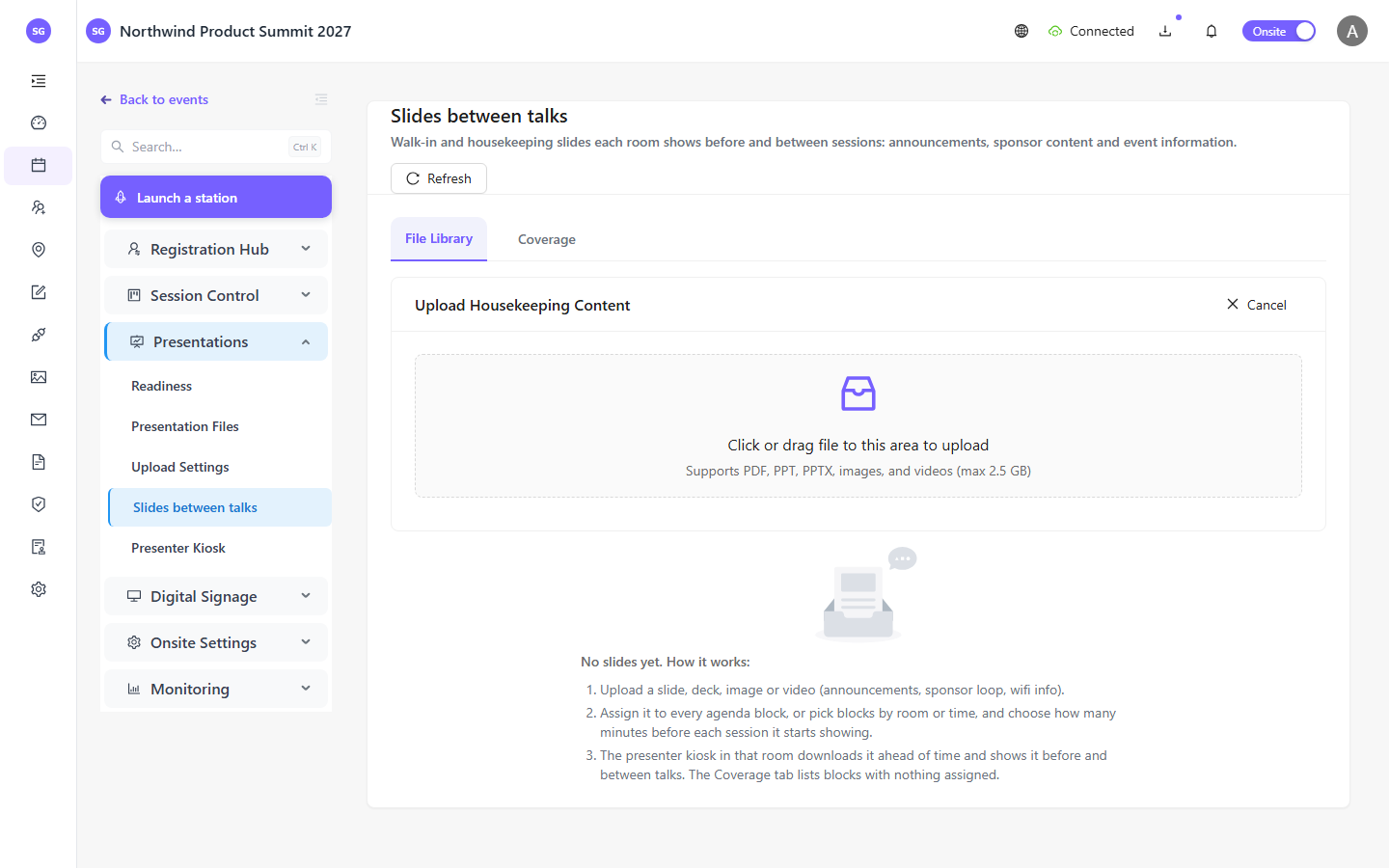
The Coverage tab lists agenda blocks with nothing assigned, so no room ends up with a blank screen.
Troubleshooting
| You see | Why | Fix |
|---|---|---|
| "Local copy not synced" | This device's offline copy is behind | Click Sync now |
| A session card says Room: TBD | The session has no room yet | Set its room in Agenda & Sessions |
| Content Readiness shows a session as missing files | Its speakers have not uploaded | Remind them, or upload for them from the speaker kiosk with the technician code |
| A room shows nothing between talks | No slide covers that block | Check Coverage and assign a file |