Registration Hub: the onsite desk, check-in and Quick Sale
Run the registration desk on the day from the Registration Dashboard, check people in from the Attendee Hub, sell add-ons at the Quick Sale desk and check people into individual sessions.
Switch the event to Onsite (the toggle at the top right) and open Registration Hub > Registration Dashboard. This is the registration desk's home page on the day: who has arrived, who is still to come, and one click to everything the desk does.
The Registration Dashboard
The four gauges at the top count Checked In, Remaining (registered, not here yet), Check Out and Registered. The tabs above them split the numbers into In Person and Virtual attendees, and Live shows when the numbers last refreshed.
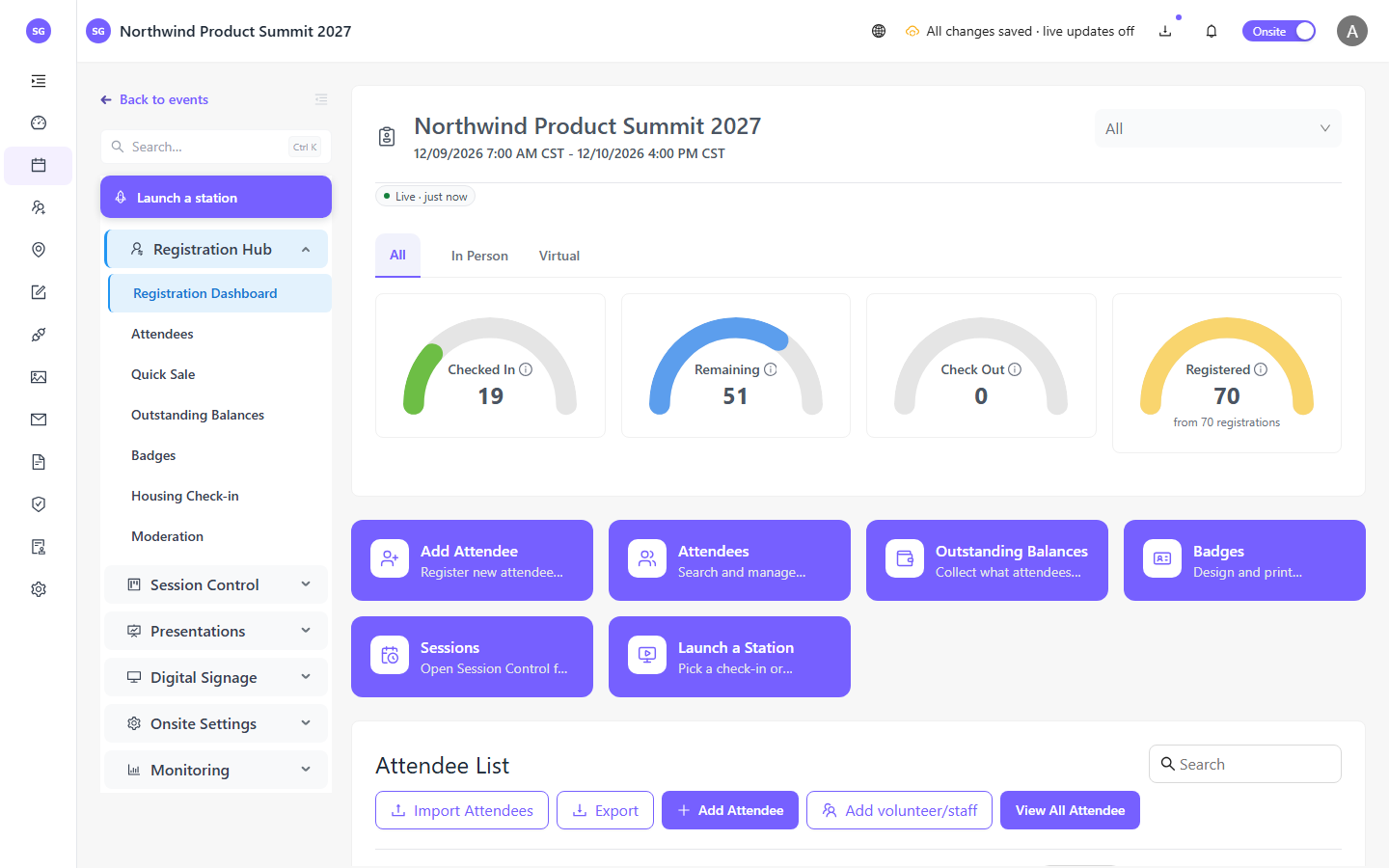
The tiles below are the desk's shortcuts:
| Tile | Opens |
|---|---|
| Add Attendee | The Add Attendee panel in the Attendee Hub, for a walk-in or a phone booking |
| Attendees | The Attendee Hub, to find and check in anyone |
| Outstanding Balances | Everyone who still owes money (see Outstanding balances and CE credits) |
| Badges | Badge designs and printing (see Badge printing and printers) |
| Sessions | Session Control (see Session Control) |
| Launch a Station | The station launcher, to turn this device into a check-in kiosk or another station (see Kiosks and stations) |
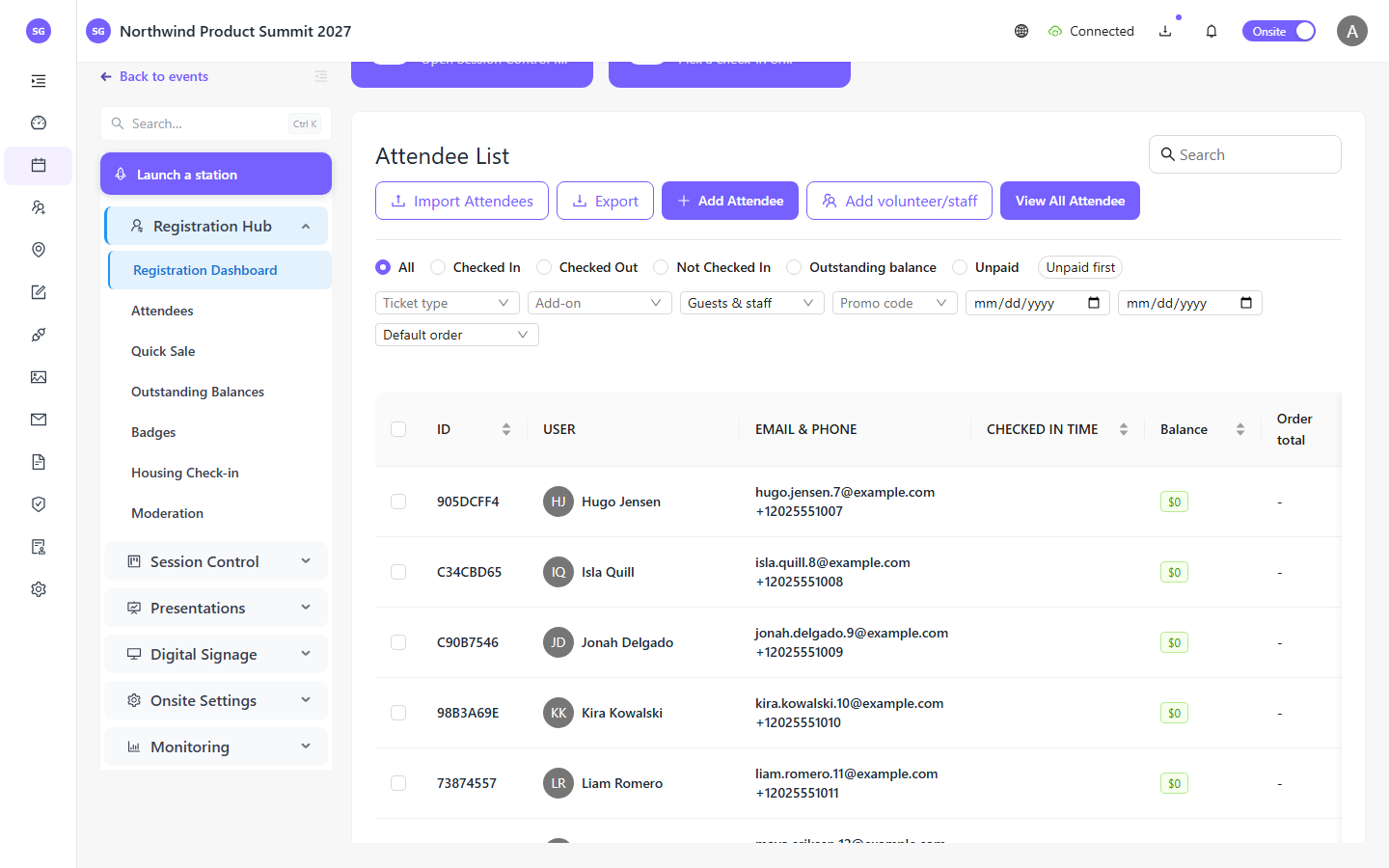
Further down, the Attendee List shows everyone with their check-in time, balance, order total and the station that checked them in, with a Check In button on each row. Import Attendees, Export, Add Attendee and Add volunteer/staff sit above it.
Check people in
There are two ways to check someone in:
- At the desk: find the person in the Attendee Hub (or the dashboard's Attendee List) and click Check In on their row. Someone with a balance due cannot be checked in until it is paid, discounted or waived. Use the Checked in and Not checked in quick filters to see who has arrived.
- At a kiosk: attendees check themselves in by scanning their QR code or searching for their name. Set one up from Launch a station; see Kiosks and stations.
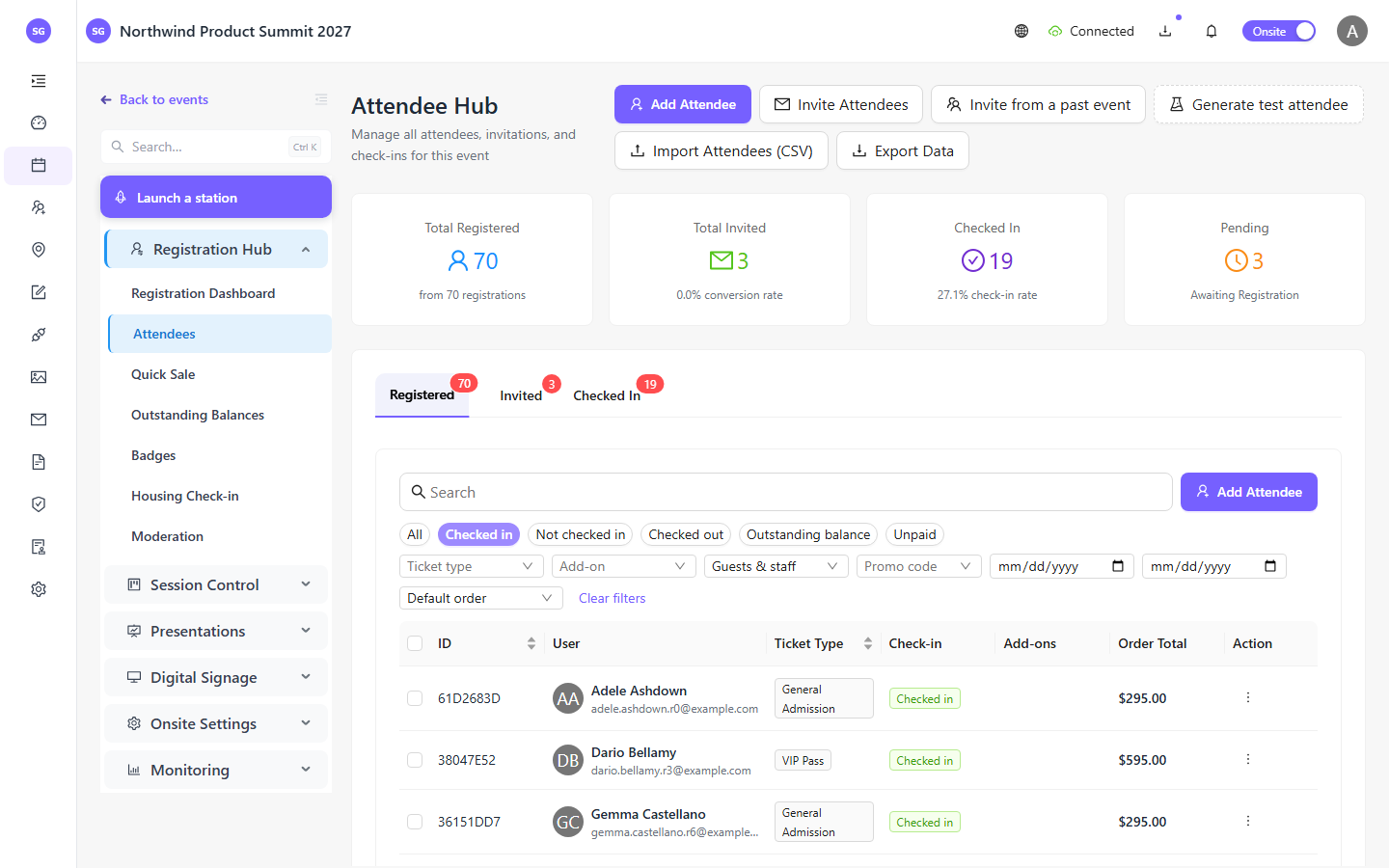
Walk-ins are registered the same way as any other new attendee: click Add Attendee, fill in the person and their ticket, and tick Check this person in now (and Print badge immediately at a desk with a printer). The steps are in Attendees, invitations and event communications.
Note: Older bookmarks to the Check-In Desk, Walk-In Registration and Add New Attendee pages still work: they open the Attendee Hub (and its Add Attendee panel). Registration statistics moved to Reports > Attendance; see Reports.
Sell add-ons at the Quick Sale desk
Registration Hub > Quick Sale sells add-ons such as merchandise, meals or parking to anyone at the desk, without registering them.
- First make the item sellable: in Tickets > Optional Items, edit the item and switch on Sell at Quick Sale (see Tickets and promo codes). Set the tax rate in Tickets > Settings; the page shows it at the top.
- Open Quick Sale. Each item shows its price and how many are left.
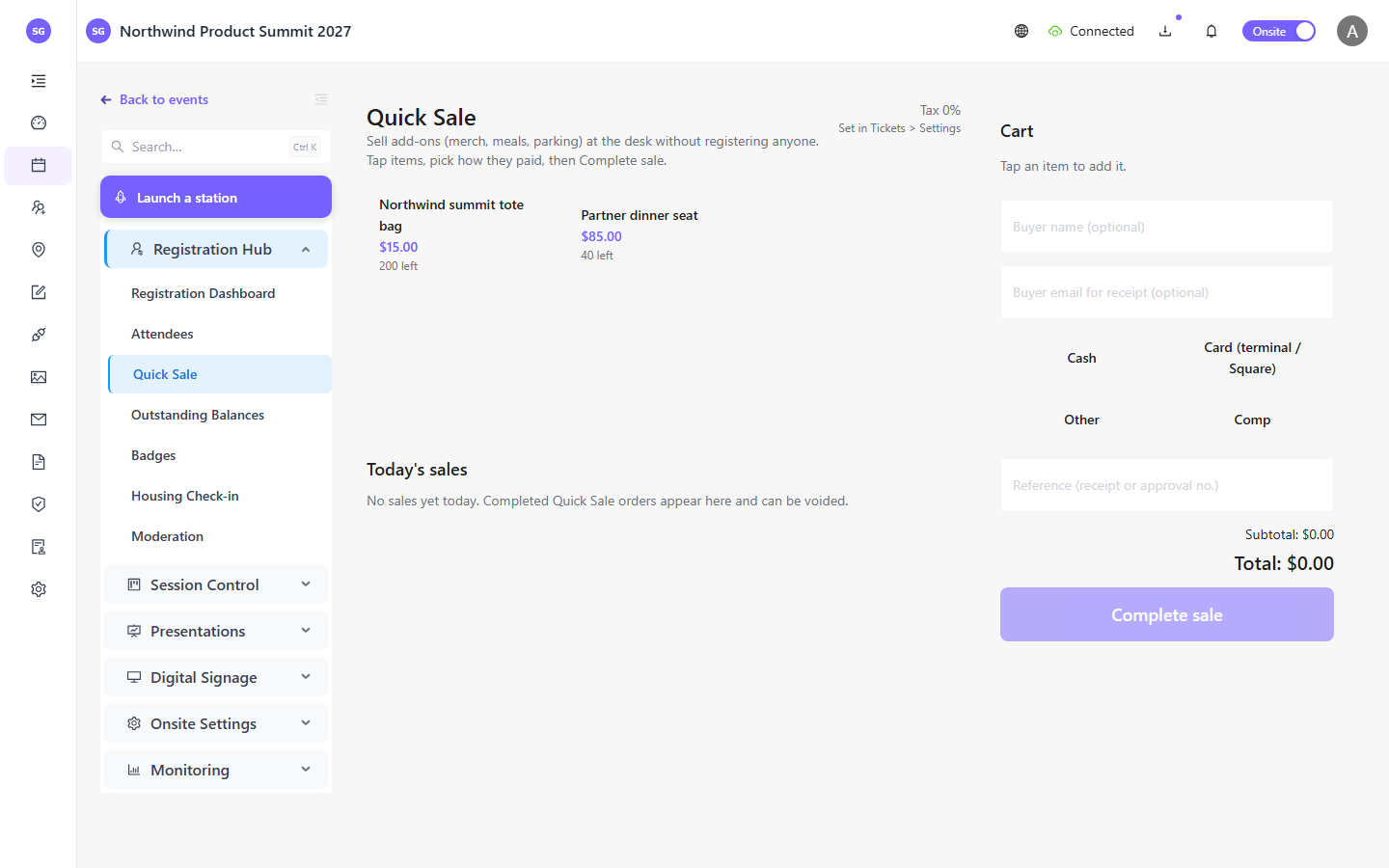
- Click an item to add it to the Cart; click again for more, or use the minus and plus buttons.
- Optionally enter the Buyer name and a Buyer email for receipt.
- Pick how they paid: Cash, Card (terminal / Square), Other or Comp, and add a Reference (receipt or approval number) if you have one.
- Check the Total and click Complete sale.
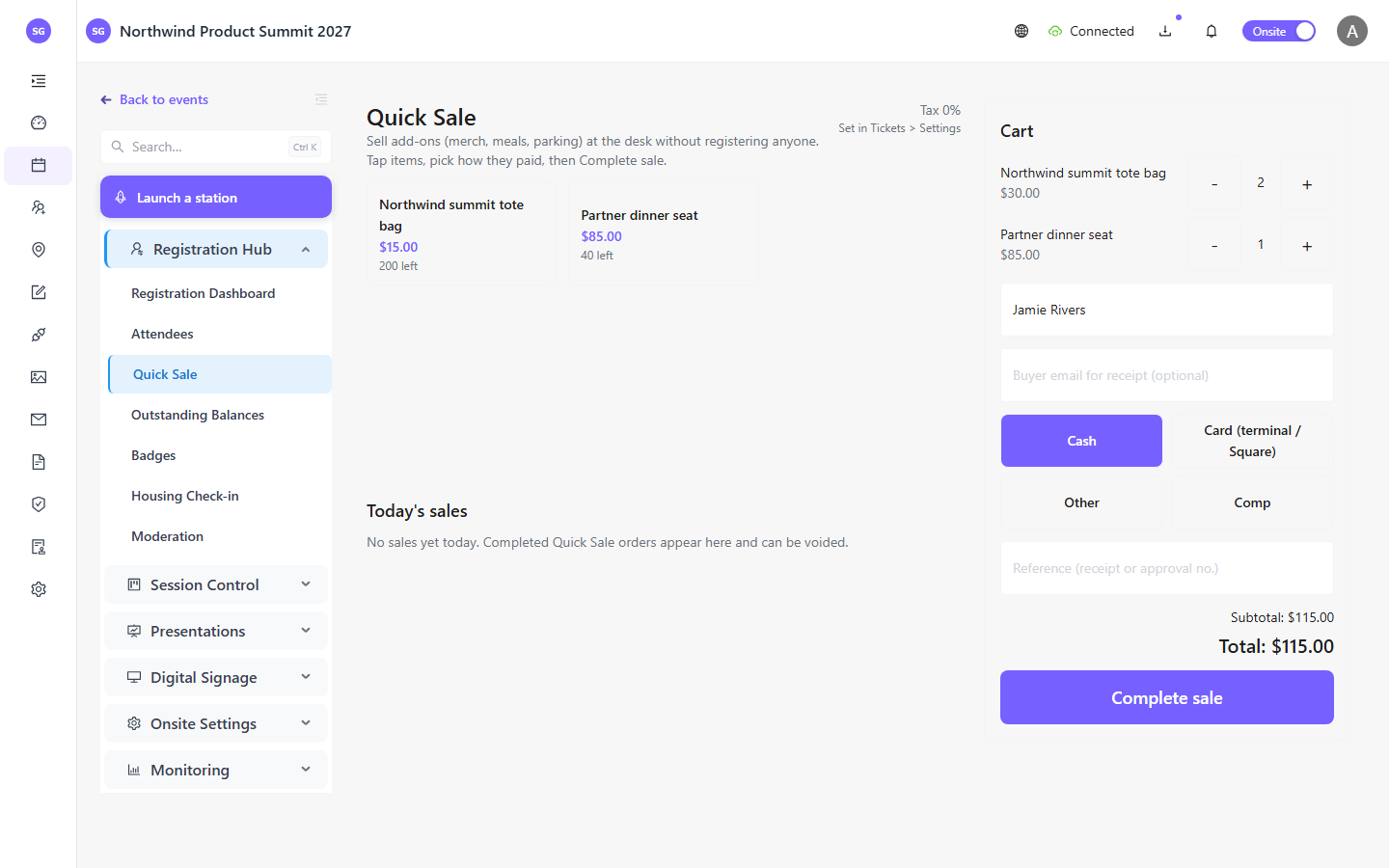
Quick Sale records the payment; it does not charge a card. Take card payments on your own terminal and record them here. Completed orders appear under Today's sales, where you can void one. A sale made while the device is offline is kept on the device and syncs when it reconnects.
Check people into a session
To count attendance at one session (for CE credits or capacity), use the staffed session check-in desk:
- Open Session Control and click Session check-in desk, or Check-in desk on a session's card.
- Choose the agenda item or session at the top.
- Search by email, name or ID, or click Scan QR to scan badges with the device's camera.
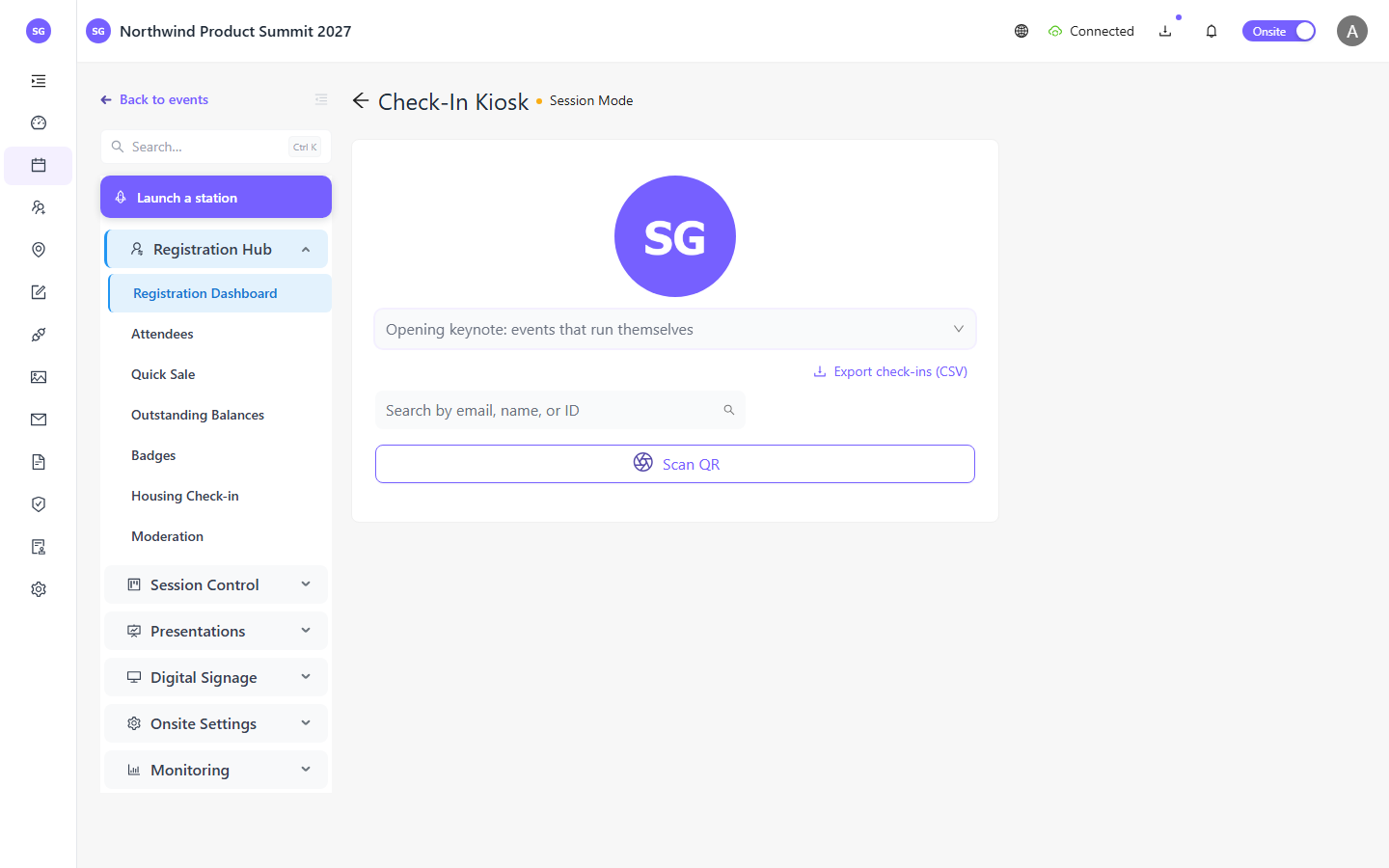
Export check-ins (CSV) downloads the session's check-ins. For a self-service version at the door, launch an Agenda Check-in Kiosk from Stations.
Troubleshooting
| You see | Why | Fix |
|---|---|---|
| Check-in stops with "Balance due" | The person still owes money on their registration | Record the payment, discount or waive the balance from their record, then check them in |
| "No items are set up for Quick Sale" | No add-on has Sell at Quick Sale switched on | Edit the item in Tickets > Optional Items and switch it on |
| Tax shows 0% | No Quick Sale tax rate is set | Set it in Tickets > Settings |
| The gauges do not move | The device is offline, or live updates are paused | Check the connection at the top of the page; the numbers catch up when it reconnects |
| A session is missing from the desk's list | It is not on the published agenda | Add it in Agenda & Sessions |