Attendees, invitations and event communications
Find and filter everyone in the Attendee Hub, add, import or invite people, open one person's record, link invitation lists and see the event's email and text activity at a glance.
People > Attendee Hub is the list of everyone in the event: registered, invited and checked in. From here you add people yourself, invite them, import them, and open anyone's record.
Find people
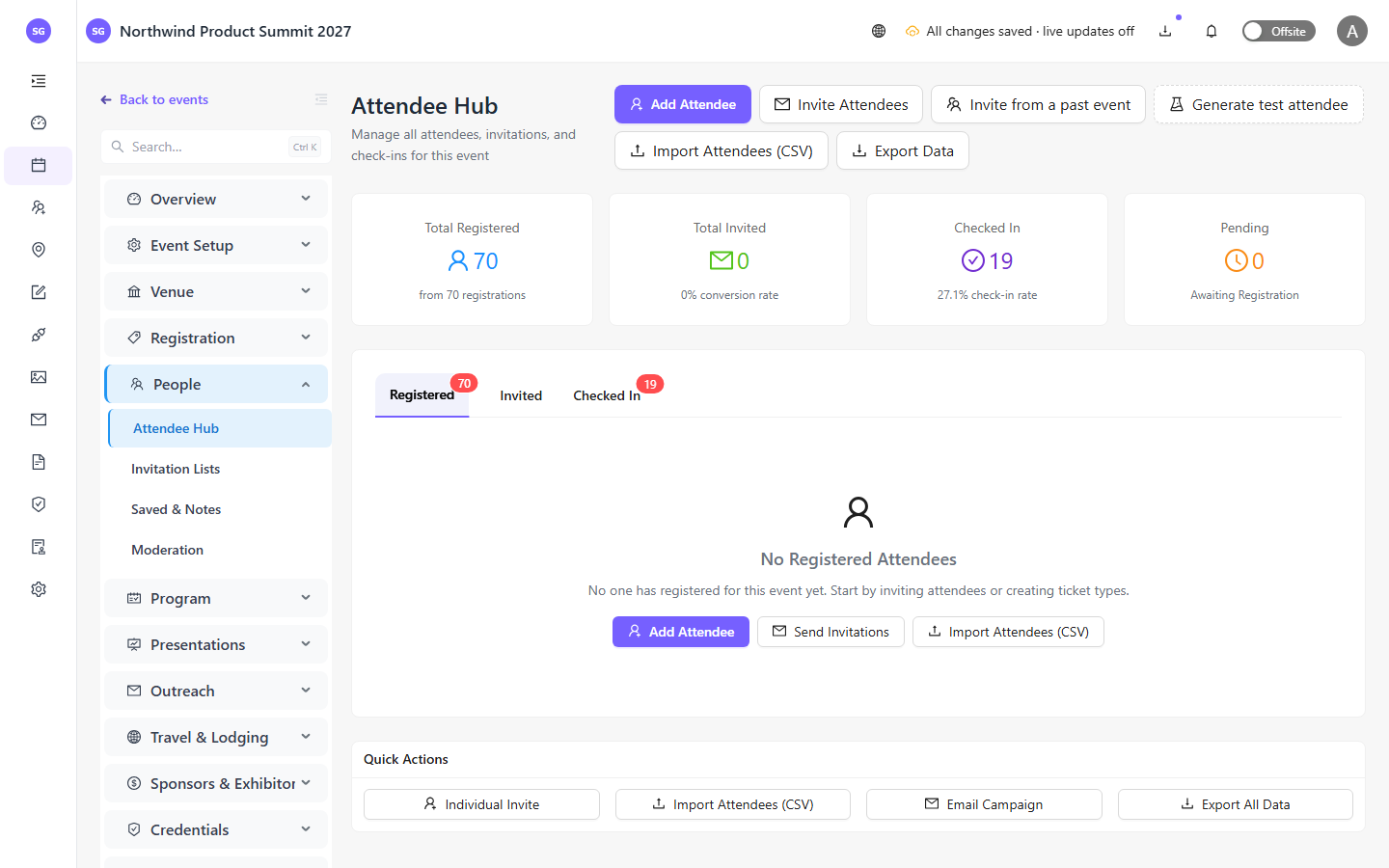
The four numbers at the top are Total Registered, Total Invited (with the share who went on to register), Checked In and Pending (invited, not registered yet). The tabs below split the list into Registered, Invited and Checked In.
- Type a name, email or registration ID in Search.
- The quick filters narrow the list to Checked in, Not checked in, Checked out, Outstanding balance or Unpaid.
- The dropdowns filter by Ticket type, Add-on, Guests & staff and Promo code, and the two dates by registration date.
- Tick rows to act on several people at once (for example change their ticket or record a payment) from the bar that appears.
Each row's three-dot menu opens the person's record and the actions for them.
Add someone yourself
Use this for a phone booking, a comp, or someone paying at the desk.
- Click Add Attendee.
- Enter the First Name, Last Name and Email, and optionally the phone and company.
- Pick the Ticket Type (see Tickets and promo codes) and the Payment Method (credit card, cash, check or complimentary). The order summary shows the price. Enter a Promo Code and click Apply if they have one, and set the Quantity (seats).
- Answer any custom questions, under Additional Information (see Registration forms and custom forms).
- Tick what should happen now: Check this person in now, Send confirmation email, Print badge immediately.
- Click Complete Registration.
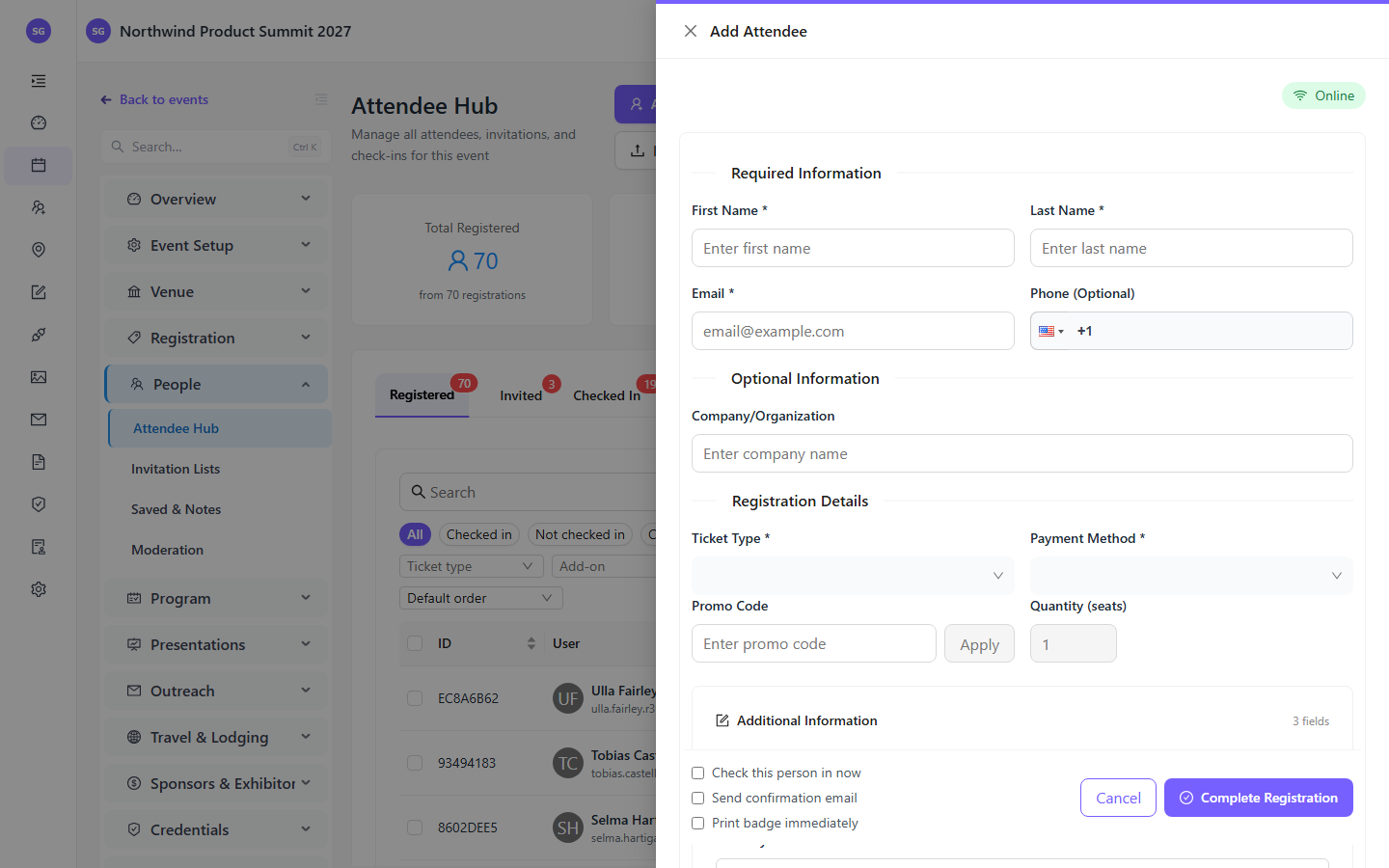
If you record less than the full price, the rest stays as a balance due on their registration (see Outstanding balances and CE credits). Send confirmation email is off by default, so nobody is emailed unless you tick it.
To bring in many people at once, click Import Attendees (CSV). Invite from a past event invites people who attended another of your events. Export Data downloads the list.
Invite people to register
Invite Attendees emails people an invitation to register.
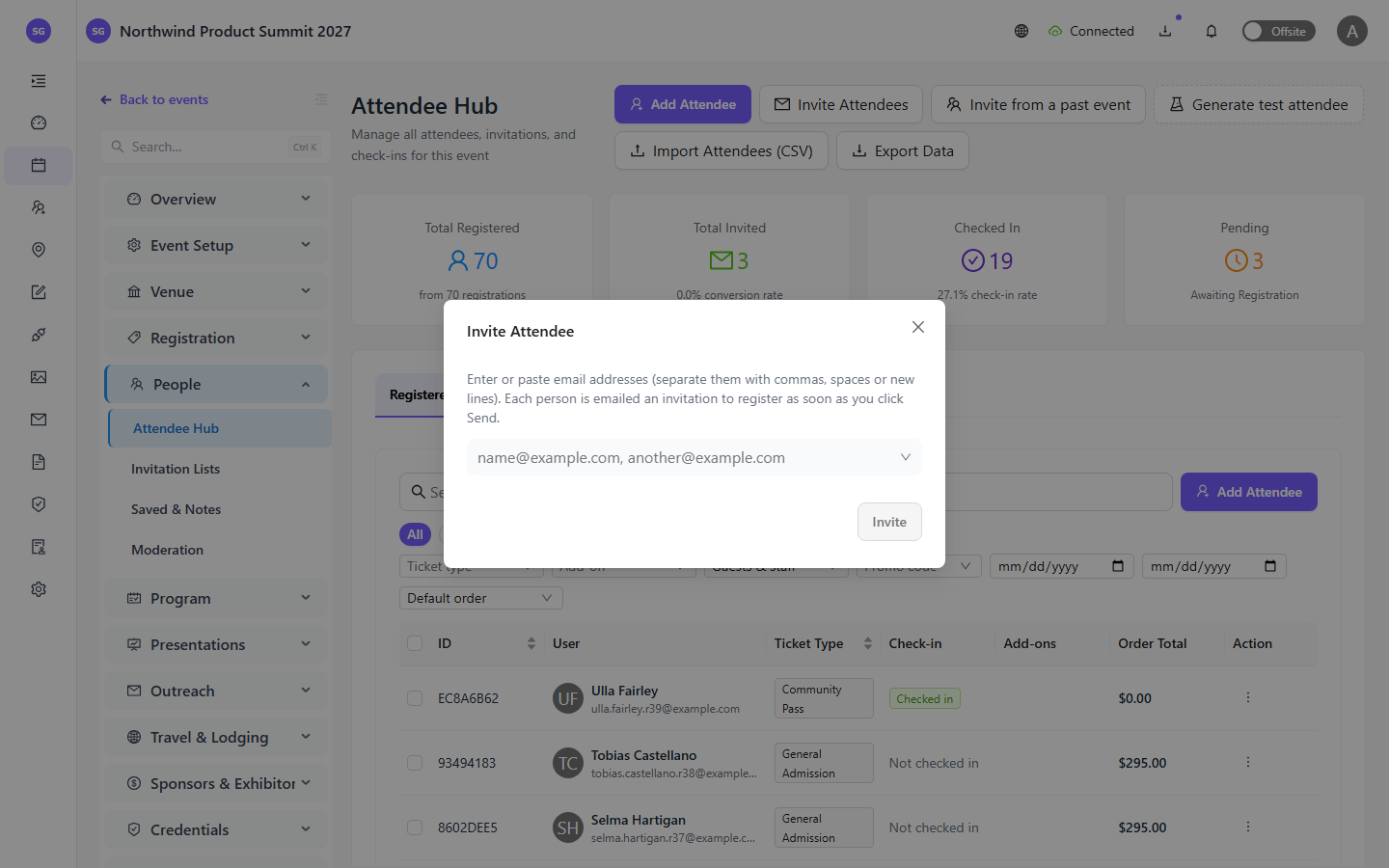
- Click Invite Attendees.
- Enter or paste the email addresses, separated by commas, spaces or new lines.
- Click Invite. Each person is emailed straight away.
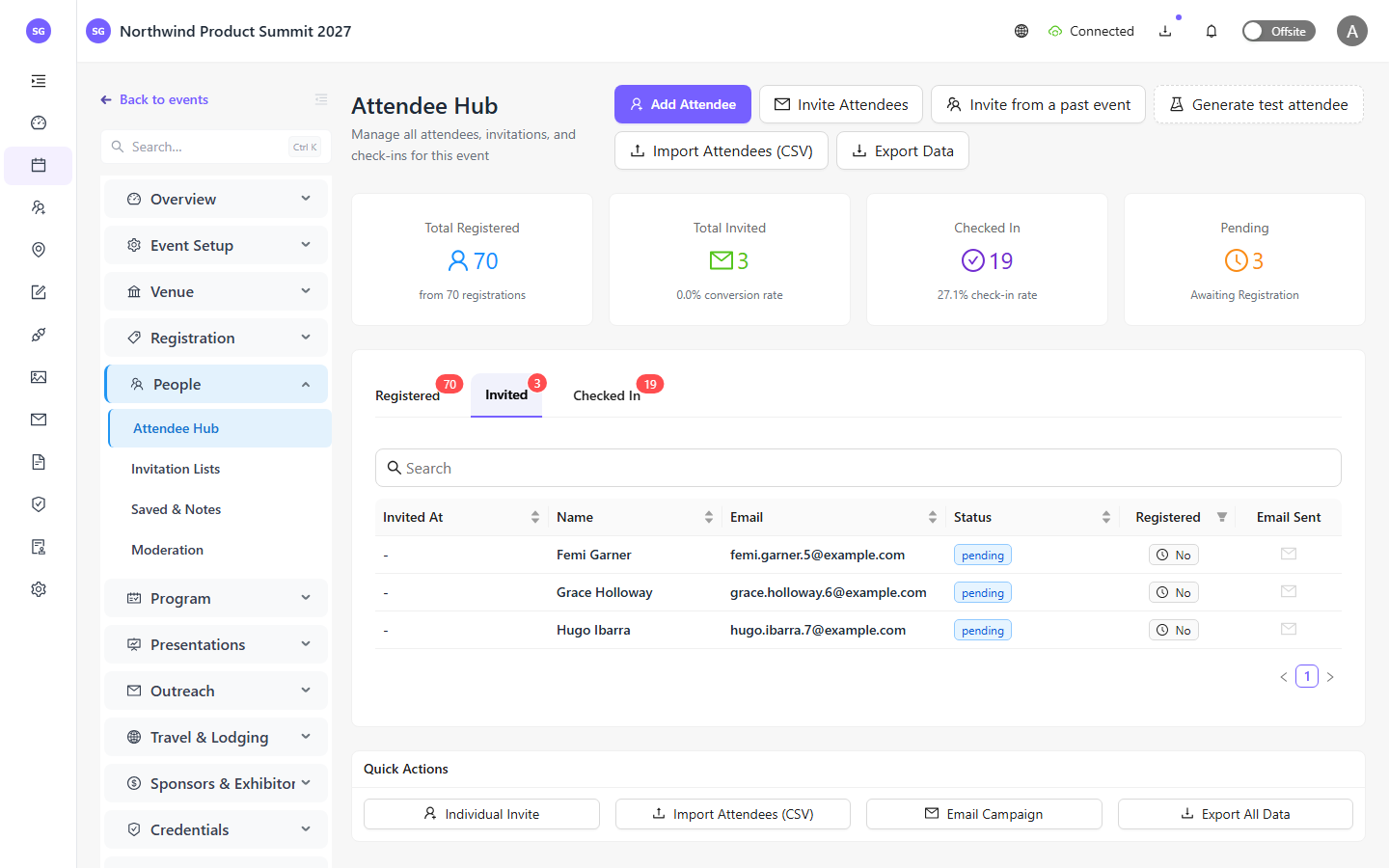
The Invited tab shows each invitation: when it was sent, the person, whether they have registered, and whether the email went out.
One person's record
The Attendee List page is the same list with each person's email, phone, check-in time, balance and order total side by side, and an Unpaid first sort.
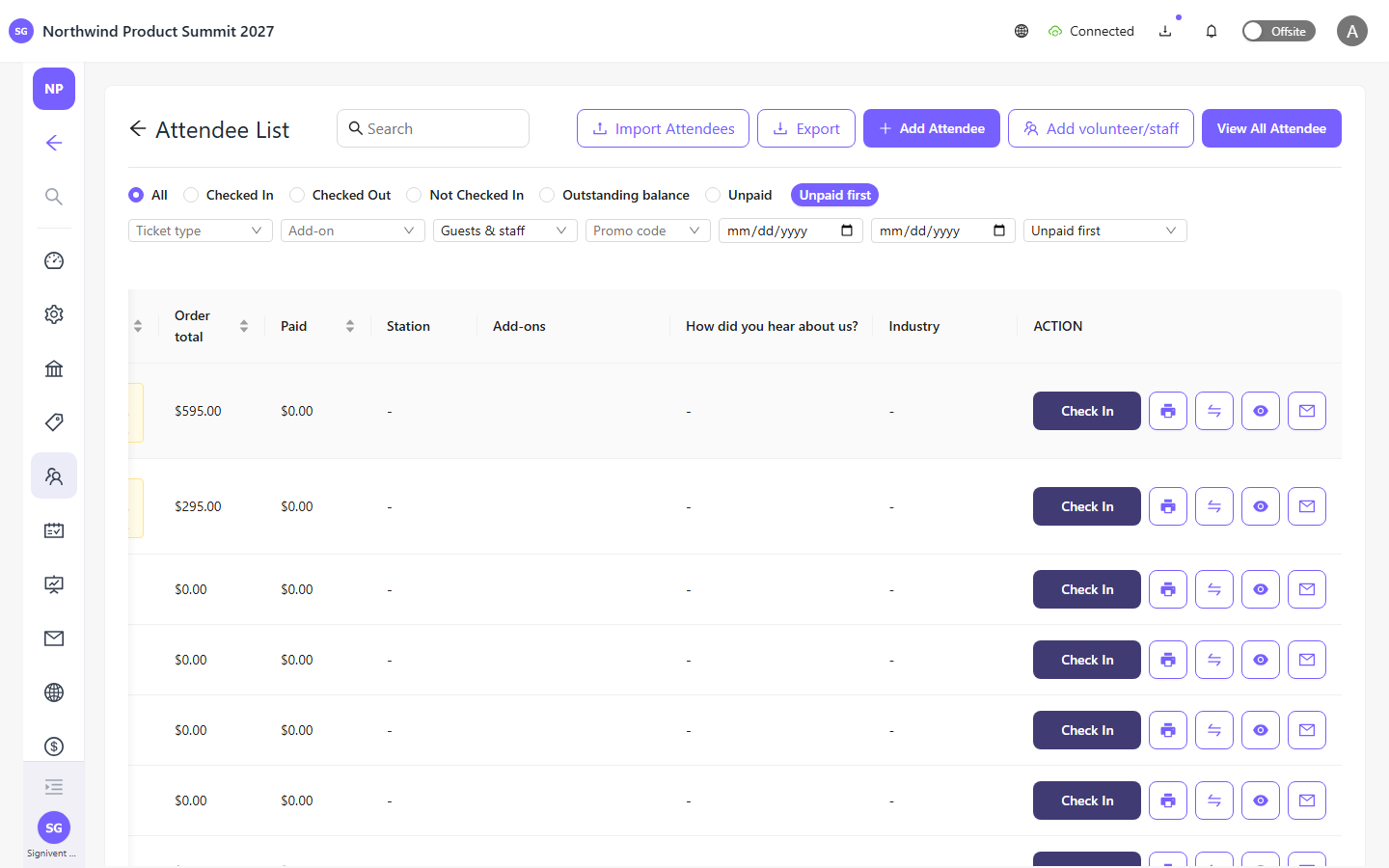
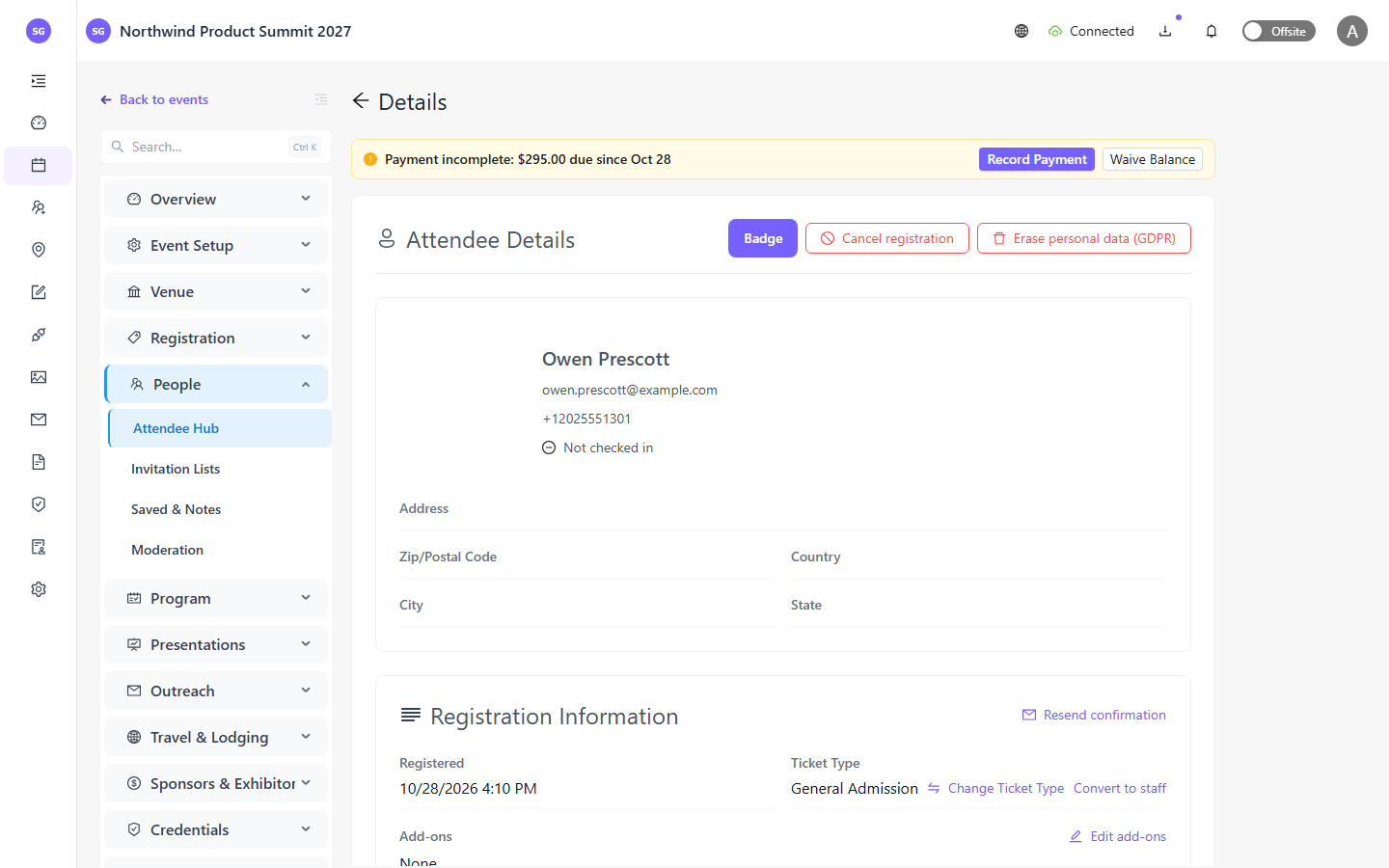
Click the eye button in a person's row to open their record. A yellow bar at the top shows any balance due, with Record Payment and Waive Balance. Below are their details and check-in state, Badge, Cancel registration and Erase personal data (GDPR), then Registration Information: when they registered, their ticket (Change Ticket Type, Convert to staff), add-ons (Edit add-ons) and Resend confirmation.
Invitation lists
Invitation lists are lists of people you keep at organization level, for example everyone at last year's partner dinner. People > Invitation Lists links a list to this event: click Link a List, then Link on the list's row, and Sync All adds its people to the event as invitees. Building lists and linking them step by step are covered in Invitation lists.
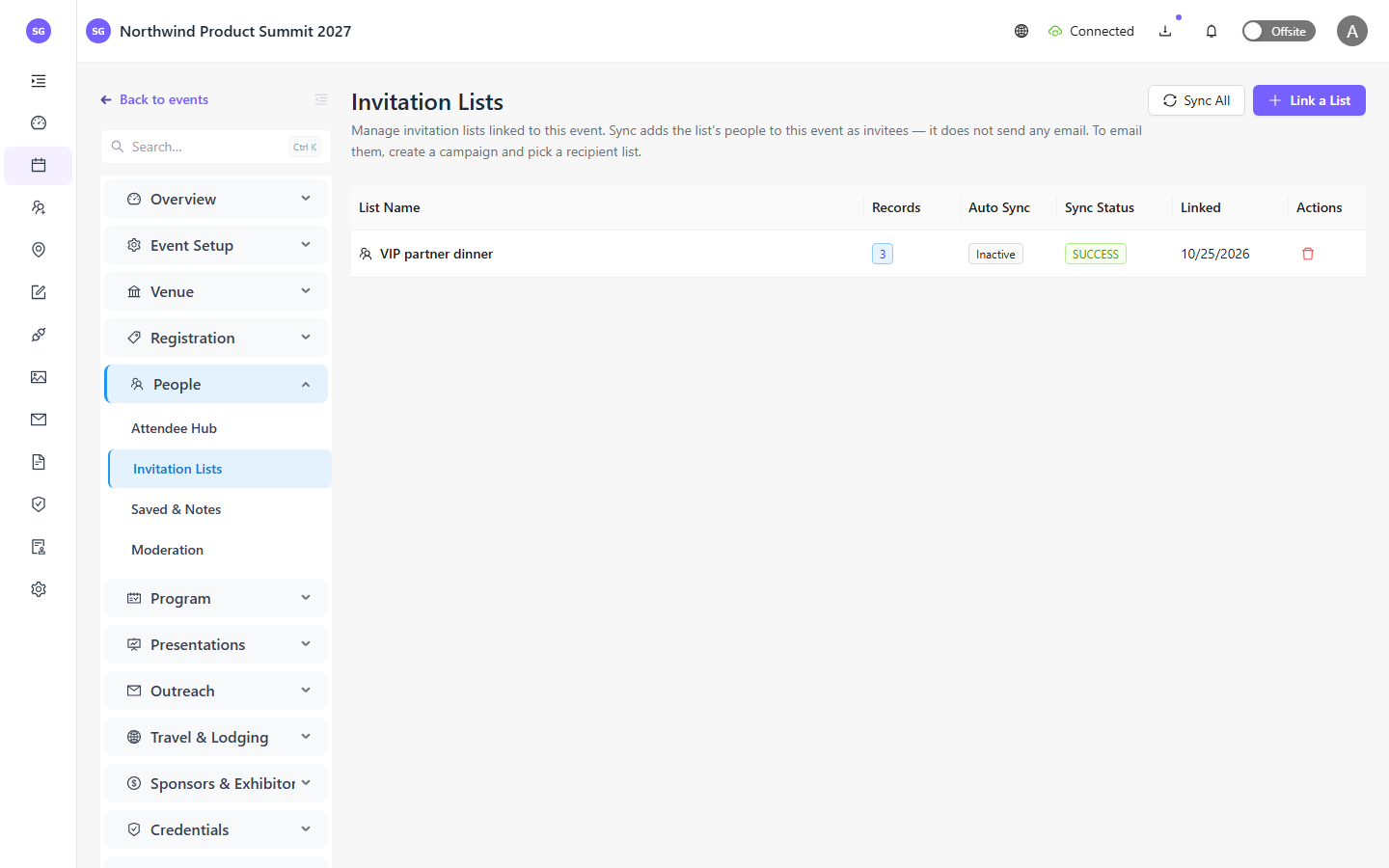
Syncing does not send any email. To email the people on a list, create a campaign and pick the list as its recipients; see Event emails: campaigns, system emails and the timeline.
Communications at a glance
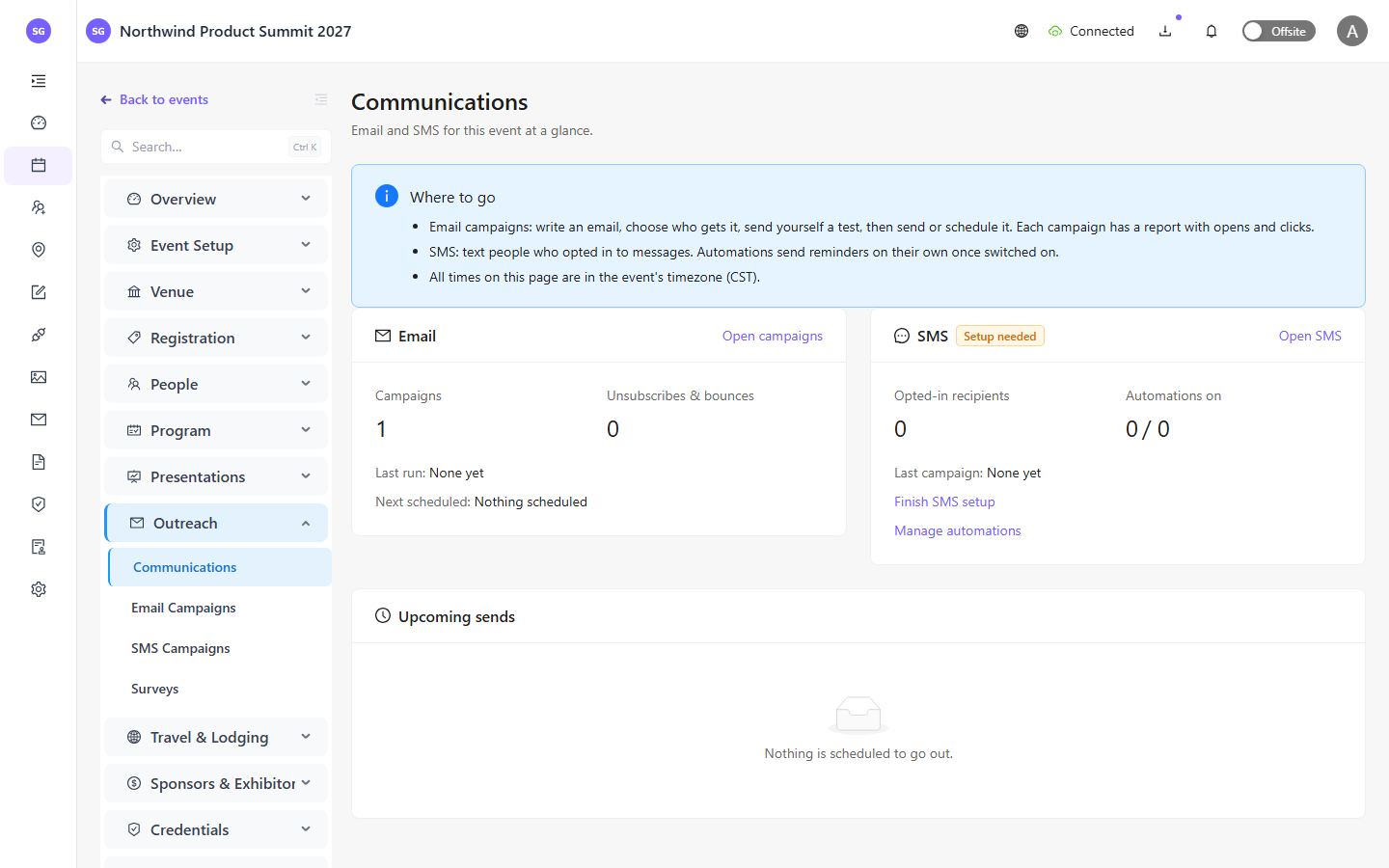
Outreach > Communications summarizes the event's email and text messages: how many email campaigns, unsubscribes and bounces, the last and next send; how many people opted in to texts and how many reminder automations are on; and everything scheduled to go out. Open campaigns and Open SMS take you to the full pages.
See Event emails: campaigns, system emails and the timeline and Text messages from an event.
Troubleshooting
| You see | Why | Fix |
|---|---|---|
| Someone you added did not get a confirmation | Send confirmation email was not ticked | Open their record and click Resend confirmation |
| Pending stays high | Invitees have not registered | Send a reminder campaign to the Invited group |
| A linked list's people are not in Invited | The list has not synced yet | Click Sync All, or switch on Auto Sync |
| A person shows a balance | They paid less than the ticket price | Record the rest from their record or from Outstanding Balances |