Event emails: campaigns, system emails and the timeline
See every email an event sends on one timeline, switch automatic emails on or off, edit one just for this event, and write, test and send campaigns.
Outreach > Email Campaigns is where you see and control every email an event sends. Most emails go out on their own (confirmations, reminders, thank-you notes); campaigns are the ones you write and send yourself.
| Tab | What it is for |
|---|---|
| Timeline | Every automatic and scheduled email in the order guests get it, with who gets it and when |
| Campaigns | One-off emails you write and send to a recipient list |
| System emails | The automatic emails, grouped by topic, each switched on or off |
| Analytics | Sends, opens and clicks across the event's emails |
| Sequences | Series of emails sent a set number of days apart |
| Unsubscribes & bounces | Addresses campaigns never email |
| Email activity | Each email sent, with its delivery status |
How email content is layered
Each automatic email has up to three versions, and the most specific one wins:
- Default content: the text Signivent provides.
- Your organization's version: your edited template, used by every event (see Email branding and templates).
- Edited for this event: a change you make on this event only. Other events and your organization's version keep their text.
The timeline shows which one each email uses. When Signivent improves a default you have edited, the email shows newer default available so you can compare.
The timeline
The Timeline tab lists the emails in five phases: Registration (each time someone registers), Before the event, Event day, After the event, and Follow-ups (more than three days after the end). Times are in the event's time zone, with your own local time under each email.
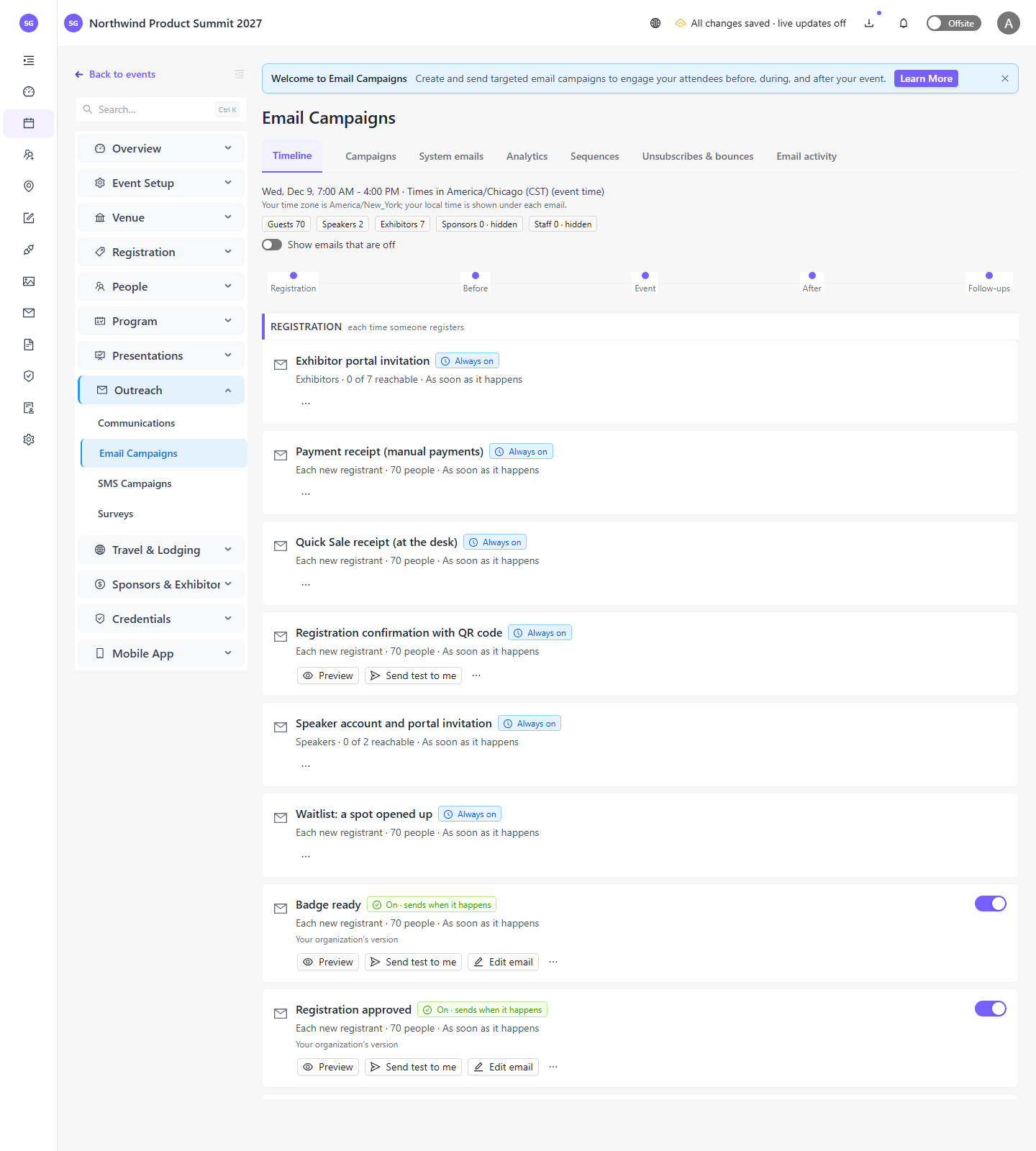
- The audience chips at the top (Guests, Speakers, Exhibitors, Sponsors, Staff) show how many people each lane reaches. A lane with nobody in it is hidden.
- Each email shows its status (Always on, On · sends when it happens, Scheduled, Send manually, Off and so on), who gets it, how many of them can be reached, and when it sends.
- Switch on Show emails that are off to see the ones that will not send.
- Use Preview to read the email with sample data, and Send test to me to get a copy in your own inbox.
- Open an email's details to change its send time (for example "2 days before the event starts at 9:00 AM") or see its history.
Edit an email for this event only
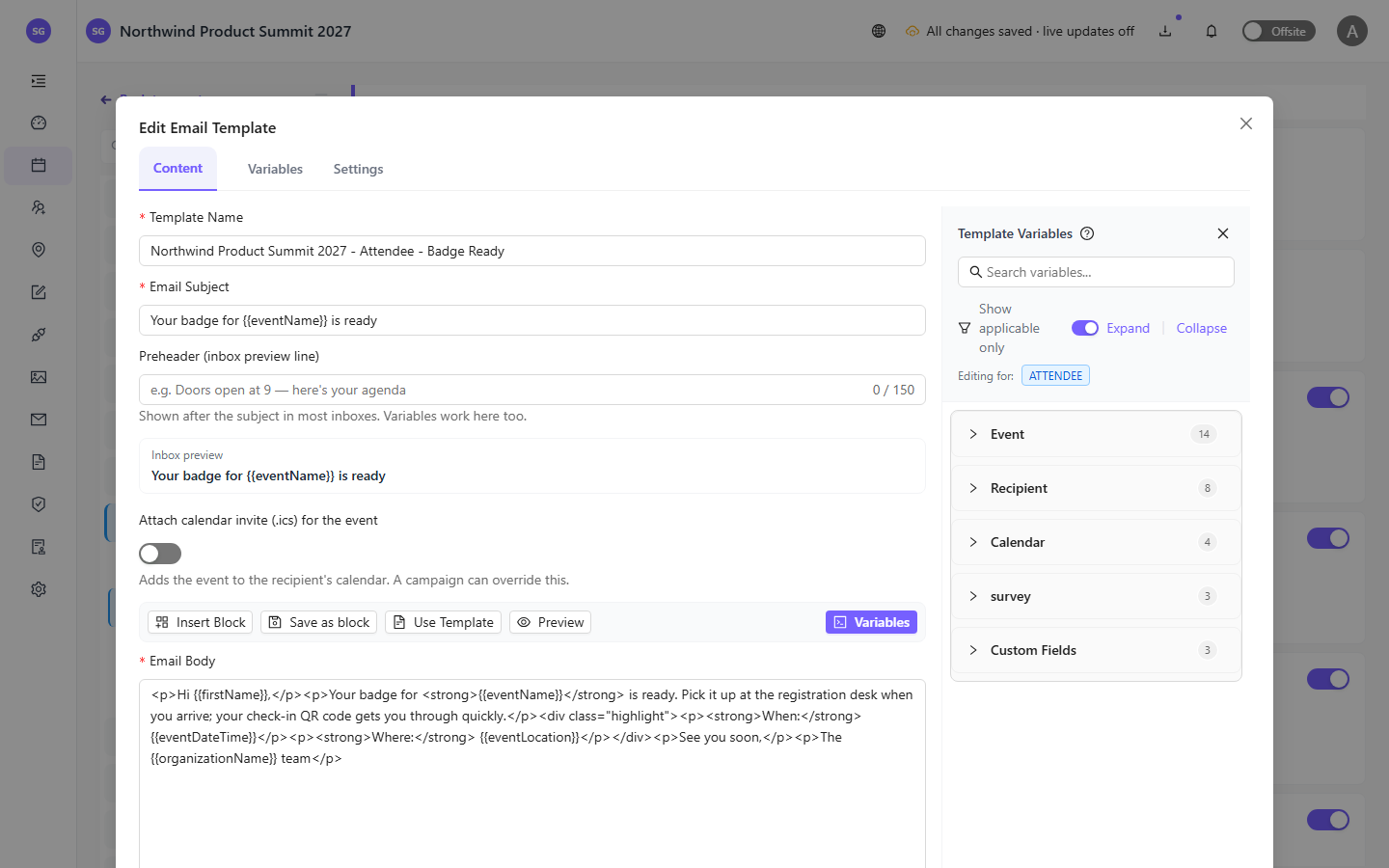
- Click Edit email on the email. The event's own copy opens in Edit Email Template (its name starts with the event name, for example "Northwind Product Summit 2027 - Attendee - Badge Ready").
- Change the Email Subject, the Preheader (the inbox preview line) or the Email Body. Variables lists the merge tags you can insert, such as
{{firstName}}or{{eventName}}; Insert Block adds a saved block; Preview shows the result with sample data. - Optionally switch on Attach calendar invite (.ics) for the event.
- Save. Only this event's copy changes; your organization's version and other events keep their text.
The Timeline tab is the first tab when it is turned on for your organization; otherwise the page opens on Campaigns.
System emails
System emails lists the same automatic emails by topic (Registration & tickets, reminders, post-event and so on), with a plain description of each and an On / Off state.
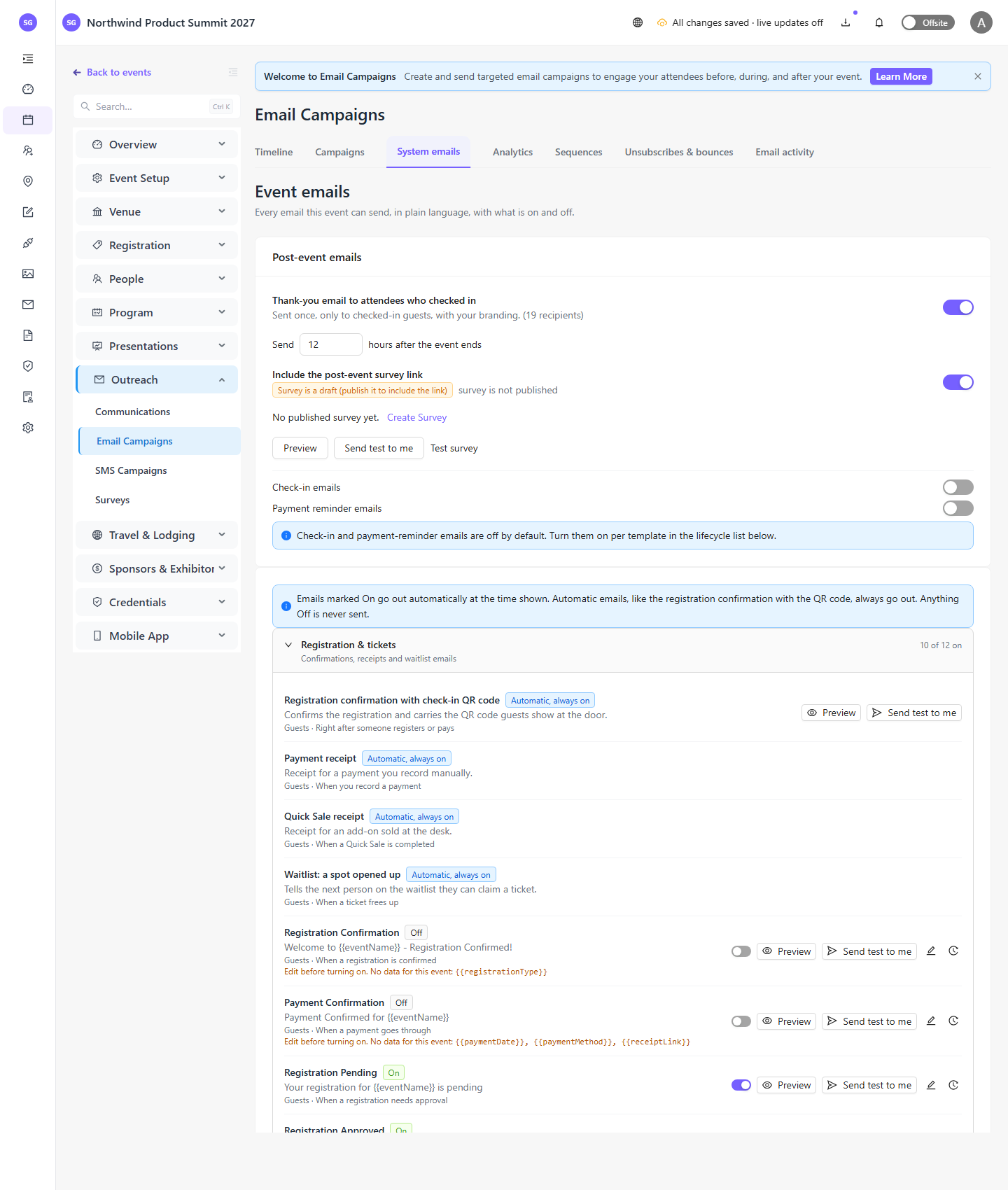
- Emails marked Automatic, always on, such as the registration confirmation with the check-in QR code, always go out.
- Everything else sends only while it is On. Anything Off is never sent.
- An email that needs data the event does not have says so, for example "Edit before turning on. No data for this event: {{paymentDate}}". Edit it first.
- Post-event emails at the top set the thank-you email (sent once, only to checked-in guests, a number of hours after the event ends) and whether it includes the post-event survey link. The survey must be published for the link to be included.
Campaigns
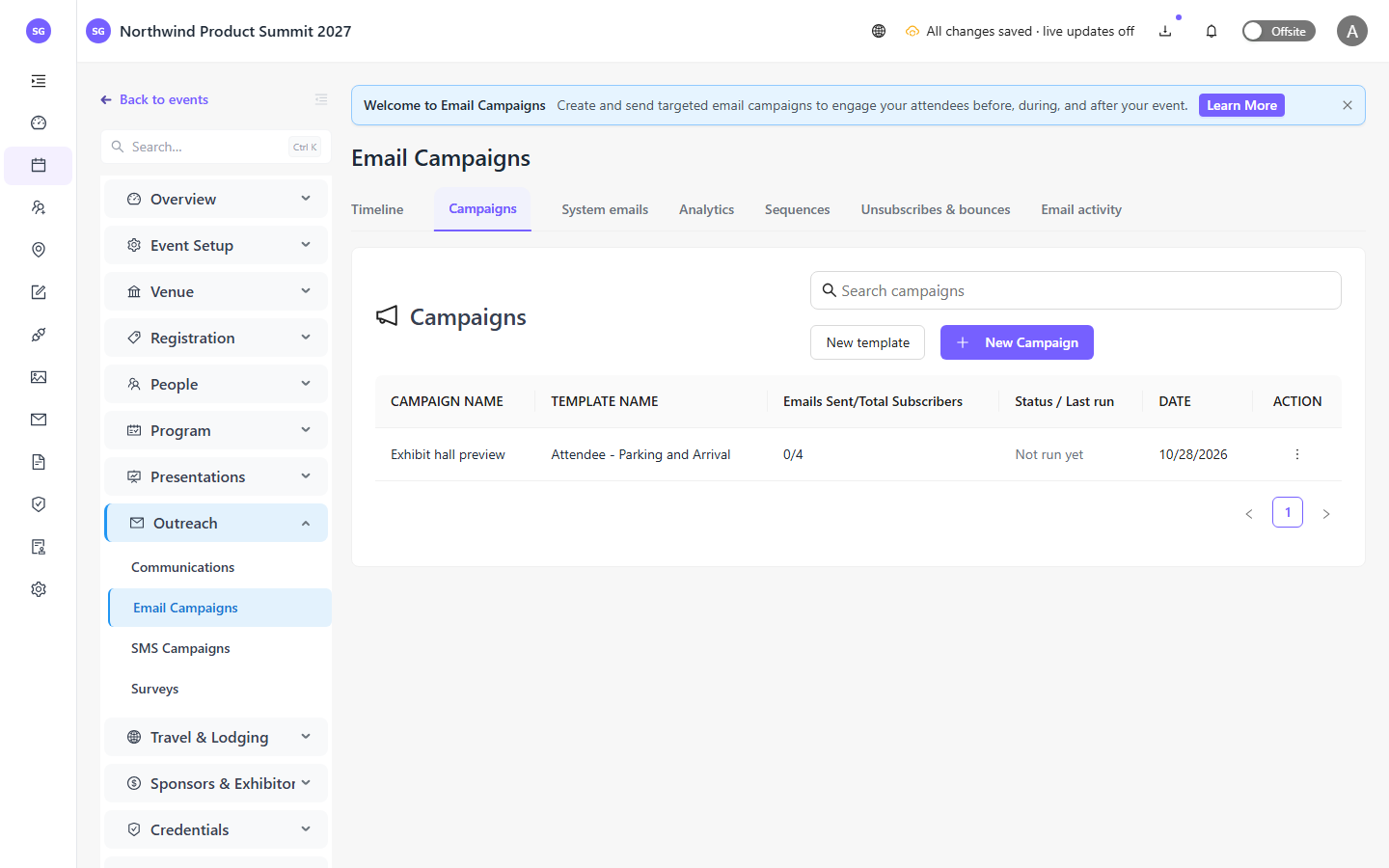
A campaign is one email sent to one or more recipient lists.
Create a campaign
- Click New Campaign.
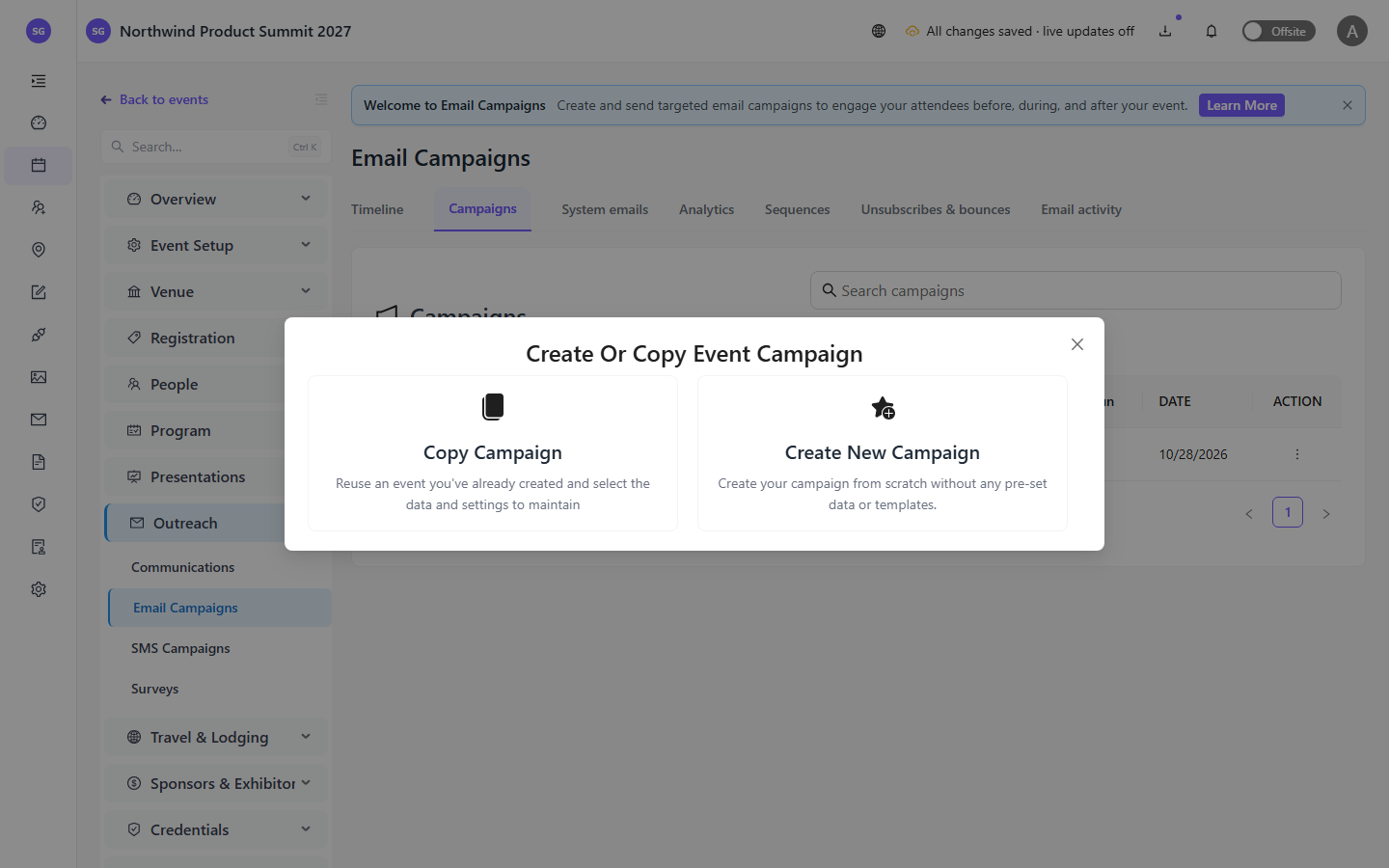
- Choose Create New Campaign, or Copy Campaign to reuse one from another event.
- Enter the Campaign Name and pick the Email Template, or click Write new email.
- Tick one or more lists under Recipients List, or click Create New List (see Subscriber and recipient lists). To email an invitation list, link it to the event first; see Invitation lists.
- Click Save. The campaign is saved as a draft and shows Not run yet.
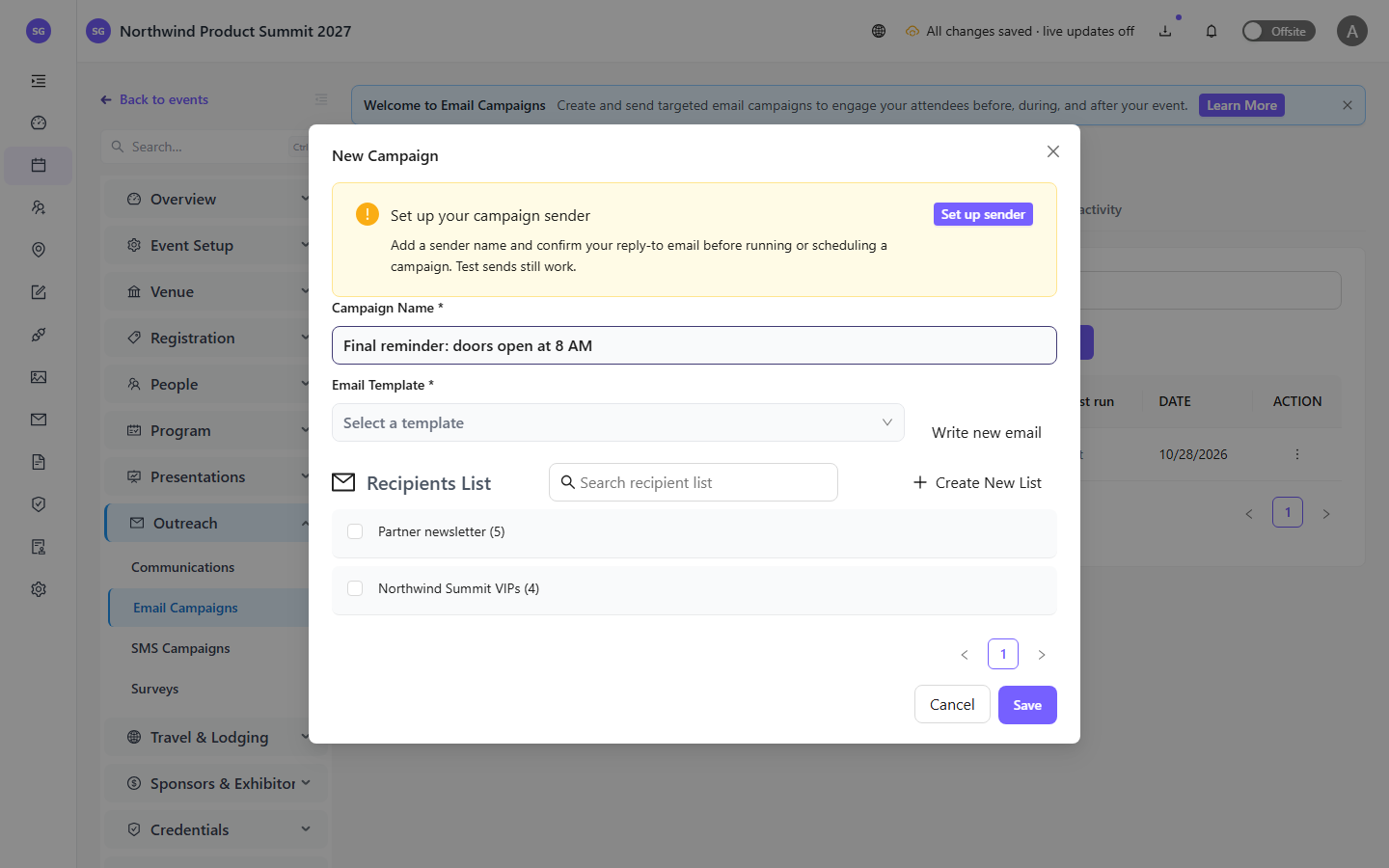
If a yellow Set up your campaign sender box appears, add a sender name and confirm your reply-to address (Set up sender) before you send. You can still save drafts and send tests.
Test, then send or schedule
Open the campaign's ⋮ menu:
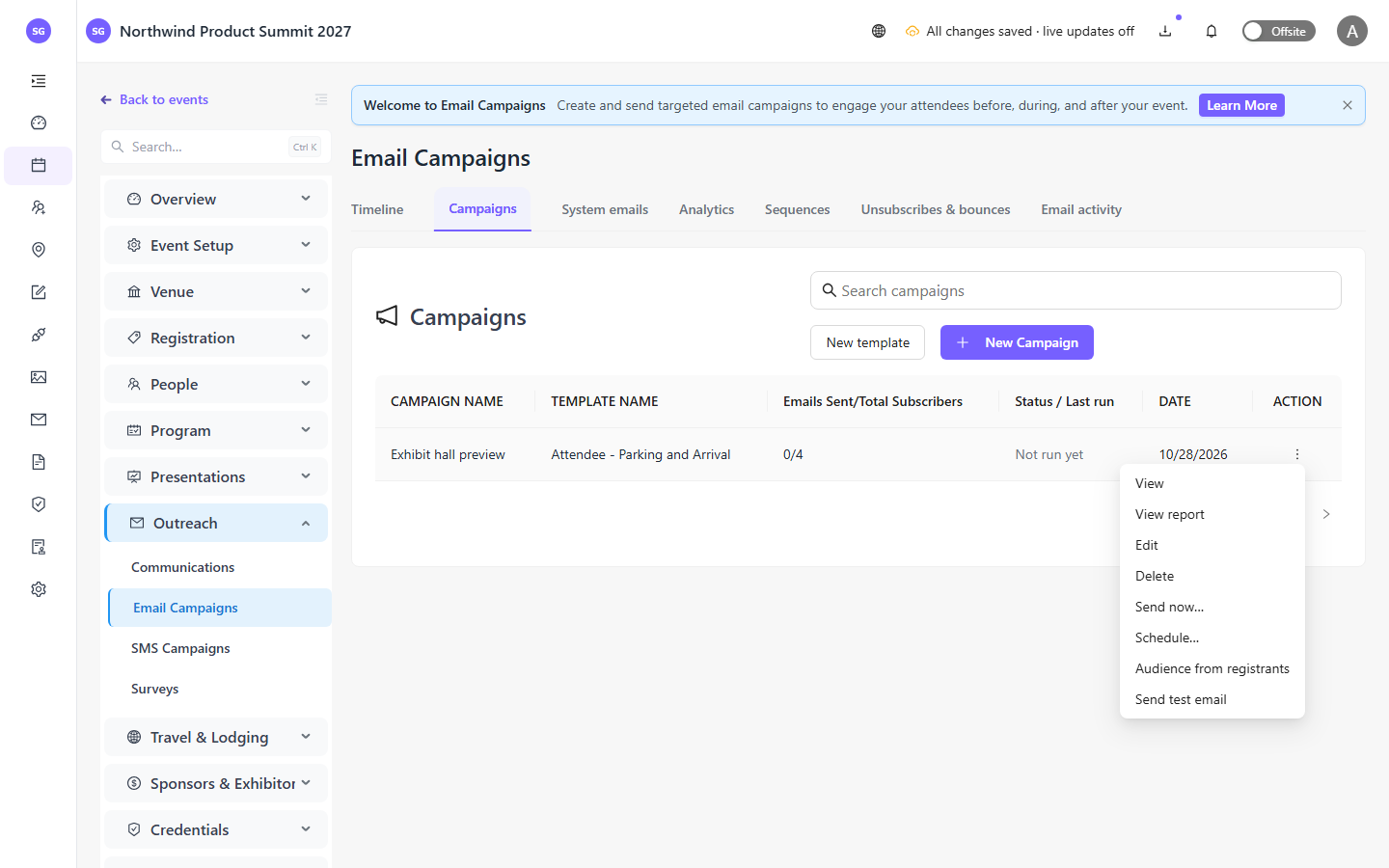
- Send test email sends one copy to an address you choose. Always do this first.
- Audience from registrants picks the recipients from the event's registrants instead of a list: filter by Registration status, Check-in and Ticket types, or only people who did not open an earlier campaign, then click Use these … recipients.
- Schedule… picks a date, time and time zone. Send now… sends straight away.
- Both ask you to confirm, and show how many people will get it. Addresses that have unsubscribed, bounced or already received it are skipped and listed.
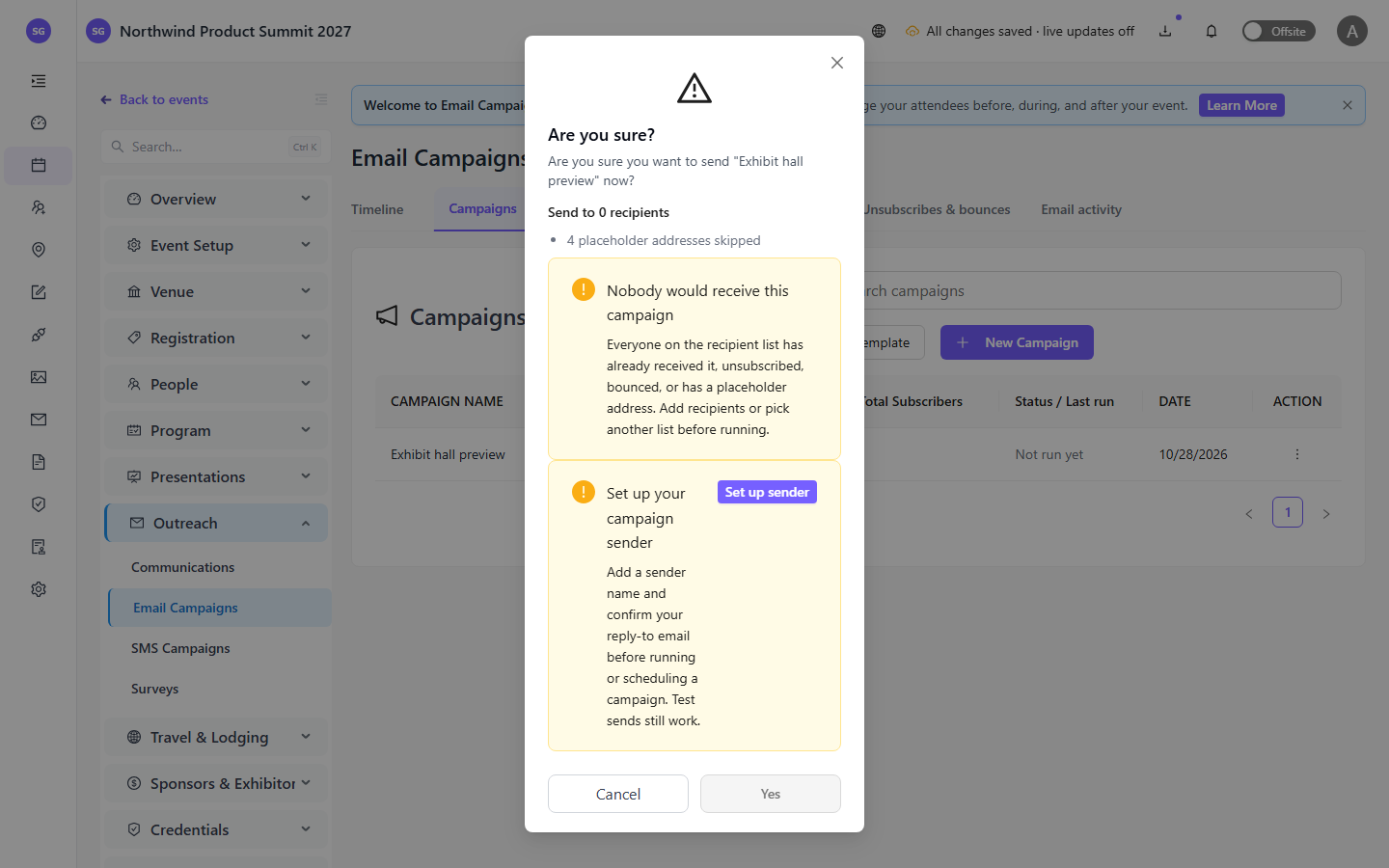
A sent campaign can't be recalled. Check the count and click Cancel if anything looks wrong. View report shows deliveries, opens and clicks once it has run.
Unsubscribes, bounces and activity
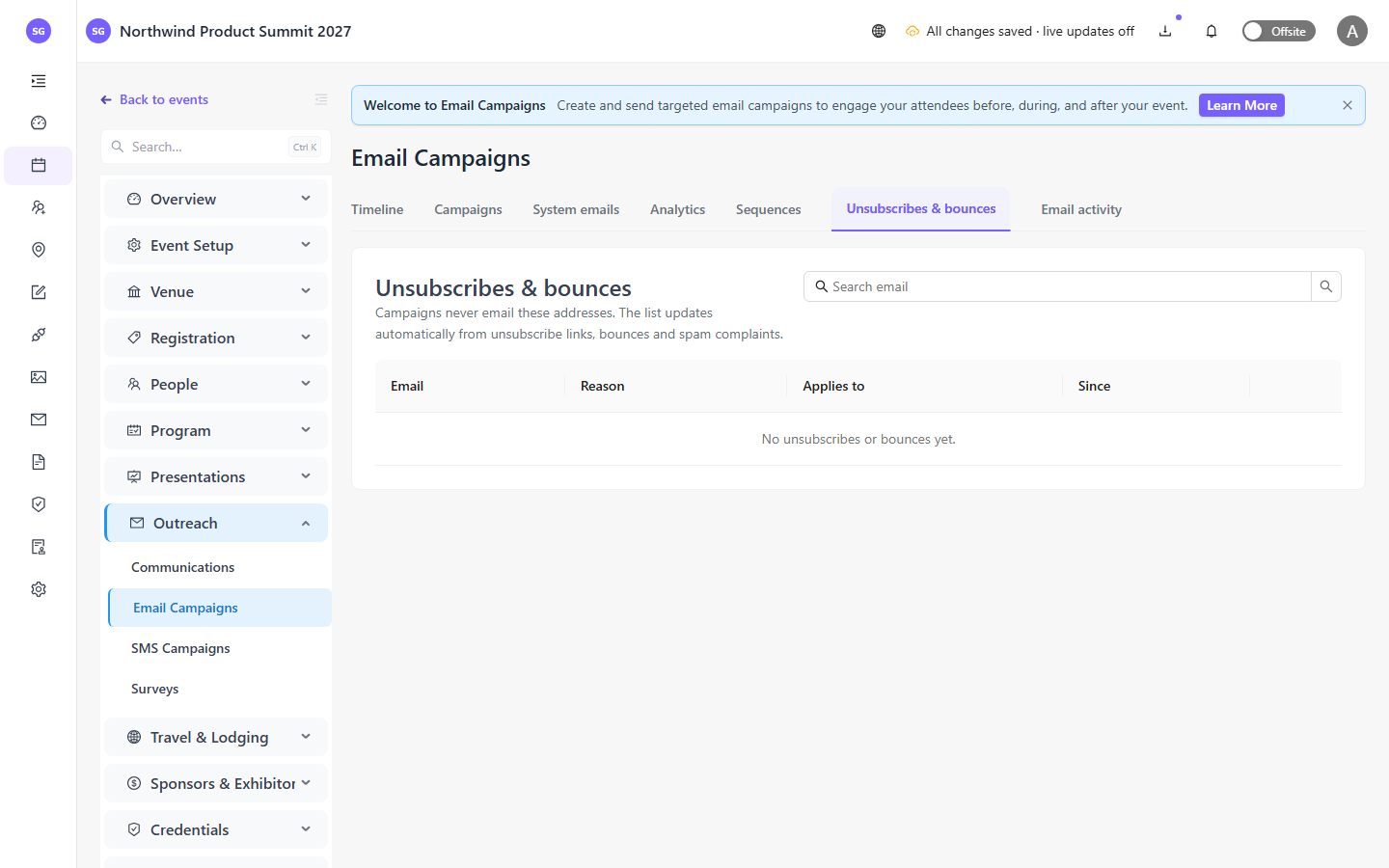
Unsubscribes & bounces lists the addresses campaigns never email. It fills in on its own from unsubscribe links, bounces and spam complaints.
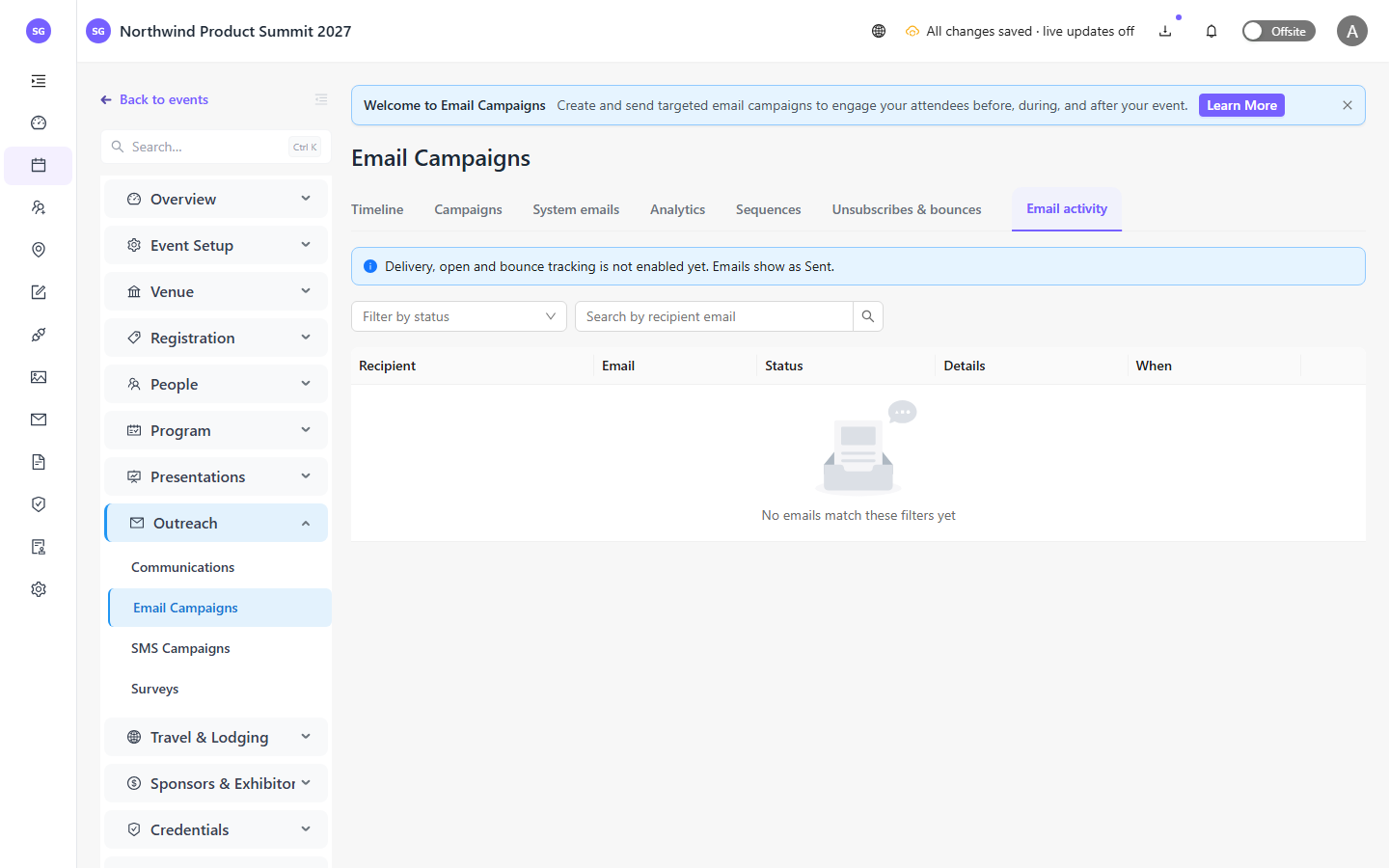
Email activity lists each email sent, with its recipient, status and time. Filter it by status to find bounces.
For text messages, see Text messages from an event.
Who can do this
Organization admins, and members whose role lets them manage email campaigns, can create, send and switch emails. Other members only see View and View report.
Troubleshooting
| You see | Why | Fix |
|---|---|---|
| Save does nothing on a new campaign | No recipient list ticked | Tick at least one list |
| "Nobody would receive this campaign" when sending | Everyone on the list has received it, unsubscribed, bounced or has a placeholder address | Add recipients or pick another list |
| Set up your campaign sender | No sender name or confirmed reply-to address | Click Set up sender |
| An email says "Didn't send: the date had passed when it was switched on" | It was turned on after its send time | Use Send now instead in its menu, or leave it |
| "Survey is not published" on the thank-you email | The post-event survey is a draft | Publish the survey under Outreach > Surveys; see Event app, surveys and moderation |
| An email shows "Can't send: no data for …" | The event lacks a field the email uses | Fill in the event detail, or edit the email to remove the tag |