Text messages from an event
Write a text to an event's attendees with merge tags, pick who gets it, review the cost and send or schedule it, send an urgent message, and set up automatic reminders.
Outreach > SMS Campaigns sends text messages to an event's attendees: last-minute changes, reminders and anything time-sensitive. Texting must be turned on for your organization first, and only attendees who agreed to receive texts get them; see SMS: setup, templates and reports.
The page has four tabs: Compose SMS, Automations, Templates and Campaign History. The SMS compliance strip at the top shows the number you send from, how many attendees opted in and out (STOP), how many messages were not sent in the last 30 days, and the countries you can text.
Send a text
Sending takes three steps: Compose, Recipients and Review & Send.
1. Compose
- Optionally pick a saved message under Use Template.
- Type the Message. Click a merge tag such as
{{firstName}},{{eventName}},{{eventDate}}or{{ticketLink}}to insert it; each person gets their own value. - Watch the counter: a text segment holds 160 characters (fewer when the message has emoji or other special characters). Each extra segment costs another message.
- The Message Preview shows how it will look on a phone.
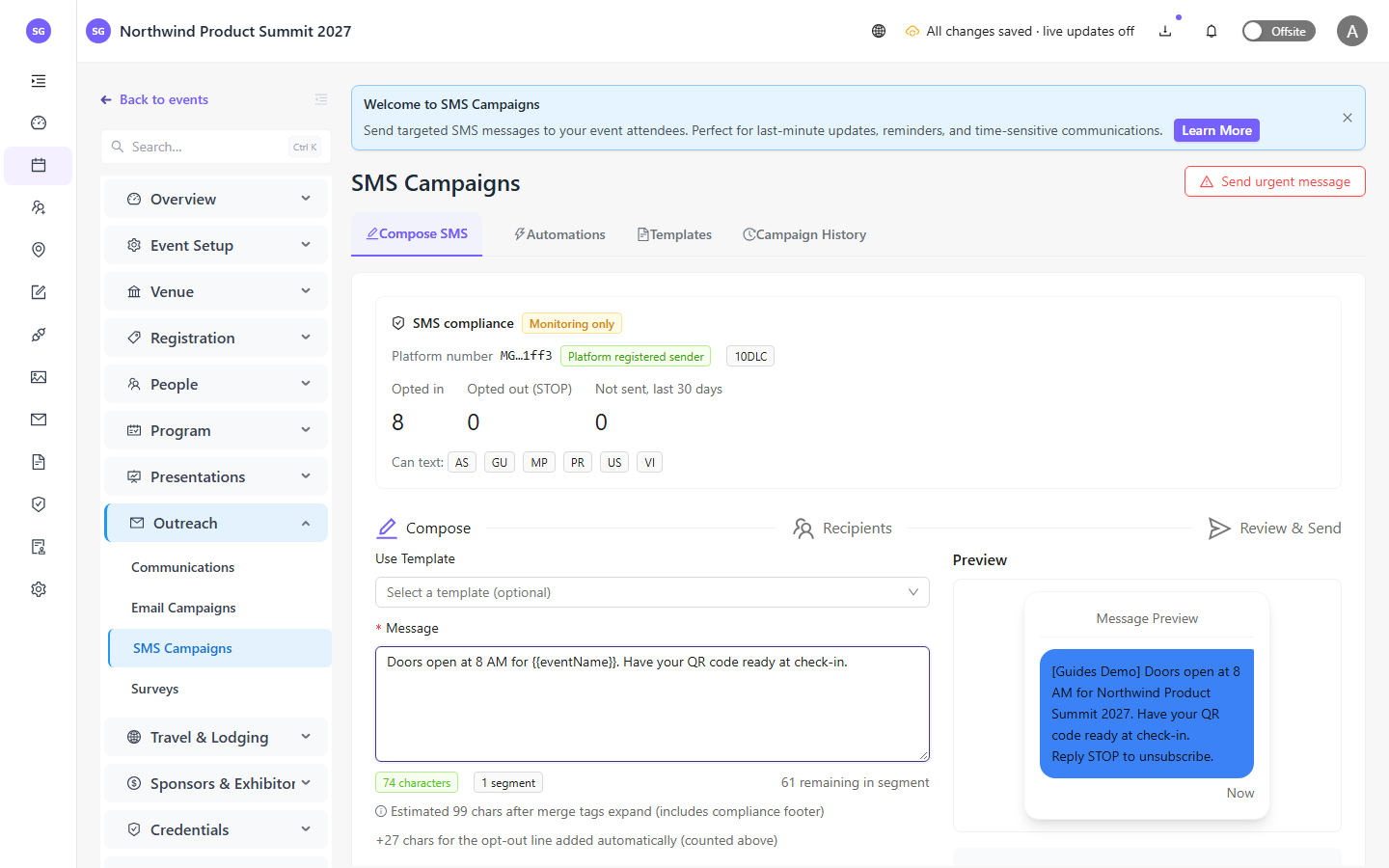
Messages must tell people how to opt out. If yours doesn't mention STOP or unsubscribe, "Reply STOP to unsubscribe." is added for you. Click Next.
2. Recipients
Choose who gets it. By default it goes to everyone registered who agreed to receive texts. Narrow it by Registration Status or by Check-in Status (checked in or not). The totals show Total Attendees, how many are With Phone and With Consent; only people with a valid phone number and consent are included. The Cost Notice shows the estimated total.
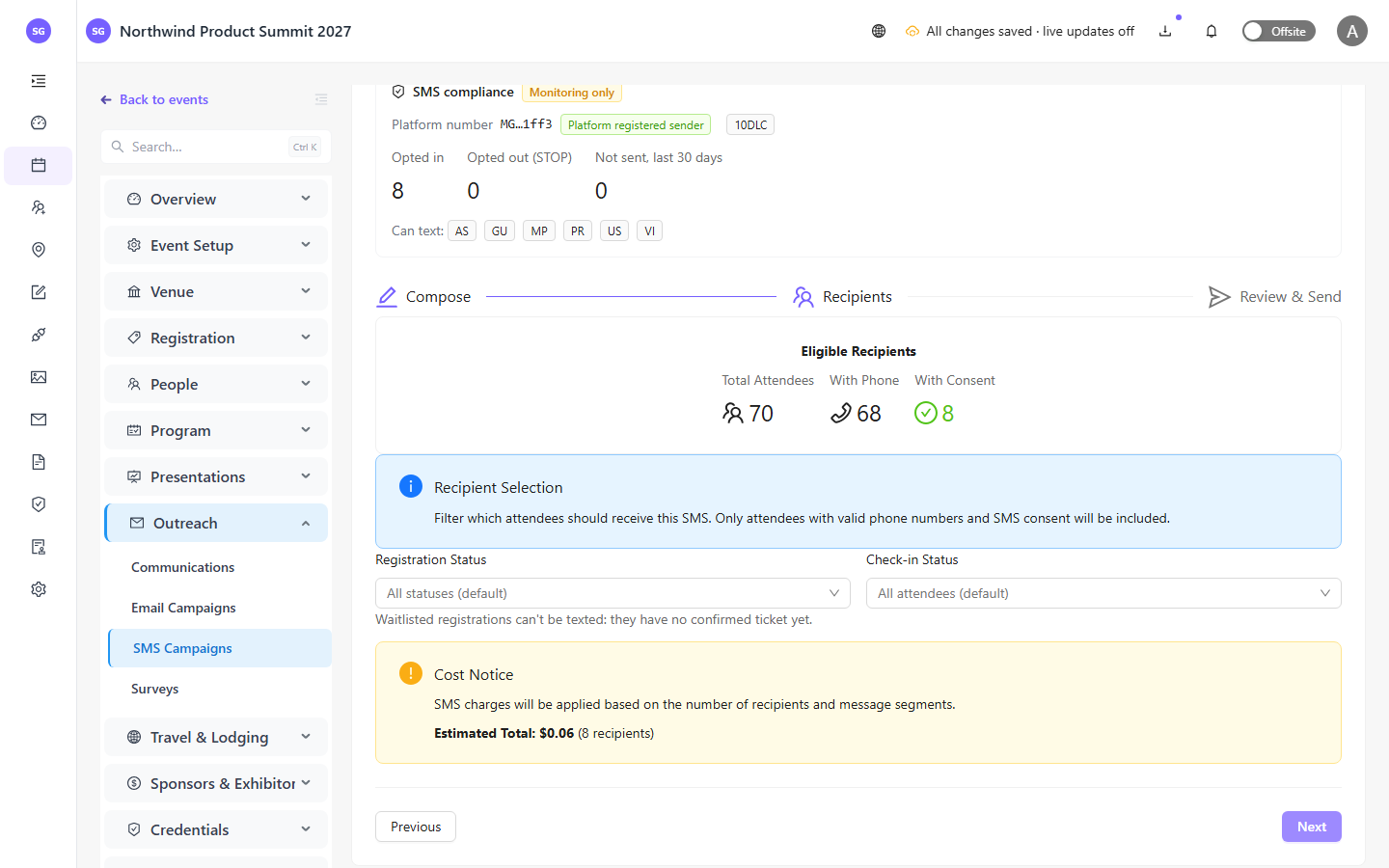
Waitlisted registrations can't be texted: they have no confirmed ticket yet. Click Next.
3. Review & Send
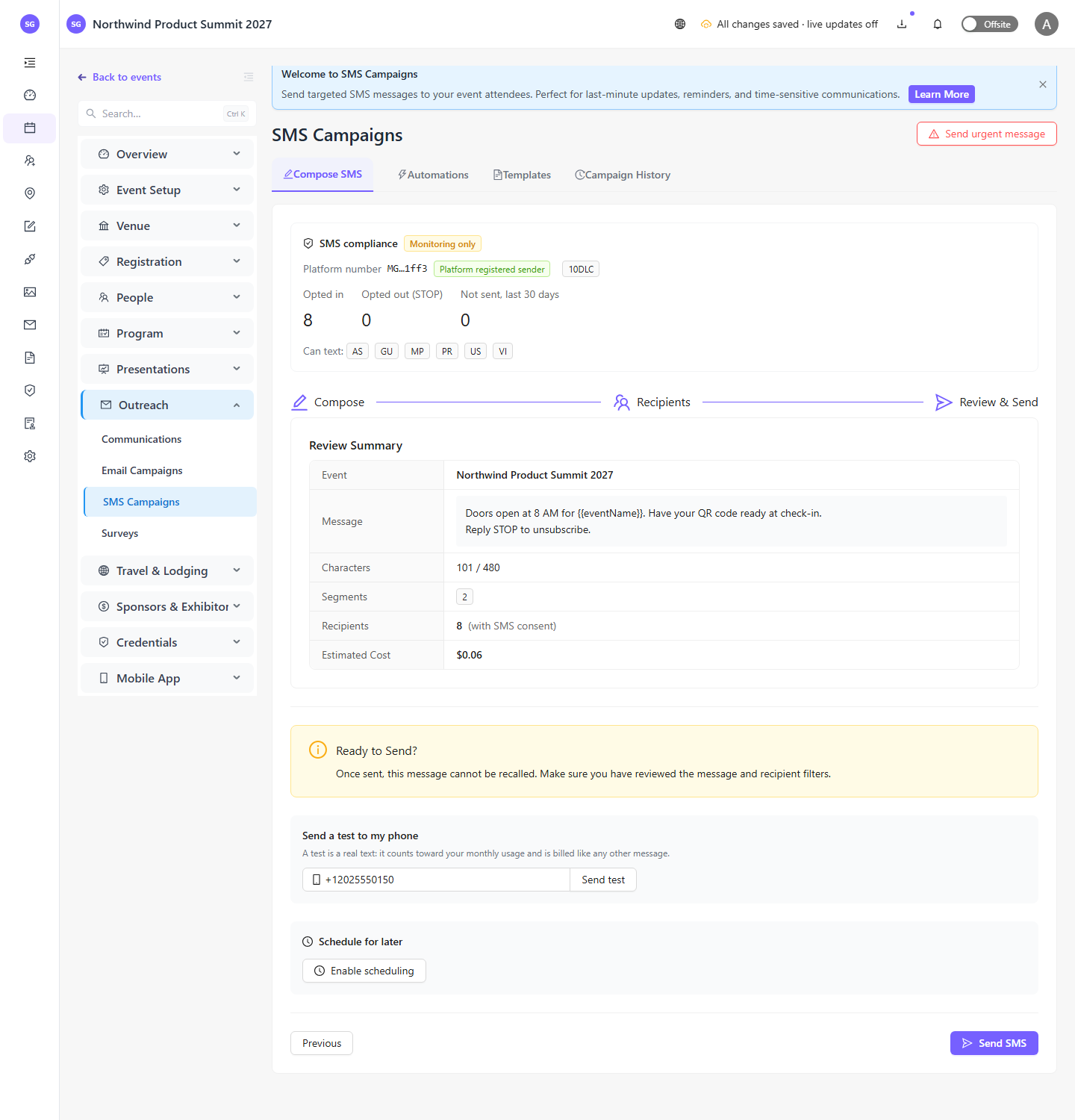
The Review Summary shows the event, the final message (with the opt-out line added), characters, segments, the number of recipients and the Estimated Cost.
- Optionally use Send a test to my phone. A test is a real text and is billed like any other.
- To send later, click Enable scheduling under Schedule for later and pick the Send at time.
- Send SMS (or Schedule SMS) sends it. Texts can't be recalled, so check the count first.
Progress shows on screen while it sends, and afterwards under Campaign History.
Urgent messages
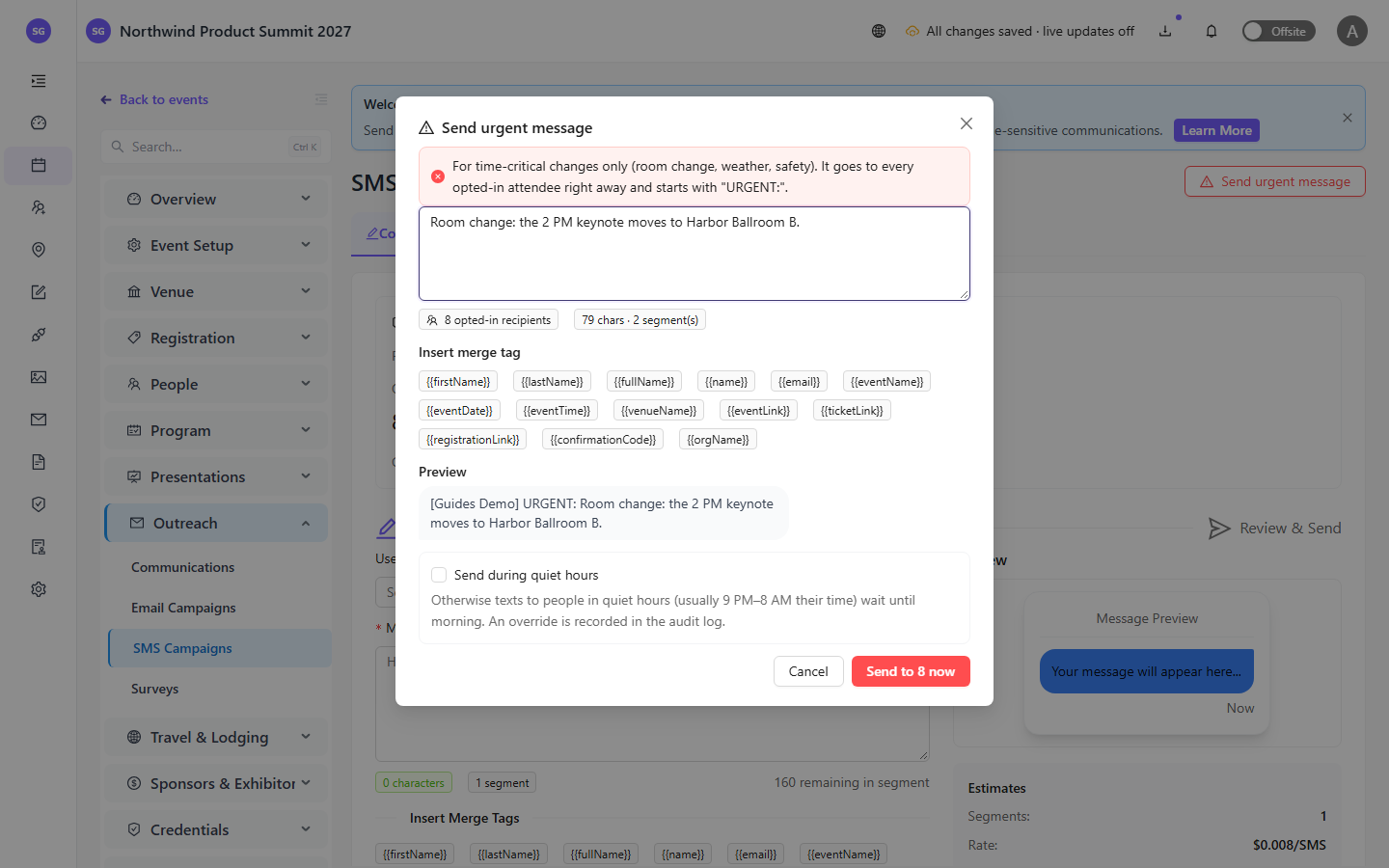
For a change that can't wait (a room change, weather, safety), click Send urgent message at the top. It goes to every opted-in attendee right away and starts with "URGENT:".
- Write the message; merge tags work here too. The count of opted-in recipients is shown under it.
- Texts to people in quiet hours (usually 9 PM to 8 AM their time) wait until morning. Tick Send during quiet hours only if it truly can't wait; the override is recorded in the audit log.
- Click Send to … now.
Automations
Automations are texts that go out on their own, such as Reminder: day before and Starts soon. They go only to attendees who opted in, follow quiet hours and your monthly limit, and never text the same person twice for the same automation. Each one shows What attendees receive, how many opted-in recipients it reaches, and its next send.
- Optionally change the Message (or Use default text) and how many hours and minutes before the event it sends.
- Click Save changes.
- Switch it on; you are asked to confirm (Turn on).
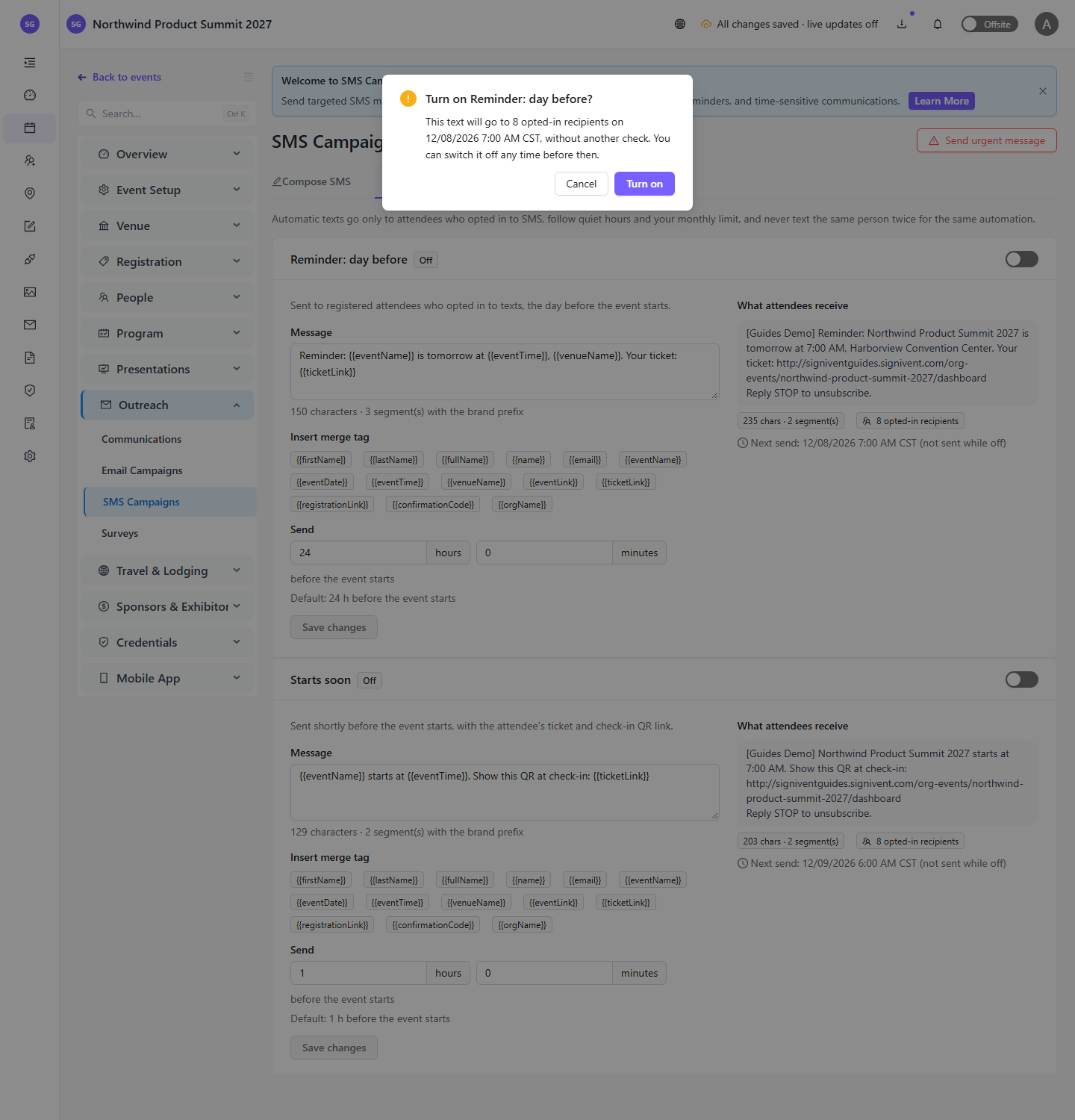
An automation that is off is never sent.
Campaign history
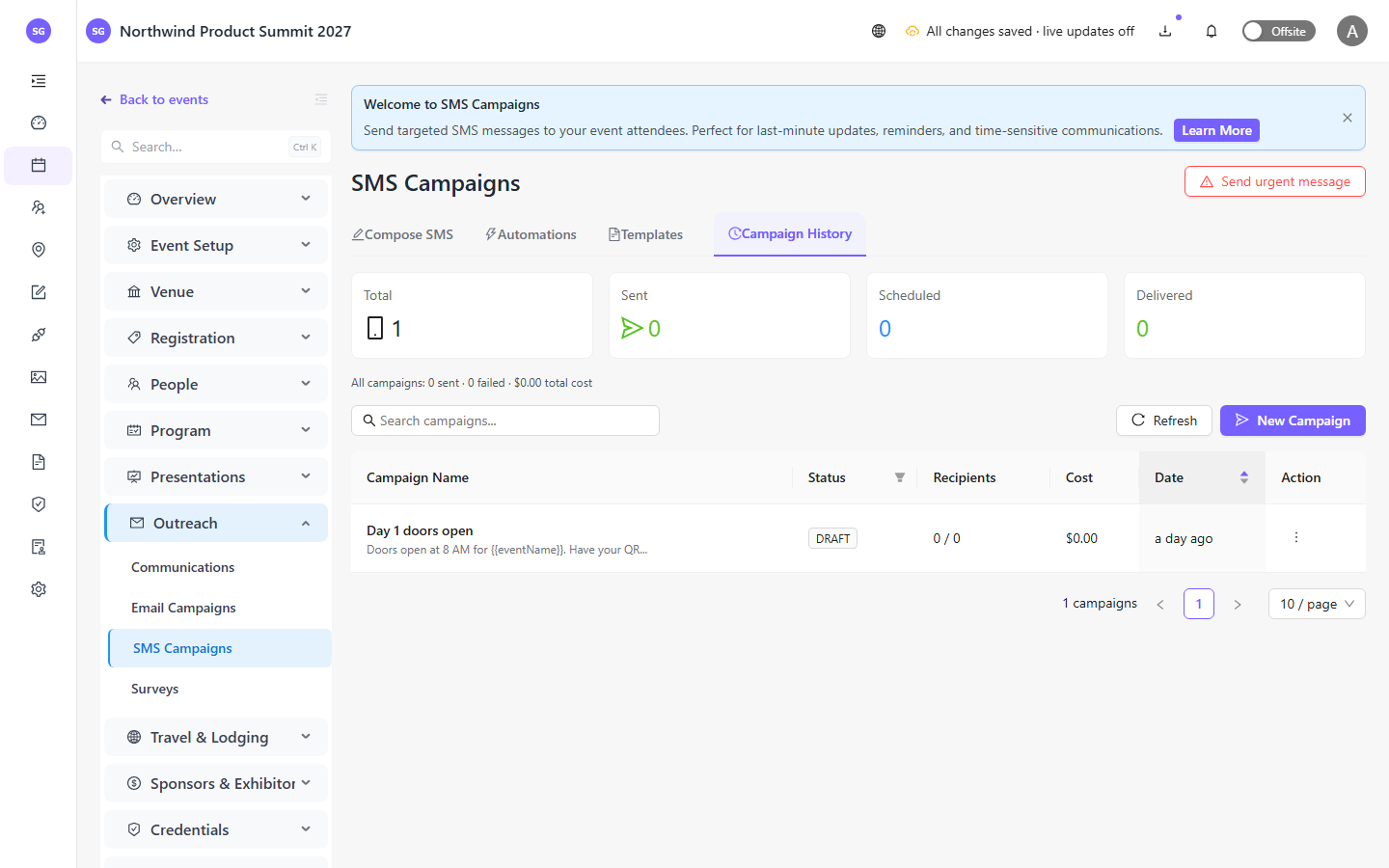
Campaign History totals the event's texts (Total, Sent, Scheduled, Delivered) and lists every campaign, including drafts and scheduled ones, with recipients, delivered and failed counts and cost. A scheduled campaign can be canceled before it goes out; open one with View Details. New Campaign goes back to Compose.
For email, see Event emails: campaigns, system emails and the timeline.
Who can do this
Organization admins, and members whose role lets them send messages, can use this page. Texting must be turned on for the organization.
Troubleshooting
| You see | Why | Fix |
|---|---|---|
| "No recipients have SMS consent yet" | Nobody on the event agreed to texts | Collect consent at registration, or import it under SMS Settings |
| Fewer eligible recipients than attendees | Only people with consent and a phone number count; waitlisted people are left out | Expected |
| "Queued for … (quiet hours)" | It is quiet hours for the recipients | Wait, or use Send urgent message with the confirmation if it truly can't wait |
| The cost is higher than expected | The message runs over 160 characters, or uses special characters | Shorten it, or remove emoji |