SMS: setup, templates and reports
Turn on text messaging for your organization, set the brand name and compliance replies, collect consent, keep reusable SMS templates, send from an event and follow delivery and cost in the reports.
Signivent can text attendees who opted in to receive messages. The organization-level pages under Communications > SMS hold the setup, the shared templates and the reports. The texts themselves are always sent from an event, under the event's Outreach > SMS Campaigns.
Setup at a glance
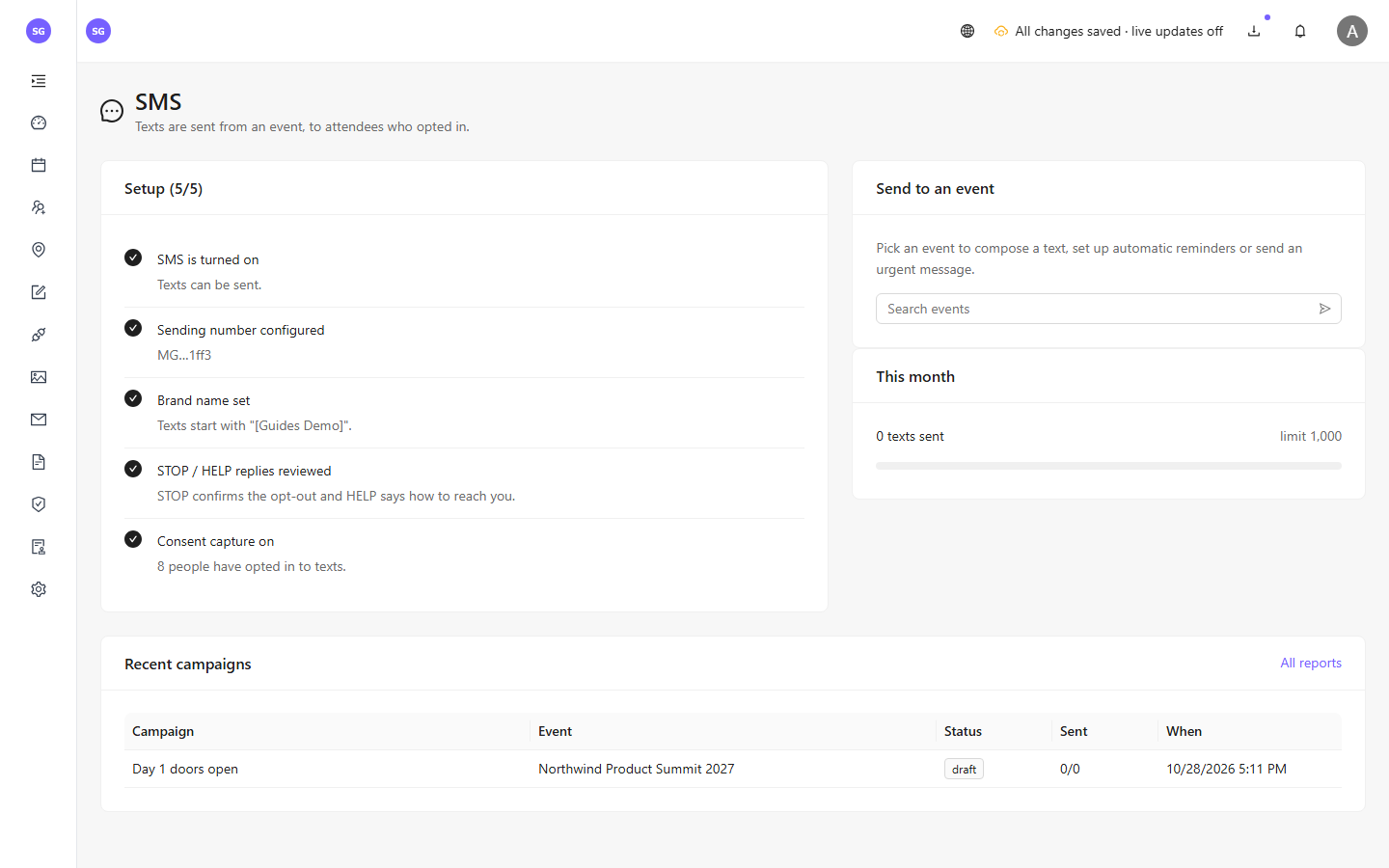
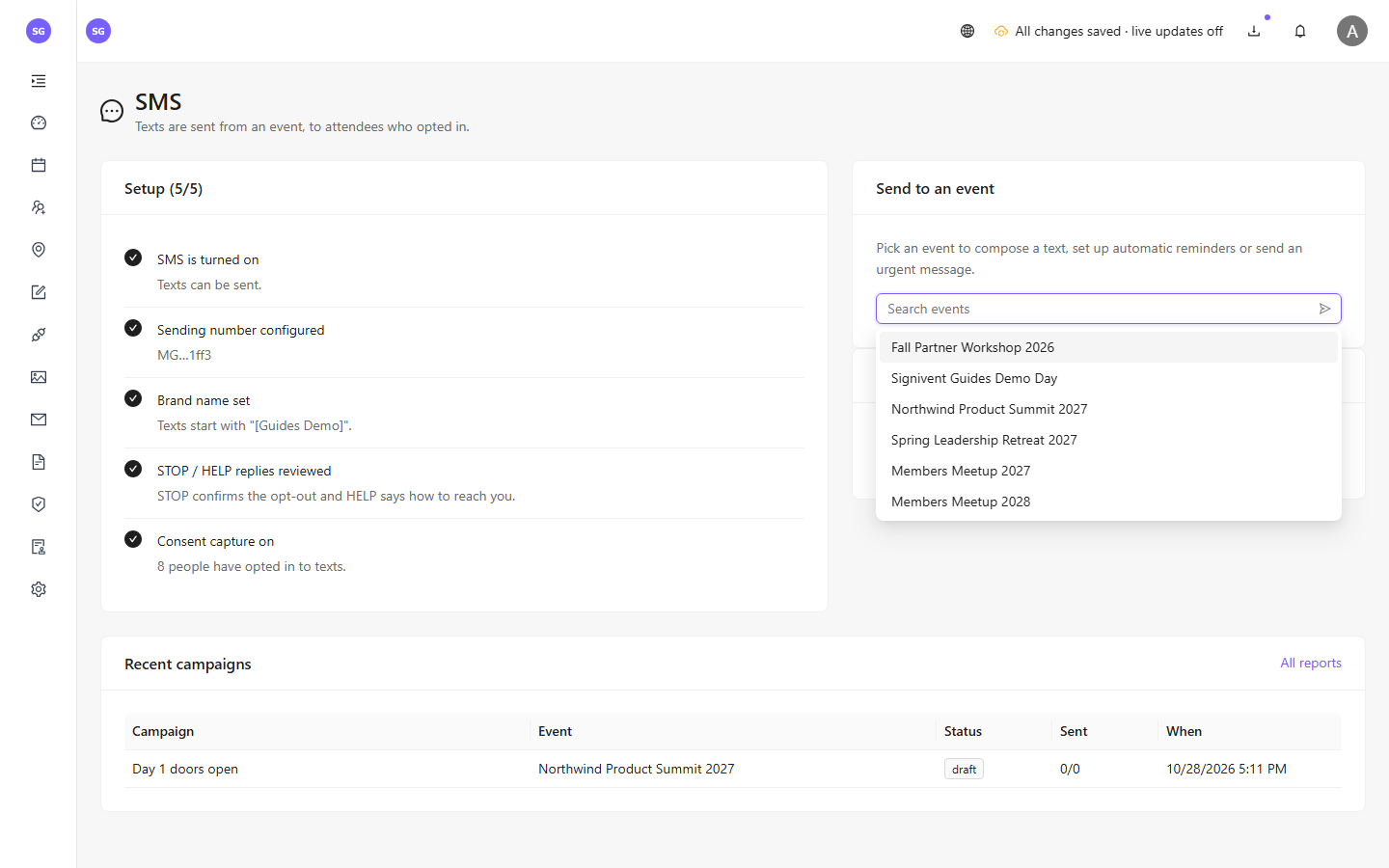
Open Communications > SMS. The Setup card lists five checks and links to where each one is fixed.
| Check | Where | Required? | What it does |
|---|---|---|---|
| SMS is turned on | SMS > Settings, Enable SMS | Required | Allows texts to be sent and starts usage-based billing |
| Sending number configured | Shown on SMS > Settings | Required | The number or messaging service texts come from. Signivent provides it |
| Brand name set | SMS > Settings, Brand name | Recommended | Carriers require texts to say who they are from. Your brand name leads every text, for example "[Guides Demo] Doors open at 9" |
| STOP / HELP replies reviewed | SMS > Settings, Compliance Settings | Required | The automatic replies when someone texts STOP, HELP or START |
| Consent capture on | Your event's registration form, or Import consents | Required | Only people who opted in can be texted |
Turn on SMS
- Go to Communications > SMS > Settings.
- Read the Usage-Based Pricing card. Texts are billed per message, starting at $0.03 and lower at higher volumes.
- Click Enable SMS. The settings below unlock (they are greyed out while SMS is off).
- In Brand name, enter a short name recipients will recognise (up to 20 characters).
- Under Usage Limit, set Max Monthly Messages. Sending pauses when the limit is reached; 0 pauses sending entirely.
- Review the STOP reply, HELP reply and START reply under Compliance Settings.
{org_name}and{support_email}are filled in for you. - Optionally switch on Send a welcome text for new registrants who opted in, and set Automation defaults (the day-before reminder, the starts-soon reminder and the cancellation text). Each event can override these.
- Click Save at the bottom of the page.
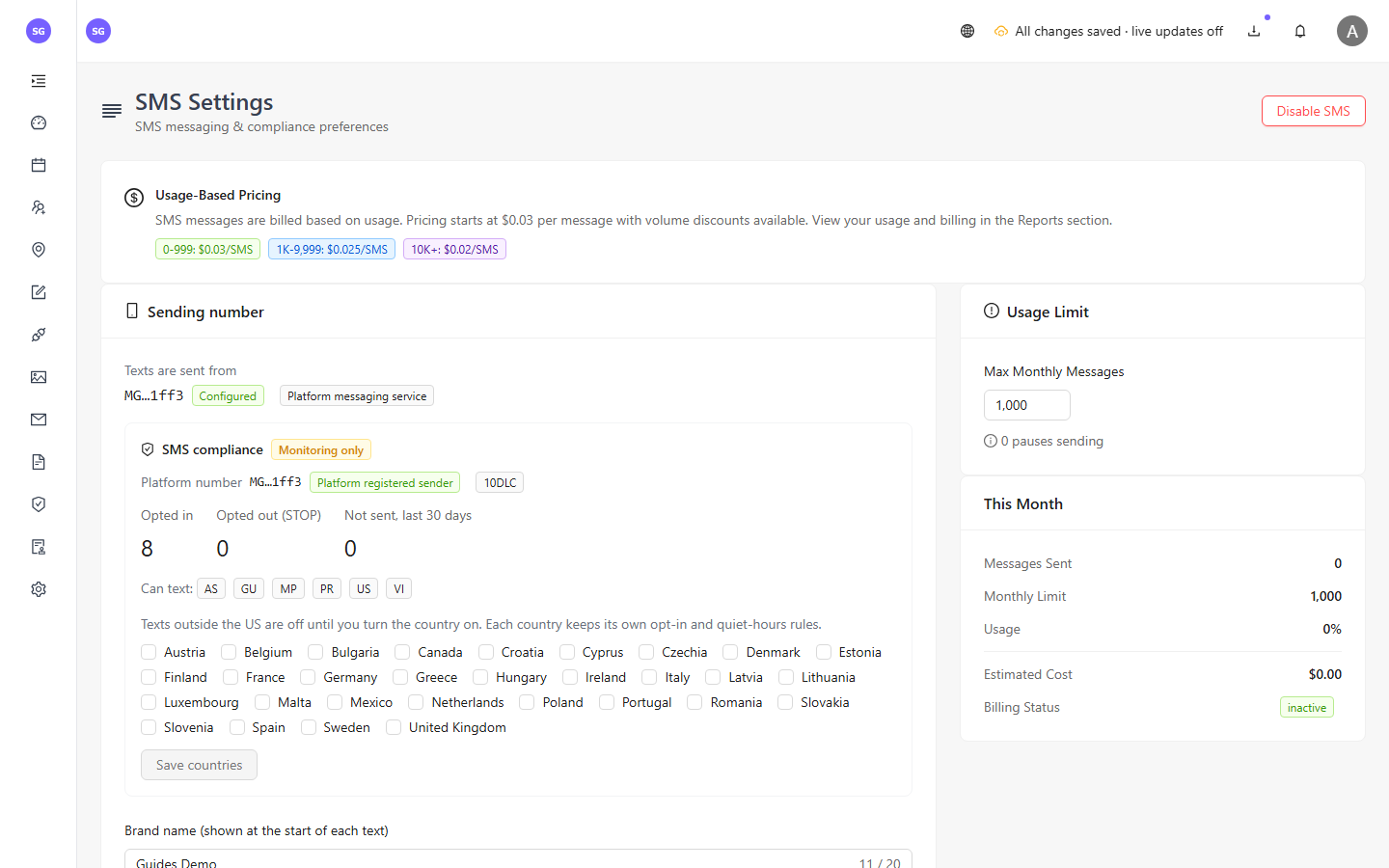
US carriers require A2P 10DLC registration for business texting. The yellow notice on the settings page is a reminder: texts from unregistered use cases can be filtered by carriers.
To stop all texting, click Disable SMS at the top of the settings page.
Collect consent
People opt in when they register: add a phone number to your event's registration form and attendees tick the SMS opt-in.
If you already have consent from another system, import it:
- On SMS > Settings, scroll to Import SMS consent (or click Import consents on the SMS page).
- Click Choose CSV and pick a file with a
phonecolumn and, optionally, aconsentcolumn of yes or no. - Tick the box confirming every number gave express consent and that you can prove it.
- Click Import N numbers.

Numbers that already replied STOP stay opted out, whatever the file says.
Keep reusable templates
Communications > SMS > Templates lists the templates every event can use. Five come ready-made: Event Cancellation, Event Update, Registration Confirmation, Event Reminder and Event Invitation. Each row shows the length, the number of message segments, and a compliance score out of 100.
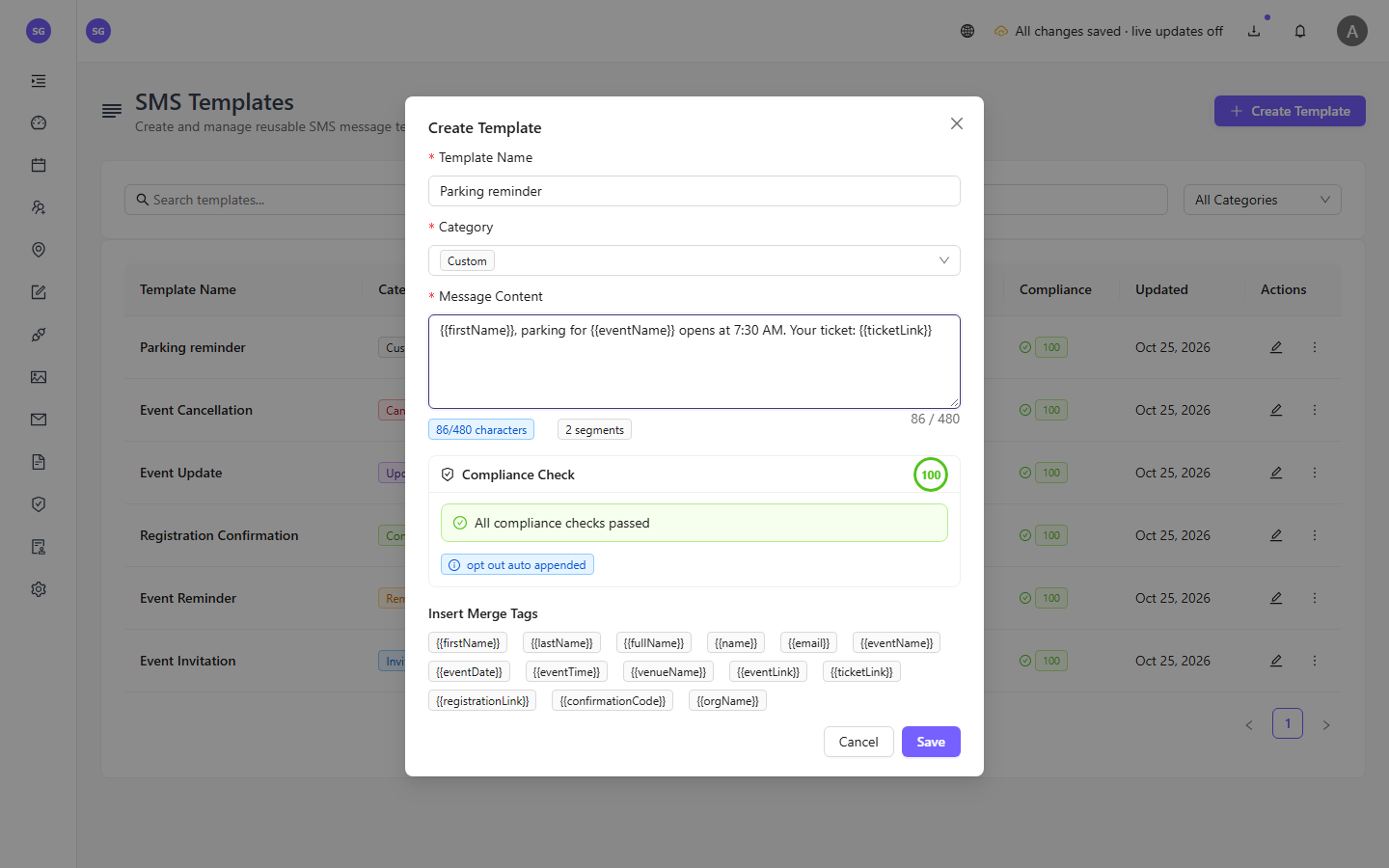
- Click Create Template.
- Enter a Template Name, pick a Category and write the Message Content (up to 480 characters).
- Click merge tags such as
{{firstName}}or{{ticketLink}}to insert them. They are replaced with each person's details when the text is sent. - Check the Compliance Check panel. If your text does not mention STOP, "Reply STOP to unsubscribe." is added automatically.
- Click Save.
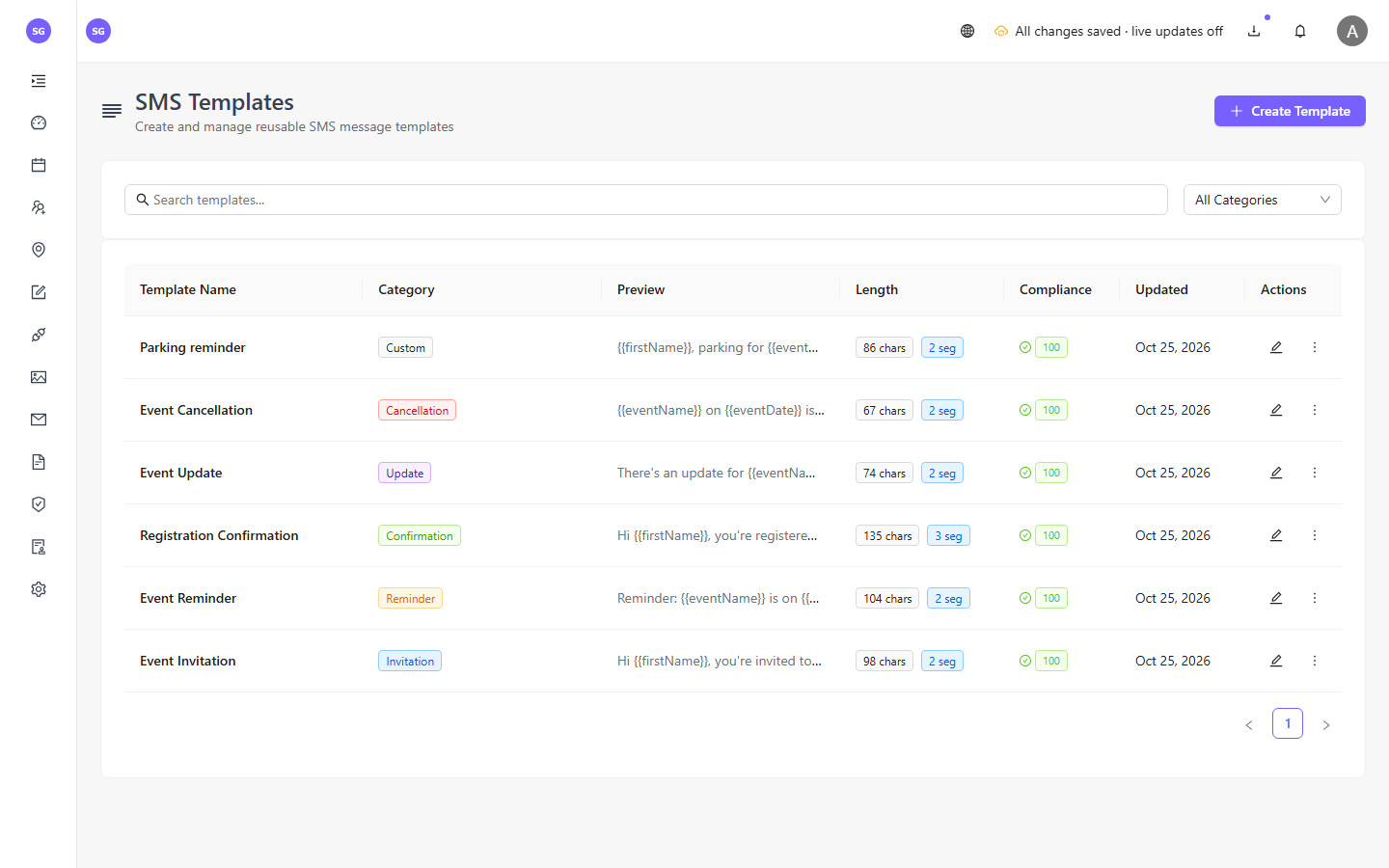
Use the pencil to edit a template, or the three dots for Preview, Duplicate and Delete. Delete asks you to confirm before it removes the template.
Send a text from an event
- On the SMS page, click Search events under Send to an event and pick the event.
- The event's SMS Campaigns page opens. Write the message in Compose SMS, or choose one of your templates under Use Template, then go through Recipients and Review & Send.
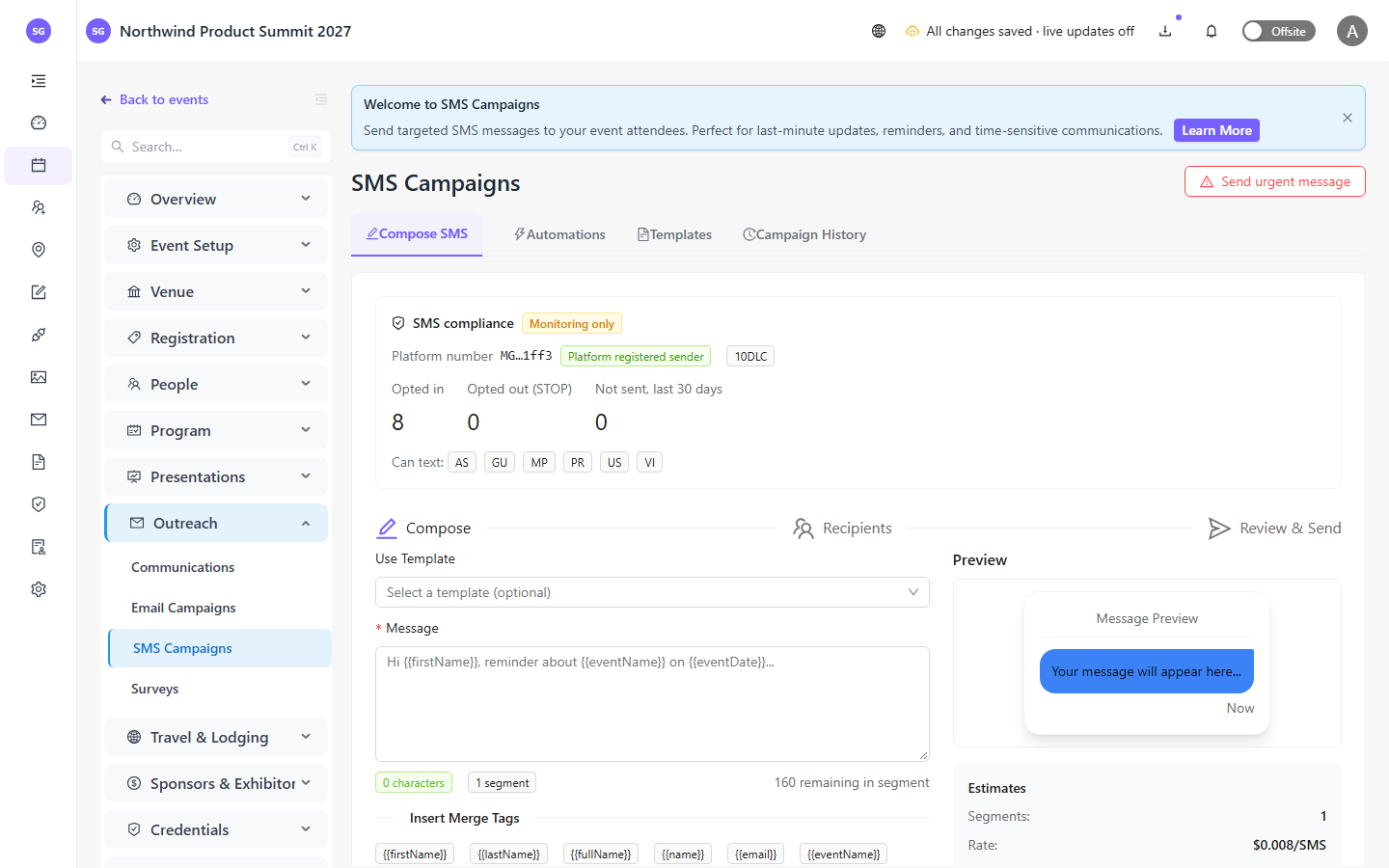
The same page has Automations (scheduled reminders), Templates, Campaign History and Send urgent message for last-minute changes.
Follow delivery and cost
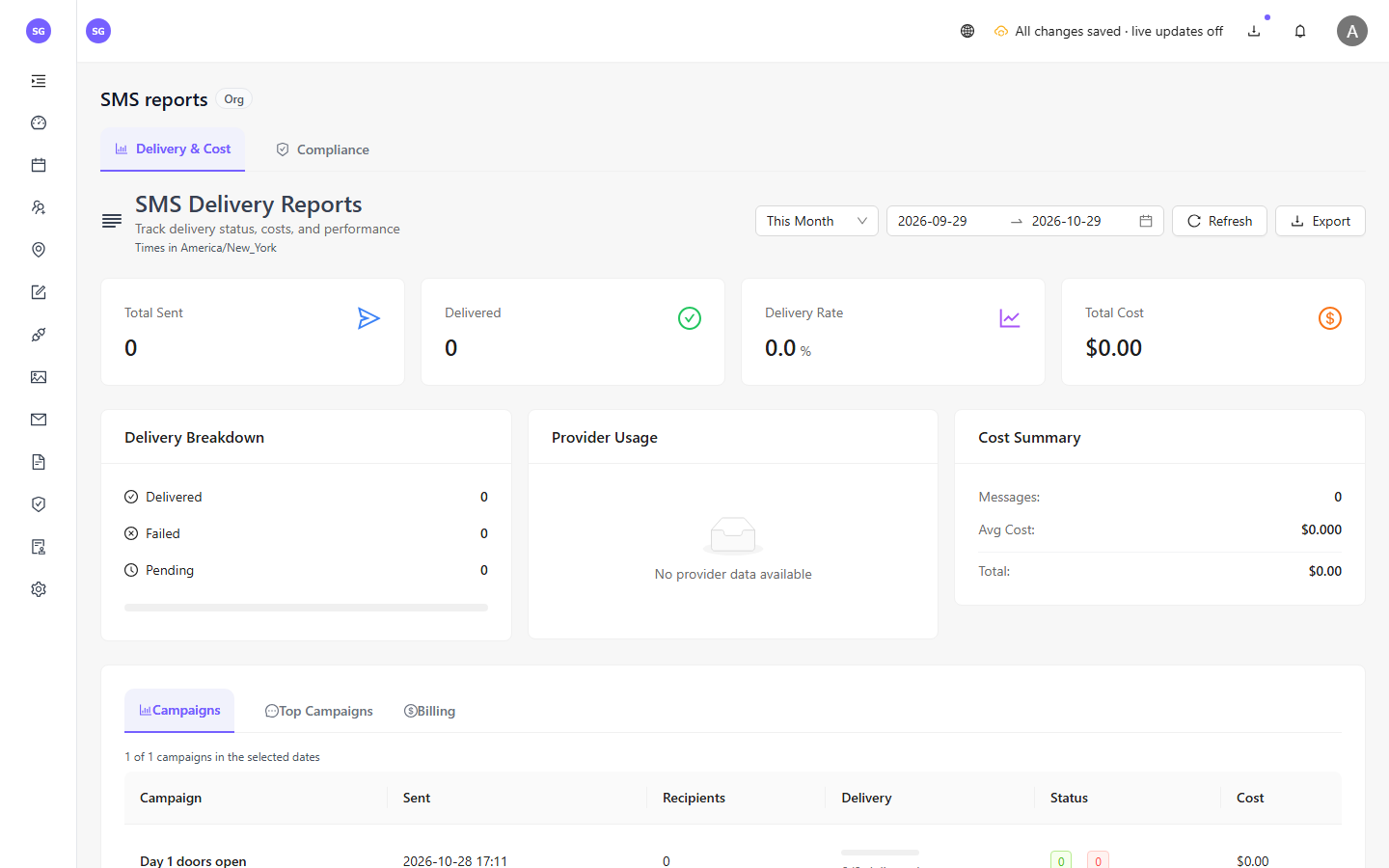
Communications > SMS > Reports shows, for the period you pick, how many texts were sent and delivered, the delivery rate, the total cost, a breakdown of delivered, failed and pending messages, and your campaigns. Use Export to download the figures. The Compliance tab shows the compliance scores of the texts you actually sent and any warnings or errors.
Who can do this
Organization admins can turn SMS on, change the settings and manage templates. Sending happens inside an event, by people who can manage that event's outreach.
Troubleshooting
| You see | Why | Fix |
|---|---|---|
| The settings are greyed out | SMS is not turned on | Click Enable SMS |
| "SMS not enabled (monthly limit is 0)" on the SMS page | SMS is off | Enable it in SMS > Settings |
| Consent capture stays unticked | Nobody has opted in yet | Add a phone field with the SMS opt-in to your registration form, or import consents |
| Texts start with your organization's full name | No brand name is set | Set Brand name in SMS > Settings and save |
| Sending stopped mid-month | The monthly limit was reached | Raise Max Monthly Messages and save |
| Import is disabled | No file chosen or the consent box is not ticked | Choose the CSV and tick the confirmation |