Invitation lists
Keep curated lists of people (VIPs, partners, prospects) that any event can use, build them by hand, from a CSV or Excel file or from a connected CRM, and link them to an event to add those people as invitees.
An invitation list is a curated set of people your organization wants to invite, such as VIP clients or this year's prospects. Lists are built once under Integrations > Invitation Lists and shared by all your events. Inside an event you link a list, and syncing it adds the people to that event as invitees.
Create a list
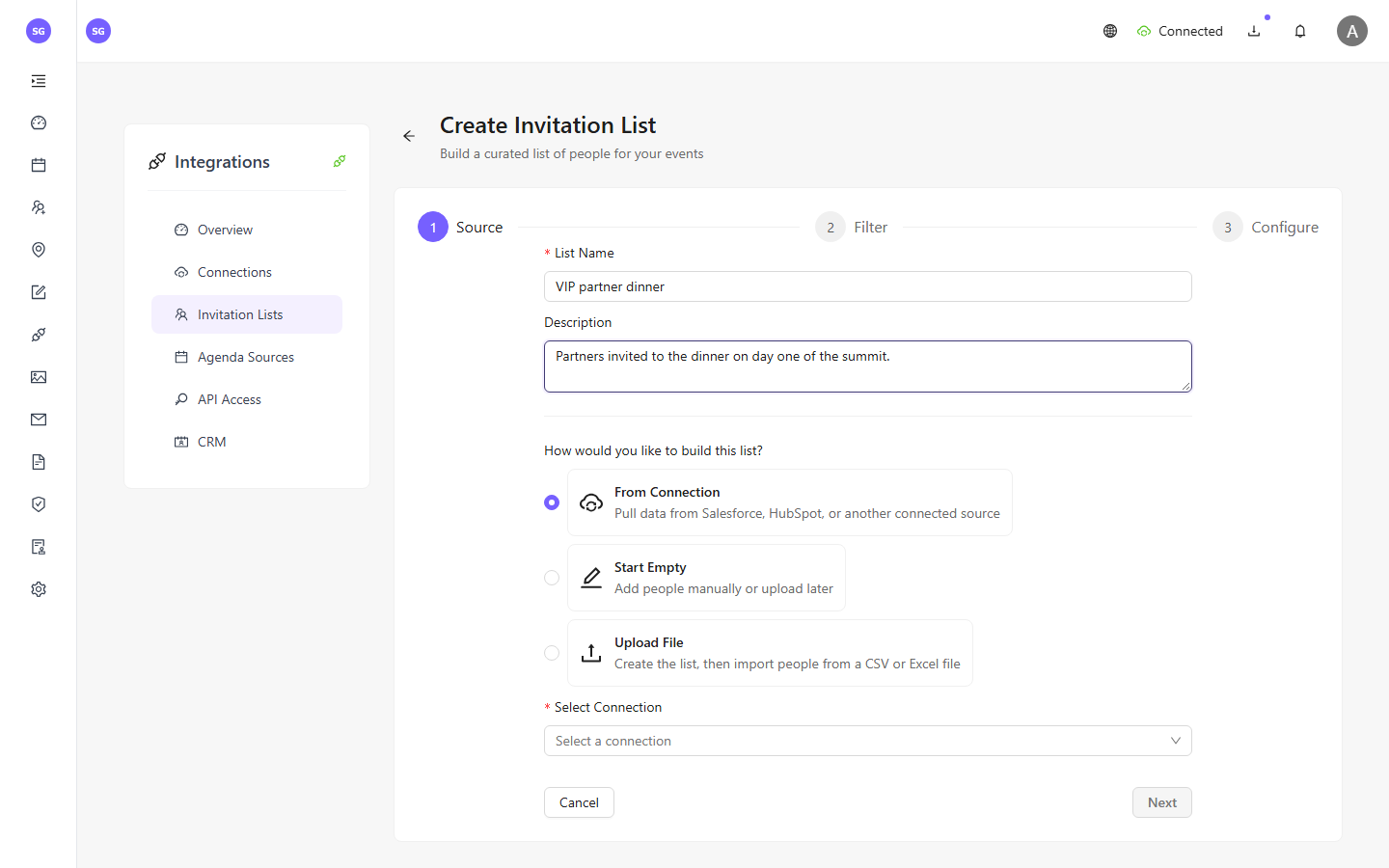
- Go to Integrations > Invitation Lists and click Create List.
- Enter a List Name and an optional Description.
- Choose how to build it:
- From Connection pulls people from Salesforce, HubSpot or another source you connected under Integrations.
- Start Empty creates the list so you can add people one by one.
- Upload File creates the list so you can import people from a CSV or Excel file.
- Click Create & Import. The new list opens, ready for people. With Upload File, the Import CSV dialog opens on it straight away.
Add people one at a time
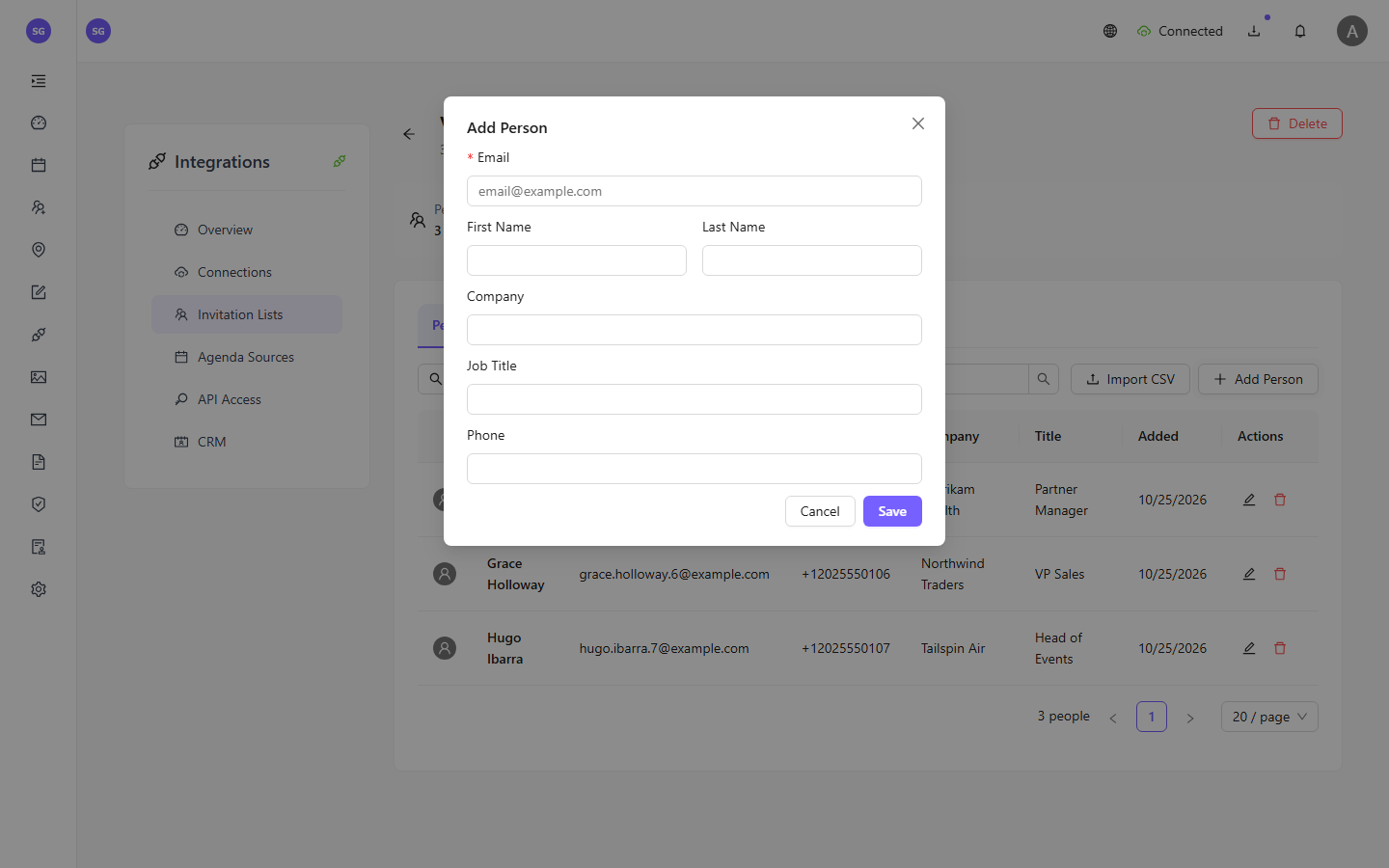
- On the list, click Add Person.
- Fill in Email and, if you have them, First Name, Last Name, Company, Job Title and Phone.
- Click Save.
Import people from a file
- On the list, click Import CSV. Use Download CSV Template or Download Excel Template if you want a file with the right columns.
- Drop your CSV, XLSX or XLS file on the upload area.
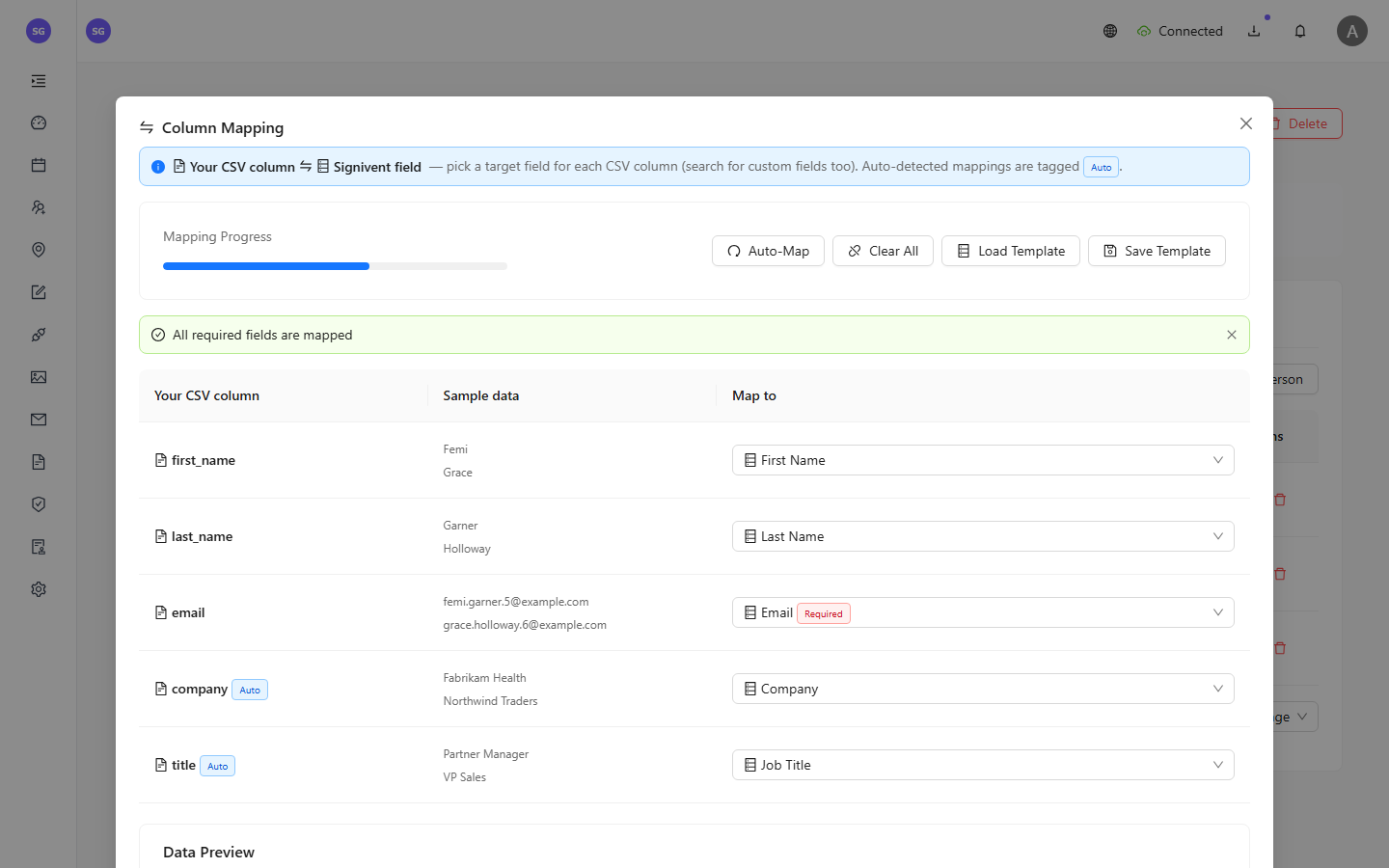
- Map the columns. Each column of your file is matched to a field; matches found automatically are tagged Auto. Email is required. Change any match with the drop-down, or pick Don't import this column. Save Template keeps a mapping you will use again.
- Click Complete Mapping and check the Preview.
- Click Import. A panel in the corner shows the progress and how many rows were added or skipped.
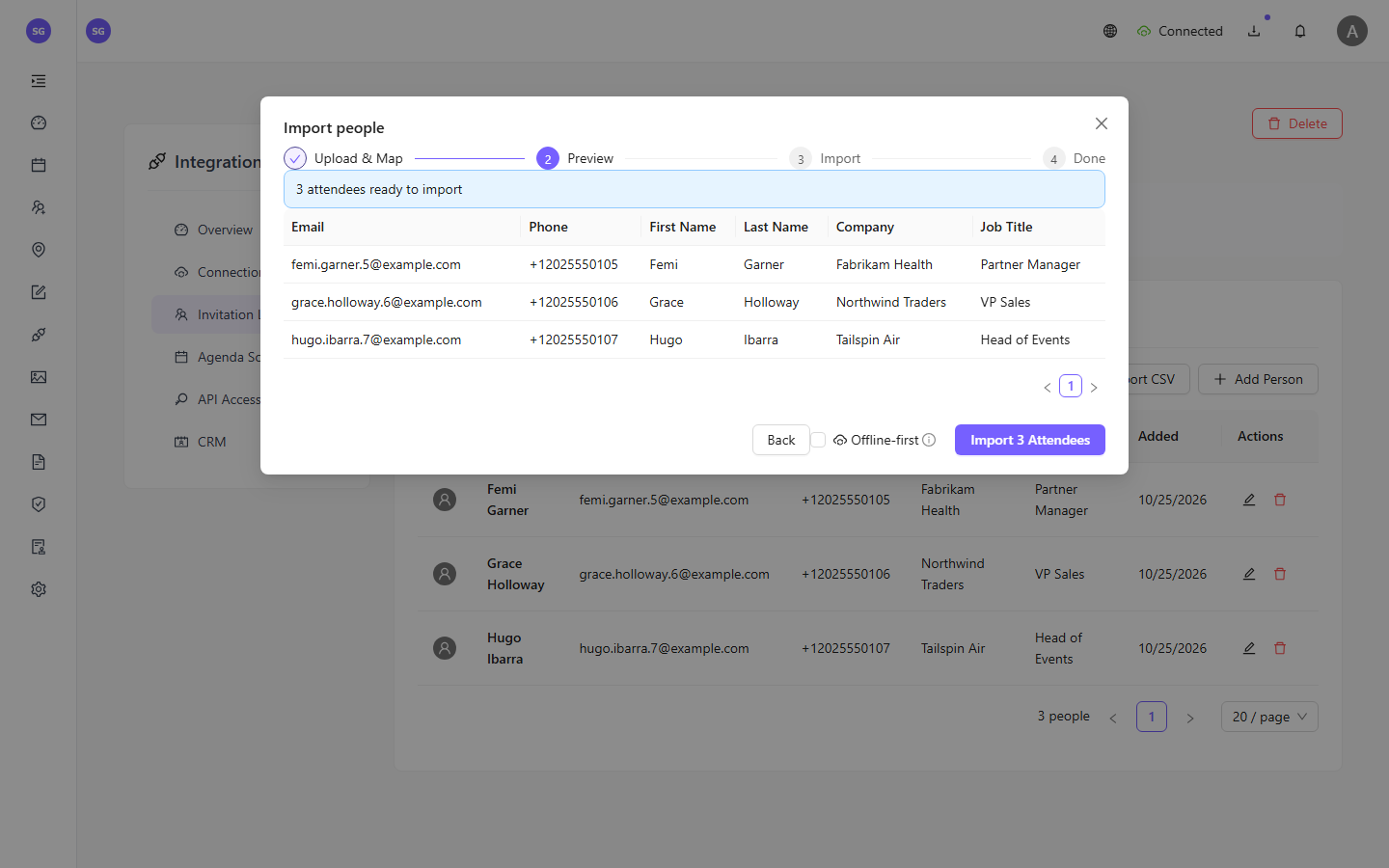
People already on the list are skipped, so importing the same file twice does not create duplicates. Download skipped rows (CSV) in the progress panel lists what was skipped and why.
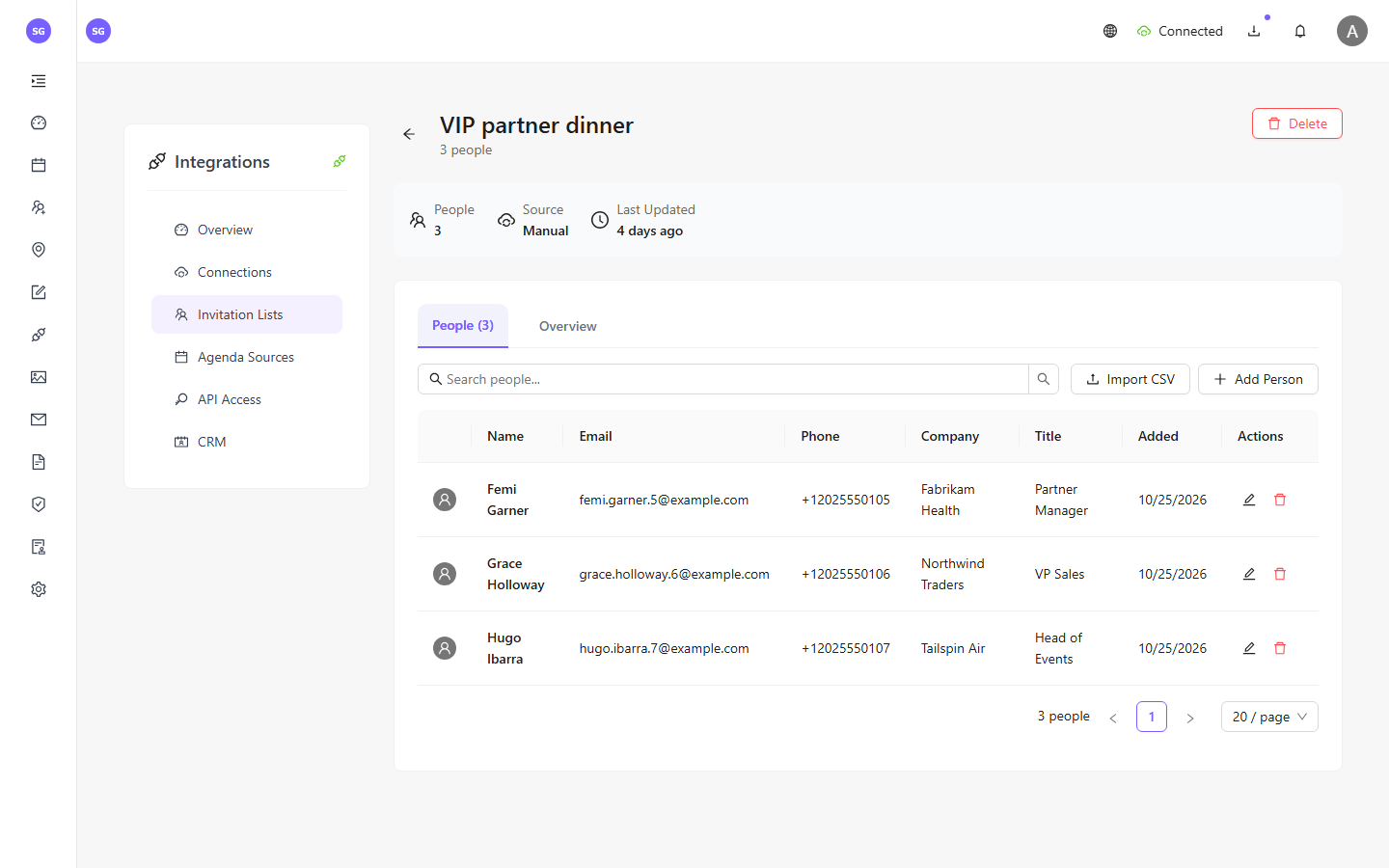
Use the pencil on a row to edit a person, or the bin to remove them. Delete at the top removes the whole list.
Find your lists
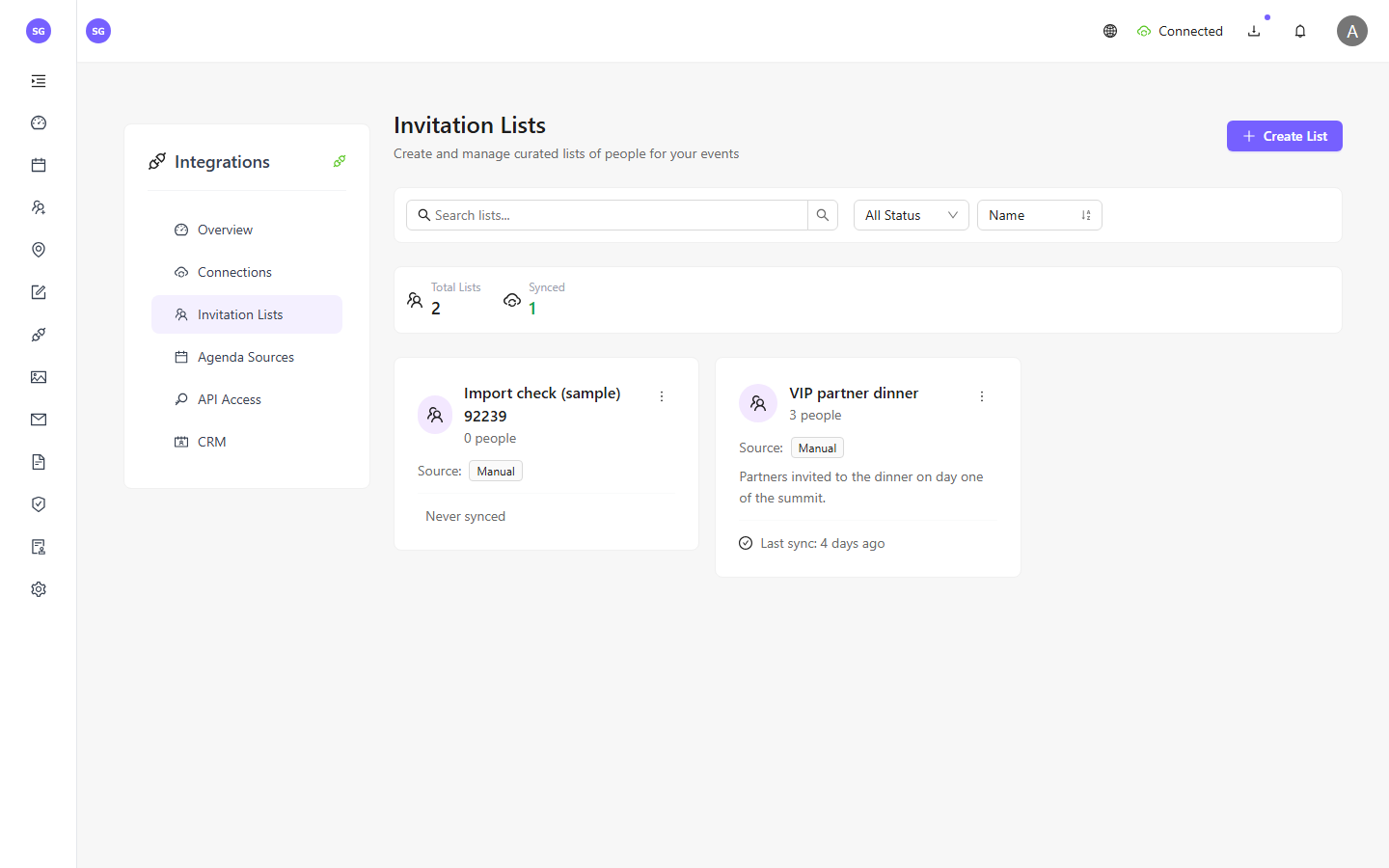
The Invitation Lists page shows every list with its number of people, its source (Manual, or the connection it came from), its description and when it last synced. Search by name, filter by status and sort by name.
Use a list in an event
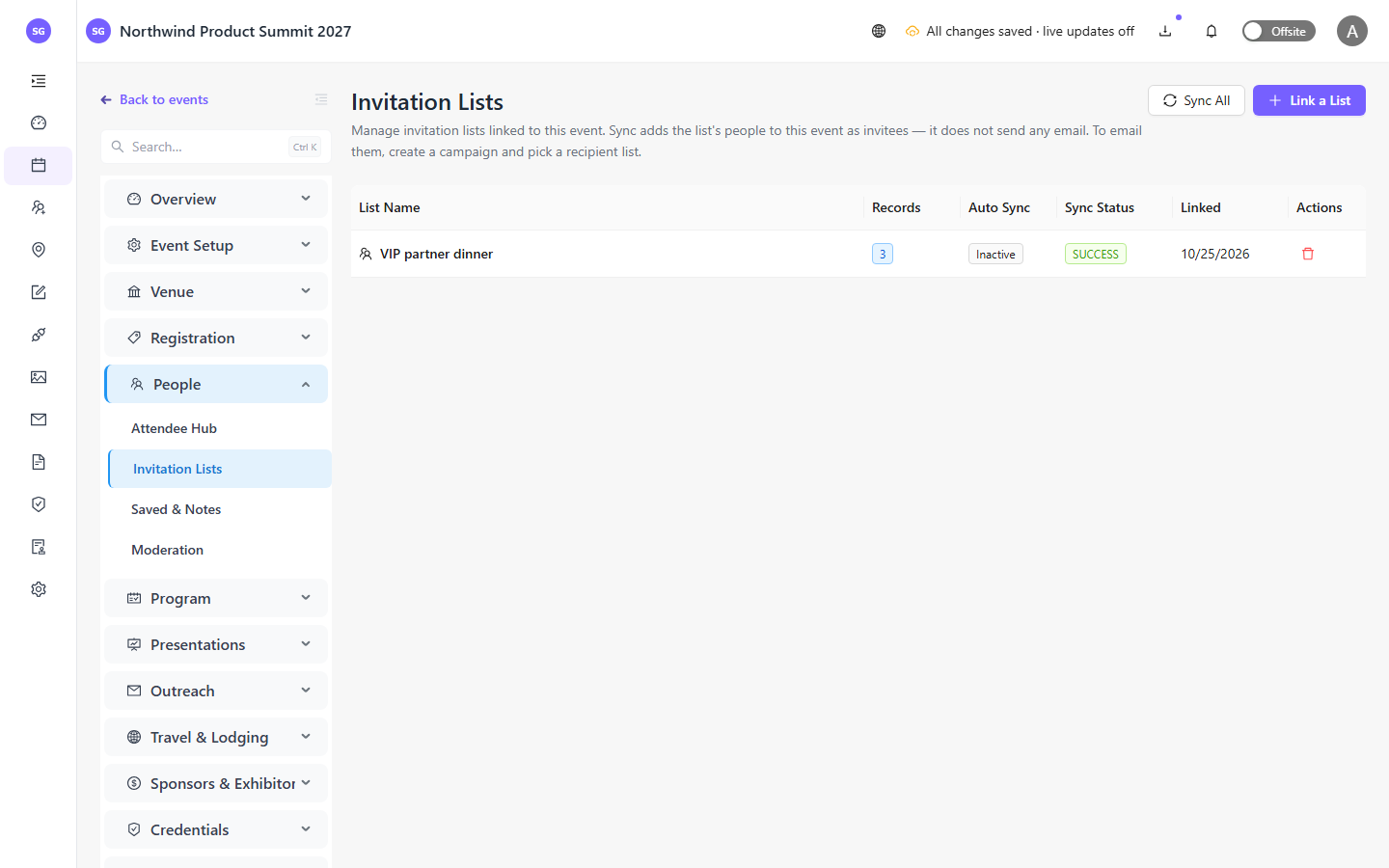
- Open the event and go to People > Invitation Lists.
- Click Link a List. Your organization's lists appear with their number of records; click Link next to the one you want. You can switch on Auto Sync there too.
- Click Sync All. The people on the list are added to the event as invitees, and the Sync Status changes to SUCCESS.
Syncing does not send any email. To email the people on a list, create an email campaign and pick a recipient list; a recipient list can be built straight from an invitation list.
Who can do this
Organization admins can create, import into and delete lists. Event teams link lists to their events.
Troubleshooting
| You see | Why | Fix |
|---|---|---|
| "1 required field is not yet mapped: Email" and every column shows Don't import this column | The automatic matching did not run | Click Auto-Map, or pick Email for your email column by hand |
| Rows were skipped | They are already on the list, or have no email | Download the skipped rows from the progress panel to see the reason |
| From Connection has nothing to choose | No CRM or data source is connected yet | Add one under Integrations > Connections or CRM |
| A list made with Upload File shows Source: Manual | Files count as a manual source | Nothing to fix |
| People do not appear in the event | The list is linked but not synced | Click Sync All on the event's Invitation Lists page |