Integrations: connections, CRM and Salesforce
See every data connection on the Integrations overview, connect a CRM, an API, a spreadsheet or an agenda tool, run and follow syncs, and know where the older Salesforce page fits.
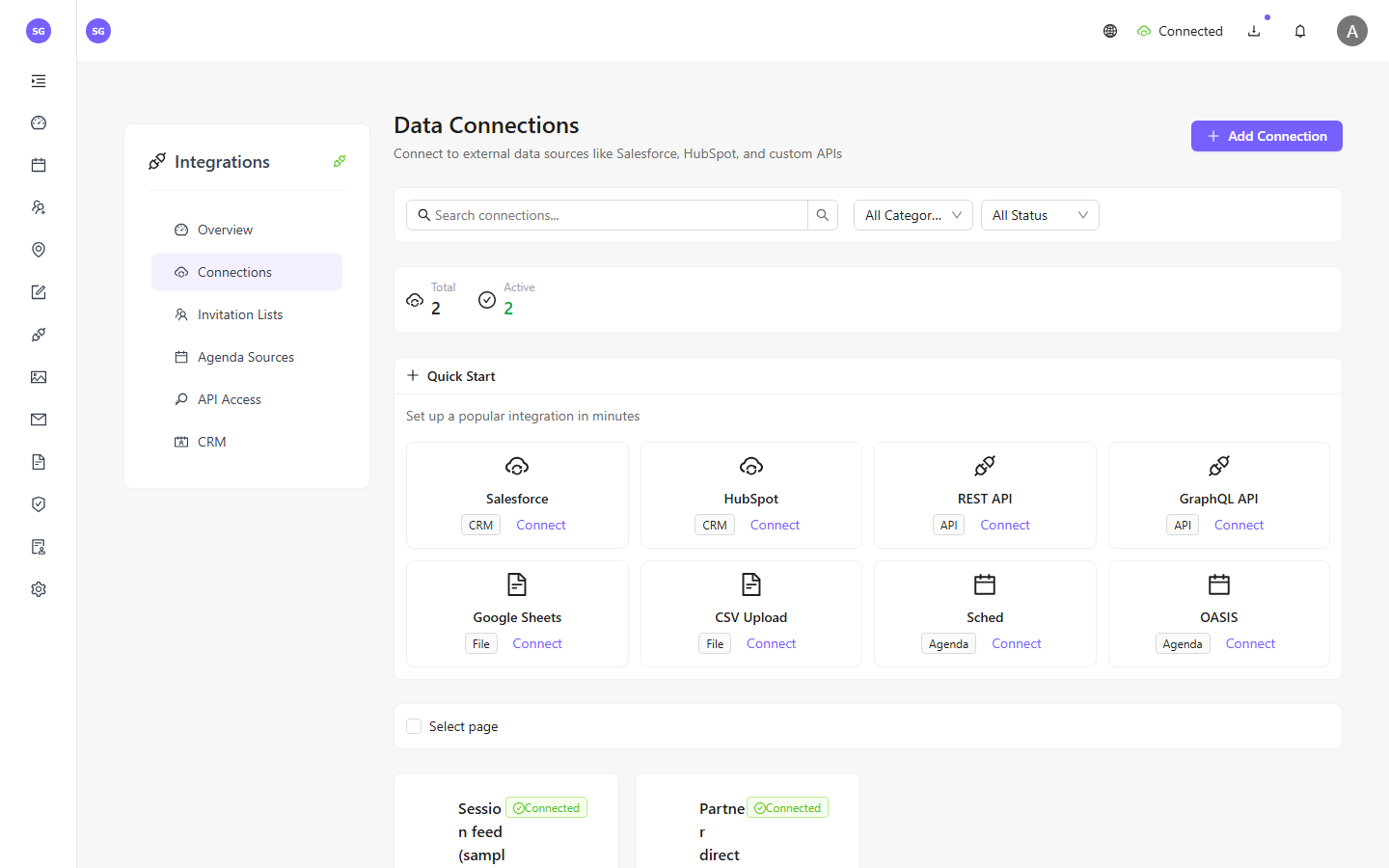
Integrations in the organization sidebar connects Signivent to the systems your organization already uses: CRMs such as Salesforce and HubSpot, your own APIs, spreadsheets and agenda tools. Its own menu has Overview, Connections, Invitation Lists, Agenda Sources, API Access and CRM.
The overview
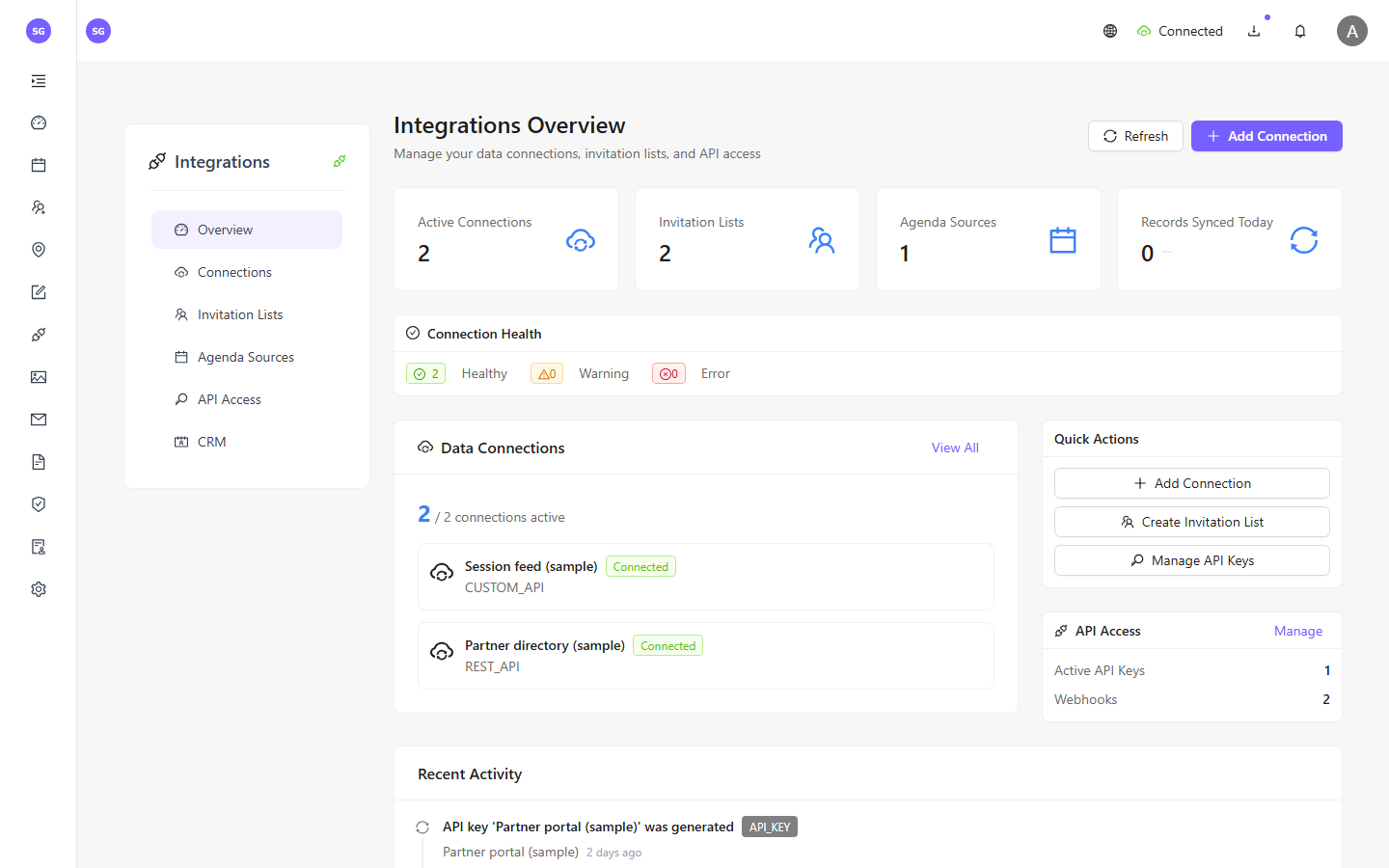
Integrations > Overview counts your active connections, invitation lists, agenda sources and the records synced today, shows the health of each connection, and has quick buttons to add a connection, create an invitation list or manage API keys.
Add a data connection
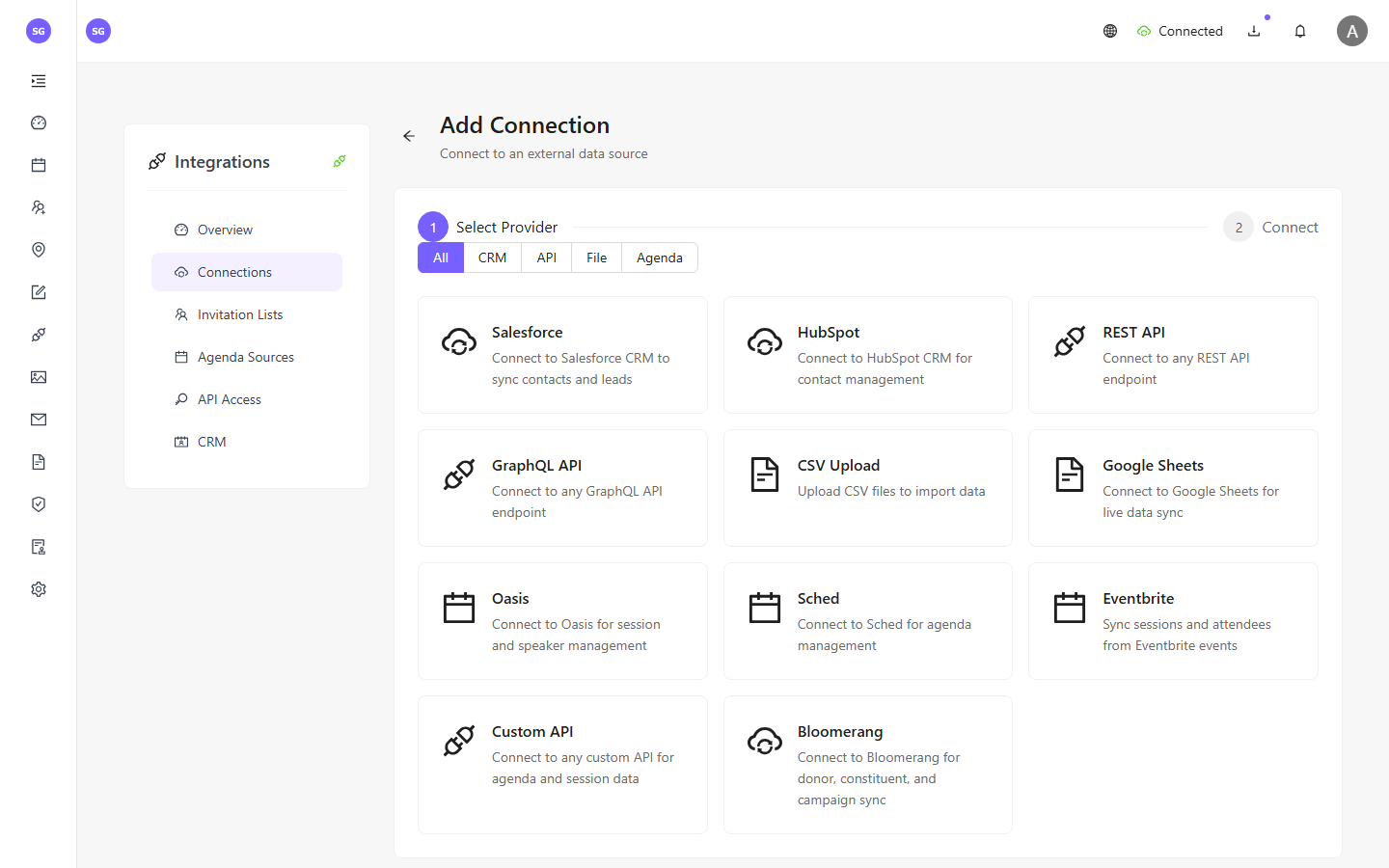
- Go to Integrations > Connections and click Add Connection. (The Quick Start tiles on the same page open the same steps for the most common sources.)
- Select Provider. Filter by CRM, API, File or Agenda, and pick one: Salesforce, HubSpot, REST API, GraphQL API, CSV Upload, Google Sheets, Oasis, Sched, Eventbrite, Custom API or Bloomerang.
- Connect. Give the connection a name and the details the provider needs. For a REST API that is an API Key, the Base URL and the Endpoint. For providers that use your own account (such as Salesforce and HubSpot) there is a Connect with ... button instead, which sends you to the provider's login page.
- Under Sync Settings, choose the Sync Frequency and the Sync Direction: Inbound Only (into Signivent), Outbound Only (from Signivent) or Bidirectional.
- Click Create Connection. The connection's page opens.
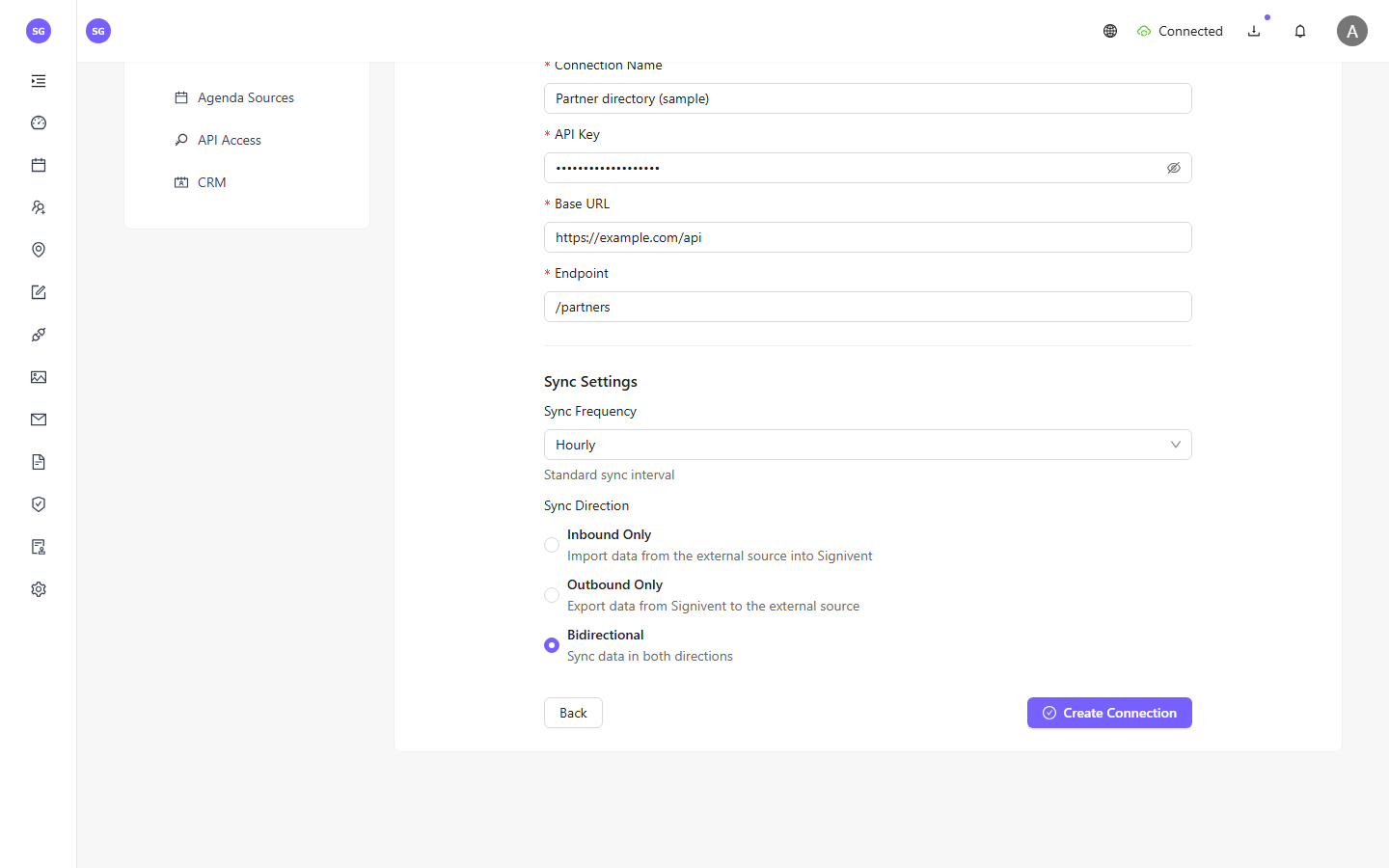
Today only Bidirectional can be saved for API connections; Inbound Only and Outbound Only are refused with "Failed to create connection". Choose Bidirectional for now.
Run and follow a sync
Each connection has its own page with Sync Now and Disconnect at the top, and tabs for Overview, Field Mappings & Validation, Sync, History, Audit Log and Monitoring.
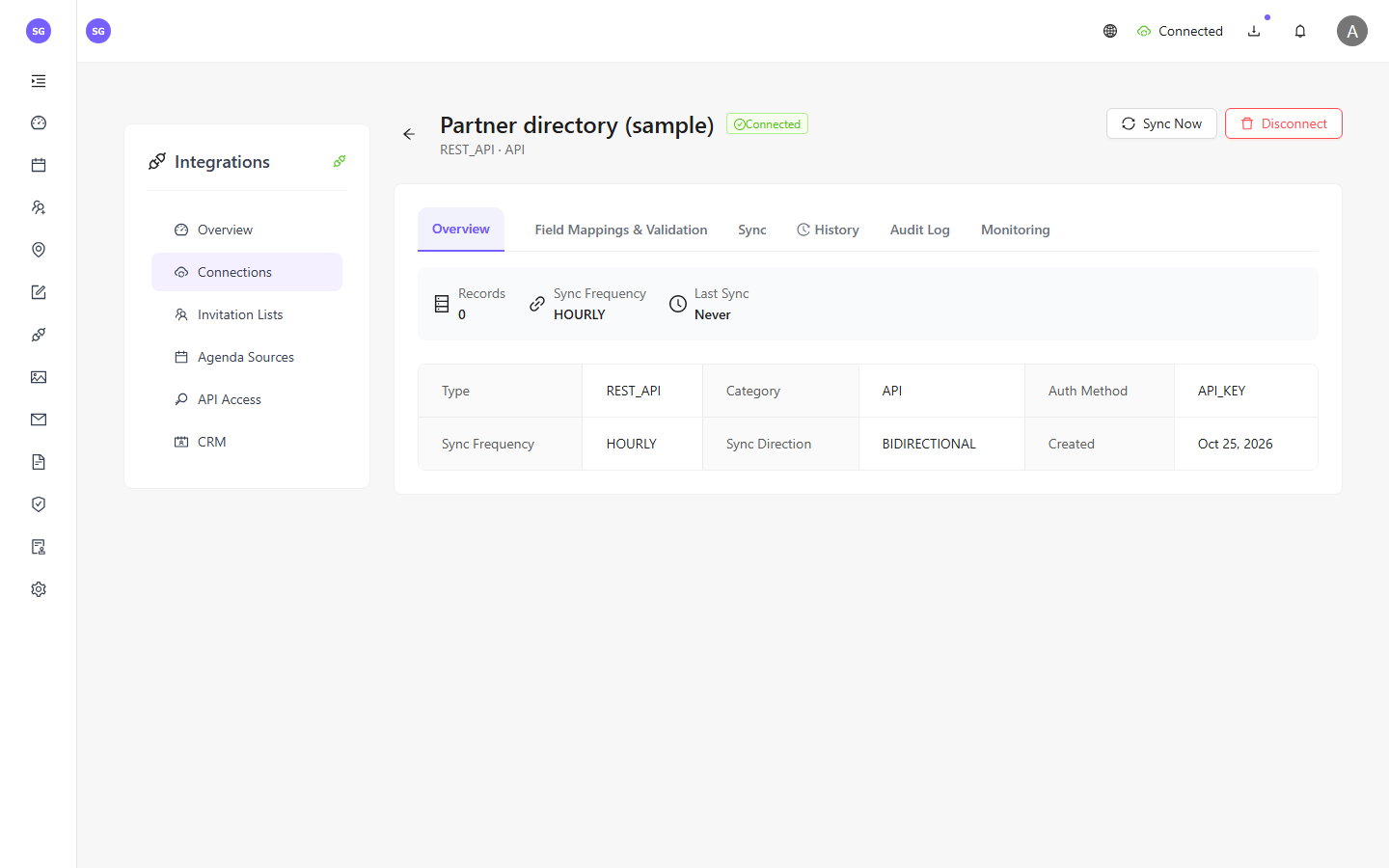
- Click Sync Now to start a sync. It runs in the background ("Sync started").
- Open History to see each run with its status, record count and duration, and Last Sync on the Overview tab for the most recent one.
- Use Field Mappings & Validation to decide which source fields fill which Signivent fields.
Disconnect asks for confirmation, then removes the connection from your list. Data already imported is kept.
Connect a CRM
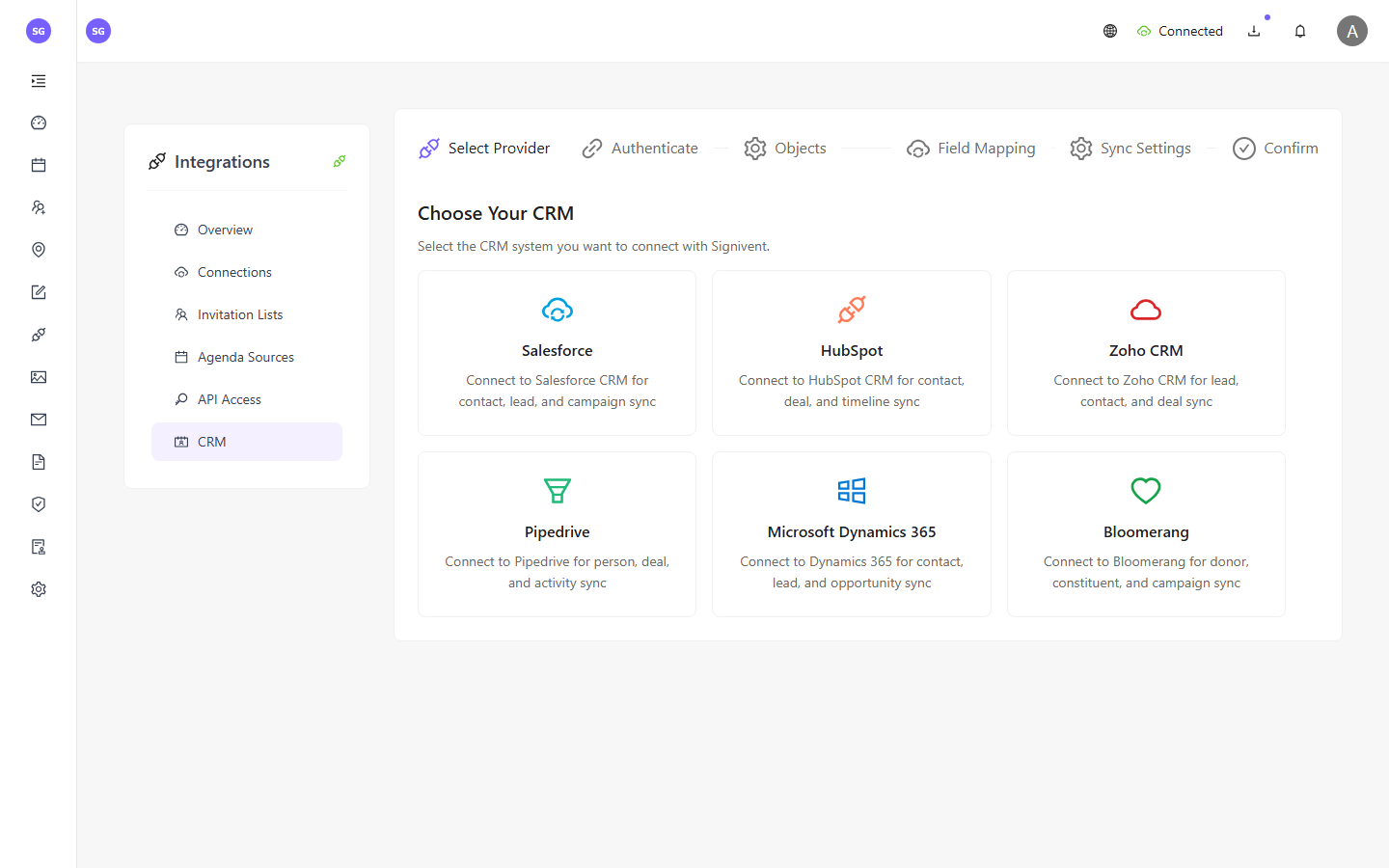
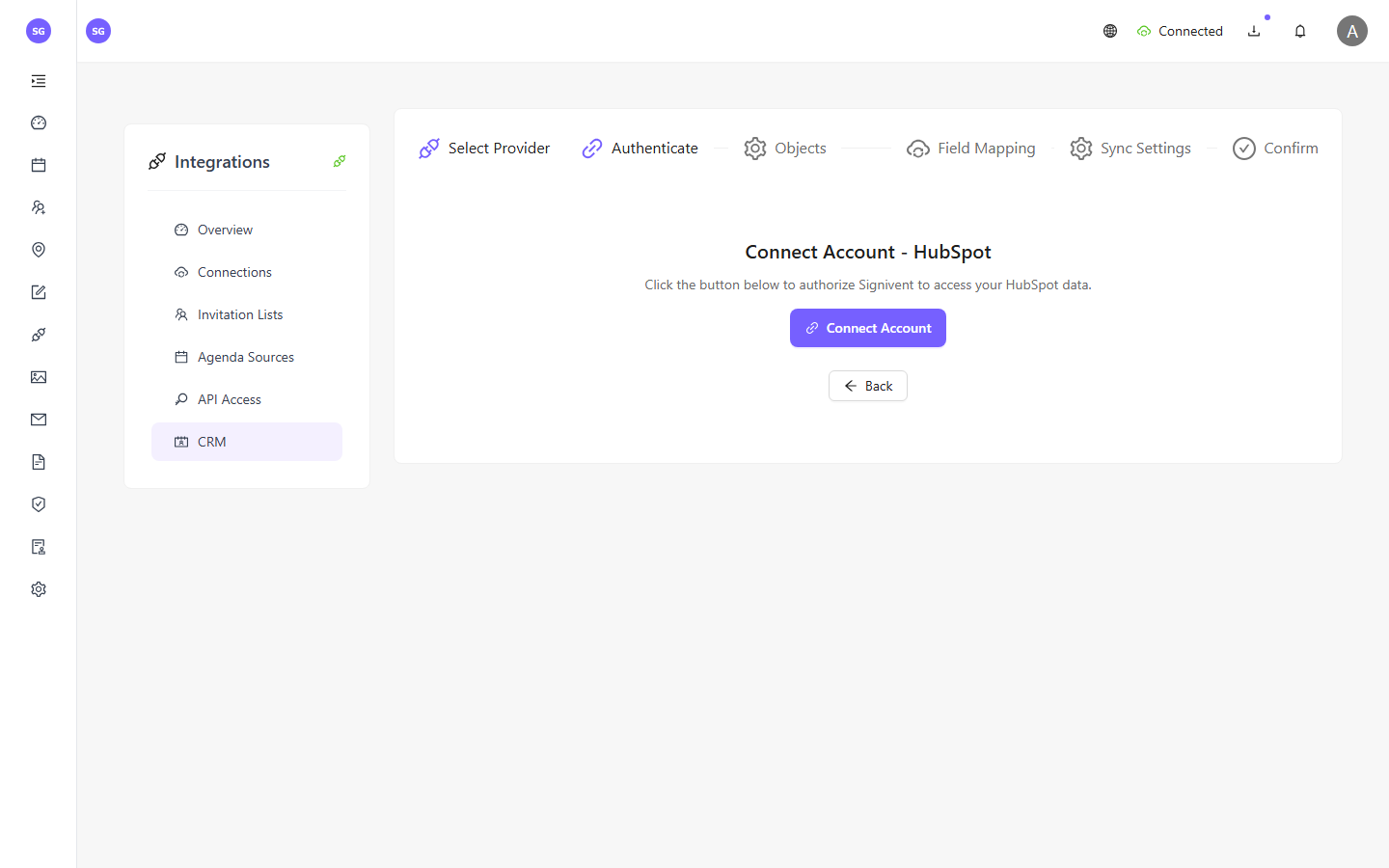
Integrations > CRM is the CRM hub. It walks through six steps: Select Provider, Authenticate, Objects, Field Mapping, Sync Settings and Confirm.
- Choose your CRM: Salesforce, HubSpot, Zoho CRM, Pipedrive, Microsoft Dynamics 365 or Bloomerang.
- Click Connect Account and sign in to the CRM to allow access.
- Pick the CRM objects to sync (for example contacts, leads or deals), map their fields, set how often and in which direction to sync, and confirm.
If sign-in for that CRM has not been set up on your Signivent site yet, Connect Account shows "Failed to initiate OAuth connection". Contact Signivent support.
The older Salesforce page
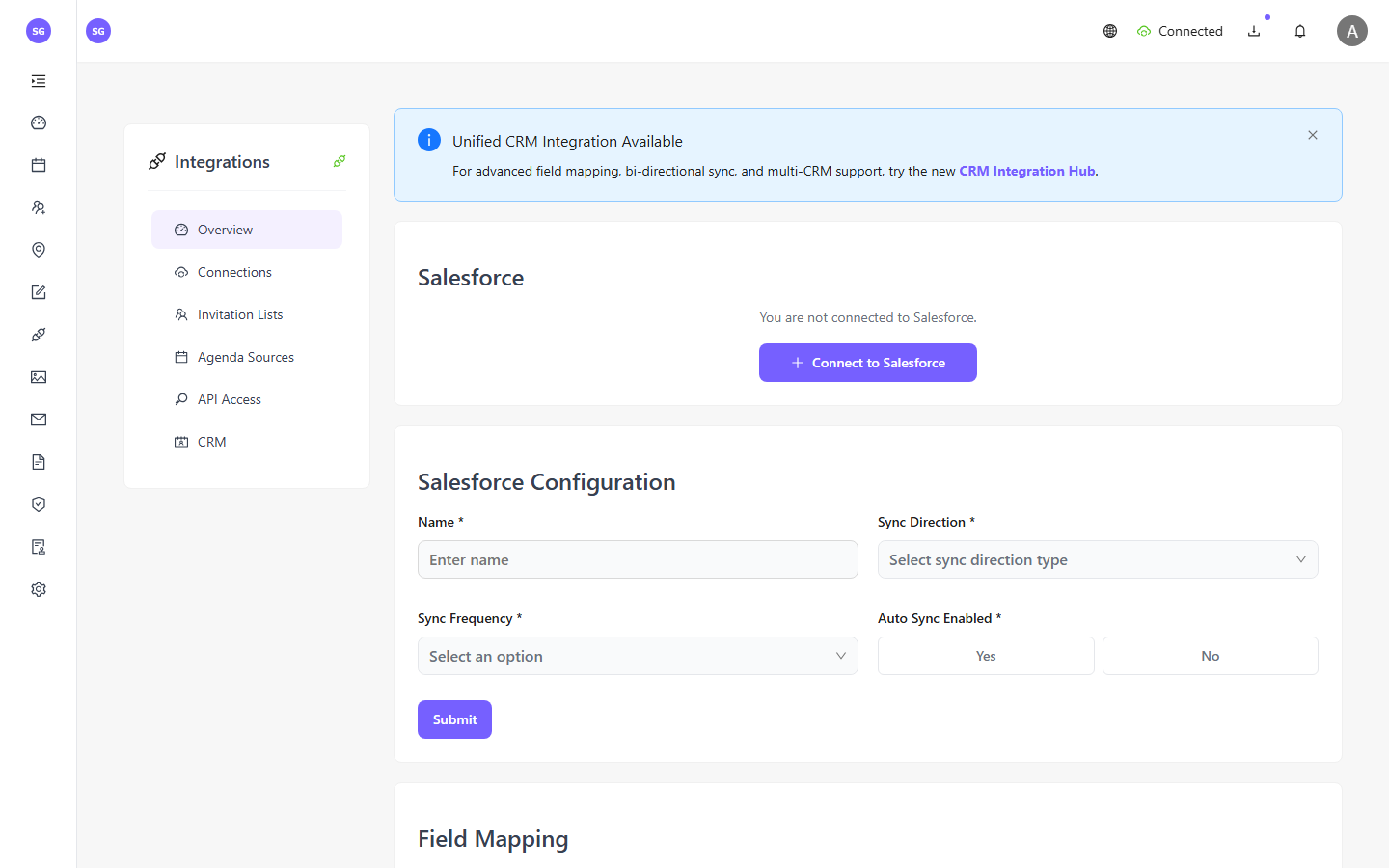
Integrations > Salesforce (at /dashboard/integrations/salesforce) is the original Salesforce setup: Connect to Salesforce, a Salesforce Configuration form (name, sync direction, sync frequency, auto sync) and object mappings. A banner on that page points to the CRM hub, which supports more CRMs, field mapping and two-way sync. Use the CRM hub for new set-ups.
Who can do this
Organization admins can add, sync and disconnect connections.
Troubleshooting
| You see | Why | Fix |
|---|---|---|
| "Failed to create connection" | Inbound Only or Outbound Only was chosen | Choose Bidirectional and create it again |
| "Failed to initiate OAuth connection: OAuth client ID not configured" | Sign-in for that CRM is not set up on your site | Contact Signivent support |
| A connection shows Pending after a failed sign-in | The attempt was recorded before the sign-in failed | Open it and click Disconnect |
| Last Sync stays at Never | No sync has finished yet | Click Sync Now, then check History |