Agenda sources and API access
Bring sessions and speakers in from Oasis, Sched, Eventbrite or your own API, and manage API keys and webhooks so your systems can read Signivent data and hear about changes.
Two pages under Integrations connect Signivent with other software. Agenda Sources pulls sessions, speakers, rooms and tracks from an agenda tool. API Access holds the API keys your own systems use to call Signivent, and the webhooks that tell those systems when something changes.
Add an agenda source
An agenda source always uses a connection to the provider, so set that up first.
- Create the connection. Go to Integrations > Connections > Add Connection, pick the agenda provider (Oasis, Sched, Eventbrite or Custom API), enter its details and save it. See Integrations: connections, CRM and Salesforce.
- Go to Integrations > Agenda Sources and click Add Source.
- Provider. Choose Oasis, Sched, Eventbrite or Custom API and click Next.
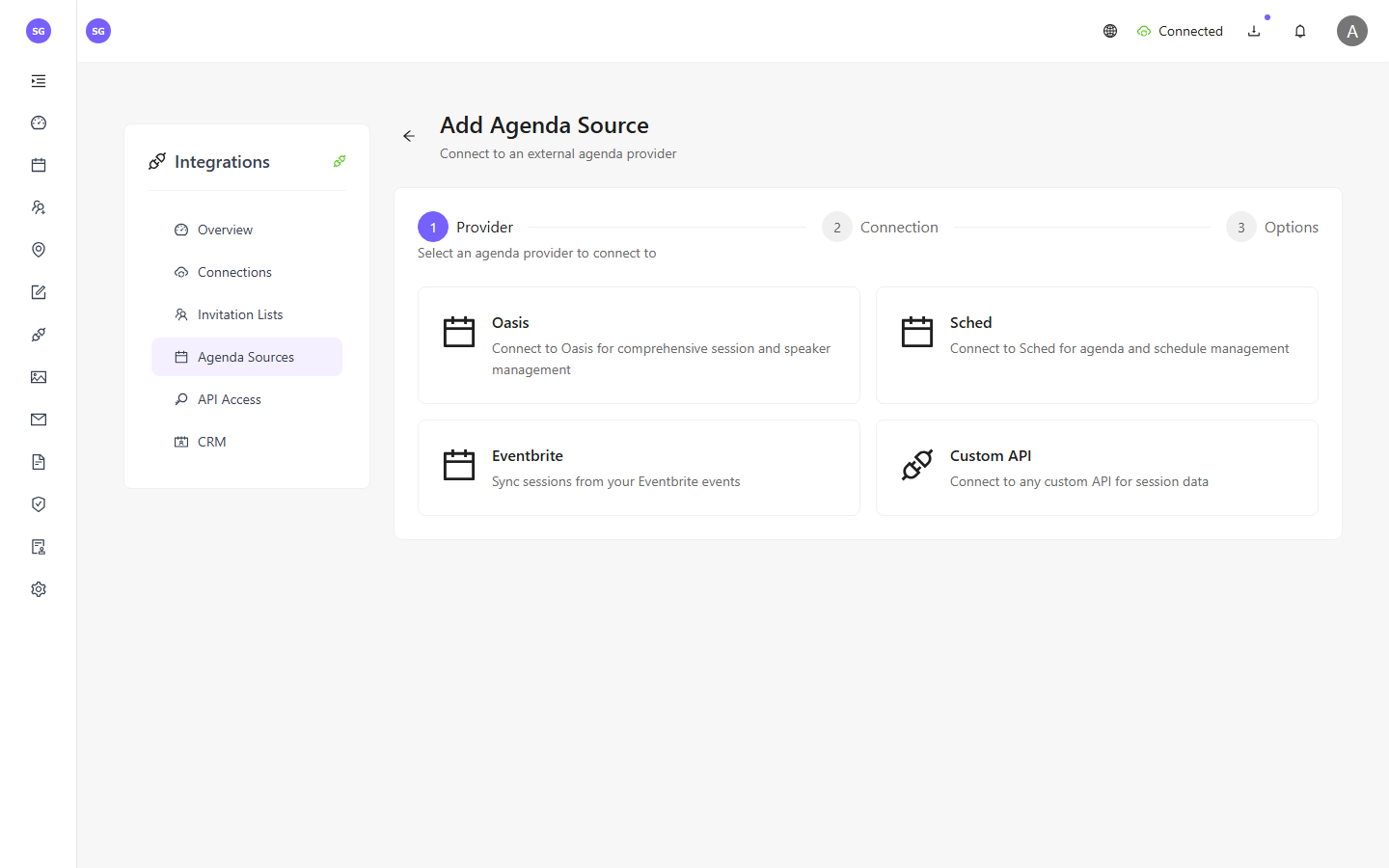
- Connection. Enter a Source Name, pick the connection from step 1 under Select Connection, and enter the Conference/Project ID (the ID or slug of the conference in the other system). Click Next.
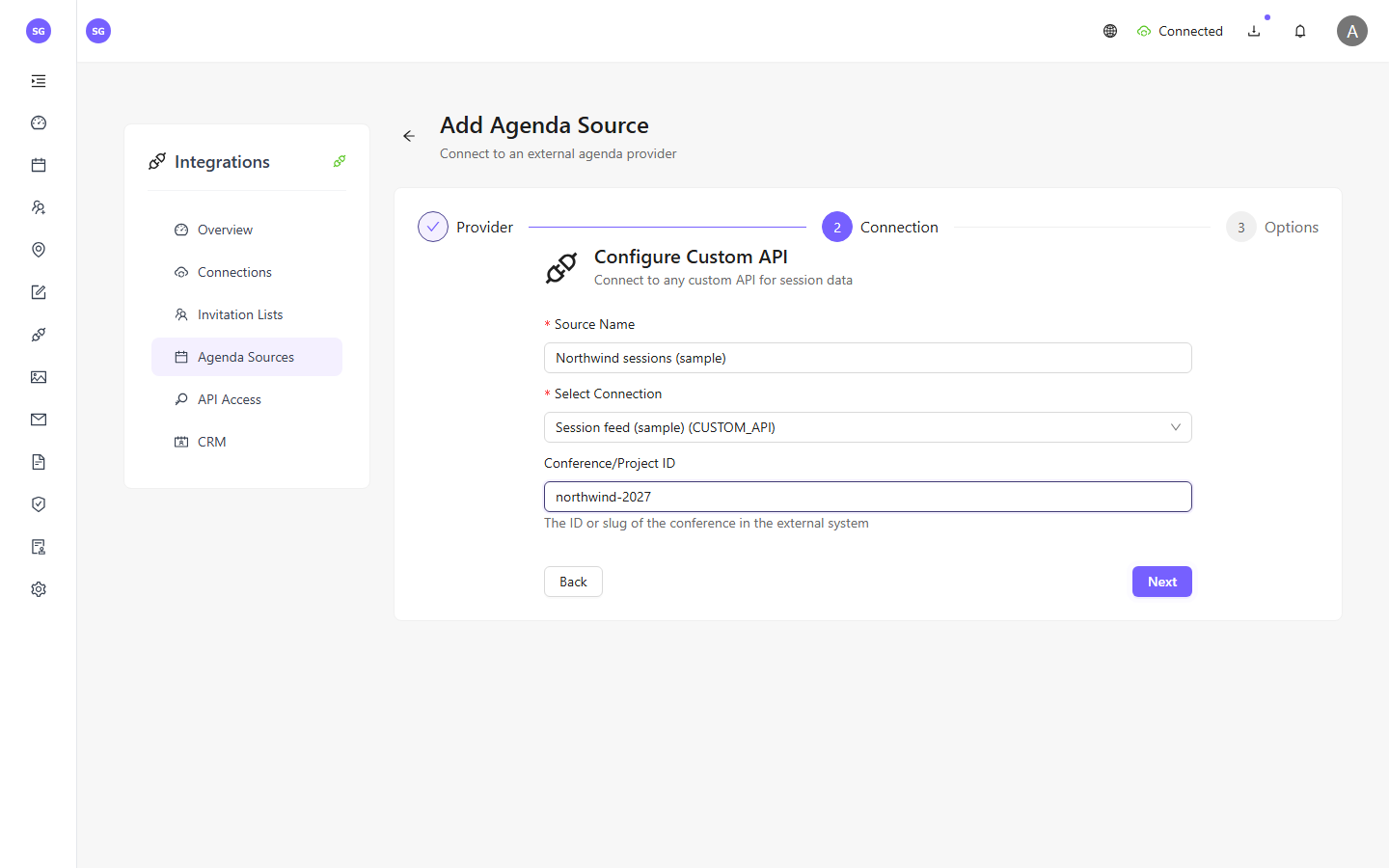
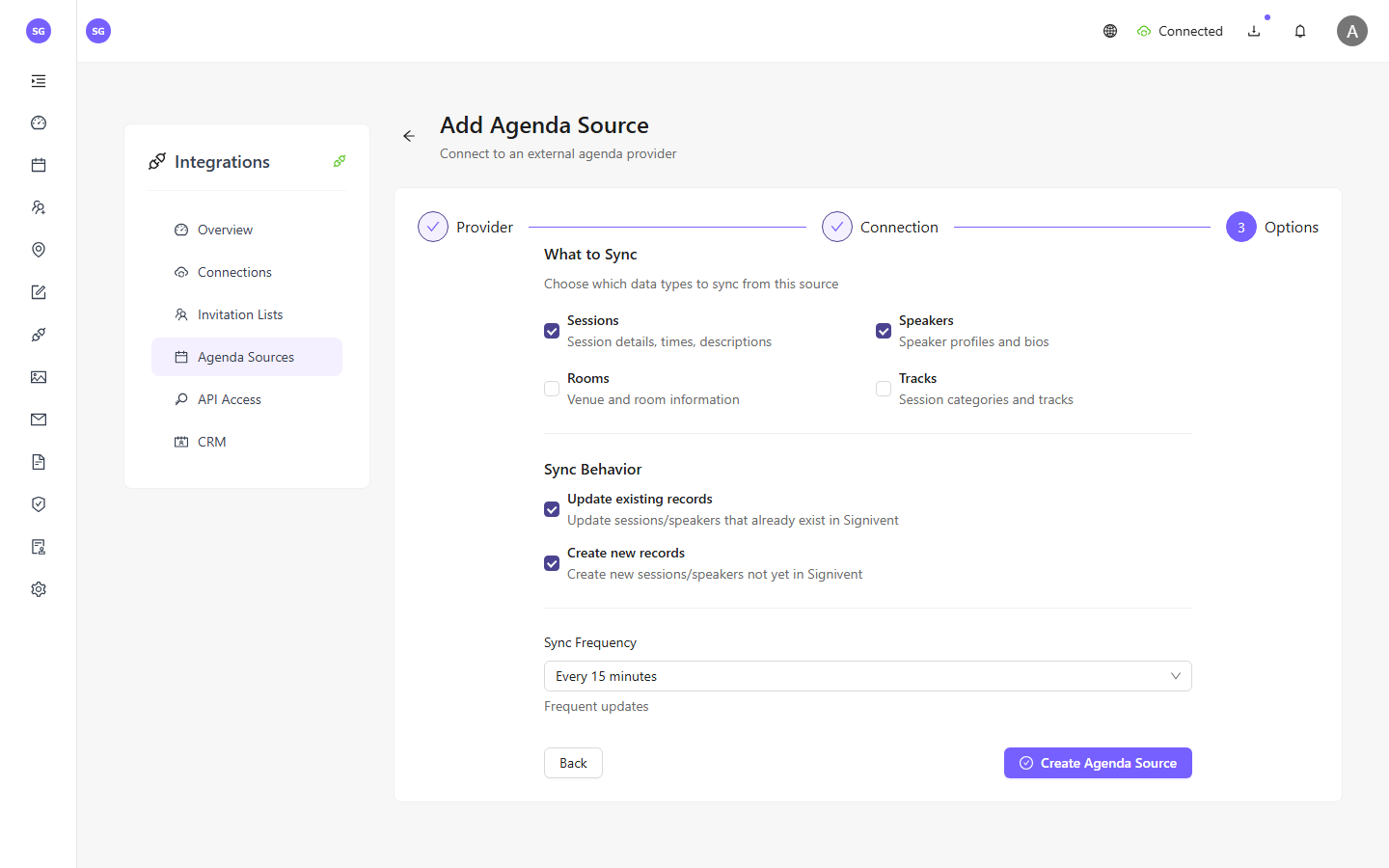
- Options. Under What to Sync, tick Sessions, Speakers, Rooms and Tracks as needed. Under Sync Behavior, choose whether to Update existing records and Create new records. Pick a Sync Frequency.
- Click Create Agenda Source. Its page opens.
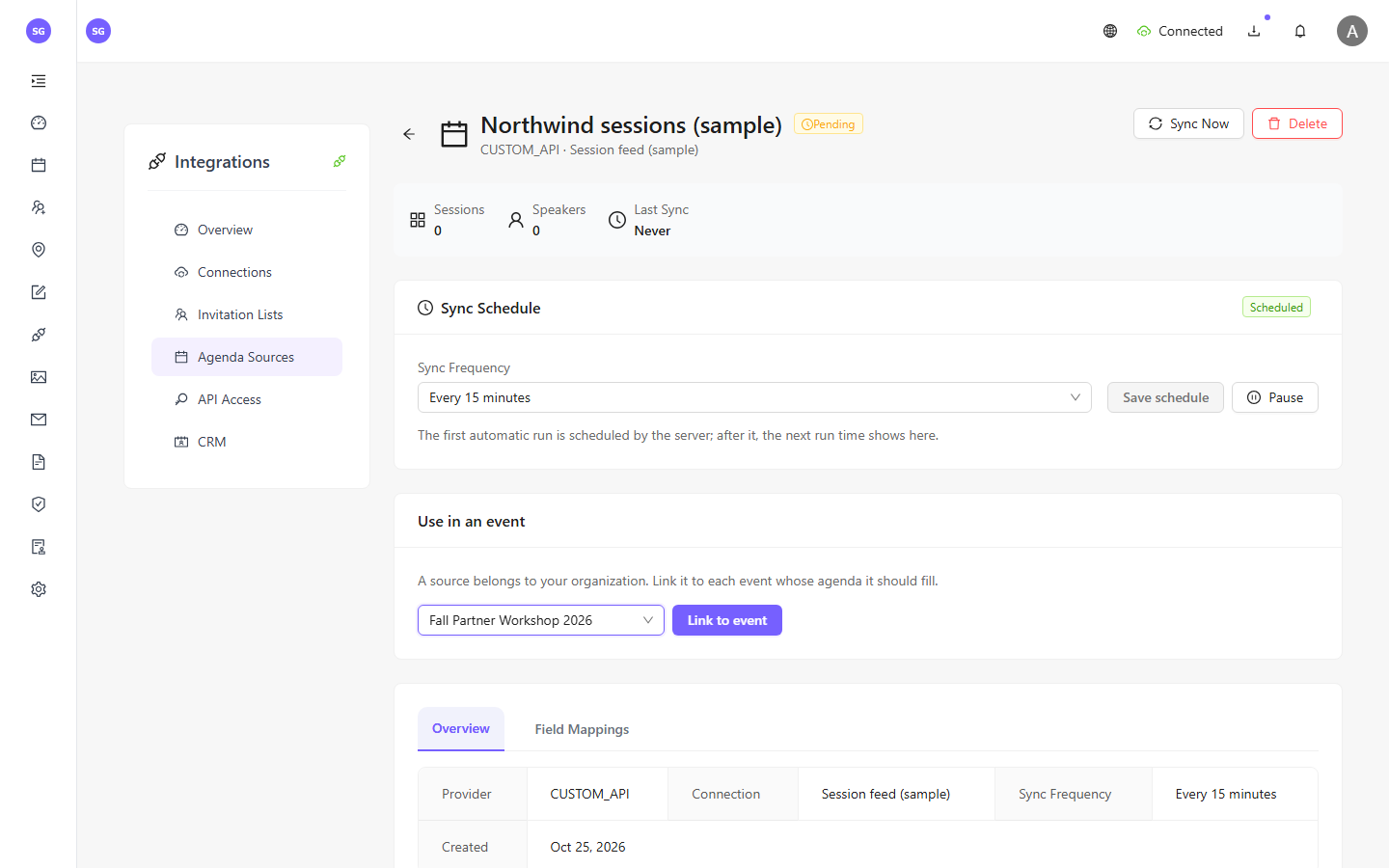
- A source belongs to your organization, not to one event. To fill an event's agenda from it, go to Use in an event on the source's page, pick the event and click Link to event. Link it to each event that should use it.
Run and schedule an agenda source
The source's page shows how many sessions and speakers came in and when it last synced.
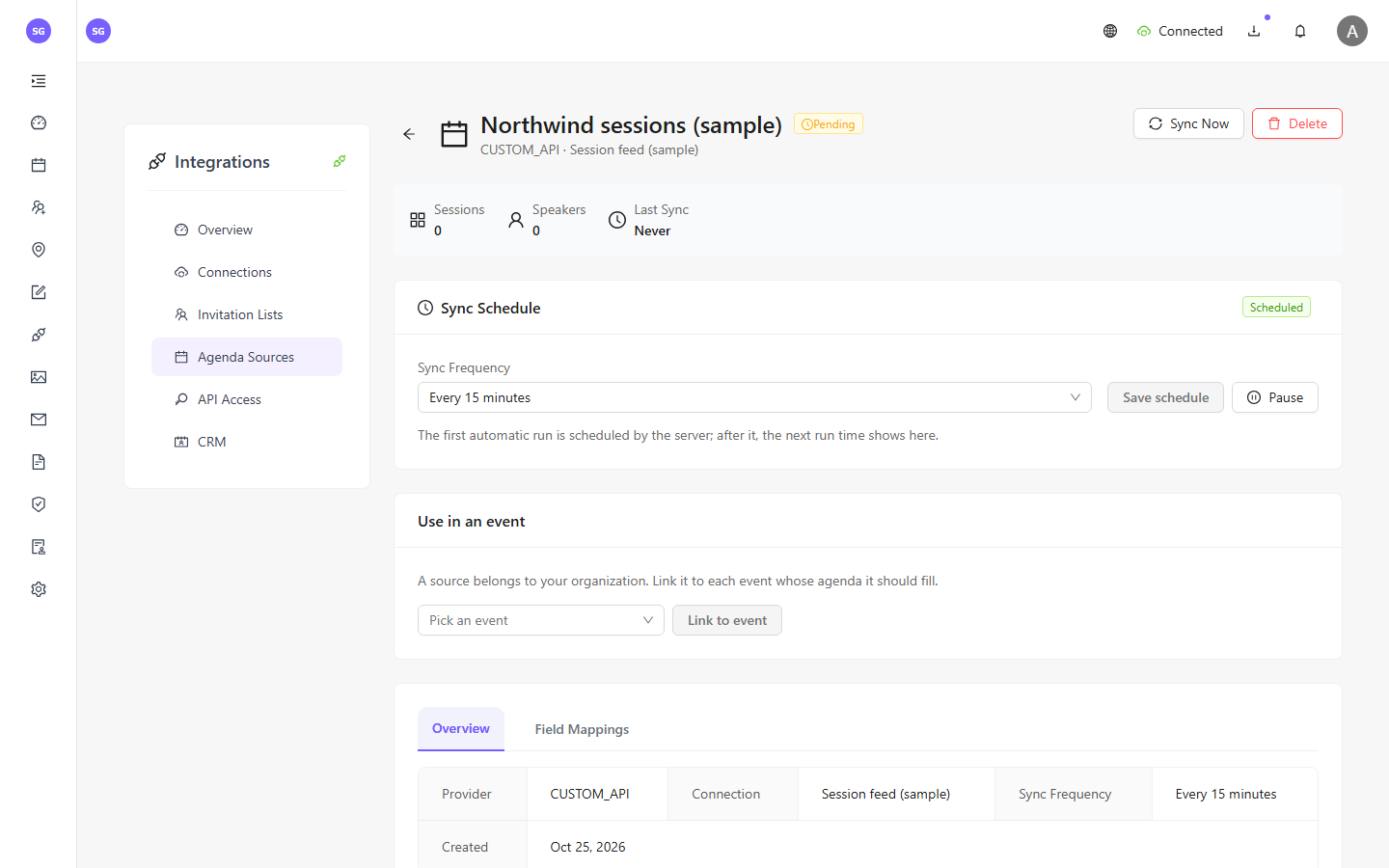
- Click Sync Now to pull the agenda straight away.
- To change how often it syncs, choose a Sync Frequency under Sync Schedule (from every few minutes to weekly) and click Save schedule. Manual means it syncs only when you press Sync Now.
- The Field Mappings tab controls which fields from the provider fill which session and speaker fields.
- Delete removes the source.
API keys
Integrations > API Access lists your API keys and webhooks.
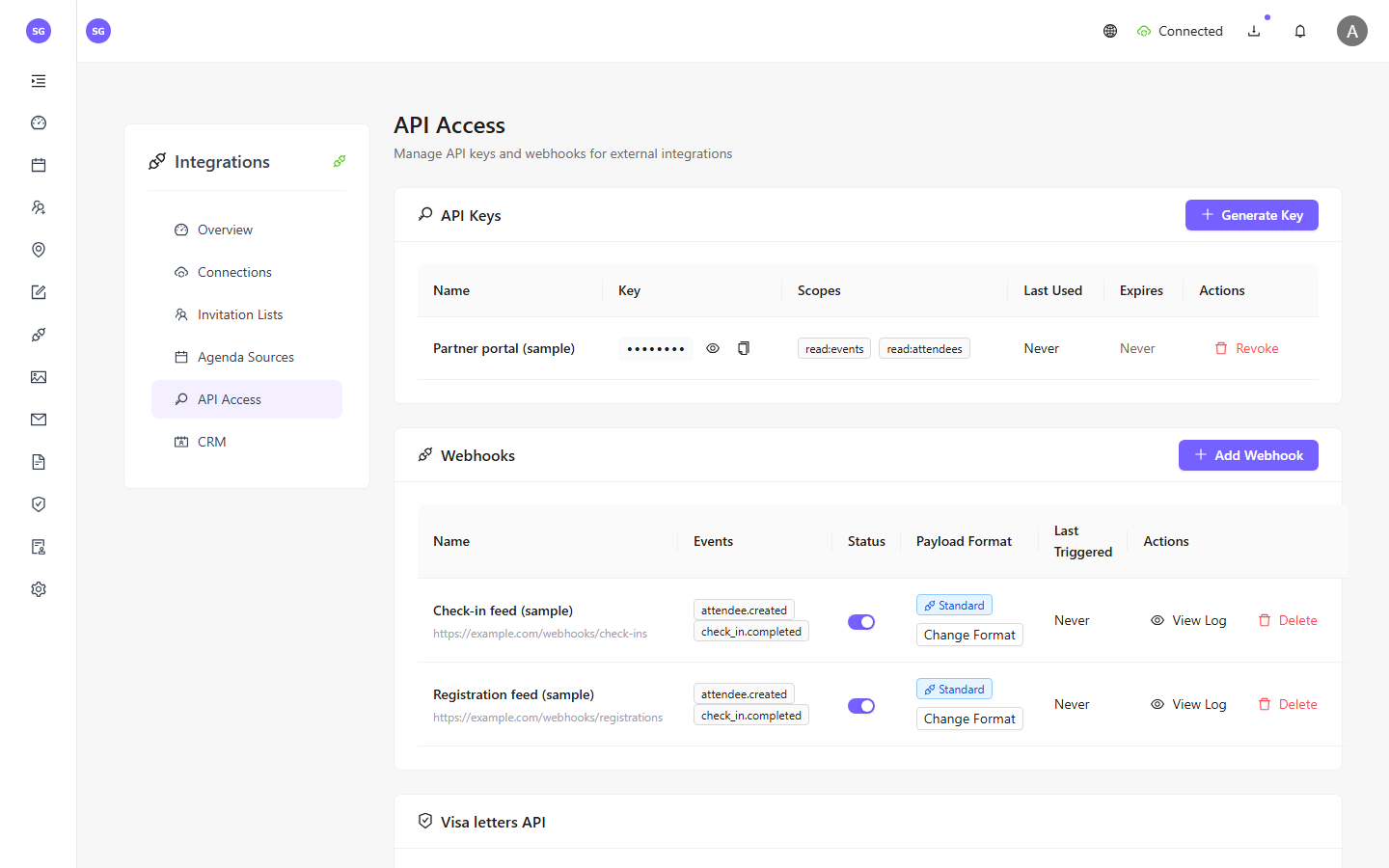
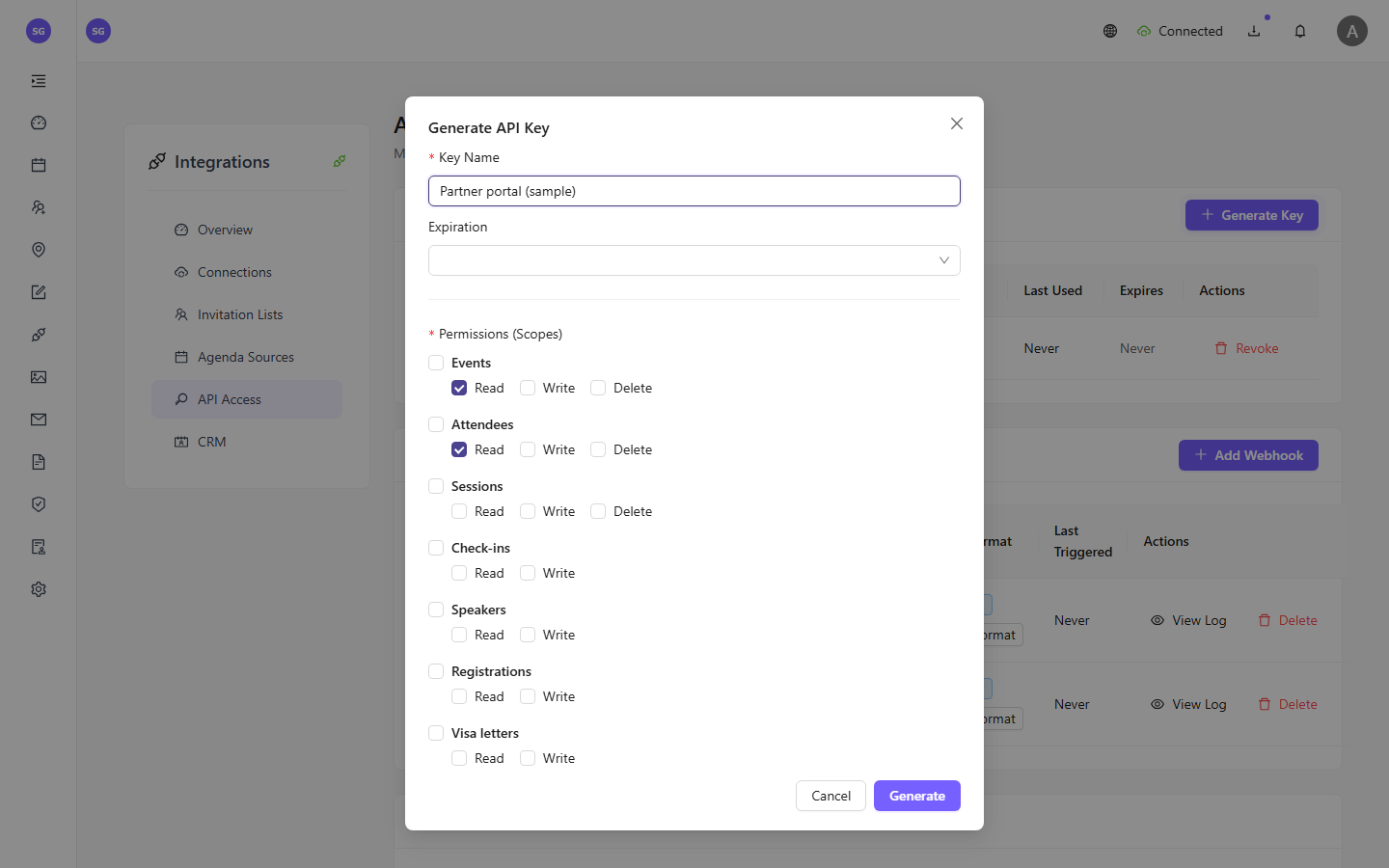
To create a key, click Generate Key, enter a Key Name, choose an optional Expiration, and tick the Permissions (Scopes) the key needs: Read, Write or Delete for Events, Attendees and Sessions, and Read or Write for Check-ins, Speakers, Registrations and Visa letters. Give each key only the permissions its system needs.
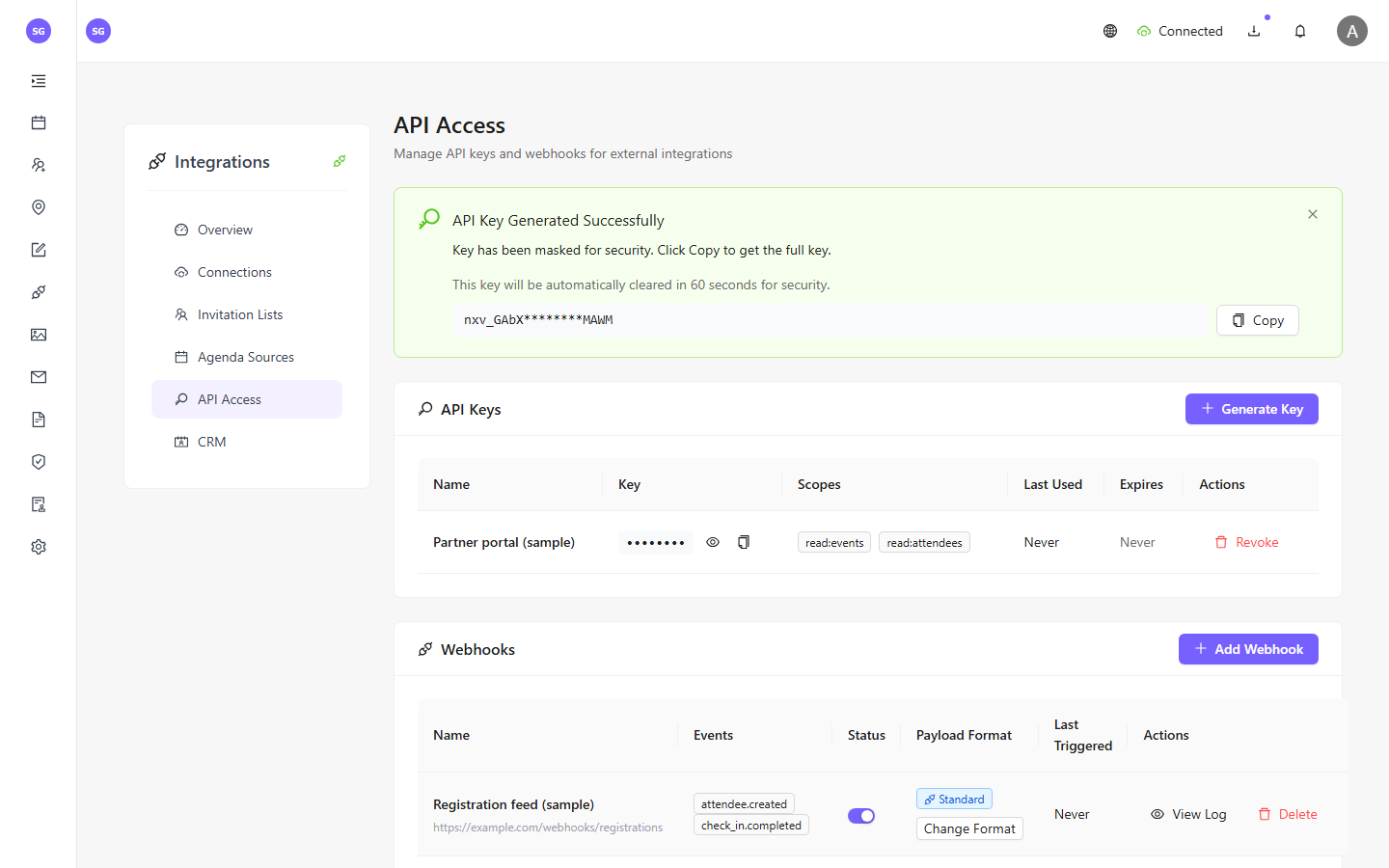
Click Generate. The page shows the new key once, under API Key Generated Successfully. Click Copy and store it somewhere safe: after a short time the key is masked, and it can't be shown again.
Systems send the key in the X-API-Key header (or as Authorization: Bearer <key>). The Visa letters API section on the same page documents the visa endpoints; see the Visa Letter Management Guide.
Webhooks
A webhook sends a POST request to your server when something happens in Signivent.
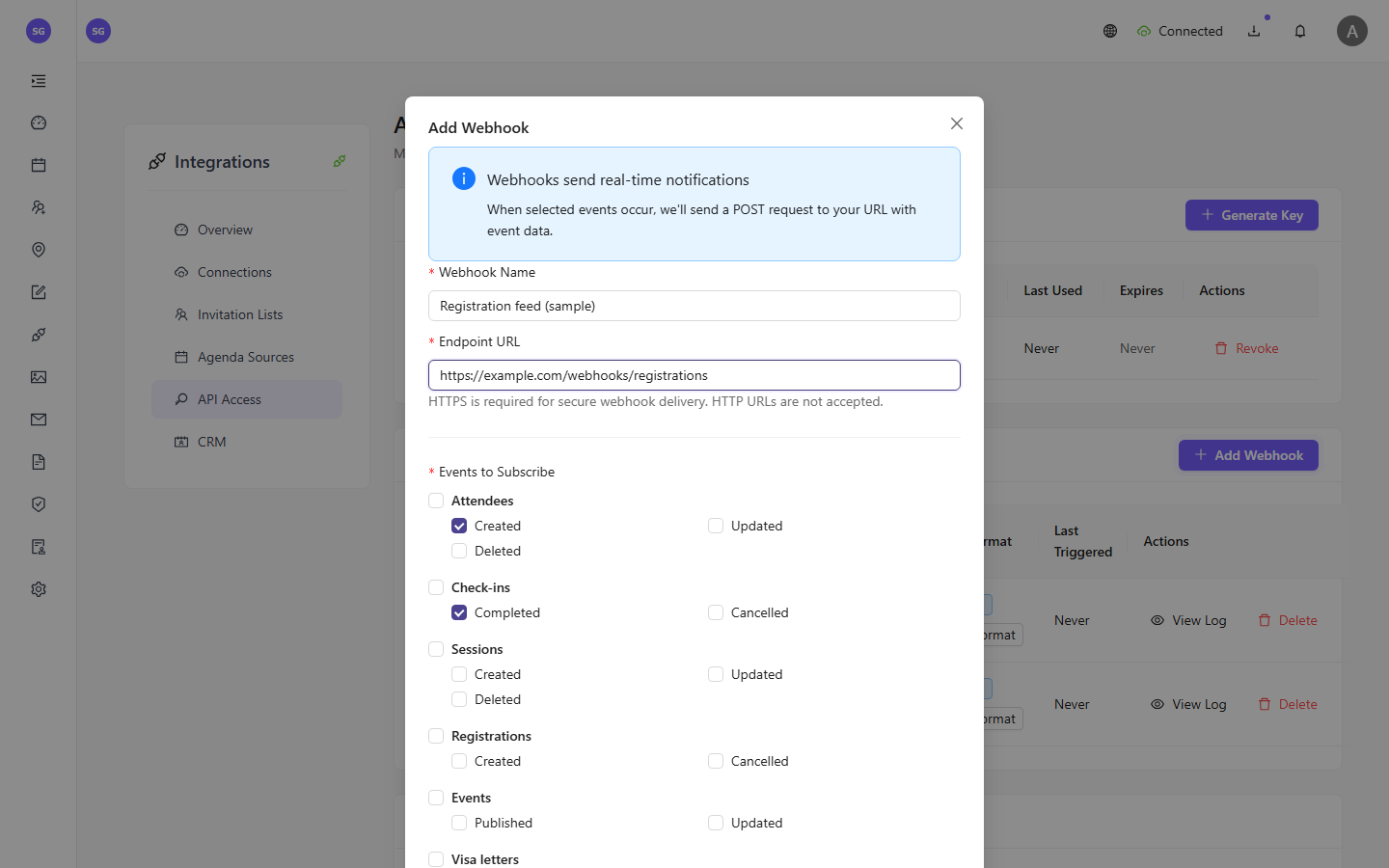
- Click Add Webhook.
- Enter a Webhook Name and the Endpoint URL. The URL must start with
https://. - Under Events to Subscribe, tick what should trigger it: attendees created, updated or deleted; check-ins completed or cancelled; sessions created, updated or deleted; registrations created or cancelled; events published or updated; and visa letter state changes. Attendees Created and Check-ins Completed are ticked to start with.
- Click Create Webhook. The Webhook Created dialog shows the webhook's signing secret once. Copy it now: your server uses it to check that each delivery came from Signivent, and it can't be shown again.
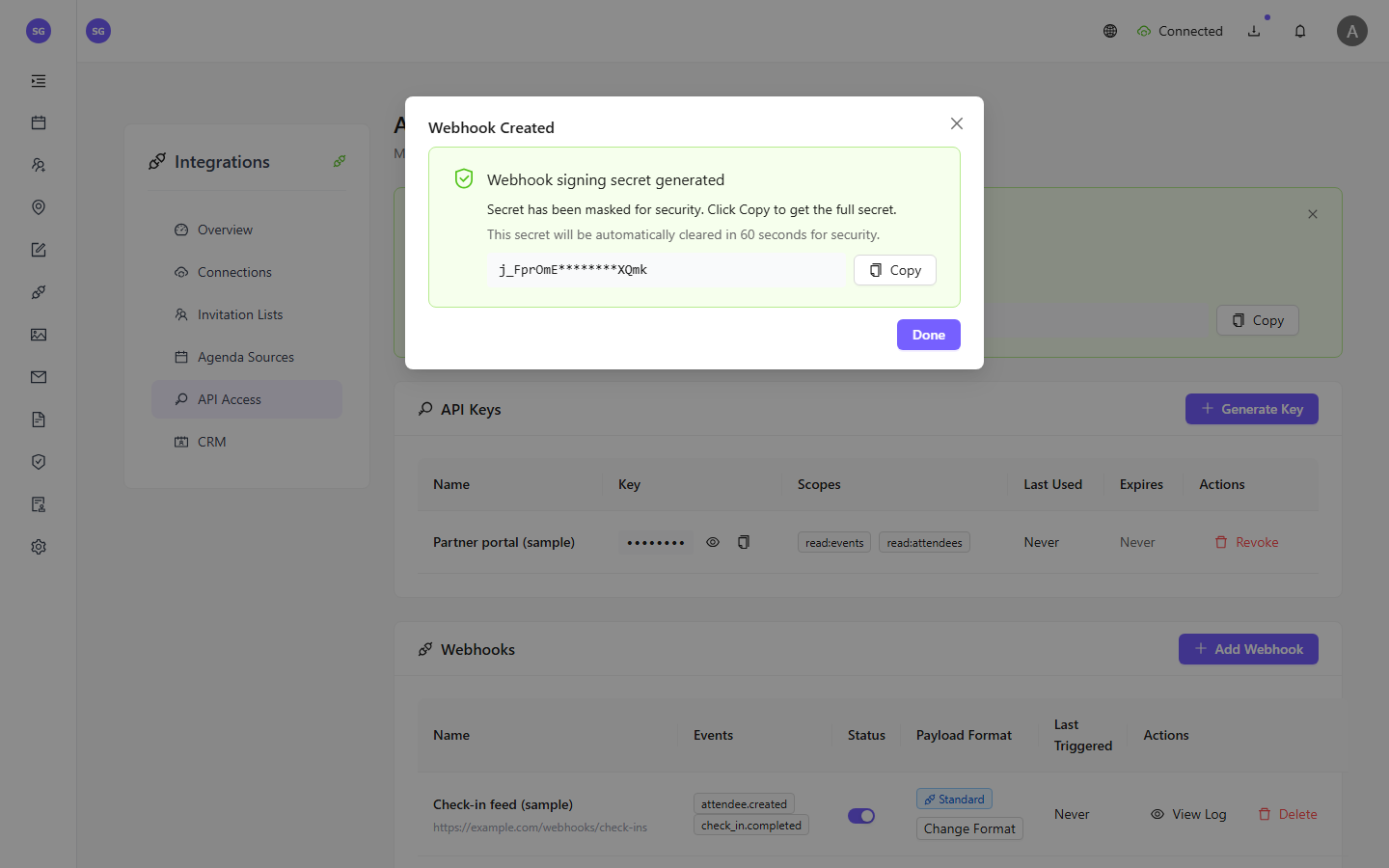
The Payload Format column sets the shape of each delivery: Standard, Zapier, Make, Slack or Custom. Click Change Format to switch. A custom payload can start from a template you keep under Marketplace > Webhook Templates.
Each webhook in the list shows its events, an on/off switch, when it last fired, View Log (the delivery log, with Refresh) and Delete (asks "Delete this webhook?" first).
Who can do this
Organization admins can add agenda sources, keys and webhooks. Treat API keys and webhook secrets like passwords.
Troubleshooting
| You see | Why | Fix |
|---|---|---|
| "No Sched connections available" (or Oasis, Eventbrite, Custom API) | The agenda source needs a connection to that provider first | Click Add one first, create the connection, then come back |
| "HTTP URLs are not accepted" | Webhooks only deliver to HTTPS | Use an https:// endpoint |
| You closed the Webhook Created dialog before copying the secret | The secret is shown only once | Delete the webhook and create it again to get a new secret |