Marketplace
Browse and install third-party apps for your organization, see and remove installed apps, and keep webhook payload templates for common triggers such as check-ins and registrations.
Integrations > Marketplace is where your organization adds third-party apps, such as CRM, communication, analytics, marketing, payment, survey and video tools, and keeps webhook payload templates. It has three tabs: Browse Apps, Installed Apps and Webhook Templates.
Browse and install an app
- Go to Integrations > Marketplace. Browse Apps opens first.
- Search by name with Search apps, or narrow the list with the category filter (Analytics, Communication, CRM, Marketing, Payment, Registration, Social Media, Survey, Video / Streaming).
- Open an app to see its developer, website, how many organizations installed it and the Scopes (permissions) it asks for.
- Click Install and confirm. The app moves to Installed Apps.
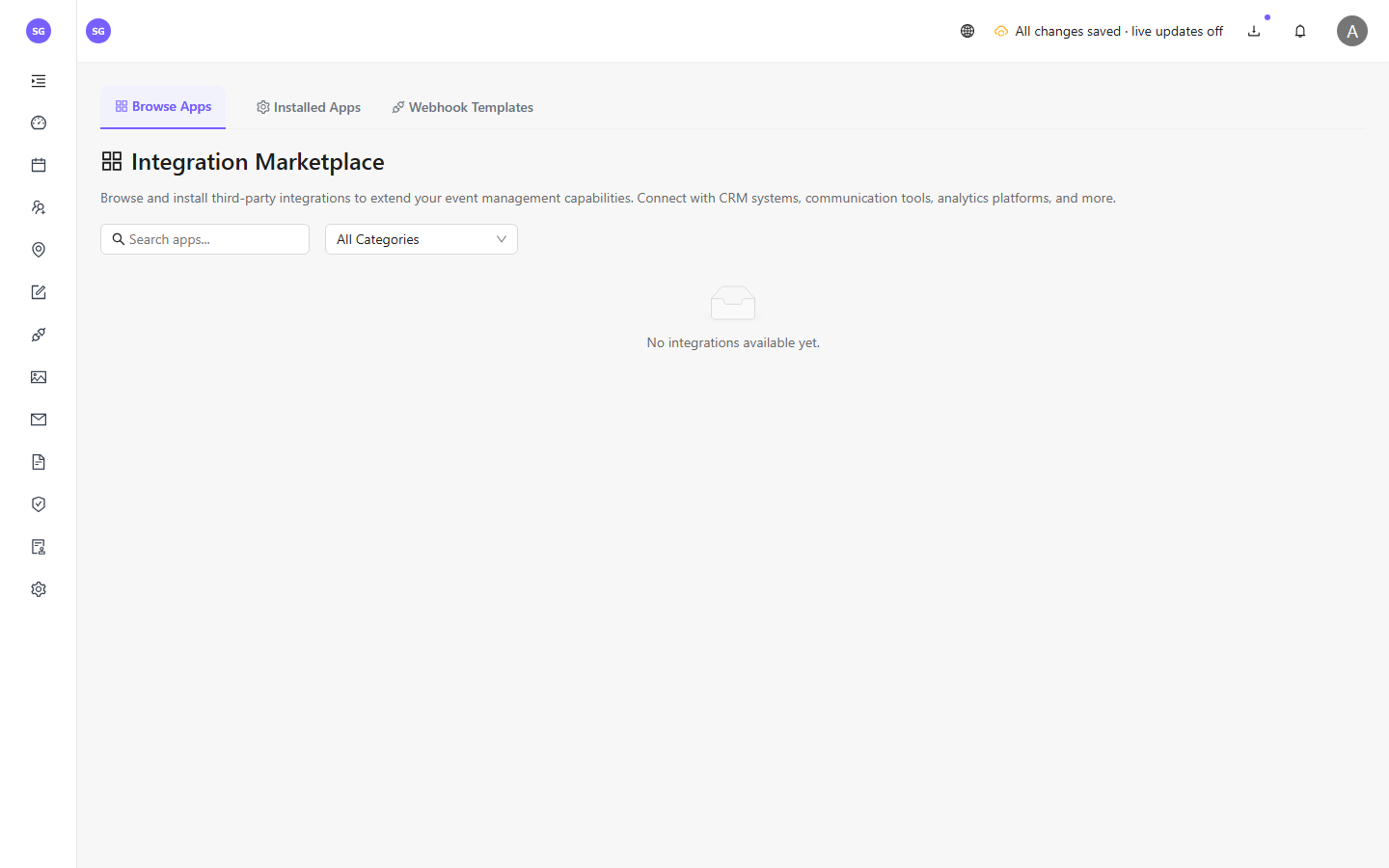
When no apps are offered for your organization, the tab says "No integrations available yet."
See and remove installed apps
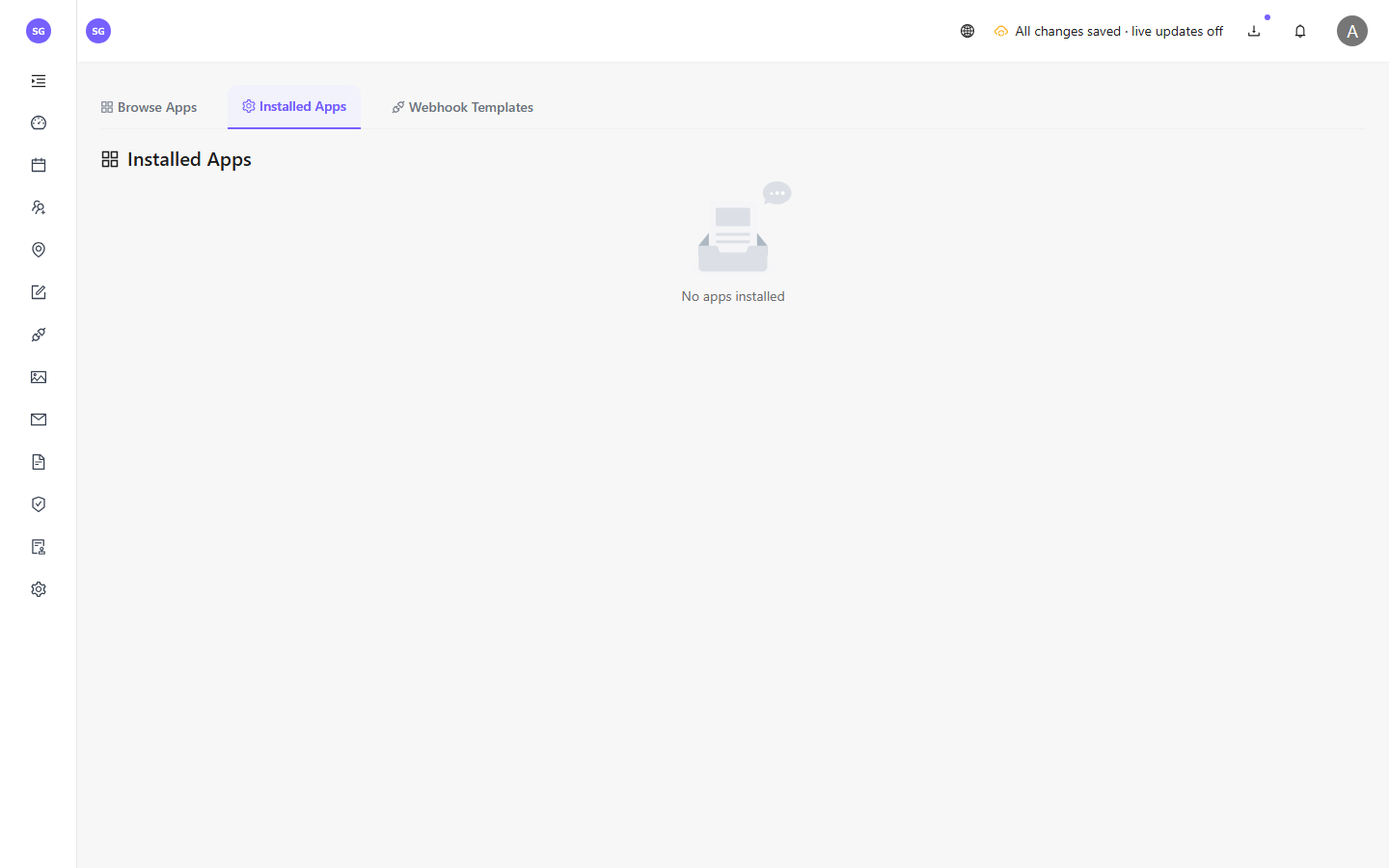
Installed Apps lists the apps your organization added. Click Uninstall on an app to remove it.
Webhook templates
A webhook template is a ready-made message body (payload) for one trigger, so the same format can be reused.
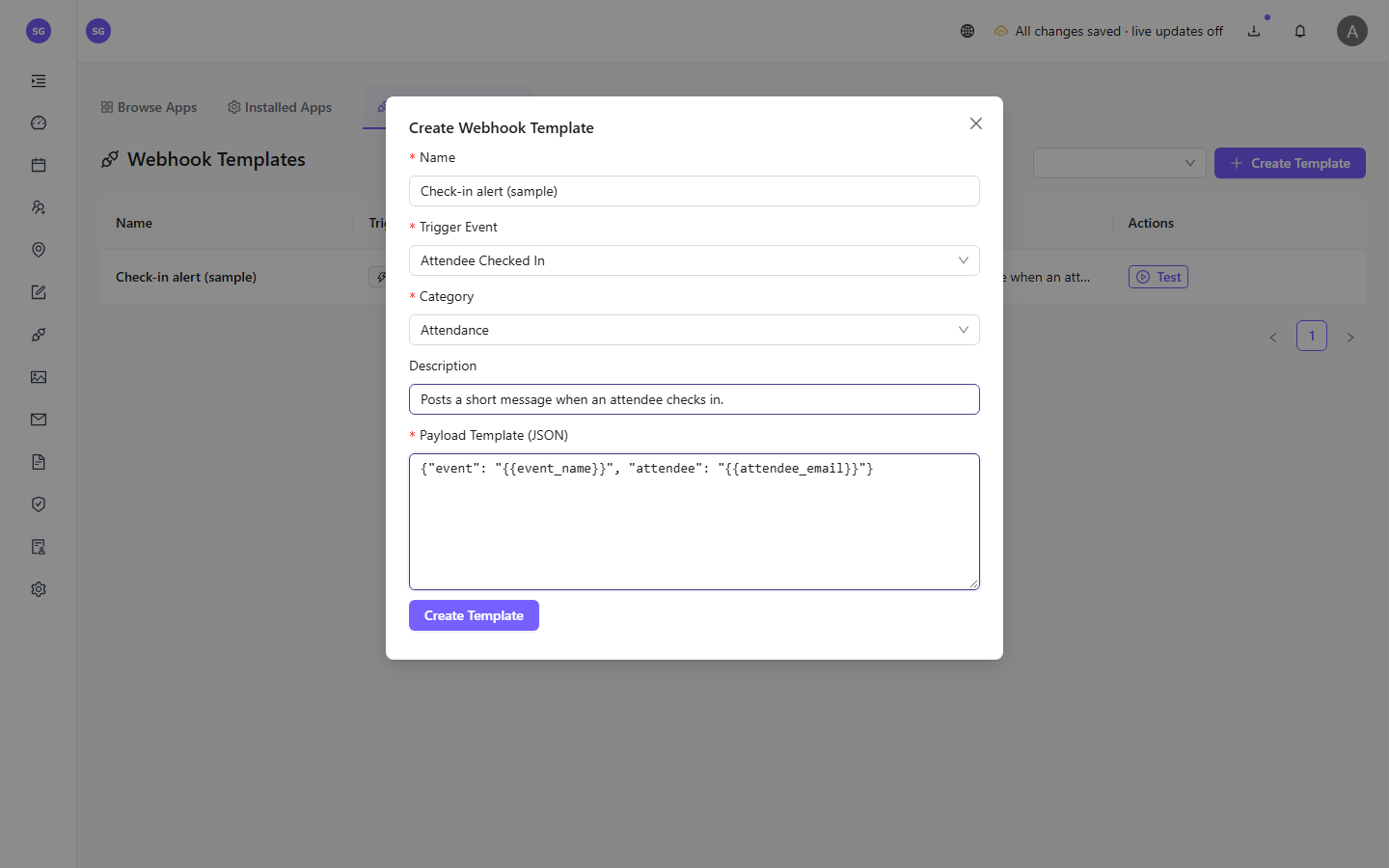
- Open the Webhook Templates tab and click Create Template.
- Enter a Name.
- Pick the Trigger Event: Registration Created, Registration Cancelled, Attendee Checked In, Session Started, Event Published, Survey Response Submitted or Payment Completed.
- Pick a Category: Registration, Attendance, Session, Event Lifecycle, Survey or Payment.
- Add a Description if you like, and write the Payload Template as JSON. Use placeholders in double braces, for example
{"event": "{{event_name}}", "attendee": "{{attendee_email}}"}. - Click Create Template.
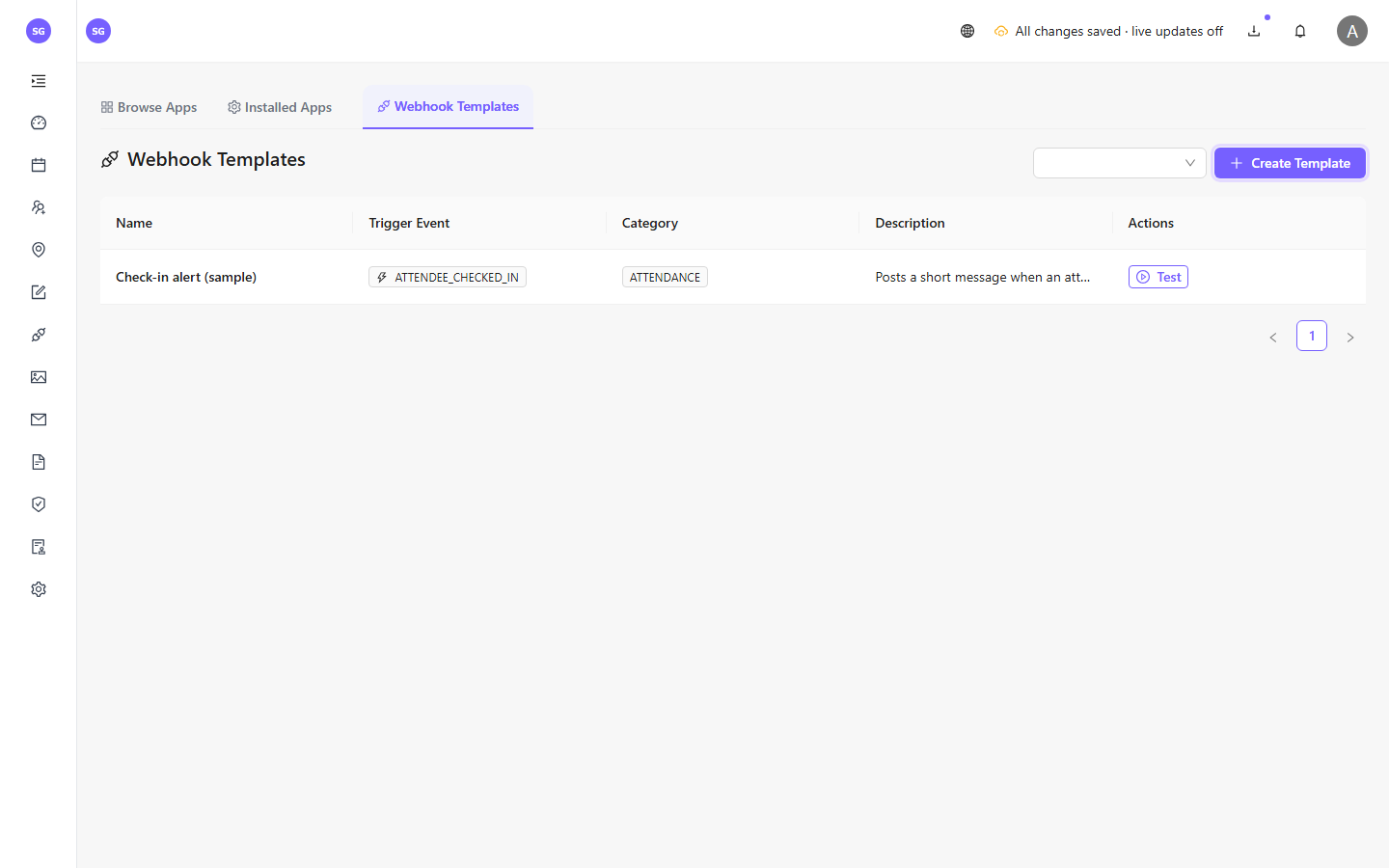
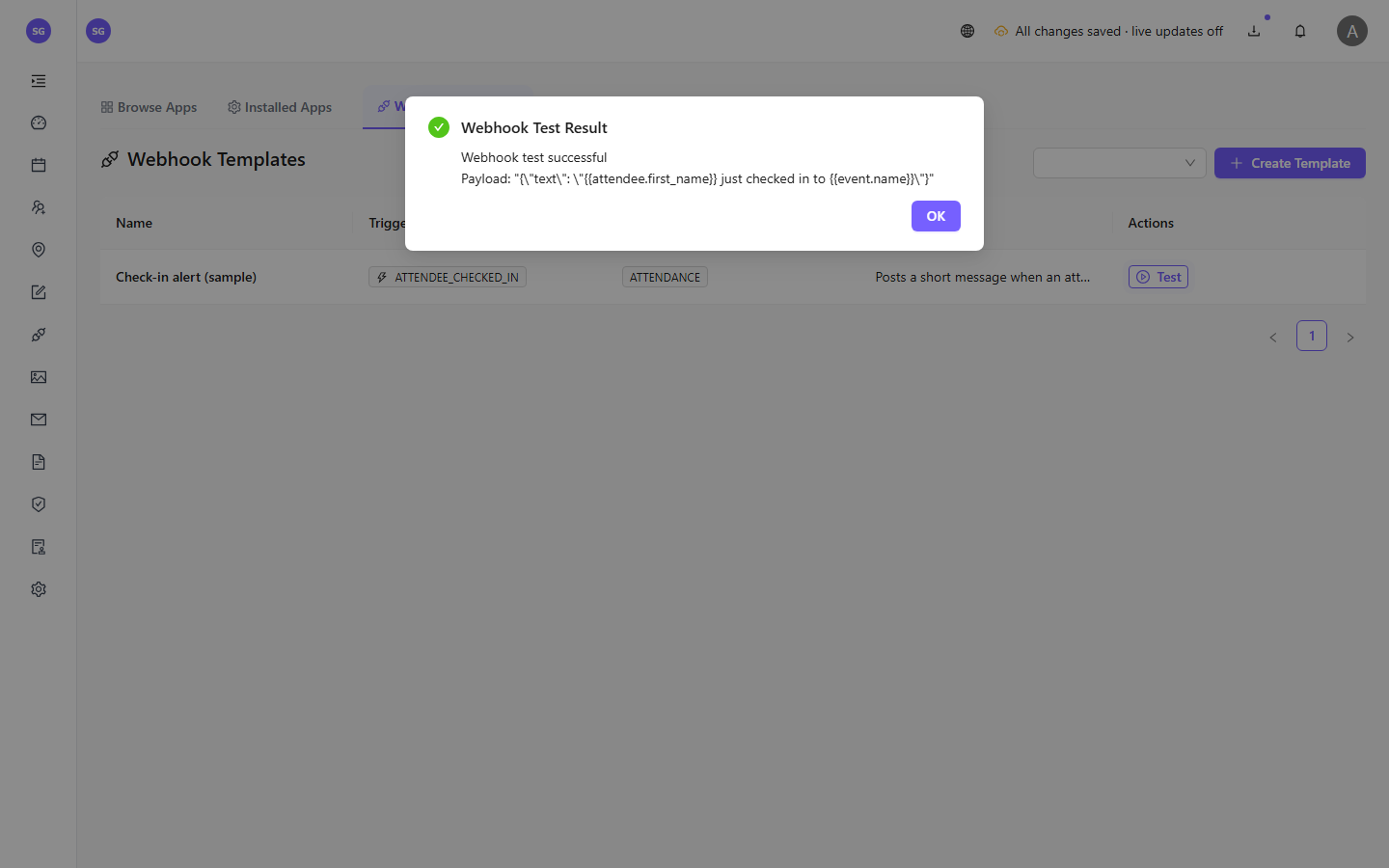
Click Test on a template to check it. The result shows "Webhook test successful" and the payload exactly as written: placeholders are not filled in and nothing is sent anywhere, so the test only confirms the template is valid JSON.
Use a template on a webhook
A template is applied through a webhook's payload format:
- Open Integrations > API Access and find the webhook in the Webhooks table.
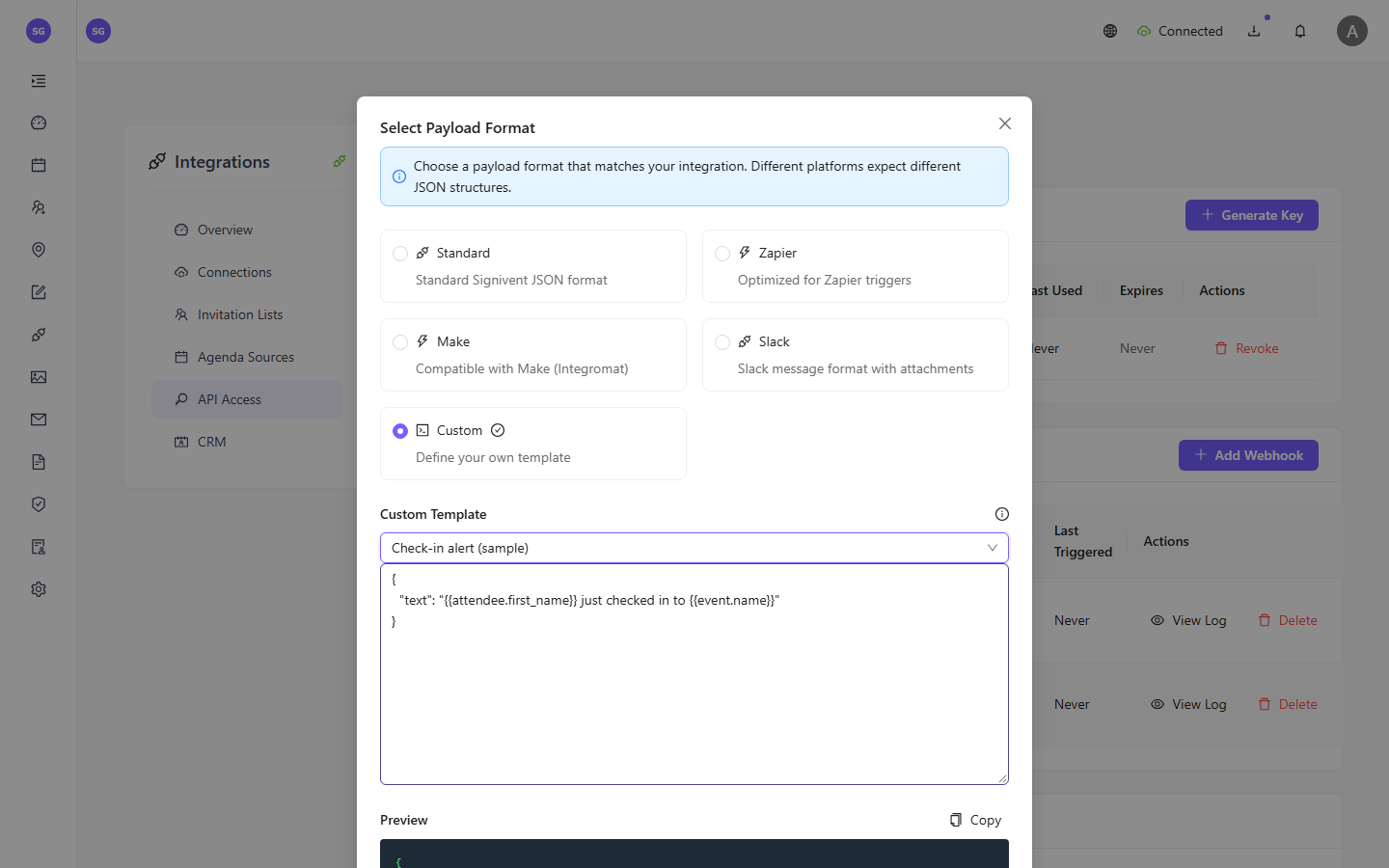
- In its Payload Format column, click Change Format and choose Custom.
- Pick the template under Start from a Marketplace template. Its payload fills the Custom Template box, where you can still edit it.
- Click Save. The webhook now sends that payload, with the placeholders filled in for each delivery.
To create the webhook itself, see Agenda sources and API access.
Who can do this
Organization admins can install and uninstall apps and manage webhook templates.
Troubleshooting
| You see | Why | Fix |
|---|---|---|
| "No integrations available yet." | No apps are offered for your organization yet | Use Connections and CRM, or ask Signivent support about an app |
| "Invalid JSON format" under the payload | The payload is not valid JSON | Check quotes and braces; every key and text value needs double quotes |
| Test shows the placeholders unchanged | Test only echoes the template | Expected |