Outstanding balances and CE credits
See who still owes money, record cash, check or card-terminal payments, apply a discount or waive the rest, print a door list for check-in, and offer continuing education (CE/CME) credits for sessions.
This guide covers two pages: Registration > Outstanding Balances, for money people still owe, and Credentials > CE Credits, for continuing education credit.
Who still owes money
A registration has a balance when less than its total has been paid: someone who will pay at the door, pays by check, or paid a deposit. Registration > Outstanding Balances lists every one of them. Settled rows drop off the list on their own.
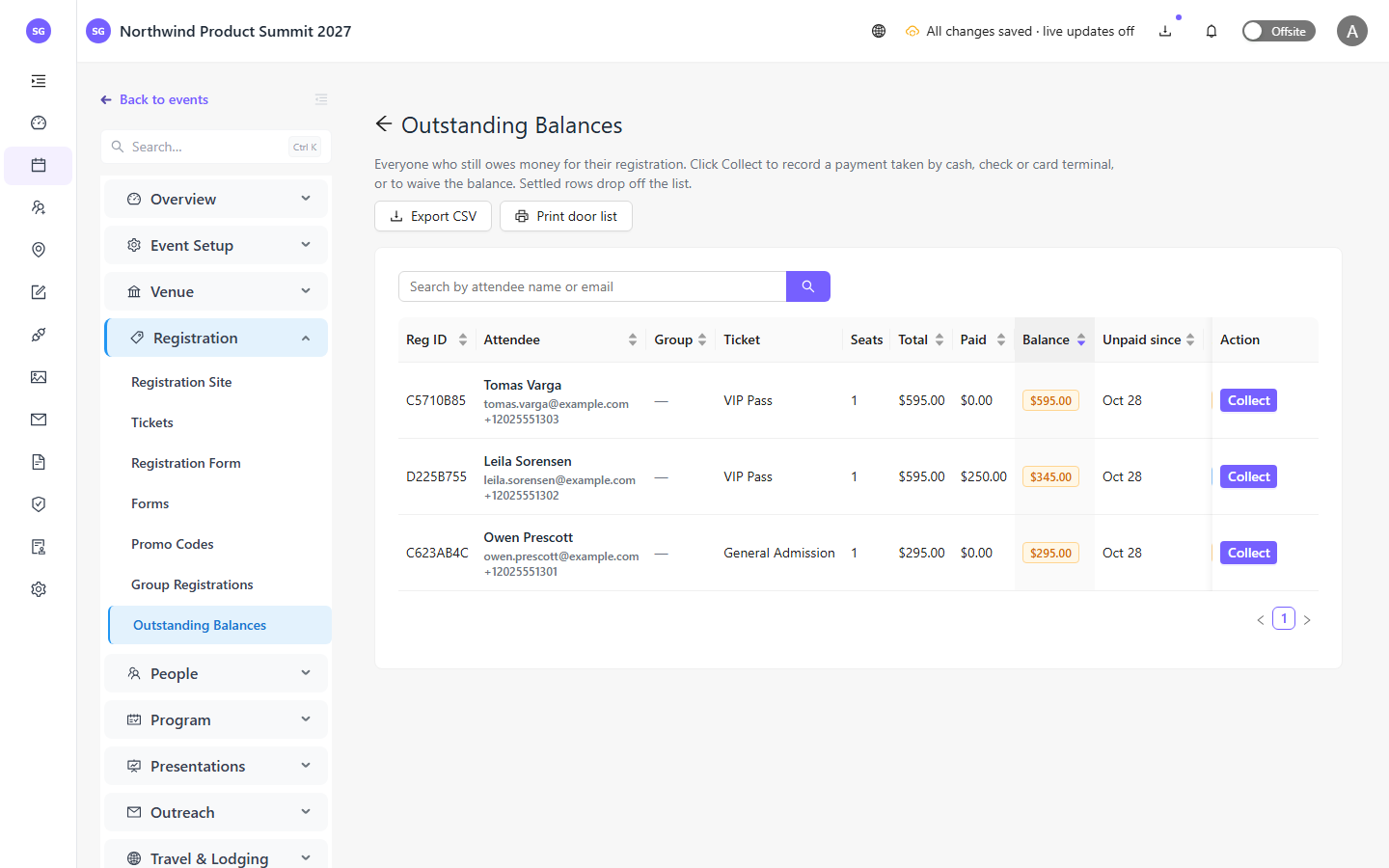
Each row shows the Reg ID, the Attendee, their Group if they came in a group registration, the Ticket, Seats, Total, Paid, Balance, how long it has been unpaid, and the Status: Pending (nothing paid) or Partial (some paid). Search by name or email, and sort by any column. Export CSV downloads the list.
The yellow orders unpaid bar on the event dashboard links here too.
Collect a payment
- Click Collect on the row. If the Action column is cut off, scroll the table sideways to reach it.
- The Collect payment window shows the Balance Due, what was paid and the total.
- Choose what to do:
- Record Payment: enter the Amount, the Method (cash, check, card terminal and so on), a Reference such as the check number, and notes.
- Apply Discount: take a Percentage off the balance.
- Waive Balance: forgive the full balance (leave the amount empty) or part of it. Add a reason.
- Confirm. The row updates, and drops off the list once the balance is zero.
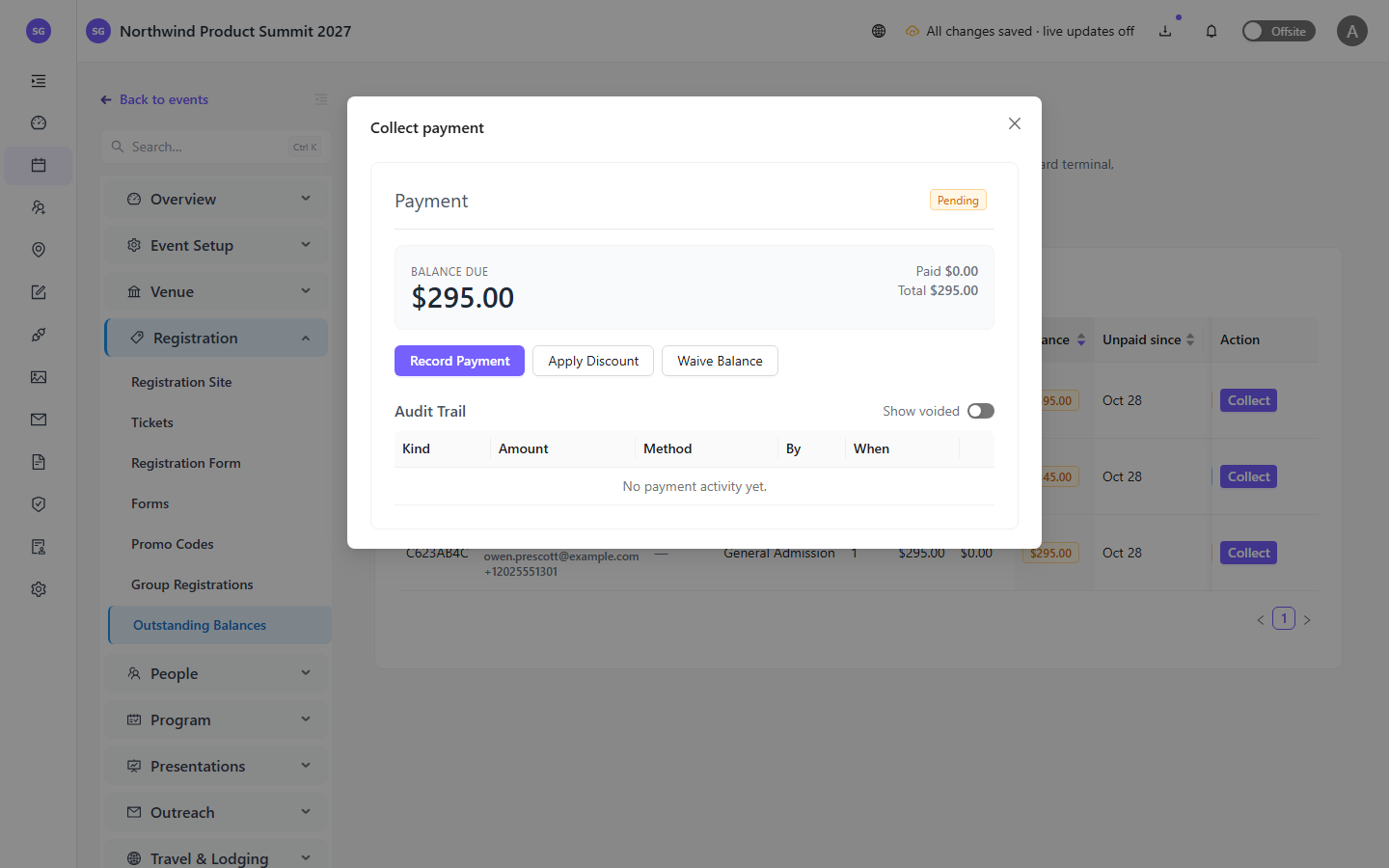
Every action is written to the Audit Trail at the bottom, with who did it and when. Entries cannot be edited. A wrong entry can be voided (with a required reason), and the voided row stays visible when Show voided is on. Card payments made online can be refunded from the same window; large refunds may need an admin's approval first.
The same payment panel is on each attendee's record, so you can also collect from the Attendee Hub.
Print a door list
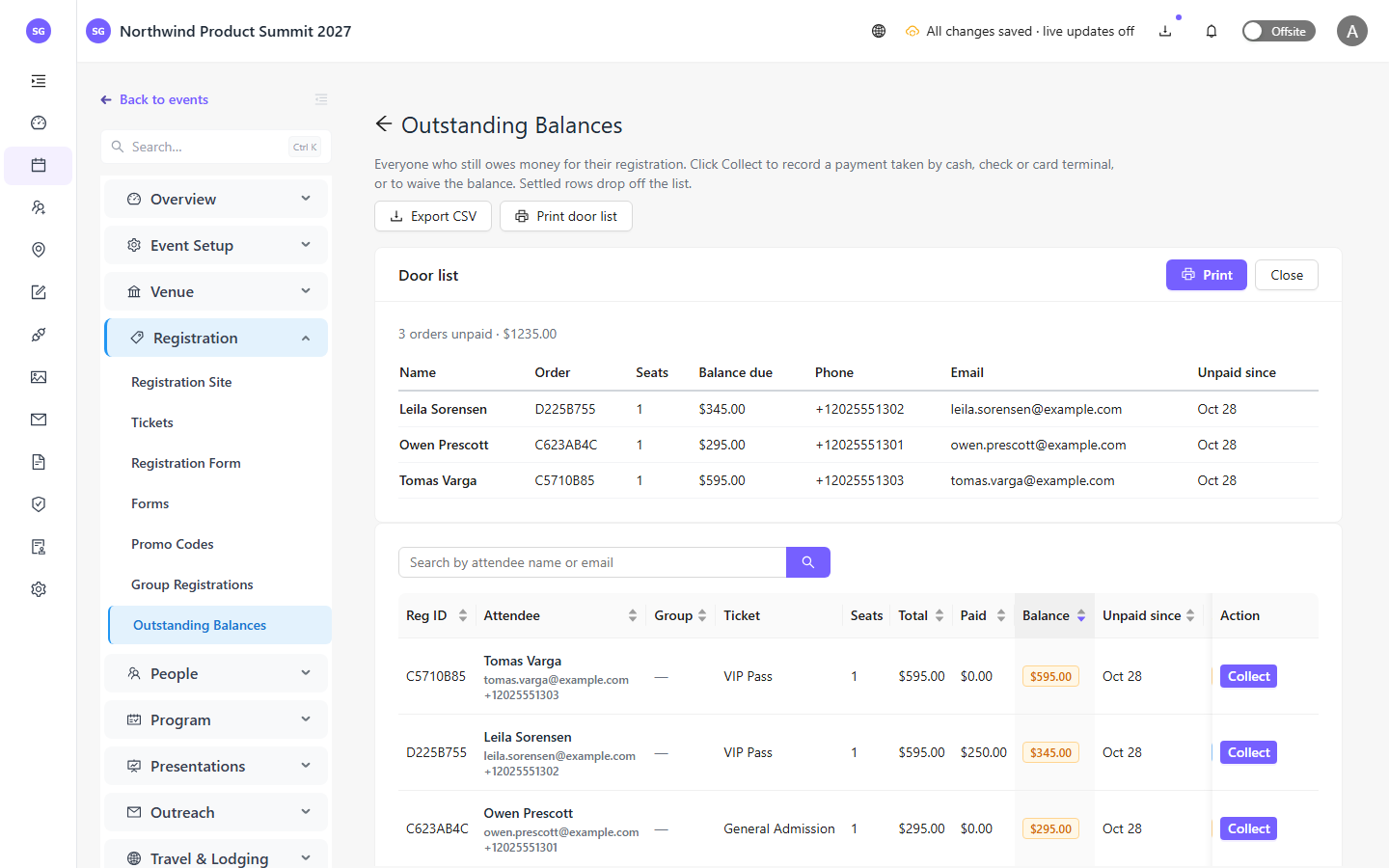
For check-in, click Print door list. The Door list shows the number of unpaid orders and the total owed, then each person's name, order, seats, balance due, phone, email and how long it has been unpaid. Click Print for a paper copy (only the list prints), or Close.
To stop people checking in until they have paid, switch on Block check-in if balance is due under Registration > Tickets > Settings. See Tickets and promo codes.
CE credits
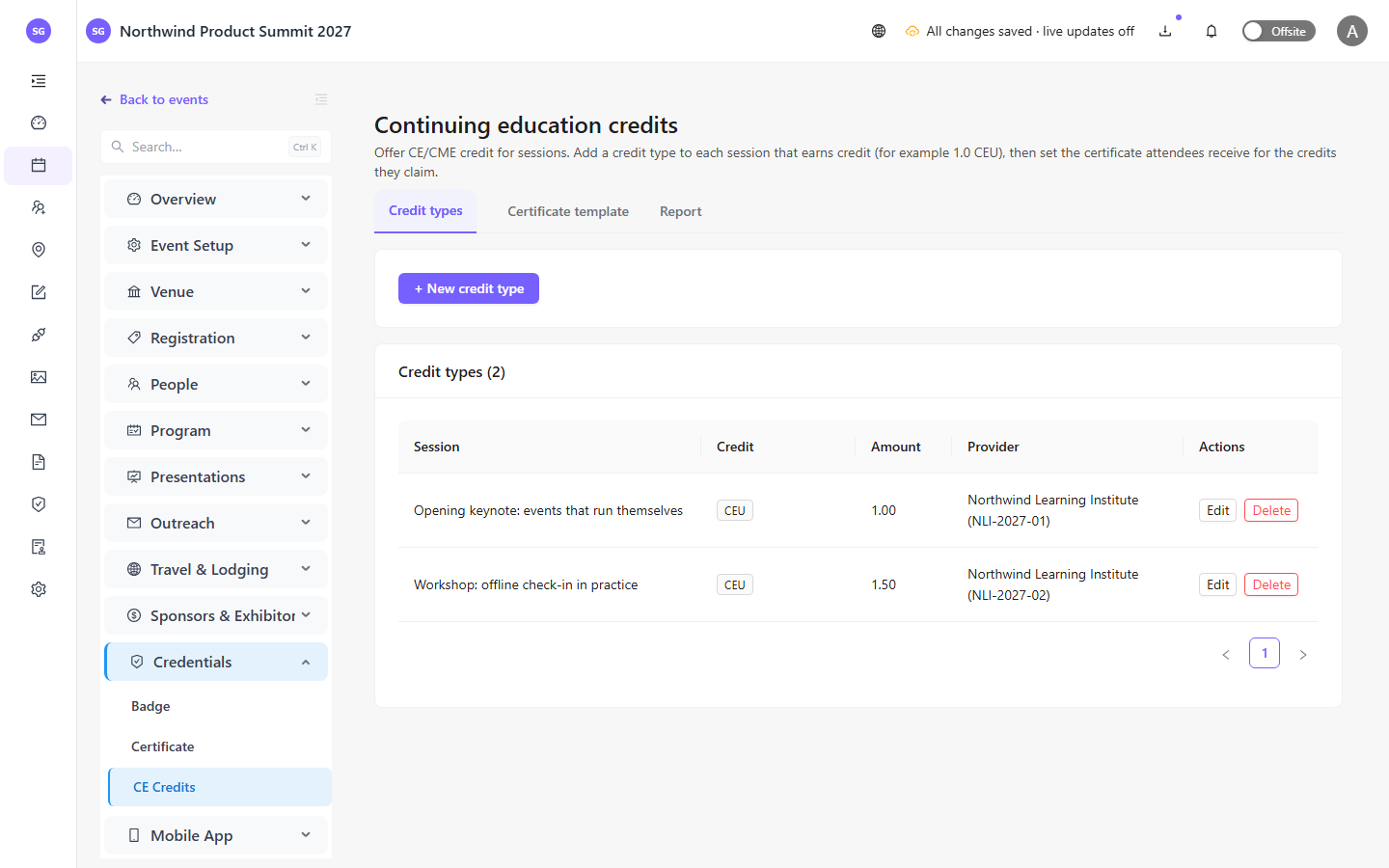
Credentials > CE Credits is for events that award continuing education credit (CE, CME, CEU and so on). You say which sessions earn credit and how much; attendees claim credit for the sessions they attended, and receive a certificate.
Add credit to a session
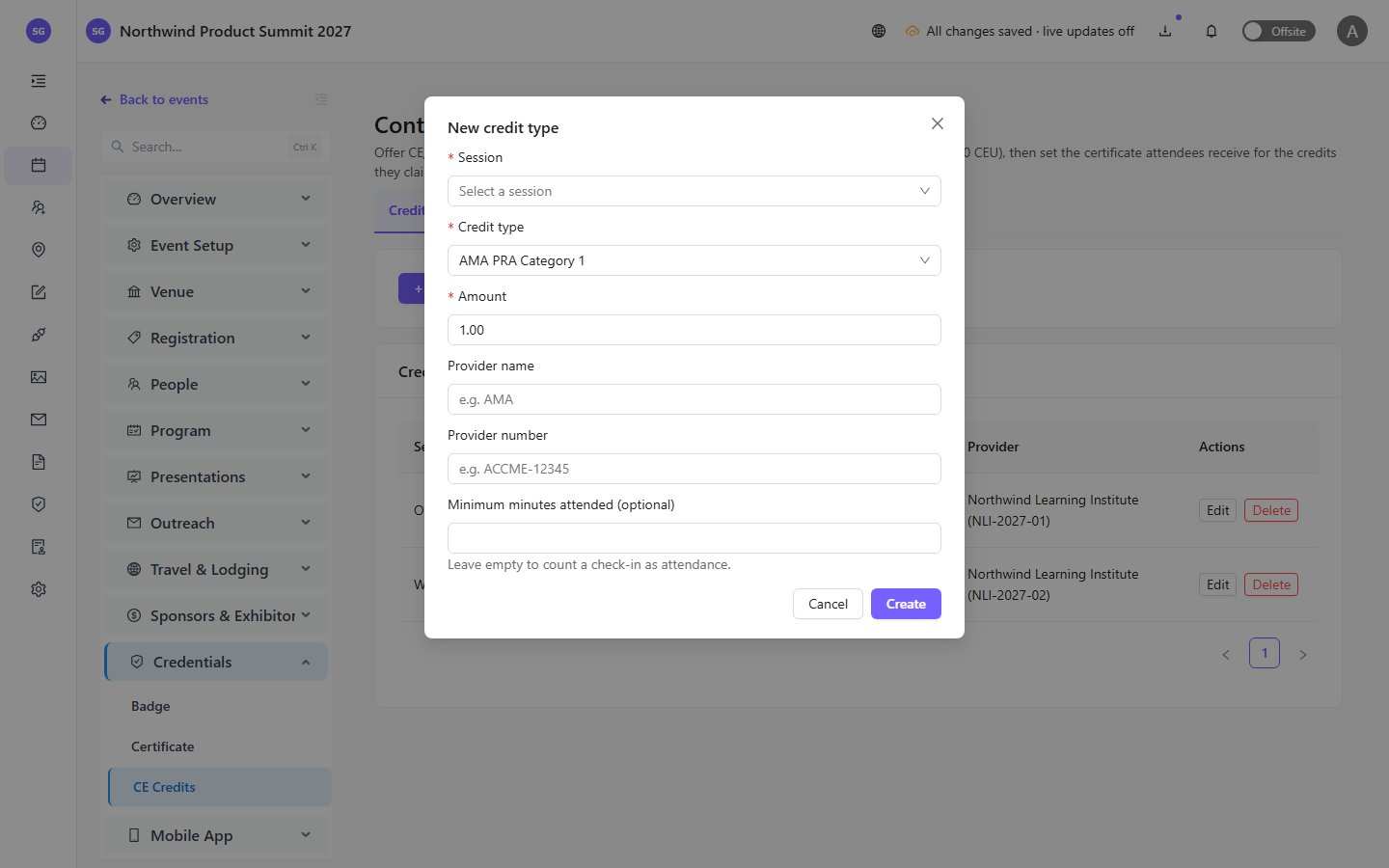
- On the Credit types tab, click New credit type.
- Pick the Session, the Credit type (for example AMA PRA Category 1 or CEU) and the Amount (for example 1.5).
- Enter the accrediting Provider name and Provider number.
- Optionally set Minimum minutes attended. Leave it empty to count a check-in as attendance.
- Click Create.
The certificate
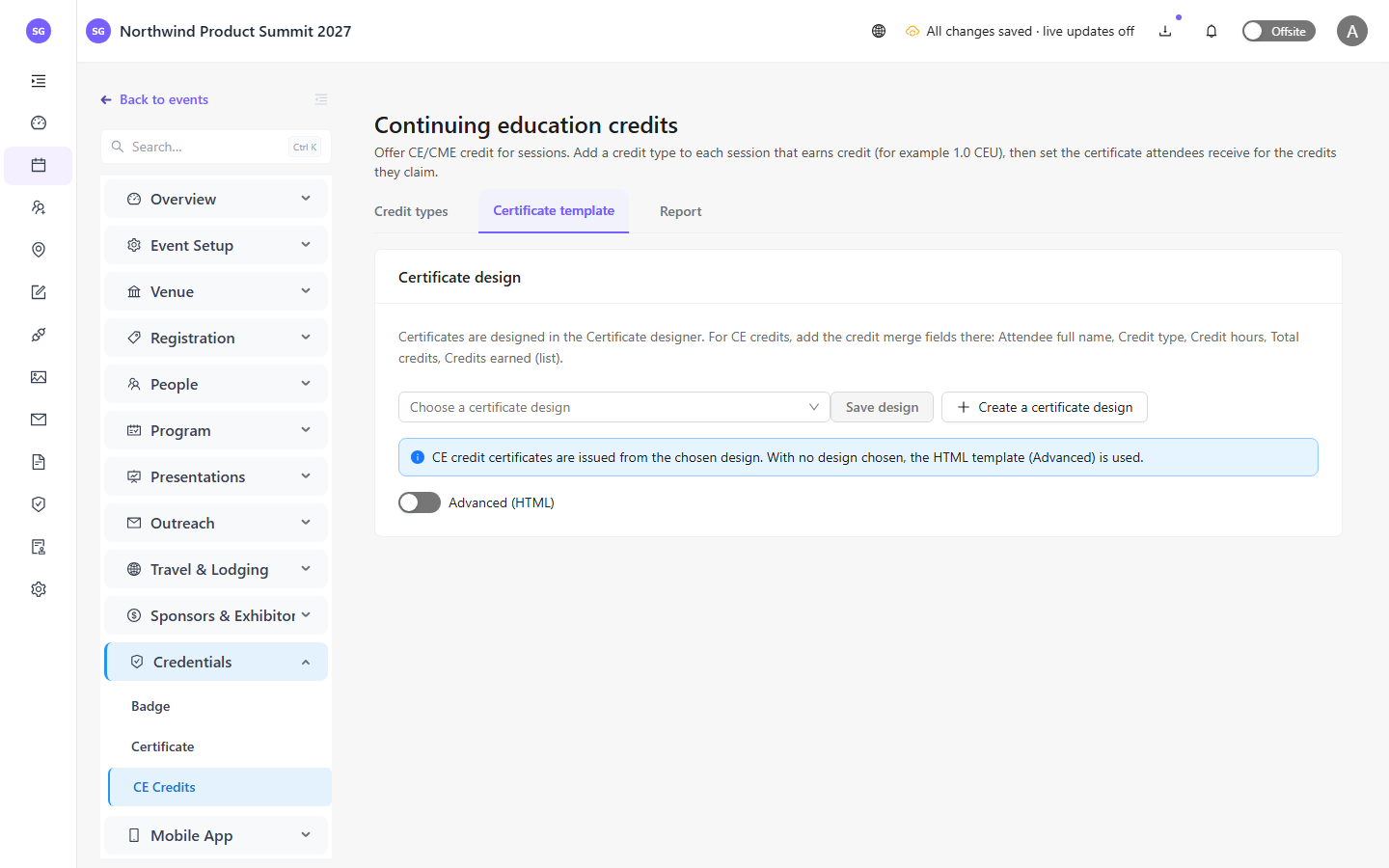
The Certificate template tab picks the certificate design CE certificates are issued from. Designs are made in the certificate designer (Credentials > Certificate, see Badge and certificate design): add the credit merge fields there (attendee name, credit type, credit hours, total credits, credits earned). Without a design, the Advanced (HTML) template is used.
The report
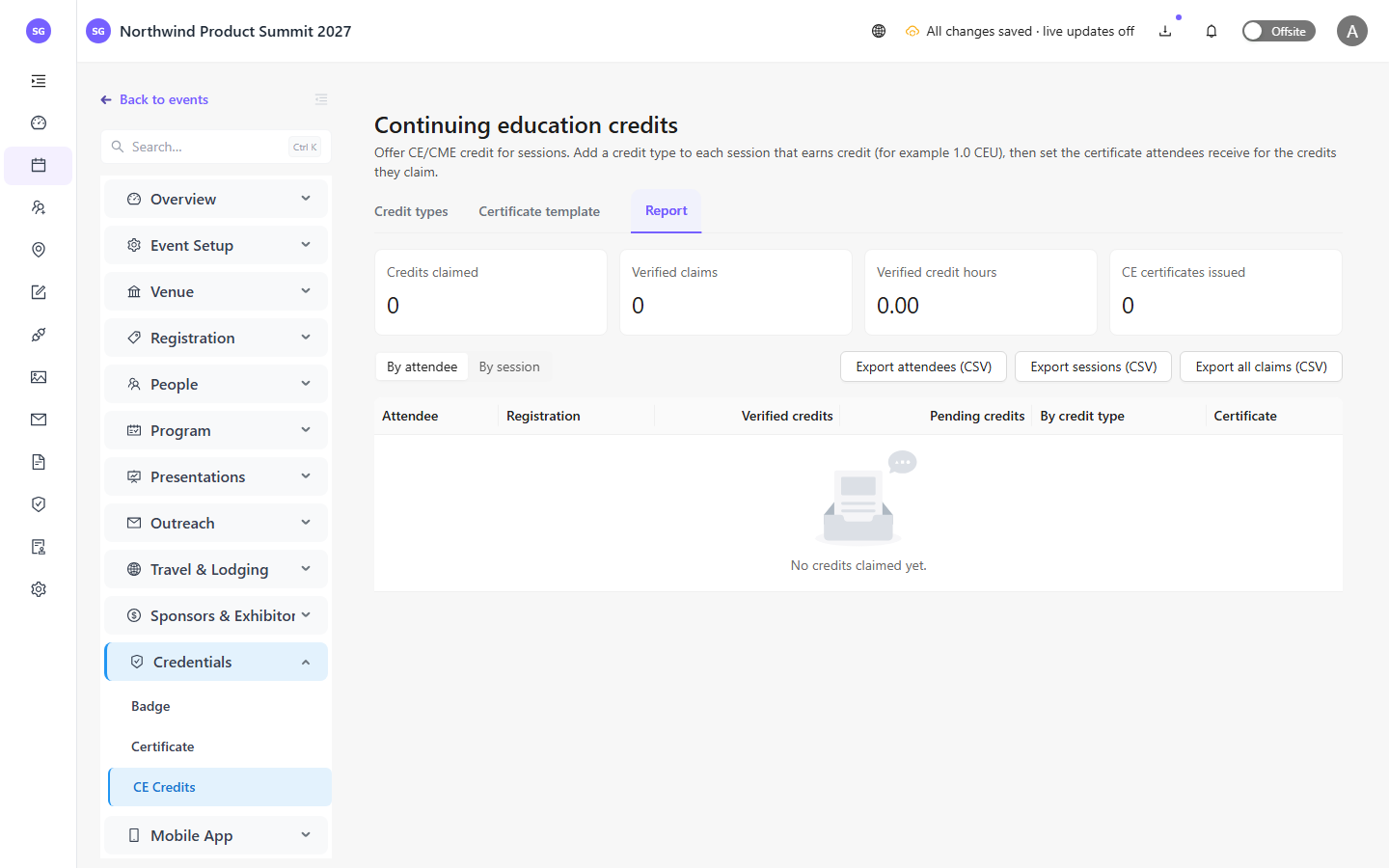
The Report tab counts credits claimed, verified claims, verified credit hours and certificates issued, by attendee or by session. Export attendees, sessions or every claim as CSV for your accrediting body.
Troubleshooting
| You see | Why | Fix |
|---|---|---|
| Someone paid but is still on the list | The payment was taken outside the site | Click Collect and Record Payment |
| A recorded amount was wrong | Entries cannot be edited | Void it with a reason, then record the right amount |
| A session is missing from New credit type | It is not on this event's agenda | Add the session in Agenda & Sessions first; see Agenda, sessions and tracks |
| Attendees cannot claim credit | The session has no credit type | Add one on the Credit types tab |