Agenda, sessions and tracks
Build the event agenda as blocks of time with sessions inside them, add speakers and files to each session, and group sessions into color-coded tracks attendees can filter by.
An event's program has two levels:
- An agenda item (or agenda block) is a block of time, usually in one room: "Day 1", "Morning technical session", "Poster session".
- Sessions sit inside a block: the keynote, the panel, the lunch. Each session has its own time, type, speakers and presentation files.
Tracks group related sessions across blocks (for example "Product" and "Partners"). Attendees can filter the agenda by track, and the track color shows on every session.
Find your way around the agenda
Open the event and go to Program > Agenda & Sessions. The list shows each block with its number of sessions, day, start and end time, type, files and rooms. Click the arrow next to a block to see its sessions, with their speakers, times, type and how many of their files are in.
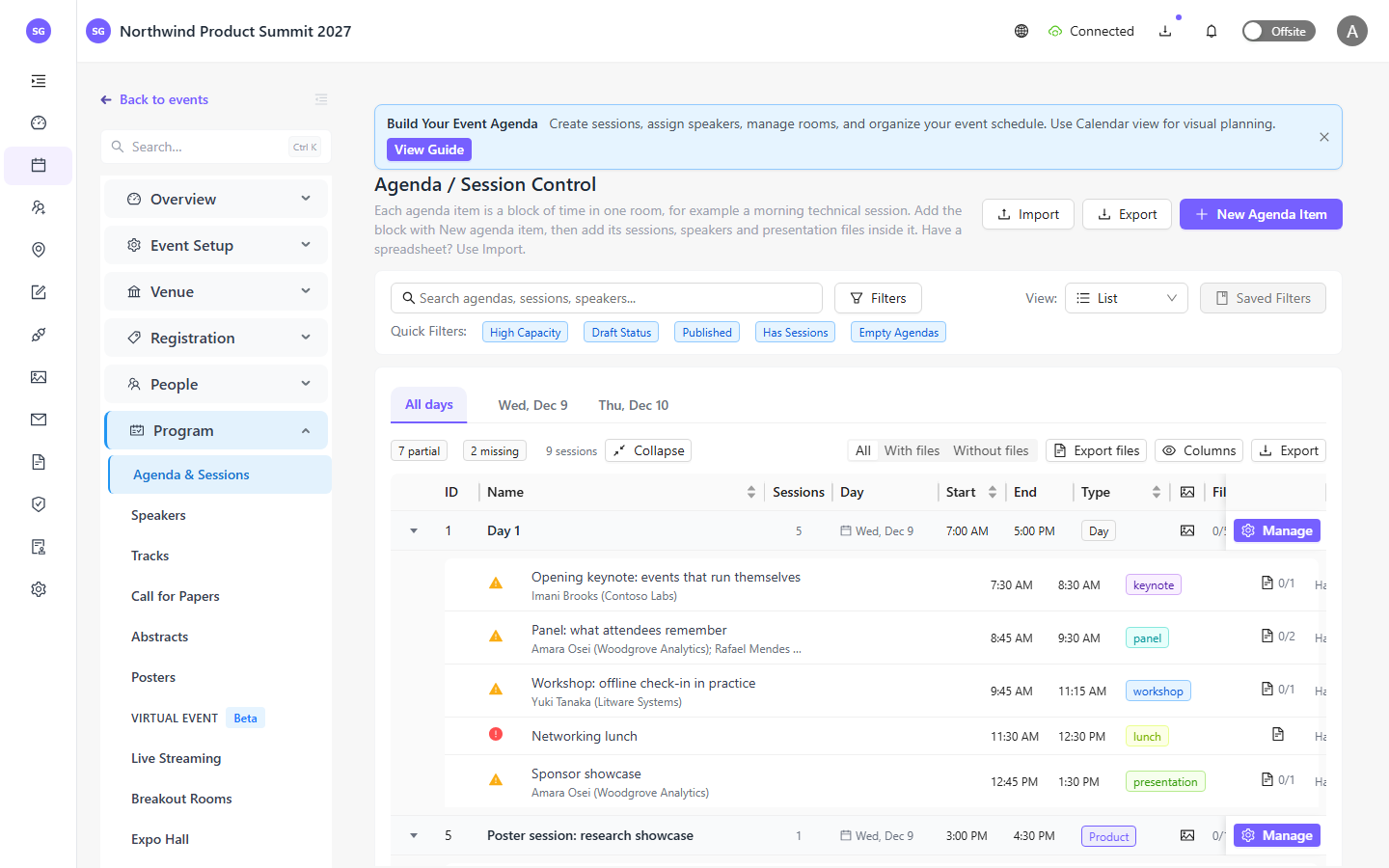
- The day tabs (All days, then one tab per day) show one day at a time. The tab stays in the page address, so a reload or a shared link opens the same day.
- Search finds blocks, sessions and speakers. Filters and the Quick Filters (High Capacity, Draft Status, Published, Has Sessions, Empty Agendas) narrow the list; Saved Filters keeps a combination you use often.
- View switches between List, Calendar and Tracks.
- With files and Without files show sessions that do or do not have a presentation yet. The red mark at the start of a session row means something is missing, and the count (for example "9 missing") sits above the table.
- Export files downloads the presentation files; Columns picks which columns show.
Add an agenda block
- Click New Agenda Item.
- Enter the Agenda Name, the title attendees see in the schedule.
- Add a Location note if useful (free text, such as "Meet at the north entrance"). To tie the block to a room on your floor plan, use Select Room further down.
- Pick the Start Date Time and End Date Time. The form shows the event's dates and time zone so the block falls inside them.
- Fill in the rest of the form as needed, then click Create.
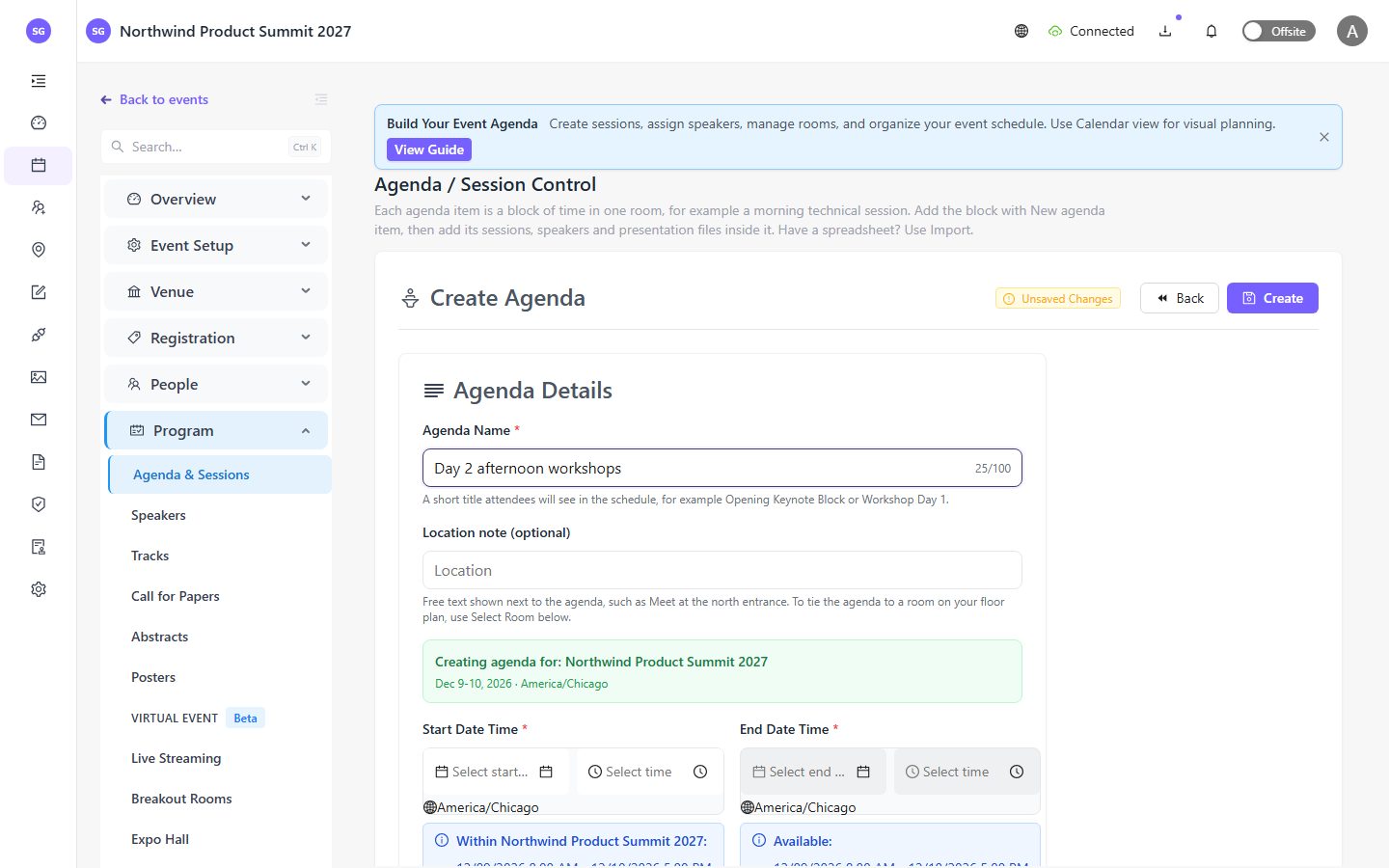
Back leaves the form; if you typed something, you are asked to confirm first.
Have the whole program in a spreadsheet? Click Import on the agenda page instead. Export downloads the agenda.
Add sessions, speakers and files
Click Manage on a block to open it. The top shows its date, time, room and how many sessions, speakers and files it has, with Edit and Delete for the block itself.
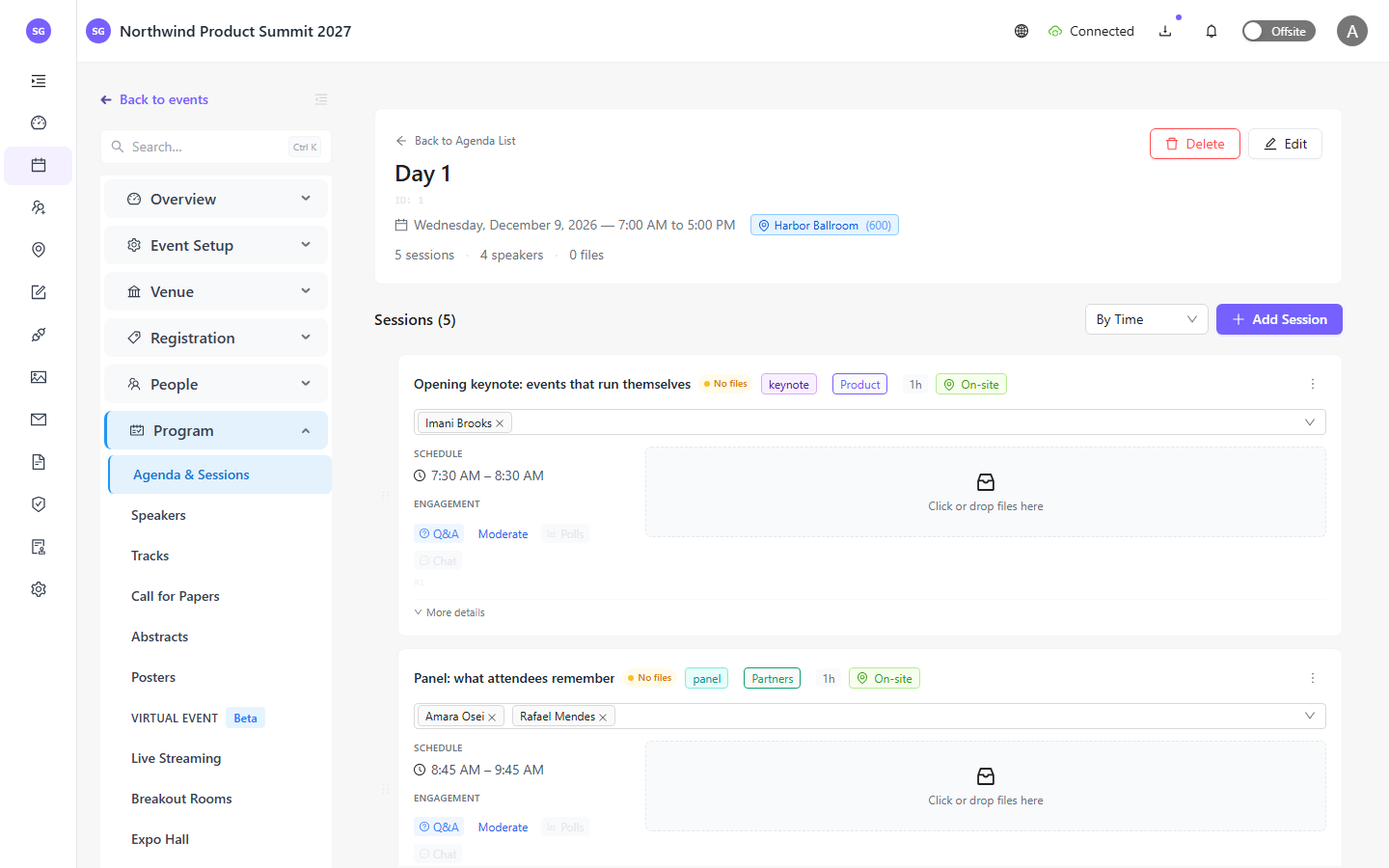
- Click Add Session and enter the session's name, type and time.
- Pick the session's speakers in the speaker box on its card. Type a name to search your speakers. Managing the event's speakers is covered in Speakers at your event.
- Drop the presentation on Click or drop files here. The file goes to the session's folder in Presentation Files and on to the room's presenter kiosk (see Presentation files, readiness and attendee resources).
- Under Engagement, choose what attendees can do during the session: Q&A, Moderate, Polls and Chat.
Each session card shows tags for its type, its track, its length and where it takes place, and a No files tag until a file is in. Open the three dots on a card for more actions, and More details for the rest of the session's fields. Sort sessions By Time or by hand.
Session times are kept inside the block's start and end time. Rooms come from Venue > Rooms; see Event venue, rooms and floor plans. Poster sessions and abstracts have their own pages; see Abstracts, posters and paper submissions.
Create tracks
Go to Program > Tracks. Manage Tracks lists each track with its color, name, description, number of sessions and status. Drag the handle on a row to change the order.
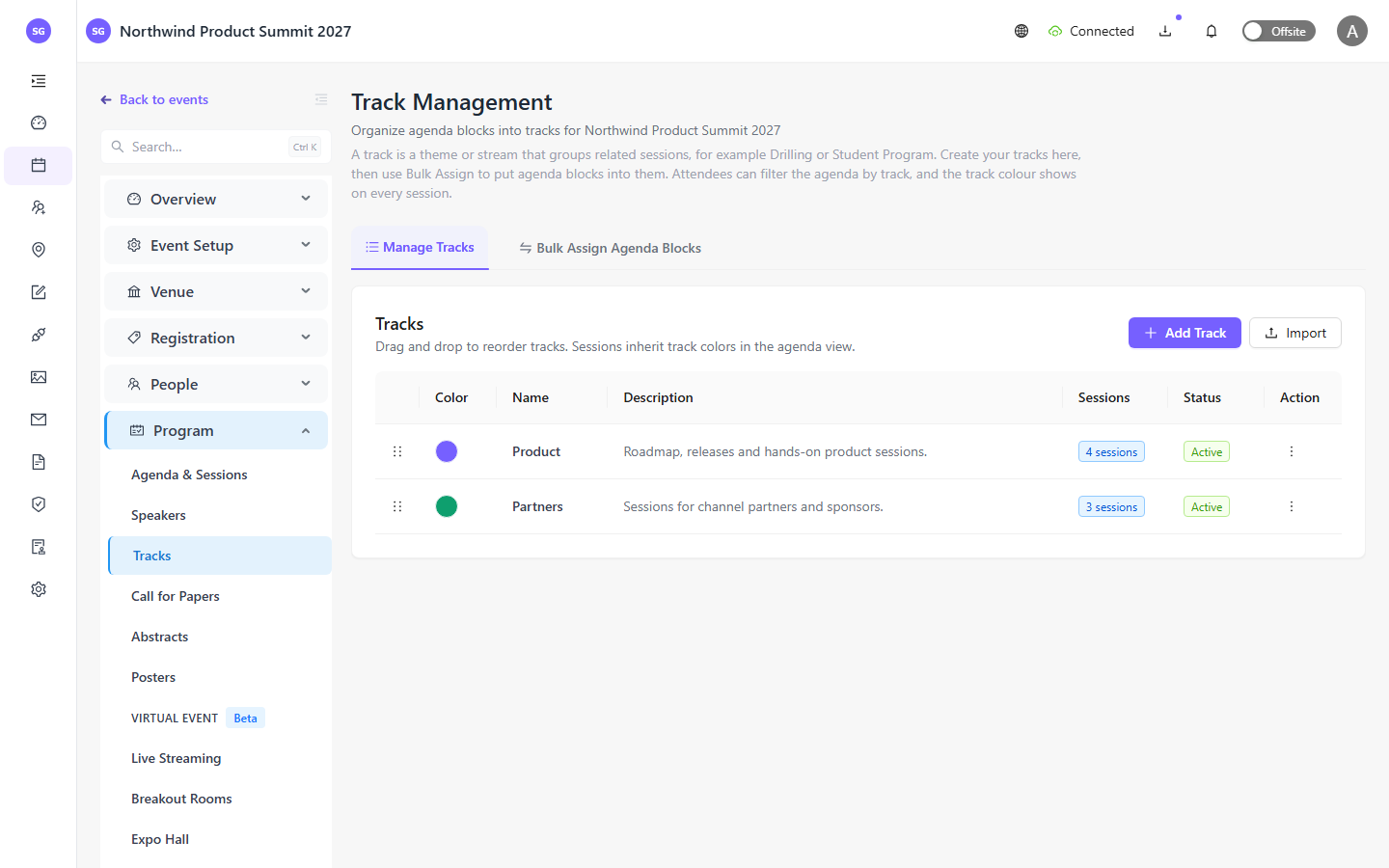
- Click Add Track.
- Enter a Name (at least two characters), pick a Color and add a Description.
- Set the Sort Order and leave the track Active.
- Click Create Track.
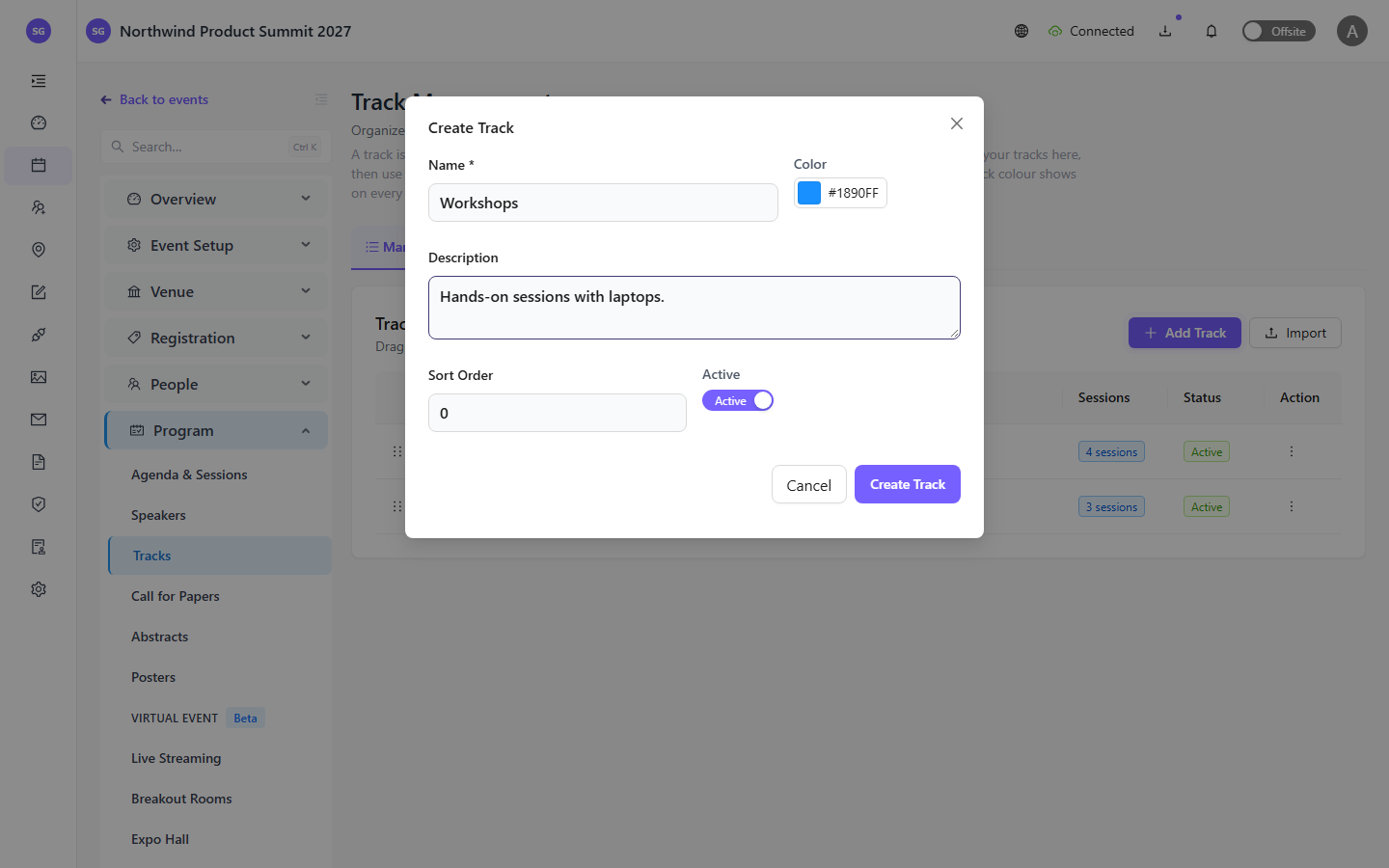
Import loads tracks from a file. Use the menu on a track's row to edit or delete it. An inactive track is kept but not shown to attendees.
Put blocks into a track
- On the Tracks page, open Bulk Assign Agenda Blocks.
- Tick the blocks that belong together.
- Pick the track, then click Assign to track. Every session in those blocks takes the block's track.
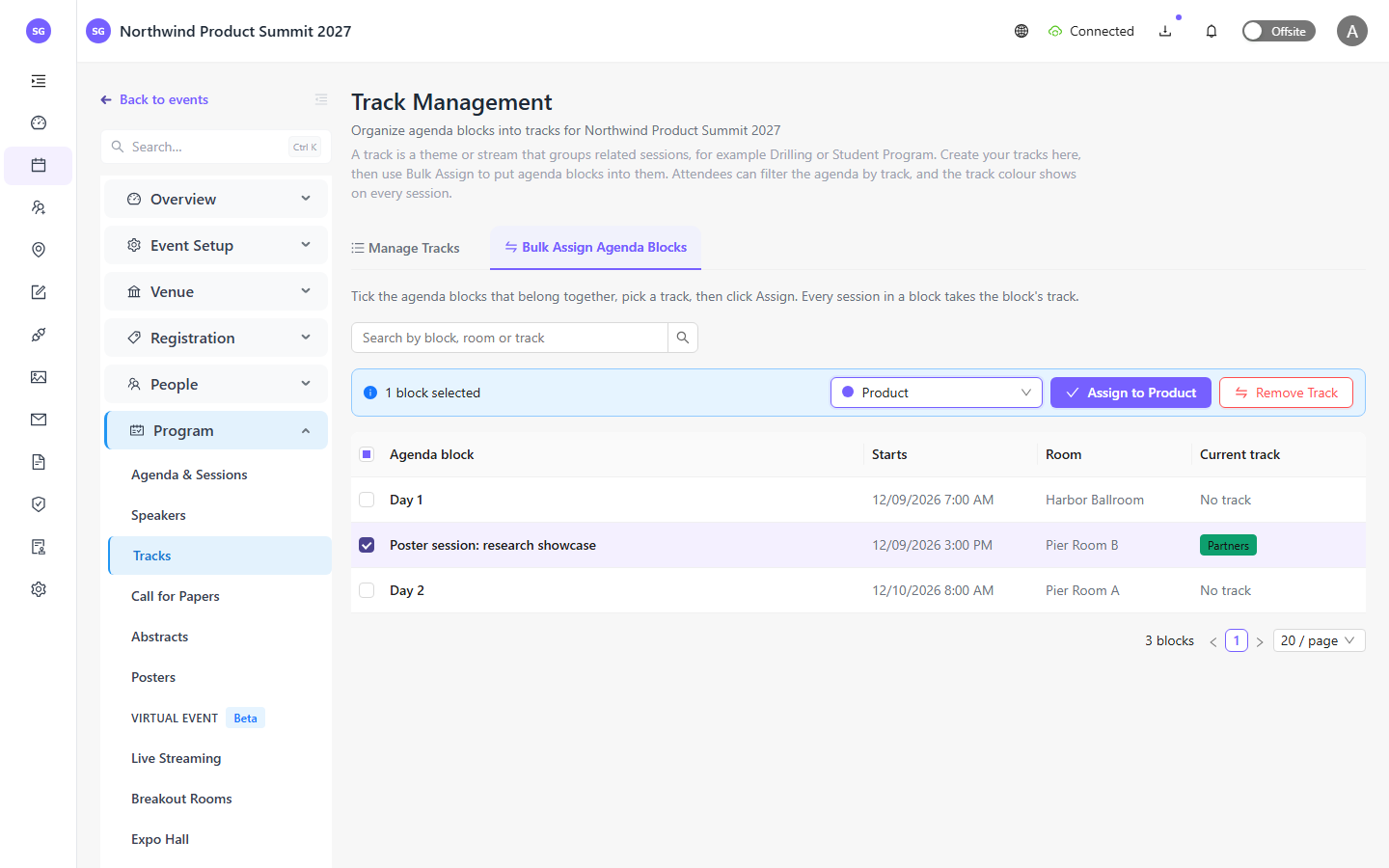
The Current track column shows the result.
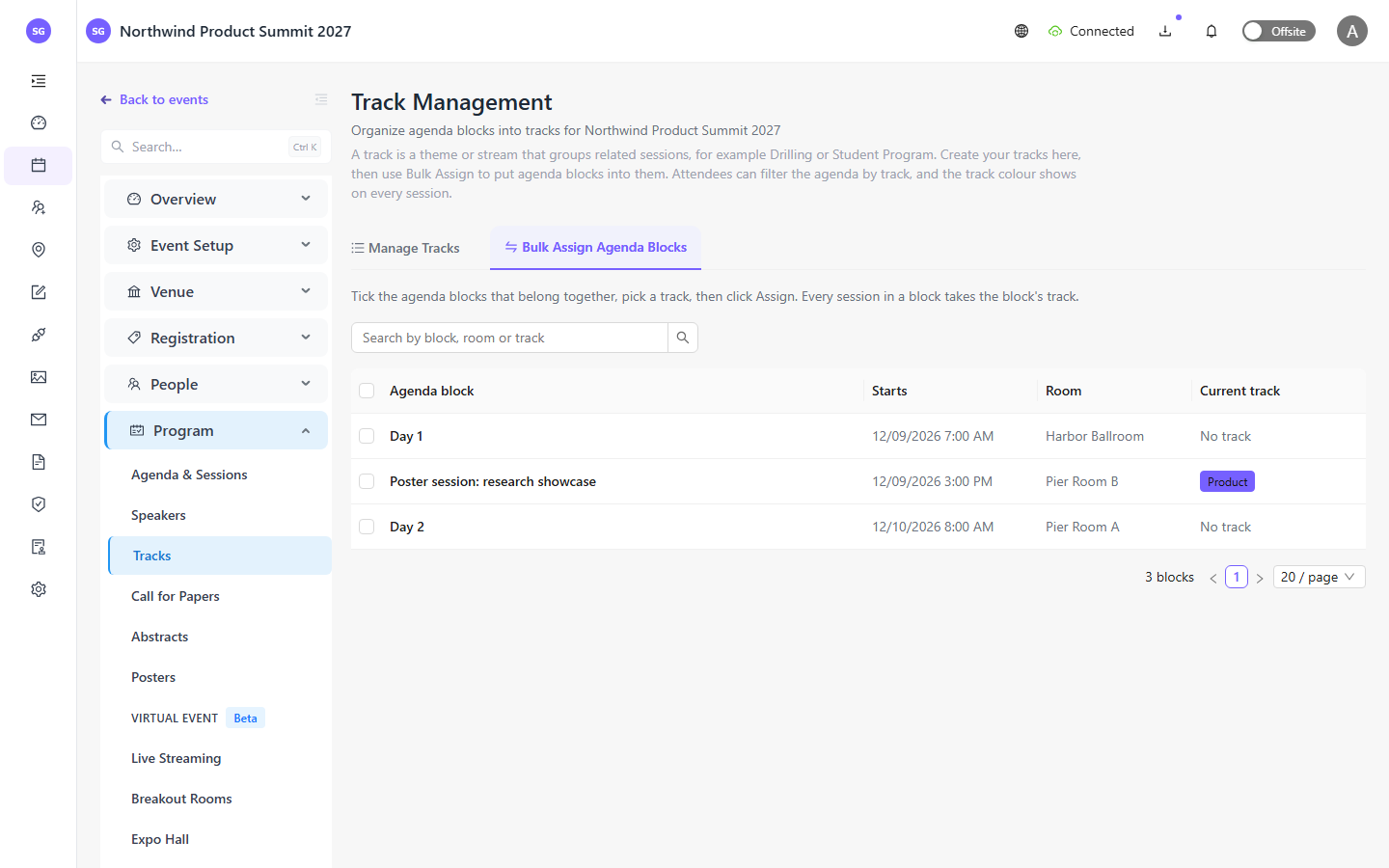
Remove Track takes the ticked blocks out of their track. To give a single session a different track from its block, edit the session. A certificate can be issued when an attendee completes a track; see Badge and certificate design.
Who can do this
Organization admins and event staff with access to the event's program.
Troubleshooting
| You see | Why | Fix |
|---|---|---|
| A session time changed after you saved it | Sessions must fit inside their block | Widen the block's start and end time, then set the session time again |
| A session row has a red mark | It is missing a speaker, a room or a file | Open the block with Manage and fill in what is missing |
| A track does not show for attendees | It is inactive, or no session is in it | Make it Active and assign blocks or sessions to it |