Abstracts, posters and paper submissions
Build the event's abstract book by hand or from a spreadsheet, plan poster sessions and boards, follow a call for papers once submissions arrive, and switch on file review for presentation decks.
Scientific and professional meetings publish an abstract book, hang posters on numbered boards, and often collect papers through a call for papers. This guide covers the pages for each. Setting up a call for papers itself is in Call for papers and reviews.
| Page | Where | What it holds |
|---|---|---|
| Abstracts | Program > Abstracts | The abstract book: number, title, authors, topic |
| Posters | The event's /posters page |
Poster sessions, and each poster's number, board and abstract |
| Call for Papers | Program > Call for Papers | Calls that collect proposals, their submissions, reviews and decisions |
| File Review | Presentations > File Review | An optional check on uploaded presentation files |
Build the abstract book
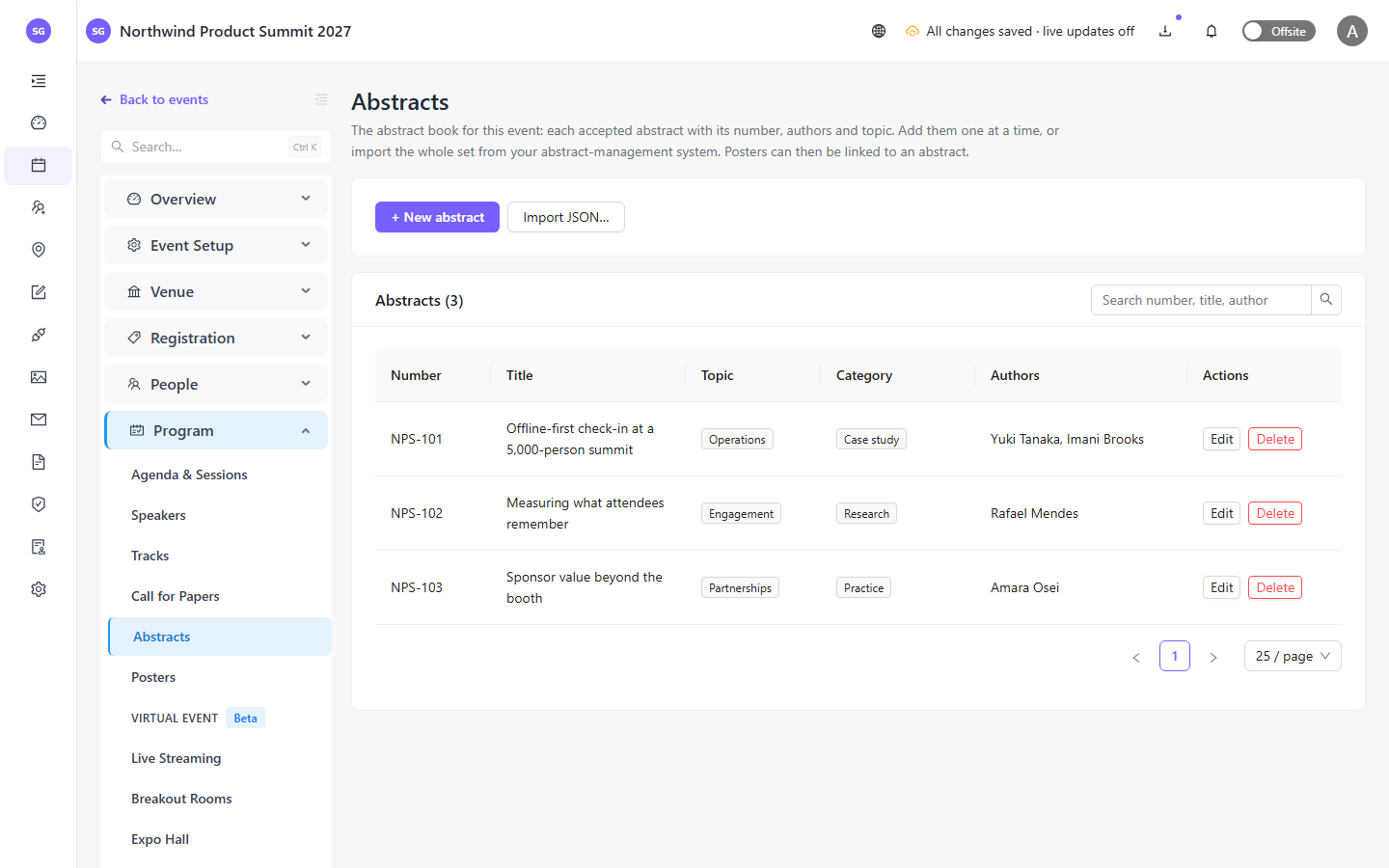
Open the event and go to Program > Abstracts. The table lists each abstract with its Number, Title, Topic, Category and Authors. Search by number, title or author at the top right.
Add one abstract
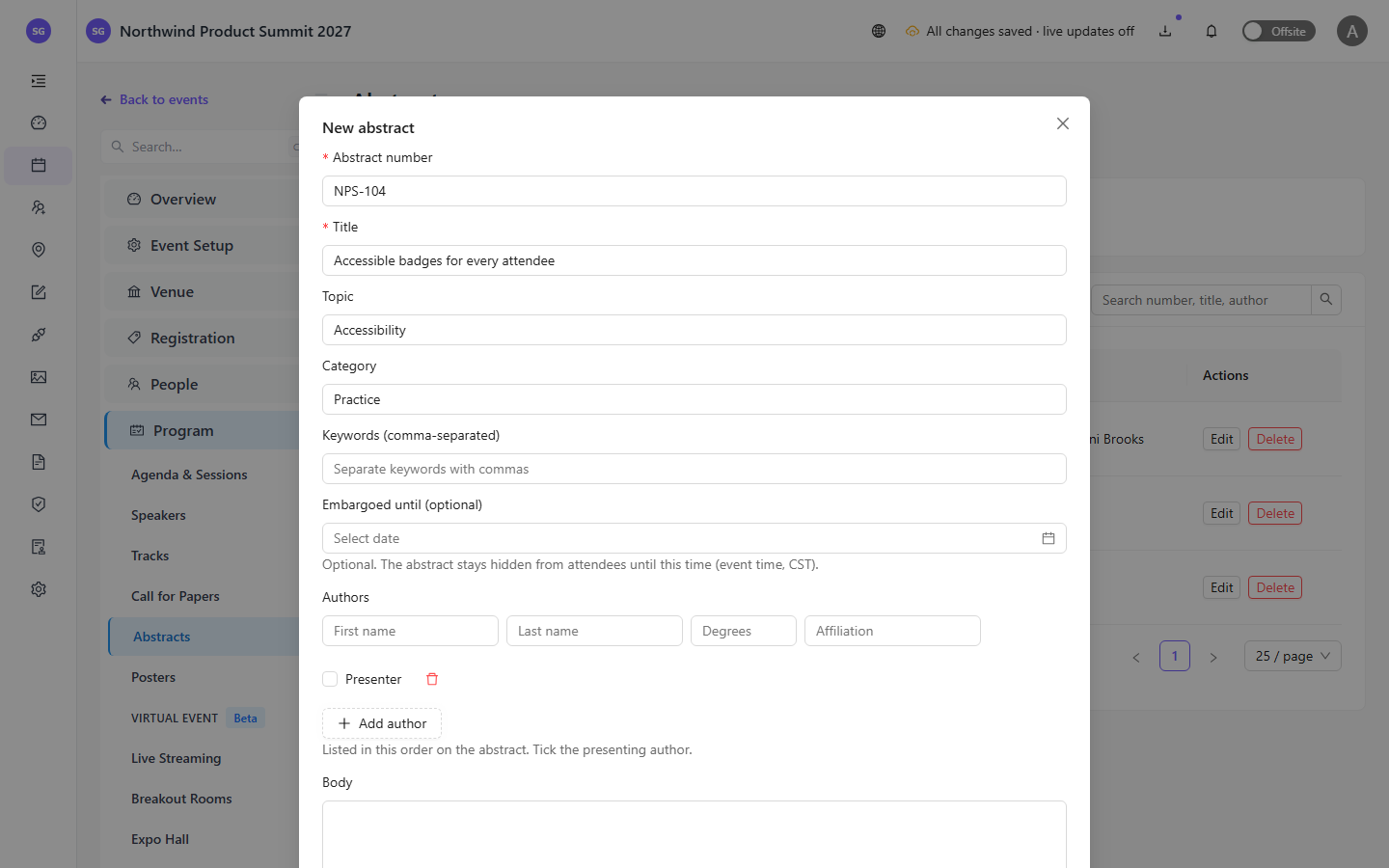
- Click + New abstract.
- Enter the Abstract number and Title (both required). Numbers are unique across your whole organization, not just this event, so use a prefix per event (for example
NPS-104). - Add a Topic, a Category and Keywords, separated by commas.
- If the abstract must stay hidden until a date (a press embargo, for example), set Embargoed until. The time is in the event's time zone.
- Click Add author for each author and enter their first and last name, degrees and affiliation. Authors are listed in this order; tick Presenter for the presenting author.
- Paste the Body (up to 30,000 characters) and click Create.
Use Edit and Delete on a row to change or remove an abstract.
Import many abstracts
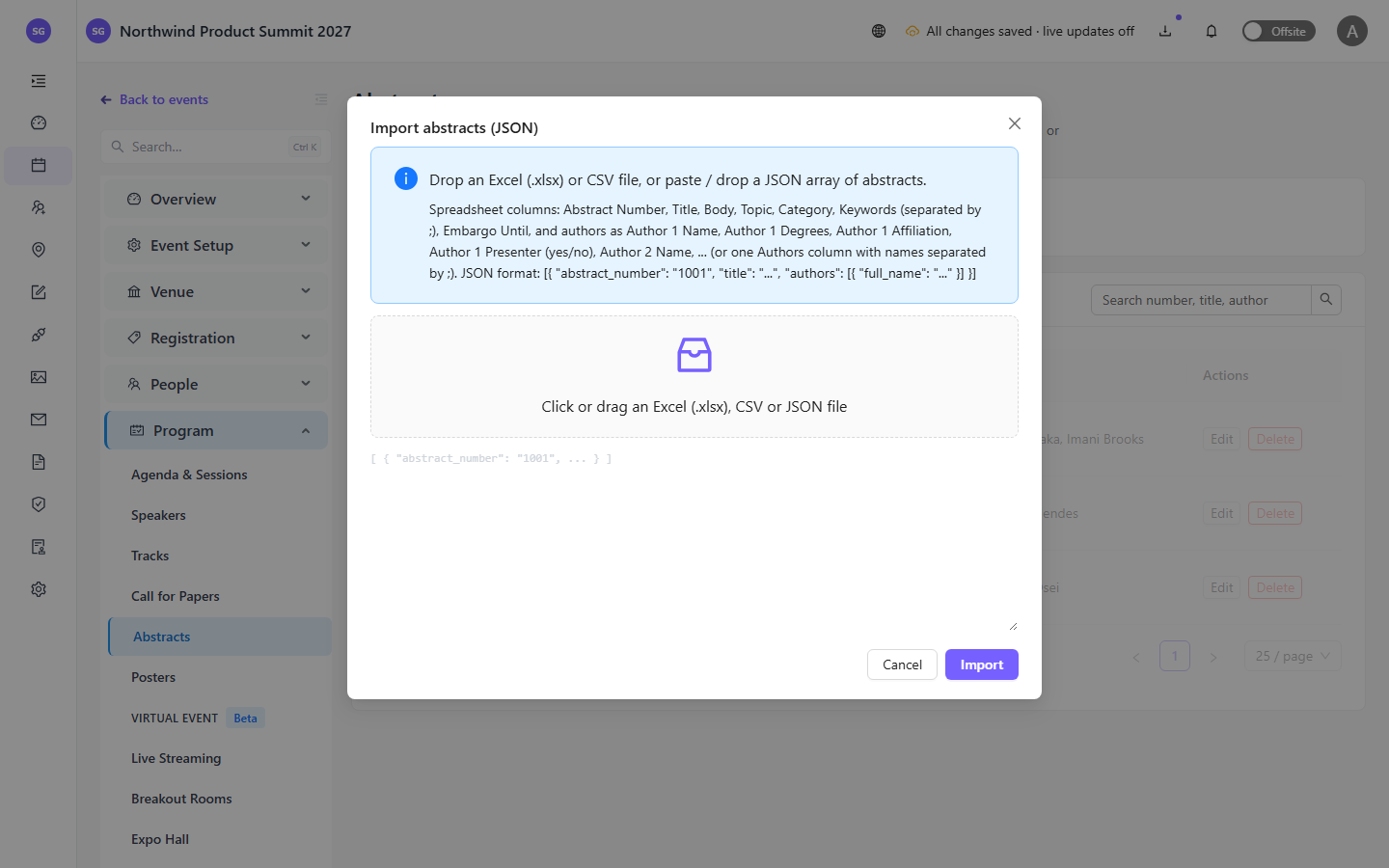
- Click Import JSON….
- Drop an Excel (
.xlsx) or CSV file, or paste a JSON array. - Click Import. Abstracts whose number already exists are skipped, and the result tells you how many were created and skipped.
Spreadsheet columns are Abstract Number, Title, Body, Topic, Category, Keywords (separated by ;), Embargo Until, and for each author Author 1 Name, Author 1 Degrees, Author 1 Affiliation, Author 1 Presenter (yes or no), then Author 2 Name and so on. You can use a single Authors column instead, with names separated by ;.
Plan posters
Posters are grouped into poster sessions: the time when posters are up and, if you like, the room. Open the event's Posters page (add /posters to the event's address; the page is not in the sidebar yet).
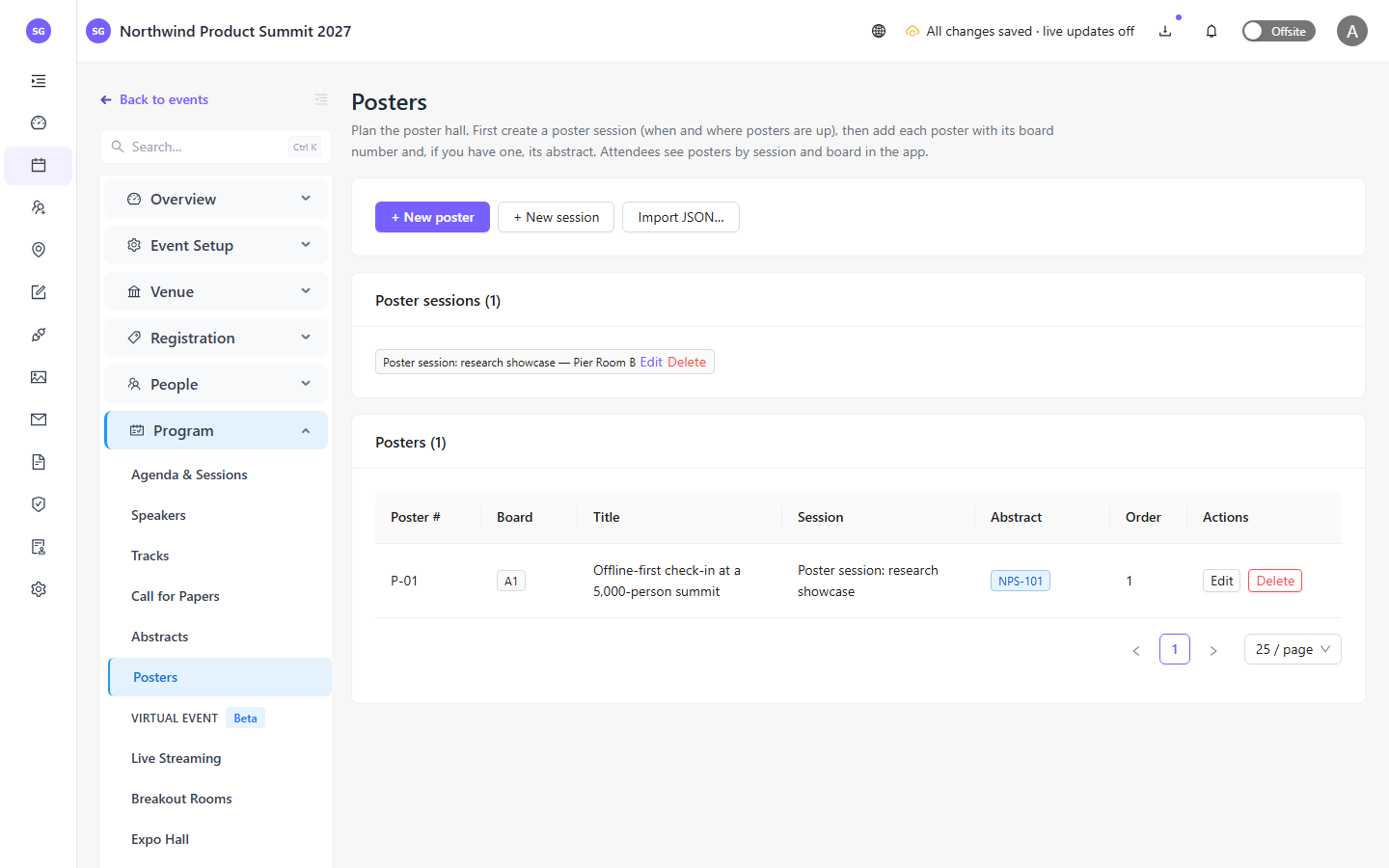
- Click + New session. Enter a Title, the Start / end time (event time) and, optionally, a Room, then click Create. The session also appears as a block on the agenda (see Agenda, sessions and tracks).
- Click + New poster.
- Enter the Poster number (up to 11 characters, unique in the event), the Board number and the Title.
- Pick the Poster session, and, if the poster has one, its Related abstract.
- Optionally attach the Poster file (PDF or image) and a Thumbnail image with Choose from library, and set a Display order.
- Click Create.
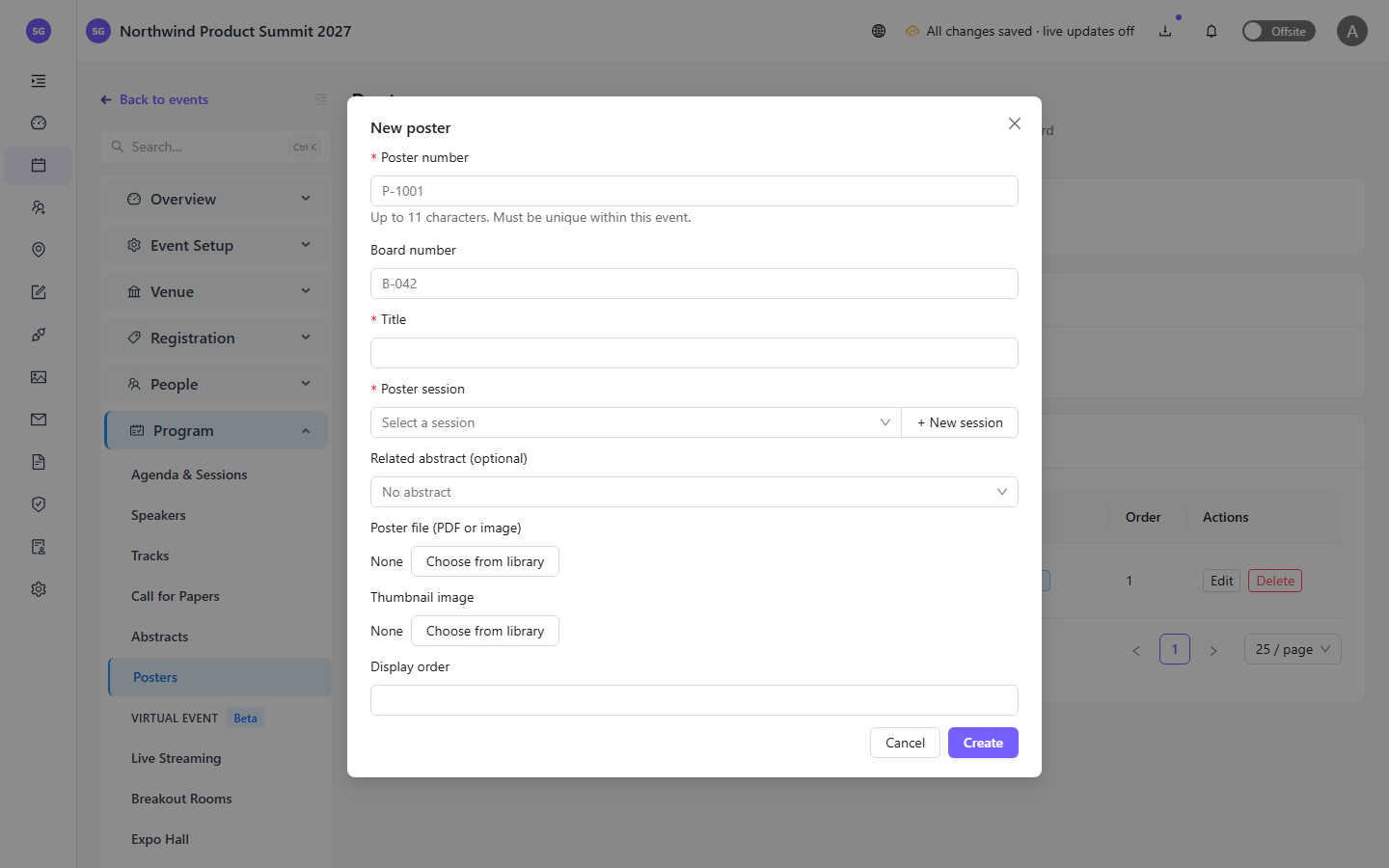
Attendees see posters by session and board in the event app. Import JSON… on this page loads many posters at once.
Follow a call for papers
Program > Call for Papers lists the event's calls with their status, deadlines and number of submissions. Each event also has an Abstract book call, created for you: it holds the abstracts on the Abstracts page and is never open for submissions.
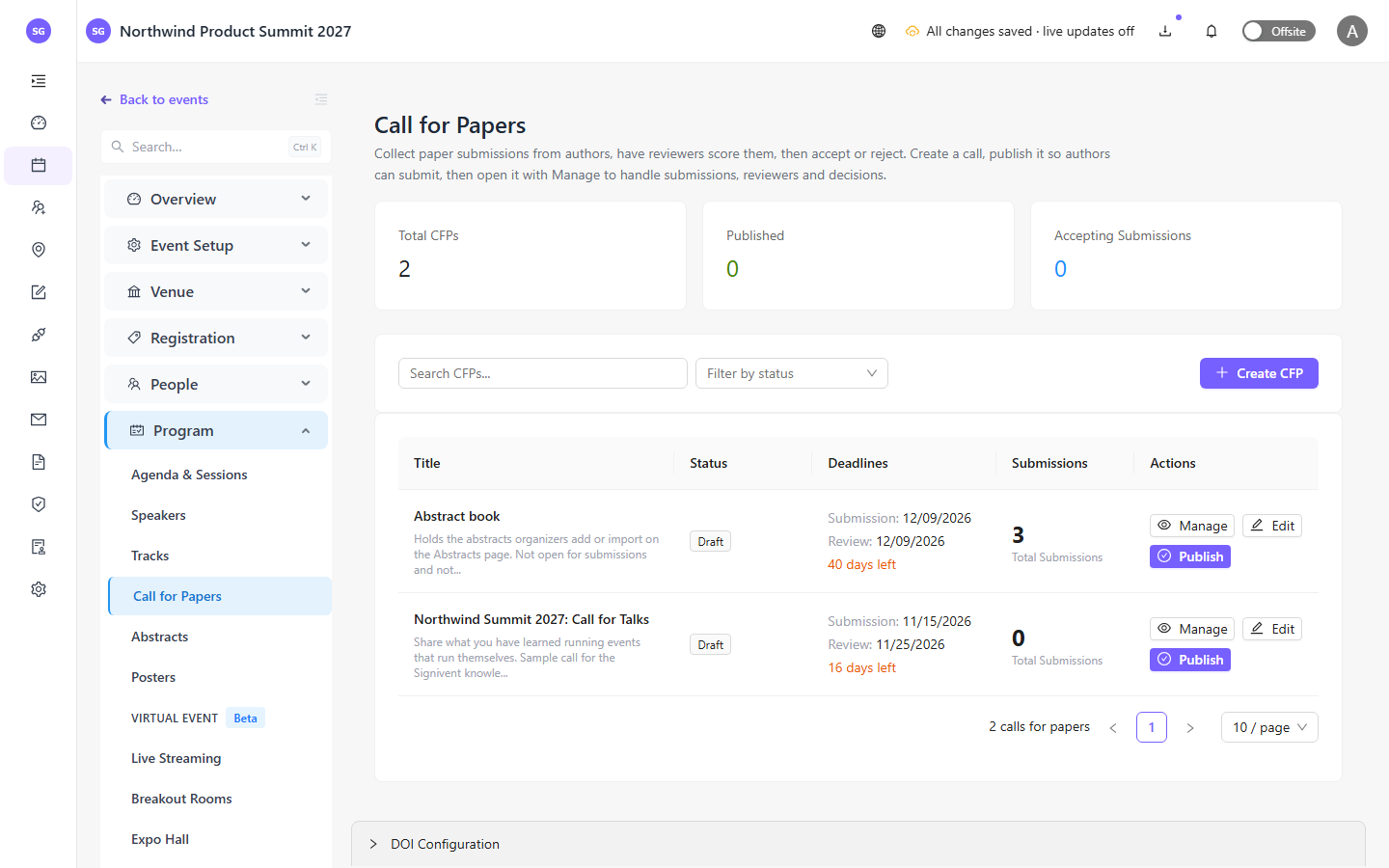
On a call's row:
- Edit reopens the setup steps.
- Publish opens the call so authors can submit.
- Manage opens the call's page, with its Submissions, Reviewers, Peer review and Decisions.
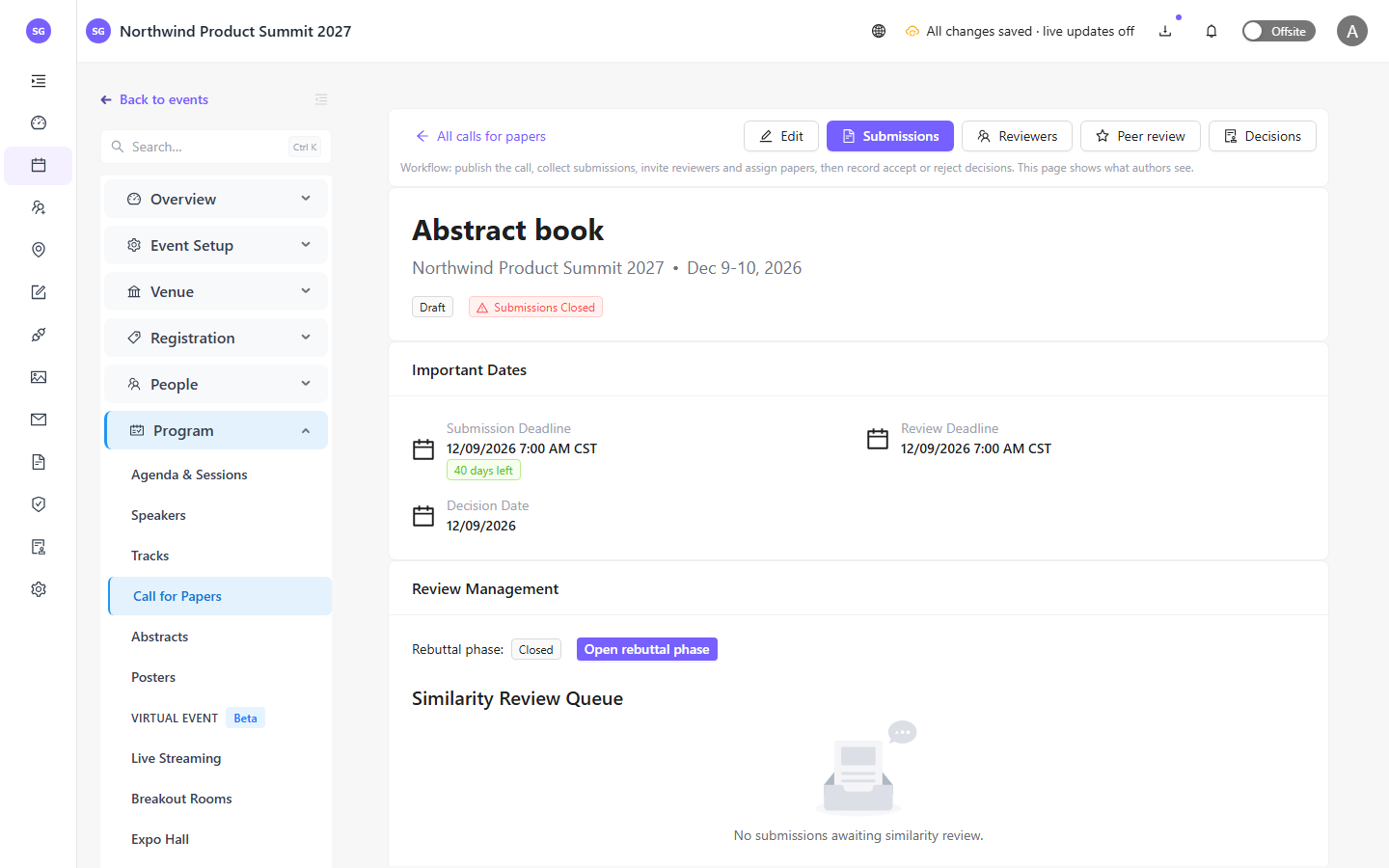
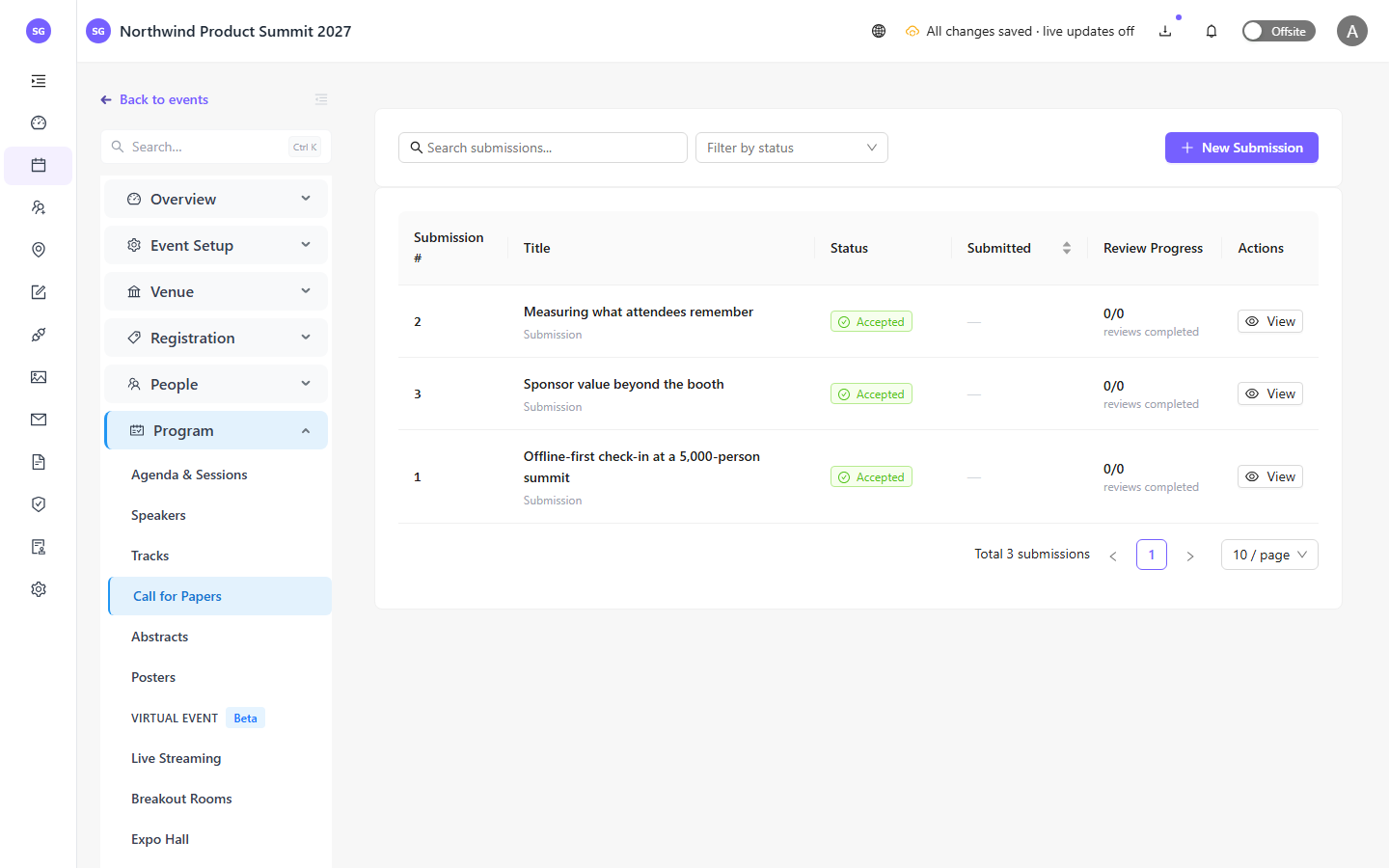
Click Submissions to open the call's submissions list. There you search and filter submissions by status, open one, or add one by hand with New Submission.
Review presentation files
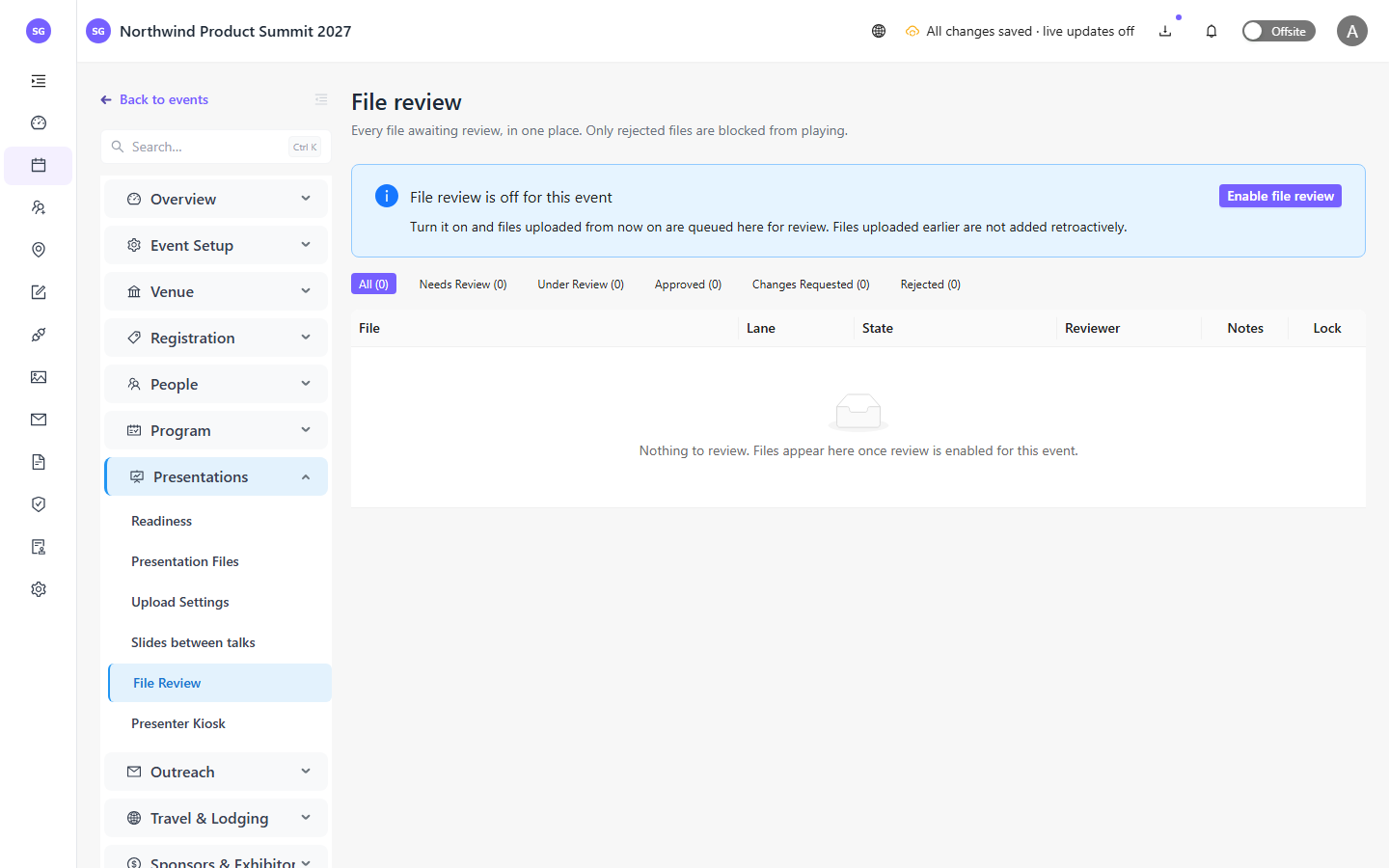
File review is an optional quality check on presentation decks. When it is on, every file uploaded from then on is queued on Presentations > File Review, and a reviewer approves it, asks for changes, or rejects it. Only a rejected file is held back from the presenter kiosk; files waiting for review still play.
- Go to Presentations > File Review and click Enable file review. Files uploaded before you switch it on are not added.
- Use the tabs to work through the queue: Needs Review, Under Review, Approved, Changes Requested and Rejected.
- Each row shows the file, its lane, its state, the reviewer, notes and whether it is locked.
Who can do this
Organization admins and event staff with access to the event's program manage abstracts, posters, calls and file review. Reviewers see only the submissions or files assigned to them.
Troubleshooting
| You see | Why | Fix |
|---|---|---|
| "Abstract number X is already used by another event in this organization" | Abstract numbers are unique across the organization | Use a per-event prefix |
| An imported abstract is missing | Its number already existed, so it was skipped | Check the skipped count; edit the existing abstract instead |
| The Posters page is not in the sidebar | A known issue | Open the event address followed by /posters |
| The sidebar highlights Call for Papers while you are on Abstracts | A known issue | Nothing to do; you are on the right page |
| The Abstract book call shows 0 submissions | The abstracts are not counted as submissions yet | See them on the Abstracts page |
| A file is not in the review queue | It was uploaded before file review was switched on | Upload it again |