Speakers at your event
See who is scheduled, double-booked or checked in, turn attendees into speakers, set upload reminders and the Know Before You Go note, and track speaker expenses and honoraria.
Program > Speakers is where you run one event's speakers: who is on the program, who still owes a presentation, who has arrived. Adding a speaker, importing a list and the speaker's own profile are covered in Speaker directory; this guide covers the rest of the page.
Read the speaker list
Open the event and go to Program > Speakers. The cards at the top count the event's speakers:
| Card | What it counts |
|---|---|
| Total speakers | Everyone speaking at this event |
| Live now | Speakers whose session is running right now |
| Scheduled | Speakers with at least one upcoming session |
| Total sessions | Sessions that have a speaker |
| Checked in | Speakers checked in at the event, out of the total |
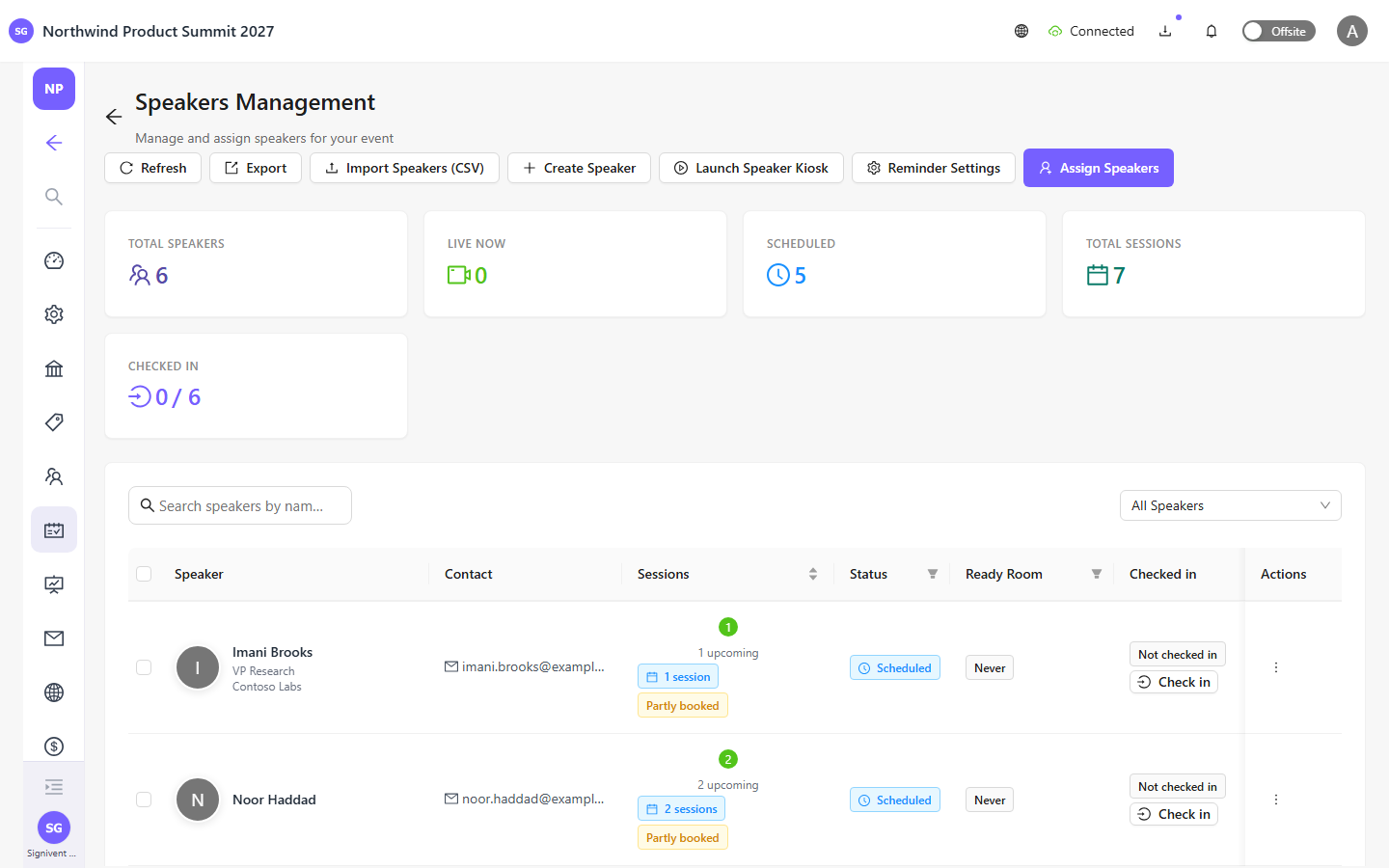
Each row shows the speaker's name, title and company, their email, their Sessions (how many, how many are upcoming, and how booked they are), their Status, the last Ready Room visit, whether they are Checked in, their bio and social links. Search by name, or use the filter on the right to show All Speakers, those Live now, Scheduled ones, or Available speakers with no session.
When two of a speaker's sessions overlap, a Double-booked card and a warning appear above the list.
Click a speaker's name to open their profile, or a session tag to see their sessions.
A speaker joins the list when they are added to a session in Agenda & Sessions (see Agenda, sessions and tracks), or when you create or import them on this page. Speakers who come in through a call for papers are covered in Abstracts, posters and paper submissions.
Act on one speaker
Each row has a Check in button for the speaker desk and an actions menu (the three dots).
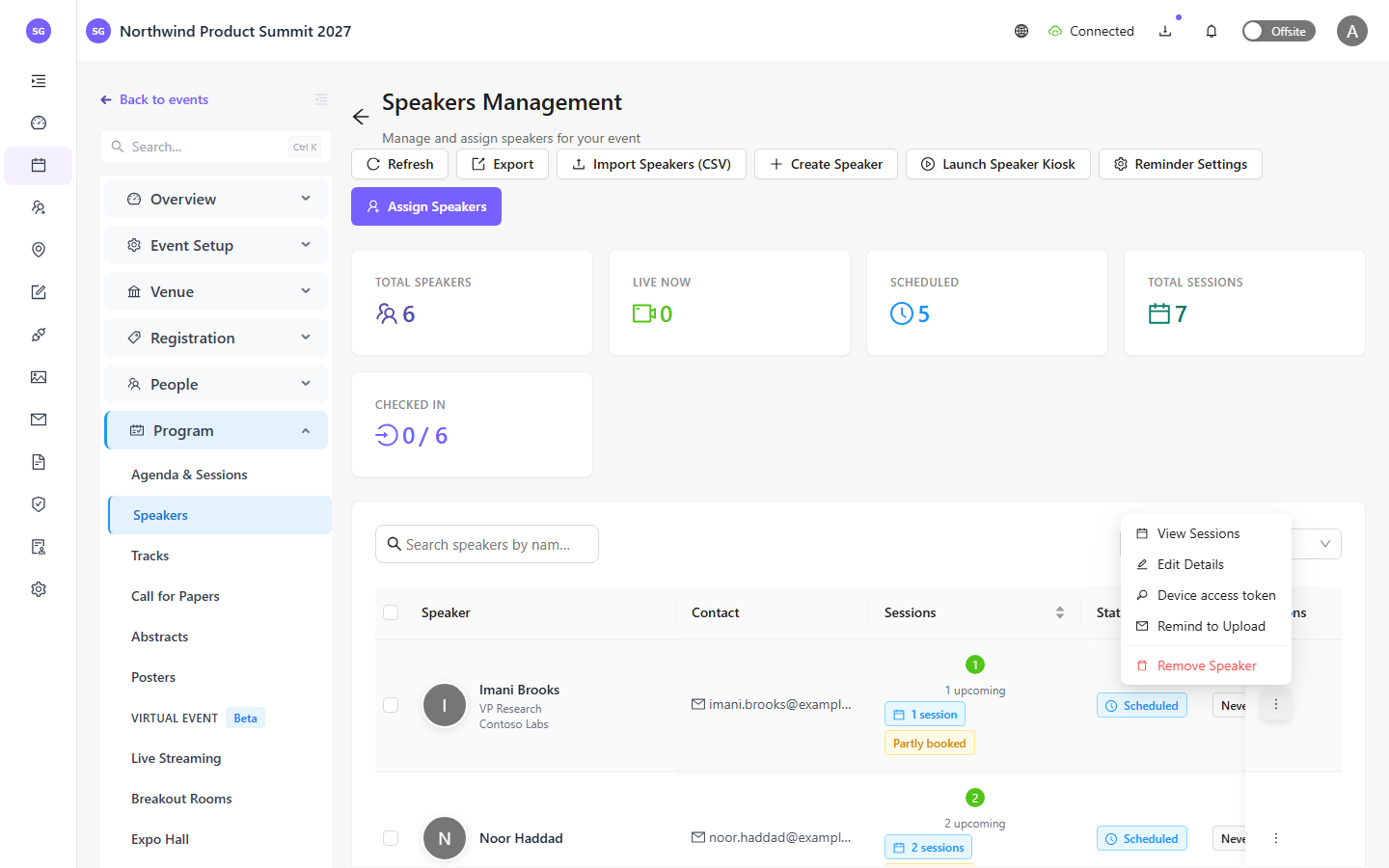
| Action | What it does |
|---|---|
| View Sessions | Lists the speaker's sessions at this event |
| Edit Details | Opens the speaker's details to change them |
| Device access token | Shows a token the speaker can use to sign in on a presenter device |
| Remind to Upload | Emails the speaker a reminder to upload their presentation |
| Remove Speaker | Takes the speaker off this event, after you confirm |
Tick several rows to check them in or remove them in one go.
Turn attendees into speakers
If a speaker has already registered, you do not need to type their details again.
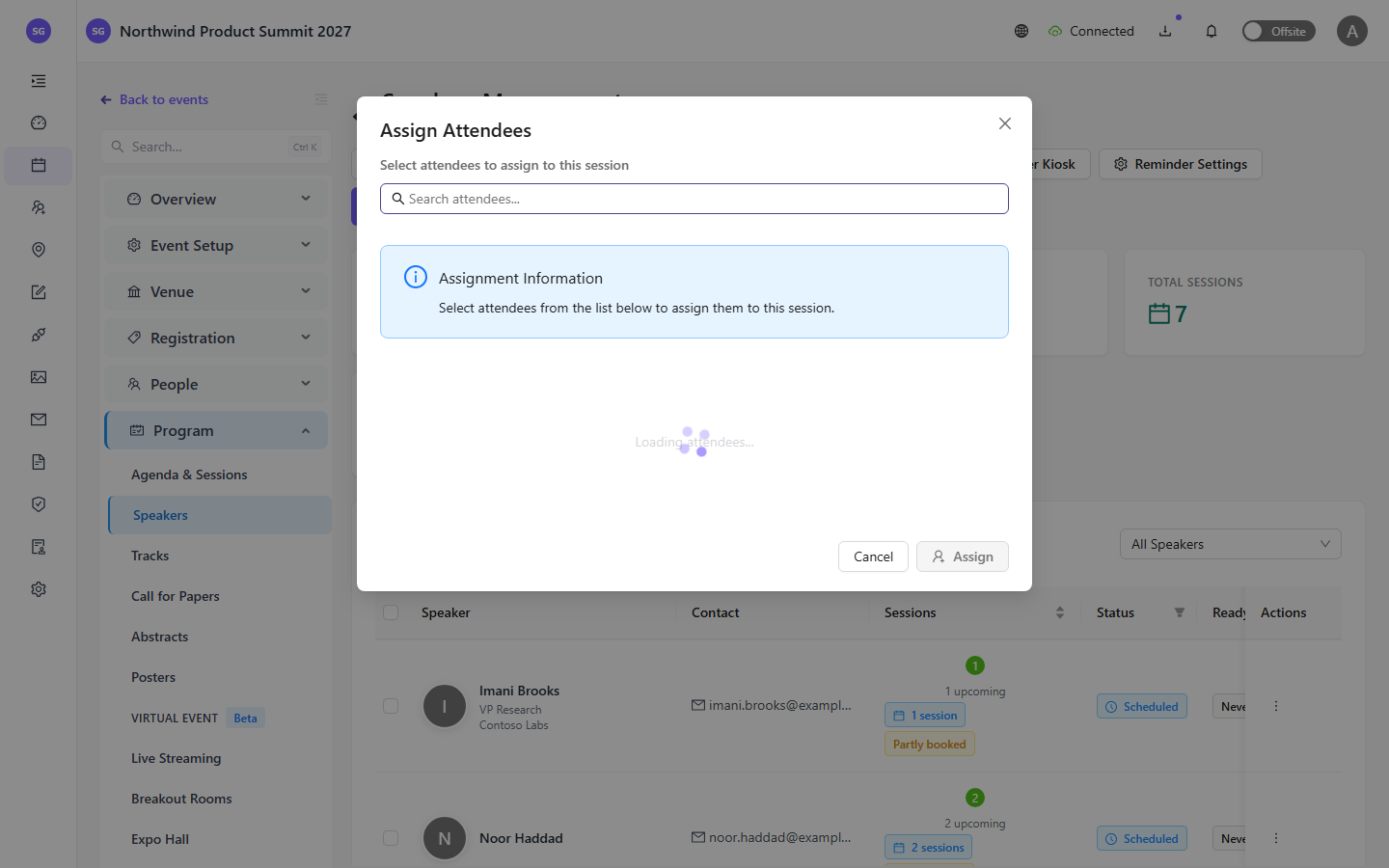
- Click Assign Speakers.
- Search for the person and pick one or more attendees in Select attendees…. The count shows how many attendees can still be picked.
- Click Assign. They are added to the event's speakers with the details from their registration.
Remind speakers to upload
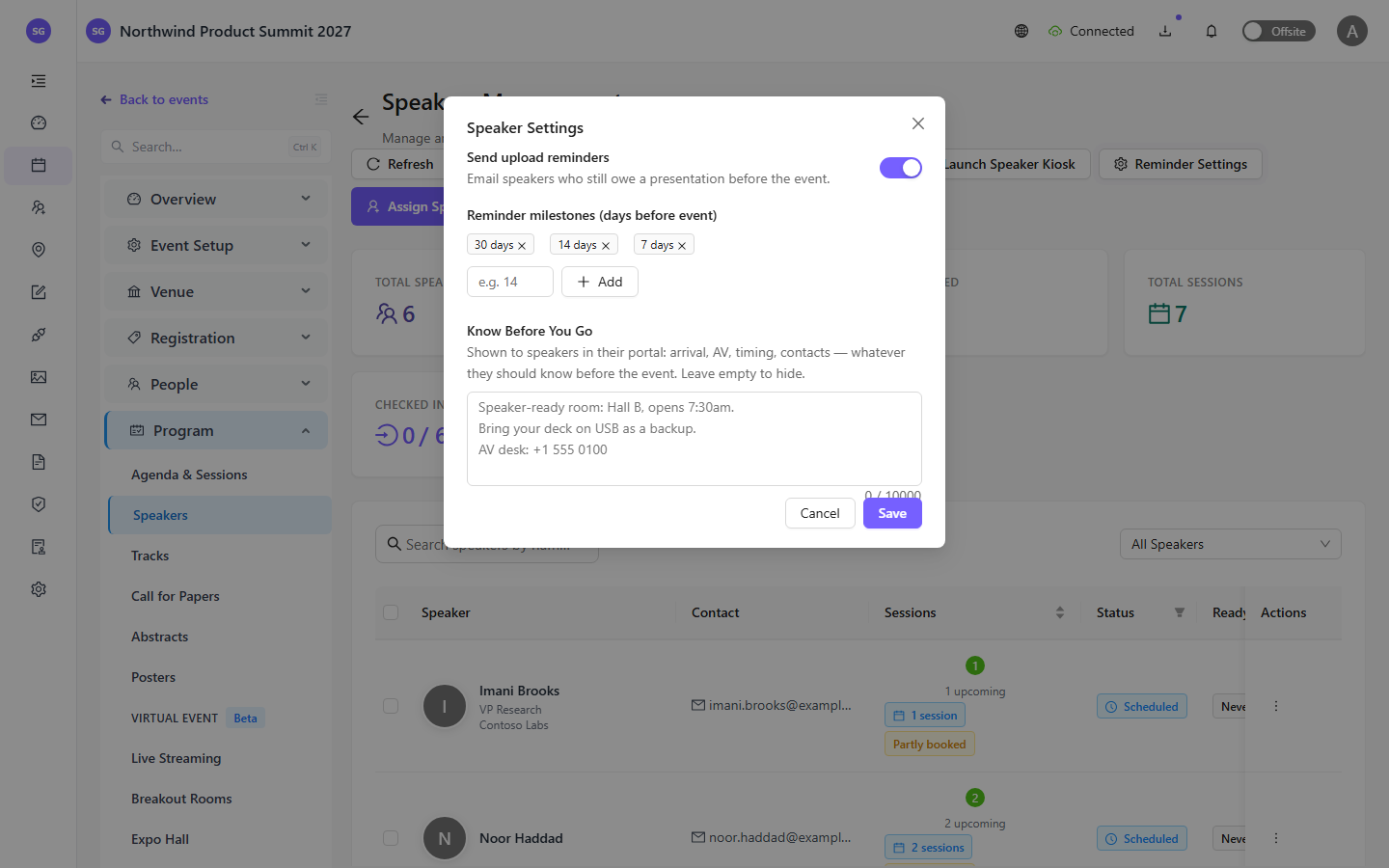
- Click Reminder Settings.
- Switch on Send upload reminders to email speakers who still owe a presentation.
- Under Reminder milestones, keep or change the days before the event the reminders go out (30, 14 and 7 days to start with); click Add for another one.
- Write the Know Before You Go note: arrival, AV, timing and contacts. Speakers see it in their portal. Leave it empty to hide it.
- Click Save.
Reminders go only to speakers who still owe a presentation. The deadline itself is set under Presentations > Upload Settings; see Upload settings for presentations.
Other tools on the toolbar
| Button | What it does |
|---|---|
| Refresh | Reloads the list |
| Export | Downloads the speaker list |
| Import Speakers (CSV) | Adds many speakers from a file; see Speaker directory |
| Create Speaker | Adds one speaker; see Speaker directory |
| Launch Speaker Kiosk | Opens the self check-in screen speakers use when they arrive |
Expenses and honoraria
Under the list, Expenses & honoraria collects what you owe speakers (travel, fees and so on), with the speaker, category, amount, a note and its status. Download CSV exports it for your finance team.
Who can do this
Organization admins and event staff with access to the event's program. Speakers see only their own sessions and the Know Before You Go note, in the speaker portal.
Troubleshooting
| You see | Why | Fix |
|---|---|---|
| A speaker shows 0 sessions | They are on the event but not on a session yet | Add them to a session in Agenda & Sessions |
| A Double-booked warning | Two of a speaker's sessions overlap | Move one session in Agenda & Sessions |
| A speaker did not get upload reminders | Reminders are off, or their session already has a file | Check Reminder Settings and the session's files |
| Assign Speakers lists nobody | Every attendee is already a speaker, or the event has no attendees yet | Use Create Speaker instead |