Speaker directory
Add speakers to an event one by one or from a file, open a speaker's profile to see their sessions across all your events, and send them a sign-in link to the speaker portal.
Every speaker has one profile in your organization, identified by their email. You add speakers from inside an event, under Program > Speakers, and the same profile is reused when that person speaks at another event. The profile page shows their sessions across all your events, their upload status and how they sign in to the speaker portal.
Add a speaker to an event
- Open the event and go to Program > Speakers. The page shows totals (speakers, live now, scheduled, sessions, checked in) and the list of speakers with their sessions and status.
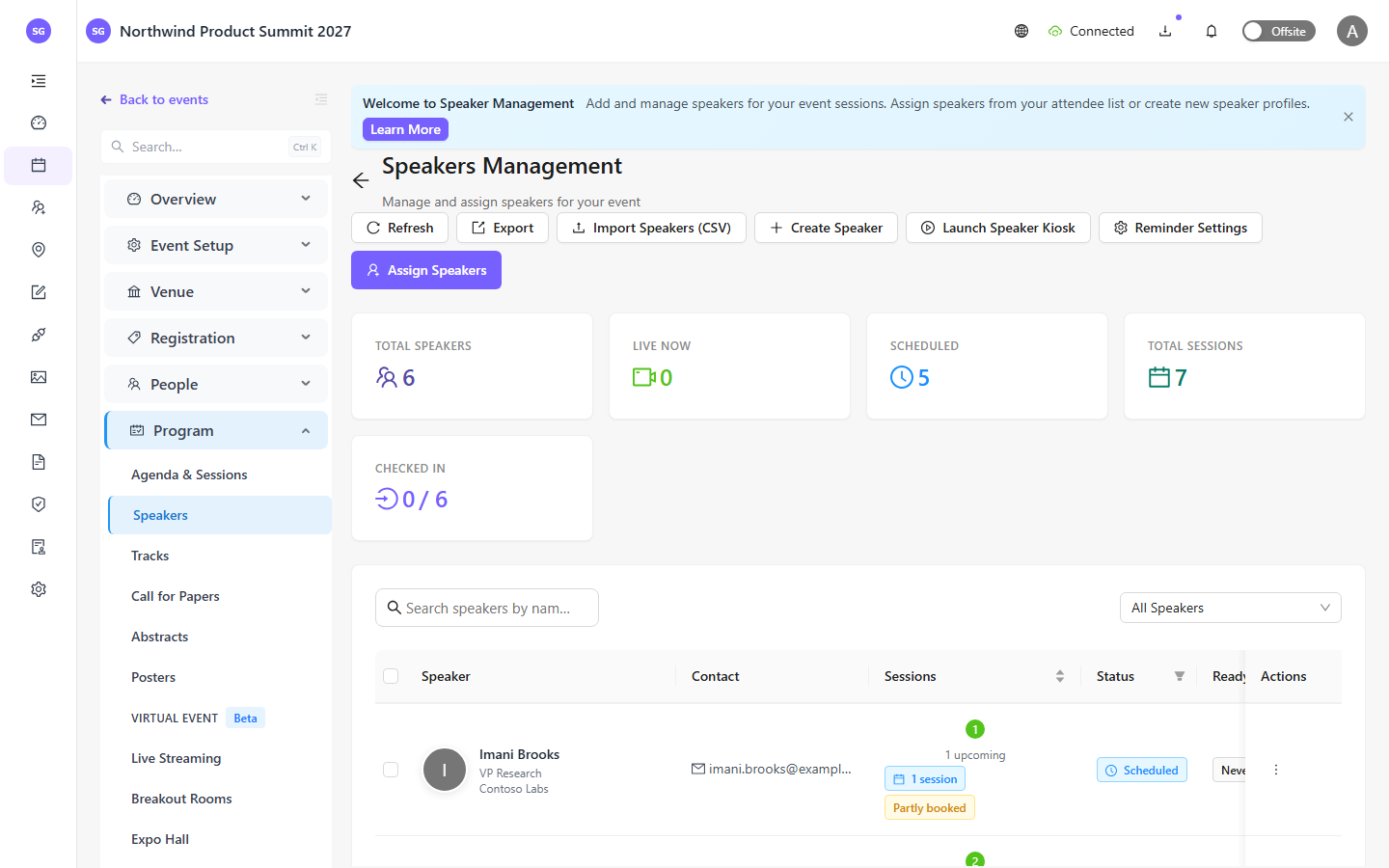
- Click Create Speaker.
- Enter First Name and Email (both required), then the last name, phone, designation, company, language, a bio and the address if you have them. Click the pencil on the photo to add a headshot.
- Tick Also register as event attendee at the bottom if the speaker also needs a badge and a registration.
- Click Save. The speaker appears in the list and is emailed an invitation.
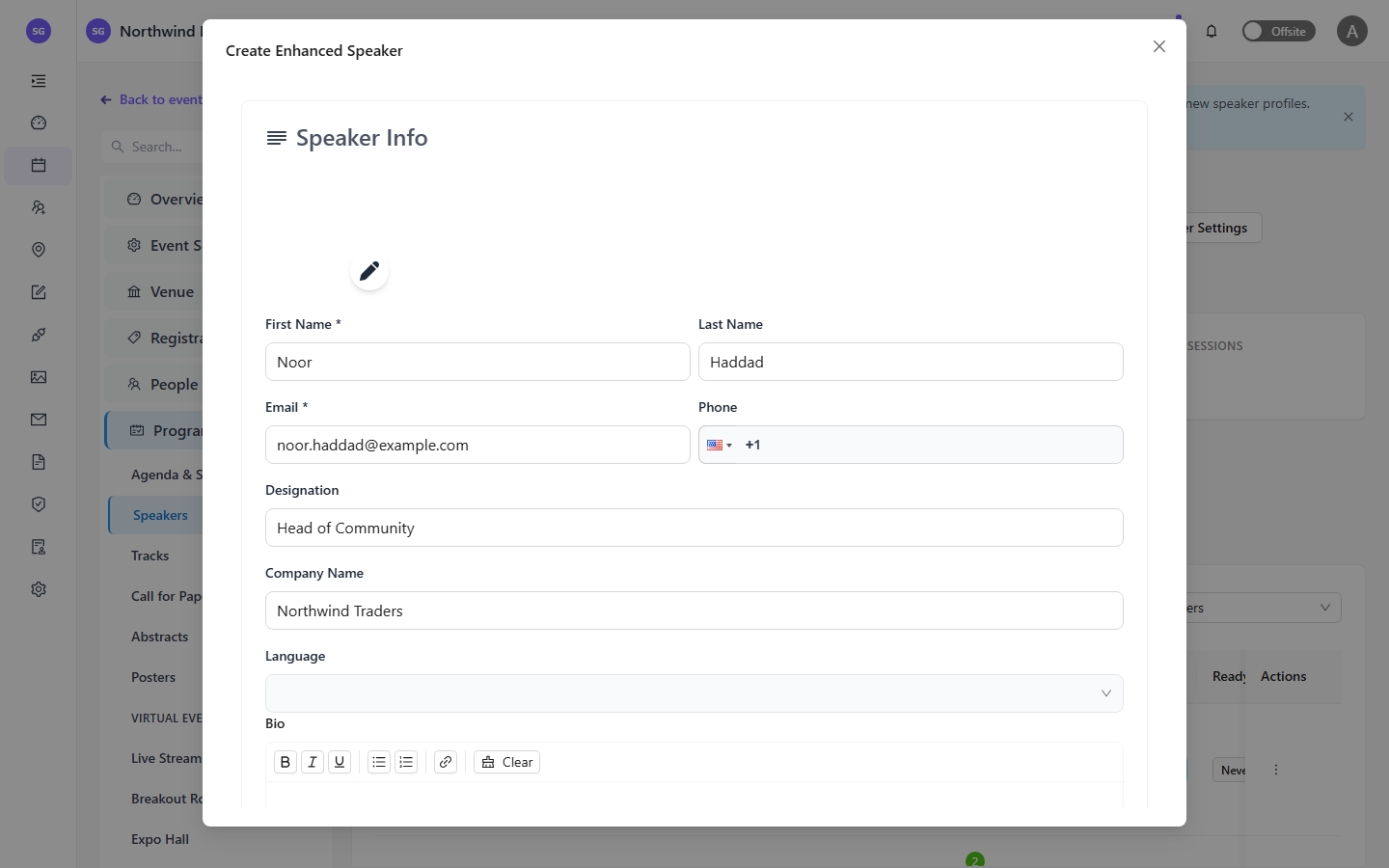
If the person already speaks at another of your events, add them with the same email so both events share one profile. Fill in their designation and company again: today, leaving them empty clears them on the shared profile.
You can also add a speaker from the organization address /dashboard/speaker/create: pick the Event at the top of the form first, because every speaker belongs to one event.
Import many speakers
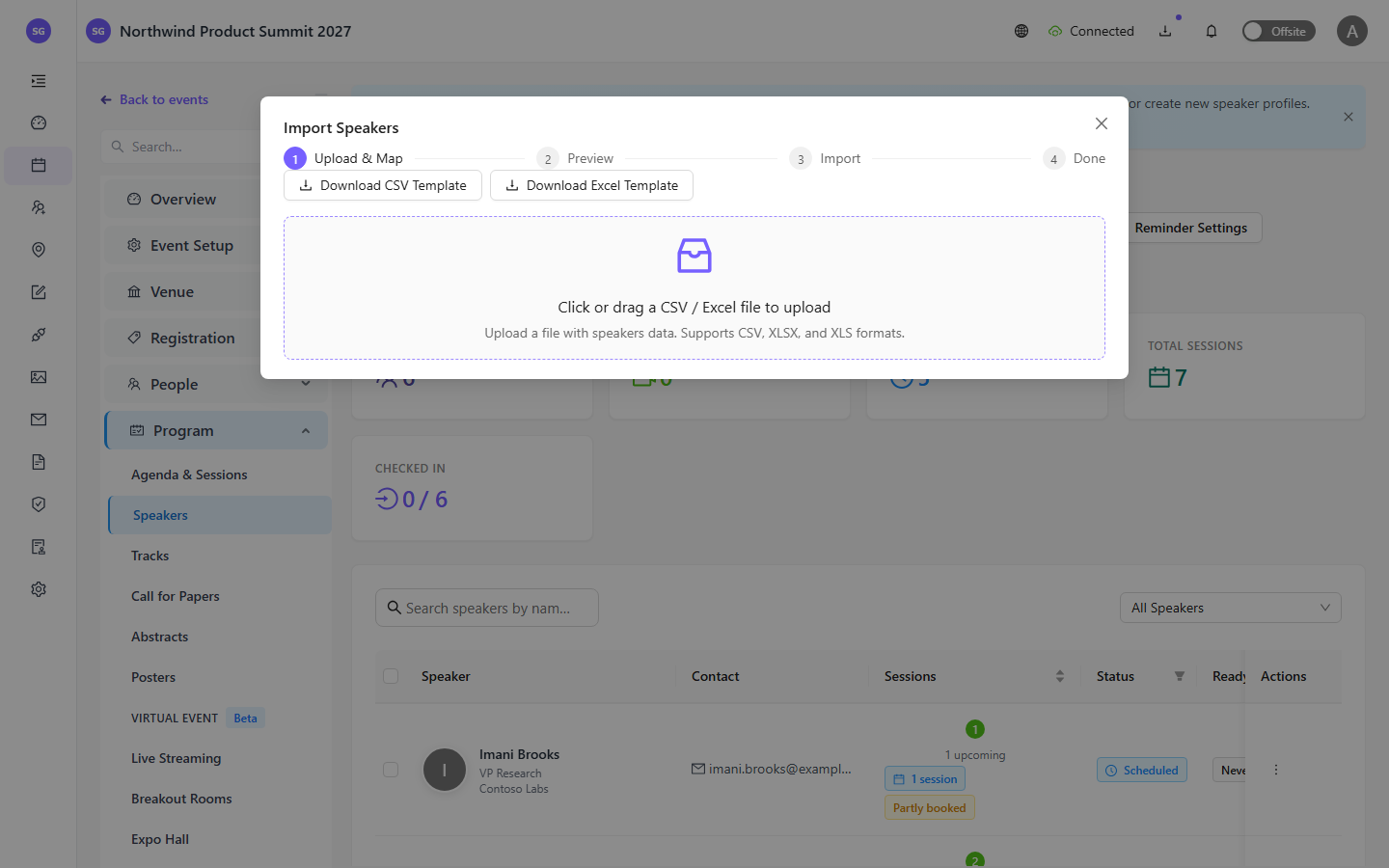
- On Program > Speakers, click Import Speakers (CSV).
- Click Download CSV Template or Download Excel Template and fill in one row per speaker.
- Drop the file on the upload area (CSV, XLSX or XLS).
- Check the Preview, then Import.
Export on the same toolbar downloads the speaker list.
Open a speaker's profile
Click a speaker's name in the list. The profile shows:
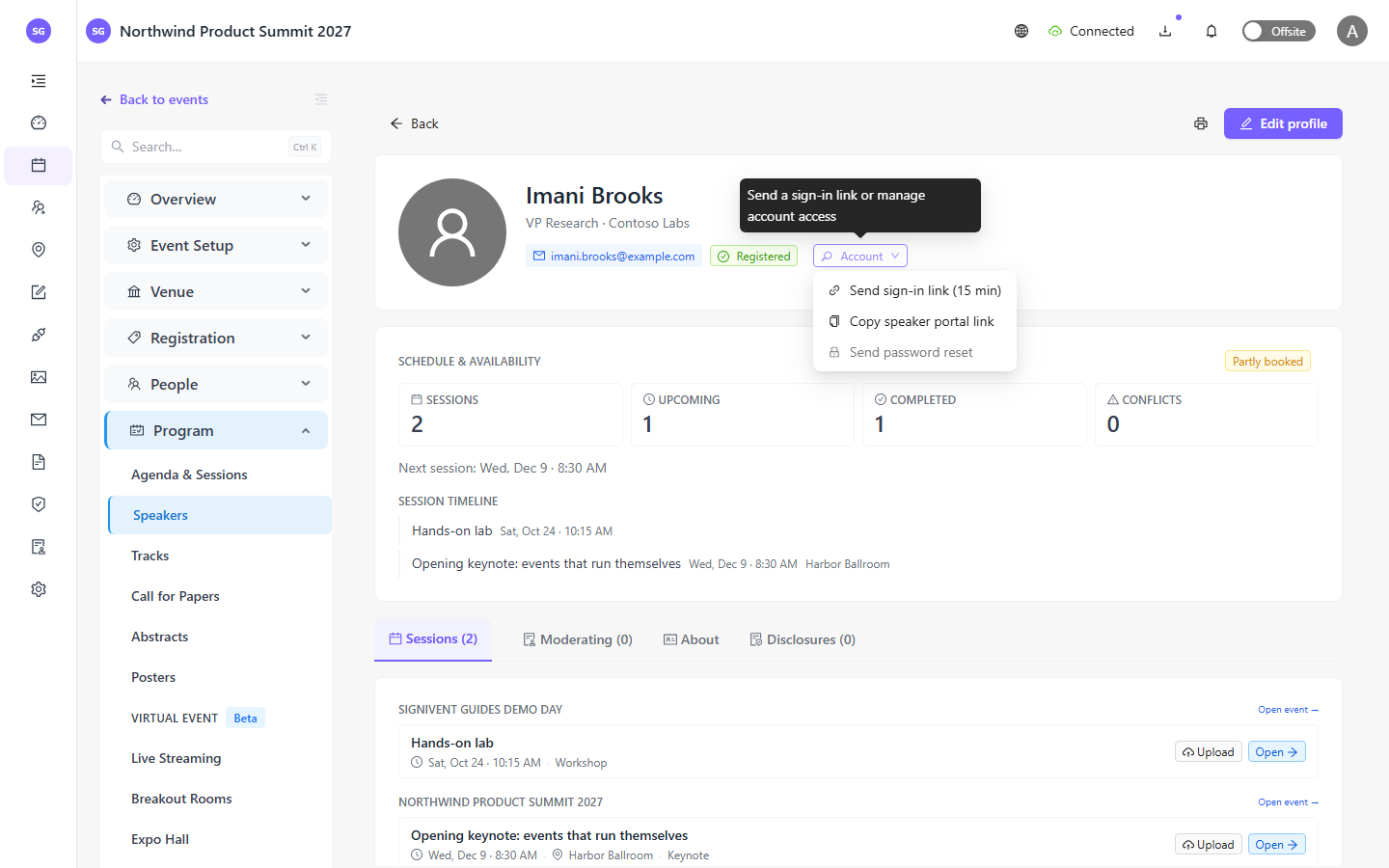
- Schedule & availability: how many sessions they have, how many are upcoming or completed, conflicts, and the next session.
- Session timeline: every session in date order.
- Tabs for Sessions (grouped by event, with Upload for their slides and Open for the session), Moderating, About and Disclosures.
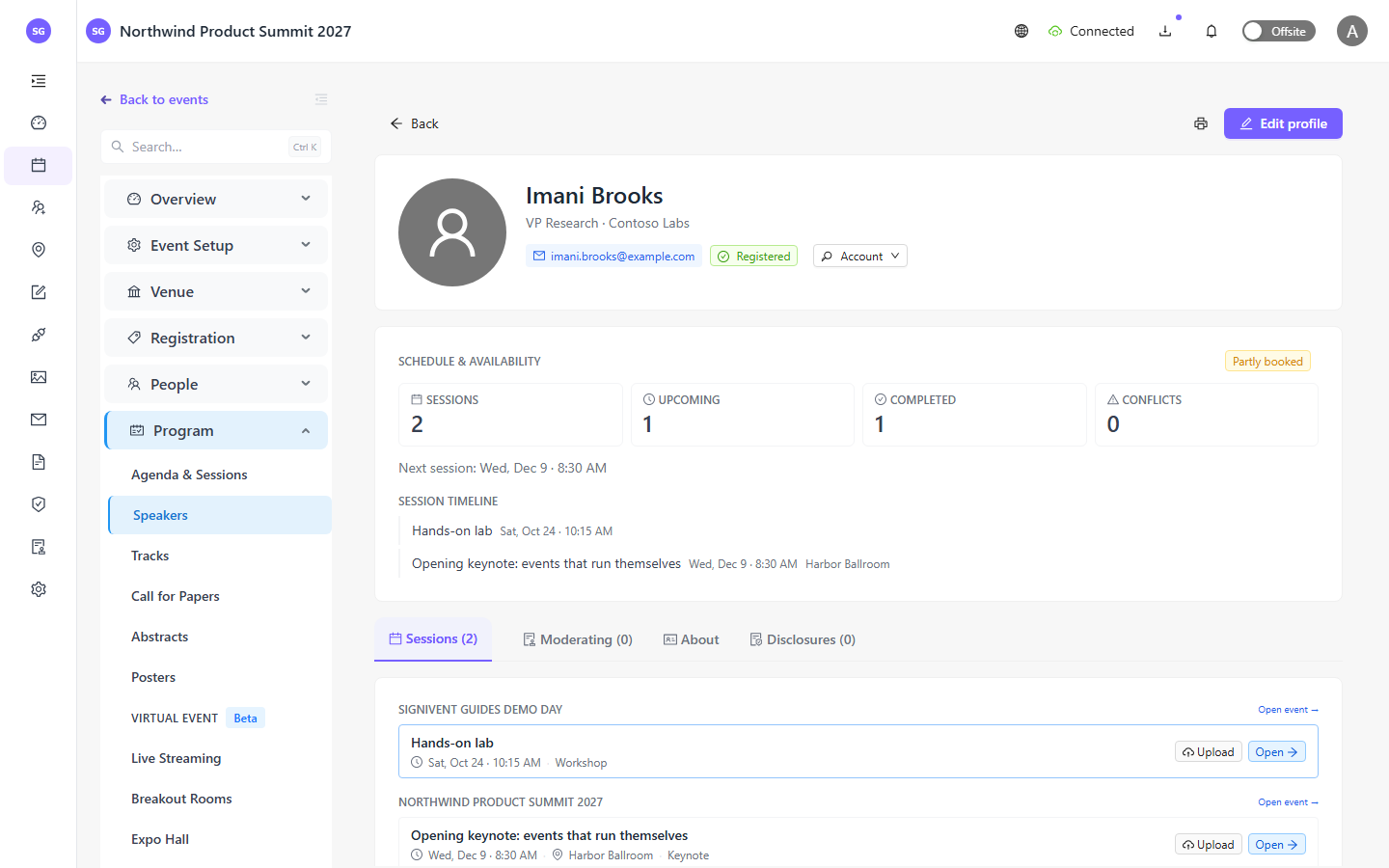
Click Edit profile to change their details, then Save.
Give a speaker access to the speaker portal
Speakers sign in to their own portal to check their sessions and upload presentations. On the profile, open Account:
- Send sign-in link (15 min) emails a one-time link that works for 15 minutes.
- Copy speaker portal link copies the portal address so you can send it yourself.
- Send password reset is available once the speaker has set a password.
Other tools on the Speakers page
| Button | What it does |
|---|---|
| Refresh | Reloads the list |
| Export | Downloads the speaker list |
| Launch Speaker Kiosk | Opens the self check-in screen speakers use when they arrive |
| Reminder Settings | Turns on upload reminders for speakers who still owe a presentation, sets how many days before the event they go out, and holds the Know Before You Go note shown in the speaker portal |
| Assign Speakers | Picks people from the event's attendee list to become speakers |
The table also shows each speaker's Ready Room visit and whether they have Checked in, with a Check in button for the desk.
Who can do this
Organization admins and event staff with access to the event's program can add and edit speakers. Speakers only see their own profile, through the speaker portal.
Troubleshooting
| You see | Why | Fix |
|---|---|---|
| A speaker's designation or company disappeared | They were added to another event with those fields empty | Edit profile and fill them in again |
| A speaker did not get the sign-in link | It expired after 15 minutes, or went to spam | Send it again, or use Copy speaker portal link |
| Send password reset is greyed out | The speaker has not set a password yet | Use Send sign-in link instead |
The address /dashboard/speaker lists no speakers |
That page is not in the menu and lists only speakers already saved on this device | Use the event's Program > Speakers page |