Media library
Keep your organization's files in one place, with a folder for every event, and create folders, upload, open, download, rename and delete files.
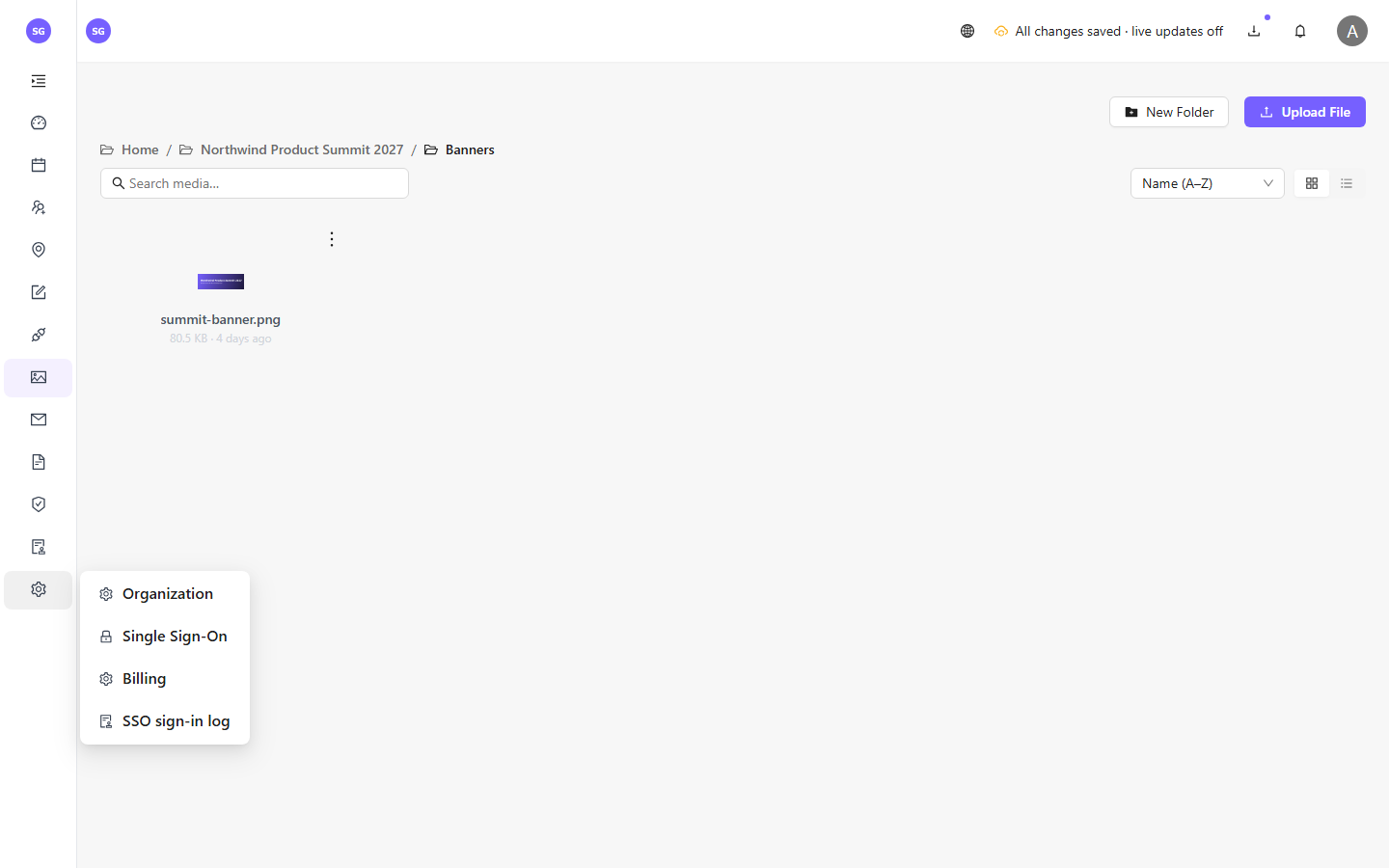
Media Library in the organization sidebar holds the files your organization uses: banners, logos, documents and presentation files. Every event gets its own folder automatically, and you can add folders of your own inside it.
Find your files
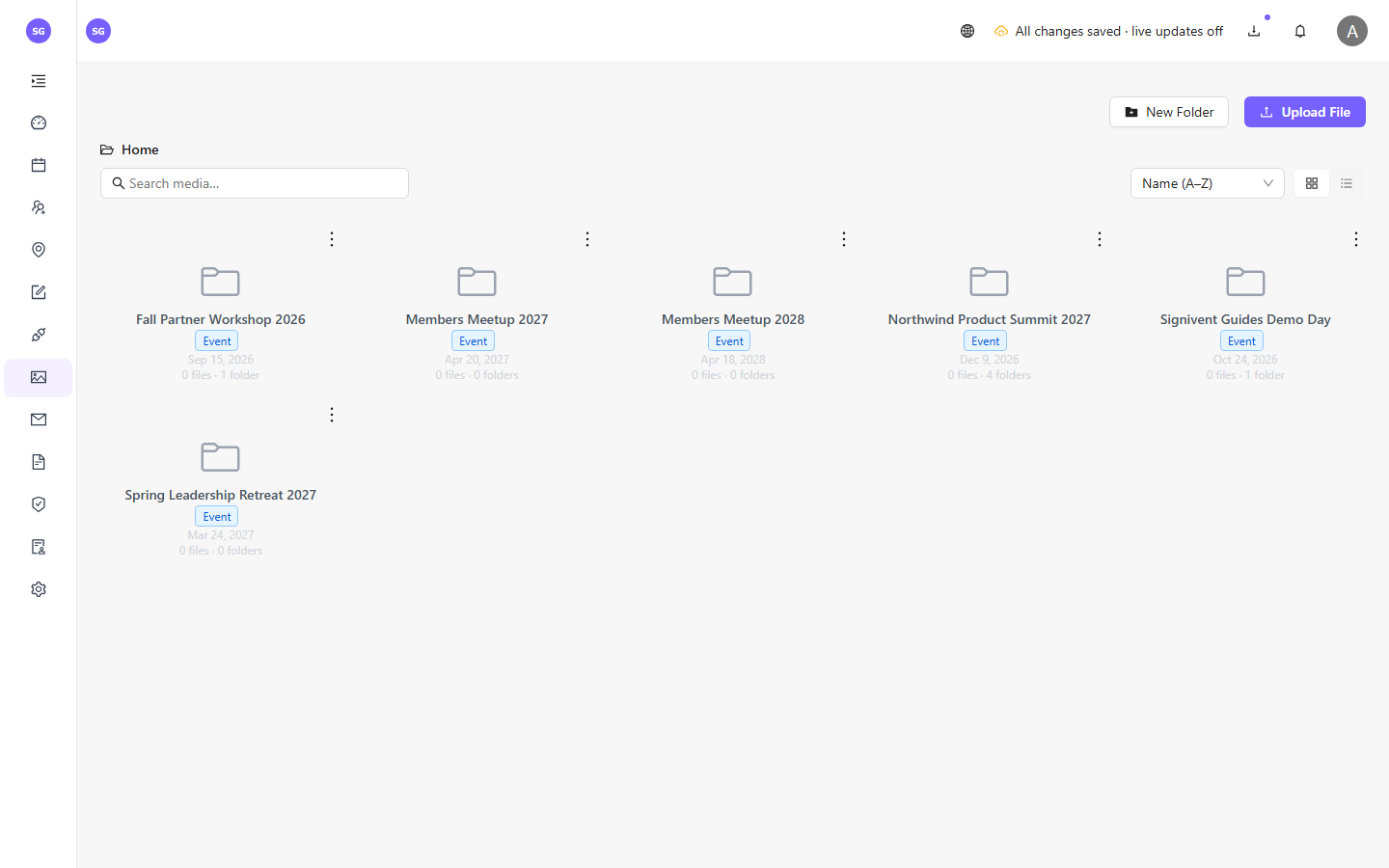
- Open Media Library in the sidebar. Home lists a folder for each event, with the event date and how many files and folders it holds.
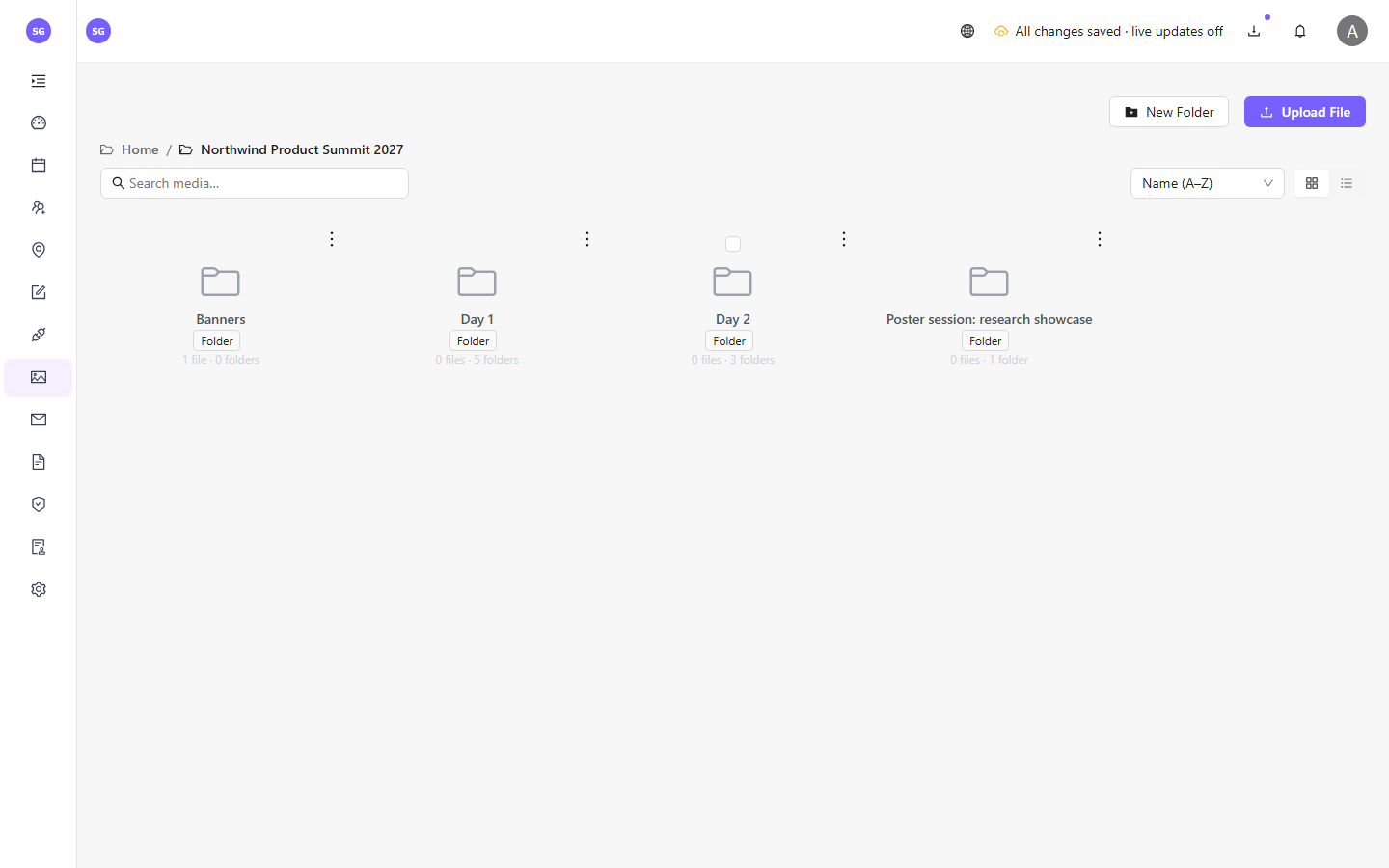
- Click a folder to open it. The path at the top (for example Home / Northwind Product Summit 2027) takes you back up.
- Use Search media to find a file by name, the sort menu to order by name, date, size or type, and the two buttons on the right to switch between grid and list.
Inside an event folder you may also see folders the system creates, such as one per day of the program with a folder for each session.
Create a folder
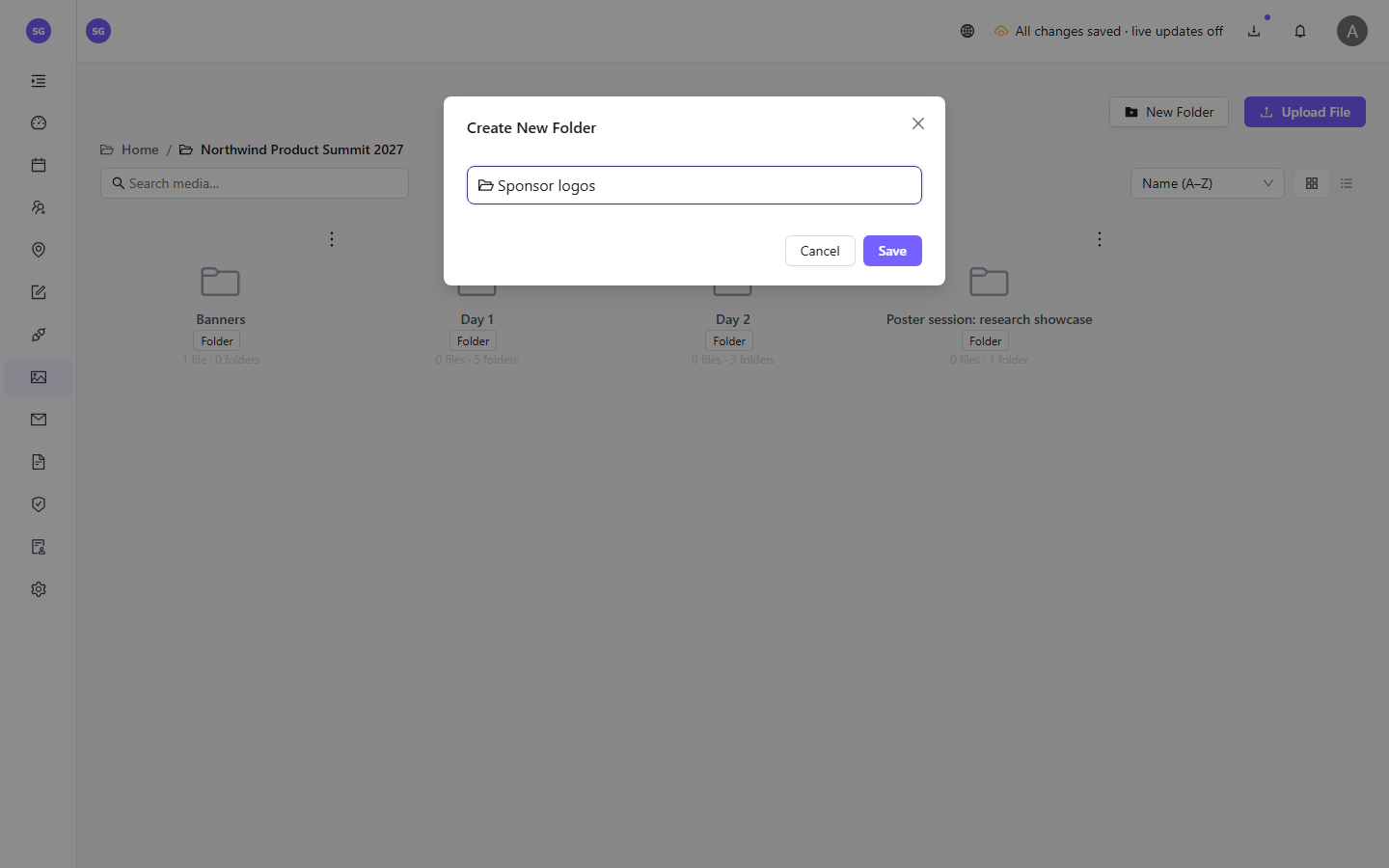
- Open the folder you want to add it to.
- Click New Folder.
- Type the name and click Save.
Upload files
- Open the folder the files belong in.
- Click Upload File.
- Drag files onto the box, or click it to pick them. You can add several at once; each shows a preview and a bin icon to take it off the list.
- Click Upload.
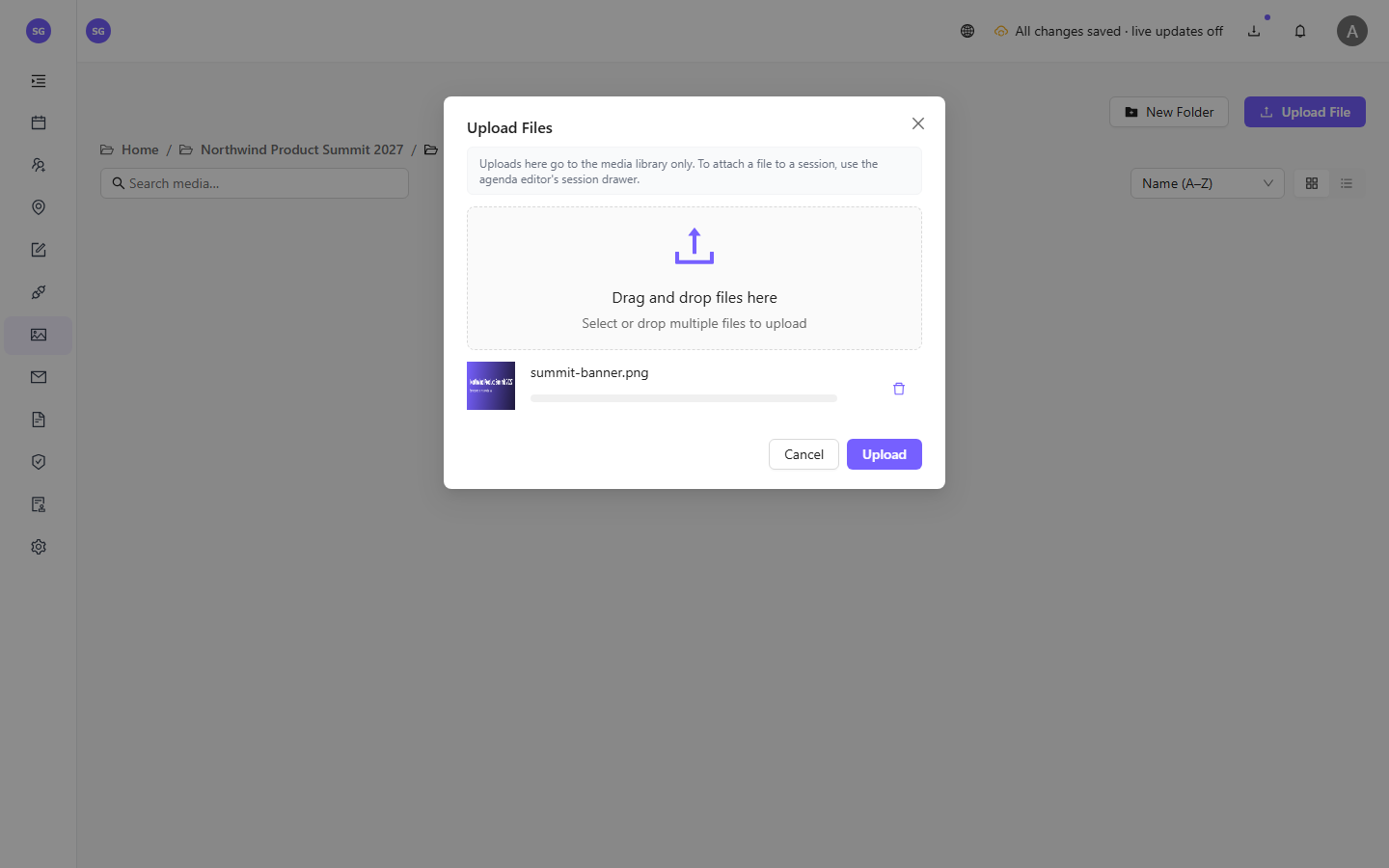
Uploads here go to the media library only. To attach a file to a session, use the session drawer in the event's agenda editor.
Open, download, rename or delete a file
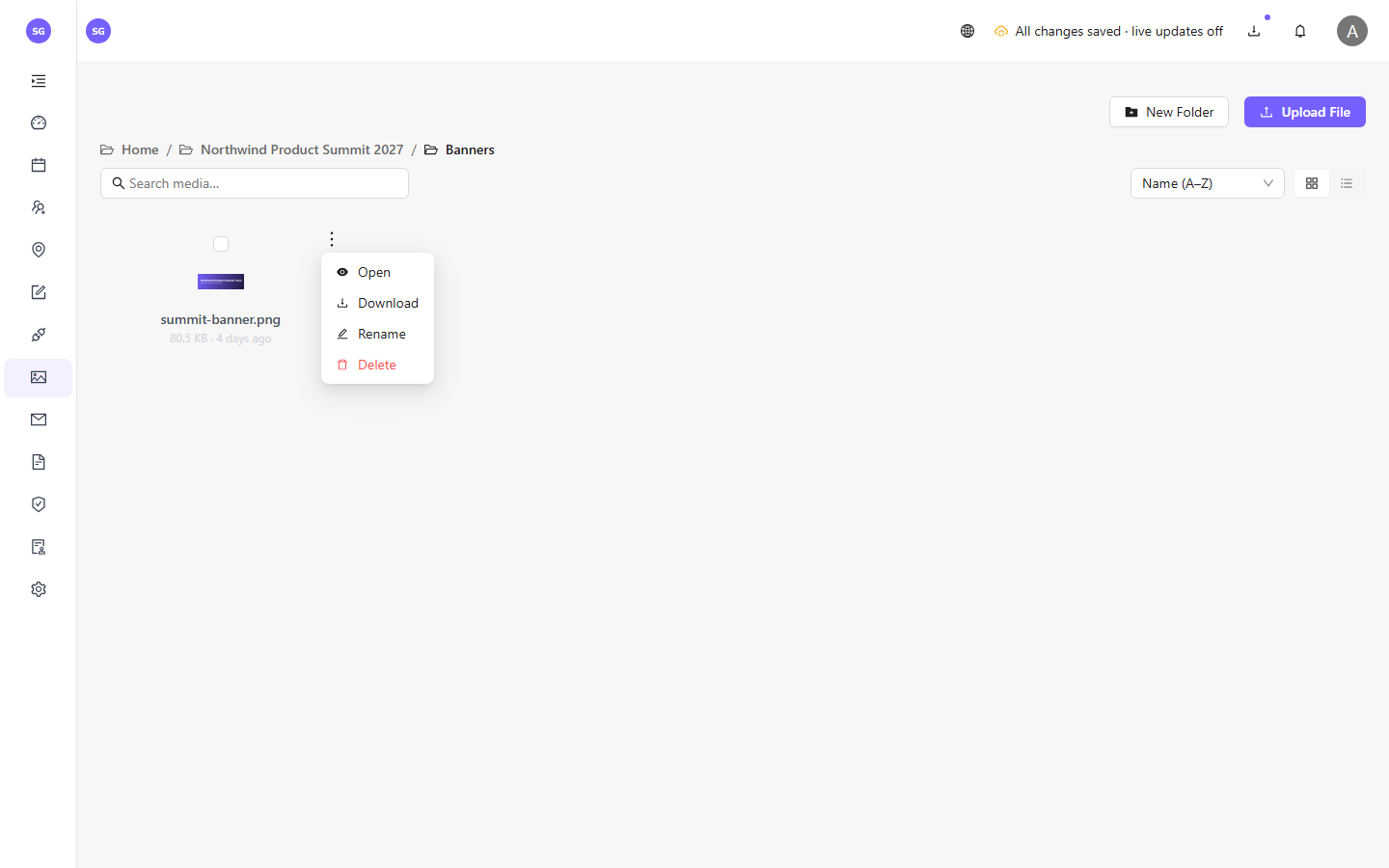
Click the three dots on a file:
- Open shows the file in a new browser tab.
- Download saves it to your computer.
- Rename changes its name.
- Delete removes it after you confirm. This cannot be undone.
Folders have a three-dot menu too, with Open, Rename and Delete.
Who can do this
Organization admins and staff with access to the media library can upload and manage files.
Troubleshooting
| You see | Why | Fix |
|---|---|---|
| A file is not where you expected | It was uploaded while another folder was open | Check the path at the top before you upload; move it by uploading again and deleting the old copy |
| An event's Day 1 folder shows sessions from another event | The day folders are shared by name across events today | Check the session names before you use those folders |
| The file you need for a session is missing in the session | Uploads here do not attach to sessions | Attach it from the event's agenda editor |