Badge printing and printers
Connect badge printers in the desktop app, print one attendee's badge or a batch from the Print Queue, and check what each computer has printed.
Badges print at the registration desk and at check-in kiosks. You design them once (see Badge and certificate design), then print them one at a time as people arrive or in a batch before the doors open.
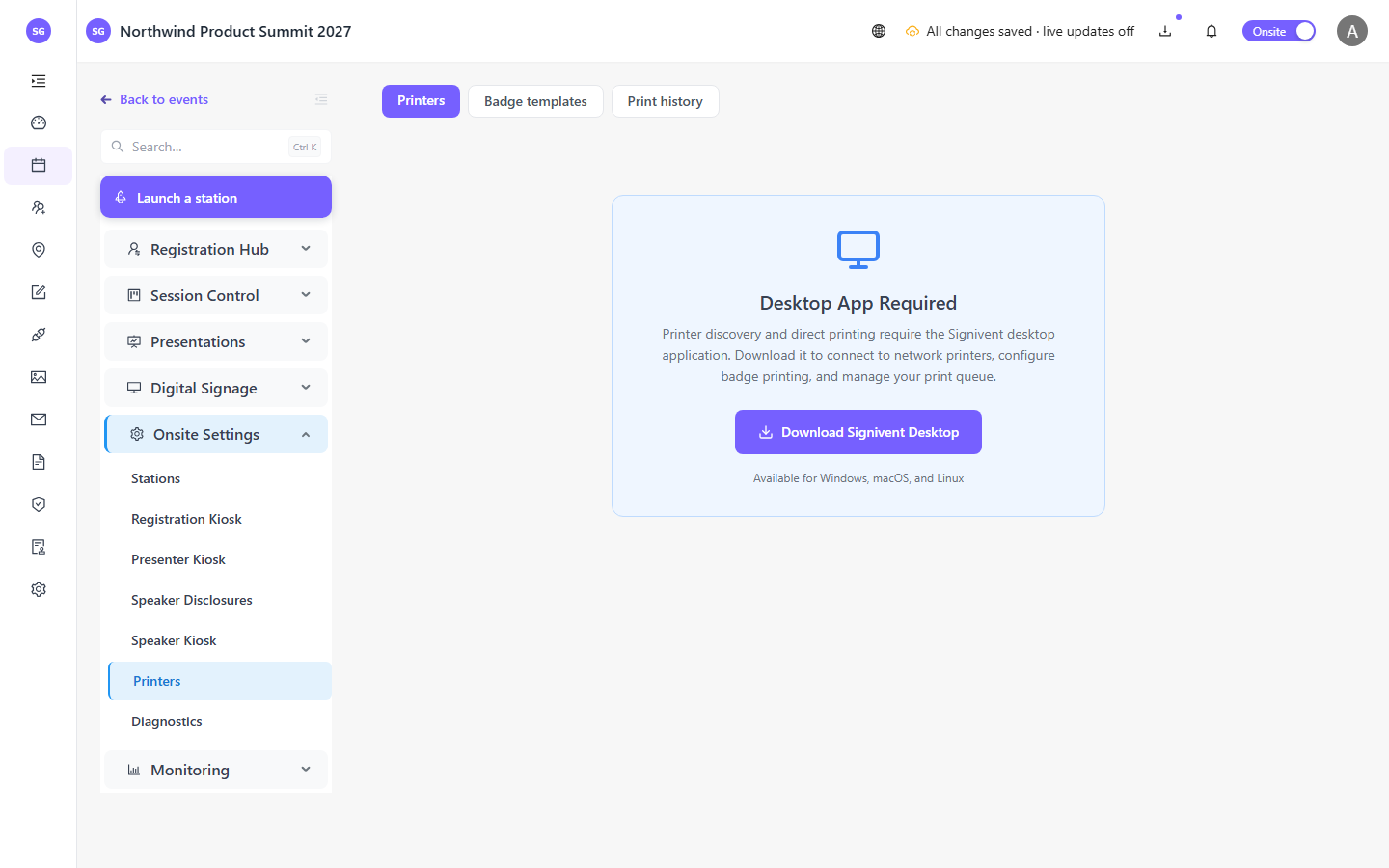
Printers need the desktop app. Finding a network badge printer and sending a badge straight to it only works in the Signivent desktop app for Windows, macOS or Linux. In a web browser you can still print badges through the browser's own print dialog, or download them as a PDF.
Printers
Open Onsite Settings > Printers on the computer at the desk.
- In the desktop app, click Scan for Printers to find printers on the same network, or Add by IP with the printer's address and port (9100 for most badge printers; the address is on the printer's network configuration label). Pick the printer to use, then Test it and Configure its label size. Printers are saved on each computer, not for the whole event, so set each desk up once.
- In a web browser, the page shows Desktop App Required with a Download Signivent Desktop button.
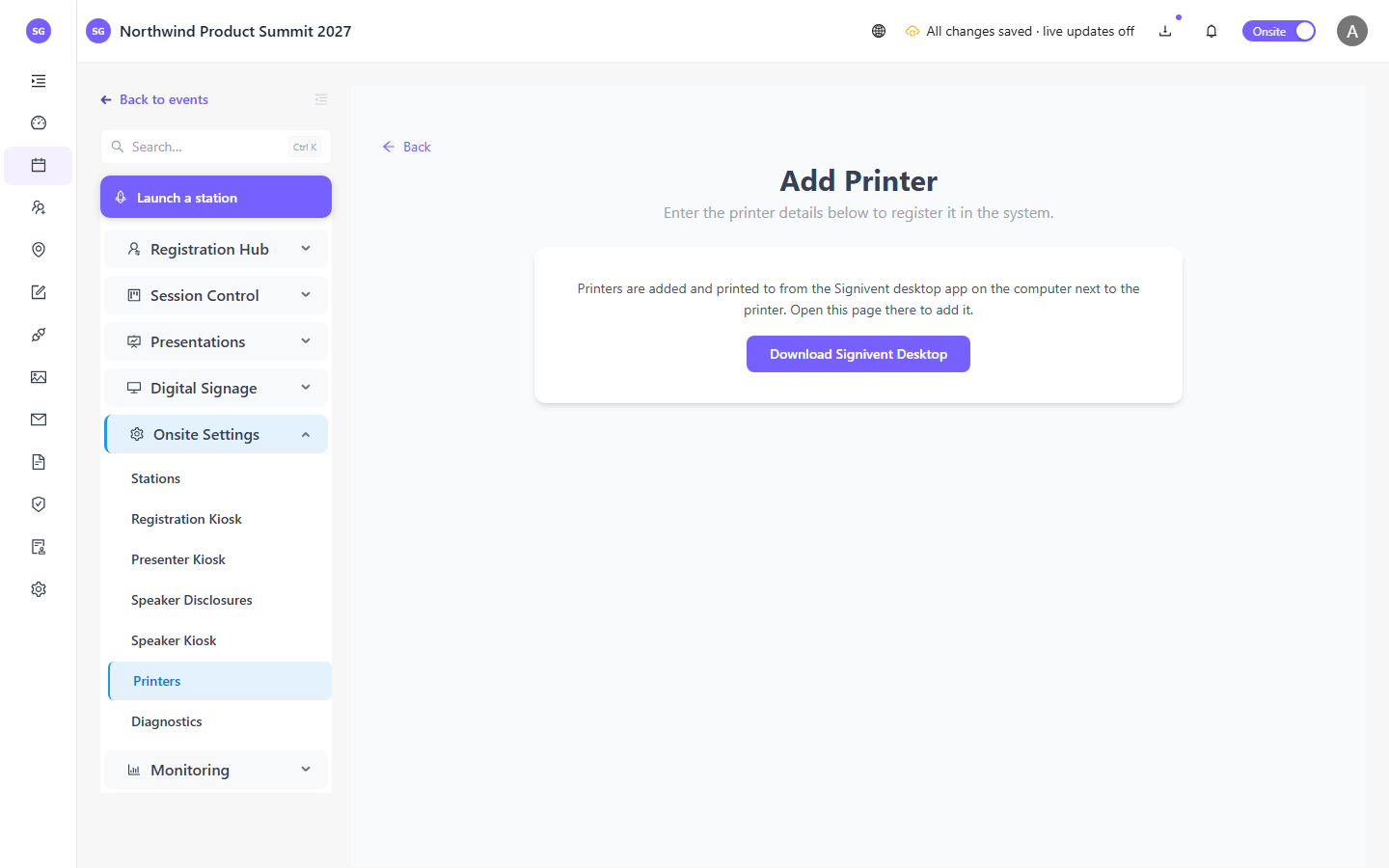
You can also open Add Printer directly. In the desktop app, enter the Printer Name / Model and its IP Address and click Scan & Add; this hands the address to the Printers page, which checks the printer and lists it. In a web browser, Add Printer explains that printers are added from the desktop app on the computer next to the printer, with a Download Signivent Desktop button.
Badge designs for printing
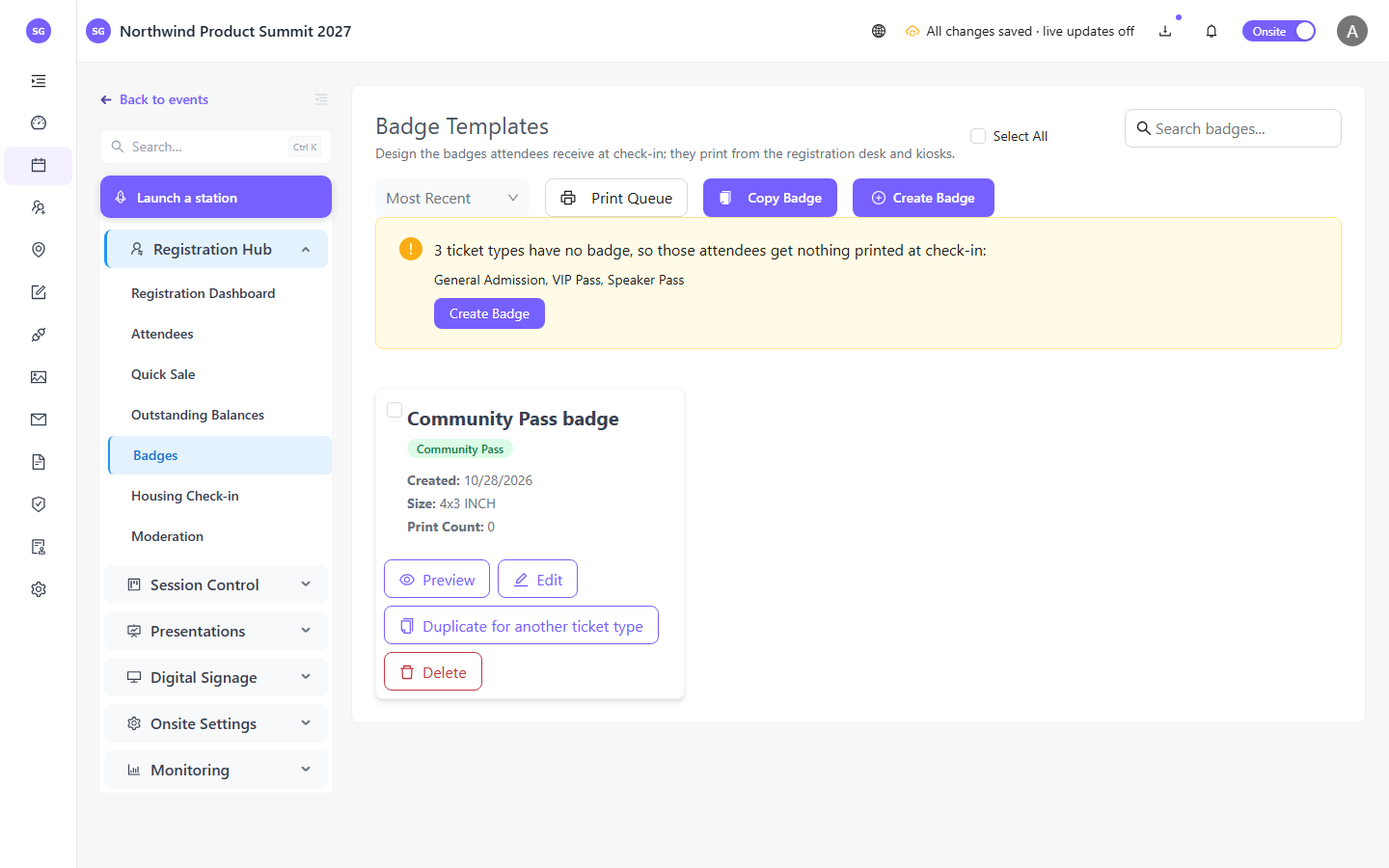
Registration Hub > Badges lists the event's badge designs, one per ticket type, with their size and how many times each has been printed. A yellow warning lists any ticket type without a badge: those attendees get nothing printed at check-in until you Create Badge for their ticket, or Copy Badge from another ticket.
Designing the badge itself (fields, logo, QR code, size) is covered in Badge and certificate design.
Print one attendee's badge
- Open the person's record (eye button in the Attendee List) and click Badge.
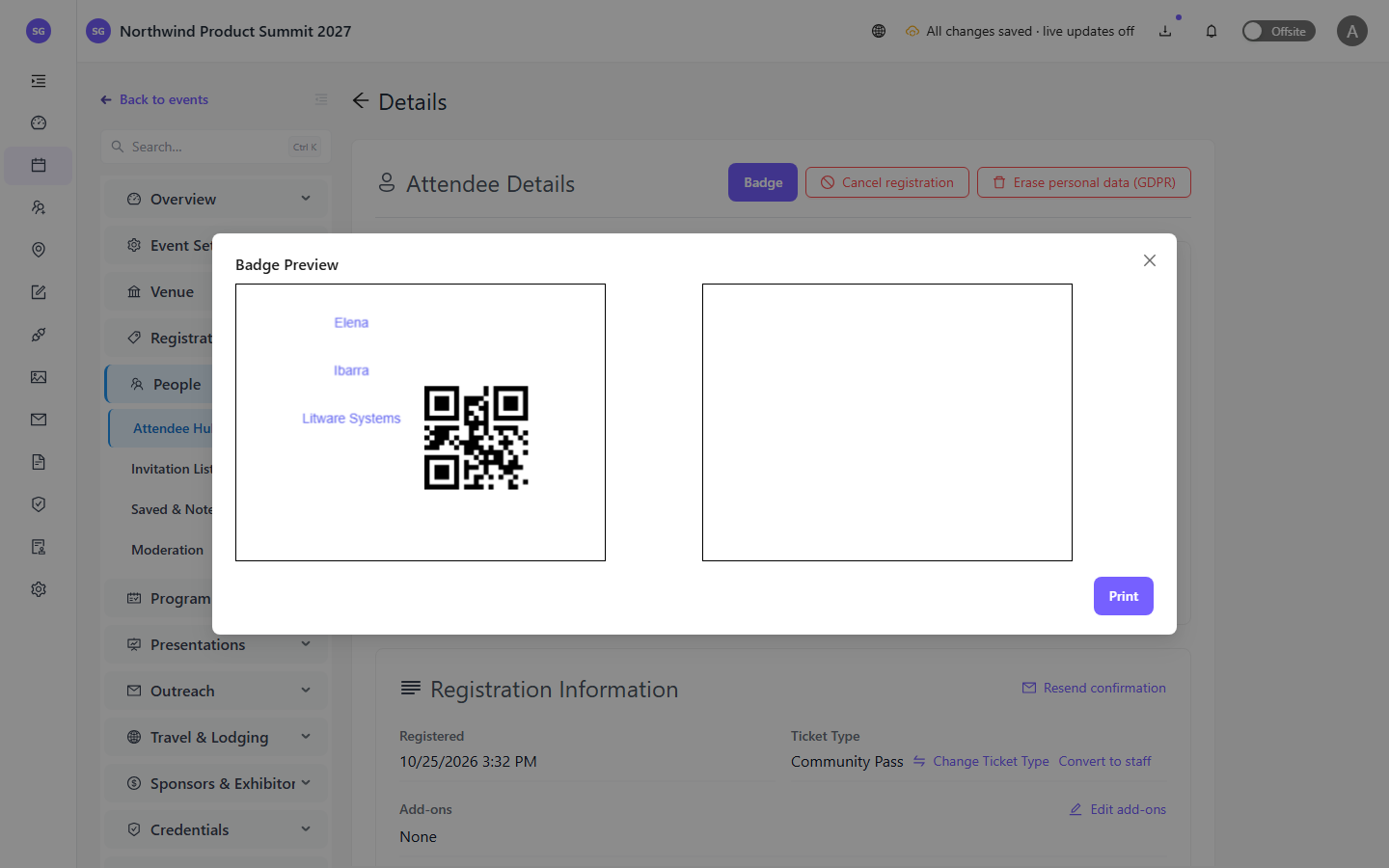
- Check the Badge Preview: front and back, with their name, company and QR code.
- Click Print. The desktop app sends it to this computer's printer; a web browser opens its print dialog.
You can also print as part of check-in: tick Print badge immediately when you add someone at the desk (see Registration Hub), or switch on Enable Badge Printing for the check-in kiosk (see Kiosks and stations).
Print a batch from the Print Queue
- In Registration Hub > Badges, click Print Queue. The Bulk print tab lists attendees.
- Narrow the list: a ticket type, Only not printed (this device) and Only checked in.
- Tick people, or Select all.
- Click Print selected. The desktop app prints them one after another on this computer's printer, with a progress bar and Retry failed for any that did not print; a web browser makes one PDF with a page per badge (Download PDF).
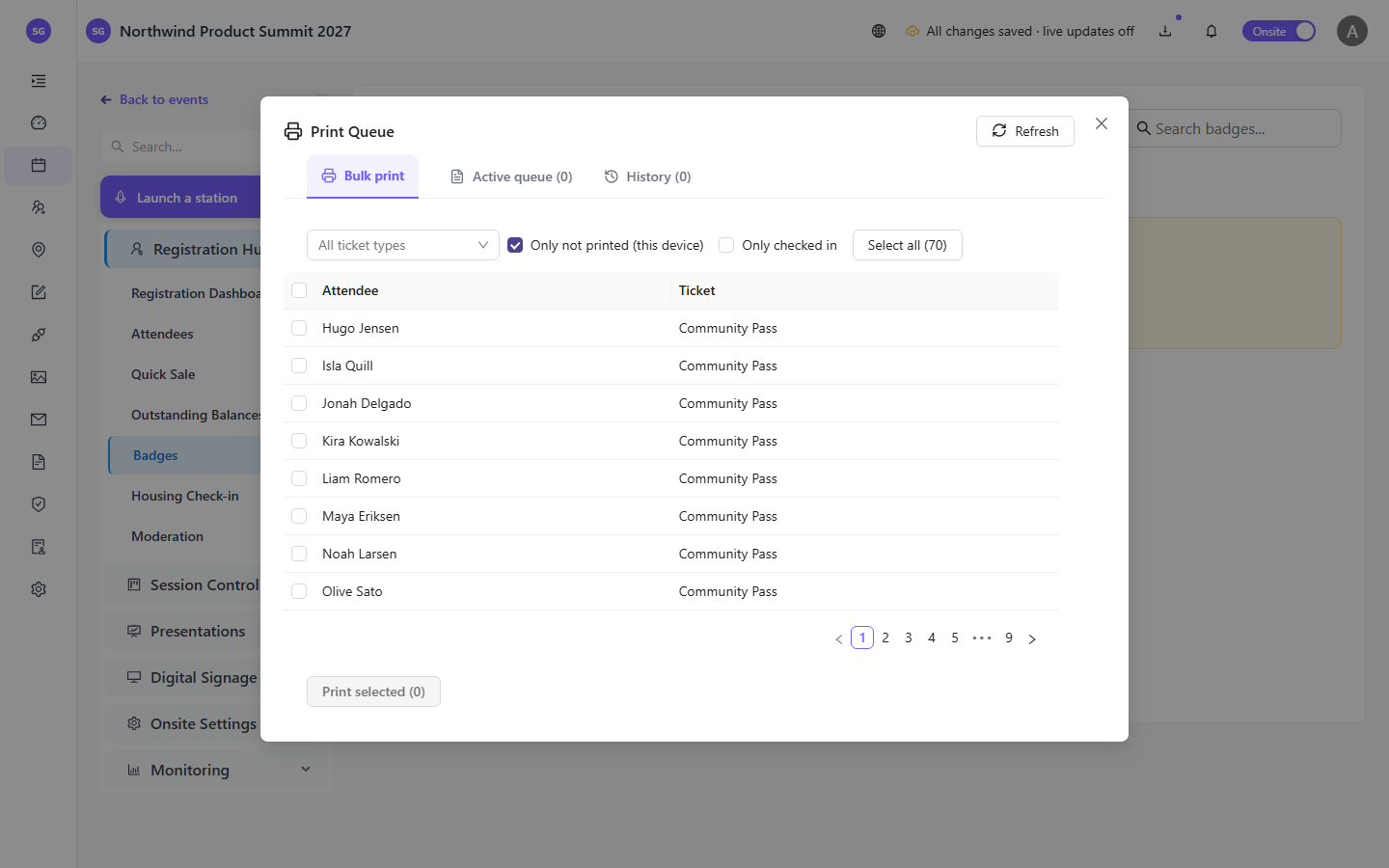
Active queue shows jobs still printing and History the finished ones.
Print history
The Print history page (the Printers page's address with /history added) lists the badges printed from this computer: the badge, the printer, whether it printed and when. Filter it to Printed or Not printed to find failures. Each check-in computer keeps its own history.
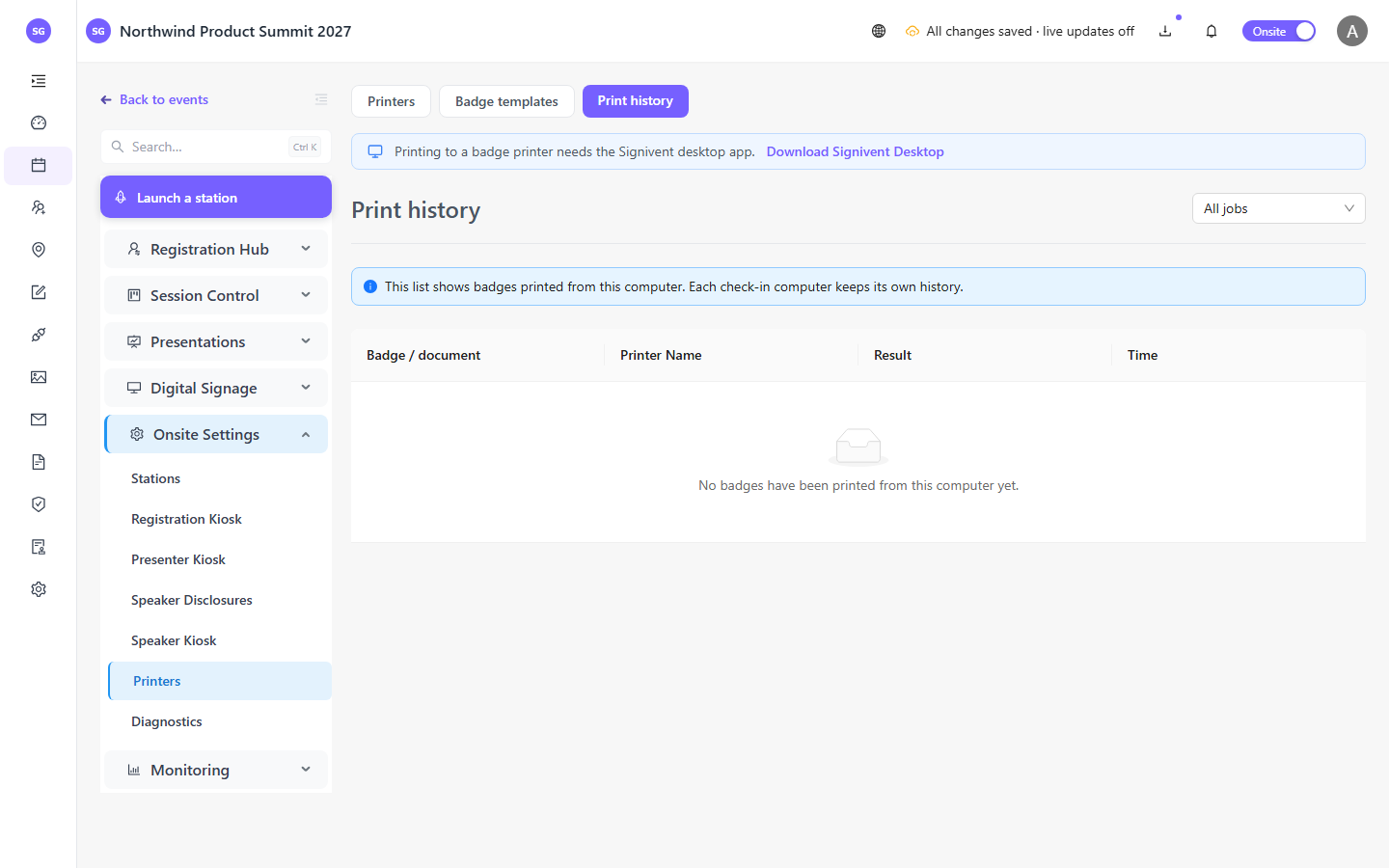
Note: Print history and Badge templates are tabs at the top of the Printers pages. In a web browser those pages show a short note that printing itself needs the desktop app.
Troubleshooting
| You see | Why | Fix |
|---|---|---|
| Desktop App Required | Printers need the desktop app | Install it on the desk computer, or print through the browser |
| Scan finds no printer | The printer is on another network, or scanning is blocked | Use Add by IP with the address from the printer's network configuration label |
| Some attendees get no badge at check-in | Their ticket type has no badge | Create or copy a badge for that ticket |
| A badge prints at the wrong size | The printer's label size does not match the badge | Configure the printer, or change the badge size in the designer |