Kiosks and stations: set them up from the dashboard
See every station your event can run, pair a kiosk device, and set up the check-in, presenter and speaker kiosks before you launch them at the venue.
A station is a device at the venue doing one job: a self check-in kiosk at the entrance, a presenter kiosk in a meeting room, a speaker kiosk in the ready room. You set stations up on the dashboard before the event, then launch them on the devices on the day. This guide covers the dashboard side.
Switch the event to Onsite and open Onsite Settings > Stations.
The Stations page
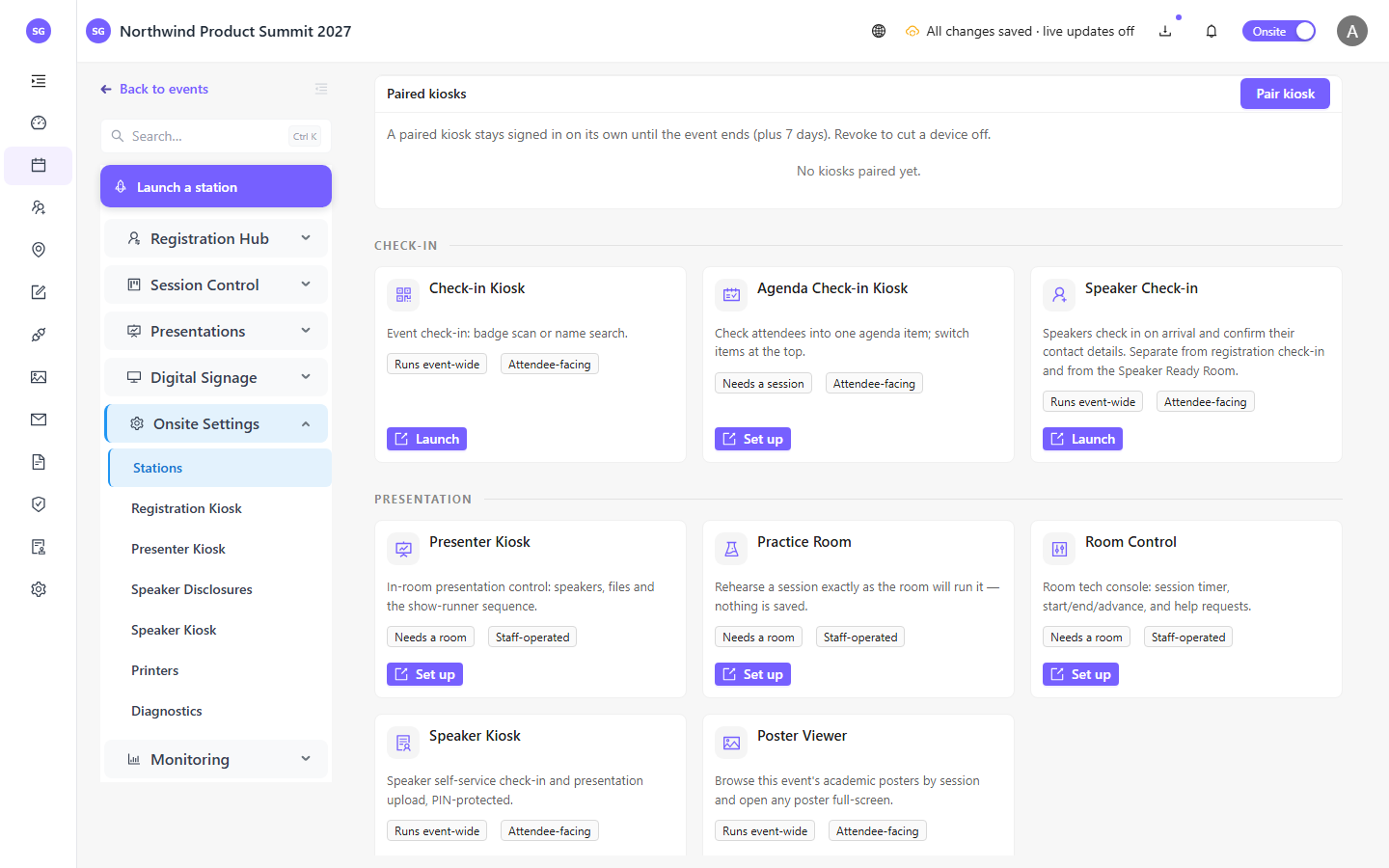
Stations lists every station this event can run, grouped by job:
- Check-in: Check-in Kiosk (badge scan or name search), Agenda Check-in Kiosk (one session at a time) and Speaker Check-in.
- Presentation: Presenter Kiosk, Practice Room, Room Control, Speaker Kiosk and Poster Viewer.
- Displays: Digital Signage Display, which runs a signage profile (see Digital signage).
Each tile says whether the station Runs event-wide or needs a room, session or sign profile, and whether it is Attendee-facing or Staff-operated. Its one button is Launch (open it now, on this device) or Set up (choose the room, session or profile first).
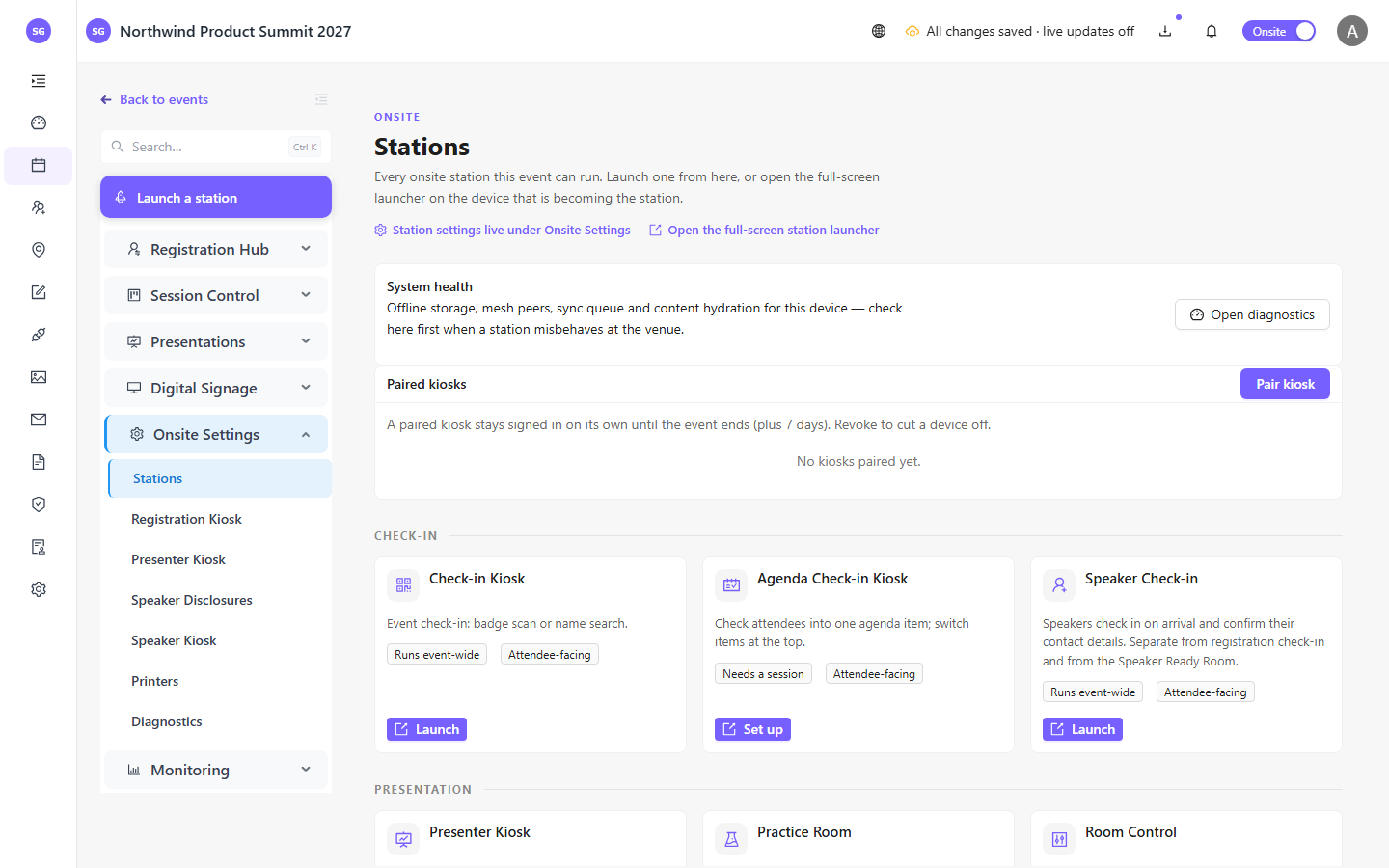
Open the full-screen station launcher opens the same choice full screen; use it on the device that is becoming the station. System health > Open diagnostics checks that device (see below).
Pair a kiosk device
A paired kiosk is a tablet or computer that stays signed in to this event on its own, without a staff login, until the event ends (plus seven days).
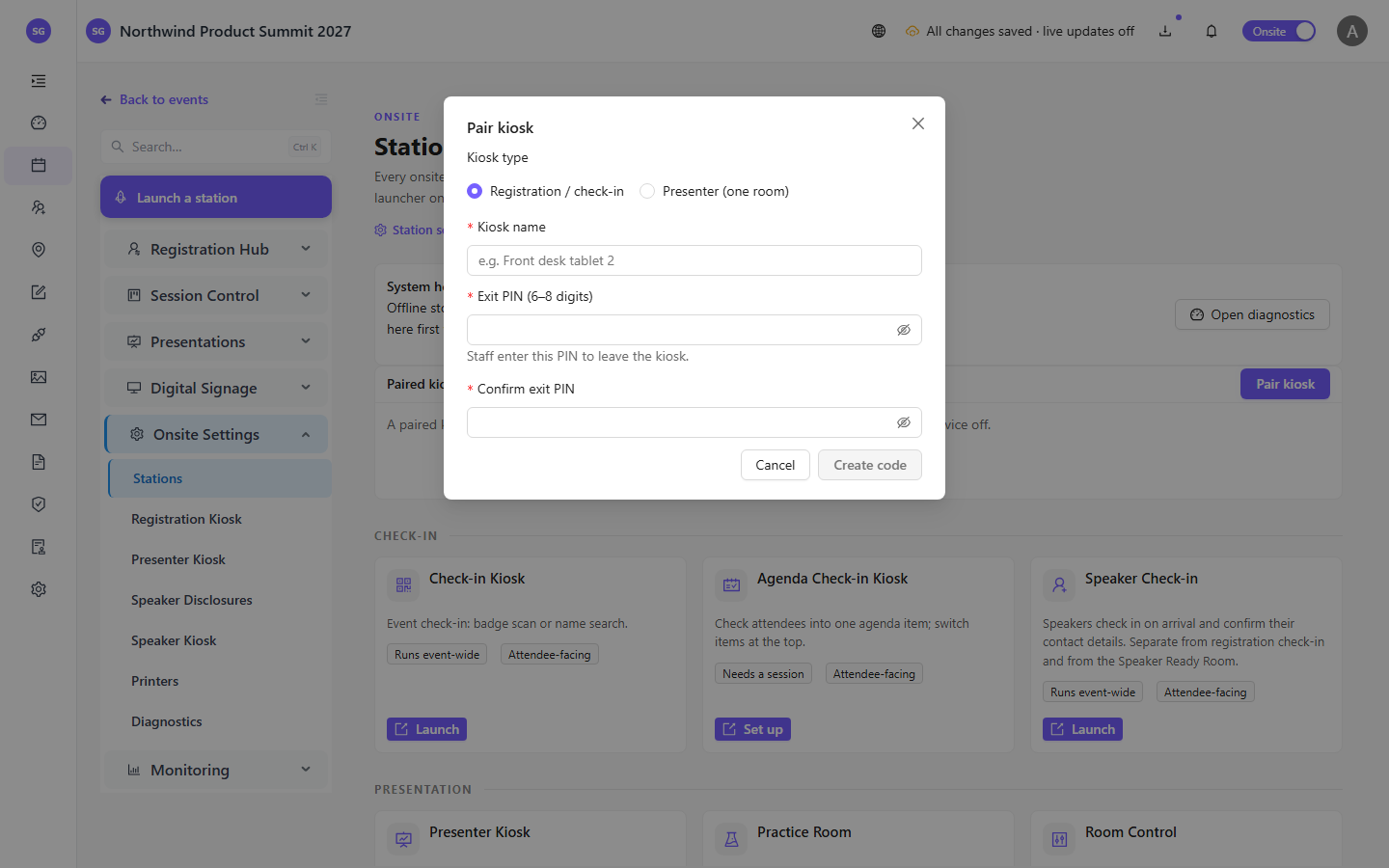
- Under Paired kiosks, click Pair kiosk.
- Choose the Kiosk type: Registration / check-in, or Presenter (one room) and then its Room.
- Give it a Kiosk name, for example "Front desk tablet 2".
- Set an Exit PIN of 6 to 8 digits and confirm it. Staff enter this PIN to leave the kiosk.
- Click Create code. The code works once, for a limited time.
- On the kiosk device, open the kiosk page and enter the 8-character code.
Paired devices are listed under Paired kiosks. Click Revoke to cut one off, for example if a tablet goes missing.
Set up the check-in kiosk
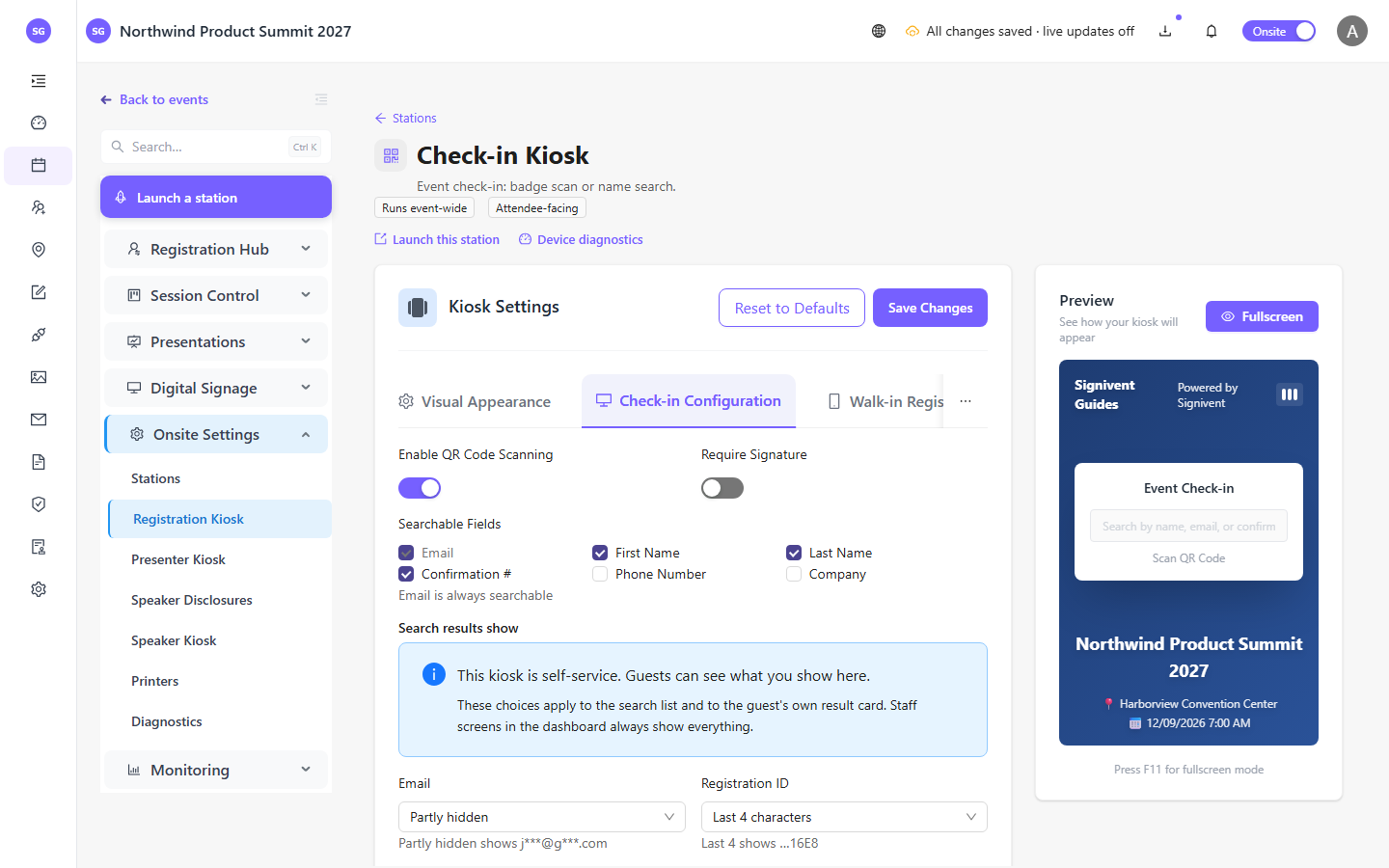
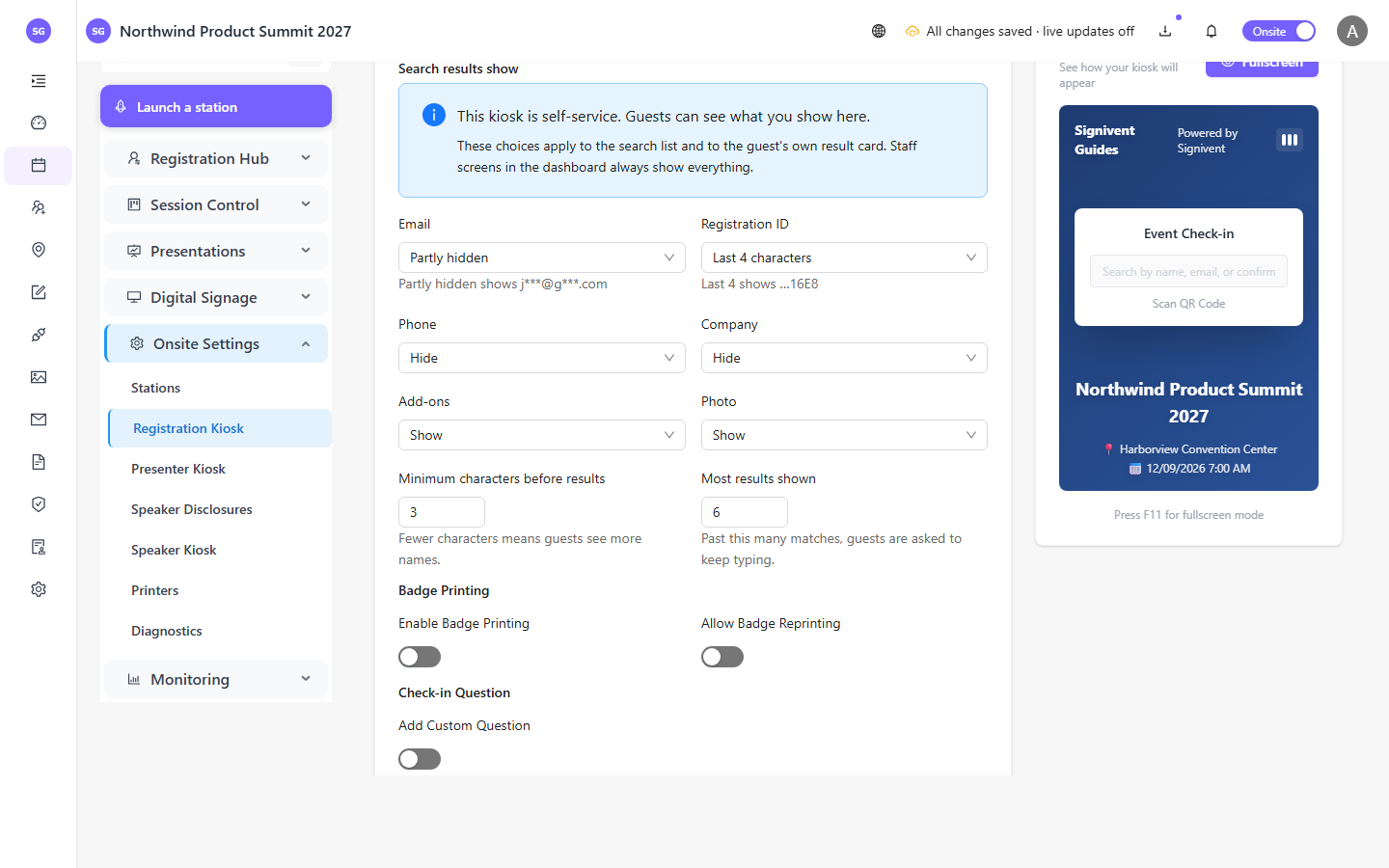
Onsite Settings > Registration Kiosk holds the settings of the self check-in kiosk.
- Visual Appearance: logo, colors, background and the event details shown on the welcome screen. The Preview beside the settings shows the result; Fullscreen shows it full size.
- Check-in Configuration: Enable QR Code Scanning and Require Signature, which fields guests can search by (Searchable Fields; email is always searchable), and how much of each result a guest sees (Search results show: email partly hidden, the last 4 characters of the registration ID, phone and company hidden, and so on). The kiosk is self-service, so show as little as you need. Minimum characters before results and Most results shown keep guests from browsing the whole list.
- Badge Printing: Enable Badge Printing prints a badge as soon as someone checks in, and Allow Badge Reprinting lets them print again. Printing at a kiosk needs the desktop app and a printer; see Badge printing and printers.
- Check-in Question: Add Custom Question asks something at check-in.
- The Walk-in Registration and Session Check-In tabs set up registering new people and checking into sessions at the kiosk.
Click Save Changes when you are done.
Set up presenter and speaker kiosks
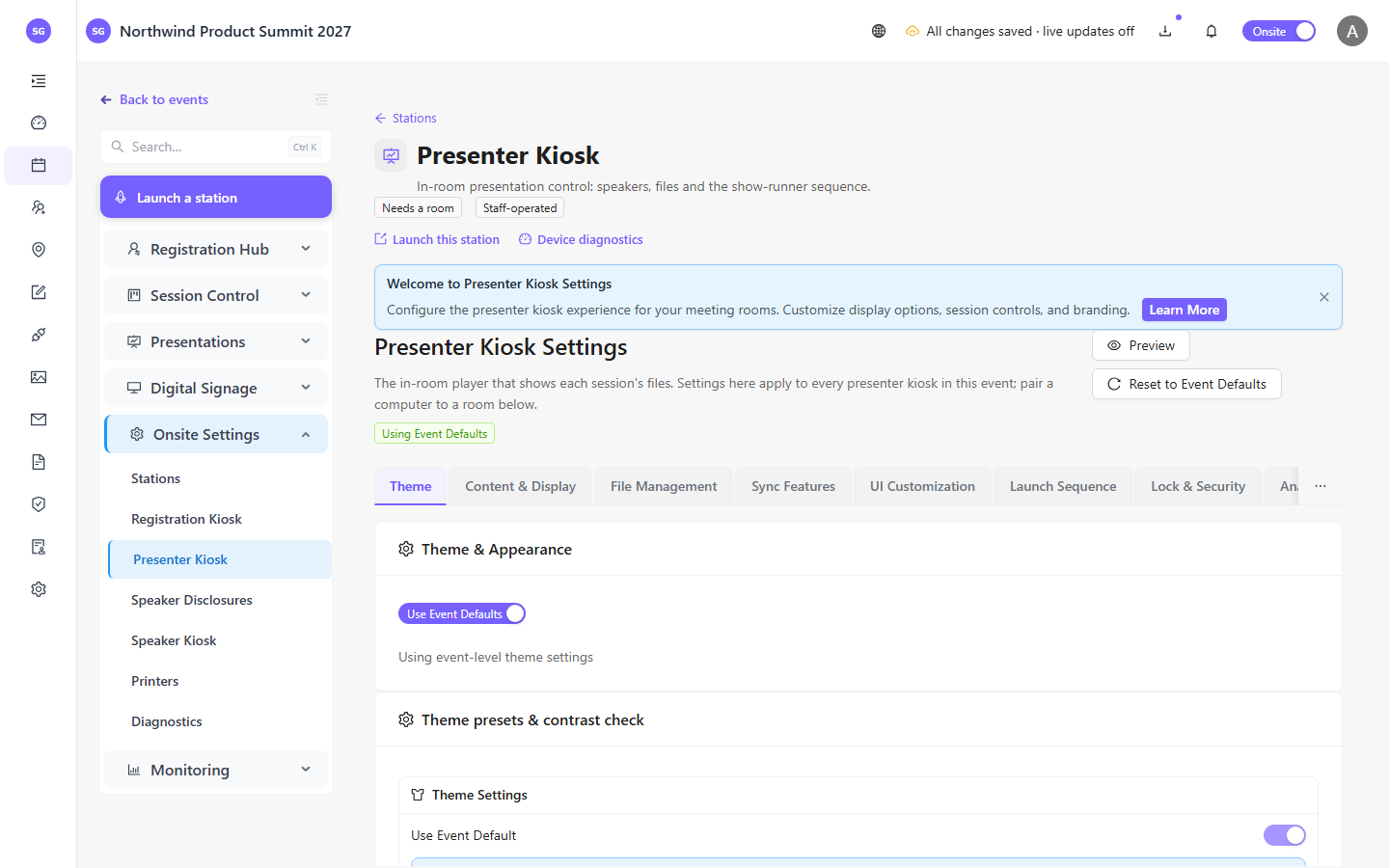
Onsite Settings > Presenter Kiosk sets up the player that runs each session's files in a meeting room. Settings apply to every presenter kiosk in the event: Theme, Content & Display, File Management, Sync Features, UI Customization, Launch Sequence, Lock & Security and Analytics. Speaker Disclosures opens the speaker-disclosure step of the launch sequence.
Onsite Settings > Speaker Kiosk sets up the speaker ready room station, where speakers scan their badge to check in and upload or replace their presentations. Here you can add a Secondary display background for a second screen, and see the Technician assist code.
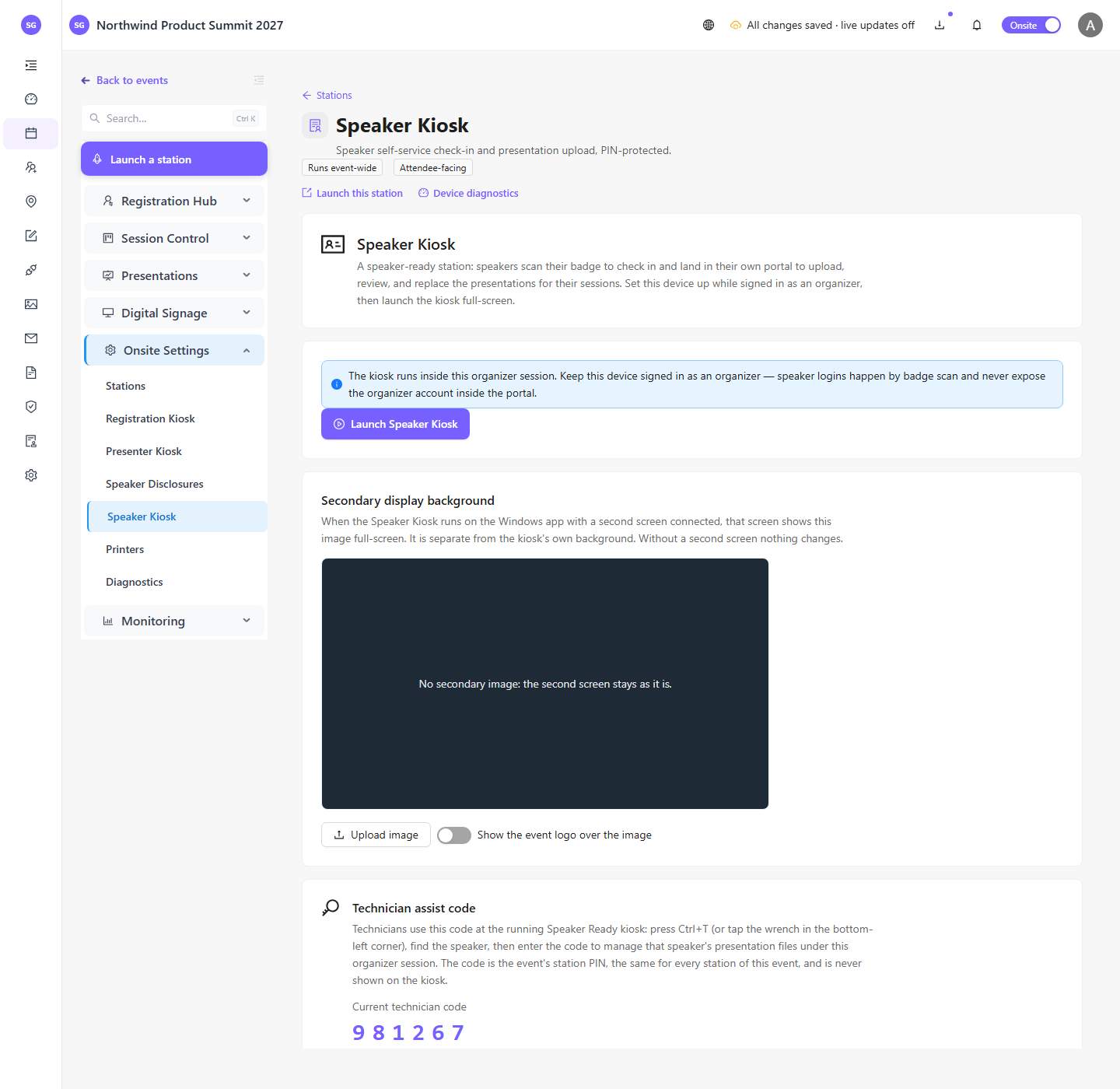
The technician code is the event's station PIN: one code for the whole event. Technicians enter it at a running speaker kiosk (press Ctrl+T or tap the wrench) to manage a speaker's files, and it also exits every station, including the check-in kiosk. Click Regenerate code if it has been shared too widely.
Check a device: Kiosk Diagnostics
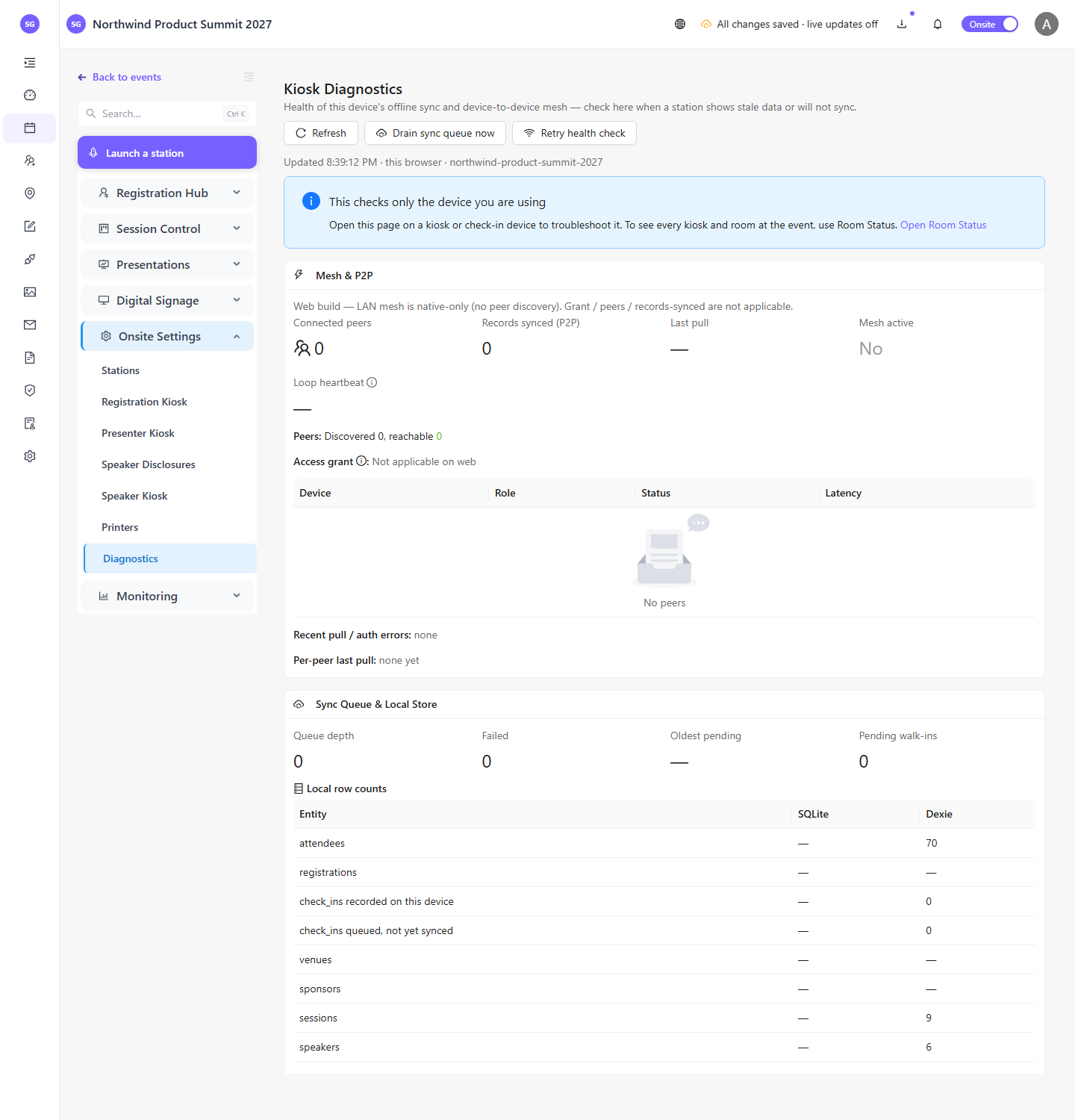
Onsite Settings > Diagnostics shows the health of the device you are using: its connection, its offline copy of the event, its sync queue and, in the desktop app, the other devices it shares data with on the venue network. Open it on the kiosk that misbehaves, not on your laptop. Drain sync queue now pushes any waiting changes; Retry health check checks the connection again.
To see every kiosk and room at once, use Monitoring > Room Status; see Onsite equipment and room status. For the desktop app and the This device page, see Devices and diagnostics.
Note: Older links to the Kiosk Settings pages (registration, speaker and meeting-room kiosks) open the matching station settings page; the old Room Signage settings link opens Digital Signage, because a room sign is a signage profile.
Troubleshooting
| You see | Why | Fix |
|---|---|---|
| A station tile says Set up, not Launch | It needs a room, session or sign profile | Click Set up and choose one |
| A station shows old data | The device has not synced | Open Diagnostics on that device and click Drain sync queue now |
| A paired kiosk asks for a code again | It was revoked, or the event ended more than seven days ago | Pair it again with a new code |
| Mesh shows "not applicable on web" | Device-to-device sharing needs the desktop app | Run the station in the desktop app |