Offline mode and sync
How the Signivent app and its kiosks keep working when the venue internet drops, how to tell a device is offline, and how waiting changes get synced when it is back.
Venue internet fails at the worst moment. The Signivent app is built for that: every device keeps its own copy of the event (attendees, sessions, files) and keeps working without a connection. Changes made offline, such as check-ins, wait on the device and are sent when the connection is back. In the desktop and Android apps, devices on the same venue network also pass updates to each other, so a kiosk that can still reach another device stays up to date even when neither can reach the internet.
Before the event
Open each device's station once with internet before doors open, so it copies the event:
- a check-in kiosk copies the attendee list;
- a presenter kiosk copies its room's sessions and their files;
- a sign copies its content.
A device that has never loaded the event can't start offline. The presenter kiosk says so (This kiosk is being set up).
How you can tell a device is offline
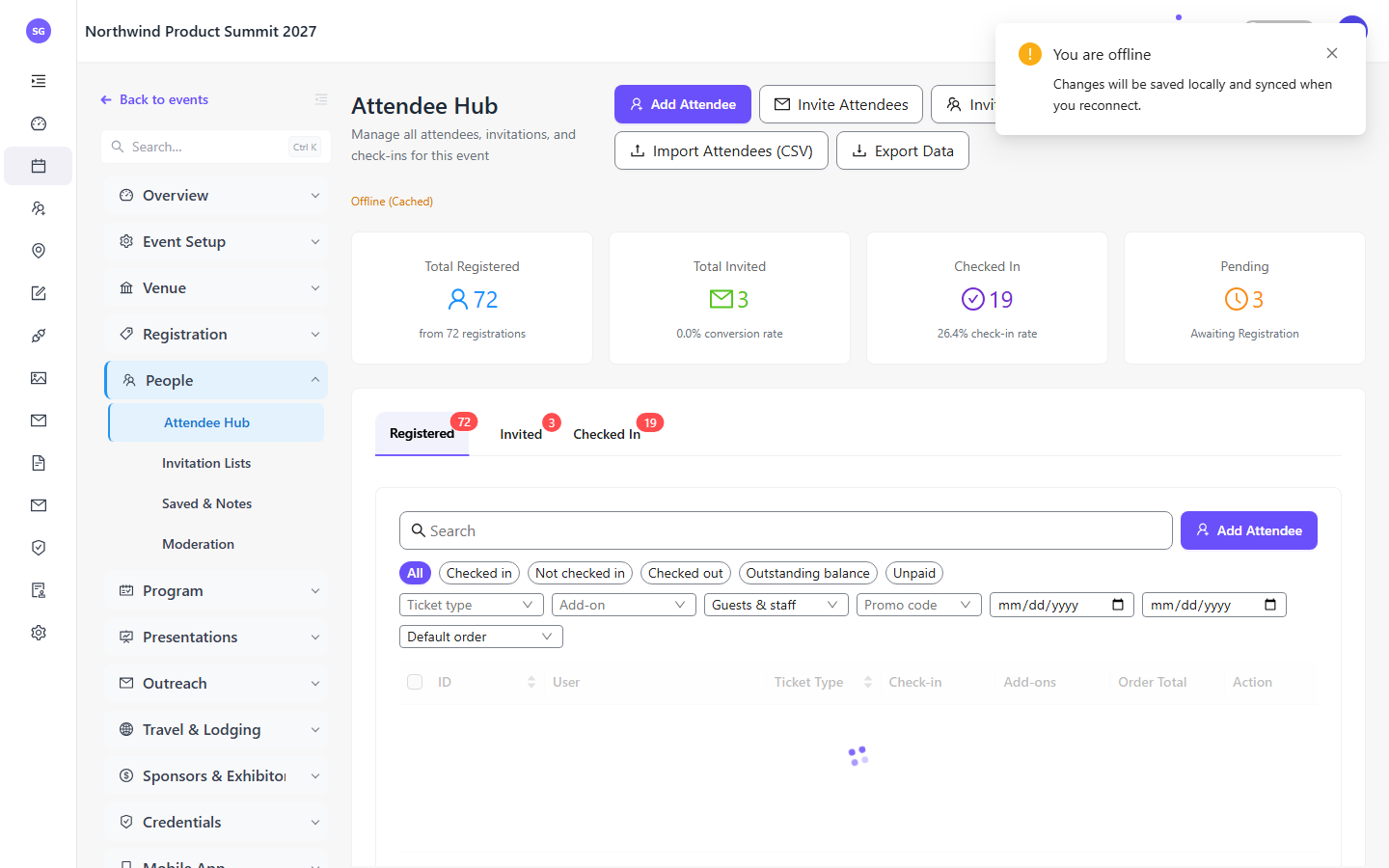
On the dashboard. When the connection drops, a notice says You are offline: Changes will be saved locally and synced when you reconnect, and pages show Offline (Cached): what you see is the copy on this device. When you are online, the top bar says All changes saved.
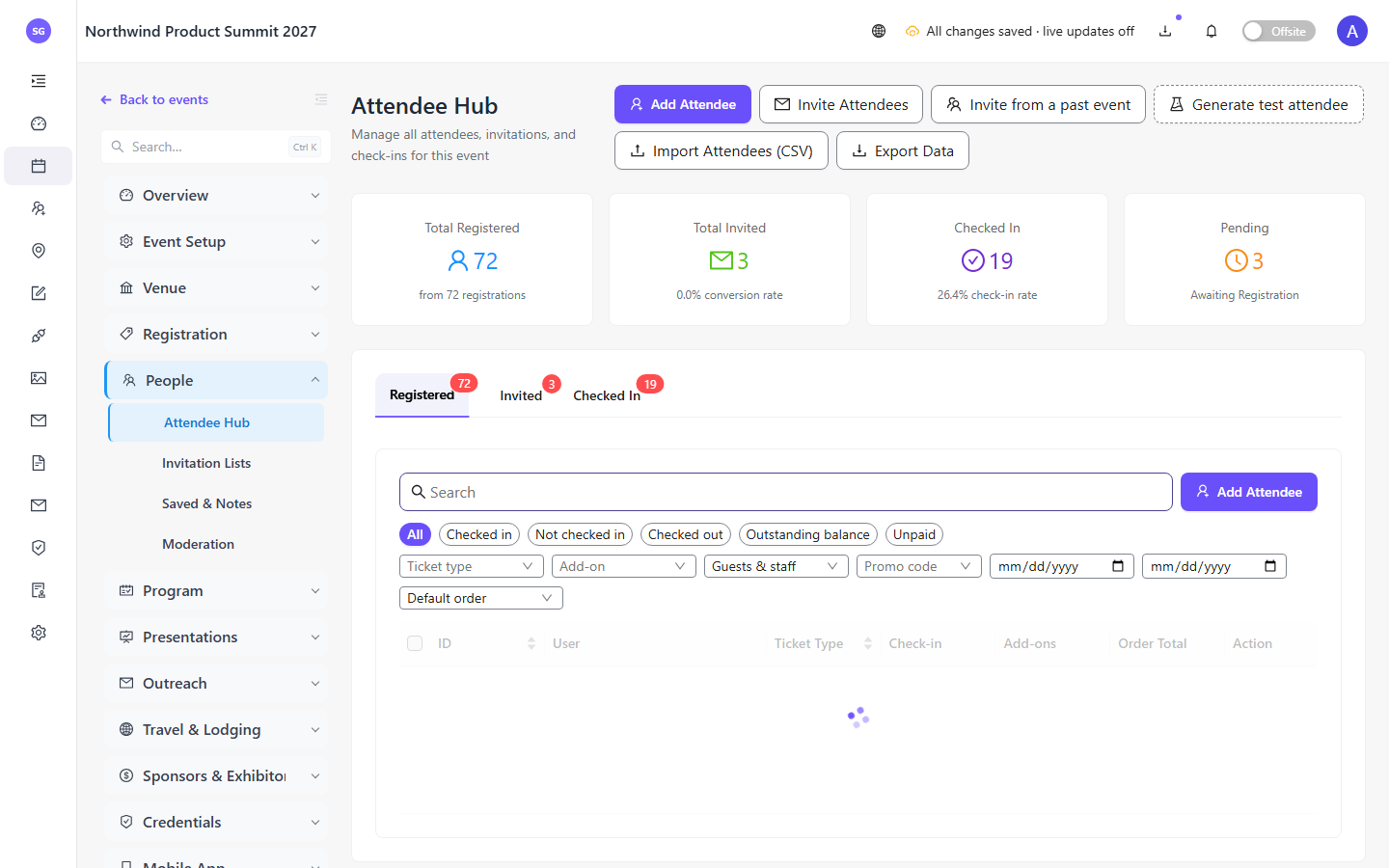
On a check-in kiosk. Open the menu (top right). It says Online or Offline, and when the kiosk last synced (Last sync). Manual Sync sends waiting check-ins and fetches the latest attendee list now; it is greyed out while offline.
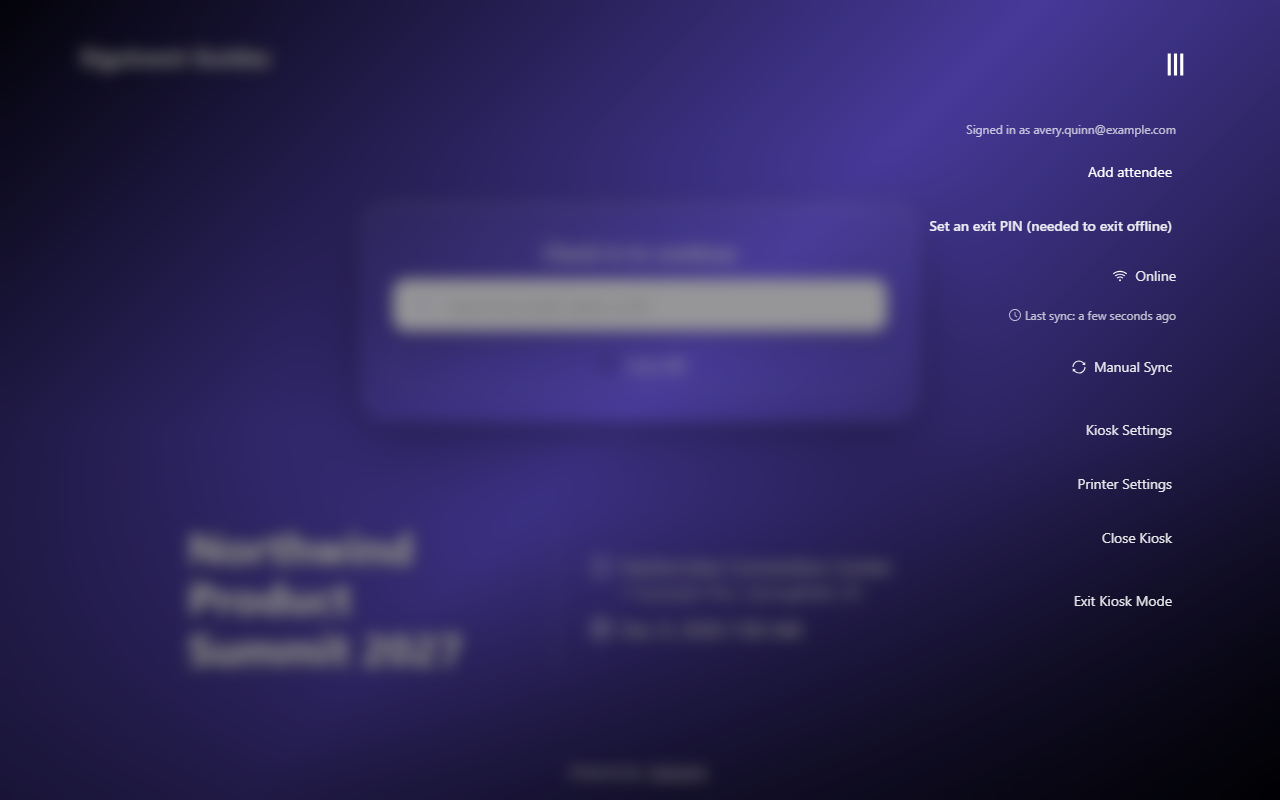
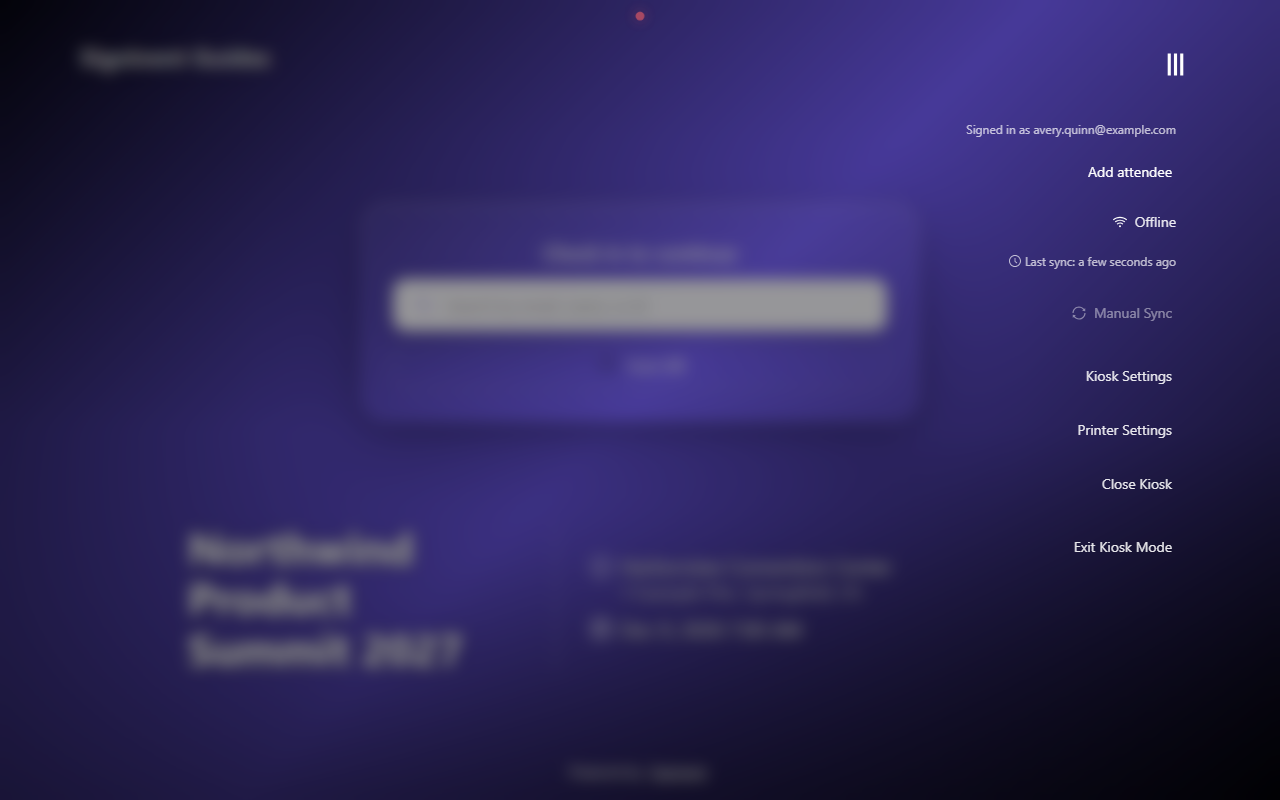
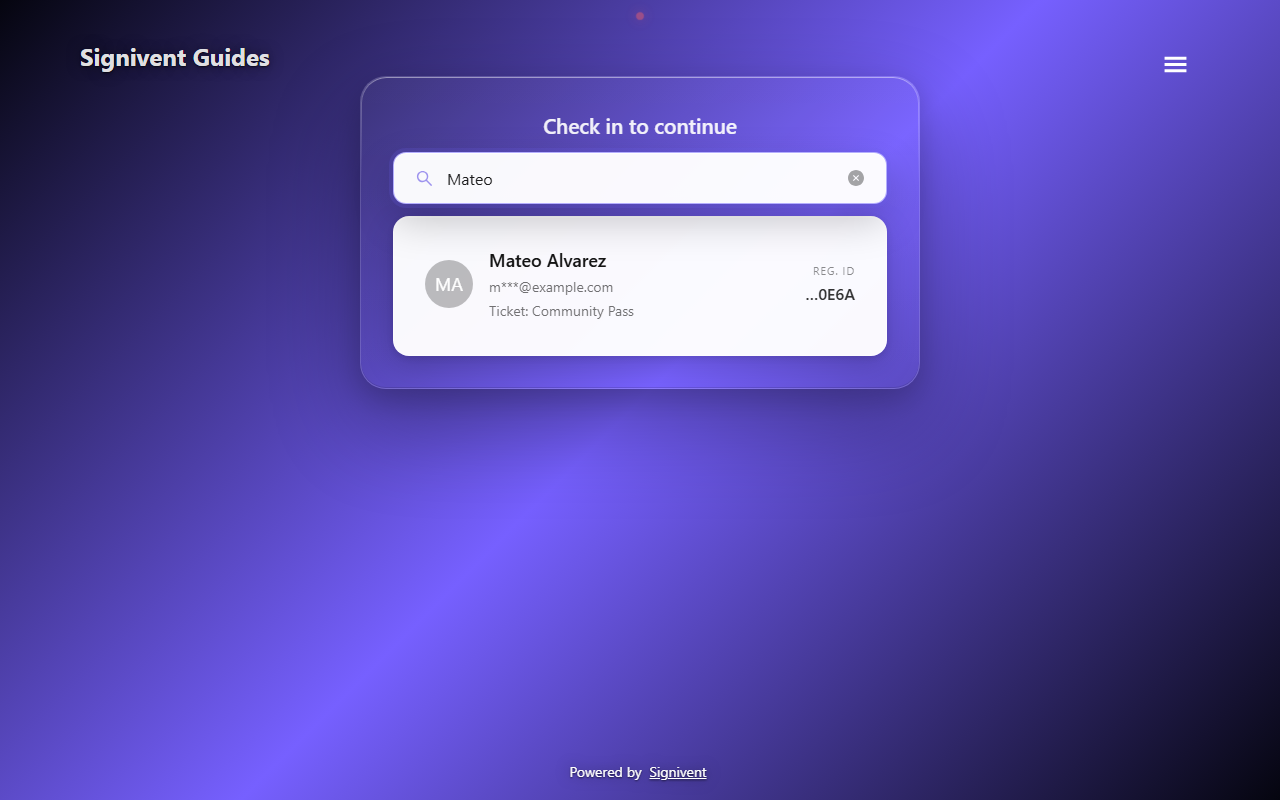
The kiosk keeps working offline: guests still find their name and check in, from the kiosk's own copy of the list.
What works offline
| Works offline | Needs the internet |
|---|---|
| Checking guests in at a kiosk or the registration desk, and printing their badges | Pairing a new kiosk or screen |
| Running presentations that are already on the room computer | Files uploaded after the device lost its connection |
| Showing signs that are already on the screen | Sending email or text messages |
| Reading the event on the dashboard, from the device's copy | Payments at the Quick Sale desk |
| Exiting a kiosk with its exit PIN | Exiting a kiosk with your account password |
When the connection comes back
Nothing to do: devices send what they saved and fetch what changed, by themselves. Check-ins made offline are kept: the device's own changes are applied when it reconnects, not overwritten by the older copy on the server.
To push a kiosk's waiting changes immediately, use Manual Sync in its menu.
Check one device: Diagnostics
On the device itself, open the event, switch to Onsite and go to Onsite Settings > Diagnostics (or Open diagnostics on the Stations page). It shows the device's connection, its copy of the event, its sync queue (changes still waiting) and, in the app, the other devices it shares data with. Drain sync queue now sends the waiting changes; Retry health check tests the connection again. See Kiosks and stations.
To see every kiosk and screen at once during the event, use Monitoring > Room Status; see Onsite equipment and room status.
Troubleshooting
| You see | Why | Fix |
|---|---|---|
| A kiosk finds nobody, offline | It never loaded the attendee list | Connect it once and open the kiosk; afterwards it works offline |
| Last sync is hours old | The device has been offline that long | Check its network; use Manual Sync when it is back |
| Check-ins from one kiosk don't show on another | One of them is offline | They catch up when both are online again, or sooner over the venue network in the app |
| You can't exit a kiosk while offline | Exiting with a password needs the internet | Use the kiosk's exit PIN or the event's station PIN |