The check-in kiosk on the day
What guests see at a self check-in kiosk, how they find their name and check in, and what staff do from the kiosk menu, including pausing and exiting it.
The check-in kiosk is a tablet or computer at the entrance where guests check themselves in. This guide covers the kiosk itself, on the day. To set it up first (search fields, badge printing, the welcome screen), see Kiosks and stations. To put a device into kiosk mode, see Pair a device to your event.
Start the kiosk
On the device, open the event in the Signivent app (or a browser), switch the event to Onsite and choose Launch a station > Check-in Kiosk > Launch station. A paired kiosk opens the check-in screen by itself.
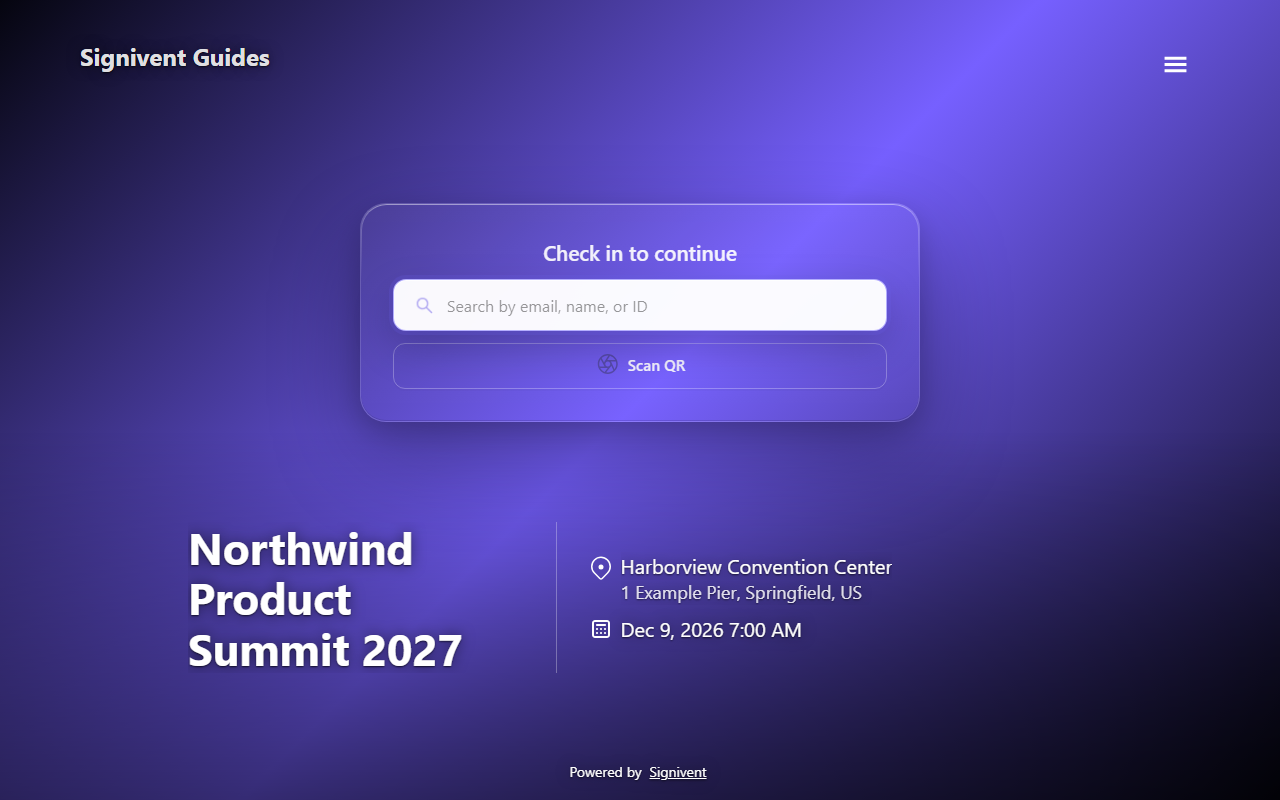
The welcome screen shows the event name, venue and date, a search box and Scan QR.
How a guest checks in
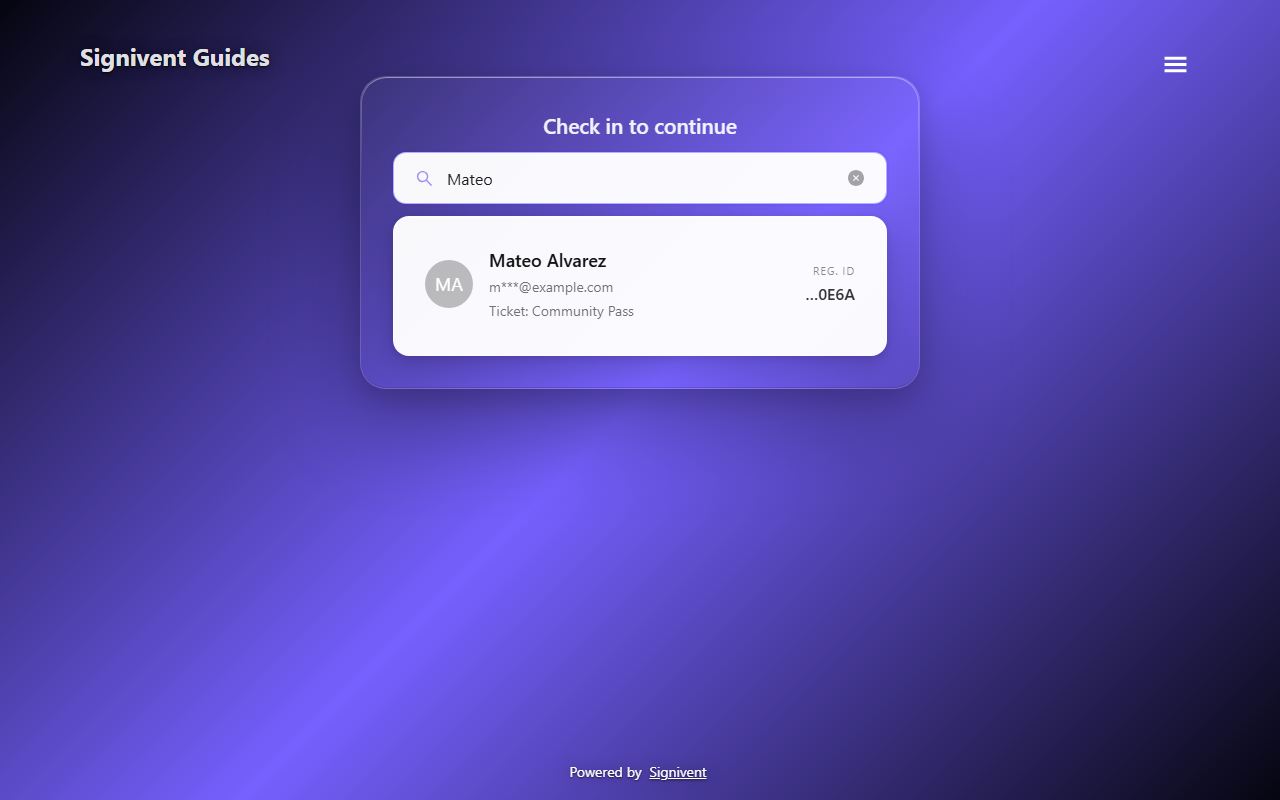
- The guest types part of their name, email or registration ID. Matches appear after a few characters. To protect privacy, the email is partly hidden and only the end of the registration ID shows; you choose what shows in the kiosk settings.
- They tap their name.
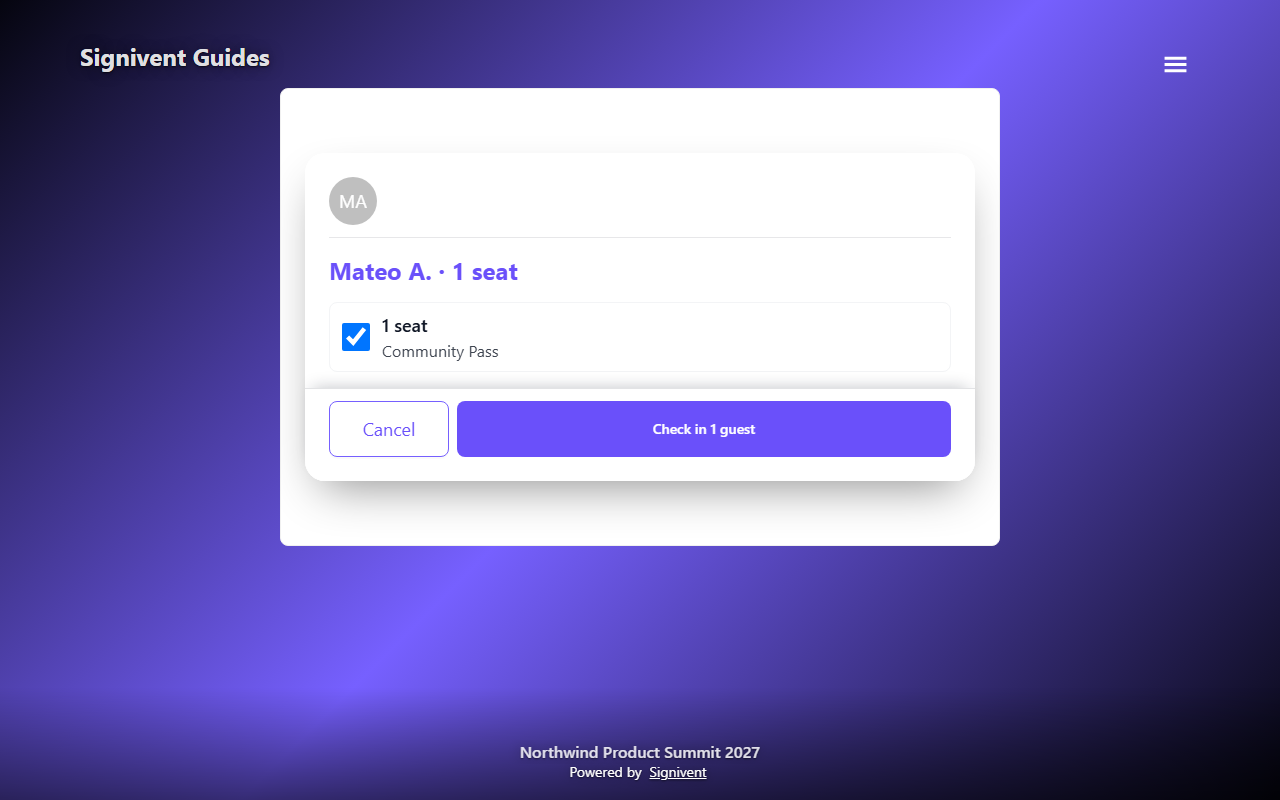
- The kiosk shows their ticket and seats. They tap Check in 1 guest (or the number of seats they are checking in).
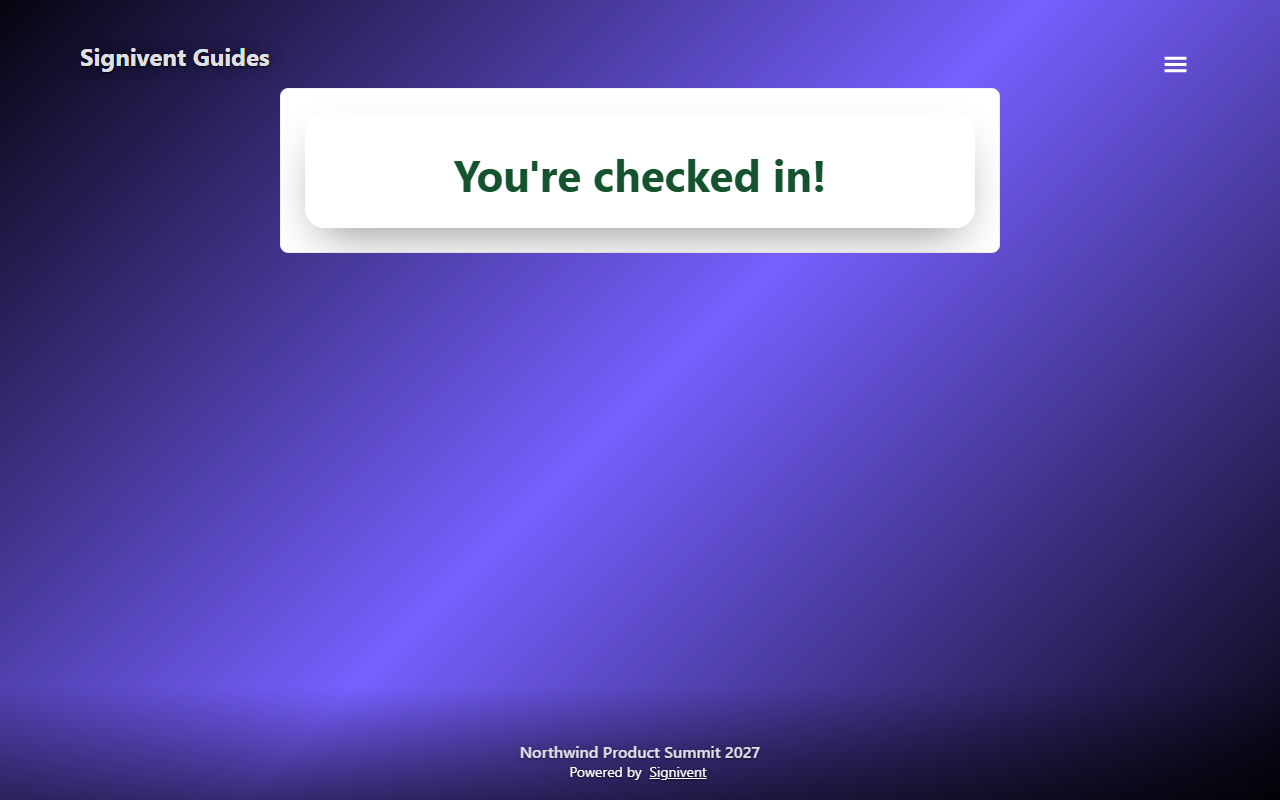
- The kiosk says You're checked in! and goes back to the welcome screen for the next guest. If badge printing is on, the badge prints now.
A guest with a QR code (on their confirmation email, their badge or in the event app) taps Scan QR and holds the code up to the camera instead of searching.
Someone who is already checked in sees when they checked in, so they can't check in twice. Someone with a balance still to pay can't check in at the kiosk; send them to the registration desk.
The staff menu
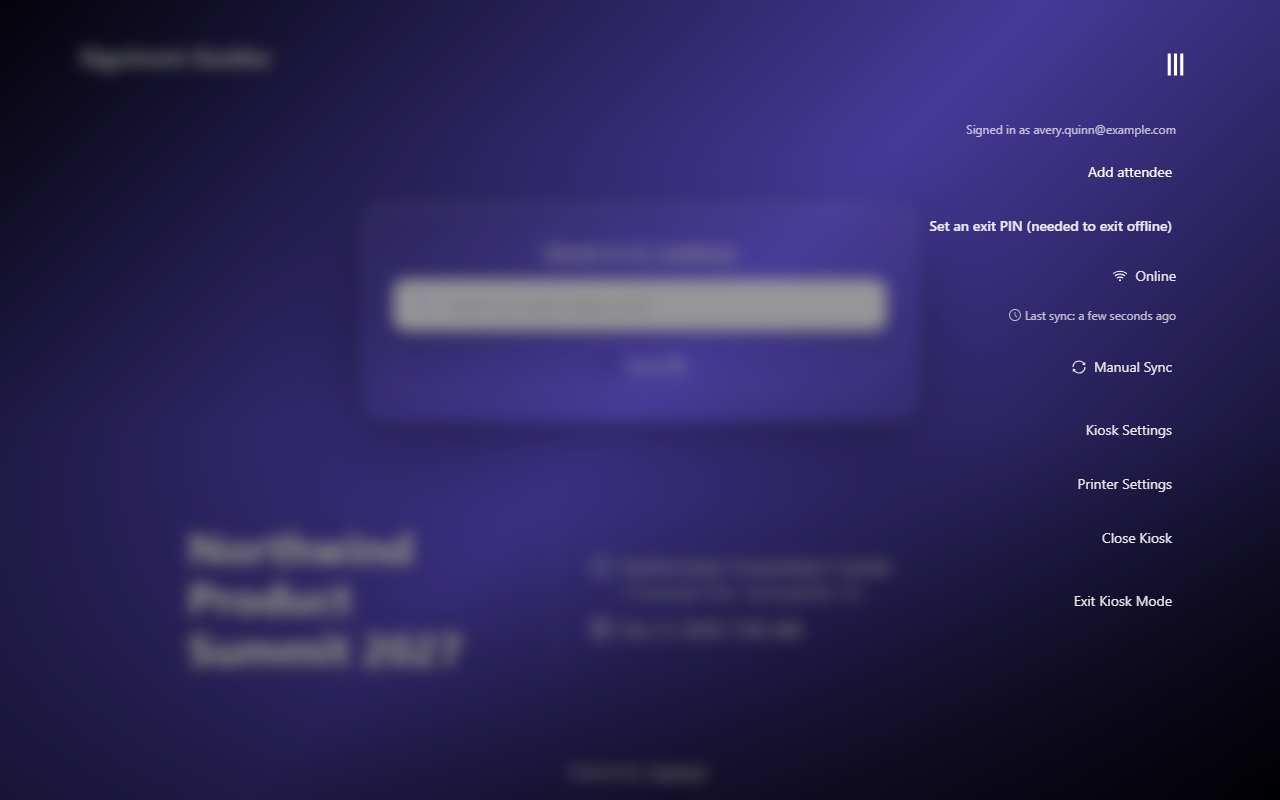
Tap the menu icon at the top right. The menu shows who the kiosk is signed in as and:
| Item | What it does |
|---|---|
| Add attendee | Registers a walk-in guest at the kiosk |
| Set an exit PIN (needed to exit offline) | Sets a PIN for this kiosk. Without one, staff can only exit while the kiosk is online |
| Online / Offline and Last sync | Whether the kiosk is connected, and when it last exchanged check-ins with the server |
| Manual Sync | Sends waiting check-ins and fetches the latest attendee list now |
| Kiosk Settings, Printer Settings | Change this kiosk's settings and printer (asks for the PIN or a password first) |
| Close Kiosk | Pauses the kiosk: guests see that it is closed until staff choose Open Kiosk |
| Exit Kiosk Mode | Leaves the kiosk and goes back to the dashboard |
Exit the kiosk
- Tap the menu icon, then Exit Kiosk Mode.
- Enter the event's station PIN (shown on Launch a station and on the Speaker Kiosk settings), the kiosk's own exit PIN, or the password of the account the kiosk is signed in with.
- Tap Exit.
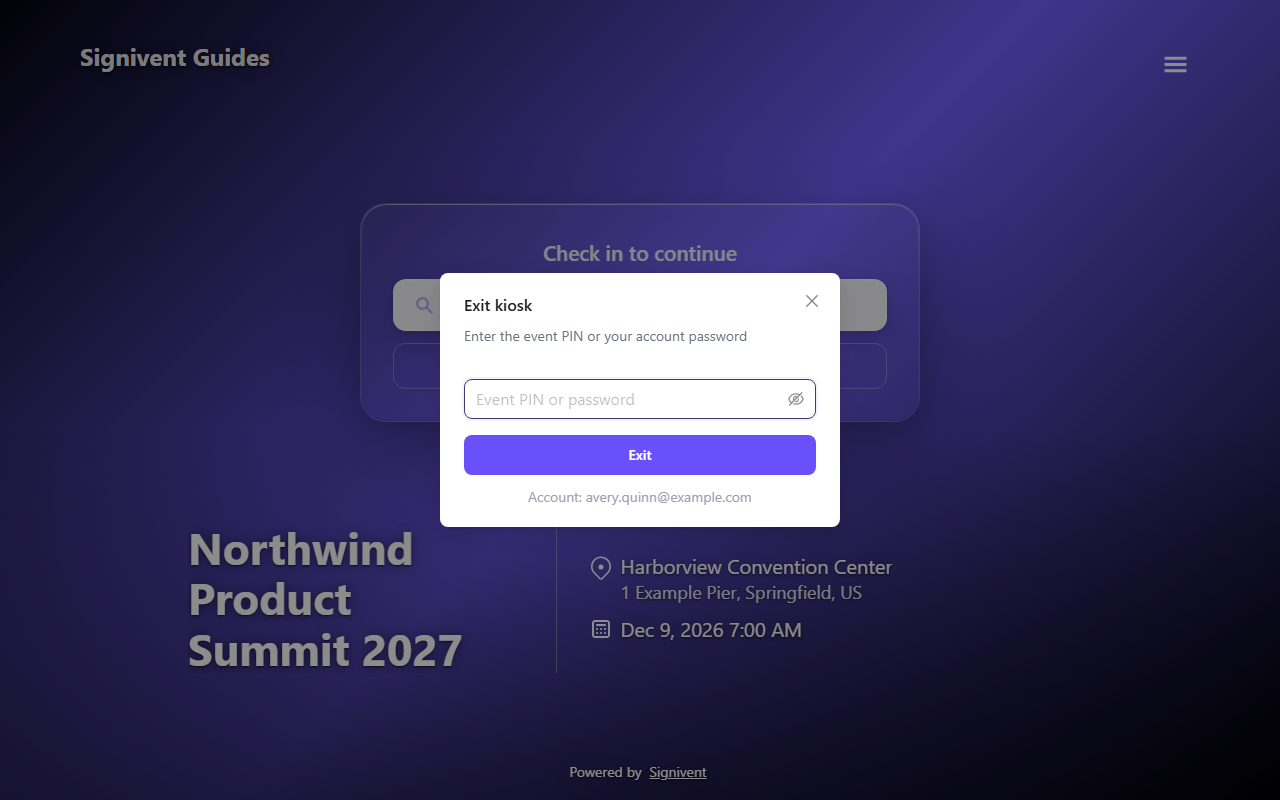
A paired kiosk asks for the exit PIN set when it was paired. If nobody knows it, an organizer can change it on Stations > Paired kiosks.
When the internet drops
The kiosk keeps checking people in. It searches its own copy of the attendee list and stores the check-ins, and sends them when the connection is back. The menu shows Offline meanwhile. See Offline mode and sync.
Troubleshooting
| You see | Why | Fix |
|---|---|---|
| "No attendees found" | Fewer characters typed than the minimum, or the guest is not registered for this event | Type more of the name, or send the guest to the registration desk |
| A guest is told they are already checked in | They checked in earlier, here or at another station | Nothing to do; staff can undo a check-in on the Attendees page |
| The kiosk asks for a pairing code | The device has no organizer session and is not paired | Pair it, see Pair a device to your event |
| Exit refuses the PIN while offline | No exit PIN was set on this kiosk | Reconnect, then exit with your password, and set an exit PIN for next time |