Exhibitor tasks and documents
Work through the tasks the organizer sets before the show, and send them your insurance certificate, tax form, brand assets and other files.
The organizer usually needs a few things from every exhibitor before the show: rules accepted, an insurance certificate, a logo. Tasks lists what they asked for, and Documents is where you send them files.
Your tasks
Tasks splits the list into Open and Done. Each task shows:
- its title and what to do;
- Required if the organizer needs it before the show (others are optional);
- the kind of task: Acknowledgement, File upload, Form, Document signing, Payment or External link;
- the due date, and Overdue once it has passed.
The dashboard's Next steps counts your open tasks and shows the next due date (see the portal overview).
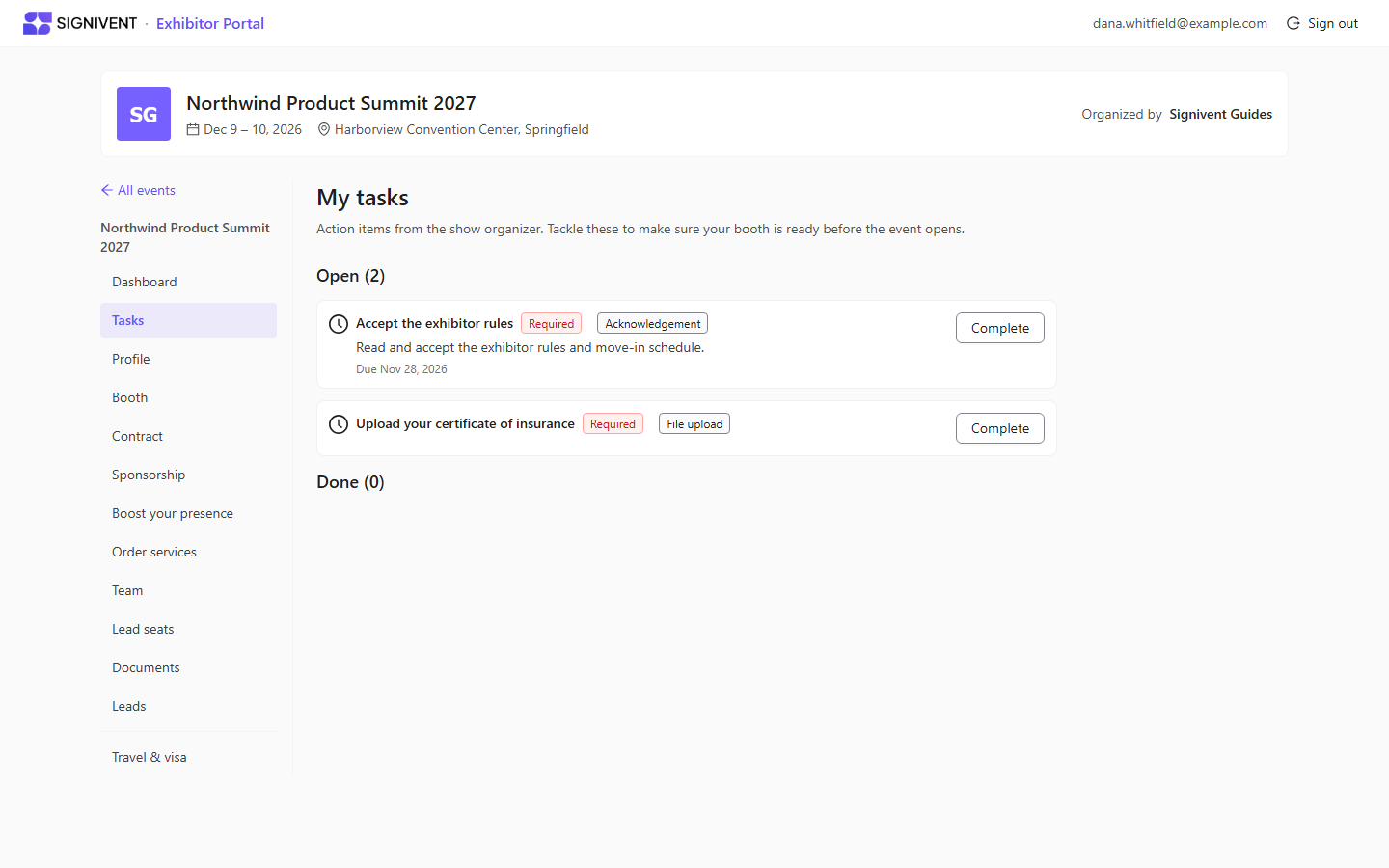
Complete a task
- Click Complete on the task.
- Do what the dialog asks. It depends on the kind of task:
- Acknowledgement: tick "I acknowledge this task is complete."
- File upload: click Choose file and pick the file (PDF, Word, Excel, PowerPoint or an image, up to 25 MB).
- Form: answer the questions.
- Document signing, Payment or External link: open the page the organizer linked, then come back and confirm.
- Click Mark complete. The task moves to Done, with the date.
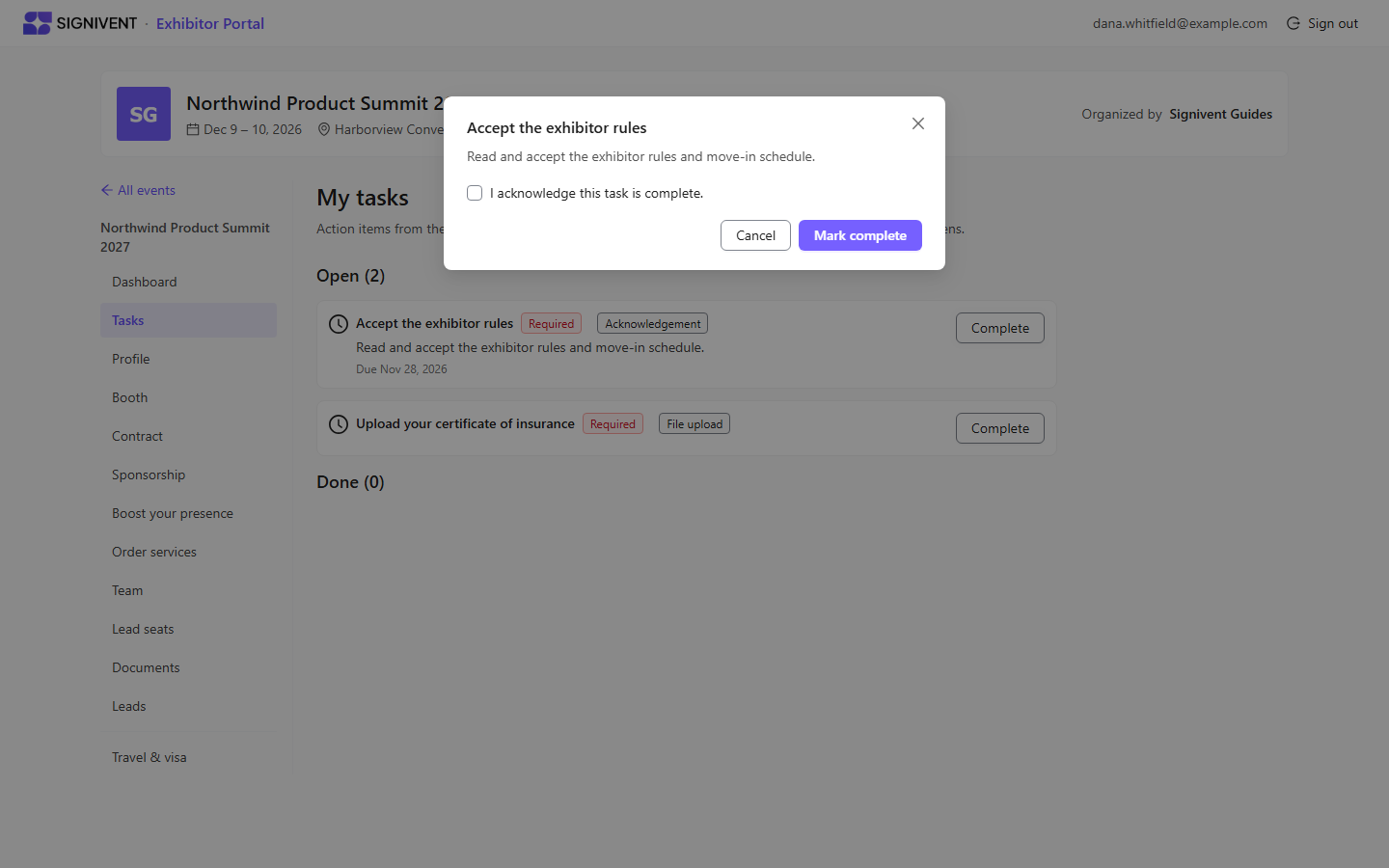
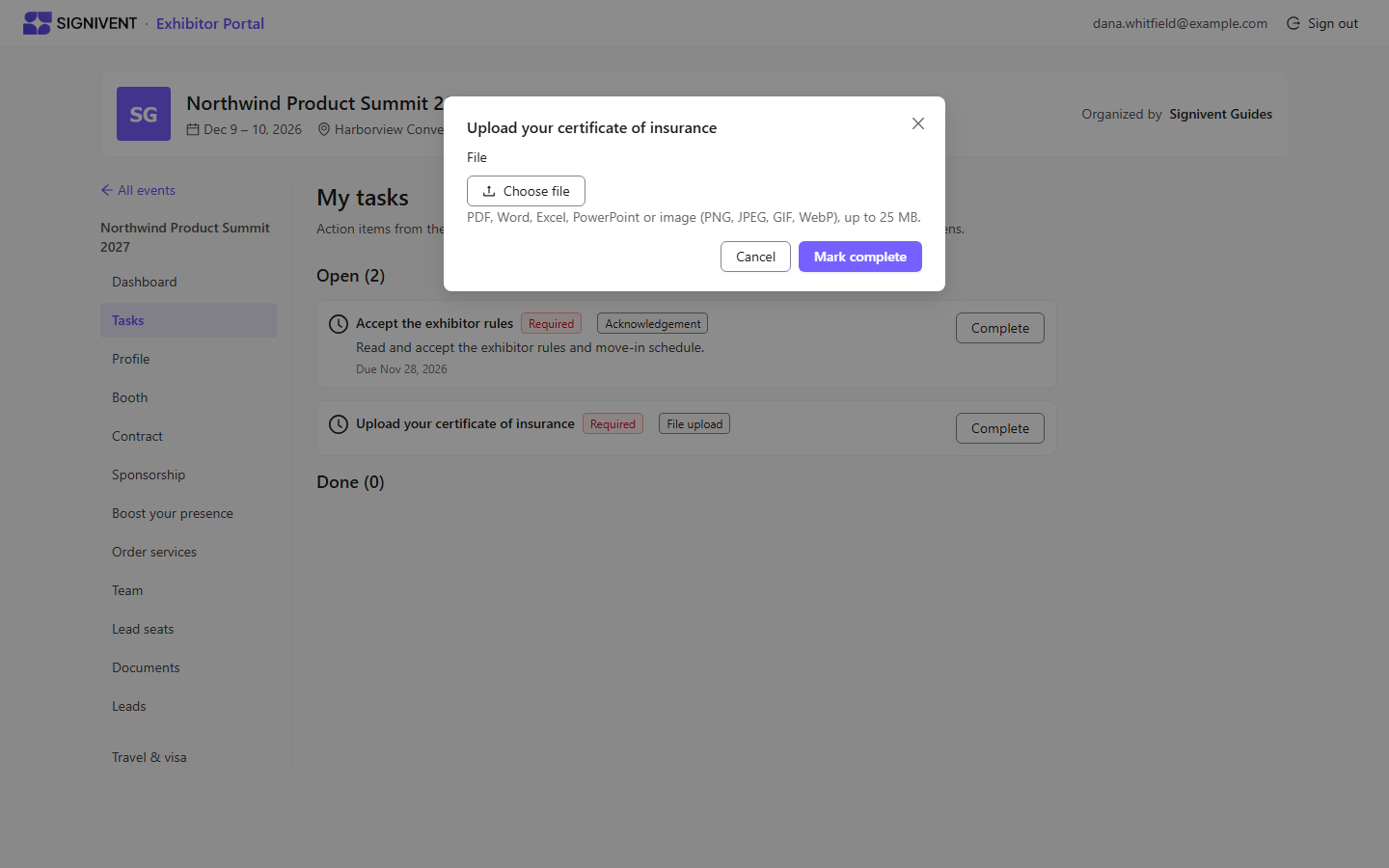
Some submissions are reviewed by the organizer; the dialog says so when that applies. If the organizer waives a task, it shows as Waived and counts as done.
Note: The dashboard's Next steps can show a task's due date one day earlier than the Tasks page does. If a deadline is tight, check it with the organizer.
Send the organizer a document
Documents holds every file your team has sent the organizer for this event.
- Pick the kind of document: Certificate of insurance, W-9 / Tax form, Signed contract, Booth floor plan approval, Shipping label, Brand asset or Other.
- Optionally add a Note for the organizer.
- Click Upload document and choose the file (PDF, Word, Excel, PowerPoint or an image, up to 25 MB).
The file appears in the list with its type, size, version and upload date. Download gets it back; Delete removes it, and the organizer no longer sees it.
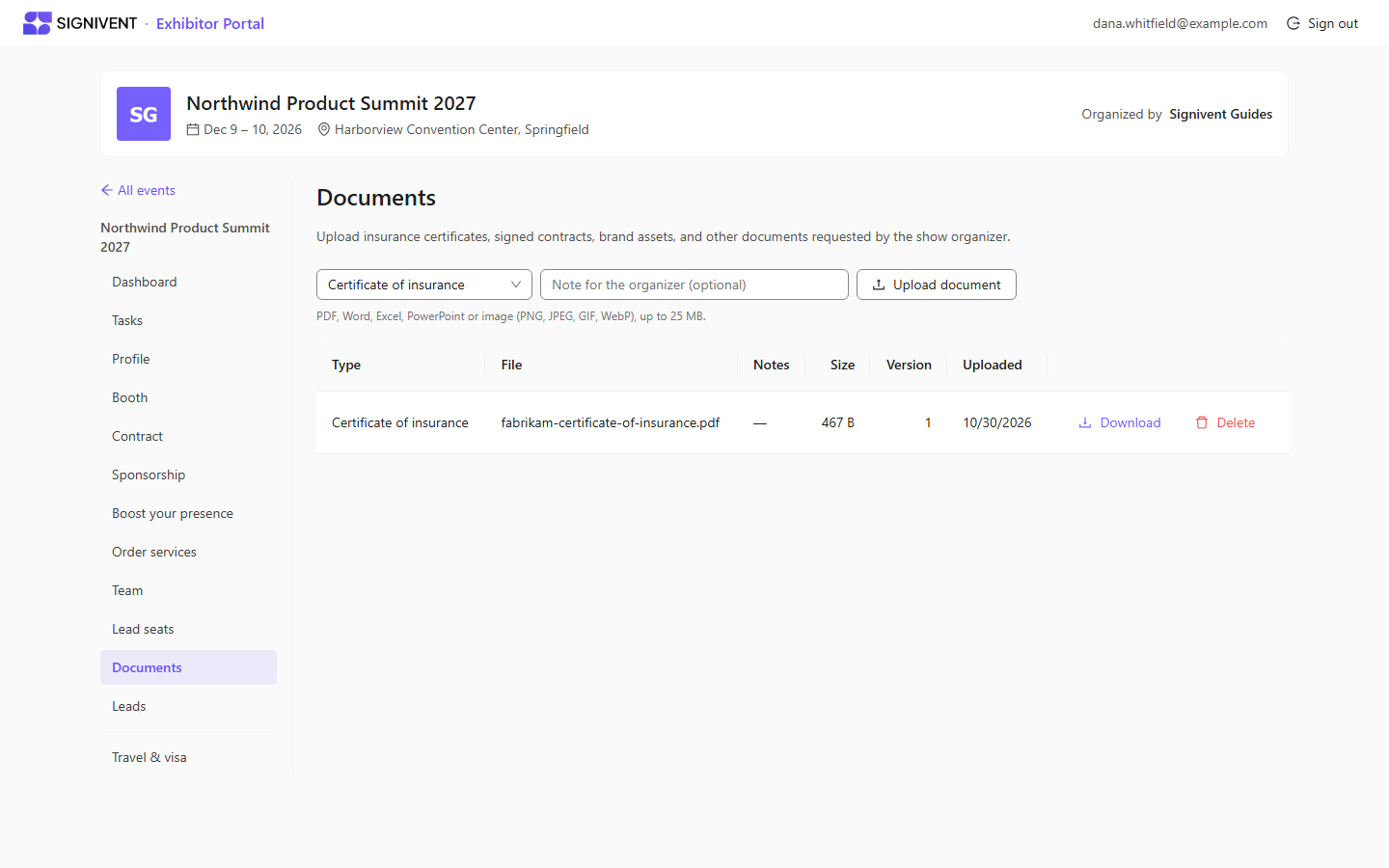
Only your team's Admin can upload or delete documents. If a sponsorship benefit needs your logo, upload it here as a Brand asset (see Sponsorship, add-ons and booth services).