Your booth team and lead retrieval seats
Invite colleagues to your booth's team, give each the right role, and decide who holds the lead retrieval seats they need to scan badges in the Connect app.
Everyone who works your booth can have their own access to the portal. Team is who is on your booth's team and what they can do; Lead seats is who can scan attendee badges with the Connect app. Both pages are for your team's Admin.
Your team
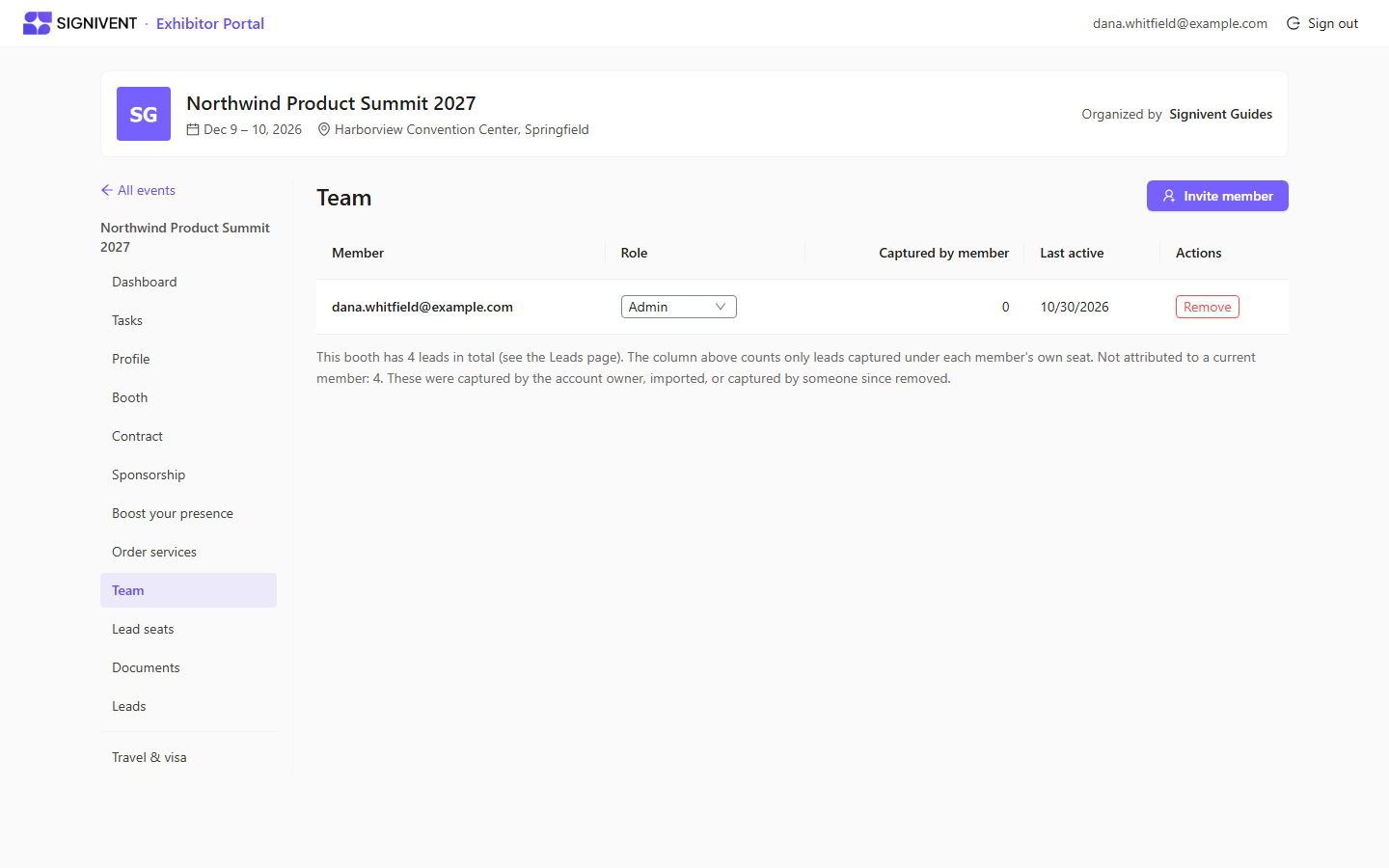
Team lists each member with their Role, the leads they captured on their own seat, when they were last active, and Remove.
Invite a colleague
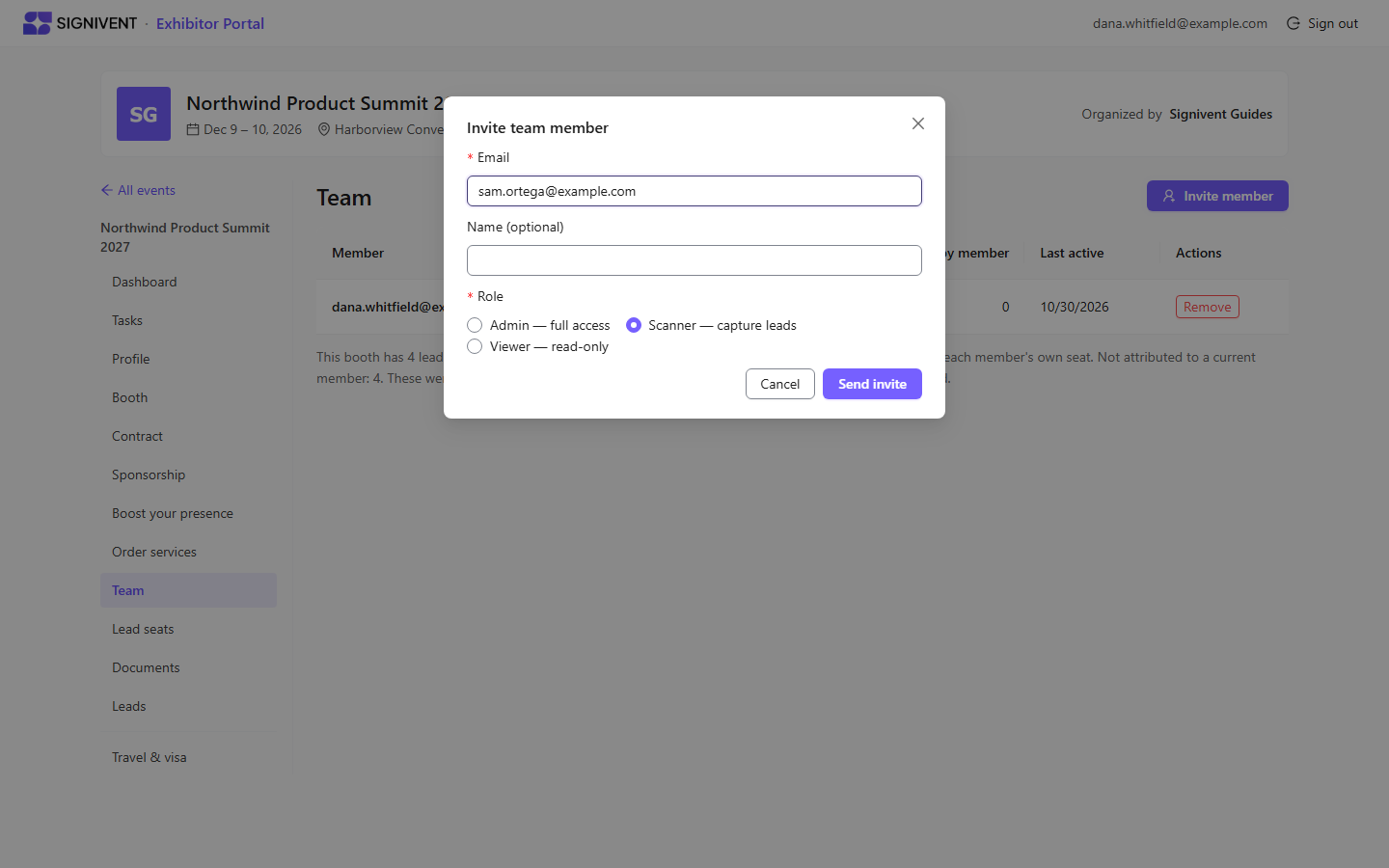
- Click Invite member.
- Enter their Email and, optionally, their Name.
- Pick a Role:
- Admin: full access.
- Scanner: captures leads.
- Viewer: read-only.
- Click Send invite. They get an email with a link to sign in (see the portal overview).
To change someone's role, pick a new one in their row; "Role updated" confirms it. Remove takes their access away straight away. Keep at least one other admin before you remove yourself.
Below the table, the page says how many leads the booth has in total and how many are not attributed to a current member (for example leads captured by someone you have since removed). The full list is on Your leads.
Lead retrieval seats
To scan badges, a team member signs in to the Connect app with the email they were invited with. Each person who scans takes one of your booth's seats with their first badge scan. The organizer decides how many seats come with your booth.
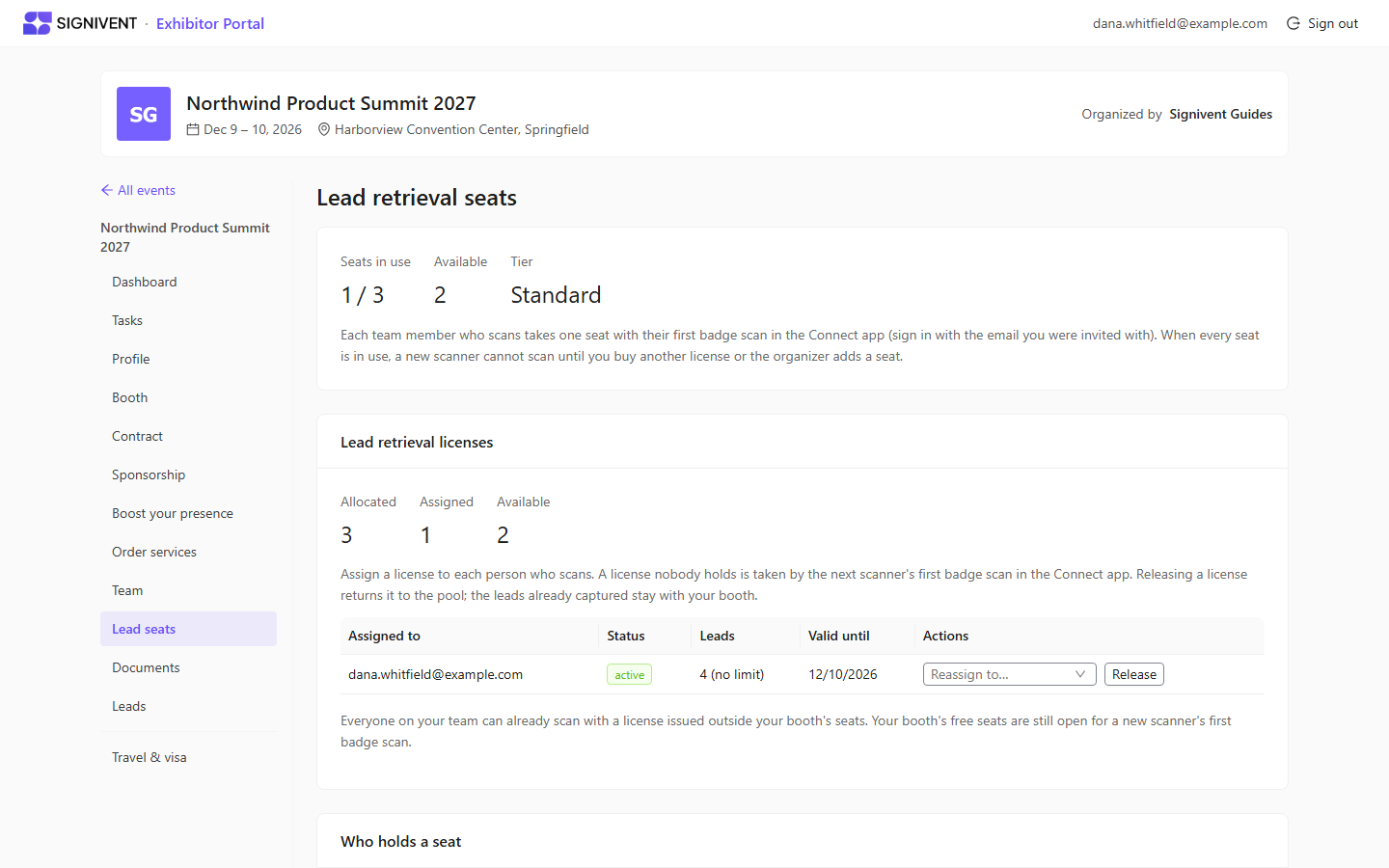
Lead seats shows:
- Seats in use, Available and your Tier;
- Lead retrieval licenses: how many are Allocated, Assigned and Available, and for each license who holds it, its status, how many leads it captured and how long it is valid.
Decide who holds a seat
A seat nobody holds goes to the next team member who scans. To choose yourself:
- Assign a free seat gives a seat to a team member who does not have one yet.
- Reassign to... in a license's row moves that seat to someone else.
- Release frees the seat for someone else. The leads already captured stay with your booth.
Who holds a seat and Team scanning status, further down, show which members hold a seat and how many leads each has captured.

When every seat is taken, a new scanner cannot scan until you free a seat, ask the organizer for more, or buy another license on this page if the organizer sells them.
Note: With every team member already holding a seat, the page can say that everyone scans "with a license issued outside your booth's seats" even when the licenses are your booth's own seats, and the Team page may count those leads as "not attributed to a current member". Your leads are all on the Leads page either way.