See and download your leads
Every badge your team scans at the booth lands on the Leads page; search and filter it, open a lead's details and download the list as a CSV for your CRM.
Your team captures leads by scanning attendee badges with the Connect app (see Team and lead seats for who can scan). Each scan shows up on Leads in the exhibitor portal, newest first.
The leads list
Each row shows the person's Name, Company and Email, how your team rated them (Qualification: Hot, Warm or Cold), who on your team captured them and when.
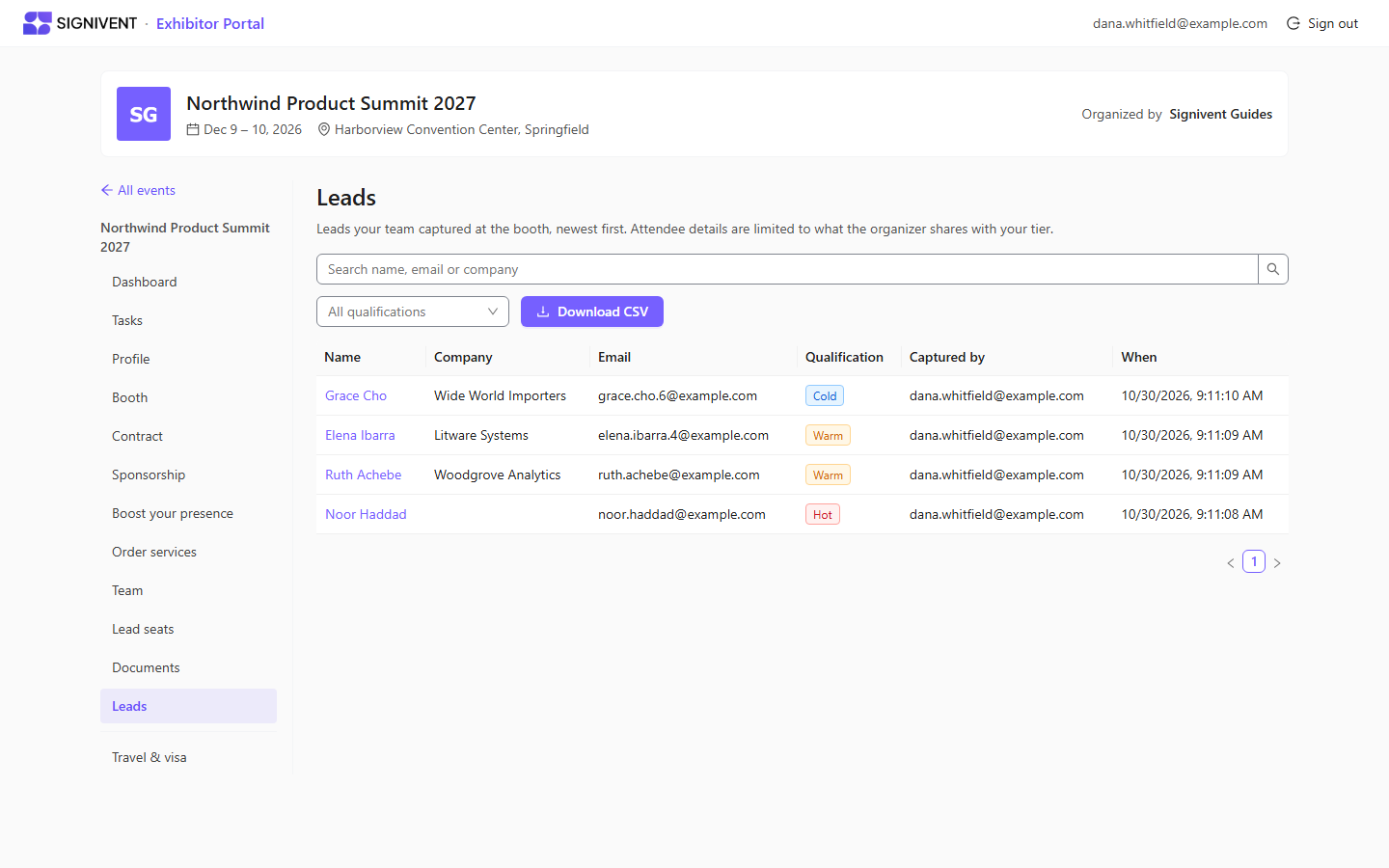
What you see about each person depends on what the organizer shares with your lead retrieval tier. If the organizer limits it, some columns stay empty.
- Type a name, email or company in Search to find someone.
- Pick a qualification in All qualifications to see only those leads.
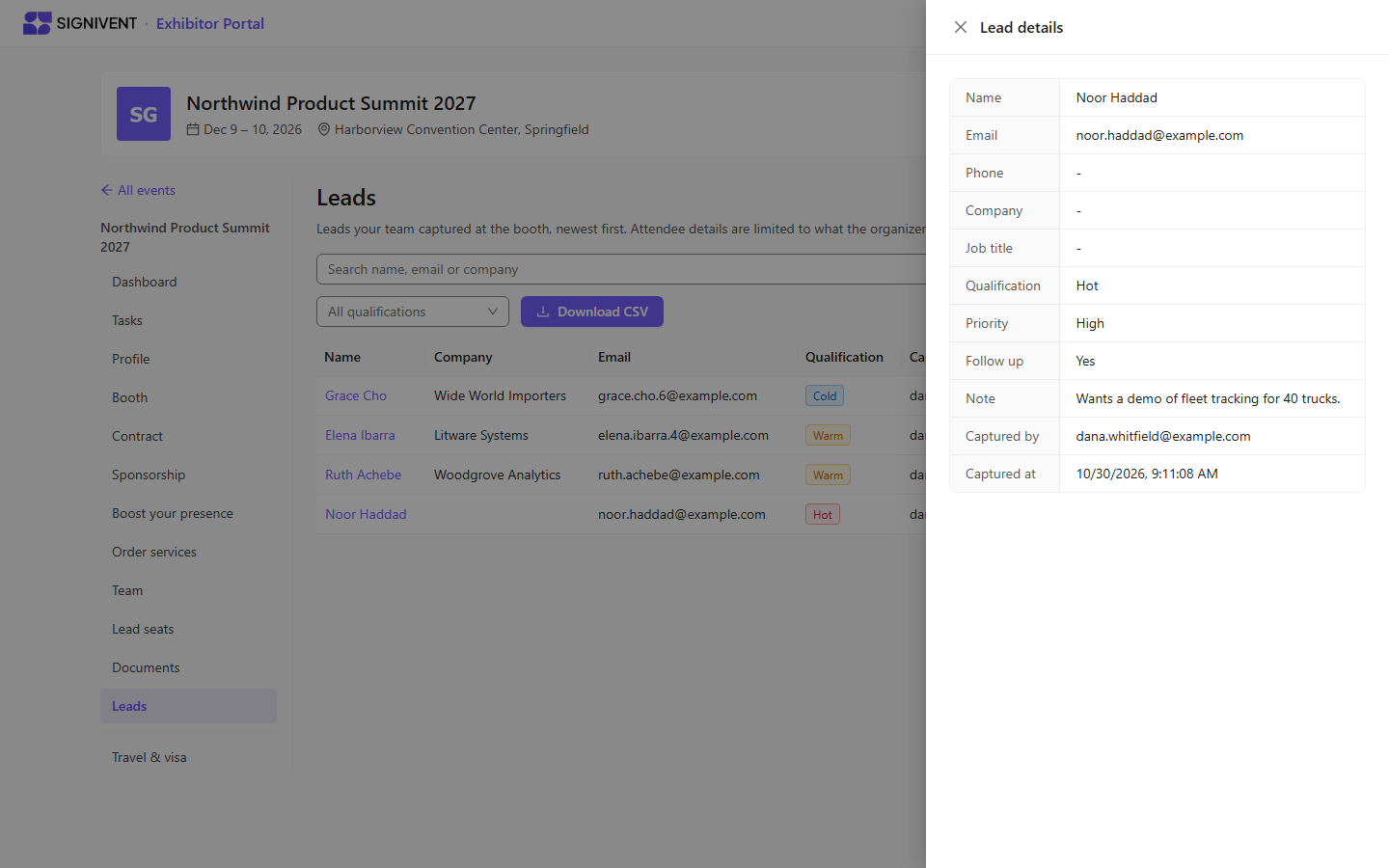
- Click a name to open the lead's details, including the notes your team took when scanning.
Download your leads
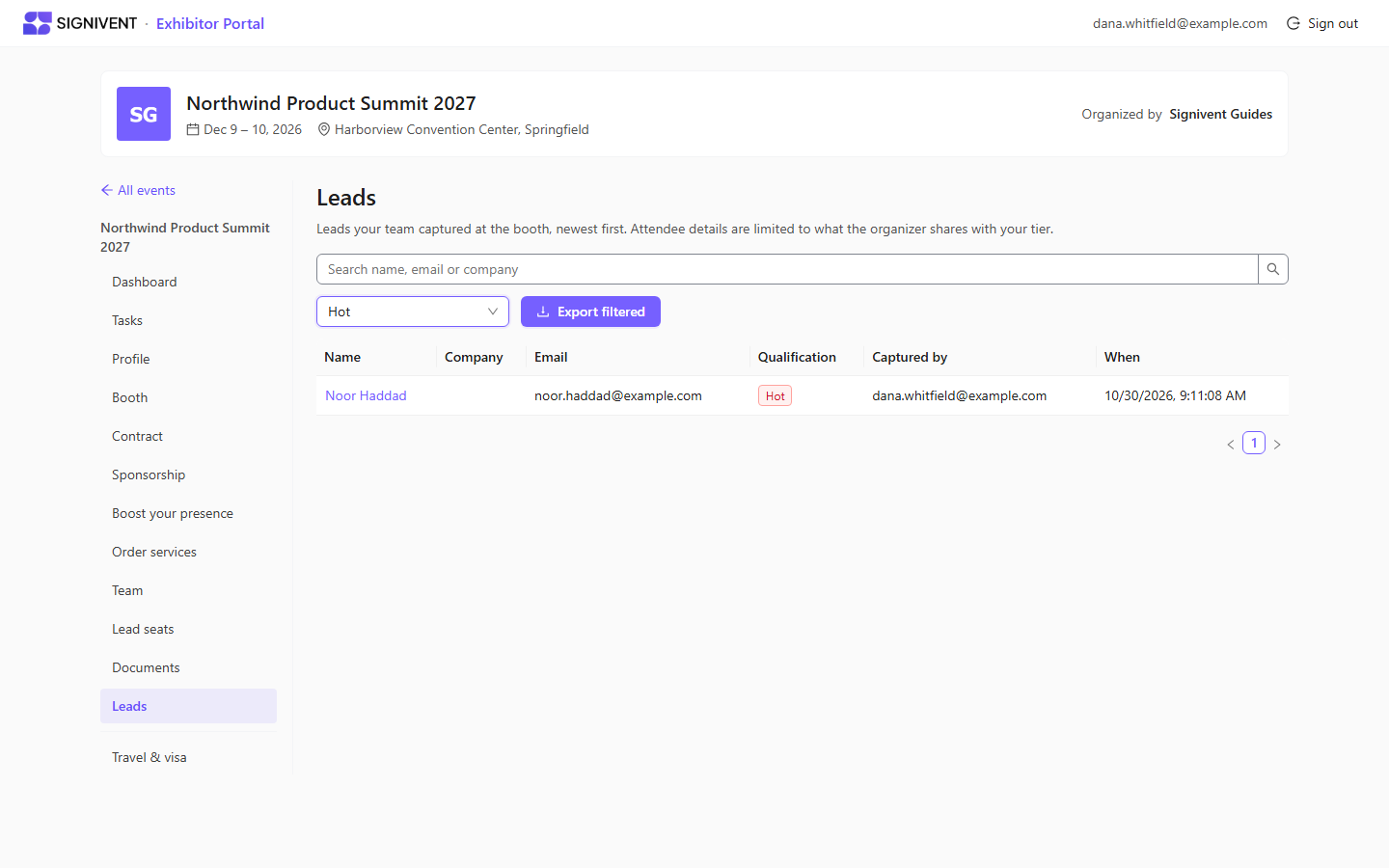
Click Download CSV to download every lead as a spreadsheet file you can open in Excel or import into your CRM. With a search or a qualification filter on, the button reads Export filtered and downloads just the leads you are looking at.
If your role is not allowed to export, the page says so: ask your team's admin.
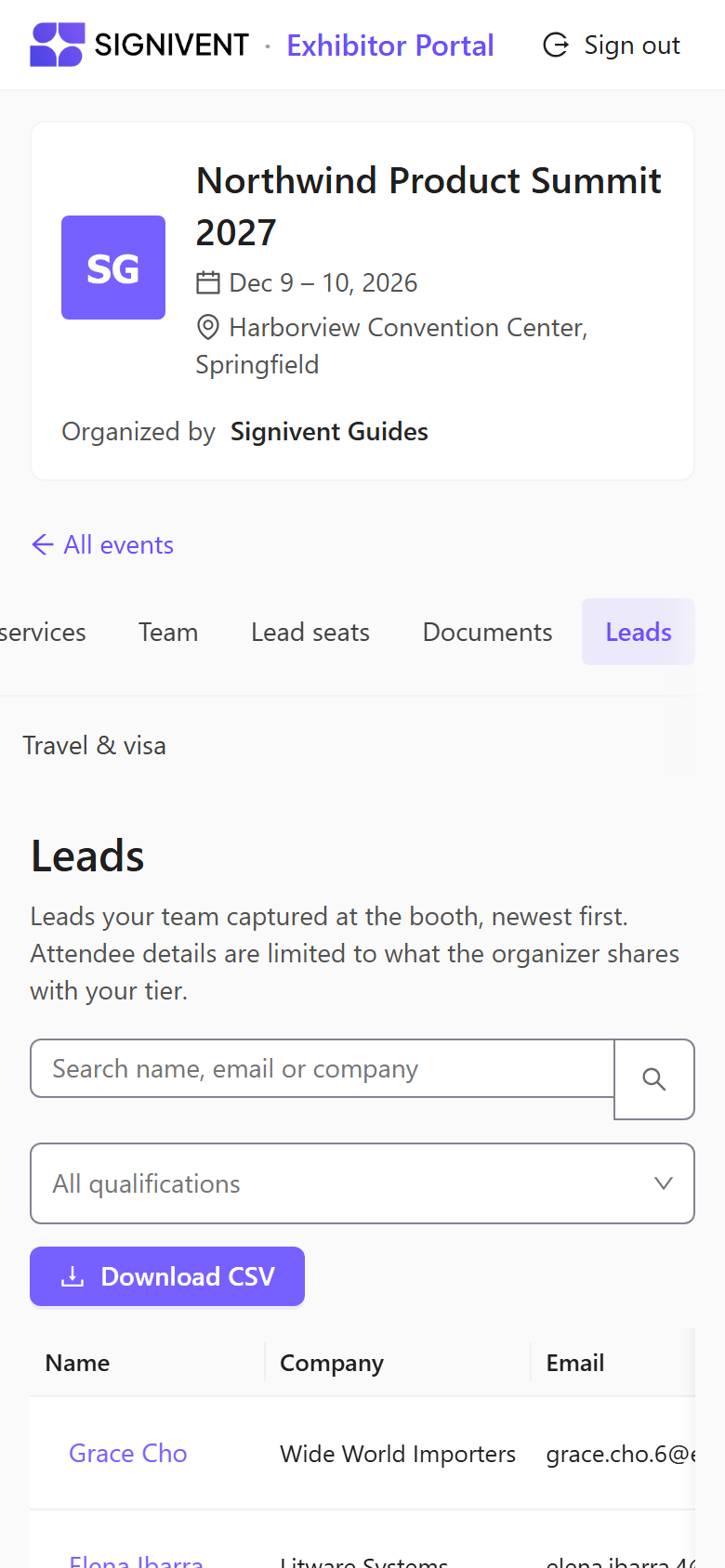
On a phone
The Leads page works in a phone's browser too; swipe the table sideways to see every column.