Connect for exhibitors: scan and manage leads
Capture leads at your booth with the Connect app by scanning badges or typing them in, qualify and add notes, export them, and see who on your team can scan.
If your company exhibits at an event and has lead retrieval, Connect turns your phone into a lead scanner. Sign in with the email your booth invited you with and open the event (see Connect: sign in and open your event); you land on your booth automatically. Your booth's profile, team and seats are managed in the exhibitor portal; see Exhibitor portal overview.
Your booth home
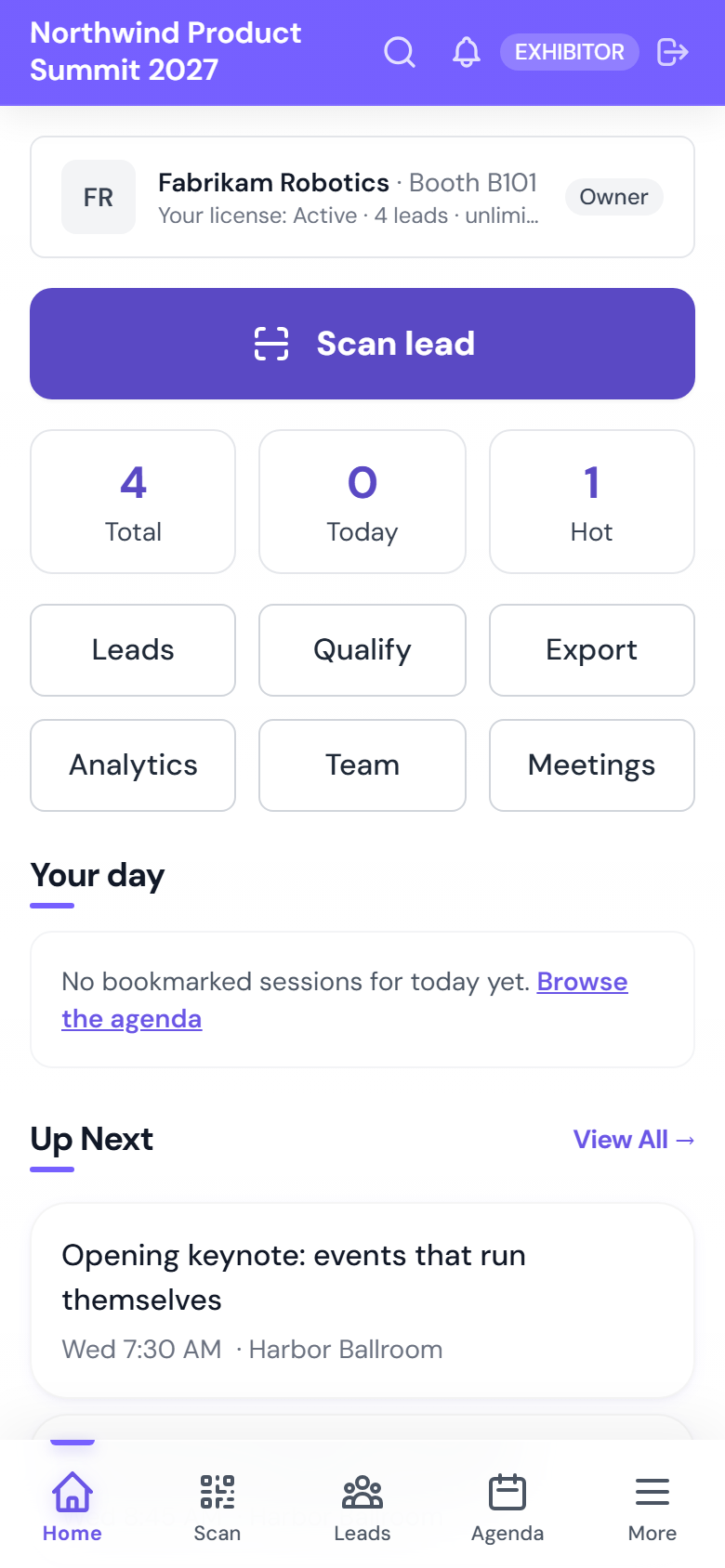
The top card shows your company, booth number and your role on the booth team, and your lead retrieval license: whether it is active, how many leads you have, and until when it is valid. Below are Scan lead, your lead counts (Total, Today, Hot) and the booth tools: Leads, Qualify, Export, Analytics, Team and Meetings. The bar at the bottom has Home, Scan, Leads, Agenda and More.
Scan a badge
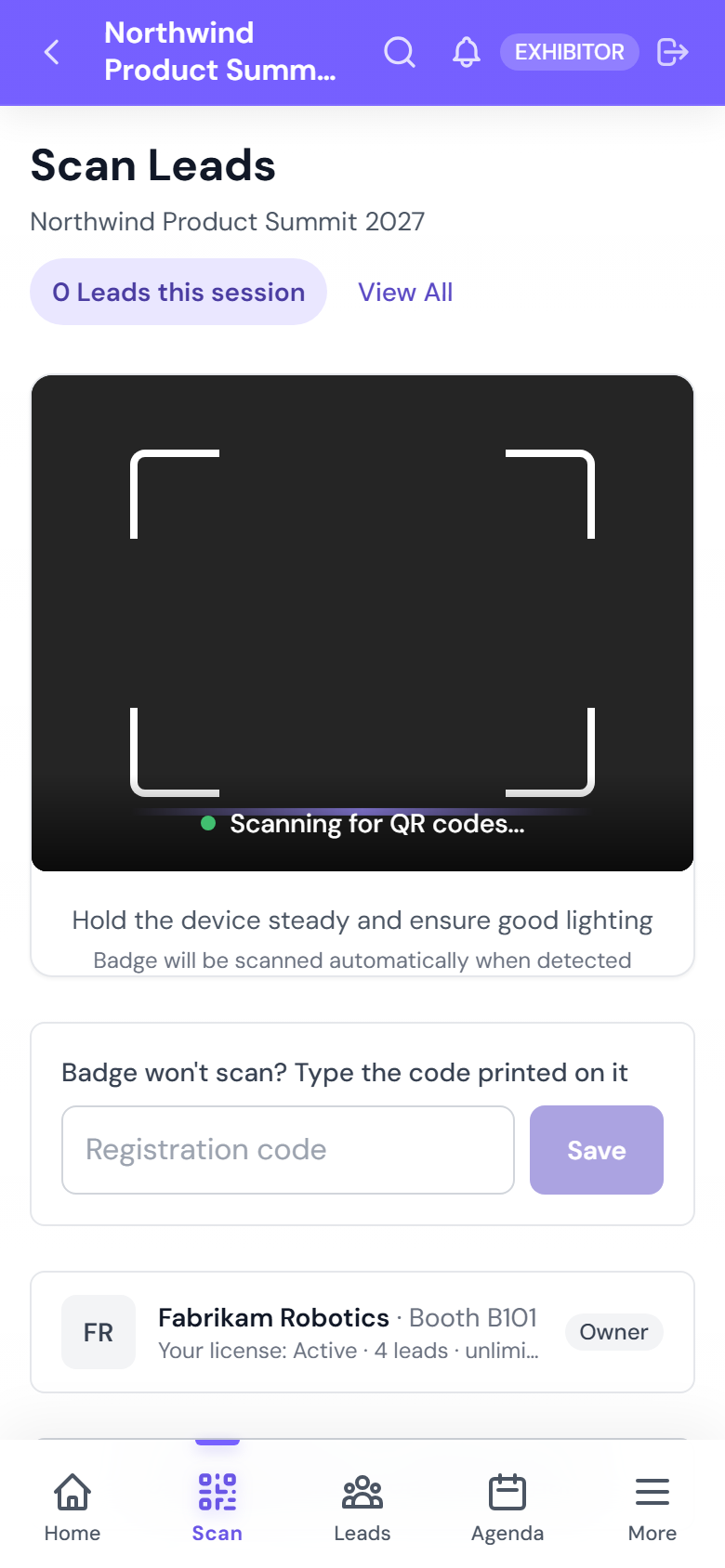
- Tap Scan lead (or Scan in the bottom bar). The first time, allow the app to use the camera.
- Point the camera at the QR code on the attendee's badge. The lead is saved and counted under Leads this session.
- Open the lead from Leads to rate it or add a note.
If a badge won't scan, type the code printed on it under Badge won't scan? Type the code printed on it and tap Save. For someone without a badge, tap No badge? Add a contact by hand.
Scanning works without internet: leads are kept on the phone and sent when the connection is back. Attendees can switch off sharing their contact details with exhibitors who scan their badge; their details are then not saved when you scan them.
Add a lead by hand
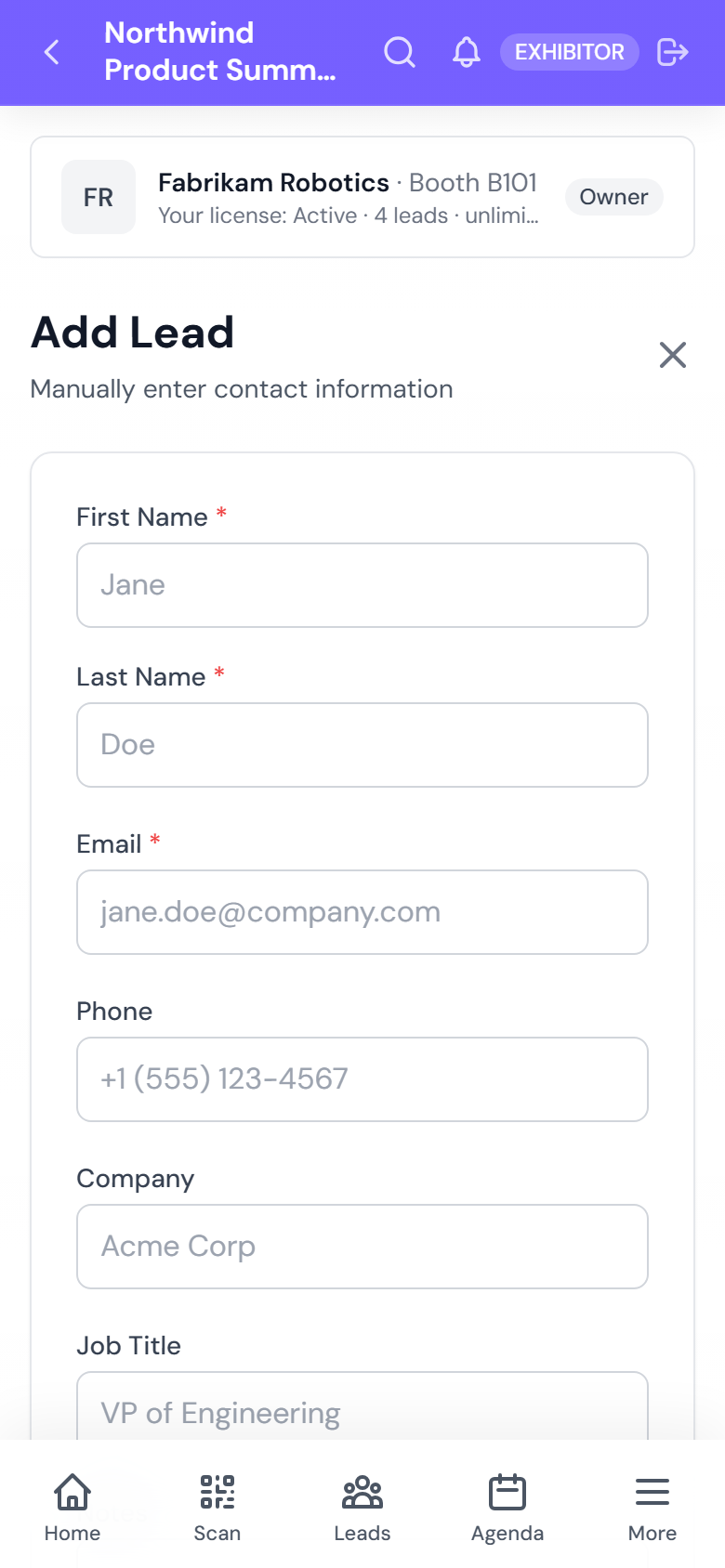
Add Lead takes First Name, Last Name and Email (required), and optionally Phone, Company, Job Title and Notes. Tap Save Lead.
Your leads
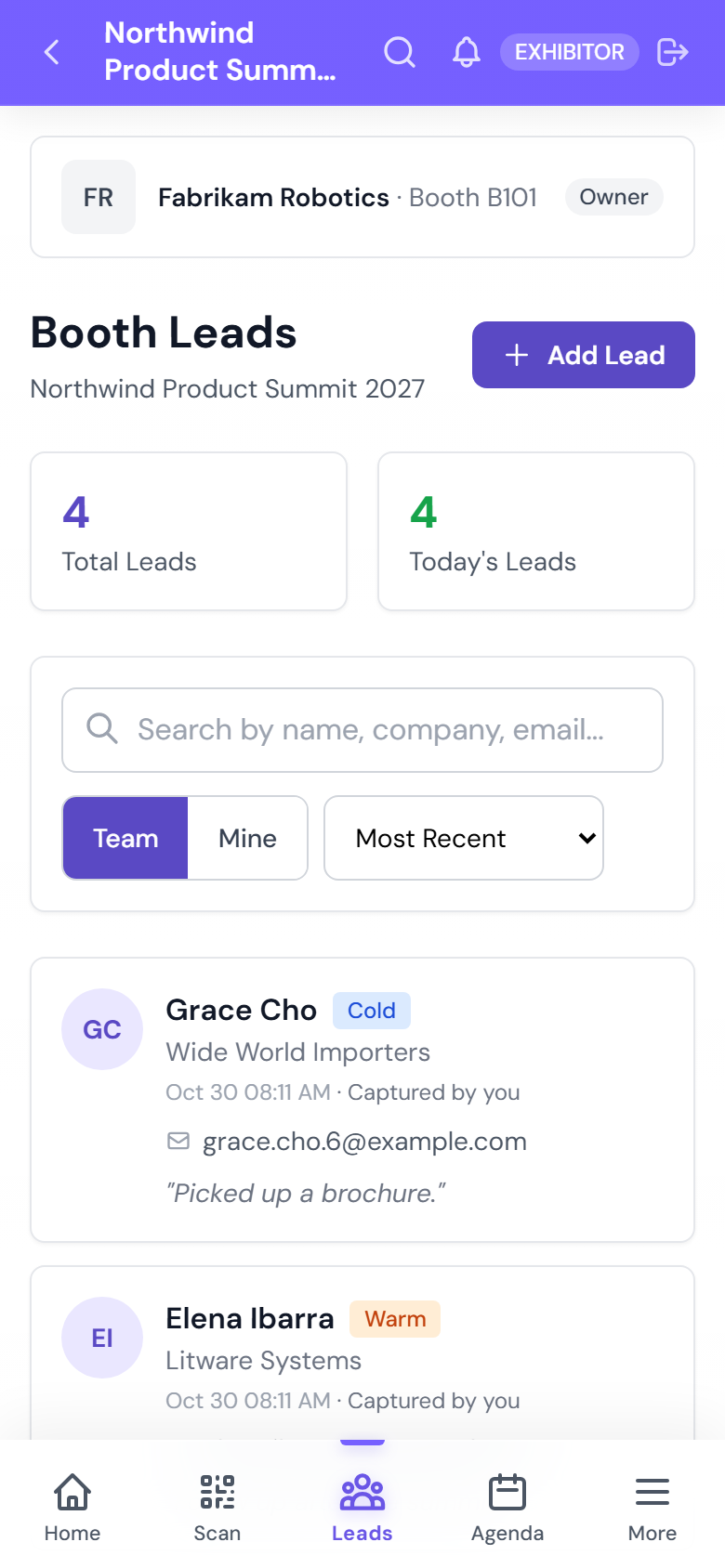
Leads lists your booth's leads with their rating, company, when and by whom they were captured, and your notes. Switch between Team (everyone's leads) and Mine, search by name, company or email, and sort them.
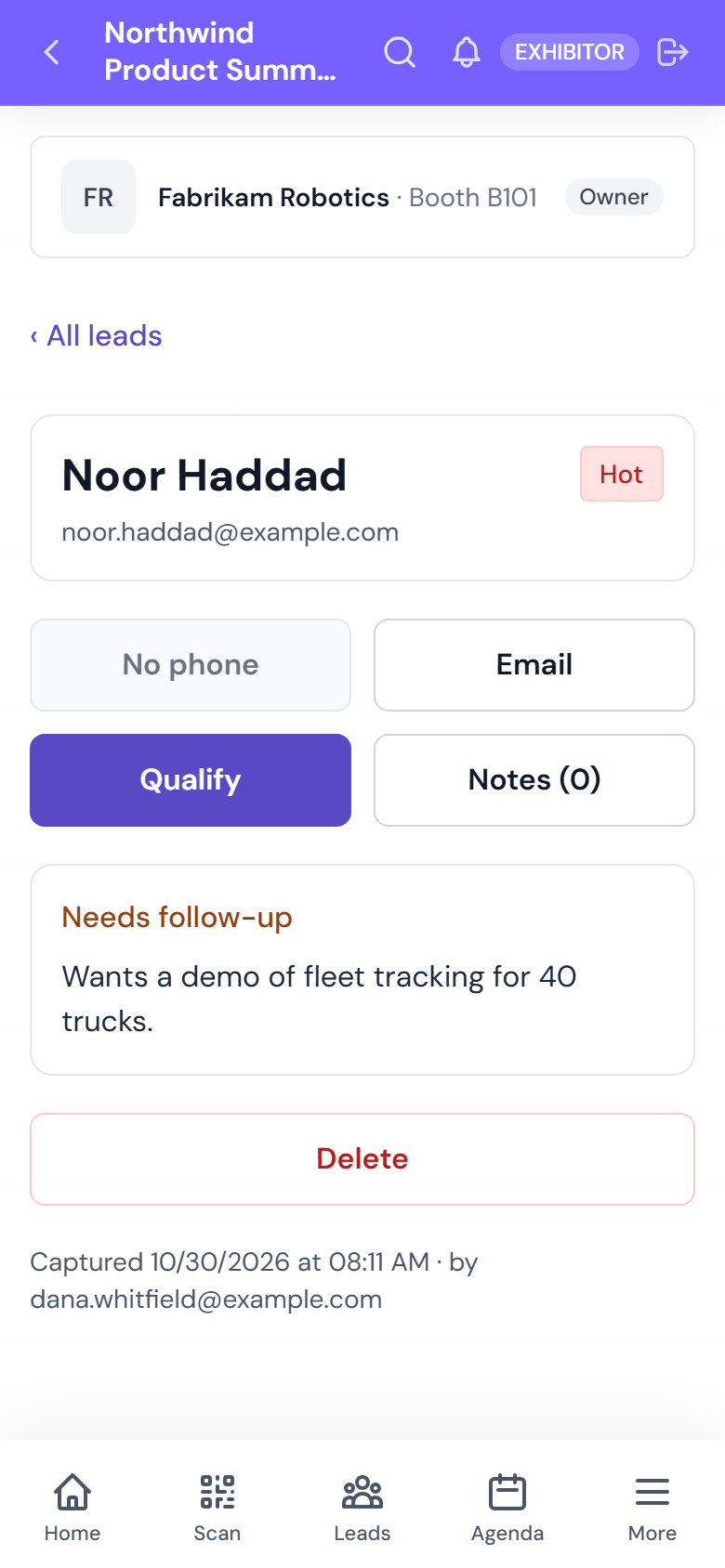
Tap a lead to call or email them, Qualify them, read and add Notes, see whether they need follow-up, or Delete the lead.
Qualify leads
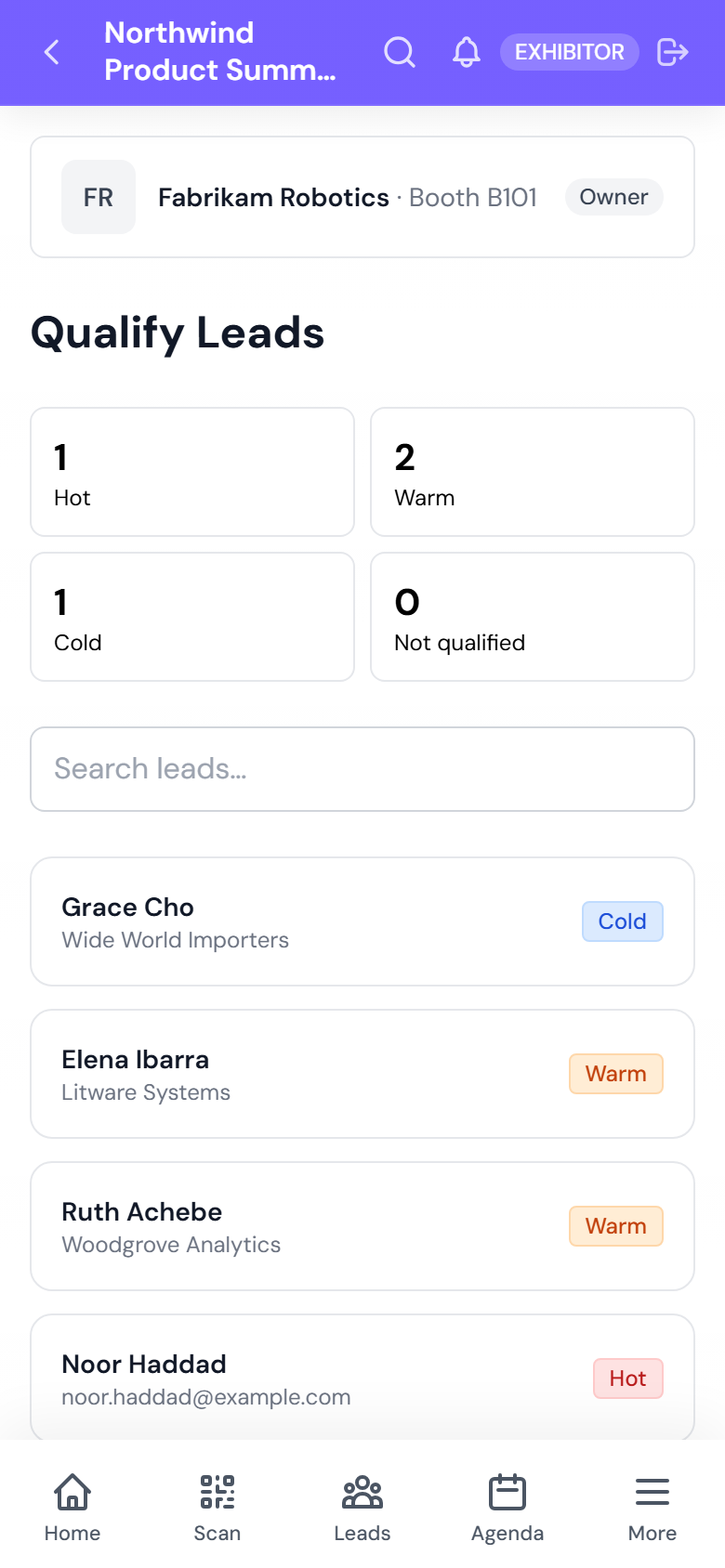
Qualify shows how many leads are Hot, Warm, Cold and Not qualified, and lists them so you can rate each one quickly.
Export leads
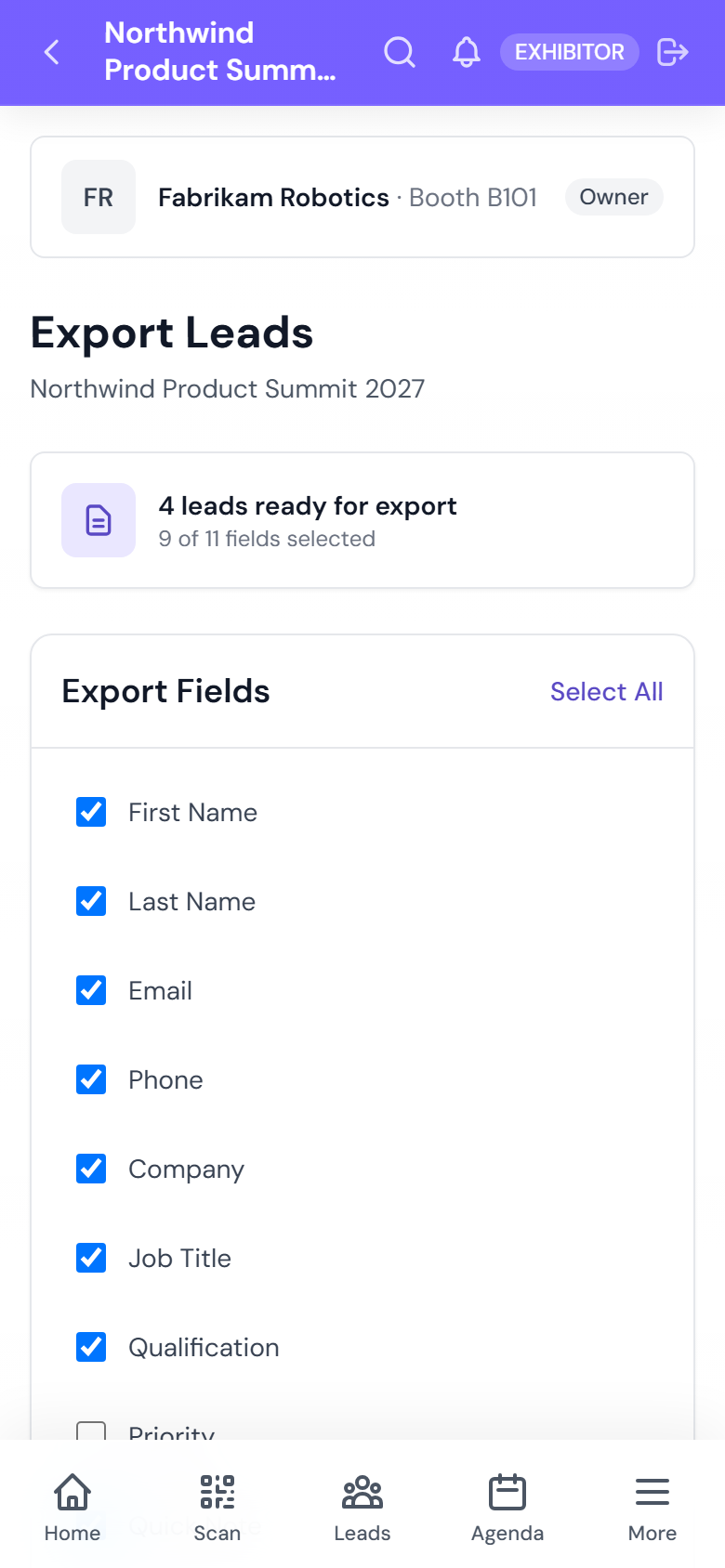
Export shows how many leads are ready and which fields go into the file (first and last name, email, phone, company, job title, qualification and more). Choose the fields, or Select All, and export.
The booth's admins can also download every lead from the exhibitor portal; see Leads.
Your booth team
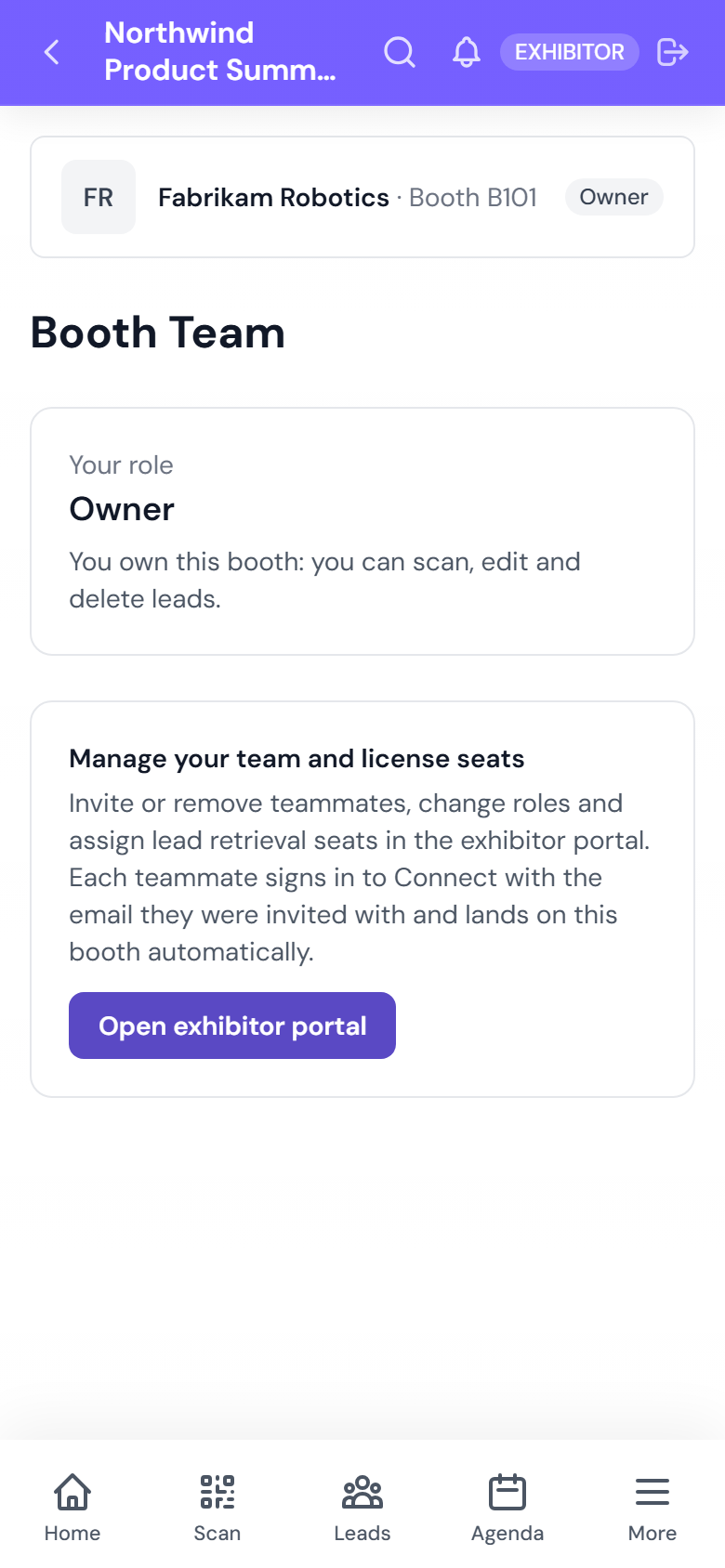
Team shows your role on the booth. An Owner can scan, edit and delete leads. Teammates, roles and lead retrieval seats are managed in the exhibitor portal (Open exhibitor portal). Each teammate signs in to Connect with the email they were invited with and lands on your booth automatically.
Troubleshooting
| You see | Why | Fix |
|---|---|---|
| "Camera didn't start" | The app is not allowed to use the camera, or another app is using it | Allow camera access for the app in your phone's settings and tap Retry; meanwhile type the badge code |
| You can't scan | Your booth has no lead retrieval license, or you have no seat | Ask your booth admin to assign you a seat in the exhibitor portal |
| You land on the attendee home, not your booth | You signed in with an email that is not on the booth team | Sign in with the email you were invited with |
| A scan does not save the attendee's details | The attendee switched off sharing their details with exhibitors | Ask them for a business card, or add what they tell you with Add Lead |