Connect for attendees: agenda, badge and networking
Use the Connect app at the event: browse and bookmark the agenda, show your digital badge to check in, find exhibitors, connect with people and read your messages.
Once you have entered an event in Connect (see Connect: sign in and open your event), the bar at the bottom of the screen takes you to Home, Agenda, Badge and More. What you see depends on what the organizer switched on for their event, so some items below may be missing.
The agenda
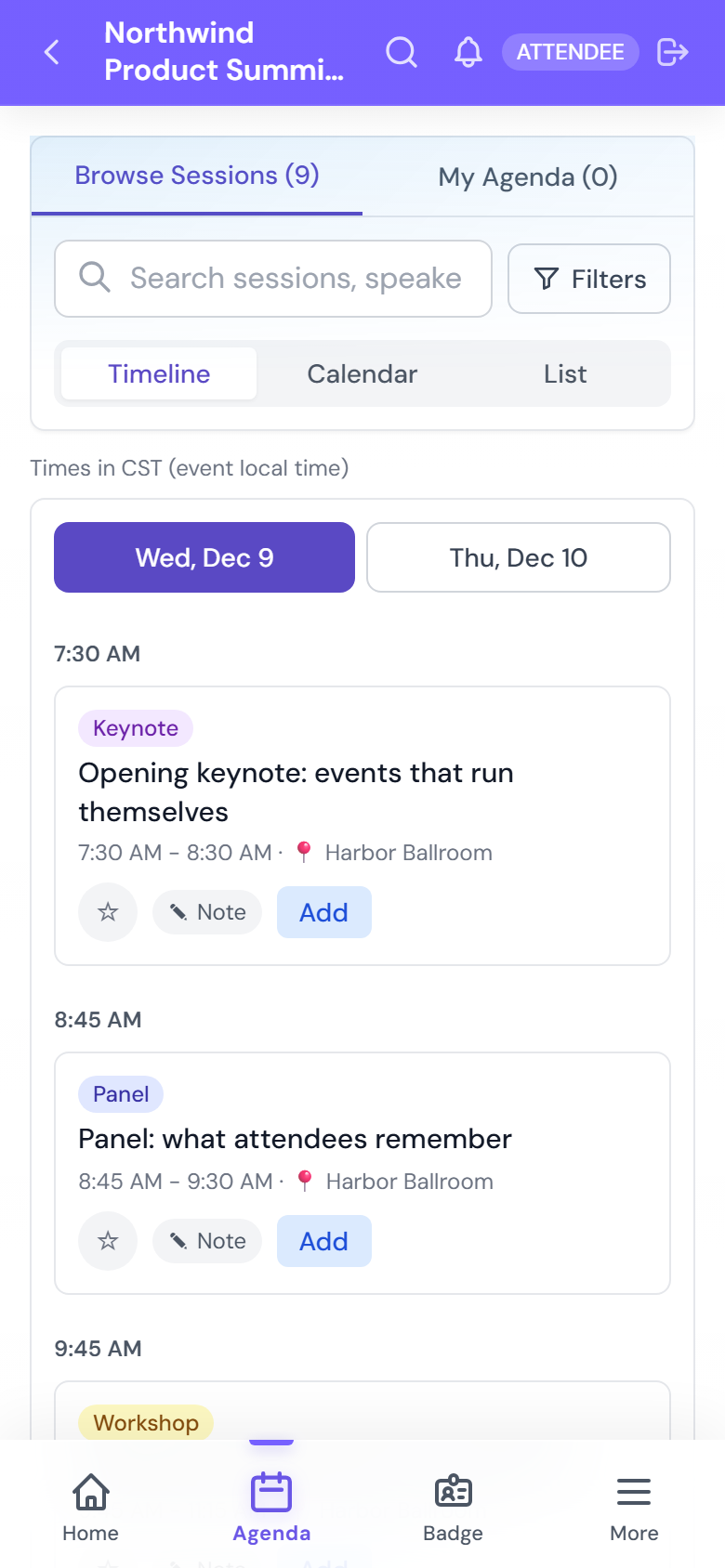
Agenda lists every session. Browse Sessions shows them all; My Agenda shows the ones you saved. Times are in the event's local time zone, and the app says which.
- Switch days with the date tabs, and between Timeline, Calendar and List views.
- Filters narrows the list, for example by track or session type.
- Tap Add (or the star) on a session to put it in My Agenda; tap again to remove it. Your sessions for today also appear under Your day on Home.
- Note keeps a private note on a session.
- Tap a session to see its description, speakers and room.
Your badge and check-in
Badge is your digital badge: your name, company, badge type, access level, whether you have checked in, and a QR code. Show the QR code at the registration desk or a check-in kiosk to check in. Tap it to enlarge it for scanning. The registration number under it is what staff type if the code won't scan.
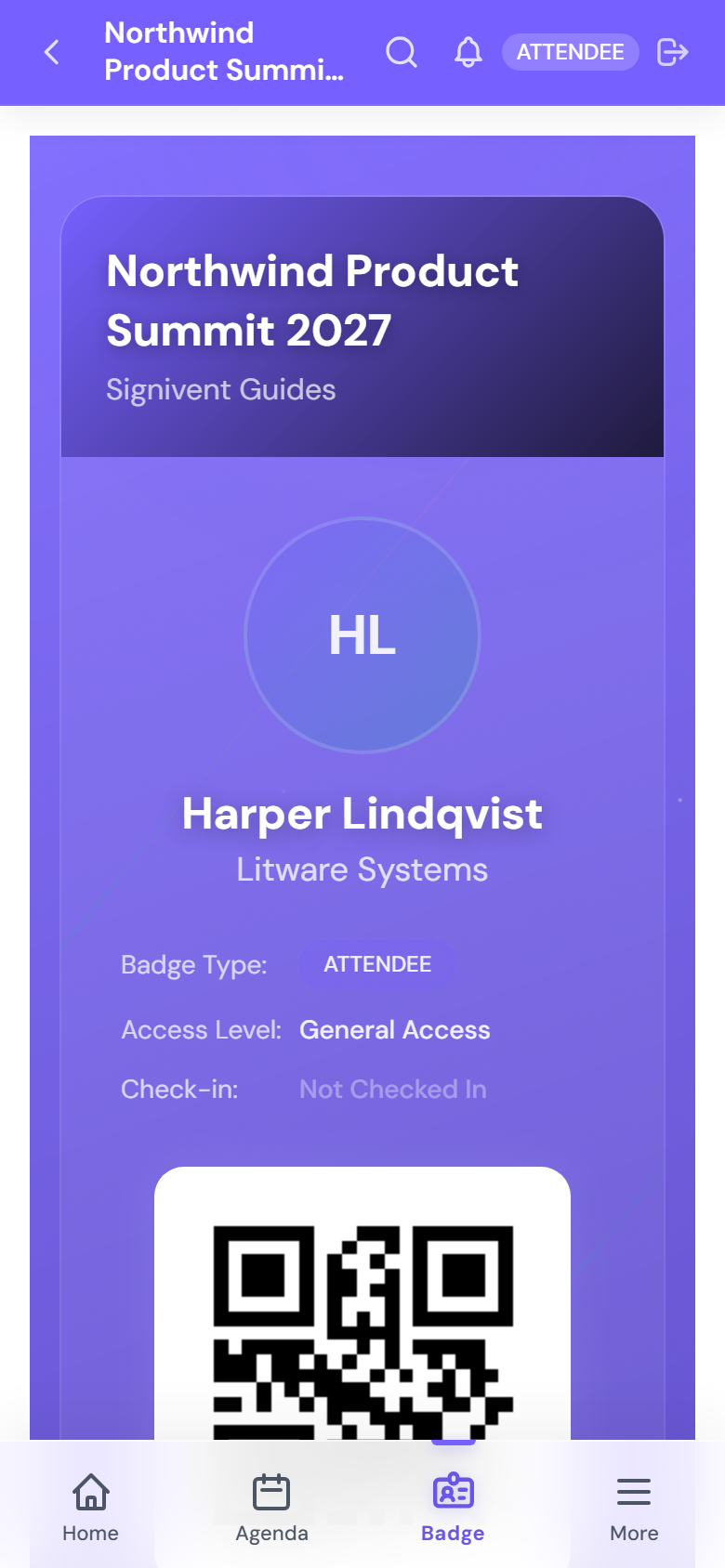
Take a screenshot of your badge before the event, in case your phone has no signal at the door.
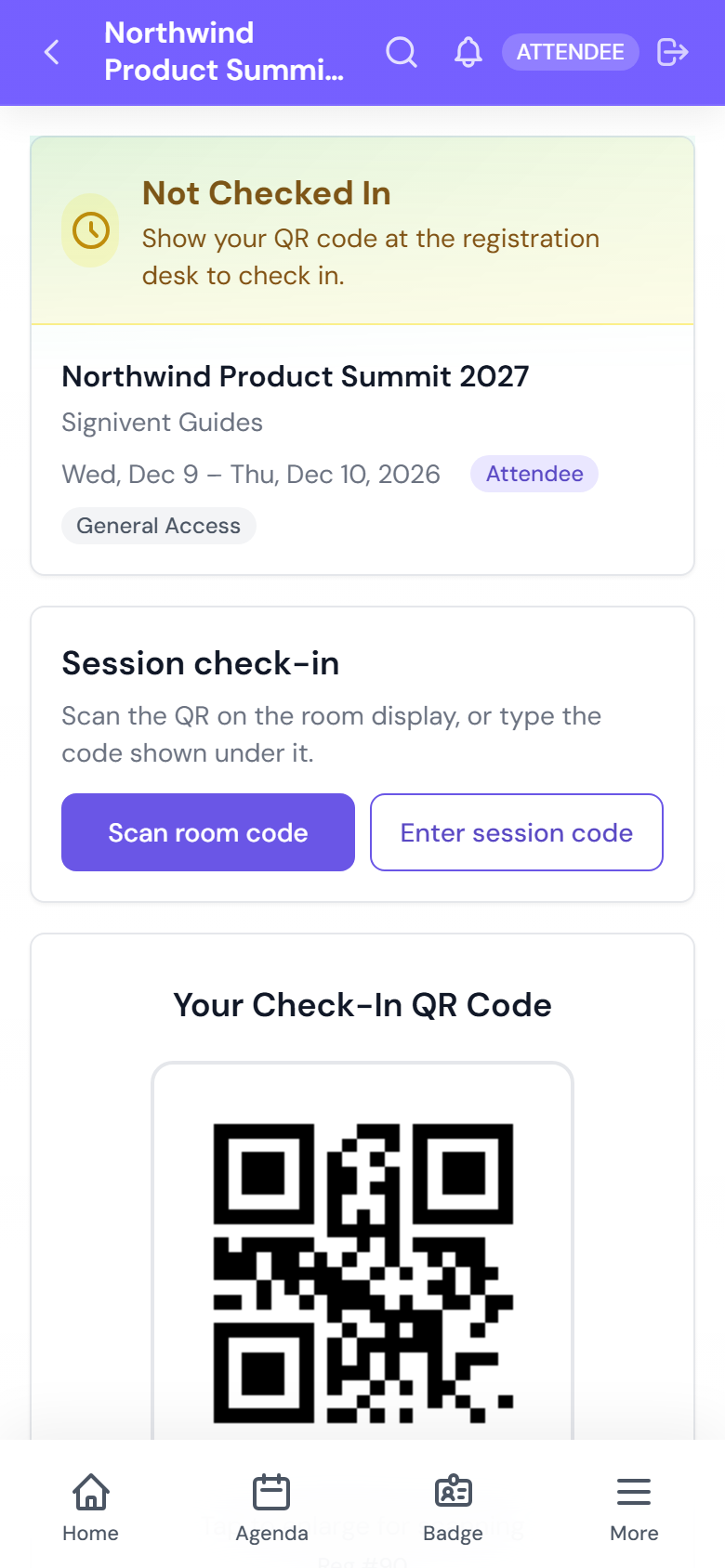
The check-in screen shows whether you are checked in, your check-in QR code and your upcoming sessions. To check in to a session that takes attendance, open the session in the agenda from 15 minutes before it starts and tap Check in: then tap Scan room code and scan the QR code on the room's display, or tap Enter session code and type the code shown under it. (At trade shows the organizer may put Scan in the bottom bar, which opens the same screen.)
Exhibitors
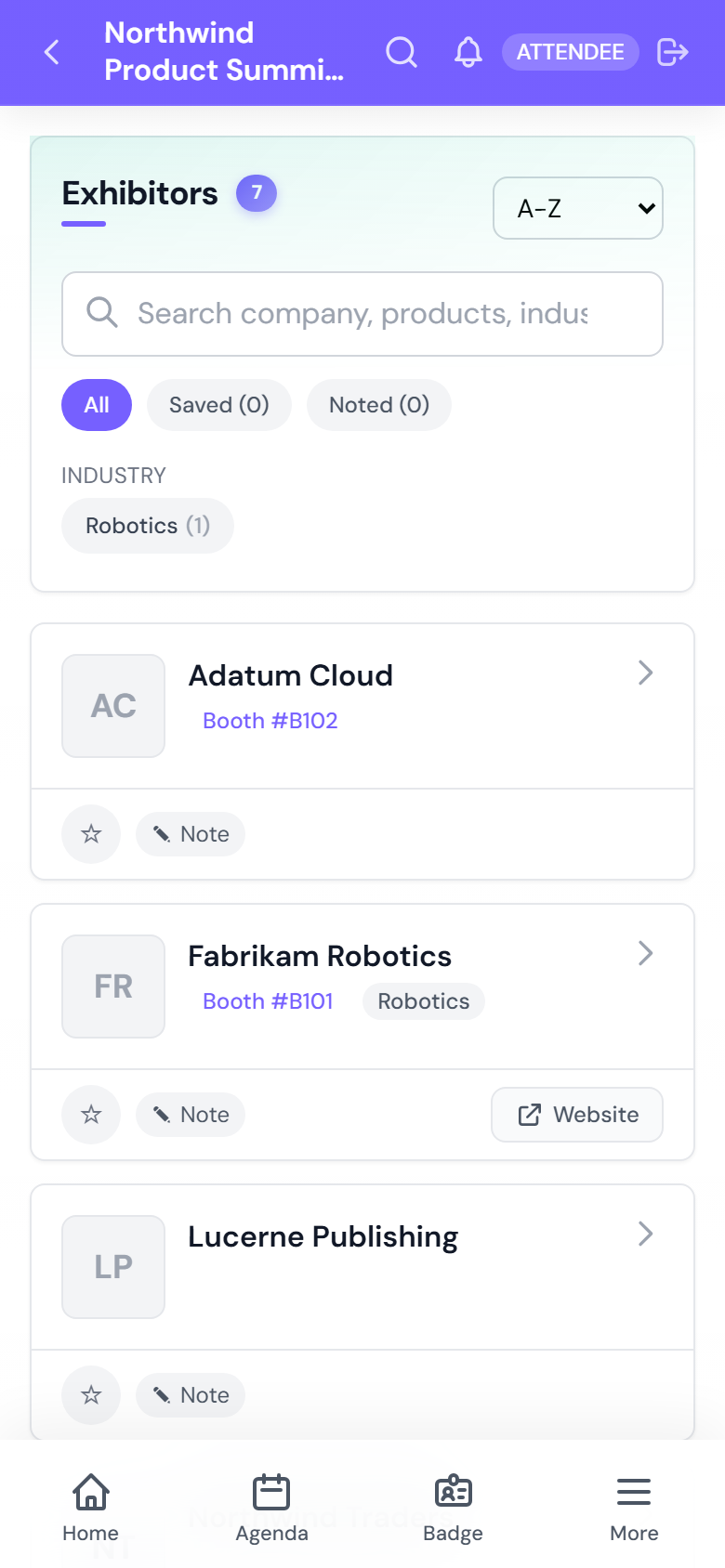
Exhibitors (under More) lists the companies exhibiting, with their booth numbers. Sort them A-Z, by Booth # or By tier, filter by industry, and star the ones you want to visit; they appear under Saved. Tap a company for its profile, website and products.
Networking and messages
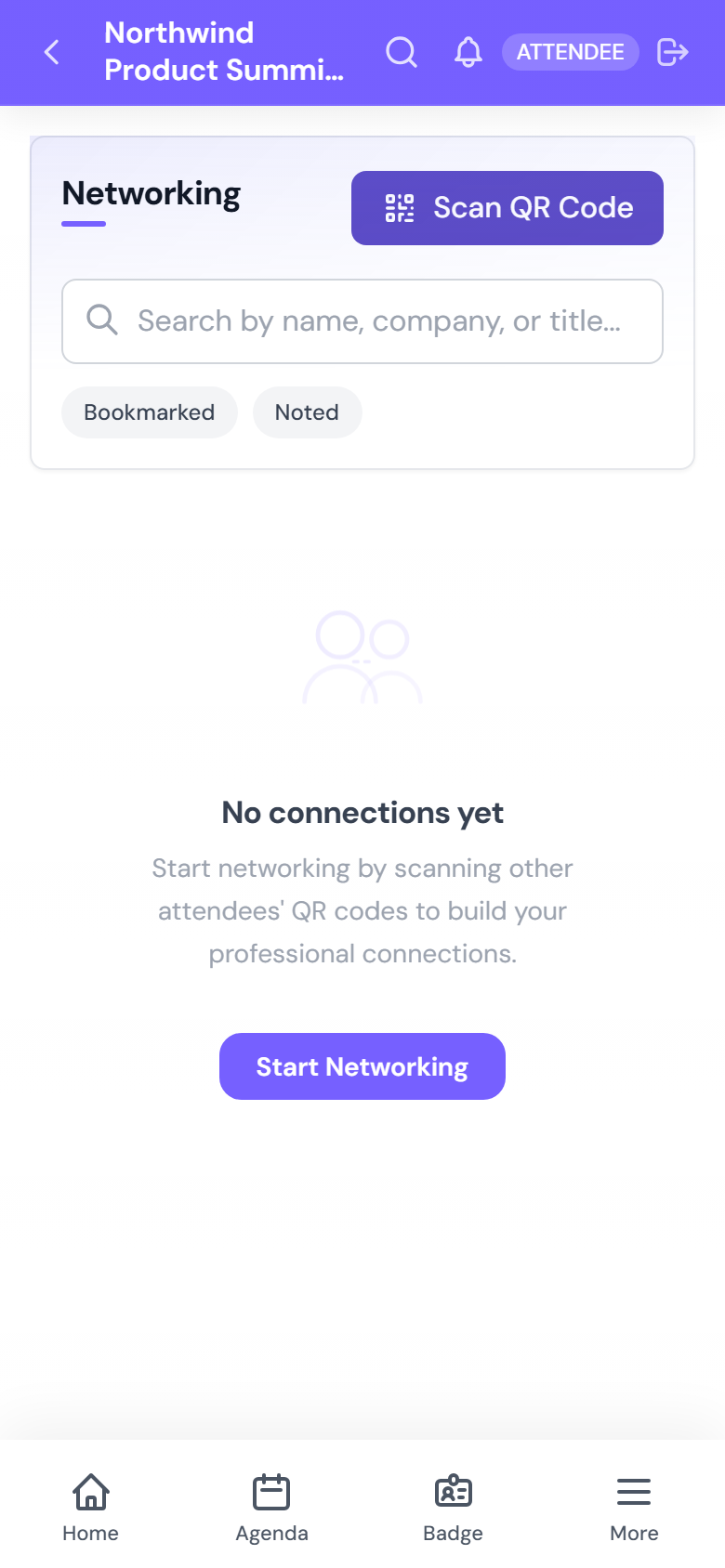
Networking keeps the people you meet. Tap Scan QR Code and scan another attendee's badge to connect with them; your connections appear here, and you can bookmark them or add a note.
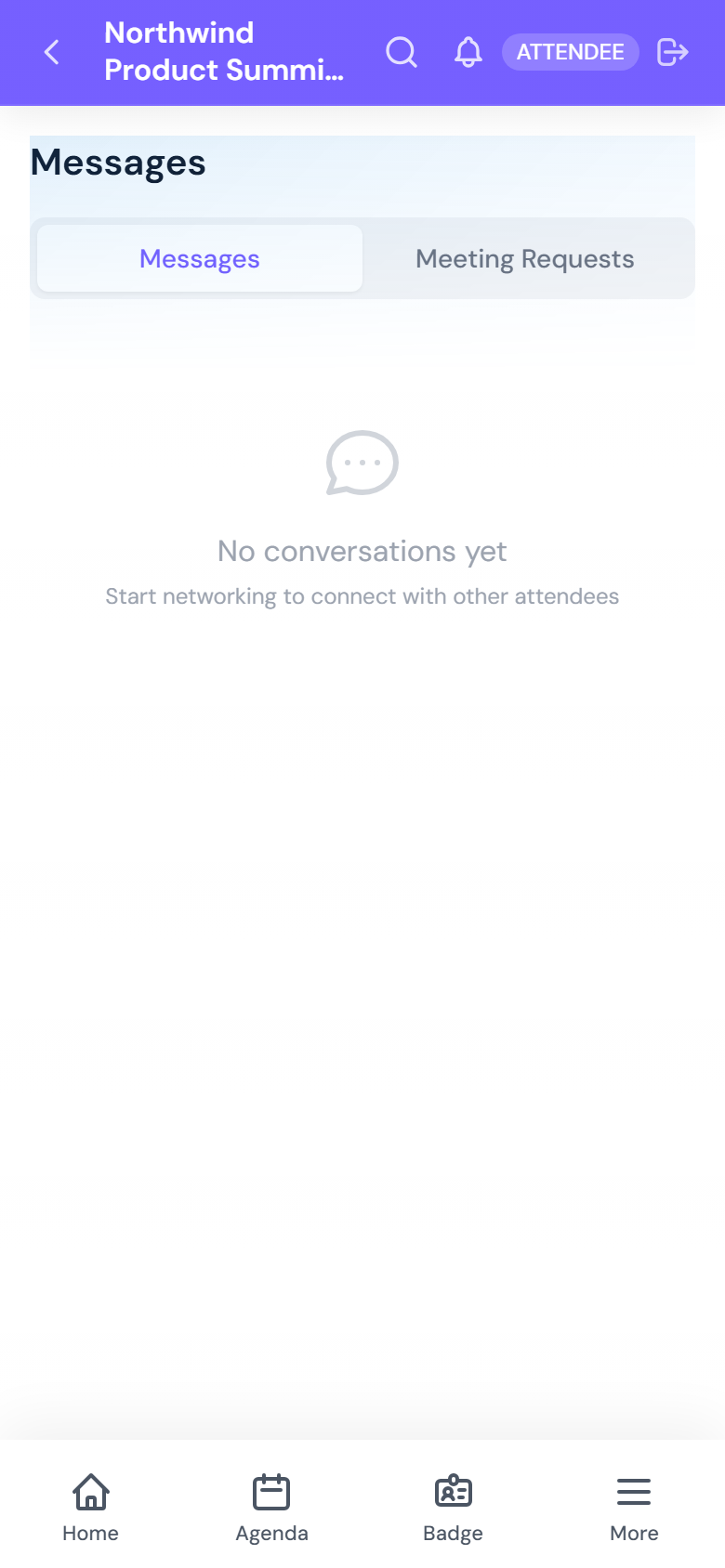
Messages holds your conversations with people you have connected with, and Meeting Requests the meetings people asked you for (and you asked for).
More
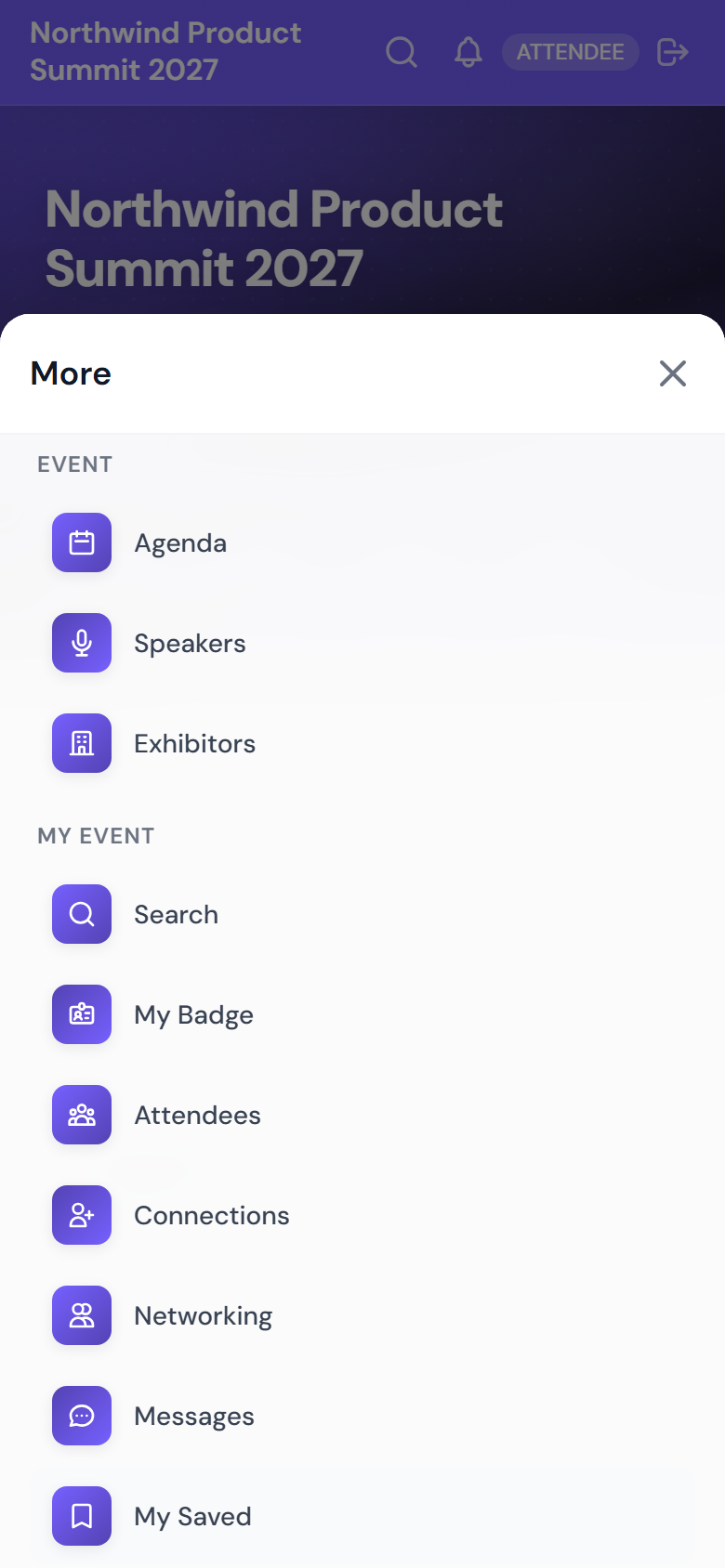
More opens the rest of the app: under Event, the agenda, speakers, exhibitors and the venue map; under My Event, search, your badge, the attendee directory (Attendees), Connections, Networking, Messages and My Saved; further down, items such as My Credits, Resources, Event Info, Housing, My Profile, Privacy and Notifications. The organizer decides which of these their event has.
Privacy controls what other attendees see about you, and whether exhibitors who scan your badge get your contact details (Share my contact details with exhibitors who scan my badge).
Troubleshooting
| You see | Why | Fix |
|---|---|---|
| A menu item from this guide is missing | The organizer did not switch that feature on for this event | Nothing to do; ask the organizer if you need it |
| Your badge says Not Checked In after you checked in | The app has not refreshed yet | Leave the badge screen and open it again |
| The QR code won't scan at the door | Screen too dim, or a cracked screen | Turn the brightness up, or give staff the registration number under the code |
| You can't message someone | You are not connected yet | Connect with them first by scanning their badge |