Travel and housing for an event
Track the people traveling to your event, their flights and arrival times, group air blocks, airport transfers and hotel room blocks, all from Travel & Lodging.
Travel & Lodging in the event menu collects everything for people traveling to your event: invitation letters for visas, flights, airport transfers, arrival day and hotels. Start on Overview, then work the page you need.
| Page | What it is for |
|---|---|
| Overview | Counts of travelers, visa letter requests and hotel rooms booked, and the setup checklist |
| Travellers | Speakers, team and exhibitor staff who travel without a registration |
| Visa Letters | The event's visa letter queue; see Visa letters for one event |
| Air Travel | Flight requests sent to your travel management company (TMC) |
| Group Air | Blocks of seats you hold with an airline |
| Ground Transport | Shuttles and transfers, with a manifest of who rides |
| Arrivals | Everyone's arrival time, flight, hotel and visa letter state on one list |
| Housing | Hotels, room blocks and reservations |
Overview
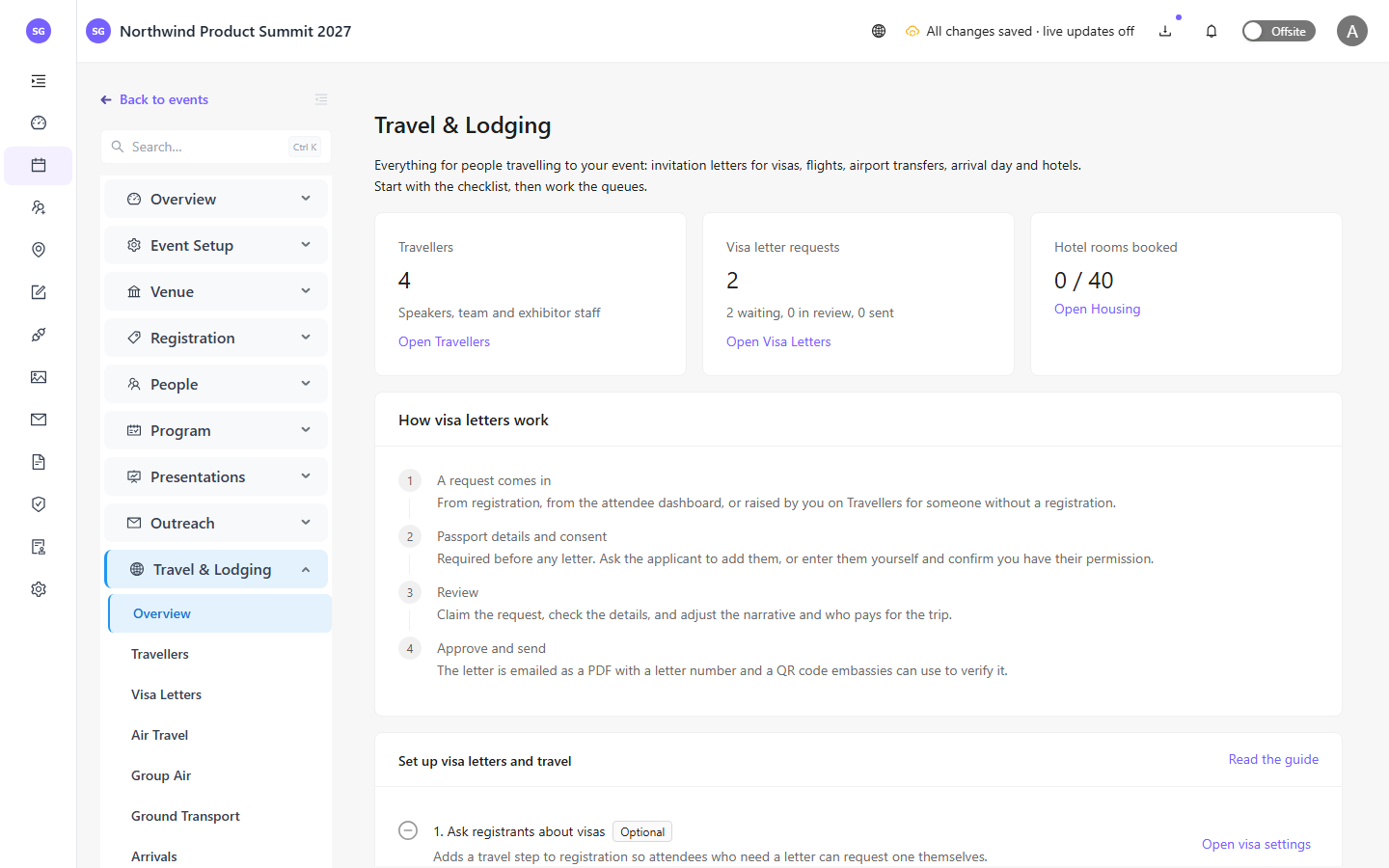
Each tile opens its page: Open Travellers, Open Visa Letters, Open Housing. Below the tiles are the visa steps and the setup checklist (see Before the first request).
Travellers: people without a registration
Registered attendees bring their own travel details from registration. Use Travellers for the people who do not register: your team, speakers and exhibitor staff.
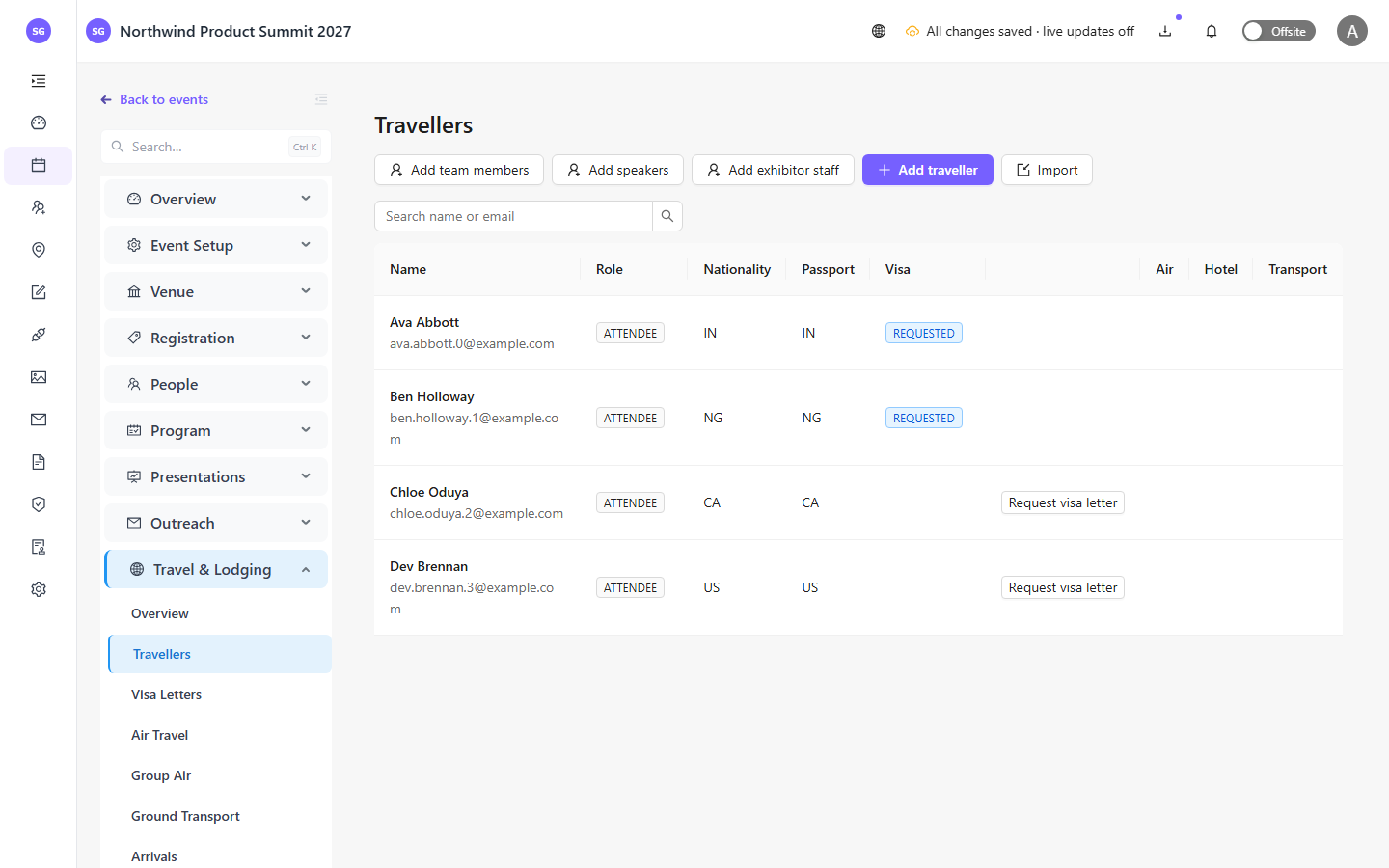
- Click Add team members, Add speakers or Add exhibitor staff to bring in people you already have in the event, or Import to load a spreadsheet.
- To add one person by hand, click Add traveller, enter the Name and Email, pick the Role (Guest, Team, Speaker or Exhibitor staff) and click OK.
- Click the person's row to open their details and add their nationality, country of residence, port of entry, arrival and departure flights and accommodation.
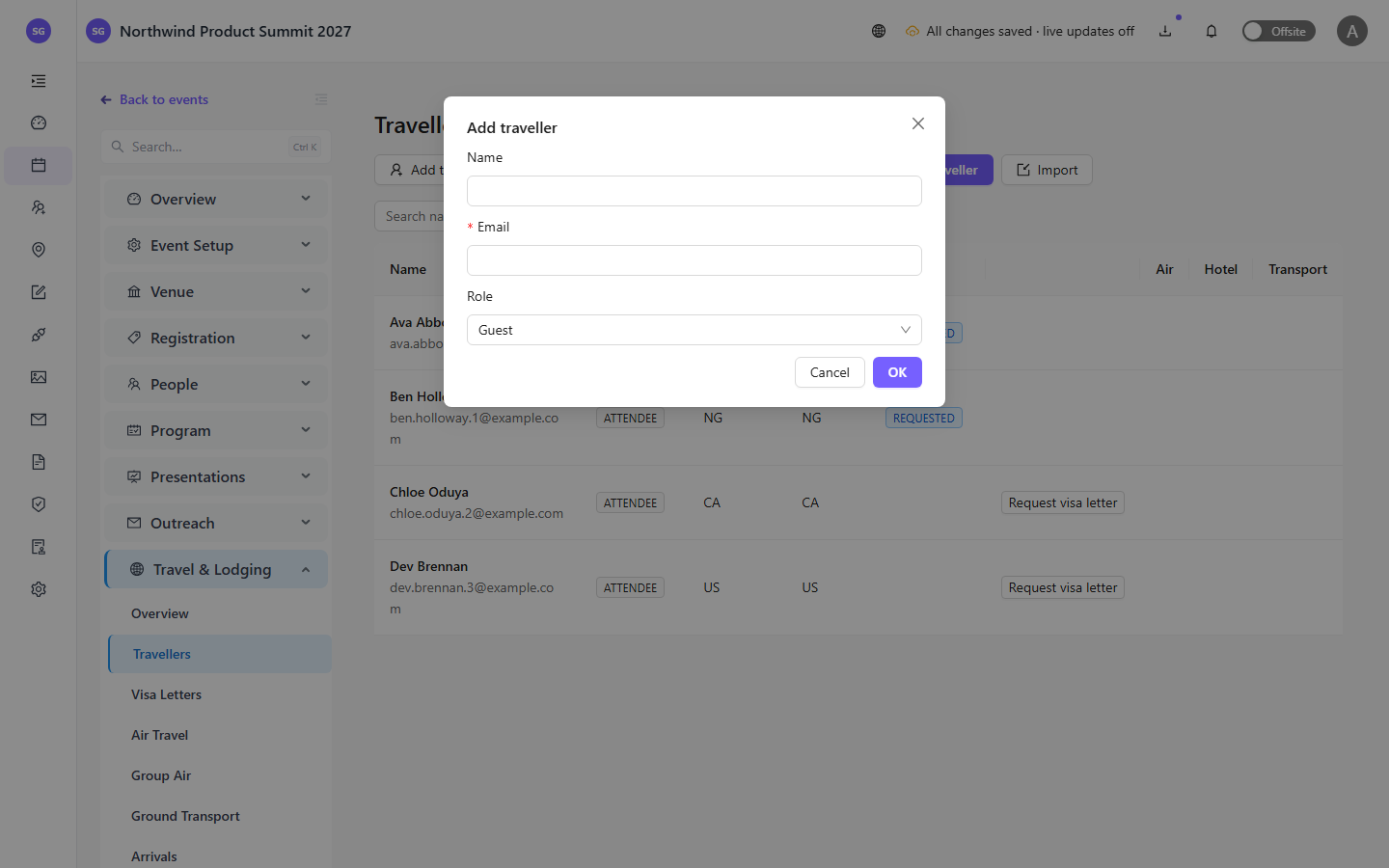
Each row then shows the person's Nationality, whether passport details are on file, their Visa letter state, and their Air, Hotel and Transport bookings. From a traveler's details you can Create visa letter request or Send to travel desk.
Air travel and the travel desk
When the travel desk is on, attendees, speakers and staff can ask for flights from their dashboard, and the requests go to your travel management company (TMC), which searches fares and books for you.
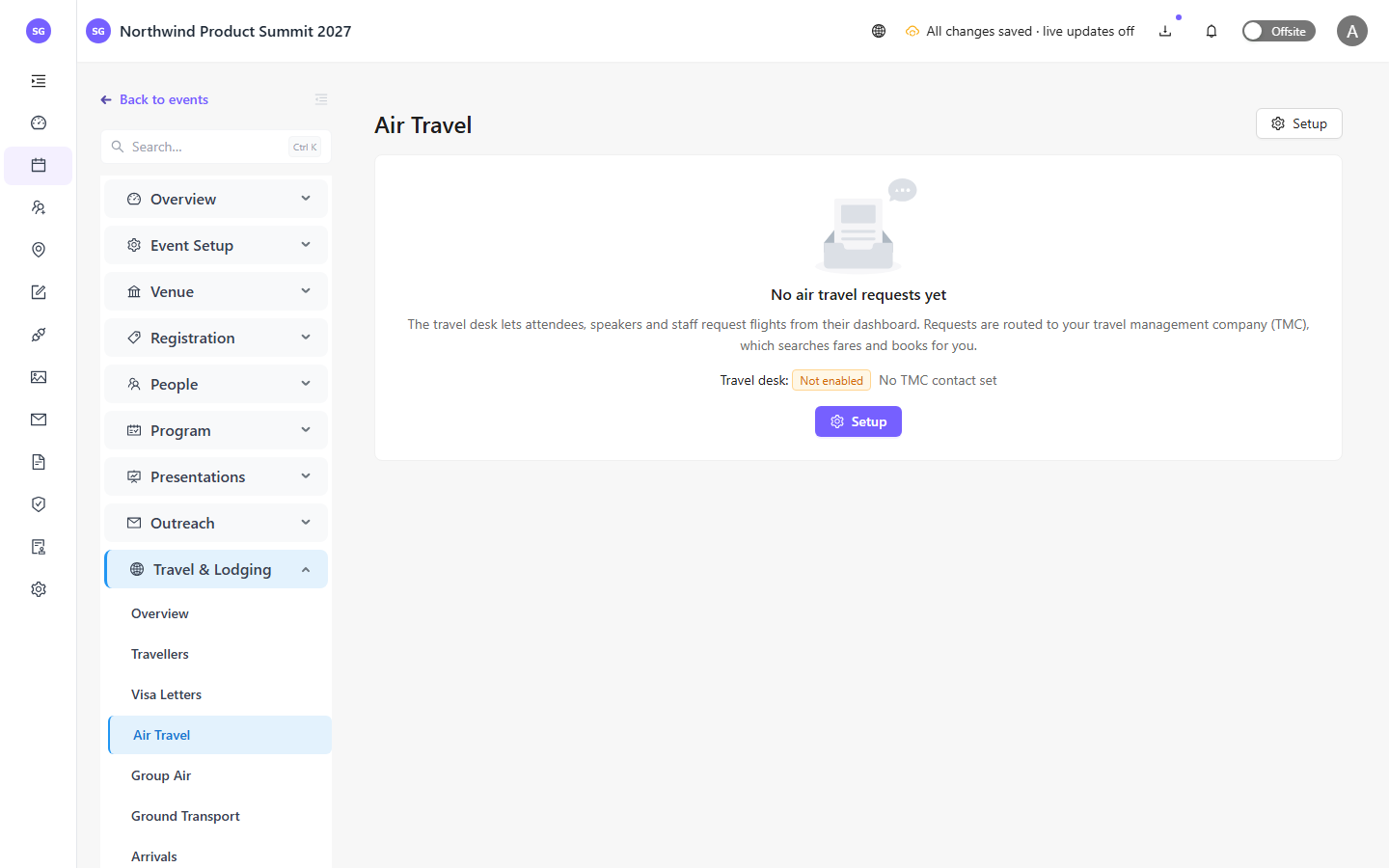
- Click Setup.
- Under Travel desk (flight booking), enter the Travel agency name and the Agency contact email (routed requests are emailed there with a secure link to the travel desk), tick Enable flight-booking requests for attendees and click Save travel desk.
- Optionally, under Travel policy, tick Enforce travel policy for attendee requests and set a Maximum budget, a Maximum cabin class, Minimum advance booking days, Preferred carriers and the Default funding source (self paid or event funded). Click Save policy.
- Requests then appear in the queue on this page, with their status.
Group Air holds seat blocks you have negotiated with an airline: click New group block, enter the carrier, route, dates, number of seats and the deadline, then assign travelers to seats. Ground Transport works the same way for shuttles: click New service, set when and where it departs, the seats and the vendor, and switch on Attendees can request if attendees may ask for a seat. Each service keeps a manifest you can export for the driver.
Arrivals
Arrivals lists everyone with travel details, in arrival order, in the event's local time: the route, flight, hotel, visa letter state and whether they need a transfer.
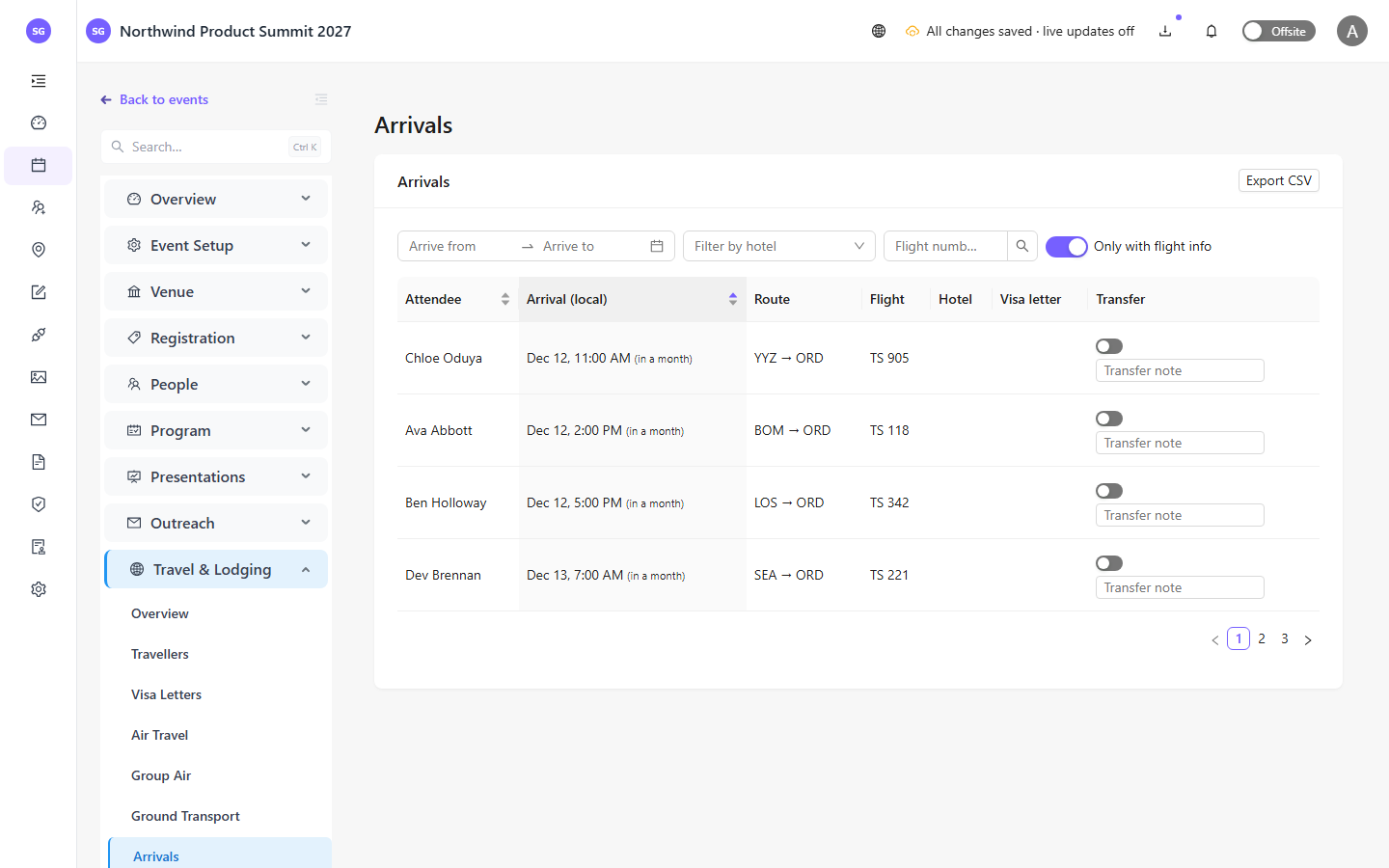
- Filter by hotel to plan a shuttle run per hotel.
- Switch on Only with flight info to hide people who have not sent their flight yet.
- Export CSV gives the same list to your ground handler.
Housing: hotels and room blocks
Housing shows the event's hotels with totals across them: total, available and reserved rooms, utilization, checked in and pending.
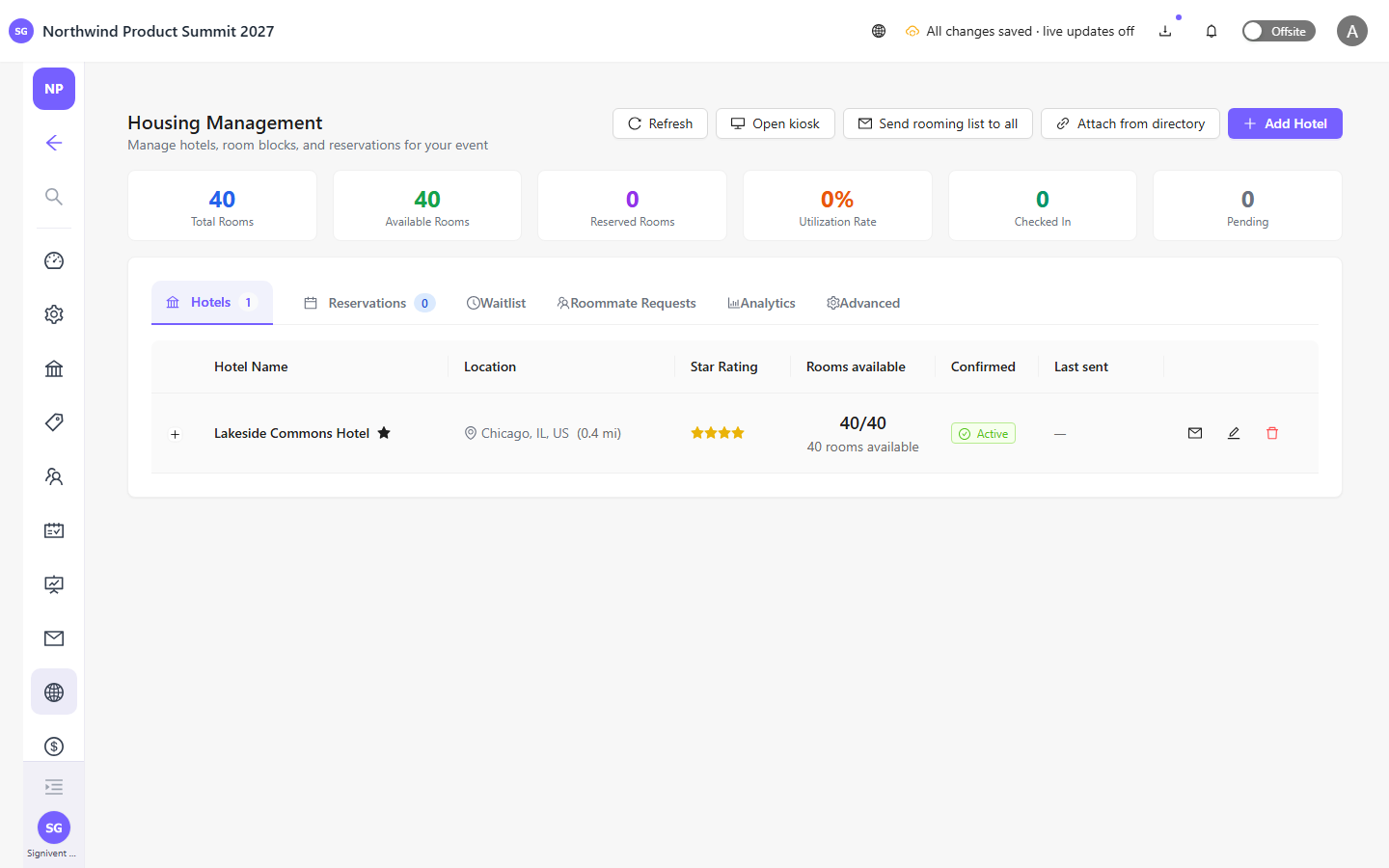
- Add a hotel: Add Hotel to create one, or Attach from directory to reuse a hotel from your organization's directory (see Venues, rooms and hotels).
- Expand the hotel's row (the button at its left) to see its room blocks, then Add Room Block. Enter the Room Block Name and Room Type, the Total Rooms, the Rate Per Night and currency, the Booking Cutoff Date, and the Check-In Date and Check-Out Date. Optional fields cover taxes and fees, occupancy, beds and minimum or maximum nights.
- Click Save. The block's rooms count toward the totals at the top and toward the Hotel rooms booked tile on Overview.
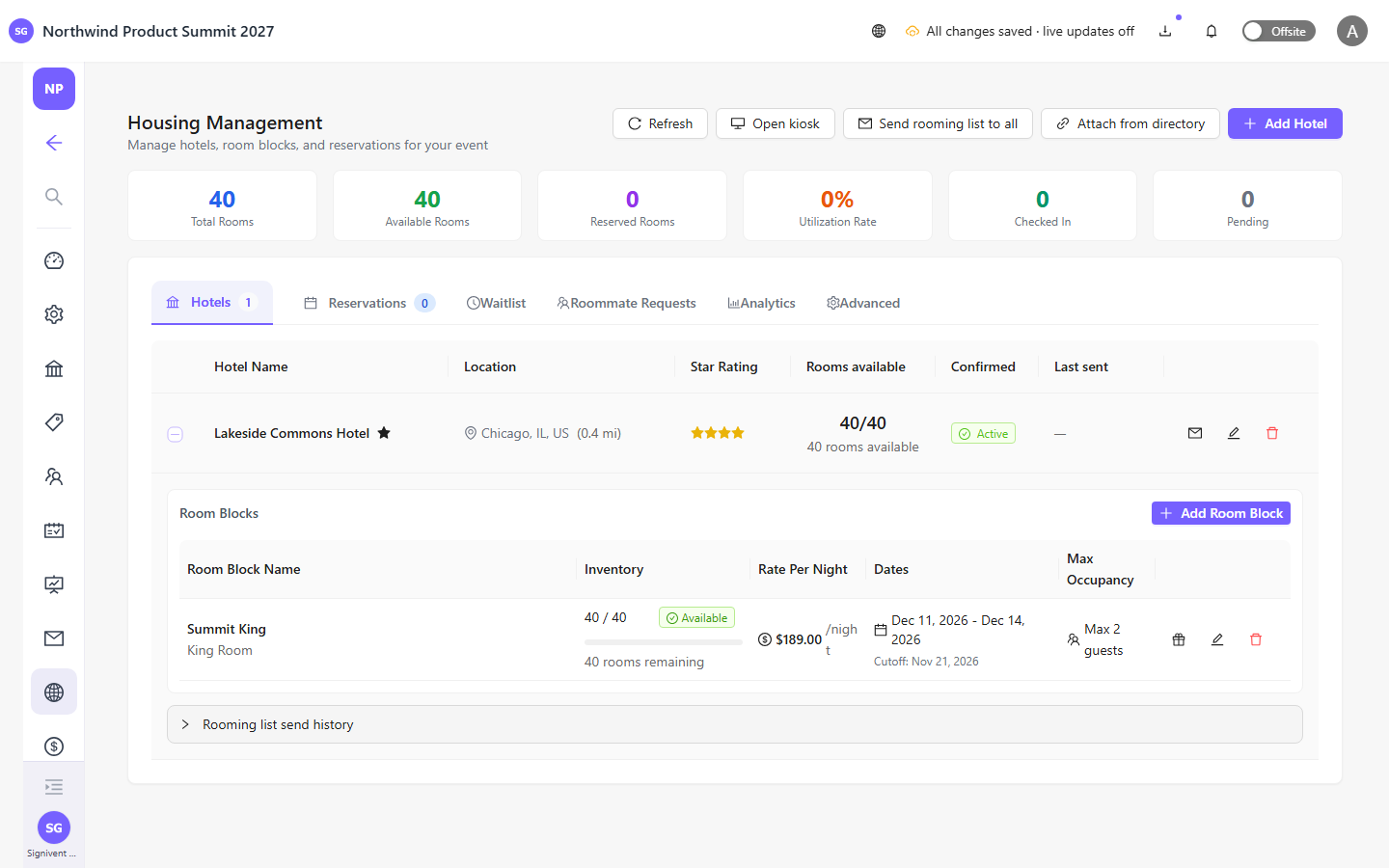
The other Housing tabs: Reservations (who booked what), Waitlist, Roommate Requests, Analytics and Advanced (rooming lists, emails, raffles, payment settings and integrations). Send rooming list to all emails each hotel its current rooming list, so check the list under Reservations first.
Who can do this
Organization admins can use every Travel & Lodging page. Members see the pages their role allows.
Troubleshooting
| You see | Why | Fix |
|---|---|---|
| An attendee is missing from Arrivals | They have not given an arrival time | Ask them to add their flight in their attendee dashboard, or switch off Only with flight info |
| Air Travel shows "Travel desk: Not enabled" | The travel desk is off for this event | Click Setup and turn it on |
| Hotel rooms booked shows 0 / 0 | No room blocks yet | Expand the hotel in Housing and add a room block |