Venues, rooms and hotels
Keep one list of the venues your organization uses, add the rooms inside them from each event, and build a hotel directory you can attach to events.
Venues and hotels are shared by every event in your organization, so you set them up once and pick them when you create an event. Both live under Locations in the organization sidebar: Venues and Hotel Directory. Rooms belong to a venue but are added from inside an event, under Venue > Rooms.
Setup at a glance
| Step | Where | Required? | What it does |
|---|---|---|---|
| Add a venue | Locations > Venues > New Venue | Required for in-person and hybrid events | The address prints on the event page, tickets and visa letters |
| Pick the venue for an event | New Event wizard, Location step | Required for in-person and hybrid events | Links the event to the venue |
| Add rooms | Event > Venue > Rooms > New Room | Optional | Rooms can be assigned to sessions, speakers and activities |
| Add floors | Venues > a venue > Floors | Optional | Groups rooms and floor plans by level |
| Add hotels | Locations > Hotel Directory > Add hotel | Optional | Hotels you can attach to events for housing |
Add a venue
- In the sidebar, open Locations > Venues. The page shows how many venues you have, how many are active and their total capacity.
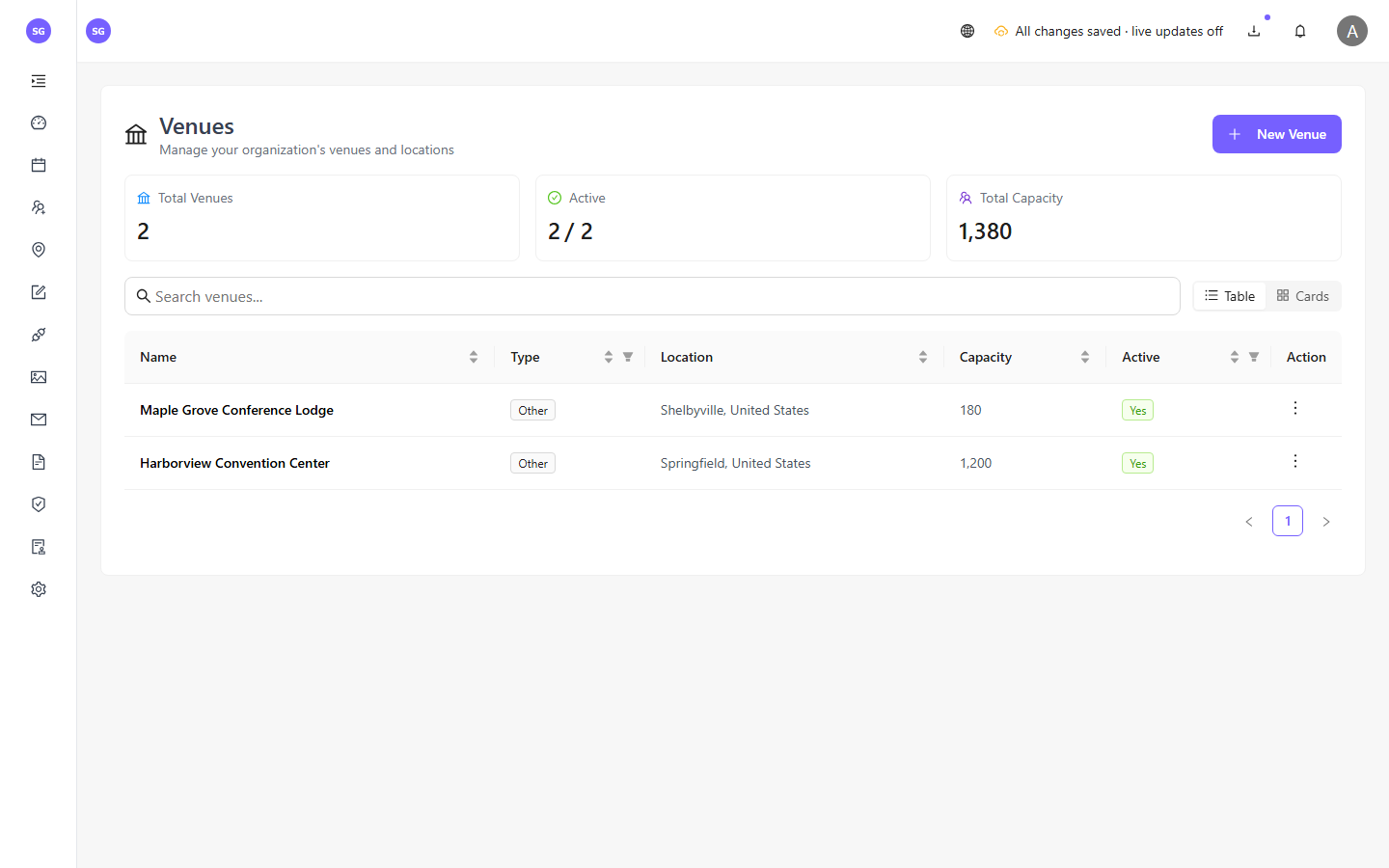
- Click New Venue.
- Fill in Venue Name, Street Address and City (required), then anything else you know: venue type, contact email, state, postal code, country, phone, time zone, website, Capacity (how many people the venue holds), parking and accessibility notes.
- Leave Active on. Turn on Is Primary for the venue you use most.
- Click Submit.
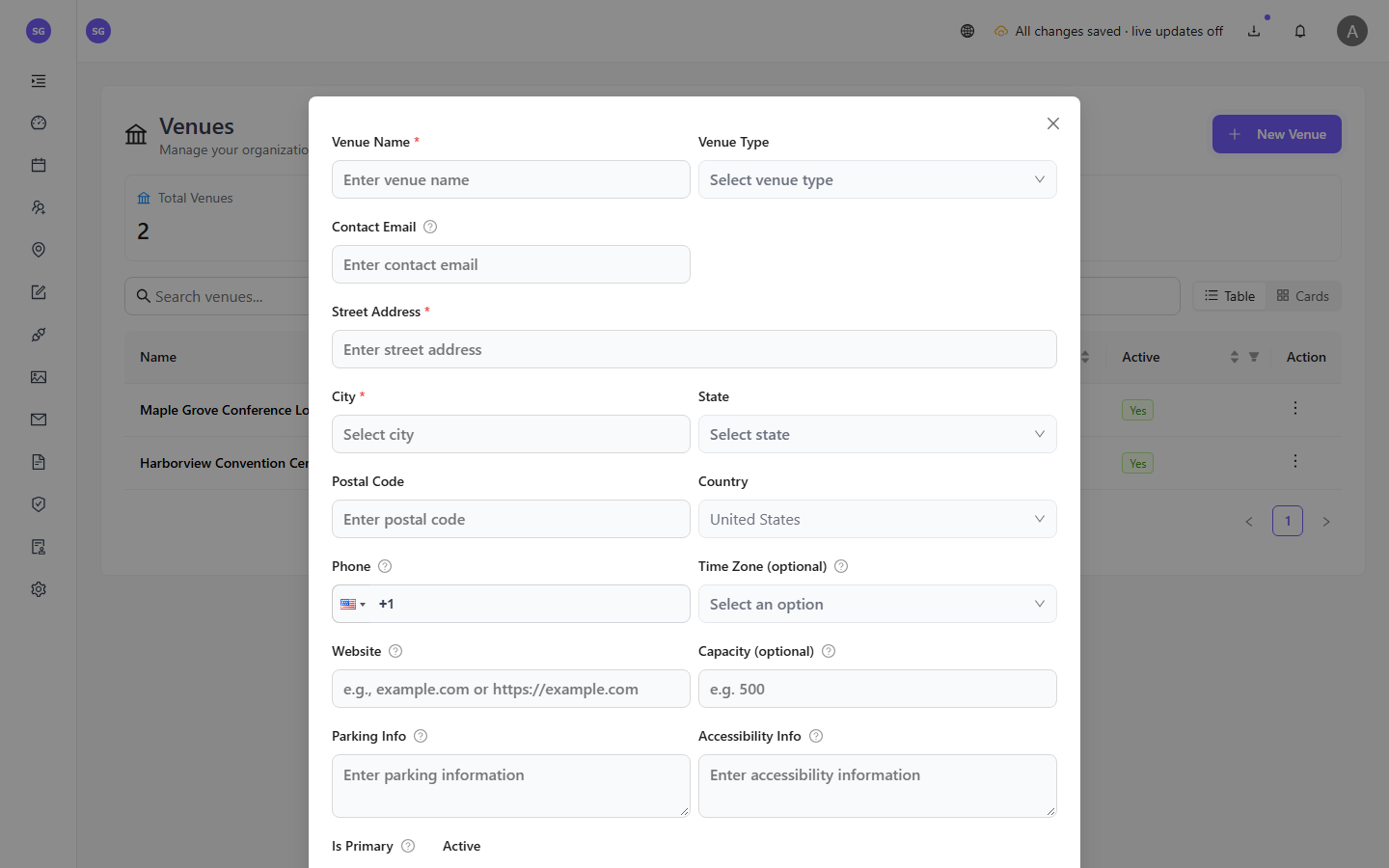
Set the Time Zone so event times show correctly for people in other zones. You can also add a venue without leaving the New Event wizard: click Add venue in its Location step.
Manage venues
Each venue row has a menu (the three dots) with:
- View Details opens the venue page.
- Edit changes any field.
- Duplicate opens the form pre-filled, for a second building with similar details.
- Find duplicates lists venues with the same name and city. Merging one into this venue moves its rooms, floors, layouts and event links here and deletes the duplicate.
- Deactivate marks the venue inactive without deleting it, so the Active count shows which venues you still use. Activate brings it back.
- Delete removes it.
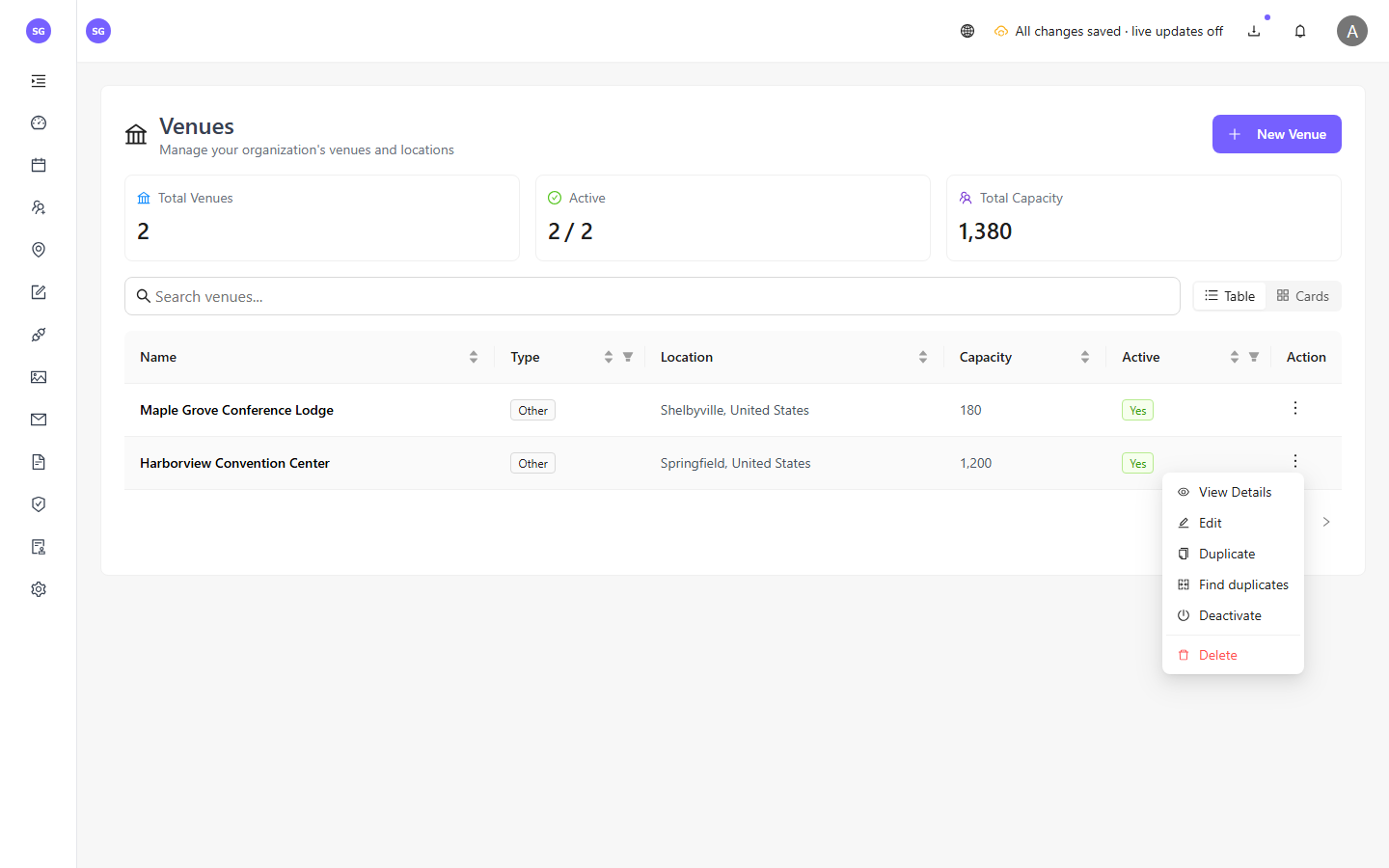
Use Table or Cards to change the view, and the search box to find a venue by name.
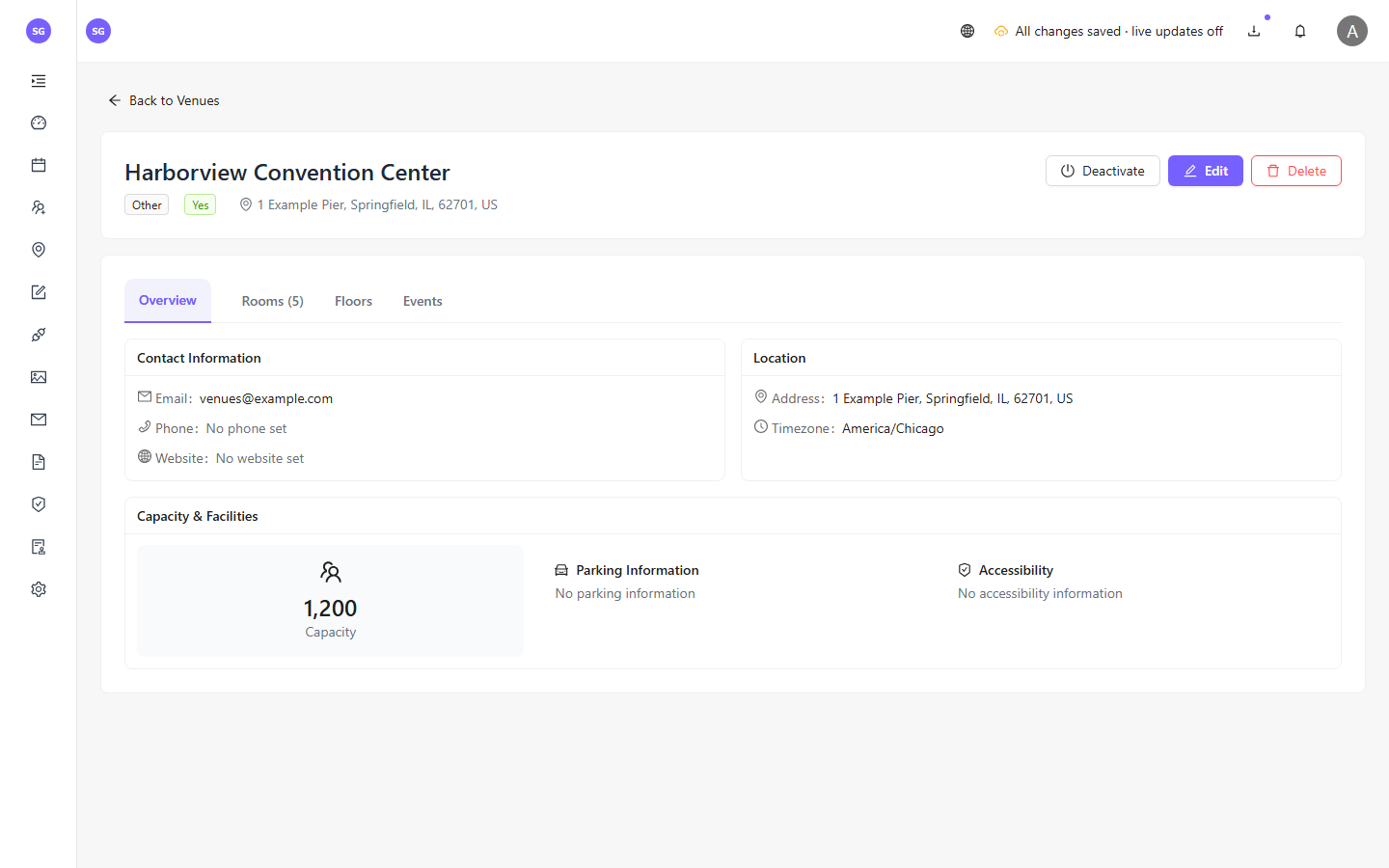
The venue page shows the contact details, address, time zone and capacity on Overview, with tabs for Rooms and Floors.
Add rooms
Rooms are added from an event that uses the venue, and then appear on the venue for every later event.
- Open the event and go to Venue > Rooms in its menu.
- Click New Room.
- Enter the Name and the Capacity (or switch on Unlimited). Add the room type, floor, amenities and notes if you like.
- Click Create room.
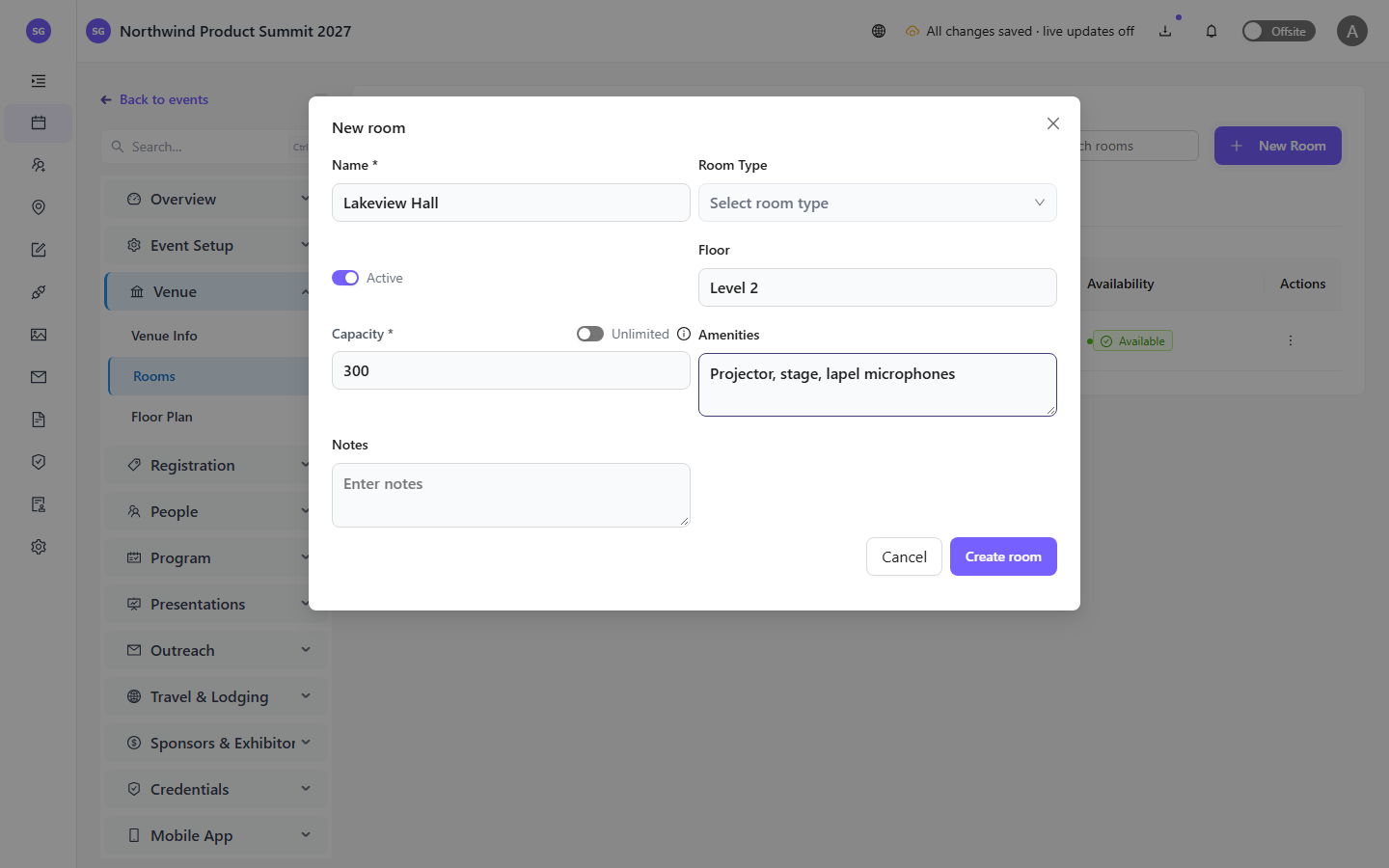
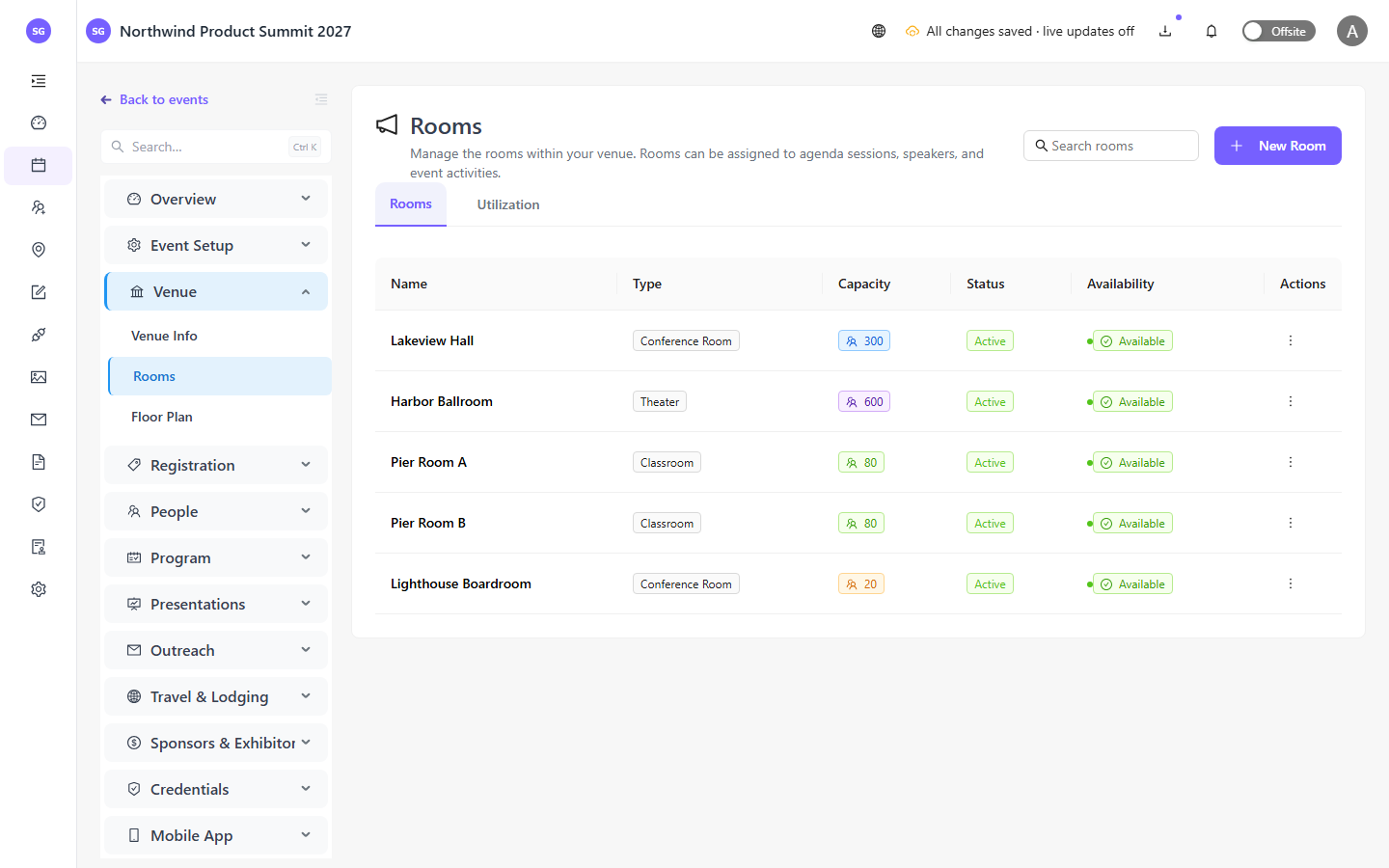
The room is listed with its type, capacity, status and availability. The Utilization tab shows how much each room is booked by sessions.
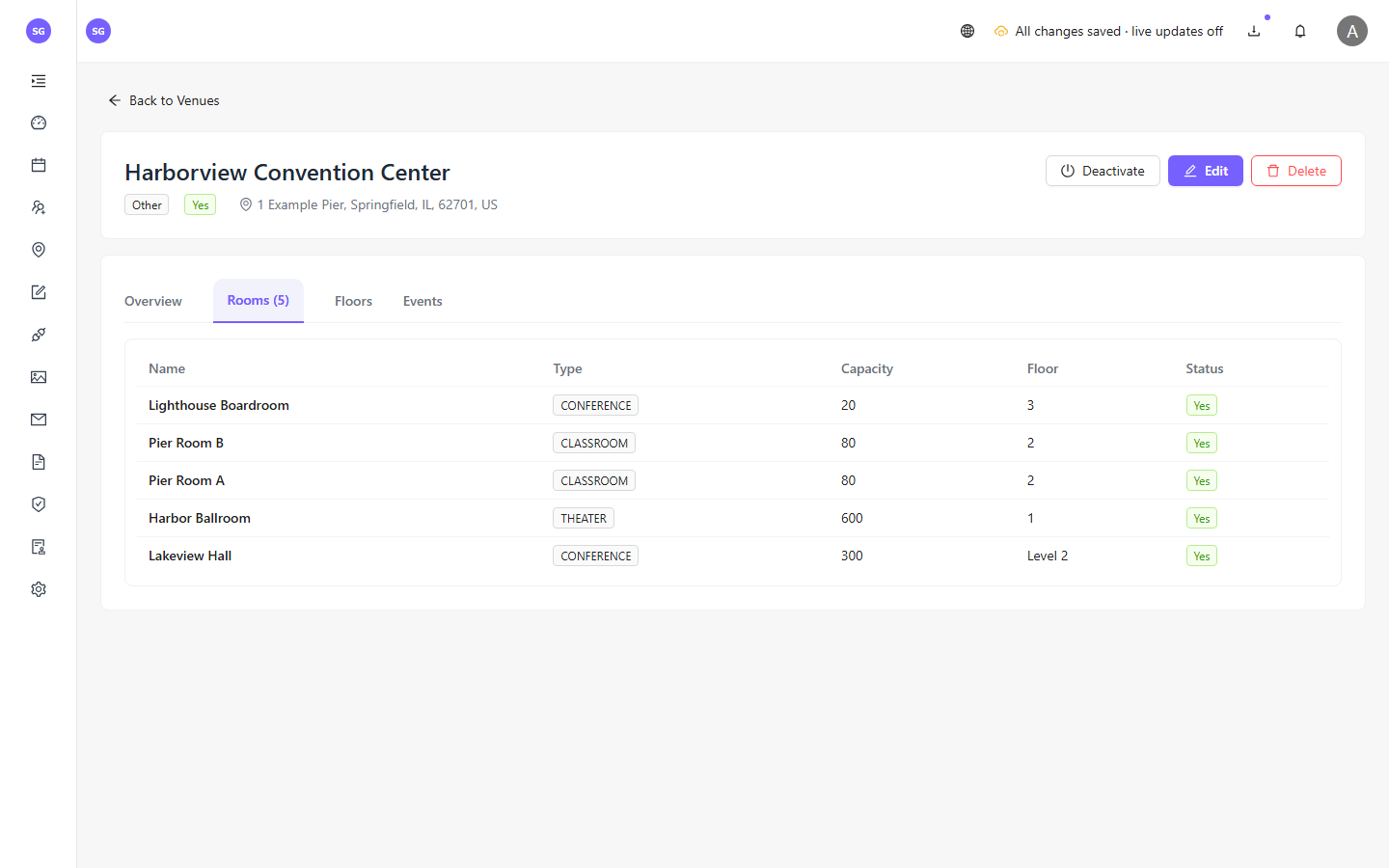
Back on Locations > Venues, the venue's Rooms tab now lists the room with its floor.
To lay rooms out by level, open the venue's Floors tab and click Add floor.
Build the hotel directory
- Open Locations > Hotel Directory.
- Click Add hotel.
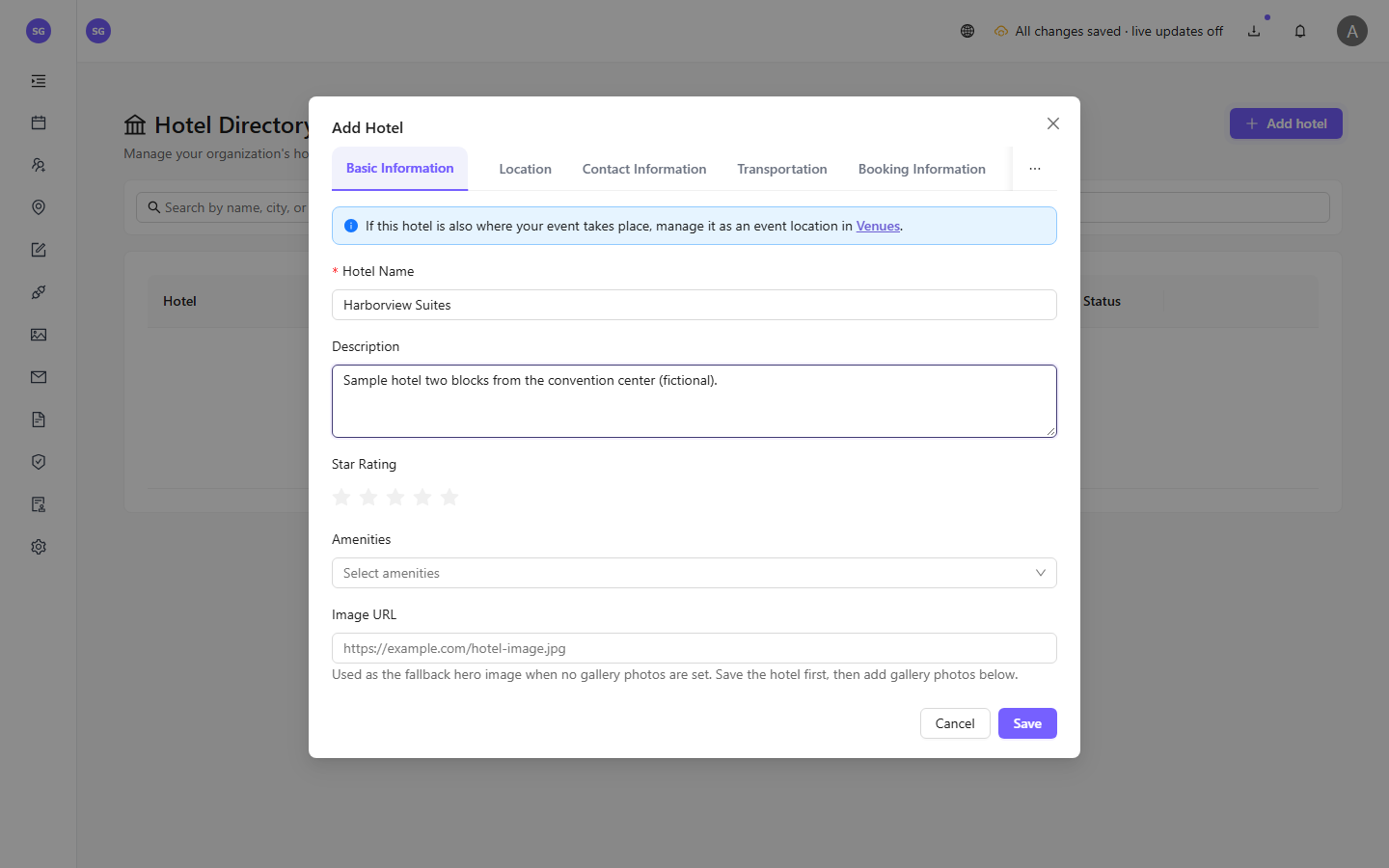
- Enter the Hotel Name (required) and a description. The other tabs hold the location, contact information, transportation, booking information and settings.
- Click Save.
The hotel appears in the directory with its location, contact, number of room types and status. Use the icons on the row to manage room types, edit or delete it. Attach hotels to an event from the event's Travel & Lodging menu.
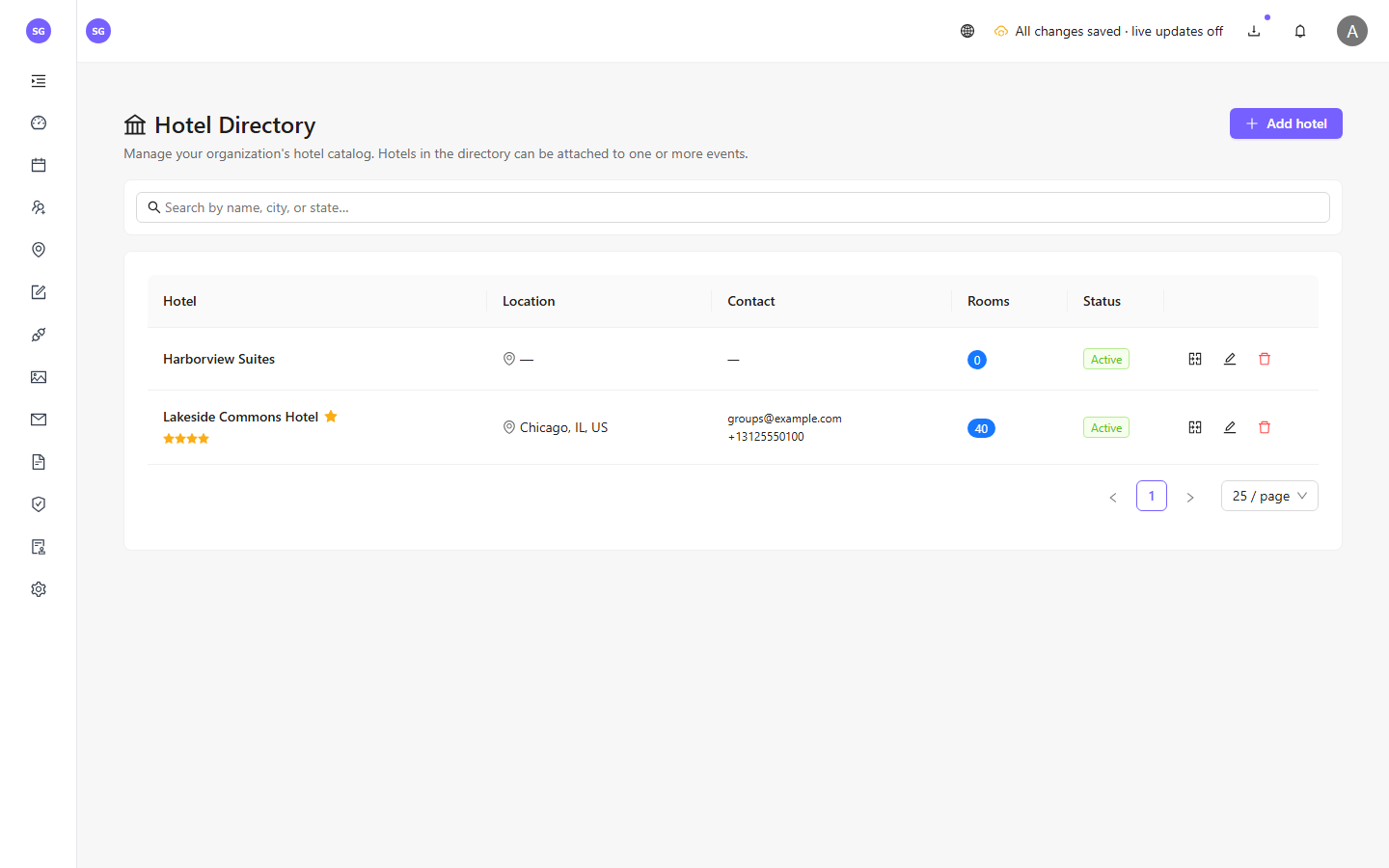
If the hotel is also where the event itself takes place, add it under Venues instead, so it can hold rooms and appear as the event location.
Who can do this
Organization admins manage venues and hotels. Event staff with access to an event can add its rooms.
Troubleshooting
| You see | Why | Fix |
|---|---|---|
| The venue page has no Add room button | Rooms are added from an event | Open an event at that venue, then Venue > Rooms > New Room |
| Failed to create room: the fields event, name must make a unique set | The event already has a room with that name | Use a different name, or edit the existing room |
| Two venues with the same name | It was added twice | Venue menu > Find duplicates, then merge |
| Locations > Rooms opens the Events page | Rooms belong to events | Open an event, then Venue > Rooms |