Custom fields
Add your own fields to attendees, speakers, events, sessions and registrations, start from a ready-made template, set options, validation and conditions, and import, export or copy fields between events.
Custom fields add information Signivent does not collect out of the box, such as a T-shirt size, a membership number or dietary needs. You define a field once for your organization, and it is then available for every event. Open Custom Fields in the organization sidebar.
The Custom Fields page
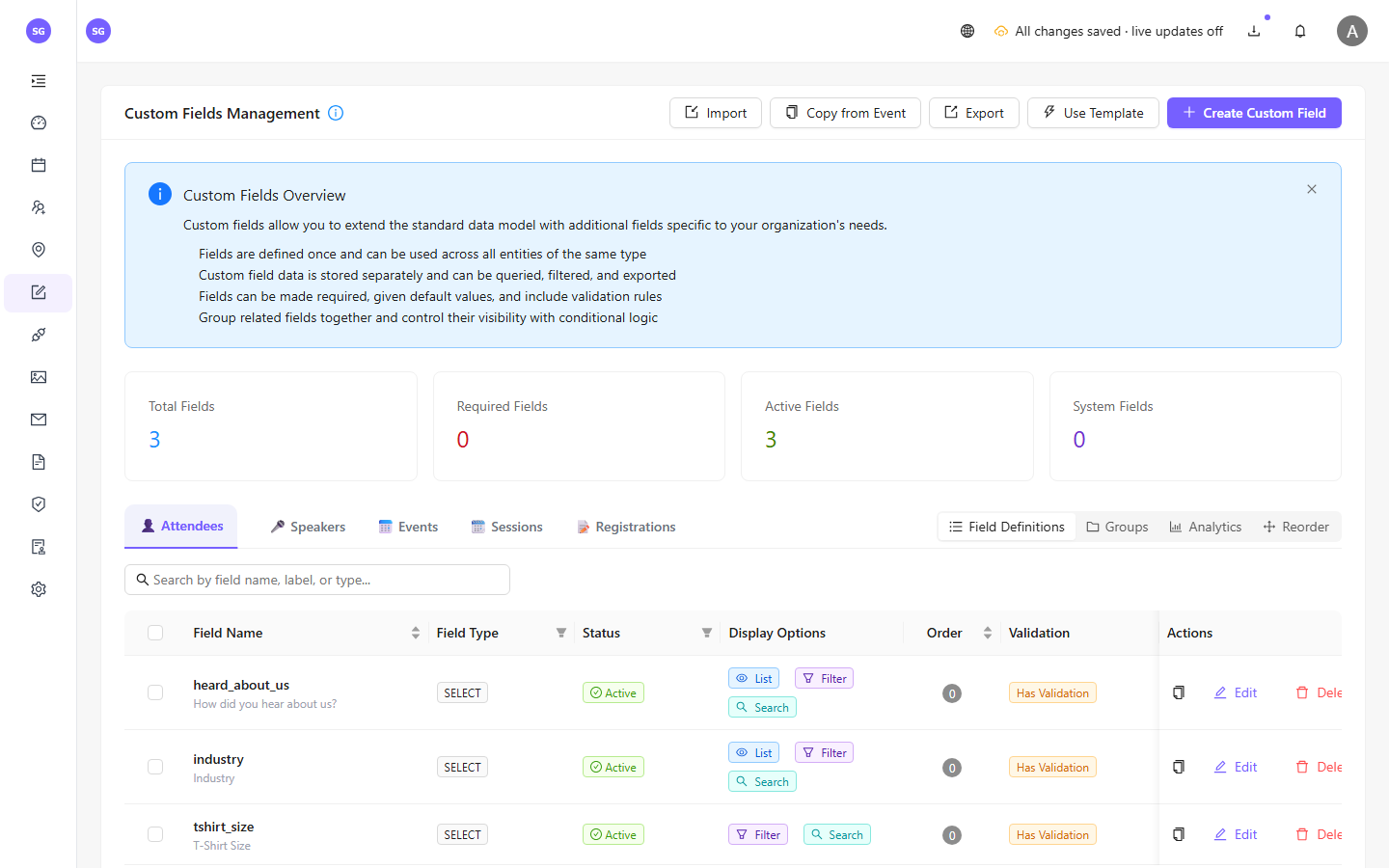
The counters show Total Fields, Required Fields, Active Fields and System Fields. The tabs pick what the fields belong to: Attendees, Speakers, Events, Sessions or Registrations. Under each, Field Definitions lists the fields, Groups bundles related fields, Analytics shows how they are filled in, and Reorder sets their order.
Add a field from a template
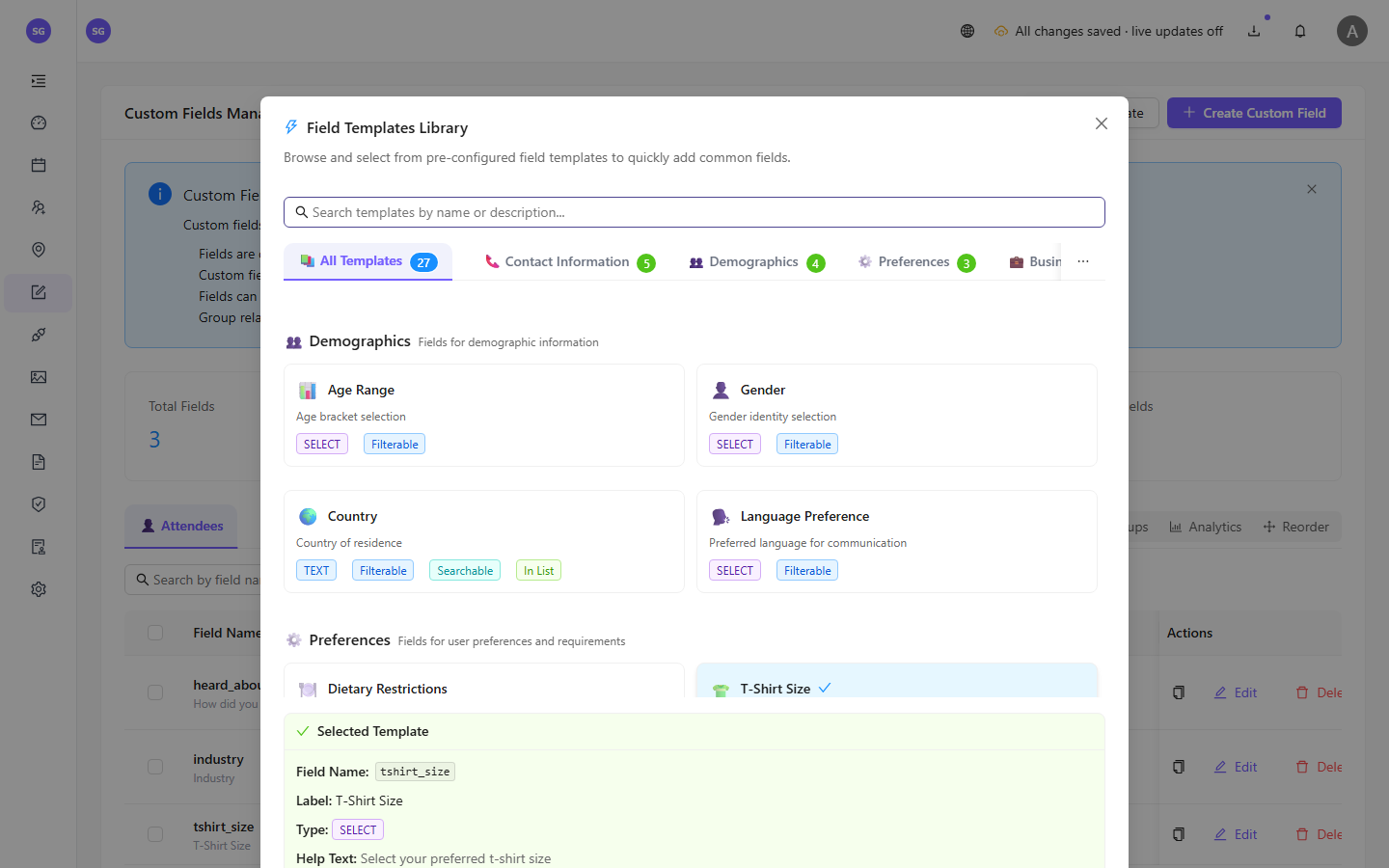
The template library has 27 common fields in seven groups: contact information, demographics, preferences, business, event-specific, social media and compliance.
- Pick the tab the field belongs to, for example Attendees.
- Click Use Template.
- Click a template, for example T-Shirt Size. The Selected Template box at the bottom shows its name, label, type and help text.
- Click Use Template. The new-field form opens, already filled in.
Create or edit a field
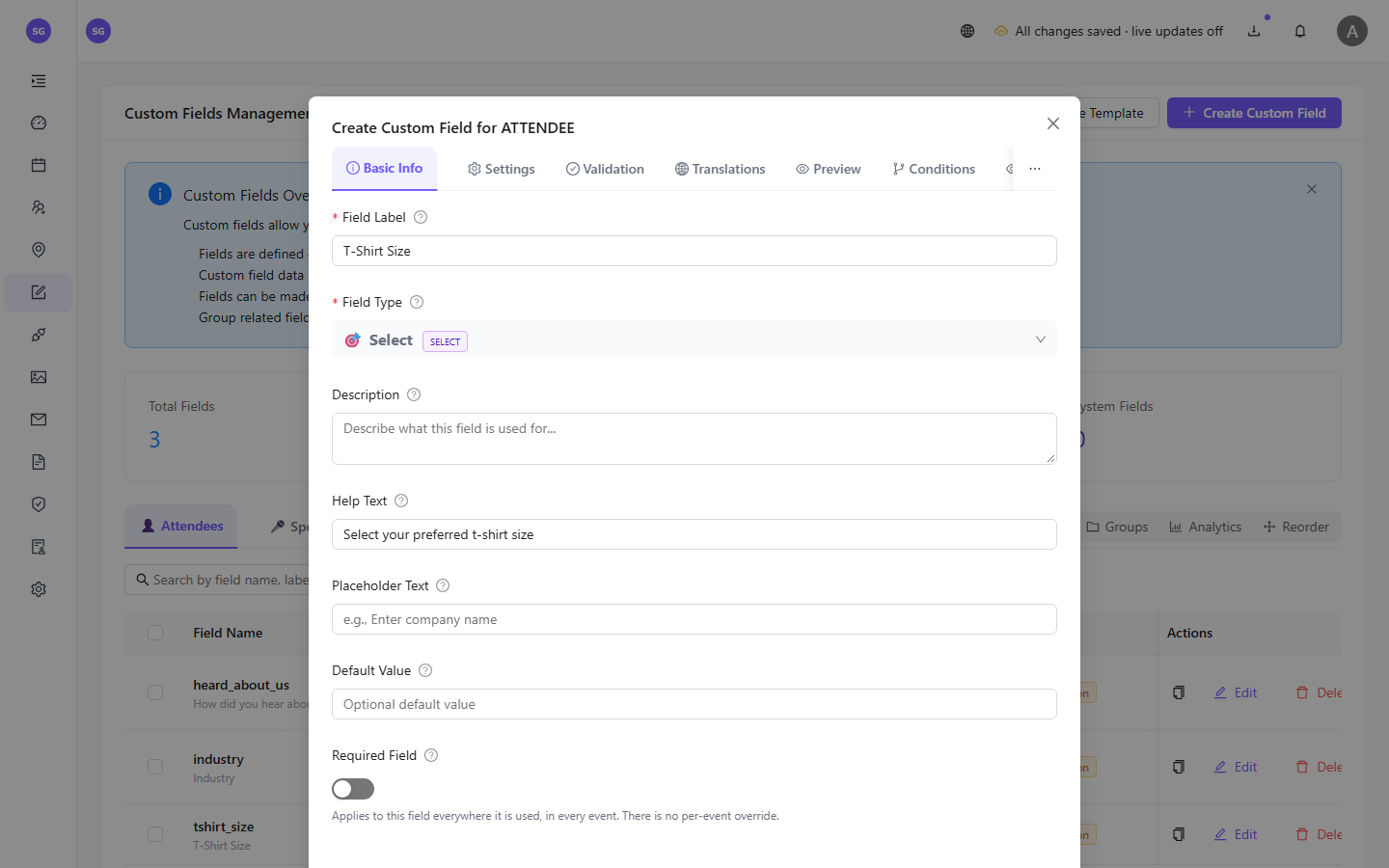
Click Create Custom Field for a blank field, or Edit on a row. The form has tabs:
- Basic Info: Field Label and Field Type (required), description, help text, placeholder, default value, and Required Field. Required applies everywhere the field is used, in every event.
- Options (for select fields): the choices, each with a label and a stored value. Drag to reorder, or use the pencil and bin icons.
- Settings, Validation, Translations, Preview and Conditions: where the field shows, the rules an answer must meet, the field in other languages, how it looks, and when it appears based on other answers.
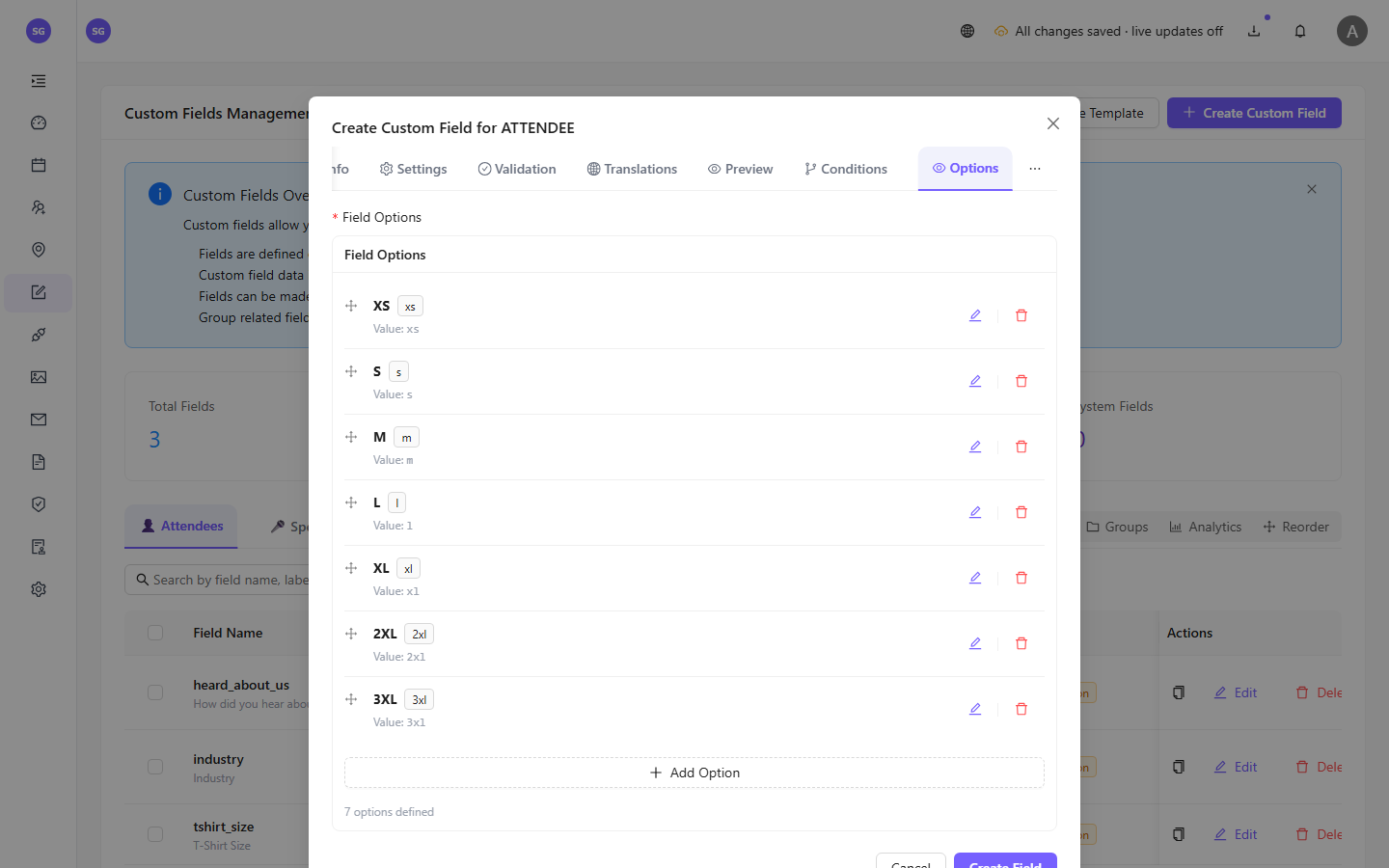
Click Create Field (or Save when editing). The field appears in the list as Active.
Field types include text, text area, rich text, email, URL, phone, number, decimal, date, date and time, time, select, multi-select, radio buttons, yes or no, rating, color, file and image.
Move fields between events and systems
| Button | What it does |
|---|---|
| Import | Adds fields from a file |
| Export | Downloads your field definitions |
| Copy from Event | Copies the fields another event uses |
On each row, the copy icon duplicates the field, Edit changes it and Delete removes it.
Who can do this
Organization admins manage custom fields. Because a field is shared by every event, changing or deleting it affects all of them.
Troubleshooting
| You see | Why | Fix |
|---|---|---|
| You want a field required in one event only | Required applies to every event | Leave it optional and use Conditions, or create a separate field |
| A field does not show for speakers | Fields belong to one tab | Create it under the Speakers tab too |