Visa letters for one event
Find an event's visa letter queue, finish the five-step setup checklist, filter and sort requests, watch the 72-hour target, and use the event's Report and Settings tabs.
Each event has its own Visa Letters page under Travel & Lodging > Visa Letters. It shows the setup checklist for that event and the queue of letter requests for it. This article covers what is on that page. For working a request from start to finish (claiming it, checking passport details and consent, approving and sending the letter), see the Visa Letter Management Guide.
Before the first request: the checklist
The top of the page explains the four stages of a request (it comes in, passport details and consent, review, approve and send) and lists what to set up first.
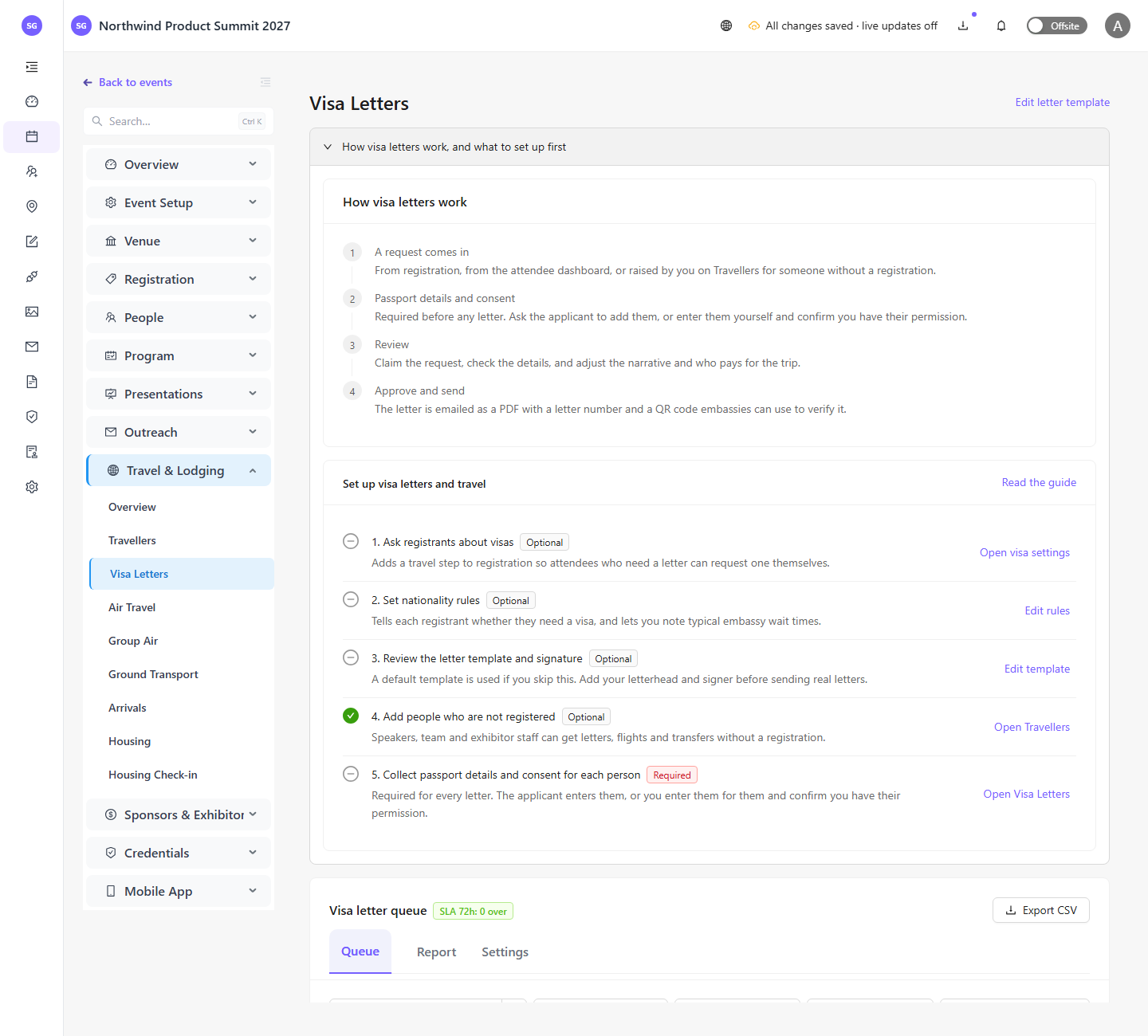
| Step | Required? | What it does | Where |
|---|---|---|---|
| 1. Ask registrants about visas | Optional | Adds a travel step to registration, so people who need a letter can ask for one themselves | Open visa settings |
| 2. Set nationality rules | Optional | Tells each registrant whether they need a visa, and records typical embassy wait times | Edit rules |
| 3. Review the letter template and signature | Optional | A default template is used if you skip it. Add your letterhead and signer before sending real letters | Edit template (also at the top right: Edit letter template) |
| 4. Add people who are not registered | Optional | Speakers, team and exhibitor staff can get letters without a registration | Open Travellers |
| 5. Collect passport details and consent | Required | Needed for every letter. The applicant enters them, or you enter them for the applicant and confirm you have their permission | Open Visa Letters |
Steps you have finished are marked done. The same checklist appears on Travel & Lodging > Overview.
The queue
Scroll down to Visa letter queue. Every request for this event is a row.
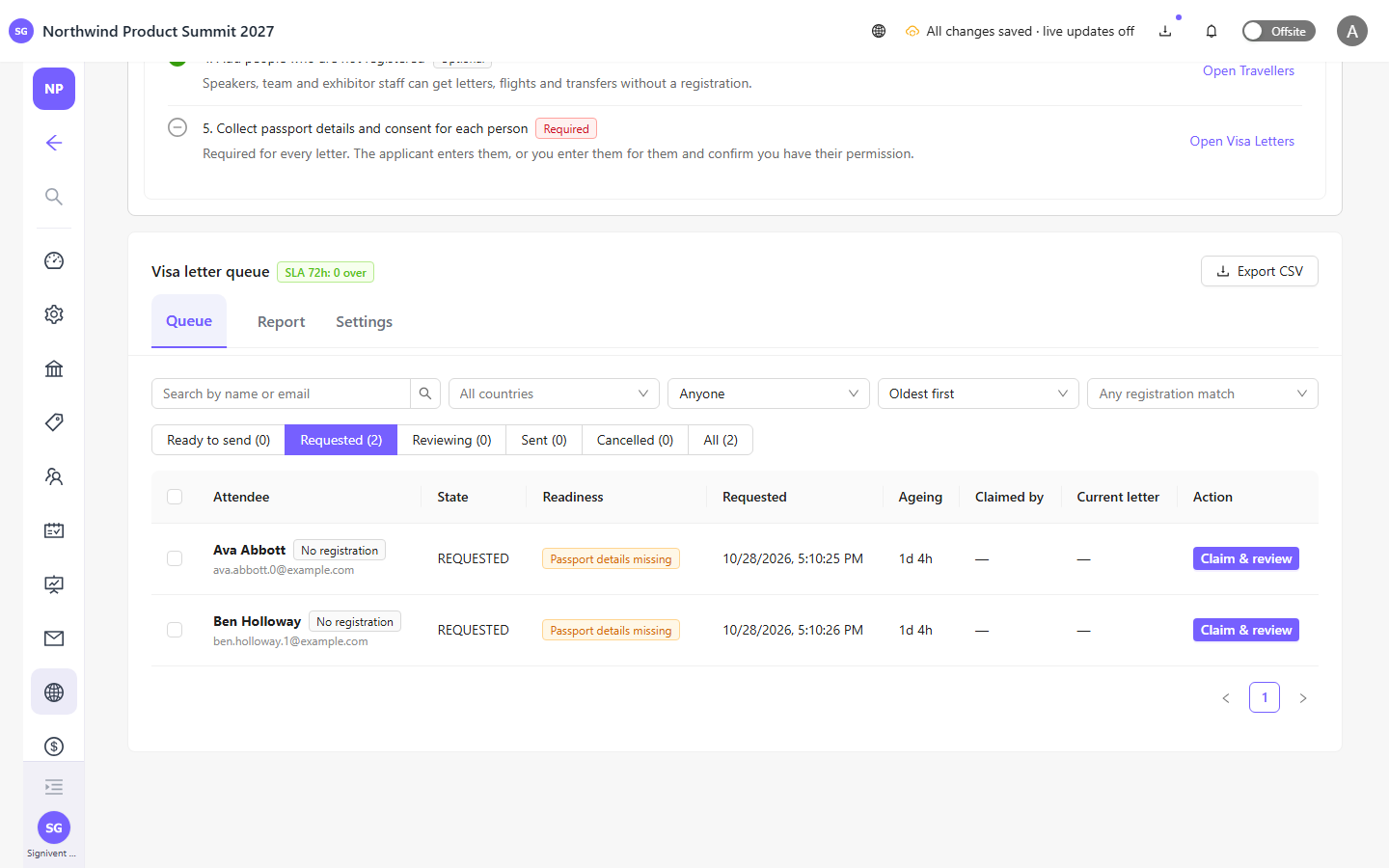
- Use the state tabs to narrow the list: Ready to send, Requested, Reviewing, Sent, Cancelled and All. Each shows its count.
- Filter by country (All countries), by who claimed the request (Anyone, or yourself), and by whether the person matches a registration. Sort by Oldest first or newest.
- Read each row: the Attendee (with "No registration" for someone added on Travellers), the State, the Readiness (what is still missing, for example Passport details missing), when it was Requested, its Ageing (age) in hours, who Claimed by, and the Current letter.
- Click Claim & review to take the request and open it. The rest of the flow is in Working a request.
The badge next to the title, for example SLA 72h: 0 over, counts requests that have waited longer than 72 hours. Work those first.
Export CSV downloads the queue as it is filtered.
Report
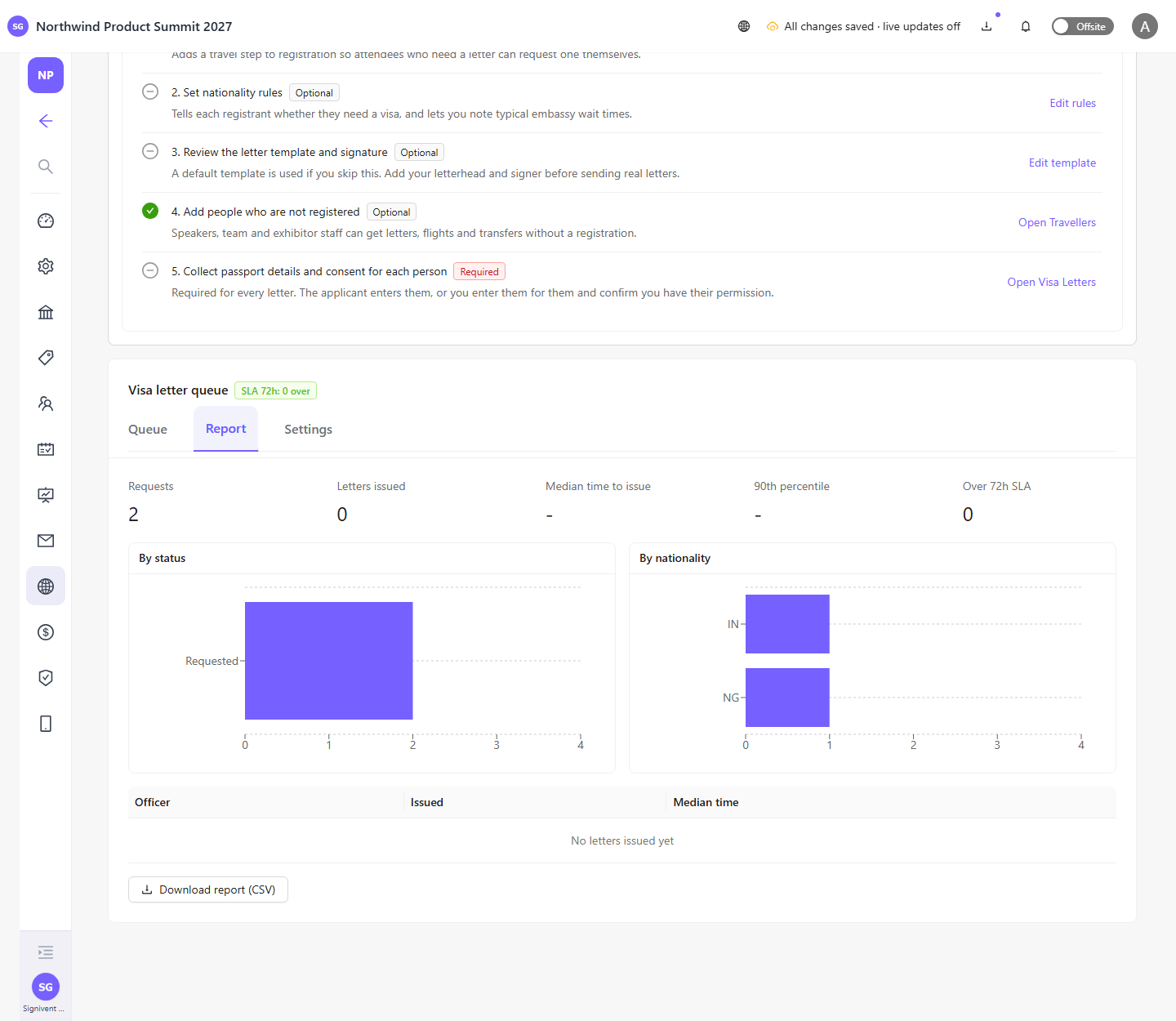
The Report tab sums up the event's requests: the number of Requests, Letters issued, the Median time to issue and the 90th percentile, and how many went Over 72h SLA. Charts break the requests down By status and By nationality, and a table shows each officer's letters issued and median time. Download report (CSV) saves the figures.
Settings
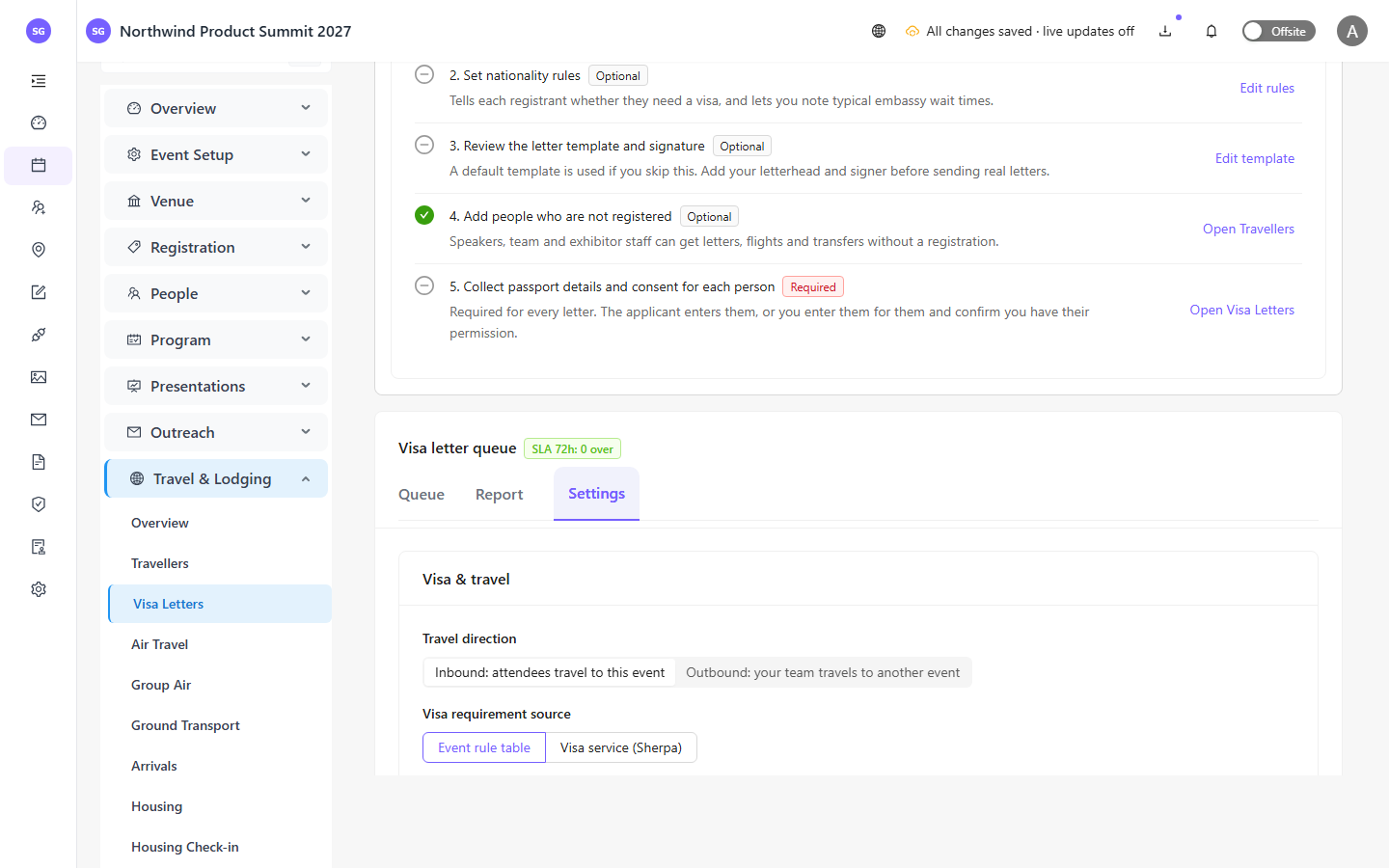
The Settings tab holds the event's visa options:
- Visa & travel: where visa requirements come from (your own Event rule table, or a visa service), Ask registrants about visas, and the nationality rules (Add default rules fills in a starting set, with a typical wait in days per nationality).
- Public request form: accept requests from people who did not register through your site, optionally require a registration reference, check requests against your registration list, or accept only some email domains.
- Reminders: remind applicants who have not entered passport details or consent (at most two emails), and send your team a daily list of requests that are waiting too long.
- Links to Edit the letter template and Passport data retention.
More on each setting: The Ready to send and Settings tabs.
Flights, hotels and the Travellers page are covered in Travel and housing for an event.
Who can do this
Organization admins, and members whose role allows working the registration dashboard, can see and work the queue. Passport numbers are never shown in the queue or the export.
Troubleshooting
| You see | Why | Fix |
|---|---|---|
| Passport details missing on a request | The applicant has not entered them yet | Send them the applicant link, or enter the details for them from the request (you confirm you have their permission) |
| "No registration" under a name | The person was added on Travellers, not through registration | Nothing to fix: people added there can get letters without a ticket |
| A person who needs a letter is not in the queue | They have not asked for one | Turn on step 1 so registrants can ask, or raise the request for them from Travellers |
| The SLA badge shows requests over 72h | Requests have waited too long | Sort by Oldest first and claim them |