Report builder and scheduled reports
Build a report with the columns and filters you choose, export it, save it as a view or template, and schedule it to arrive by email, for one event or across your organization.
The report builder makes a table out of any of your event data (attendees, registrations, check-ins, tickets, sessions, speakers, promo codes, money and more) with the columns and filters you pick. You can download it, keep it as a view, or have it emailed on a schedule.
There are two ways in:
- For one event: open the event, then Reports > Builder. The builder works on that event only.
- Across your organization: Reports > Create Report in the organization sidebar. Pick the event at the top for the report types that need one.
Start from a ready-made report
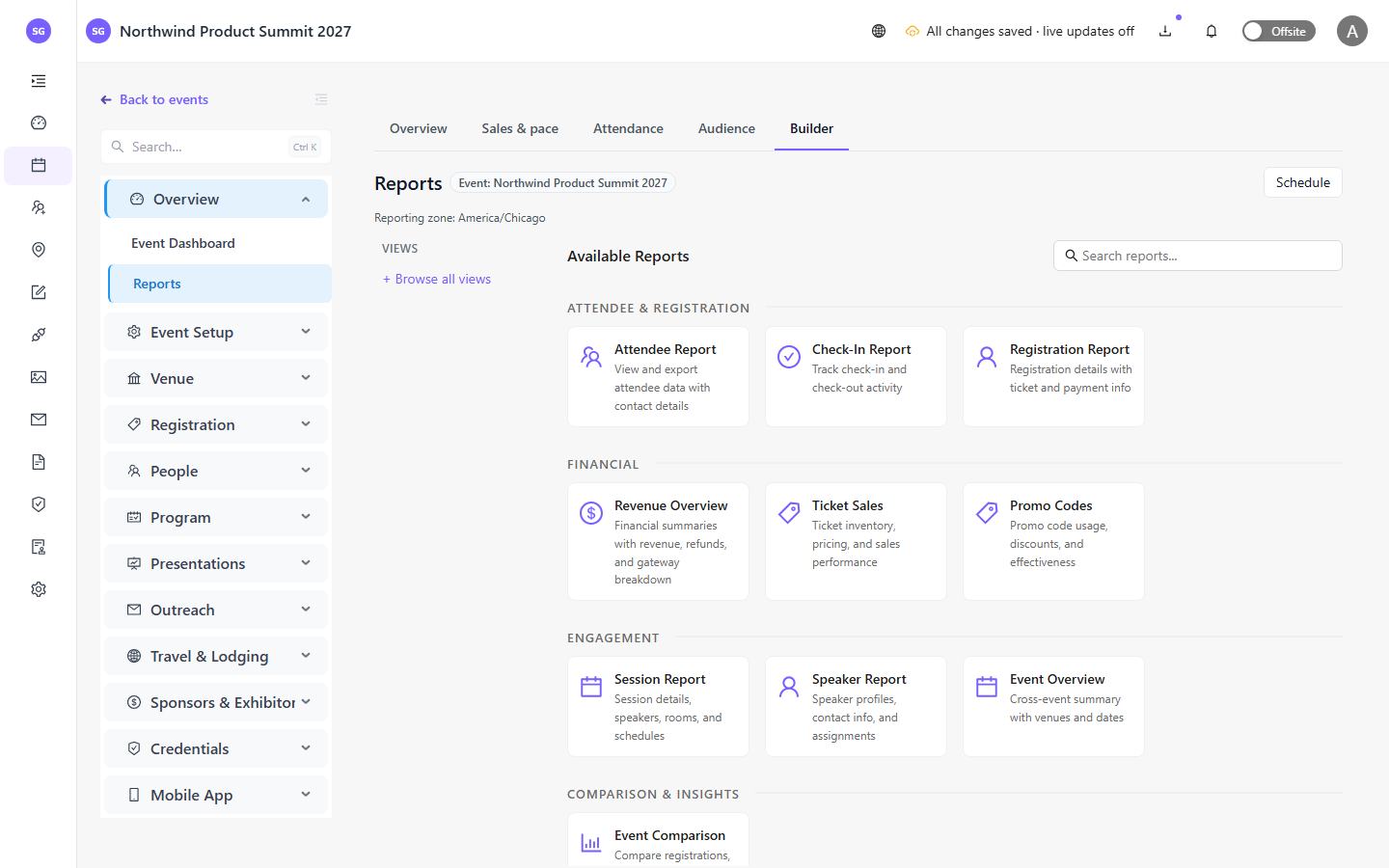
The Builder tab opens on Available Reports, grouped by Attendee & Registration, Financial, Engagement, Comparison & Insights, Automation and Cross-Entity Reports. Type in Search reports to find one. Click a report, for example Attendee Report, to load it into the builder below.
Build the report
- Under Report Type, pick what each row is: Attendees, Sessions, Speakers, Registrations, Check-Ins, Tickets, Promo Codes, Financial, CE Credits or Sponsor ROI. The number next to each says how many columns it has.
- Tick the columns you want in the field list. Each field says its type and where its data comes from; Select All and Deselect All work per group.
- Click Add Filter to narrow the rows, and click a column heading to sort.
- Switch between Table, Chart and Both. The chart groups rows by a field you choose.
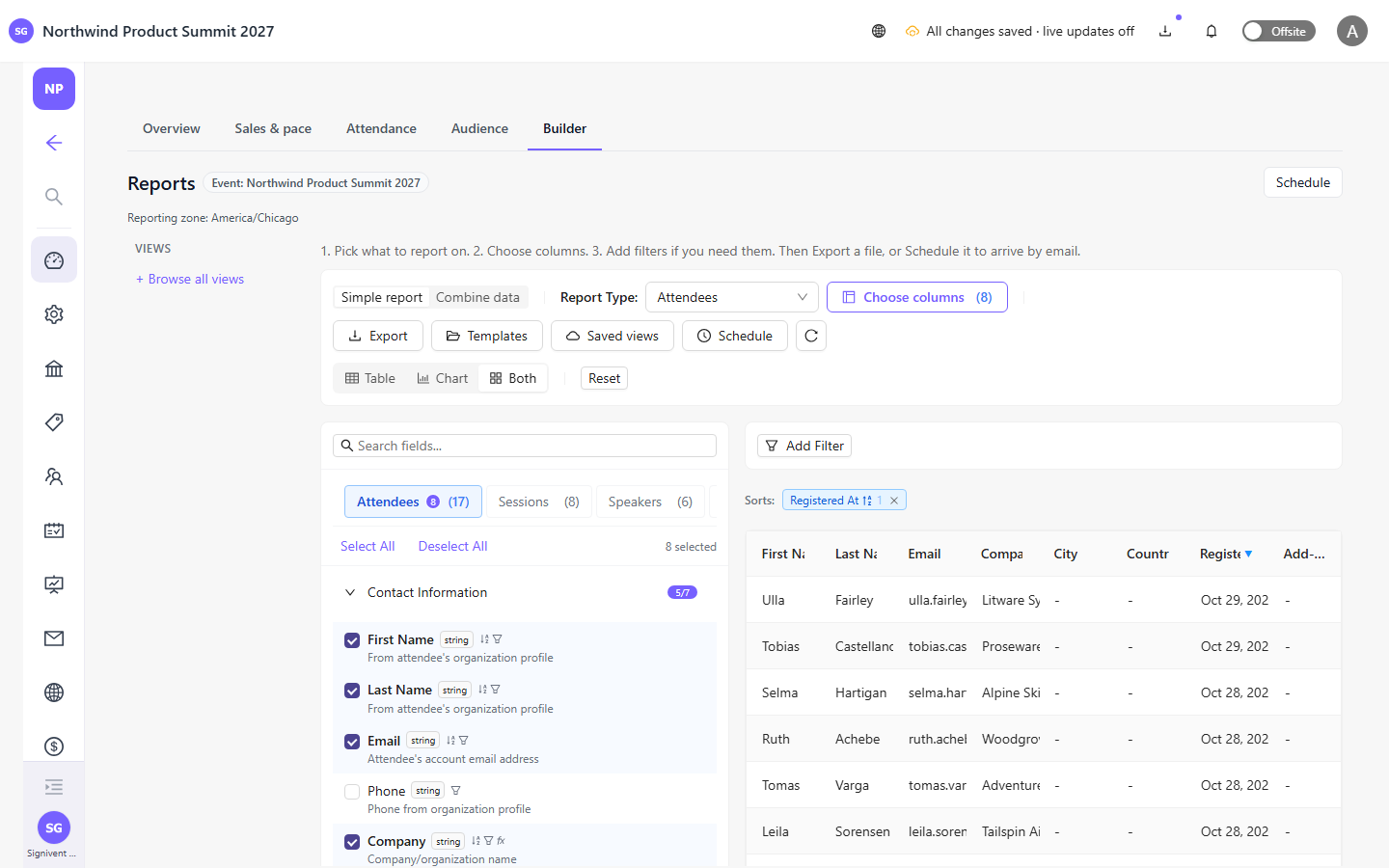
Combine data builds one report from two kinds of data: pick what to Start from and what to Add data from. Reset clears your changes.
Export it
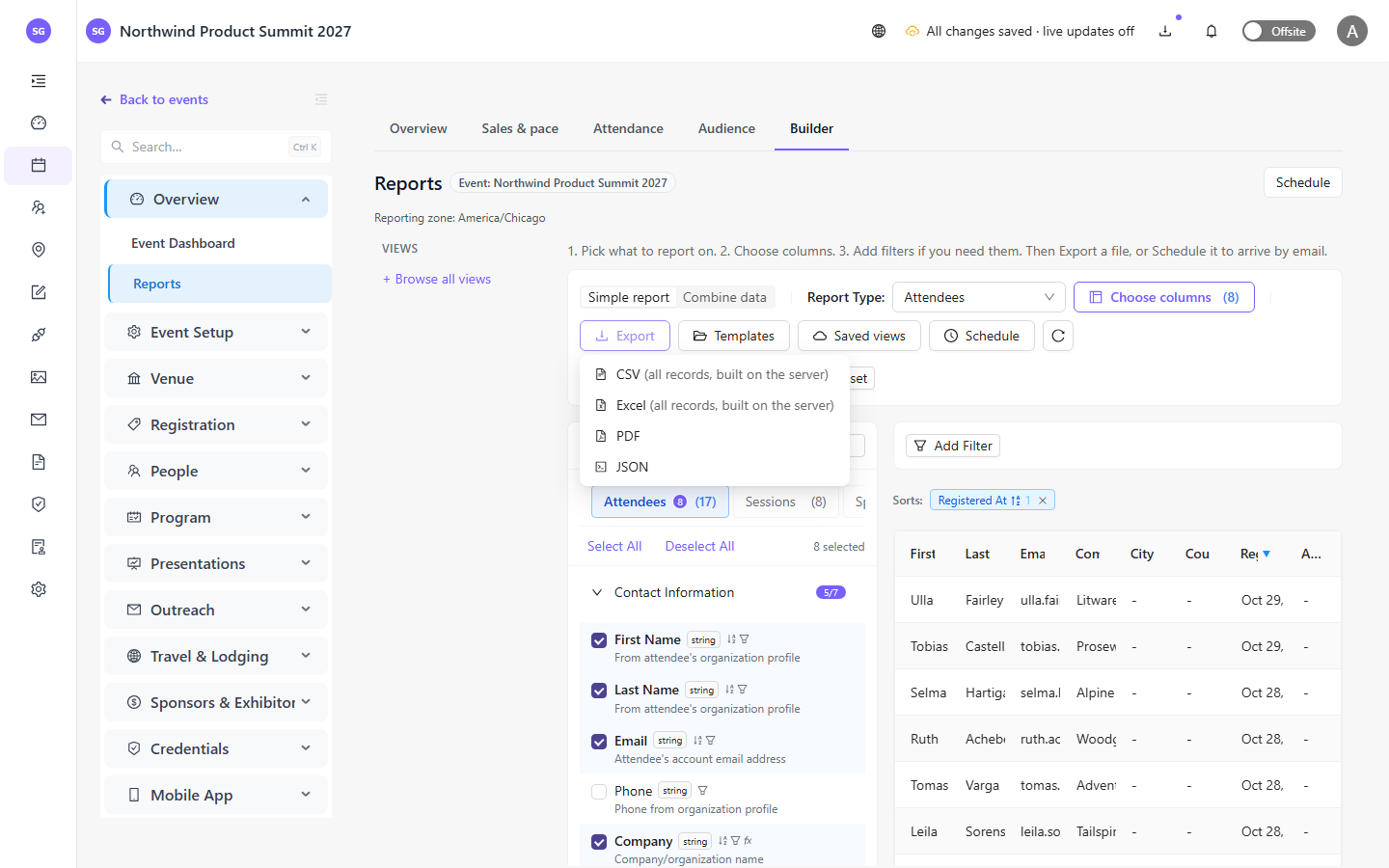
Click Export and pick CSV, Excel, PDF or JSON. The file has the columns, filters and sort you see. CSV and Excel include every matching record, not just the rows on screen: the server builds the file and the download starts when it is ready.
Keep it for later
- Saved views keeps the report (type, columns, filters, sort) under a name. Saved views show in the Views column on the left of every report page; pin the ones you use most so they stay at the top, and share a view with your team from its menu.
- Templates saves the report setup as a template (Save Template) or opens one you saved (Load Template).
Schedule it by email
- Build the report, then click Schedule. The form says which report it will send (type, number of fields and filters).
- Enter a Name.
- Pick the Frequency. Weekly asks for the Day of Week, monthly for the Day of Month; every frequency asks for the Time and Timezone.
- Type each Recipient email and press Enter or a comma after each one. Recipients must be organization admins or accepted team members; everyone on the list gets the report by email on every run.
- Choose the Export Format.
- Check everything, then click Save. The first email goes out at the next run time.
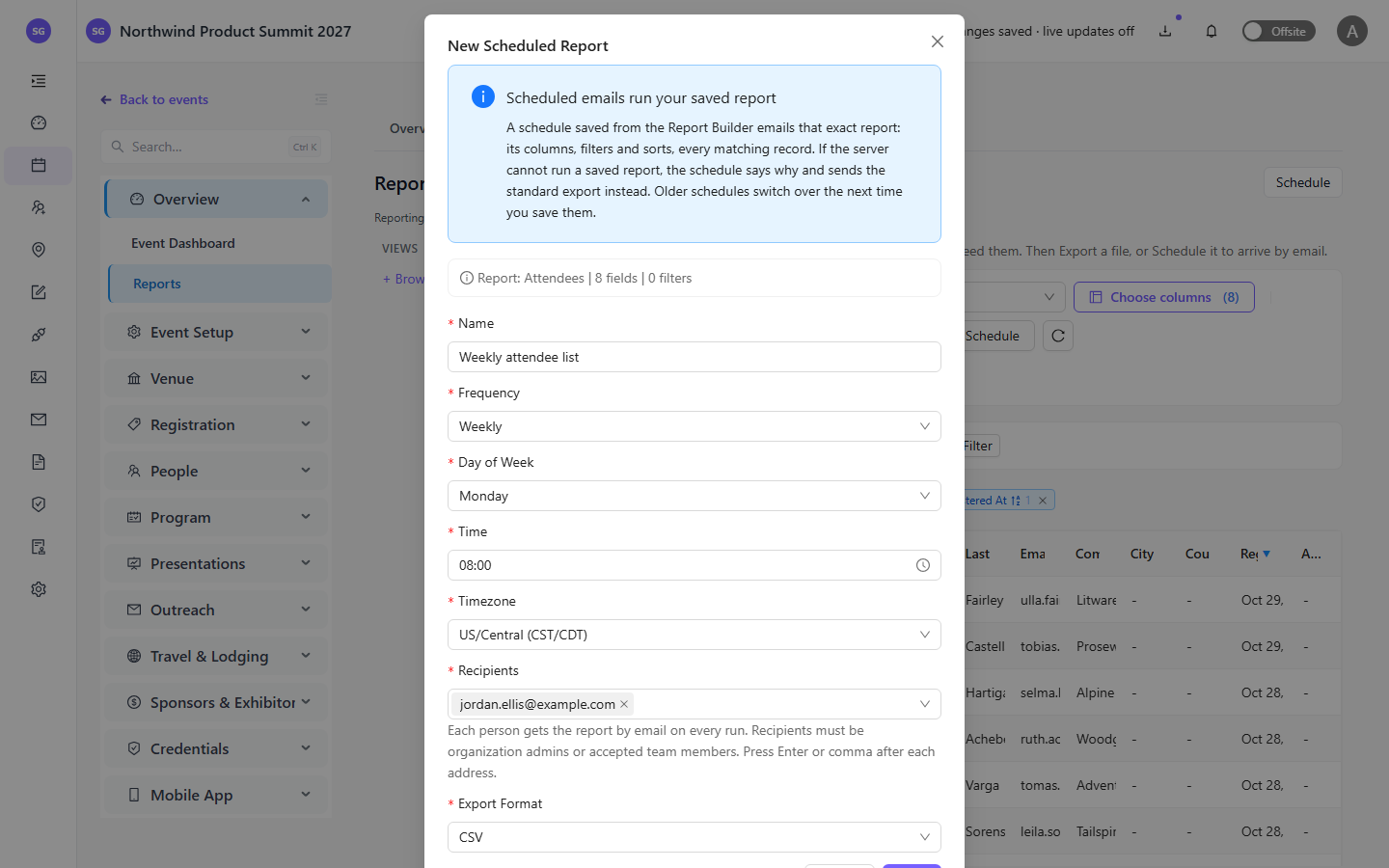
A schedule saved from the builder emails that exact report: its columns, filters and sorts, with every matching record. If the server cannot run it, the email carries the standard export of that report type instead, and the schedule says why.
Manage scheduled reports
Inside an event, Reports > Builder has a link to its Scheduled Reports (the page highlights the Builder tab); in the organization sidebar it is Reports > Scheduled Reports. Both list every schedule in your organization with its Schedule, Format, Recipients, Last Run, Next Run and Status. The Status switch pauses a schedule and turns it back on; under Actions, Run Now emails the report straight away (it asks first), and the other buttons edit or delete the schedule. New Schedule starts a schedule without opening the builder, and Refresh reloads the list.
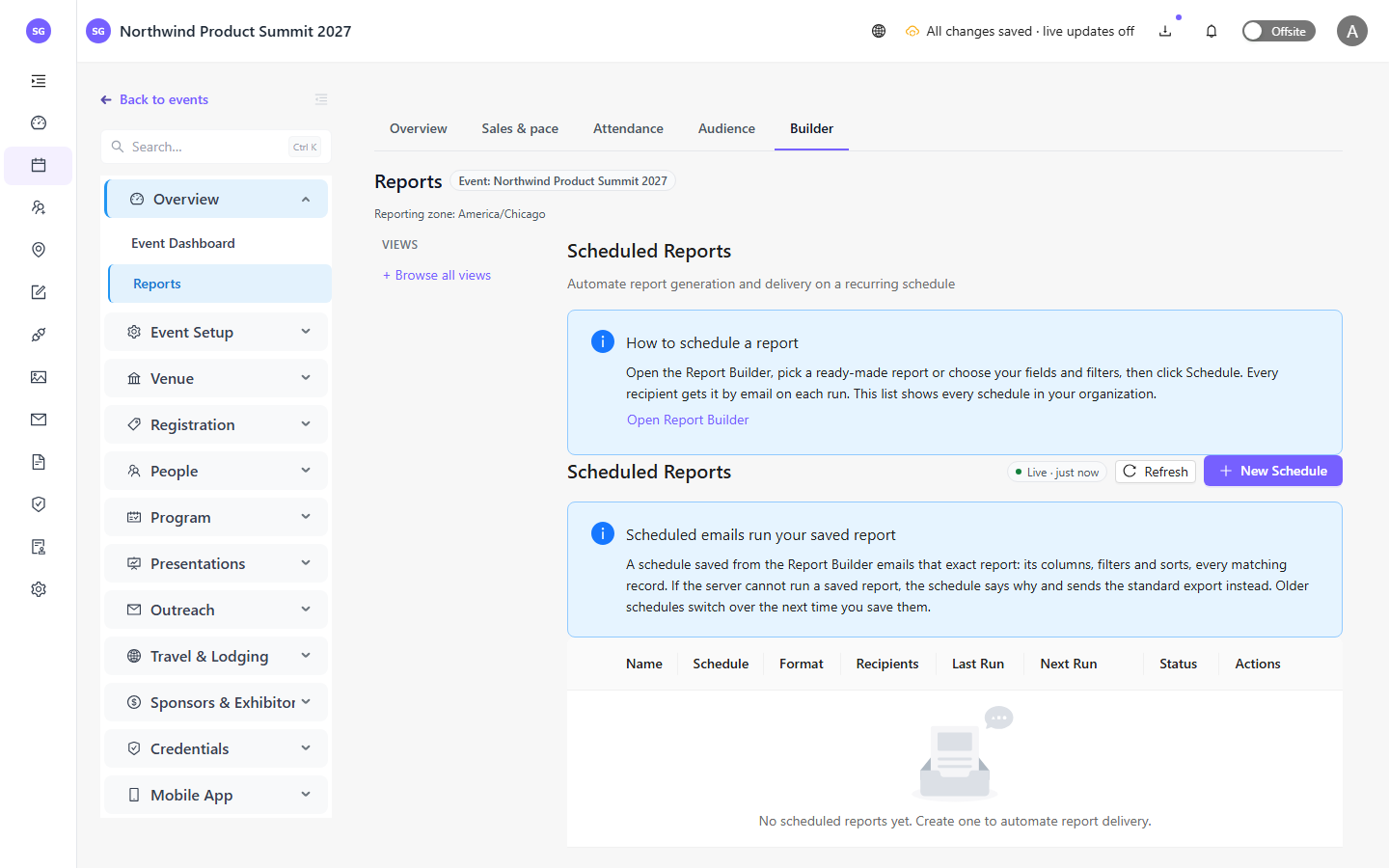
If a scheduled report keeps failing, it also shows up under Needs attention on the organization overview.
Who can do this
Organization admins can build, export and schedule every report. What other members can open depends on their role; see Team, members, roles and permissions.
Troubleshooting
| You see | Why | Fix |
|---|---|---|
| "This report type requires an event" | The report type works on one event at a time | Pick the event at the top, or build it from the event's Reports > Builder |
| No data found | The event has no records of that type yet, or a filter removes them all | Check the event and remove filters |
| A format is marked "not available for email delivery" | That format can be downloaded but not emailed | Pick CSV or Excel for the schedule |
| The emailed file has different columns from your report | The server could not run the saved report, so it sent the standard export | Check the schedule's status, or use Export for your own columns |
| A recipient did not get the report | The address has a typo, or the email went to spam | Edit the schedule and check the address |