Team, members, roles and permissions
Invite people to your organization, give each one a role, resend or cancel invitations, remove members, and create custom role templates with the permissions your team needs.
Your team is everyone who signs in to manage your organization. Team in the sidebar has two pages: Members, where you invite people and see who has joined, and Roles, where you decide what each kind of team member may do.
See your team
Open Team > Members. The cards at the top count Total Members, Active members and Pending Invites. The tabs filter the list: All, Active, Pending, Expired and Cancelled. Use Search to find someone by name or email.
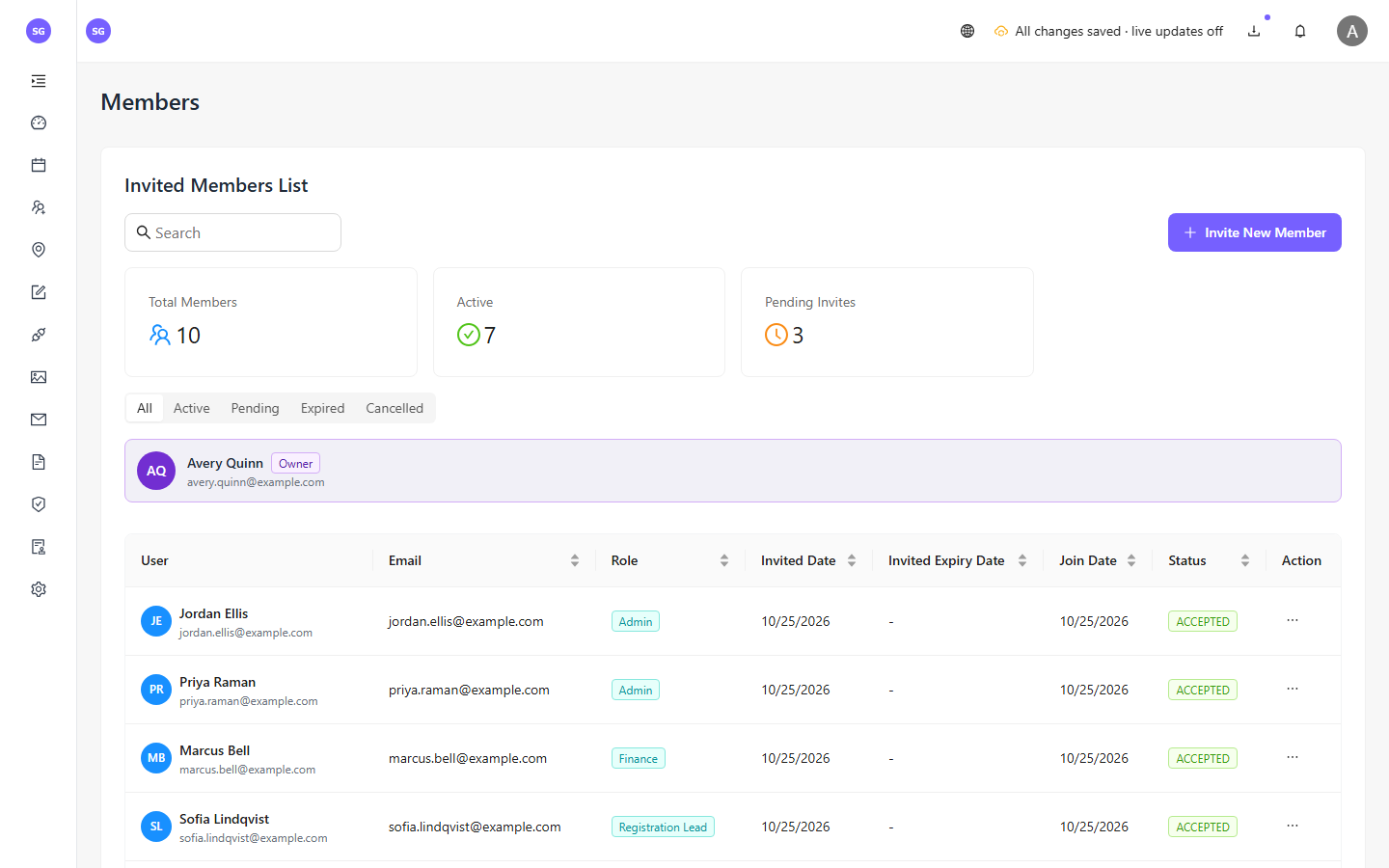
Each row shows the person's role, when they were invited, when the invitation expires, when they joined and their status: ACCEPTED once they joined, INVITED while the invitation is open.
Invite a member
- Click Invite New Member.
- Enter one or more Email addresses. Press Enter after each one, or paste a list separated by commas. The count below the field confirms how many you entered; an address already on your team is flagged.
- Pick a Role. Point at a role chip below the field to see what that role allows.
- Optionally add Details, such as their job, so the rest of the team knows who they are.
- Set the Invitation Expiry: click the field and pick a day. The invitation stays open until the end of that day.
- Click Invite.
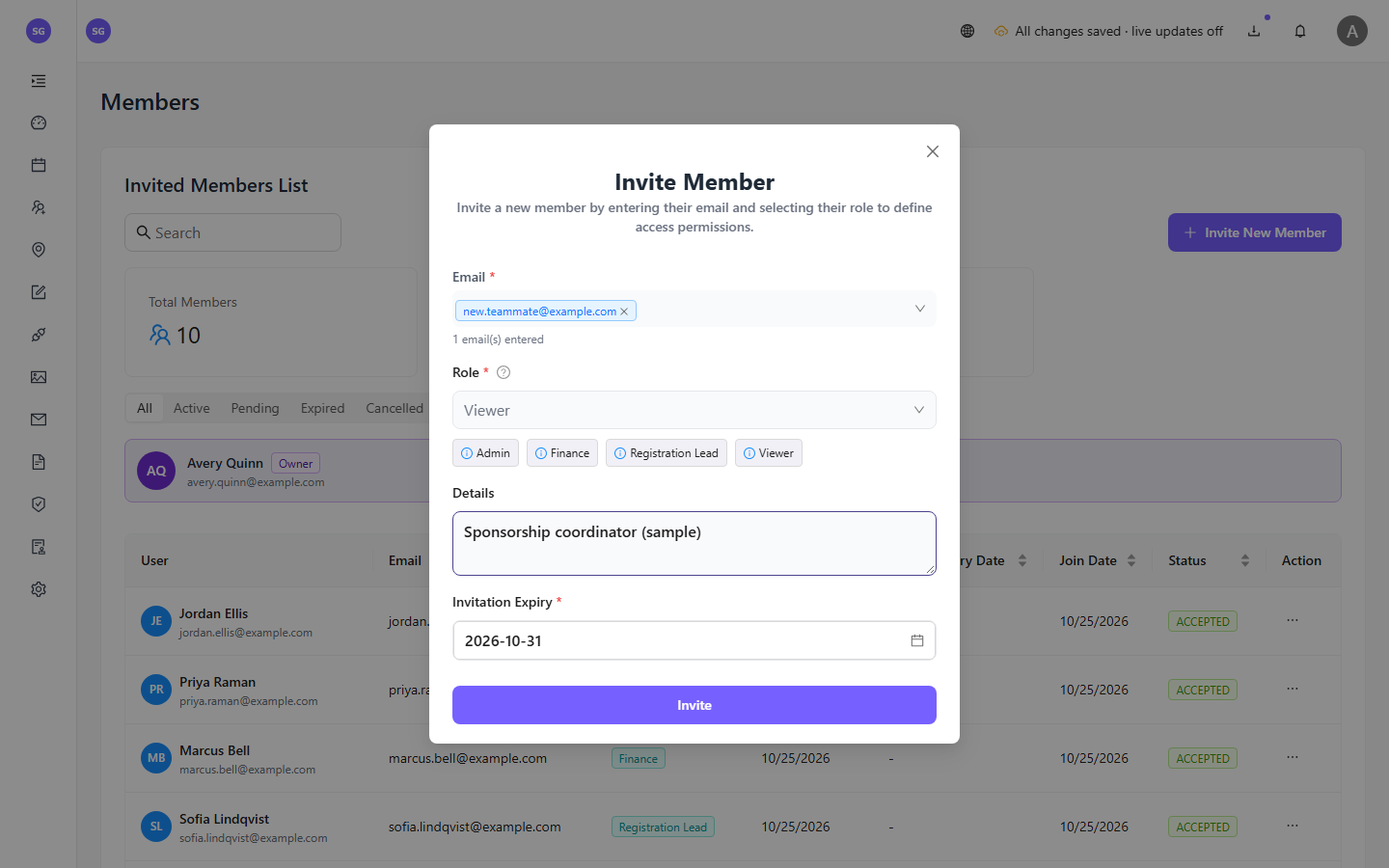
Each person gets an email with a link to join. They appear on the list as INVITED until they accept.
If your plan includes a set number of team members and these invitations would go past it, you are asked to confirm first. The dialog shows how much your subscription would rise if everyone accepts. Extra seats are billed only once an invitation is accepted.
Resend, change or cancel an invitation
Open the actions menu (the three dots) on the person's row.
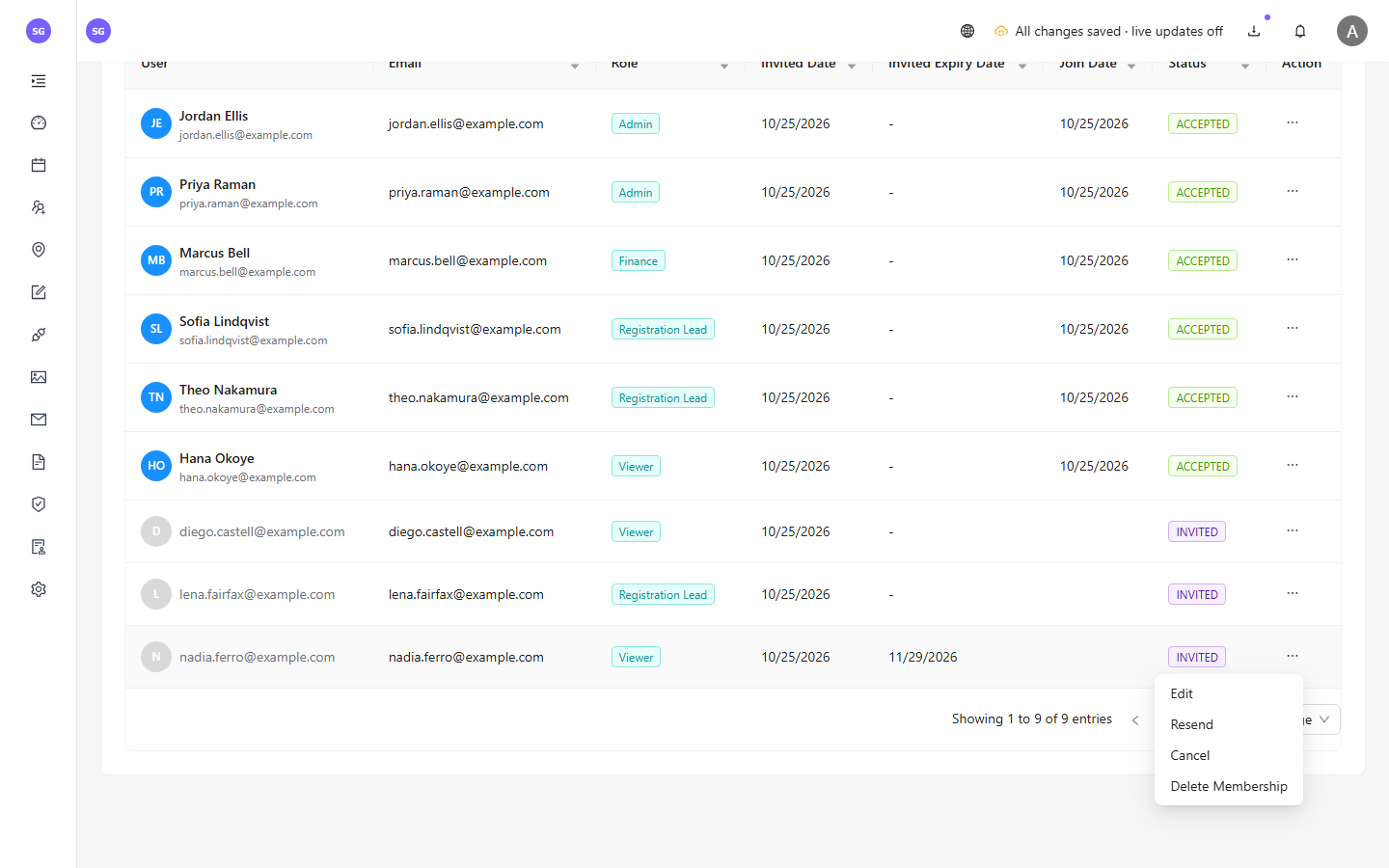
| Action | What it does | Shown for |
|---|---|---|
| Edit | Change the role, details or (for an open invitation) the expiry date. A role change asks you to confirm | Everyone |
| Resend | Sends the invitation email again | Open invitations |
| Cancel | Withdraws the invitation | Open invitations |
| Delete Membership | Removes the person from your organization | Everyone |
Understand roles
Open Team > Roles (the page is called Role Templates). Every member has one role.
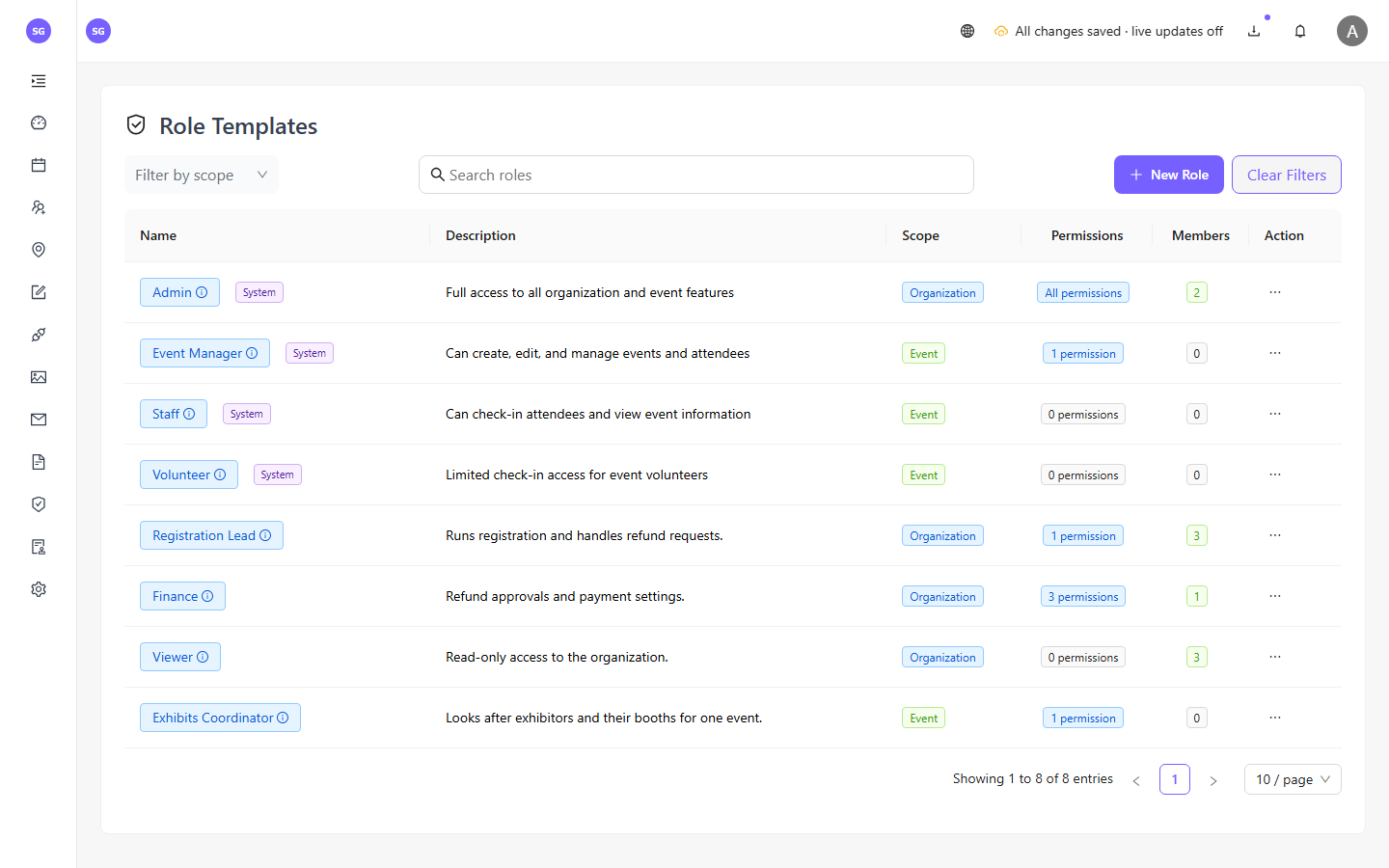
- System roles come with every organization and cannot be deleted. Admin has full access to all organization and event features. Event Manager, Staff and Volunteer are event roles for running a single event.
- Custom roles are the ones you create, such as Finance or Viewer in the example.
- Scope says where a role applies. Organization roles are given on Team > Members. Event roles are given per event: open the event, go to Event Setup > Team and click Add to Team. Organization admins already have full access to every event.
- Permissions lists the extra abilities the role grants. Members counts the people who have it.
Use Filter by scope and Search roles to narrow the list.
Create a role
- On Team > Roles, click New Role.
- Enter a Name and a Description your team will understand.
- Pick the Scope: Organization or Event. The permissions for that scope appear.
- Tick the permissions to grant. Select all ticks a whole group.
- Click Create.
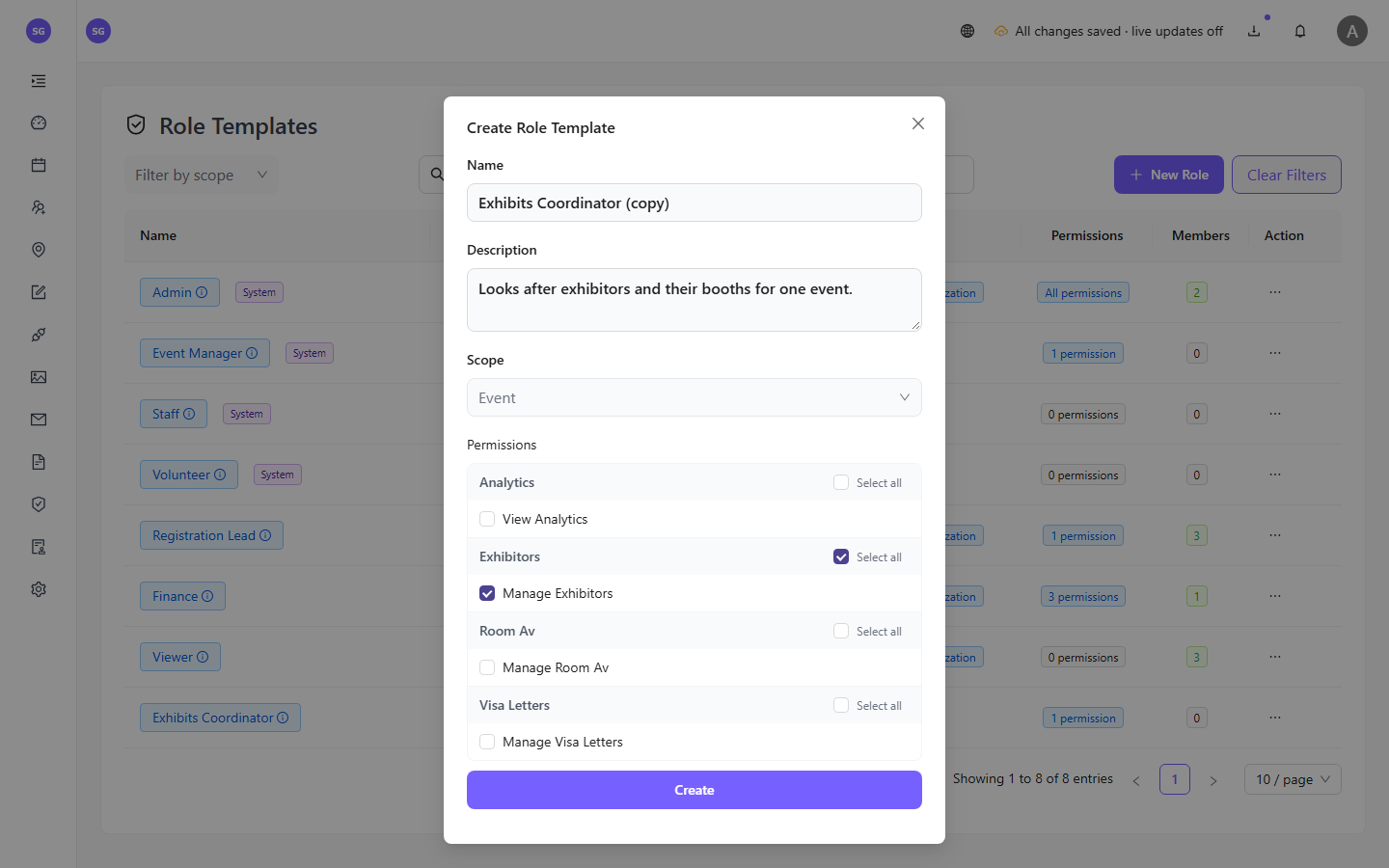
The permissions available today:
| Scope | Group | Permission |
|---|---|---|
| Organization | Payment settings | Change payment settings |
| Organization | Refunds | Issue refunds (within the approval threshold), Approve refunds |
| Event | Exhibitors | Manage Exhibitors |
| Event | Visa Letters | Manage Visa Letters |
Change or remove a role
Open the role's actions menu.
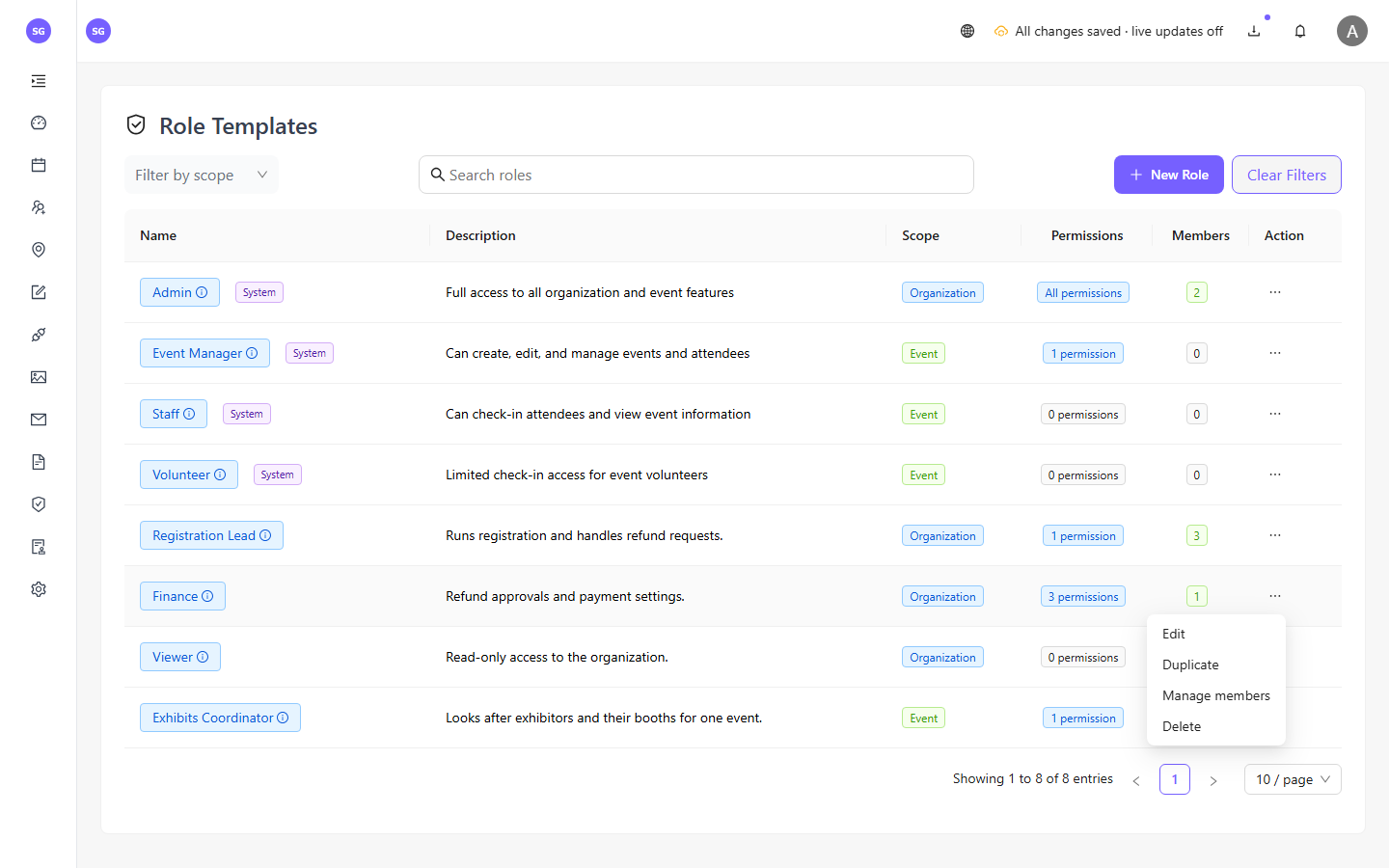
- Edit changes its name, description or permissions. Everyone with the role gets the change.
- Duplicate starts a new role from this one.
- Manage members lists who has the role.
- Delete removes a custom role. System roles have no Delete.
Troubleshooting
| You see | Why | Fix |
|---|---|---|
| "Invitation expiry date is required" | No expiry was picked | Pick a day in the calendar |
| An email tag turns red | The address is not valid | Remove it and type it again |
| An email tag turns orange, "Already invited" | That person is already on your team or invited | Use Resend on their row instead |
| Manage members shows "No members have this role yet" although the Members column has a number | Fixed in this release; older versions failed to load the list | Refresh after the update. The Members column count is correct |
| Someone did not get the invitation | It went to spam, or the address had a typo | Check the address with Edit, then Resend |
| An invitation shows on the Expired tab | The expiry date passed before they accepted | Edit it to set a new expiry and Resend, or invite them again |