Approvals
Set up an approval workflow on an event, see every request waiting on you on the organization's Approvals page, and approve, reject or escalate it.
Approvals let a second person sign off on changes before they go ahead, for example a new speaker or a registration. You set up the rules once per event as a workflow, under Event Setup > Workflows. Every request that is waiting on you, from any event, then shows on Approvals in the organization sidebar.
Setup at a glance
| Step | Where | Required? | What it does |
|---|---|---|---|
| Create a workflow | Event > Event Setup > Workflows > Templates | Required | Says what starts the workflow and what it is about |
| Add steps | The workflow's Steps | Required | Who approves, in what order, and how long they have |
| Turn it on | The workflow's Status switch | Required | New workflows start inactive |
| Event roles | Templates tab > Event Roles | Optional | Lets a step go to whoever holds a role instead of one email |
Create a workflow
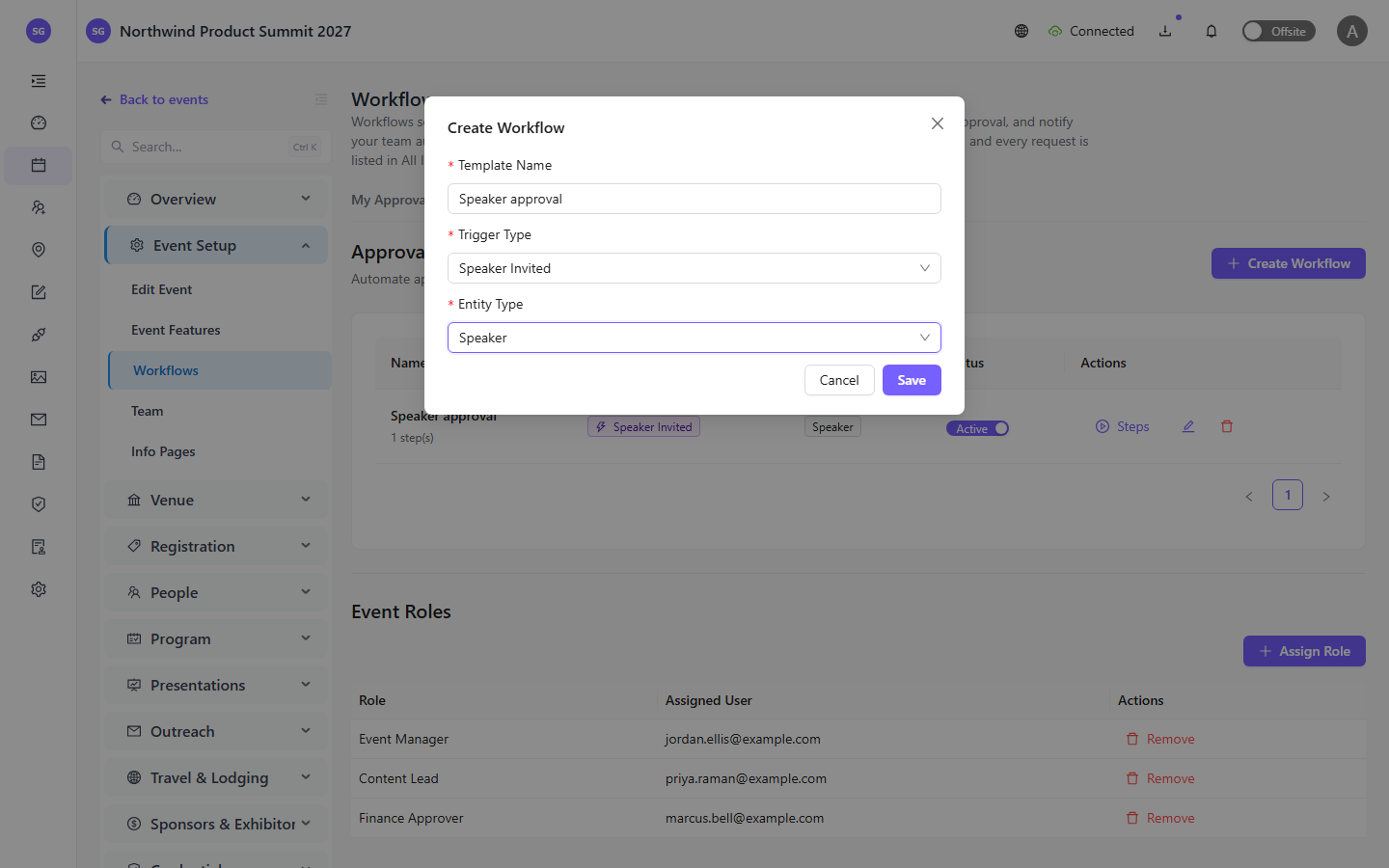
- Open the event and go to Event Setup > Workflows, then the Templates tab.
- Click Create Workflow.
- Enter a Template Name, then pick the Trigger Type (when the workflow starts: Registration Submitted, Housing Requested, Budget Threshold, Speaker Invited, Group Registration, Manual or Webhook) and the Entity Type (what it is about: Registration, Session, Speaker, Attendee or Event).
- Click Save.
Add the approval steps
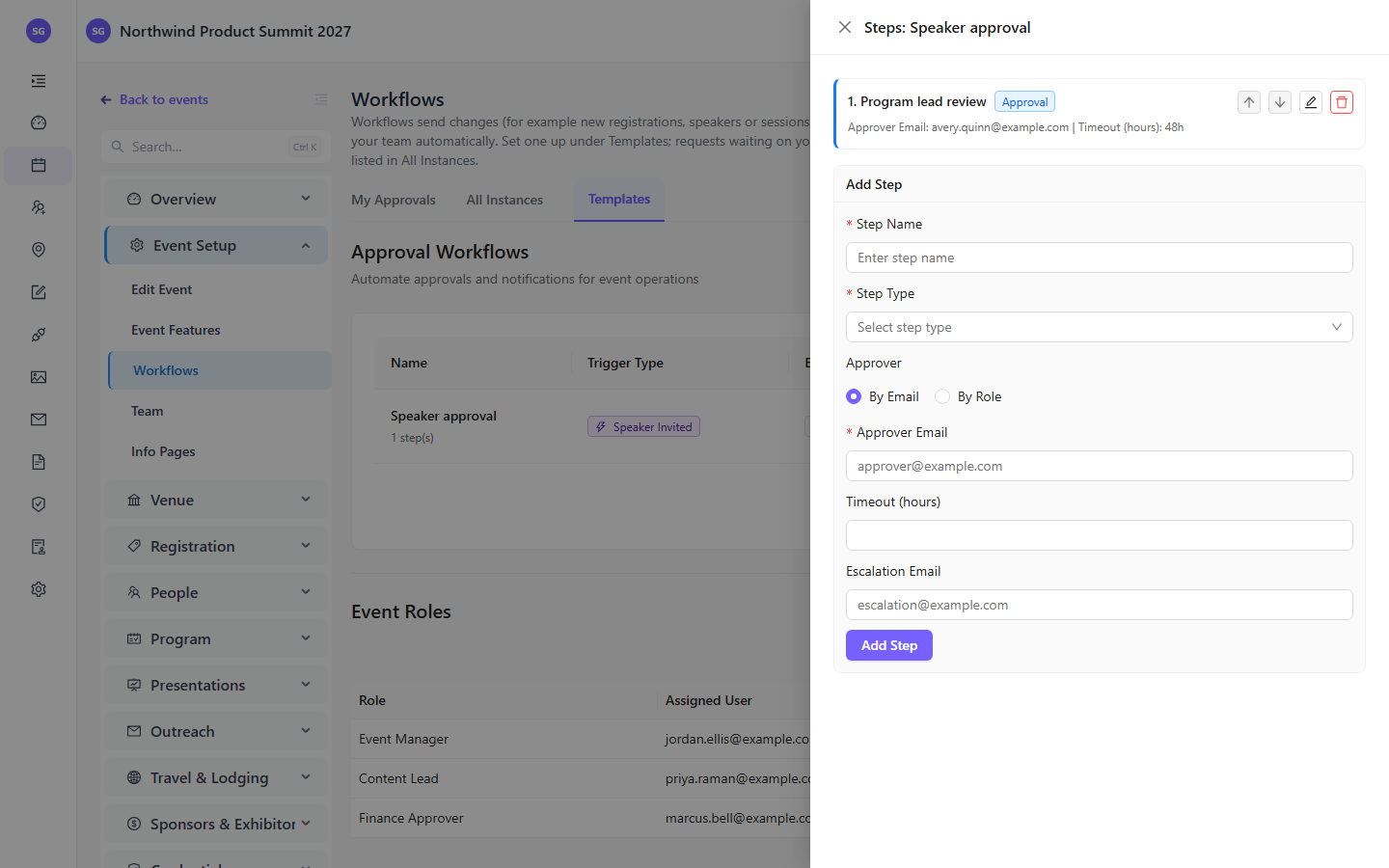
- On the workflow's row, click Steps. A panel opens on the right.
- Enter a Step Name and pick the Step Type: Approval (someone must approve), Notification (someone is told) or Condition (a rule decides).
- Choose the Approver By Email (one person) or By Role (whoever holds an event role).
- Set the Timeout (hours) and, if you like, an Escalation Email: when the approver has not acted in time, the request is escalated and that address is emailed.
- Click Add Step. Add more steps for a chain; the arrows reorder them.
Turn the workflow on
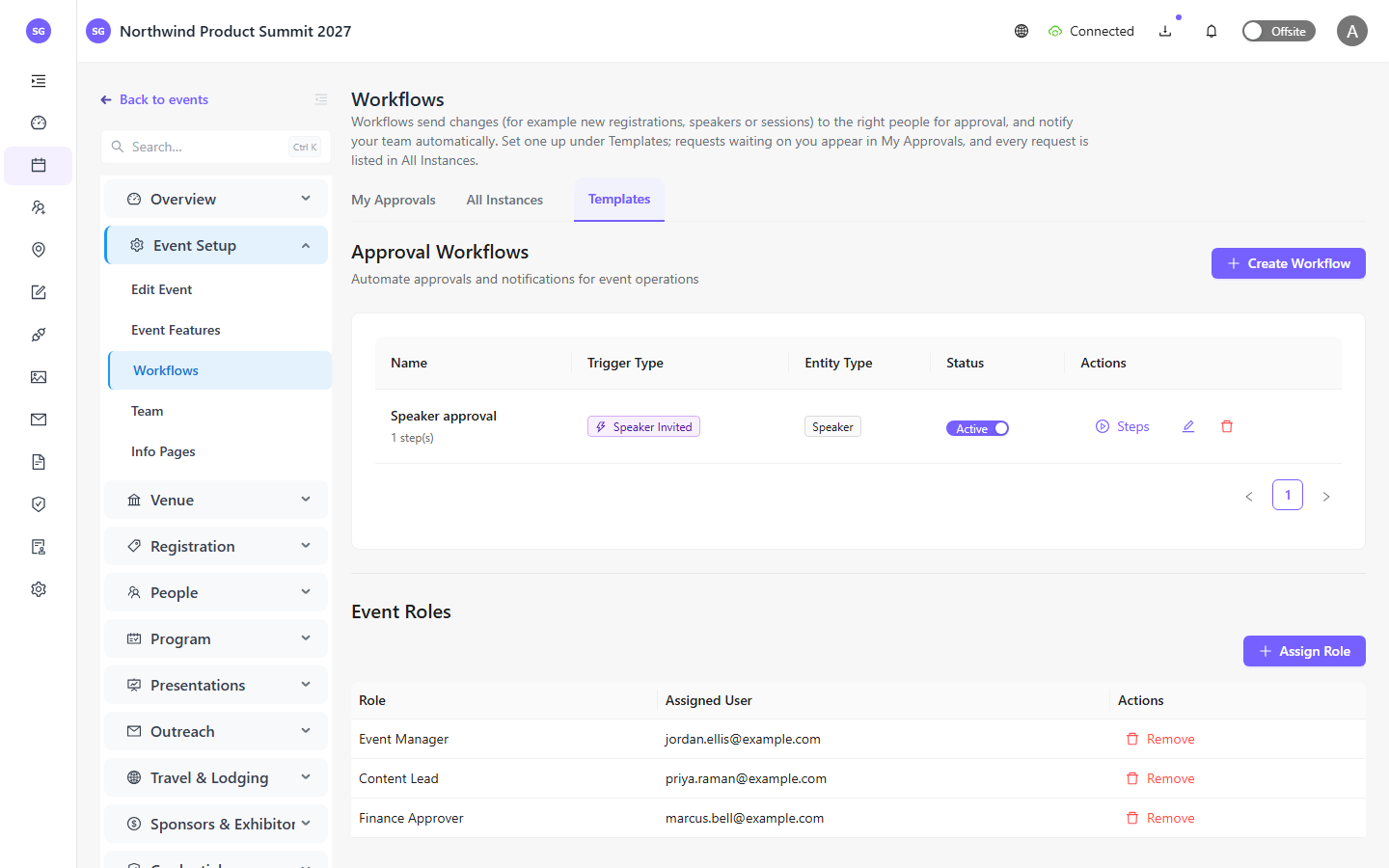
New workflows are created Inactive. Click the Status switch on the row so it reads Active. Only active workflows start requests.
Start a request by hand
Requests normally start on their own when the trigger happens. To test a workflow, or for the Manual trigger:
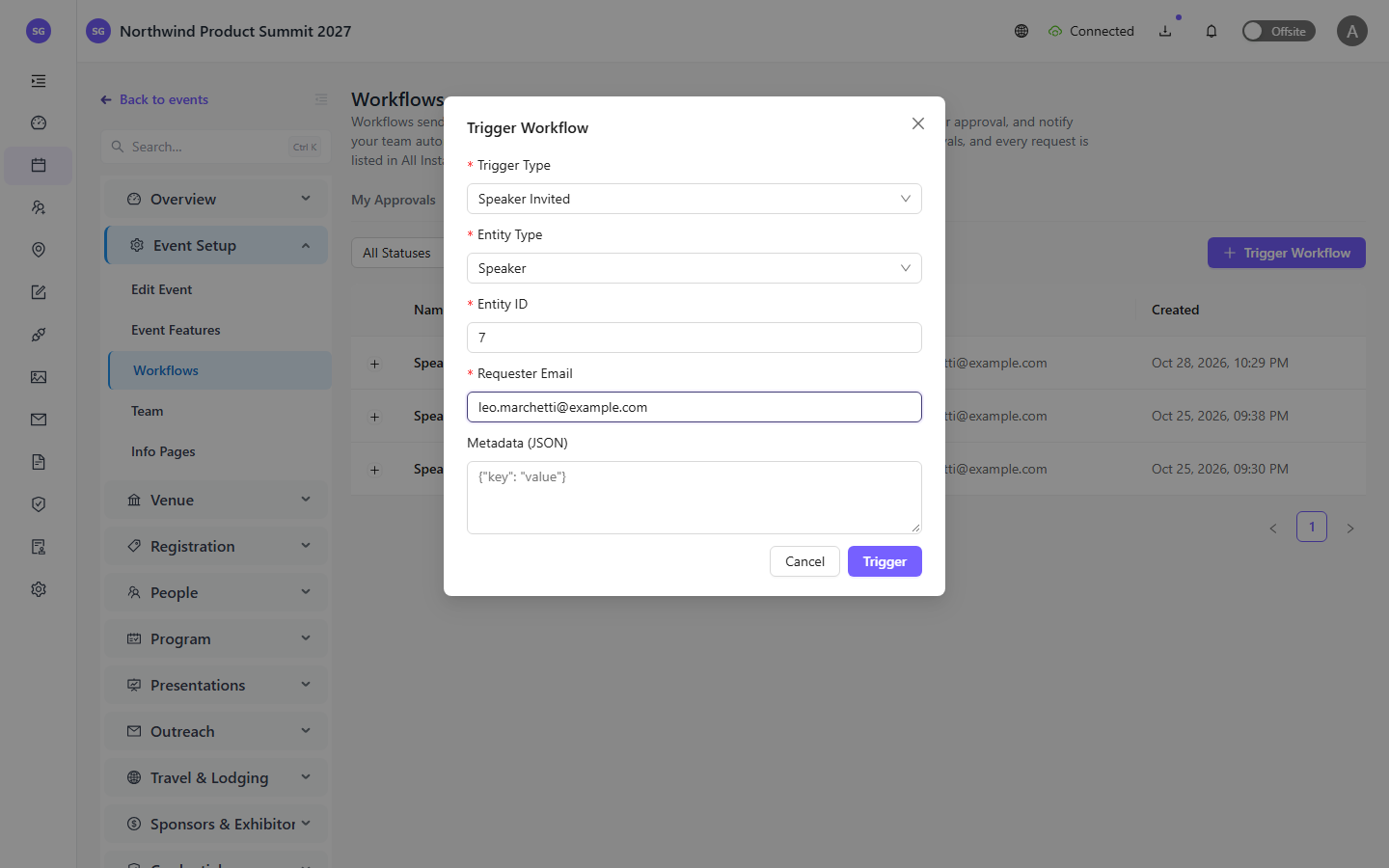
- Open the All Instances tab and click Trigger Workflow.
- Pick the Trigger Type and Entity Type, enter the Entity ID (for a speaker, the number at the end of their profile address) and the Requester Email.
- Click Trigger.
Approve, reject or escalate
- Open Approvals in the organization sidebar. A red count next to the title shows how many requests wait on you, and Pending and On Track sum them up. Use the type filter to narrow the list.
- Each card shows the workflow, what it is about, the Current Step and its Deadline. Open Workflow Status to see every step.
- Act on it:
- Approve moves the request to its next step, or finishes it.
- Reject asks for a reason, which is required, and stops the request.
- Escalate marks the request escalated so someone else takes it.
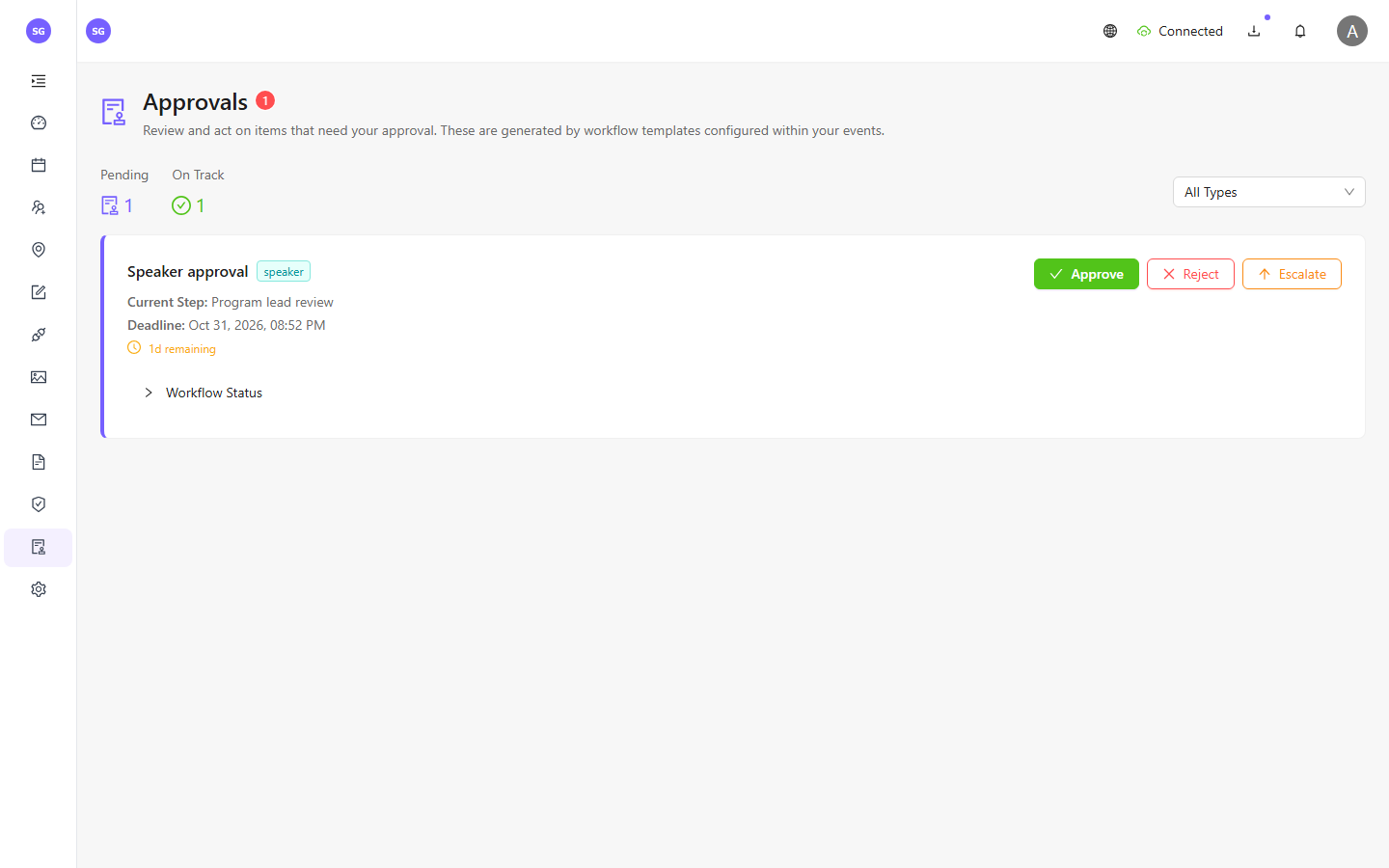
The same requests appear on the event's Workflows > My Approvals tab.
Follow every request
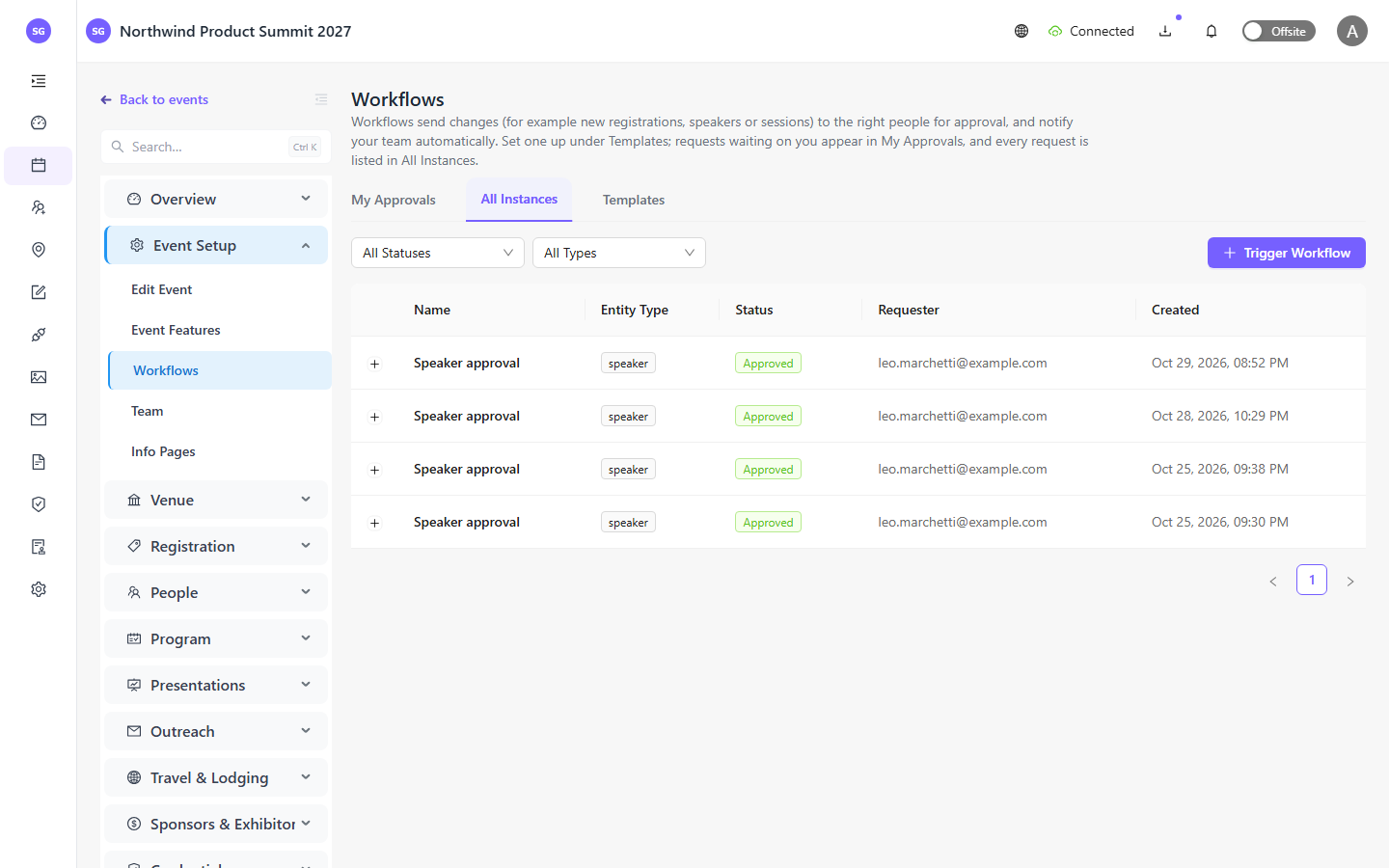
Workflows > All Instances lists every request on the event with its status, requester and when it started. Filter by status or type, and click + on a row to see its steps.
| Status | Meaning | Next action |
|---|---|---|
| In Progress | Waiting on the current step's approver | Approve, Reject or Escalate |
| Approved | Every approval step said yes | None |
| Rejected | An approver said no, with a reason | Fix the issue and start a new request |
| Escalated | Escalated by hand or after the step's timeout | The escalation contact follows up |
Who can do this
Organization admins and event staff with access to Event Setup create workflows. Anyone named as an approver, by email or through an event role, sees the requests on Approvals.
Troubleshooting
| You see | Why | Fix |
|---|---|---|
| Nothing reaches Approvals | The workflow is Inactive, has no steps, or the step's approver is someone else | Turn it on, add a step, and check the approver email |
| A request that just started is not on Approvals yet | The page can show its last copy for a moment | Reload the page |
| Reject does nothing | A reason is required | Type the reason, then confirm |