Live mode: the onsite live board
Put a full-screen board on a tablet or screen at the venue that shows check-ins as they happen, check-ins per hour and how full each running session is, refreshed every 15 seconds.
Live mode is a full-screen board for the day of the event. Open it on a tablet at the registration desk or on a screen in the operations room to see, at a glance, how many people are inside, how fast they are arriving and which rooms are filling up. It replaces the Live tab the old Event Analytics page had.
Open Live mode
Open the event and switch its menu to the onsite tools (the Switch to Onsite button at the top of the event menu), then click Monitoring > Live. Or open Reports > Attendance and click Open Live mode.
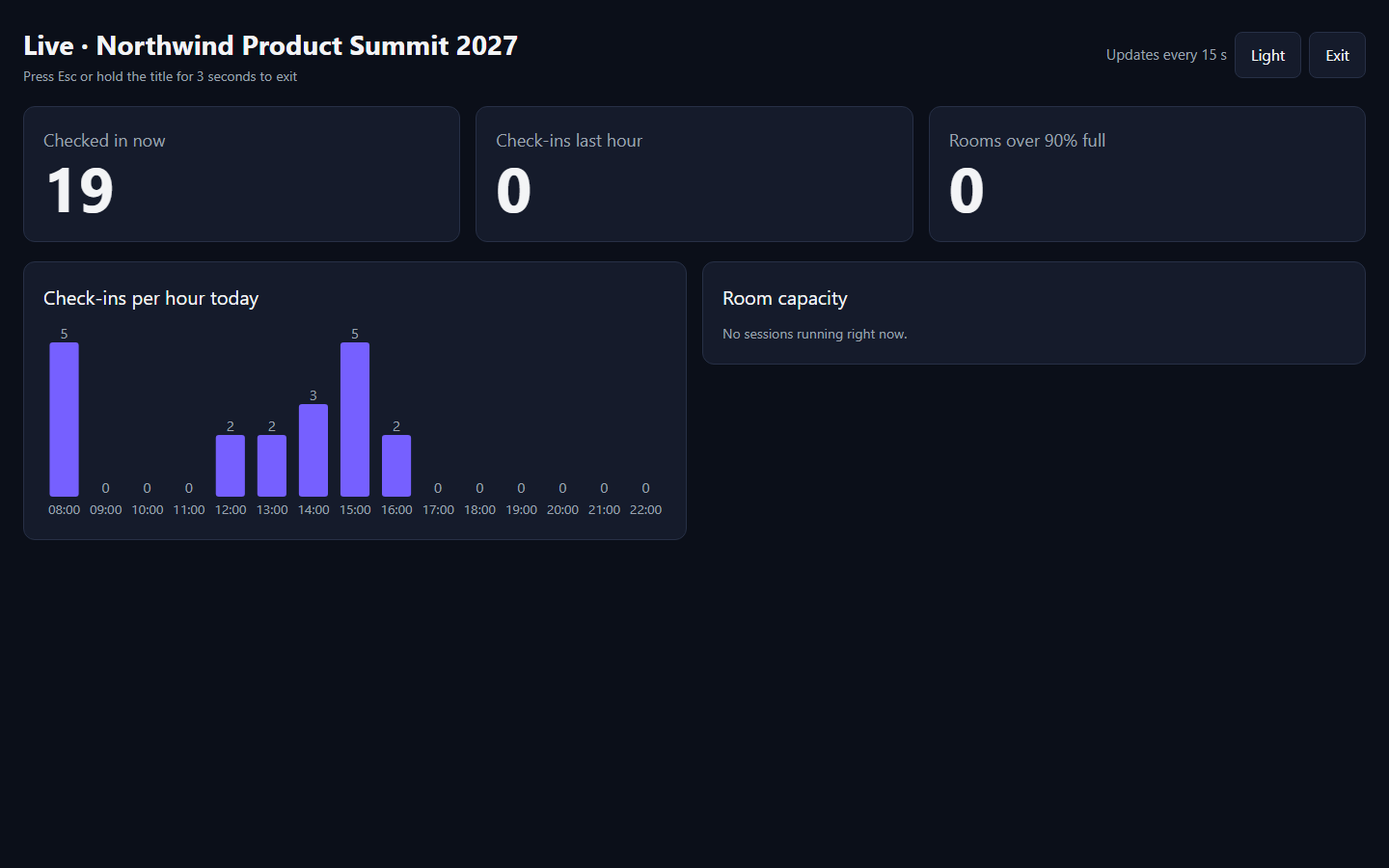
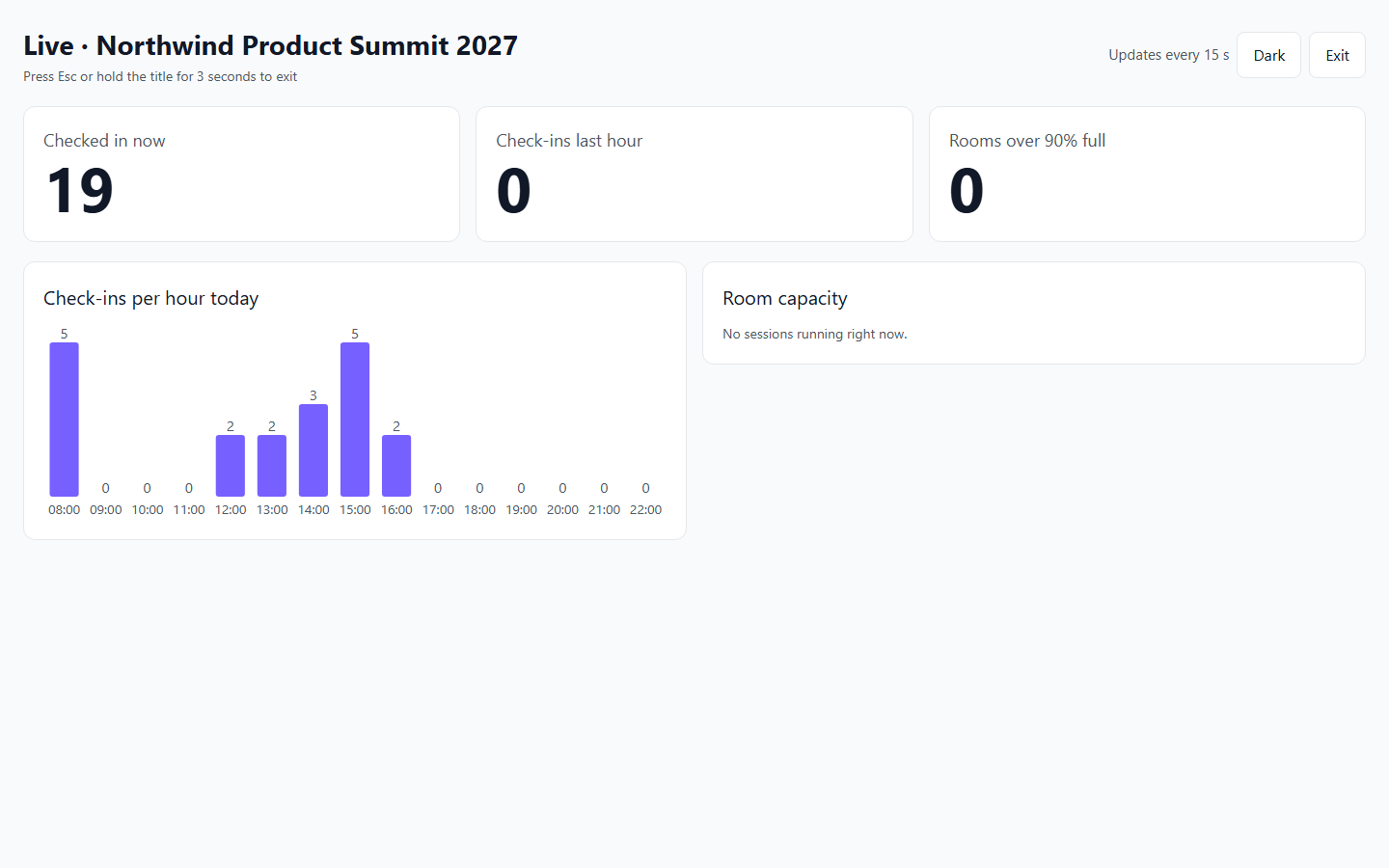
The board fills the whole screen (the browser goes full screen where it allows it) and keeps the screen awake on devices that support it. It is dark by default; Light switches it to a light theme and Dark switches it back.
What the board shows
| Part | What it shows |
|---|---|
| Checked in now | People checked in to the event so far |
| Check-ins last hour | People who checked in during the last 60 minutes |
| Rooms over 90% full | Sessions running right now that are at least 90% full |
| Check-ins per hour today | Check-ins per hour over about the last two hours, in the event's time zone |
| Room capacity | Each session running right now: its room, how many people are in it against its capacity, and a status word (Open, Filling, Full, or No capacity set) |
The numbers update every 15 seconds; the top right says Updates every 15 s. Room capacity counts the session check-in scans at the room doors, so it fills in only while sessions are running and staff scan people in. Outside session times it says No sessions running right now. The board never shows revenue, so it is safe on a screen the public can see.
When the connection drops
If the board cannot reach the server it keeps the last numbers on screen and says Reconnecting… last update N min ago, then tries again (waiting a little longer each time). A number it could not load shows as a dash, never as 0. When you switch to another browser tab, the board pauses and says Paused while this tab is hidden; it catches up as soon as you come back.
Leave Live mode
Click Exit, press Esc, or press and hold the title for 3 seconds (handy on a touch screen with no keyboard). You land on Reports > Attendance; see Event reports.
Who can do this
Anyone who can open the event's reports can open Live mode. See Team, members, roles and permissions.
Troubleshooting
| You see | Why | Fix |
|---|---|---|
| Every number is 0 | Nobody has checked in yet today | Check in a test attendee at a kiosk or in the Attendee Hub |
| No sessions running right now | No session is scheduled at this time, or none has a room | Check the agenda times and rooms |
| A room says No capacity set | The session and its room have no capacity | Set the room capacity under Venue > Rooms |
| Reconnecting… stays up | The device lost its internet connection | Check the venue network; the board recovers on its own |