Your profile, preferences and security
Edit your own name, contact details and photo, change your password, turn on two-factor authentication, see and sign out other sessions, and choose your language, date and time formats, theme and notifications.
Your profile belongs to you, not to the organization: your name, contact details, password, two-factor authentication, signed-in sessions and display preferences. Open it from the avatar in the top right corner: My Profile. The page has three tabs: Profile, Security and Preferences.
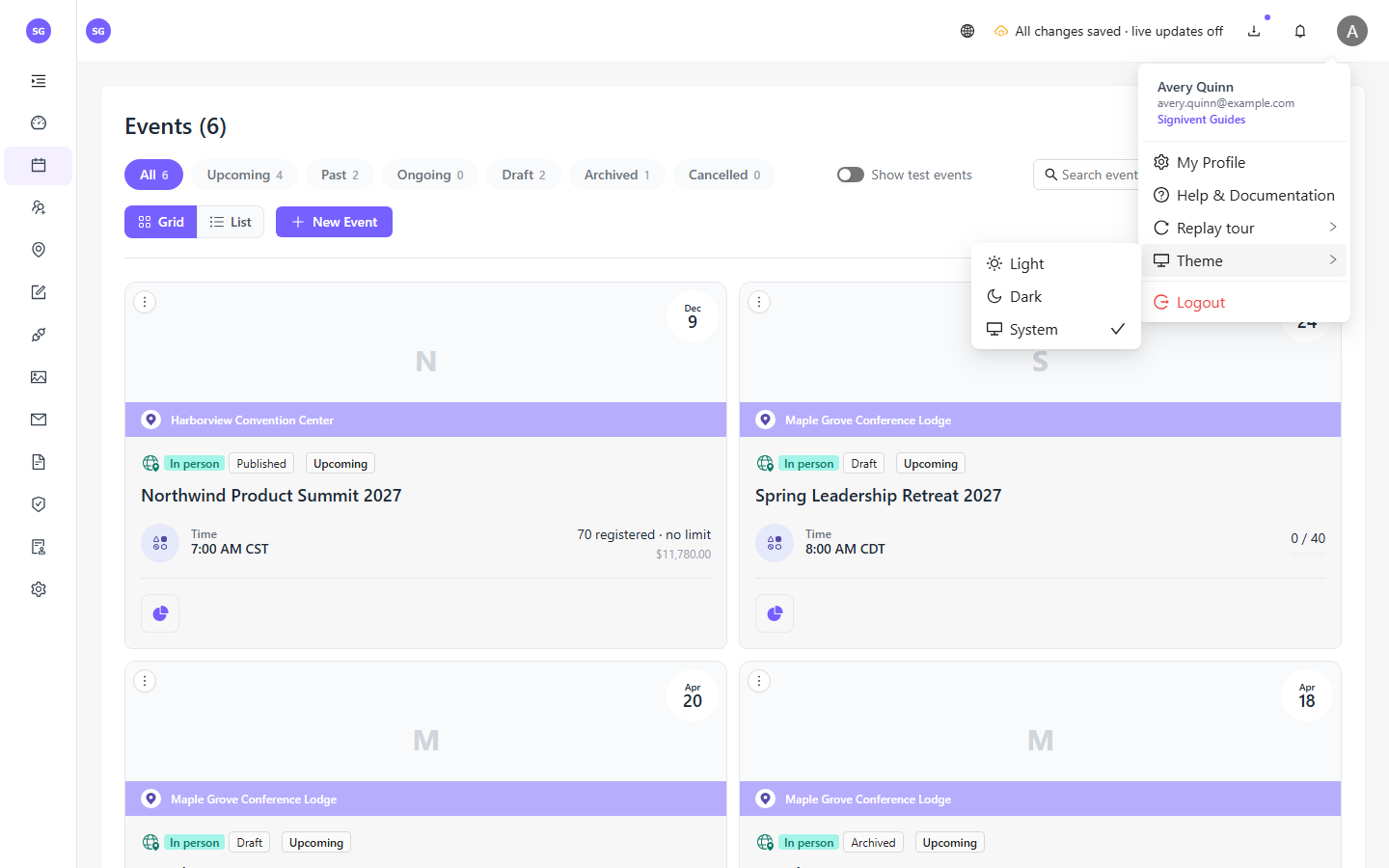
The same menu has Help & Documentation, Replay tour (runs the product tours again), Theme and Logout.
Edit your details
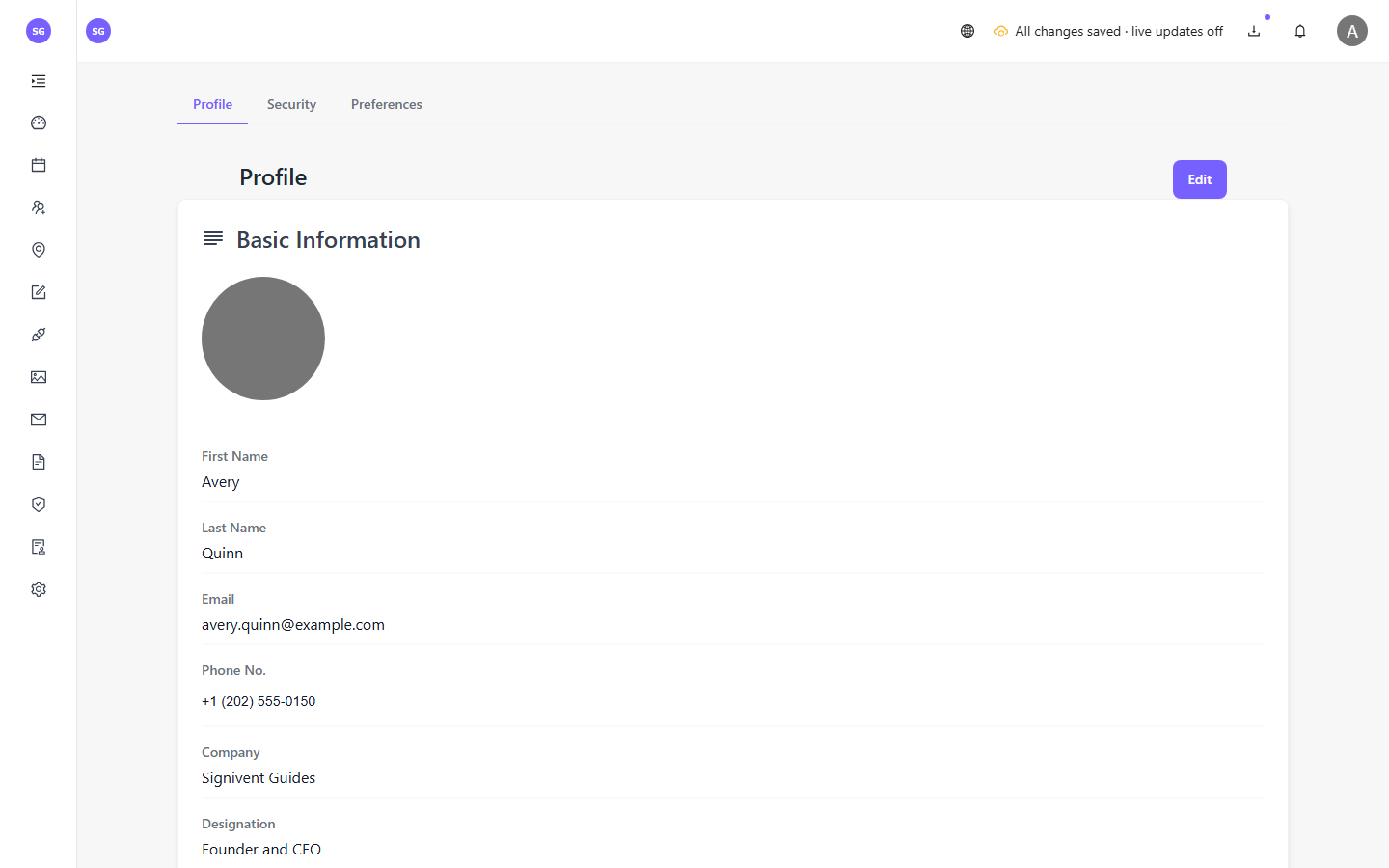
- Open My Profile. You land on the Profile tab.
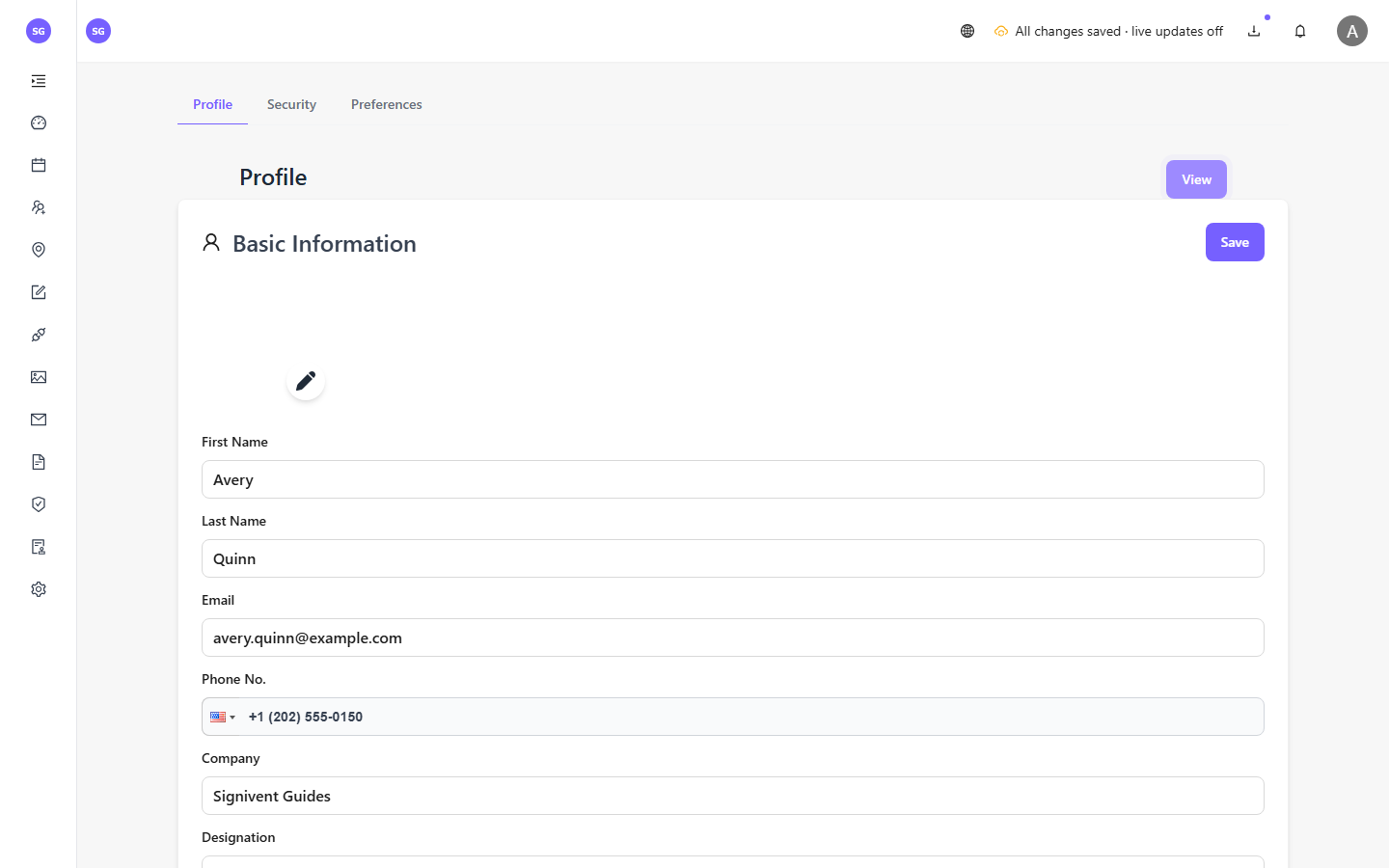
- Click Edit.
- Change your First Name, Last Name, Phone No., Company, Designation or address. Click the pencil to add a photo.
- Click Save, then View to leave edit mode.
Change your password
- Open My Profile > Security.
- Enter your Old Password, then the New Password twice.
- Click Submit.
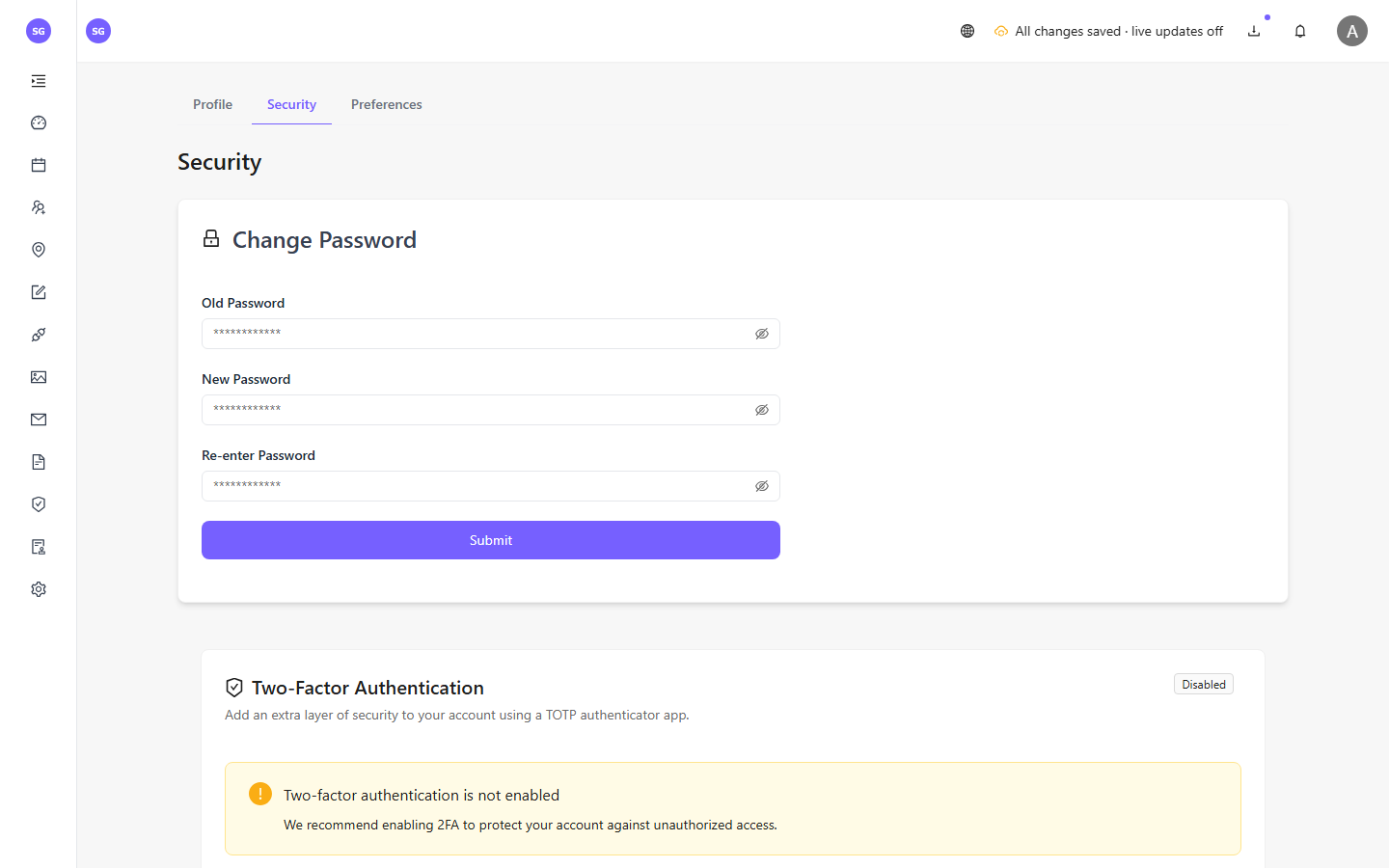
A new password needs at least 8 characters, with an uppercase letter, a lowercase letter, a digit and a special character. When the change succeeds you are signed out and land on the sign-in page, so sign in again with the new password.
Turn on two-factor authentication
Two-factor authentication (2FA) asks for a code from an authenticator app each time you sign in, so a stolen password alone is not enough.
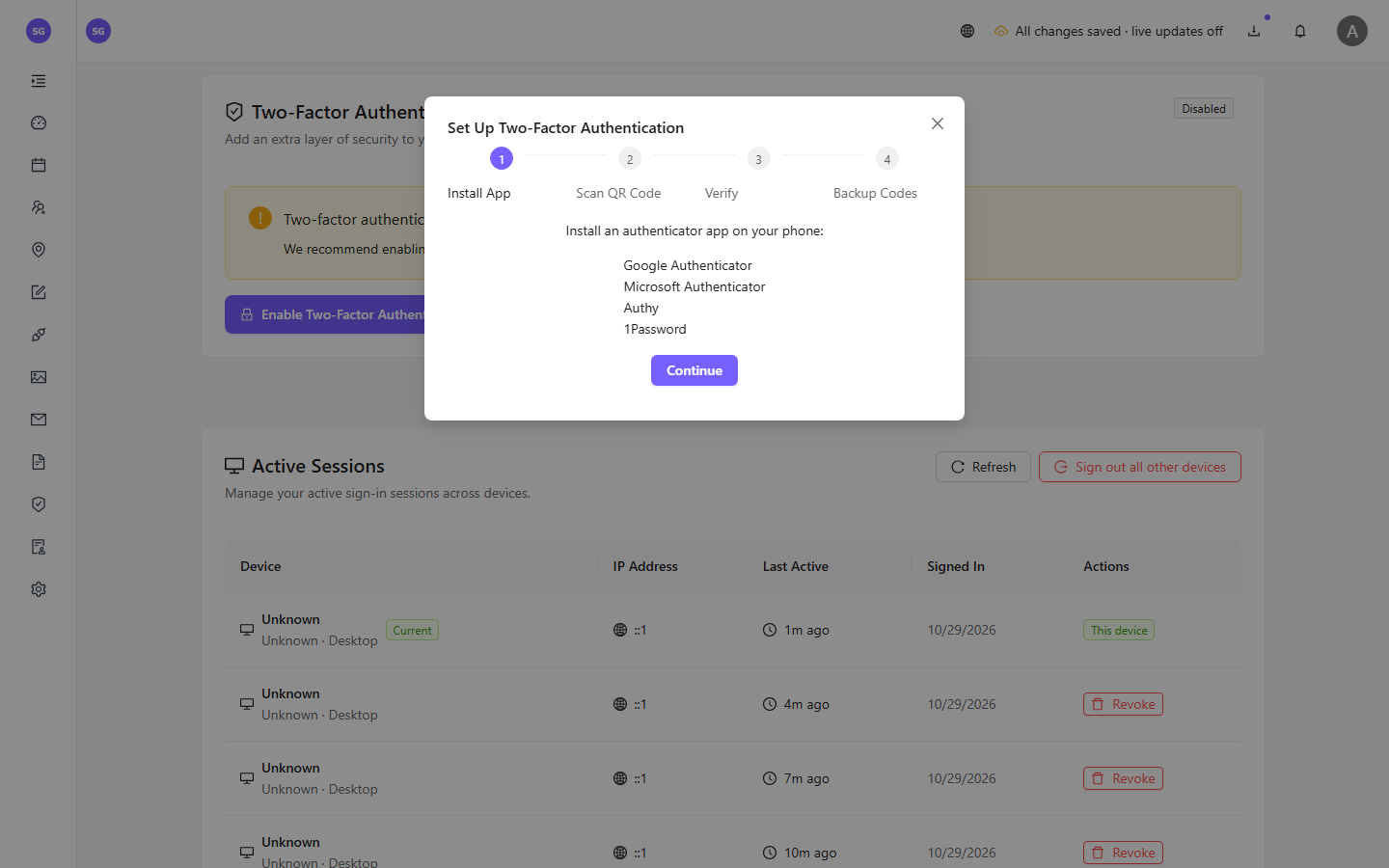
- On My Profile > Security, find Two-Factor Authentication. The tag says Disabled until you finish.
- Click Enable Two-Factor Authentication.
- Install App. Install an authenticator app on your phone (Google Authenticator, Microsoft Authenticator, Authy or 1Password) and click Continue.
- Scan QR Code. Scan the code with the app.
- Verify. Enter the six-digit code the app shows.
- Backup Codes. Save the backup codes somewhere safe. Each one signs you in once if you lose your phone.
Your organization can require two-factor authentication for everyone; see Single sign-on and security.
See where you are signed in
Active Sessions, at the bottom of the Security tab, lists every browser and device signed in to your account, with its IP address, when it was last active and when it signed in. The session you are using is marked Current.
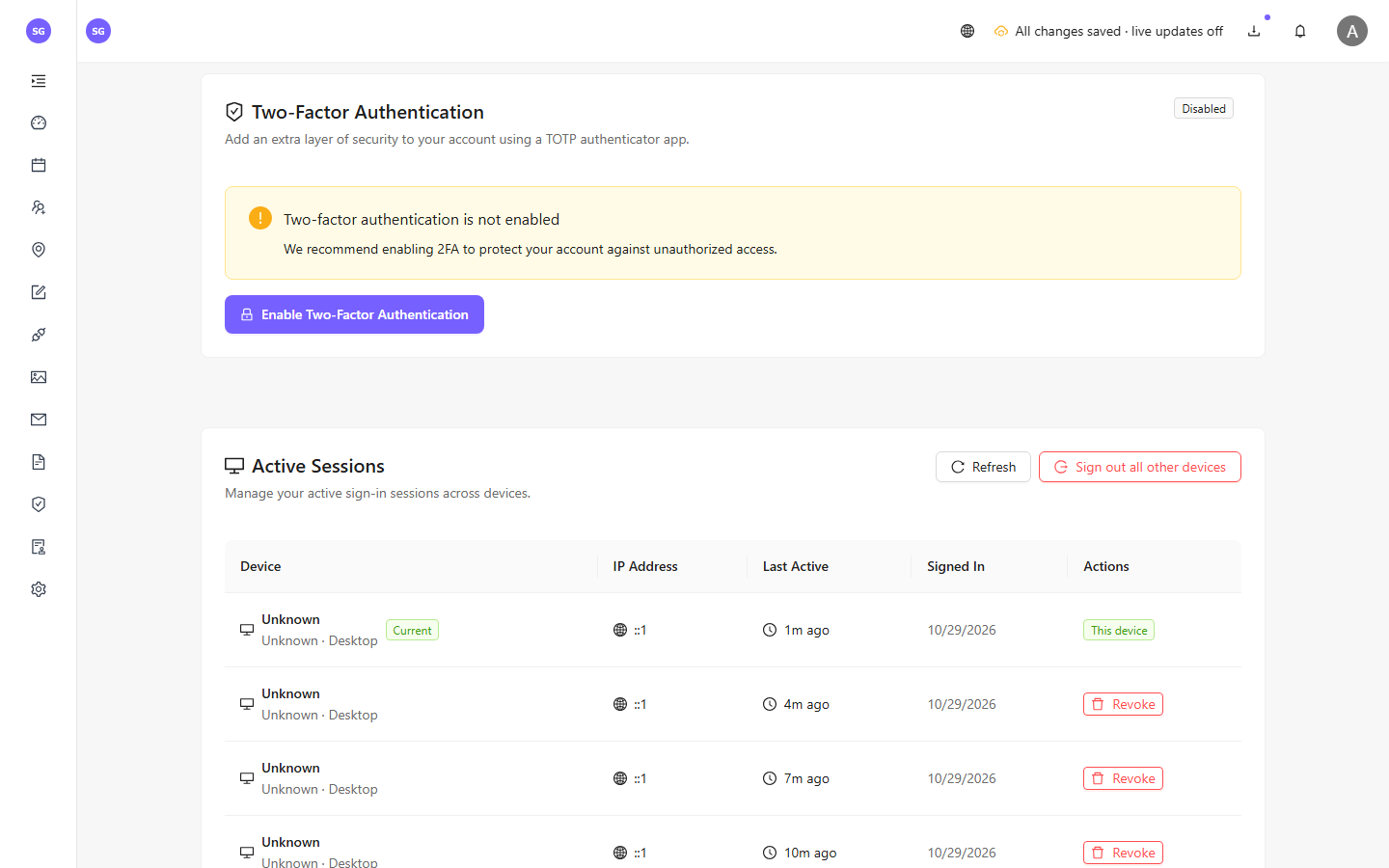
- Revoke signs out one session.
- Sign out all other devices signs out everything except the browser you are using.
- Refresh reloads the list.
If you see a session you do not recognize, revoke it and change your password.
Set your display preferences
Preferences are yours alone. Each one is saved to your profile as soon as you pick a value.
- Open My Profile > Preferences.
- Under Display Preferences, pick:
- Language for the interface.
- Date Format: MM/DD/YYYY, DD/MM/YYYY or YYYY-MM-DD.
- Time Format: 12-hour or 24-hour.
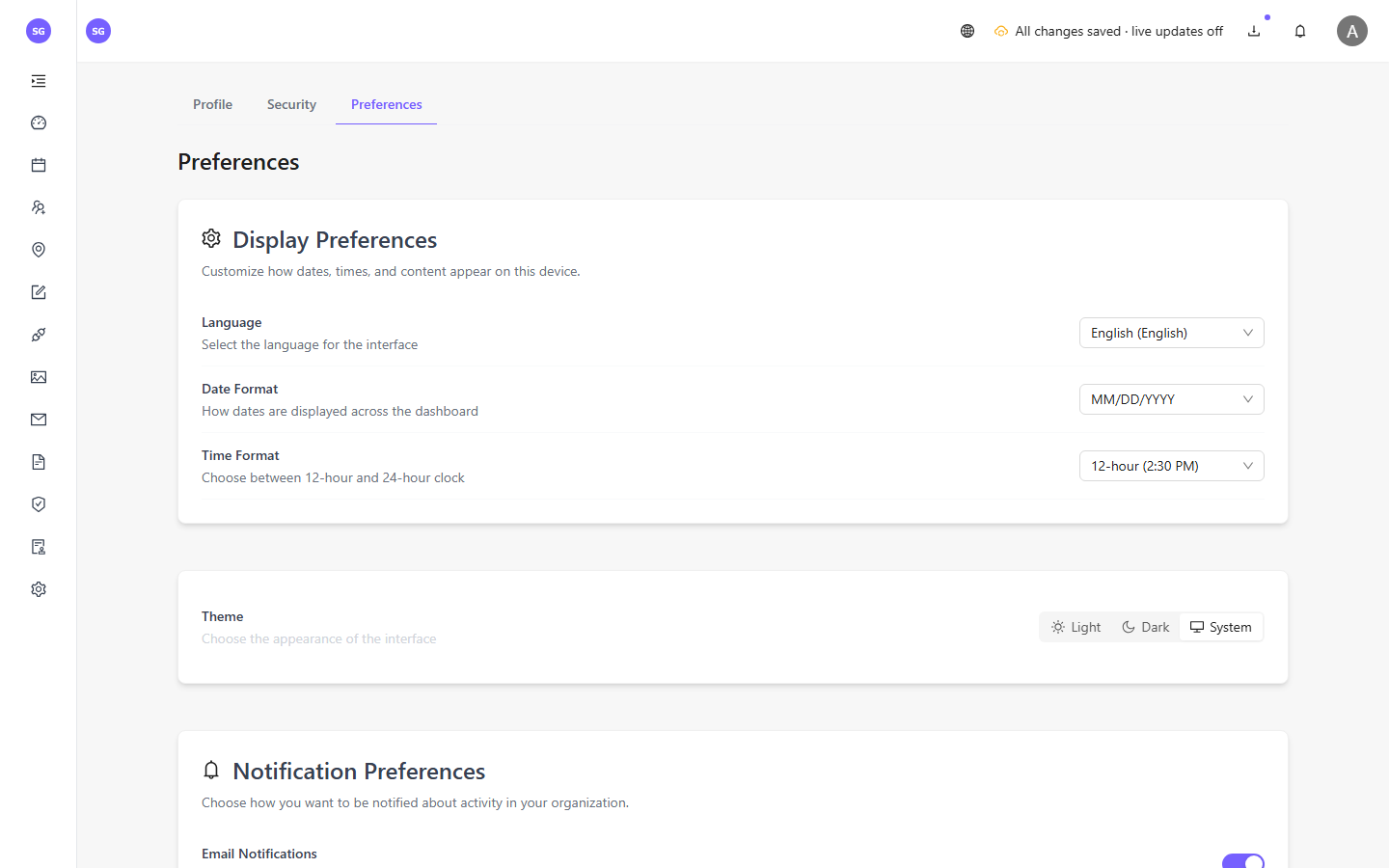
To switch between light and dark, use the Theme card here or Theme in the avatar menu: Light, Dark or System (follows your computer's setting). Both change the same setting.
Choose your notifications
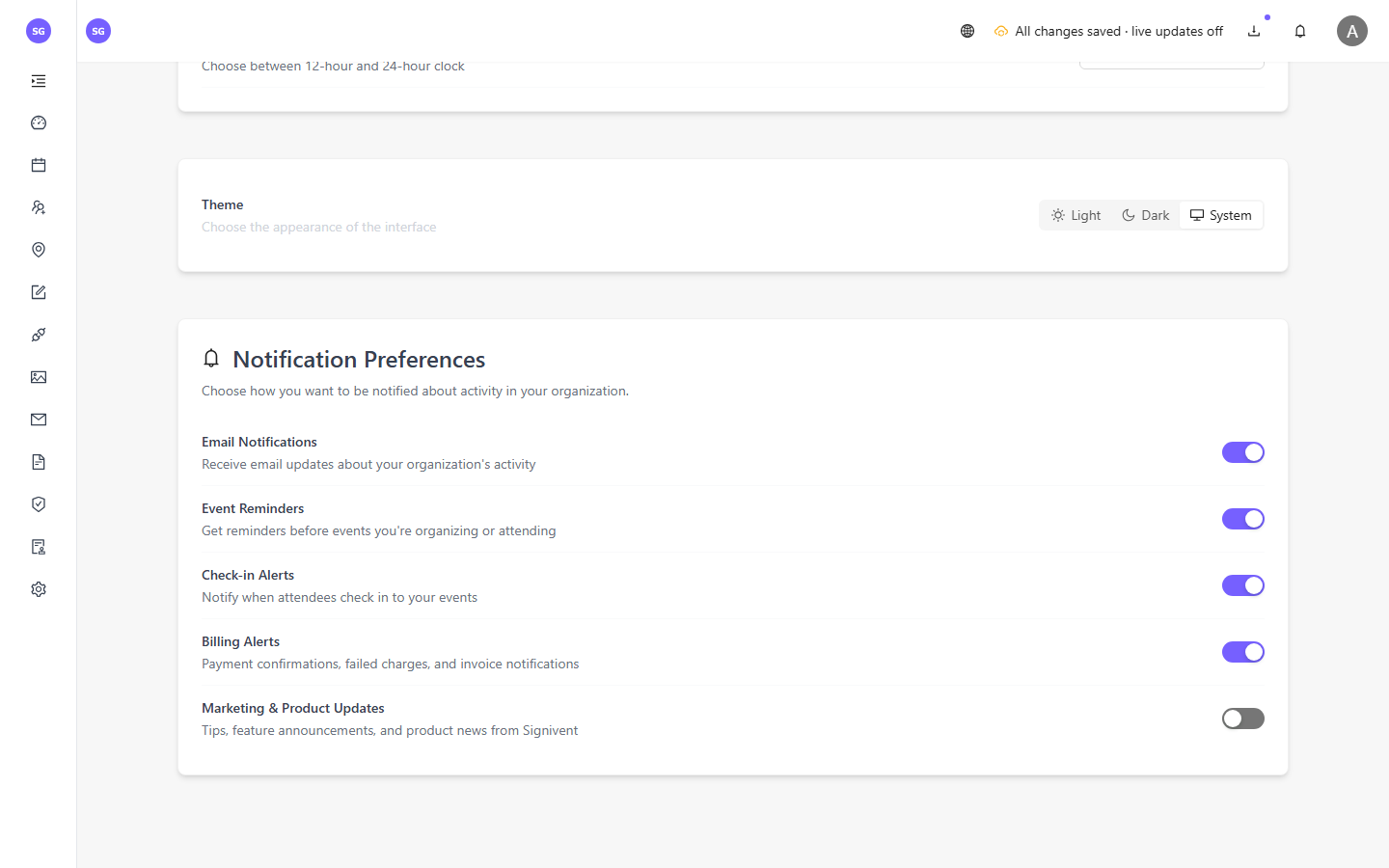
At the bottom of Preferences, Notification Preferences turns each kind of message on or off for you: Email Notifications, Event Reminders, Check-in Alerts, Billing Alerts and Marketing & Product Updates.
Delete your account
The Danger Zone at the bottom of the Profile tab has Delete Account. It permanently deletes your personal account and data, and you lose access to every organization you belong to. It cannot be undone. To remove someone else from your organization instead, use Team.
Troubleshooting
| You see | Why | Fix |
|---|---|---|
| "Password must be at least 8 characters long" (or must contain a digit, lowercase, uppercase or special character) | The new password does not meet the rules | Add what the message asks for |
| The re-entered password is flagged | The two new passwords differ | Type them again |
| You were signed out after changing your password | This is expected | Sign in with the new password |
| "Failed to initiate MFA setup" | The server could not start two-factor setup | Try again; if it repeats, copy the reference shown and contact support |
| A session you do not recognize | Someone else may have your password | Revoke it, then change your password and turn on two-factor |