Single sign-on and security
Connect your identity provider with SAML 2.0 so your team signs in with their work accounts, review SSO sign-in events in the audit log, require two-factor authentication for admins, and manage sessions.
Single sign-on (SSO) lets your team sign in to Signivent with the accounts they already use at work, through your identity provider (IdP) such as Okta, Microsoft Entra ID (Azure AD), OneLogin or Google Workspace. Any SAML 2.0 provider works. Set it up under Organization Settings > Single Sign-On. The SSO sign-in log tab records every SSO sign-in.
Before you start
From your IdP's admin console you need:
| For | What to collect |
|---|---|
| SAML 2.0 | The IdP Entity ID, the IdP SSO URL and the IdP's X.509 certificate (PEM format). Optionally the SLO (sign-out) URL and metadata URL |
Use SAML 2.0. OpenID Connect (OIDC) is listed as a type but is not available yet, so it can't be picked.
You also need to know which email domains your team uses (for example yourcompany.com).
Add an identity provider
- Open Organization Settings > Single Sign-On and click Add Provider.
- Enter a Provider Name your team will recognize, and keep Provider Type on SAML 2.0.
- Under Identity Provider Settings, paste the values from your IdP: IdP Entity ID, IdP SSO URL and the X.509 Certificate.
- Leave SP Entity ID blank unless your IdP needs a specific one; it defaults to the metadata URL.
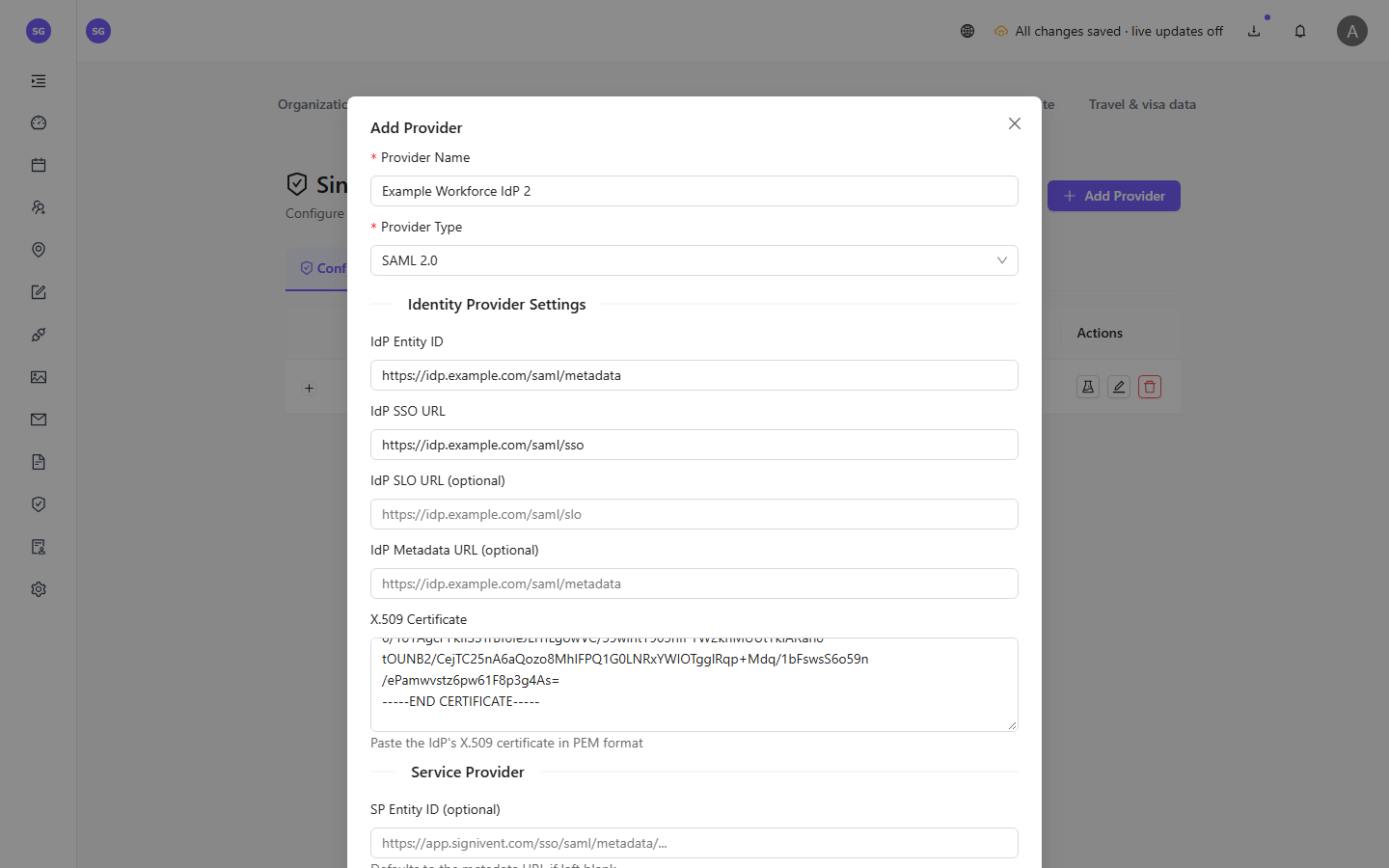
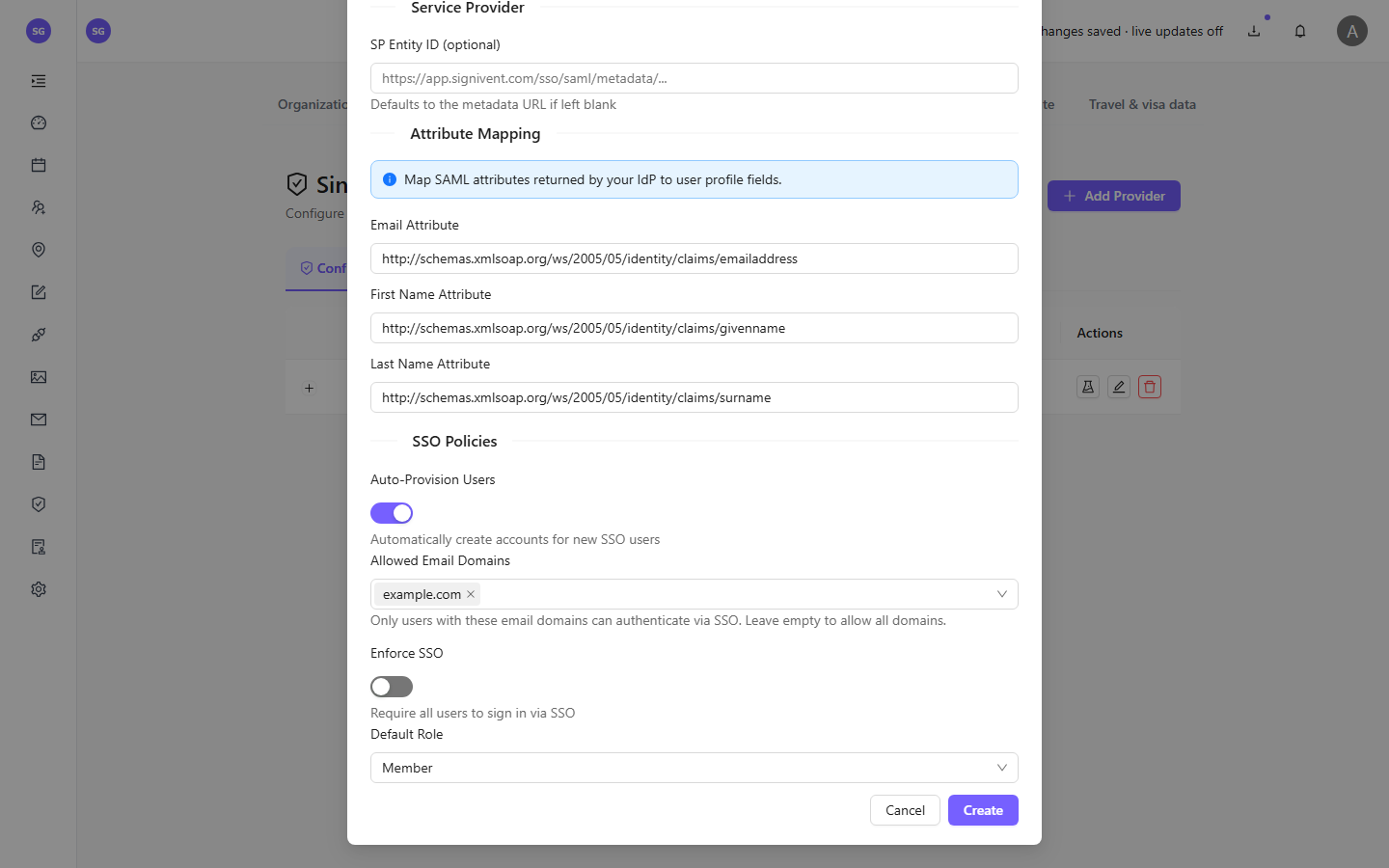
- Check Attribute Mapping. The fields are filled with the standard SAML claim names (
emailaddress,givennameandsurname). Change them only if your IdP sends different names. - Set the SSO Policies:
- Auto-Provision Users creates an account the first time someone from your IdP signs in.
- Allowed Email Domains limits SSO to those domains. Leave it empty to allow any.
- Enforce SSO makes SSO the only way to sign in. Leave it off until you have tested SSO.
- Default Role is the role a new auto-provisioned user gets: Member, Viewer or Admin.
- Click Create.
Connect it in your IdP
Expand the provider's row (the plus sign) to see the addresses your IdP needs. Use the copy buttons.
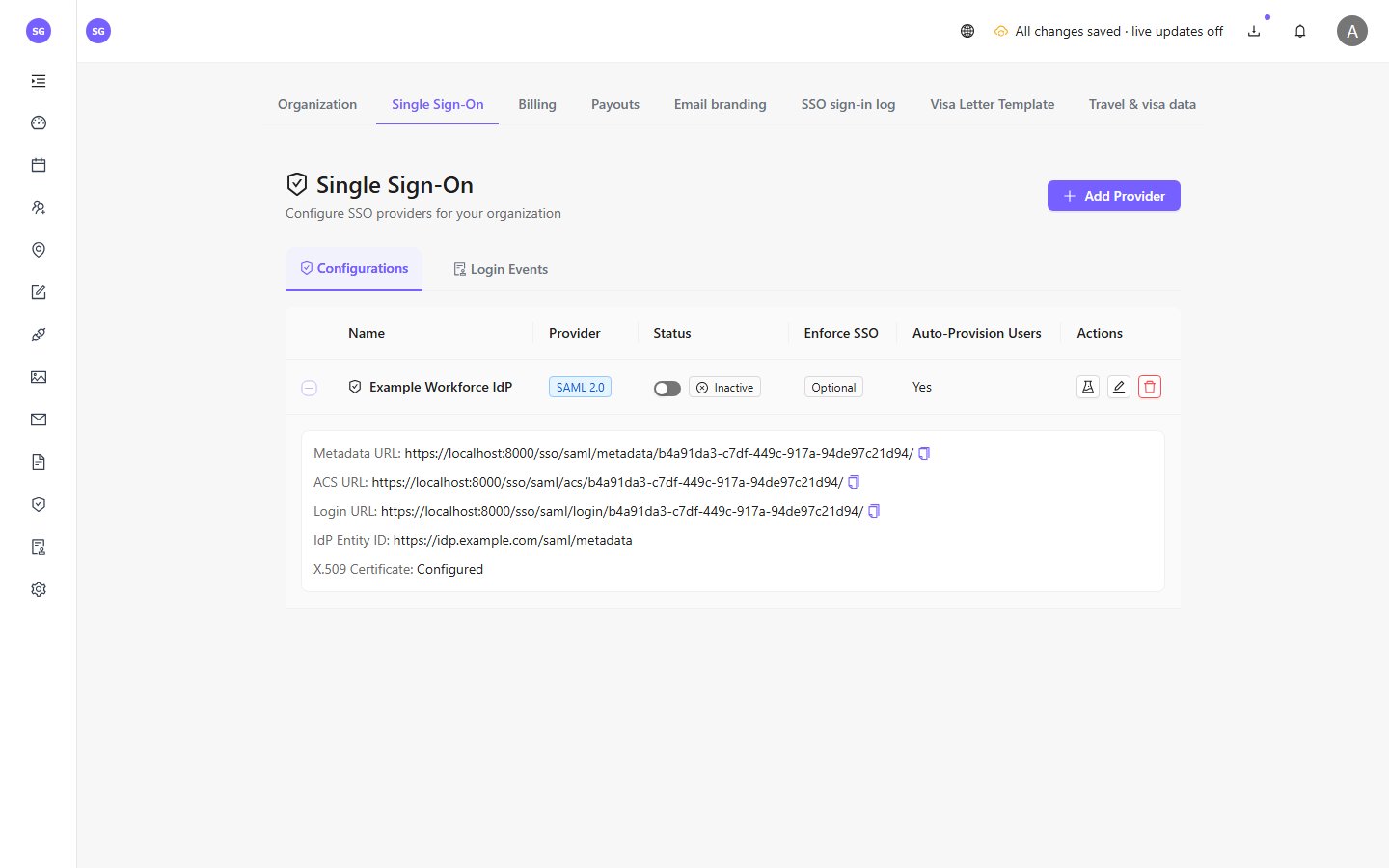
- Metadata URL: give this to an IdP that can read service provider metadata.
- ACS URL: the assertion consumer service (reply) URL to enter in your IdP.
- Login URL: the address that starts a sign-in through this provider.
Then, in your IdP, assign the application to the people who should use it.
Test and switch it on
- Click the flask button (Test SSO configuration) on the provider's row. A dialog says whether the configuration is valid and lists any problems.
- Fix anything it reports with the pencil button (Edit SSO configuration), then test again.
A new provider is saved as Inactive. Once the test passes, turn on the switch in its Status column to make it Active. Turn the switch off to stop sign-ins through that provider.
Check SSO sign-ins
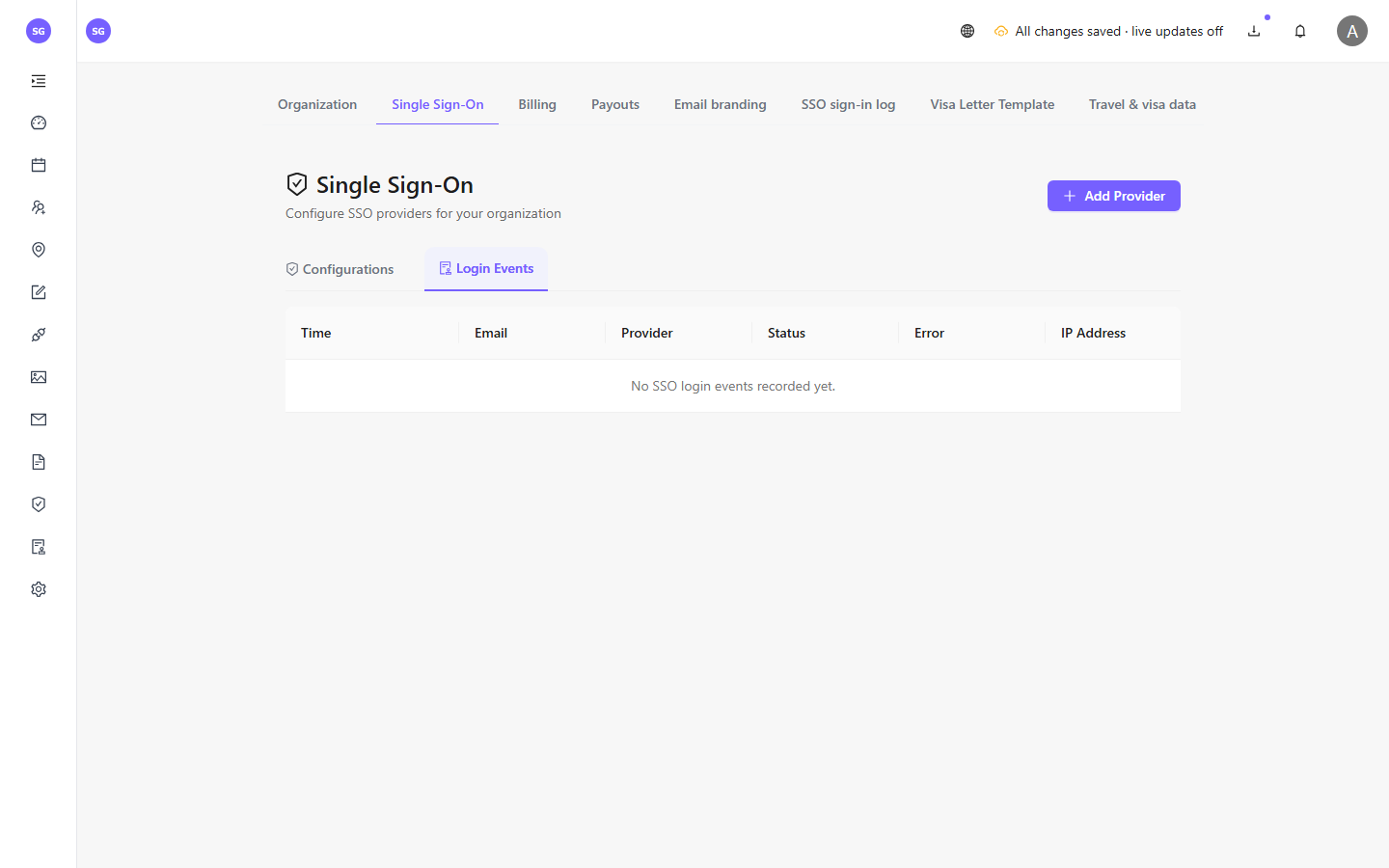
- The Login Events tab on Single Sign-On lists recent SSO sign-ins.
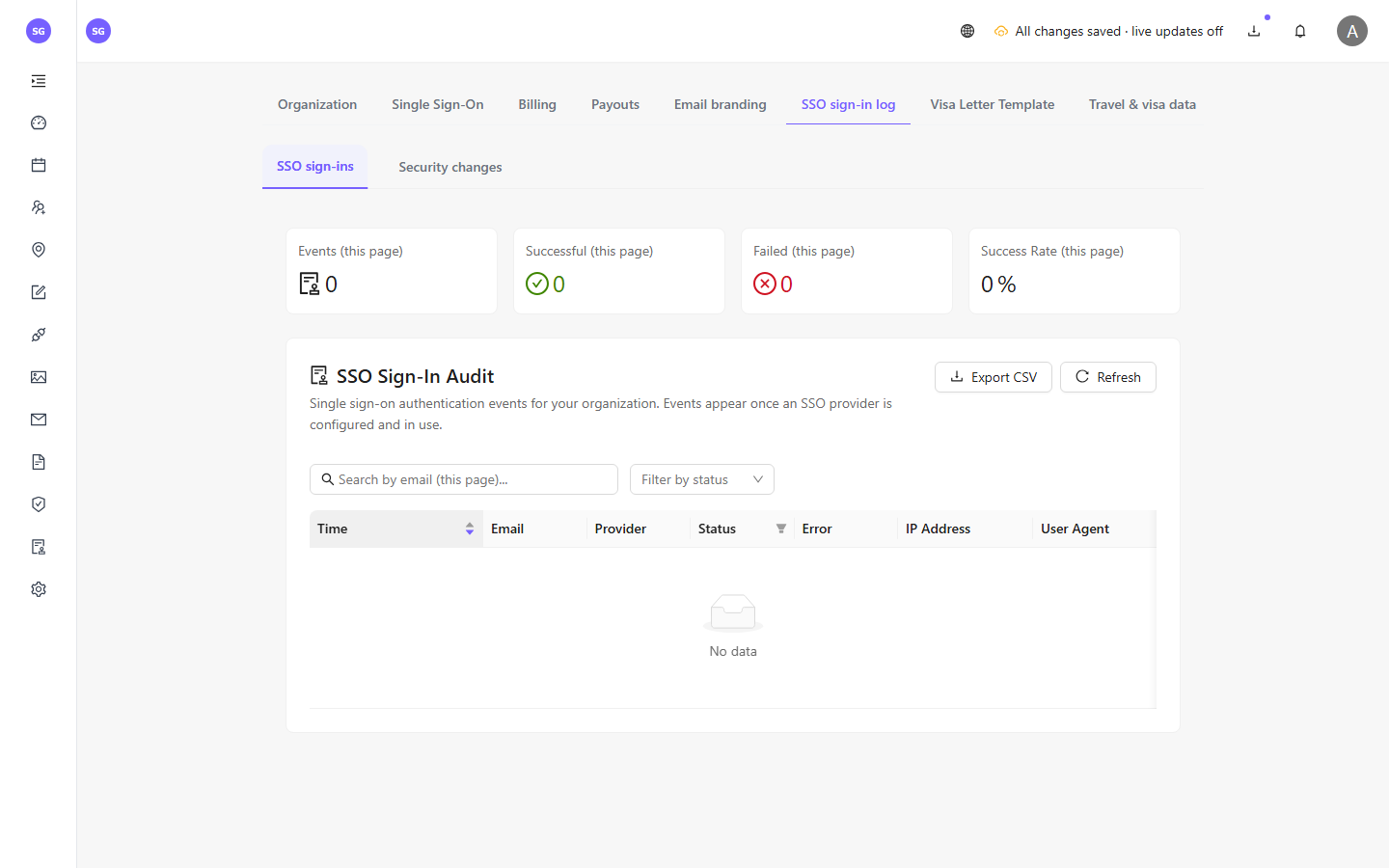
- Organization Settings > SSO sign-in log (SSO Sign-In Audit) shows every SSO sign-in attempt with its time, email, provider, status, error, IP address and browser. Search by email, filter by status, Refresh, or Export CSV. The cards at the top count events, successes and failures on the page you are viewing.
Require two-factor authentication for admins
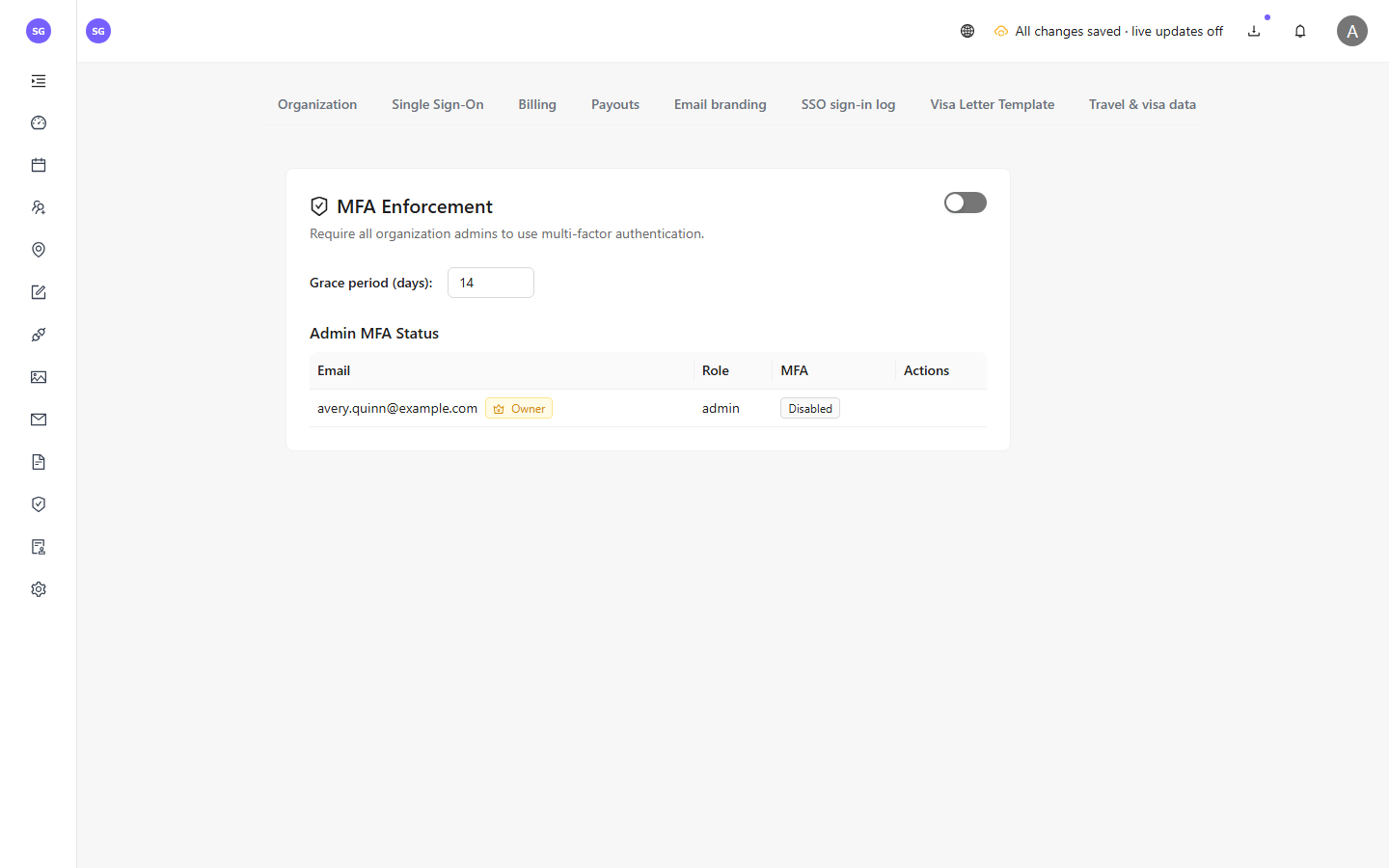
The organization owner sees an extra Security tab in Organization Settings with MFA Enforcement:
- Turn on MFA Enforcement to require every organization admin to use two-factor authentication.
- Set the Grace period (days). Admins who have not turned on two-factor by then are blocked from signing in until they do.
- Admin MFA Status lists each admin and whether they have two-factor. Reset MFA turns it off for someone who lost their phone; they must set it up again.
Anyone else who opens this page sees "Owner access required". Each person sets up their own two-factor under Your profile, preferences and security.
Sessions
Signed-in sessions are personal: see and sign out your own under My Profile > Security > Active Sessions. The old Settings > Sessions address opens that page.
Troubleshooting
| You see | Why | Fix |
|---|---|---|
| Test says "Configuration validation failed" | A required value is missing or the server cannot validate SAML yet | Read the listed errors, Edit and test again; contact support if it names a missing library |
| The provider stays Inactive | Providers are created inactive | Turn on the switch in its Status column |
| Someone cannot sign in with SSO | Their email domain is not in Allowed Email Domains, or the IdP does not assign them the app | Add the domain, or assign the app in your IdP |
| A new SSO user has the wrong access | Default Role gave them that role | Change their role on Team > Members, and adjust Default Role |
| Everyone is locked out after turning on Enforce SSO | SSO is not working and passwords are no longer accepted | Contact support; always test before enforcing |
| "Owner access required" on Security | Only the organization owner can enforce MFA | Ask the owner |
| The SSO sign-in log is empty | No SSO sign-ins yet; it records only SSO sign-ins, not other changes | Sign in once through the Login URL |