Virtual event: streaming, breakout rooms, expo hall and networking
Set up the online side of an event, with live streams, video breakout rooms, virtual booths, attendee networking and on-demand recordings, and know the current beta limits.
The Virtual Event pages under Program run the online side of a virtual or hybrid event: live streams, breakout rooms, an expo hall, networking and recordings. They are in Beta.
Note: While in Beta, stream settings are kept only on the device you set them on, the networking schedule cannot be set yet, and Join on a breakout room opens the virtual lobby rather than the room itself.
The Virtual Event overview
Go to Program > Virtual Event. The overview counts Streaming Sessions, Breakout Rooms, Expo Booths and Recordings, lists the steps to get started, and links to each page.
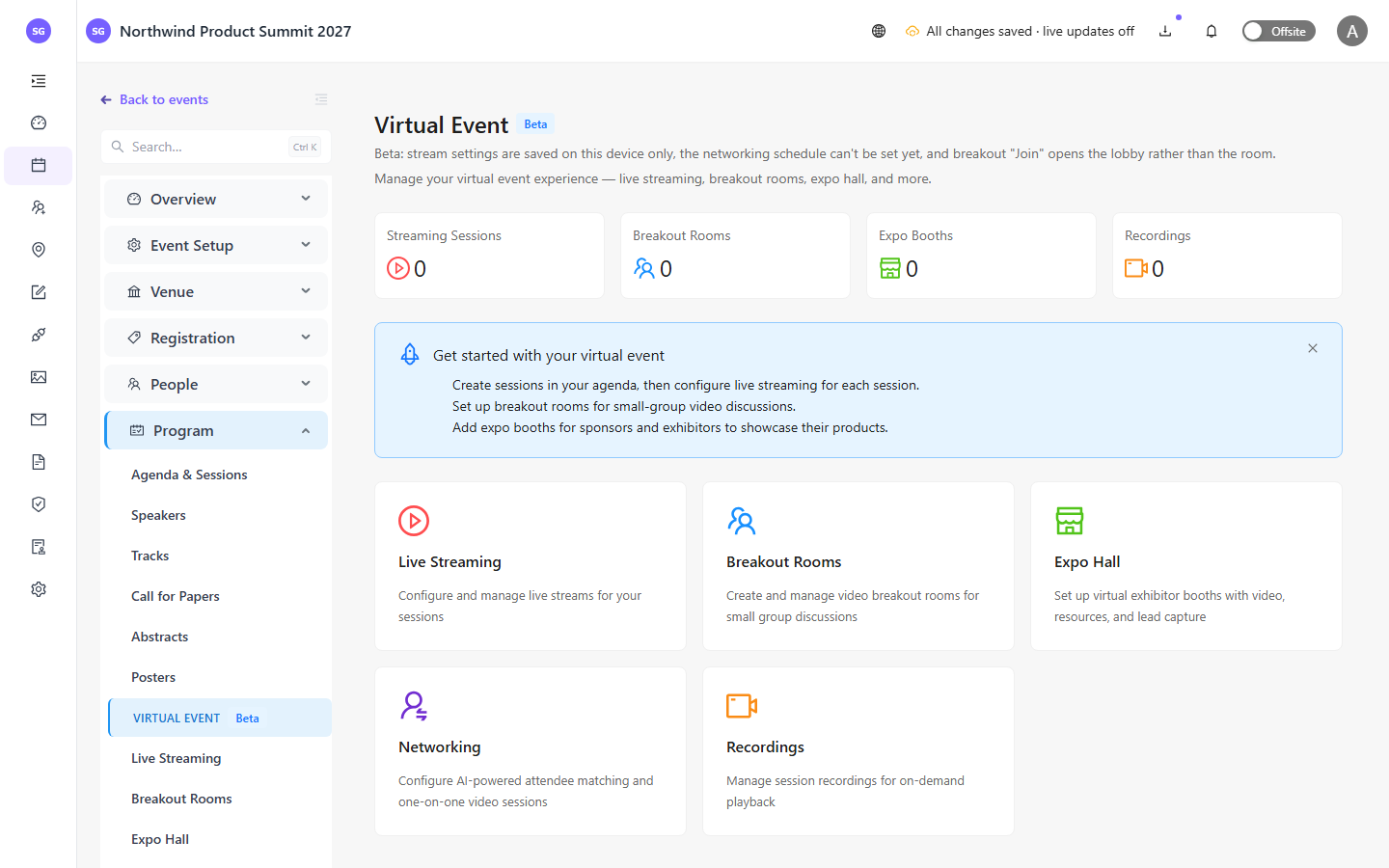
If the page says virtual features are turned off for this event, switch them on under Event Setup > Event Features first (see Event Setup). Each page appears only when its feature is on.
Stream a session
Live Streaming lists every session on the agenda with its type, time and stream state (Not Configured until you set it up). Sessions come from Agenda & Sessions, so build the agenda first (see Agenda, sessions and tracks).
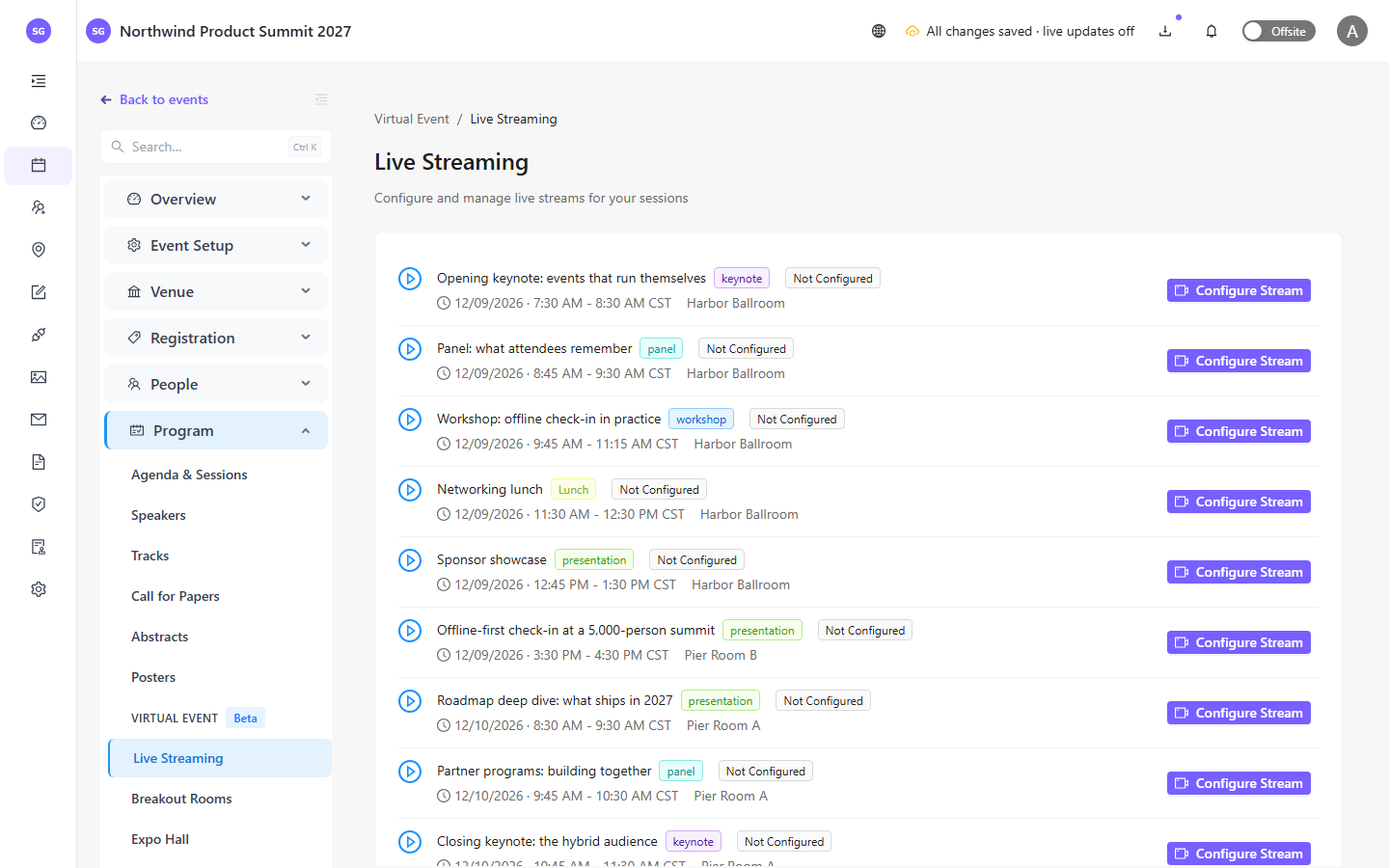
- Click Configure Stream on a session.
- Pick the Stream Source Type: External URL (a Zoom, YouTube Live, Vimeo or other embeddable link), Local OBS/RTMP, or Direct Camera.
- For an external URL, paste the Stream / Meeting URL.
- Switch Recording on if the session should be kept for on-demand viewing, and choose whether to embed the stream in the attendee page.
- Save, then click Back to sessions.
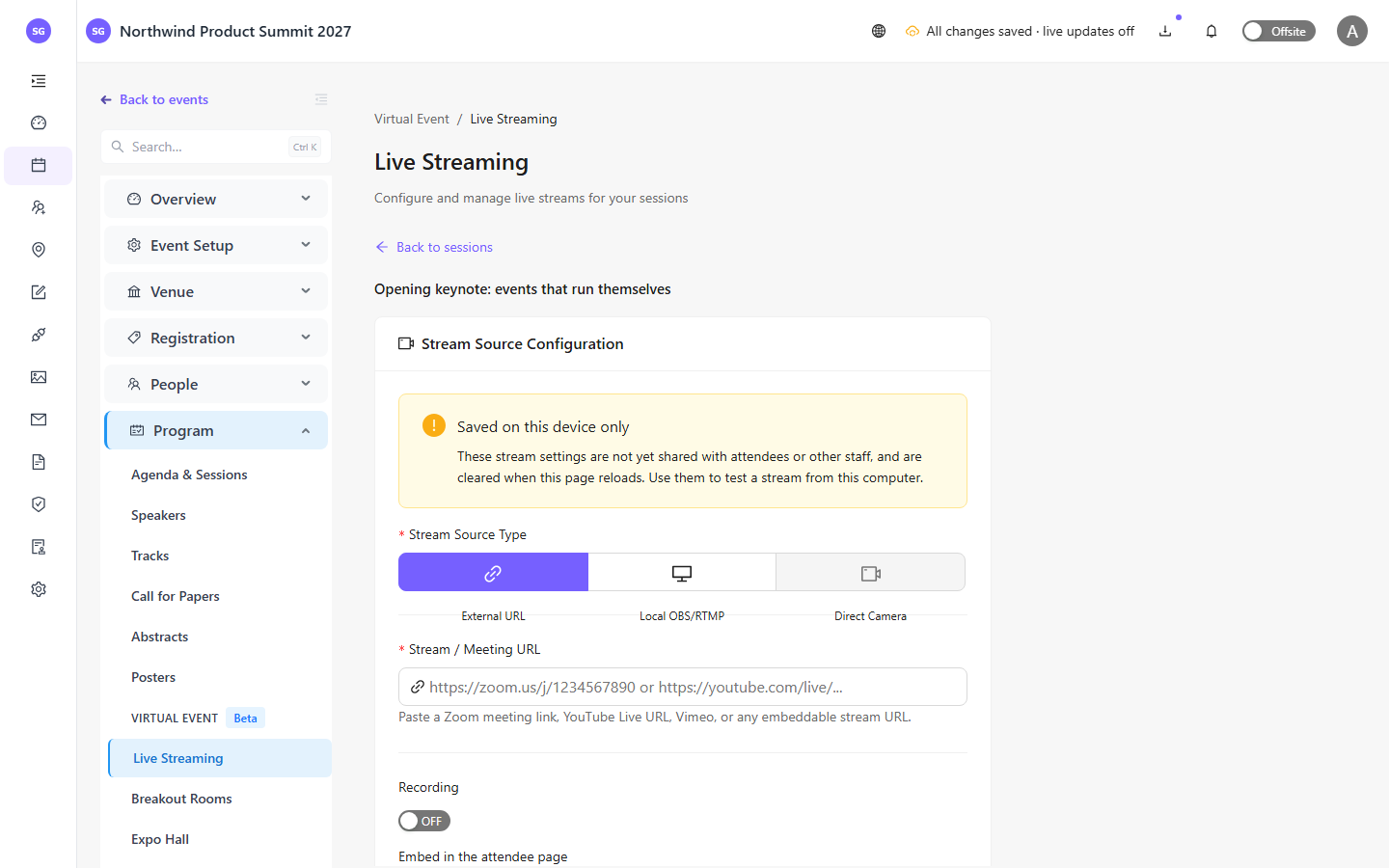
The yellow notice on the form is the beta limit: these settings are not yet shared with attendees or other staff and are cleared when the page reloads. Use them to test a stream from this computer.
Create breakout rooms
- Go to Breakout Rooms and click Create Room.
- Enter the Room Name (for example "Discussion Group A"), pick the Room Type and set Max Participants.
- Click OK.
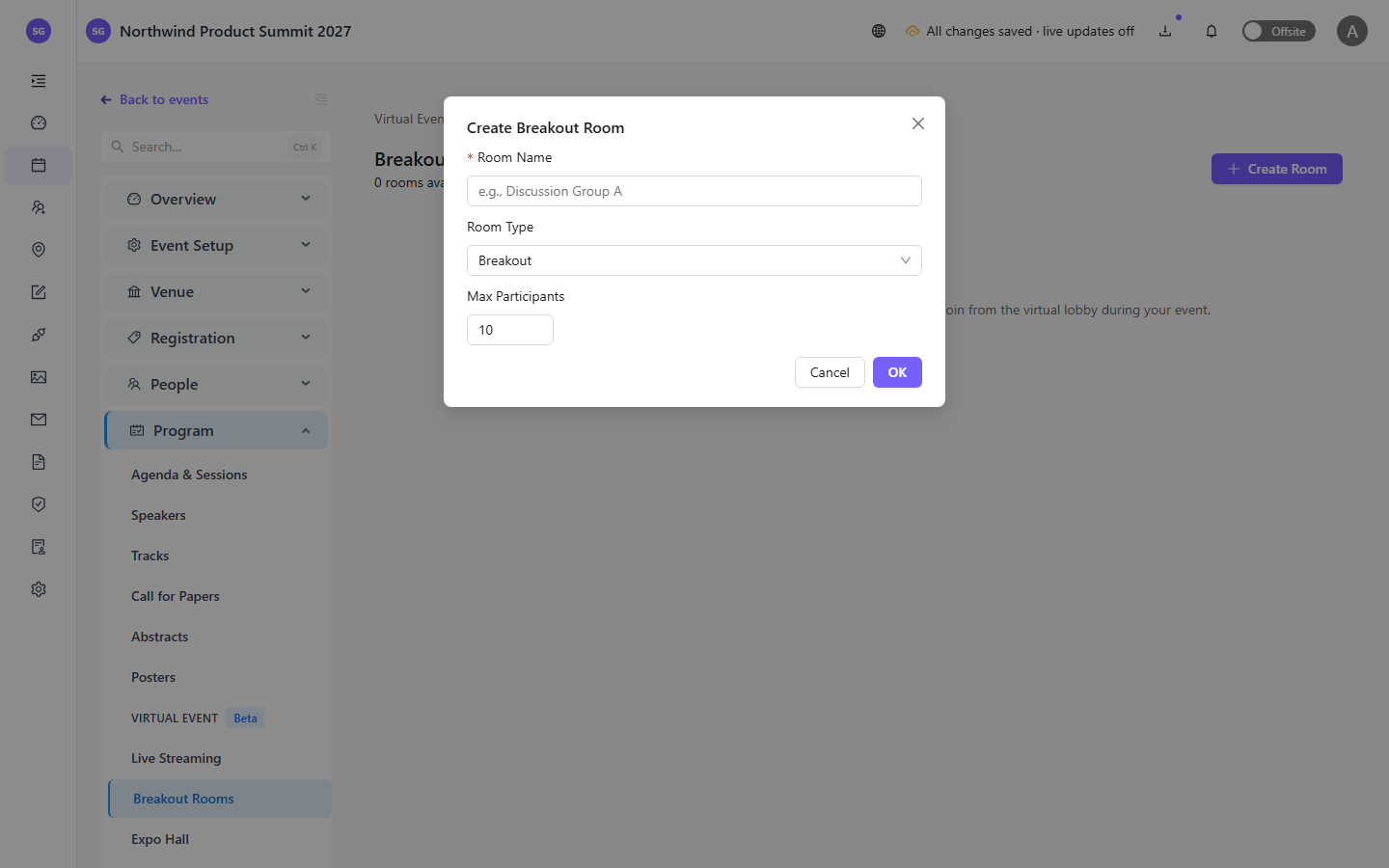
Attendees join breakout rooms from the virtual lobby during the event.
Give exhibitors virtual booths
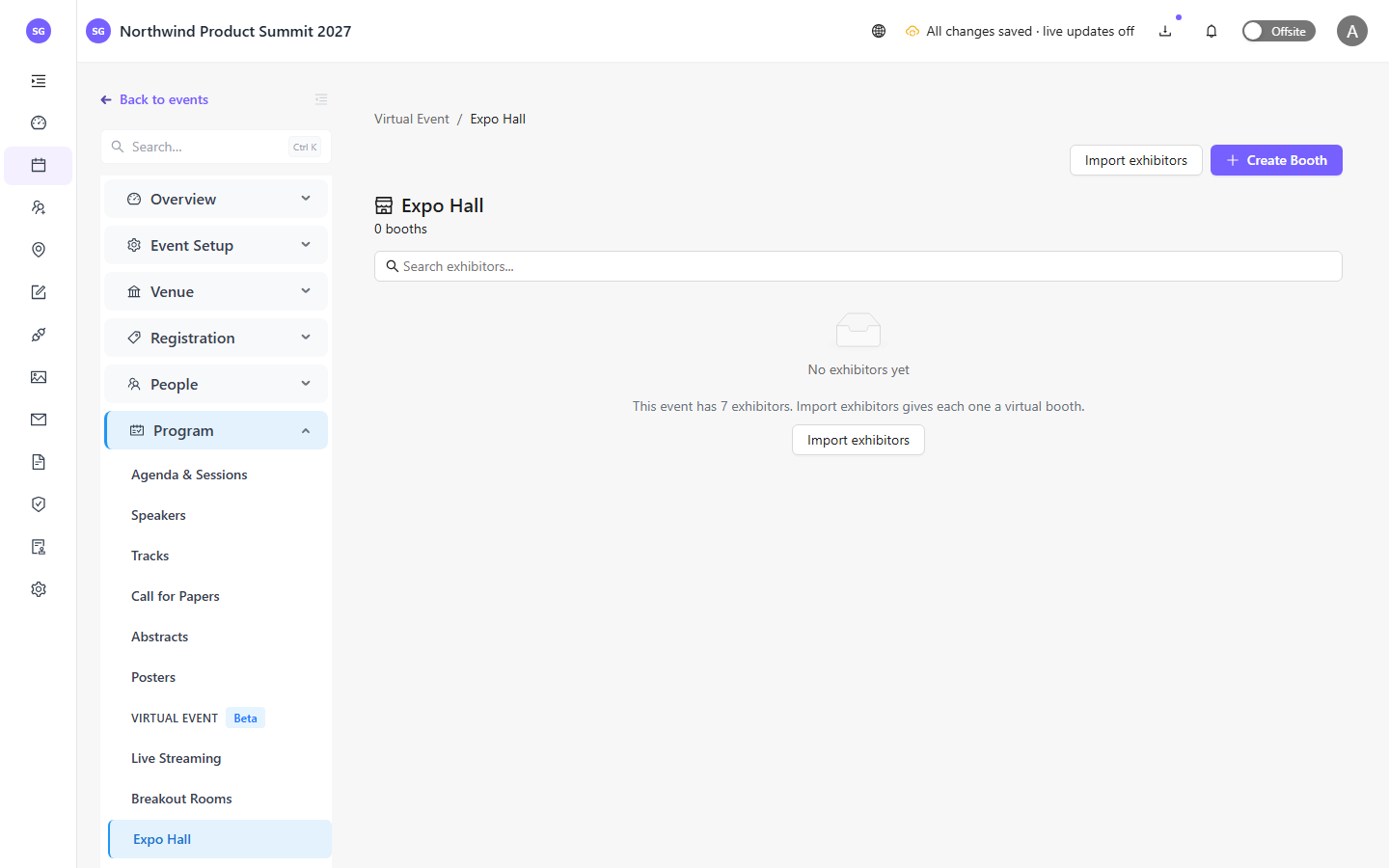
Expo Hall holds a virtual booth for each exhibitor, with video, resources and lead capture.
- Import exhibitors gives every exhibitor already on the event a booth in one step (exhibitors are added under Sponsors & Exhibitors; see Sponsors and exhibitors). The page tells you how many exhibitors the event has.
- Create Booth adds one booth by hand: its Booth Name, Category, Description, Logo URL, Banner Image URL, Video URL, its Booth Schedule, whether Lead Capture is on, and optionally Link to Exhibitor.
Set up networking
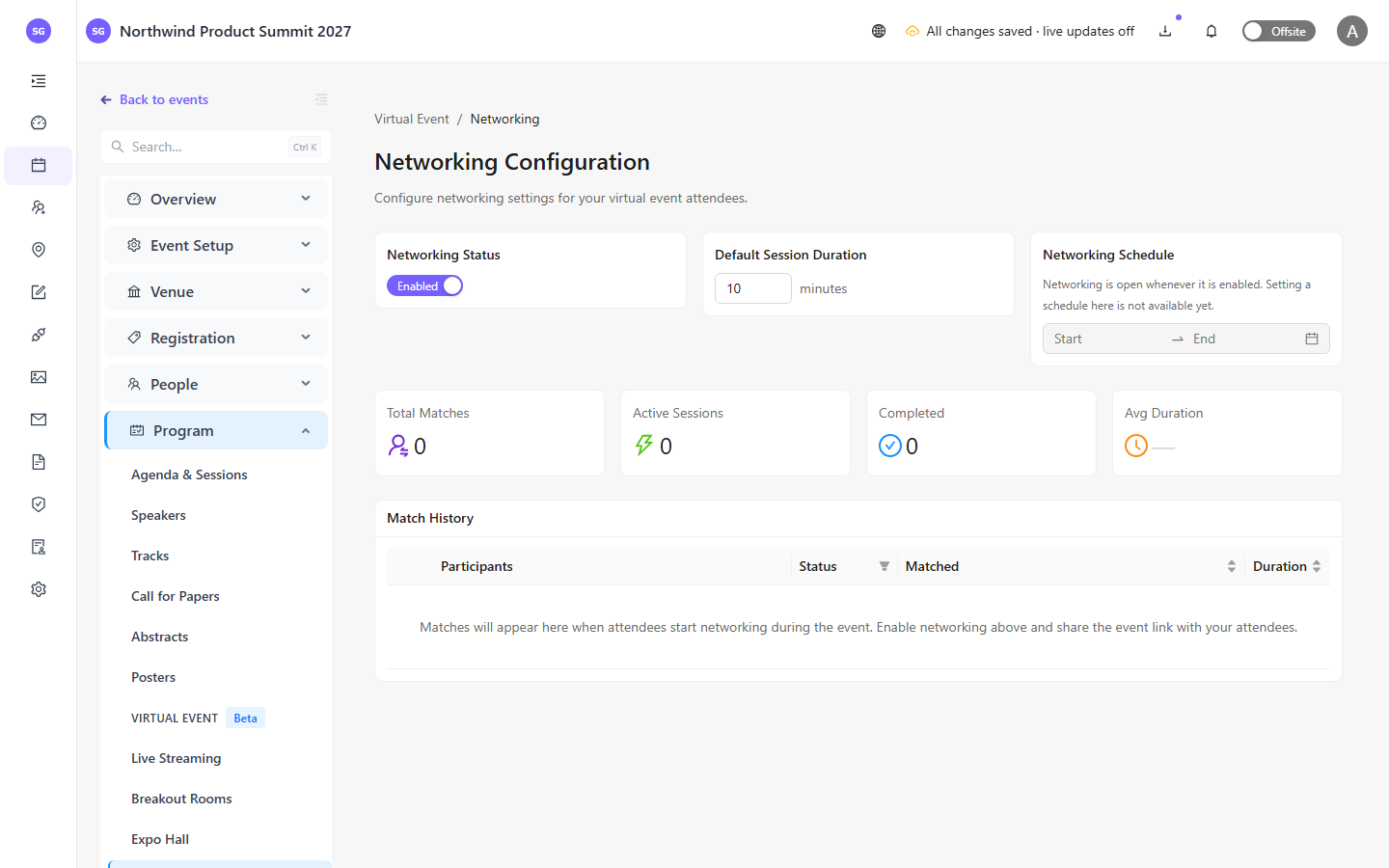
Networking matches attendees for one-to-one video conversations.
- Switch Networking Status on.
- Set the Default Session Duration in minutes.
Networking is open whenever it is on; a schedule cannot be set yet. Once attendees start, the page counts Total Matches, Active Sessions and Completed conversations, the average duration, and lists each match in Match History.
Recordings
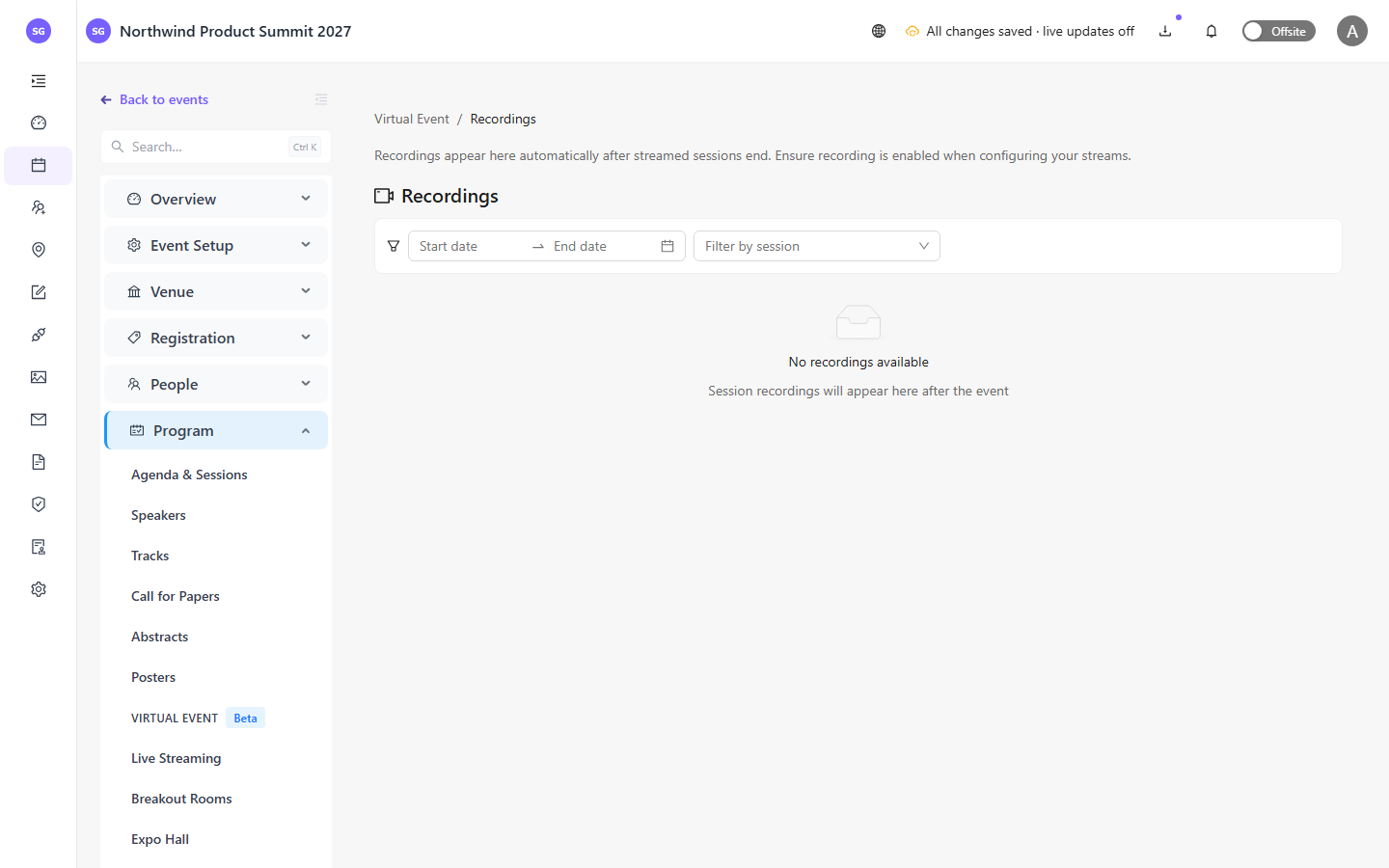
Recordings appear on Recordings automatically after a streamed session ends, if Recording was on in its stream settings. Use Filter by session to find one.
Who can do this
Organization admins and event staff with access to the event's program.
Troubleshooting
| You see | Why | Fix |
|---|---|---|
| "Virtual features are turned off for this event" | No virtual feature is on | Turn them on in Event Setup > Event Features |
| A stream setting is gone after a reload | Beta limit: stream settings are kept on this device only, until the page reloads | Configure it again on the computer that runs the stream |
| A session is missing from Live Streaming | It is not on the agenda | Add it in Agenda & Sessions |
| No recording after a session | Recording was off | Switch Recording on for the next session |