The AI Assistant
Ask the Assistant about your events, signs, sessions and people, and have it prepare changes for you. Nothing changes until you confirm the card it proposes.
The Assistant answers questions about your organization's data and prepares changes for you: switching what a digital sign shows, editing a session, adding a speaker, registering someone. It always shows you exactly what it will change first. Nothing is changed until you click Confirm.
Open the Assistant
Click Assistant in the top bar of the dashboard. A panel opens on the right.
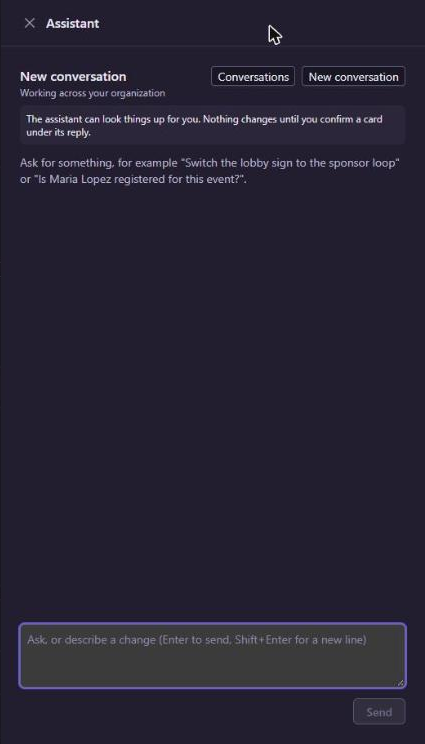
The line under the title tells you what the Assistant is working on:
| You see | Meaning |
|---|---|
| Working across your organization | You opened it from an organization page. Name the event when you ask about one |
| Working in this event | You opened it inside an event. "This event", its sessions and its signs are understood without naming them |
| Ask about this record: … | You opened it on a page or panel that shows one record (a session, an attendee, a speaker, a signage screen, an exhibitor's booth). "This session", "this person" or "this screen" means that record |
Ask about this record
On a page about one record, such as a session, an attendee, a speaker, an exhibitor's booth, or a signage screen's details panel, the Assistant knows which record you are looking at. Ask "Who is registered for this session?" or "Move this speaker's session to 3 pm" without typing the name. Leave the page (or close the panel) and it goes back to the event or organization.
Ask a question
Type in the box at the bottom and press Enter (Shift+Enter starts a new line). The Assistant looks the answer up in your own data with your own permissions: it only sees what you can see in the dashboard.
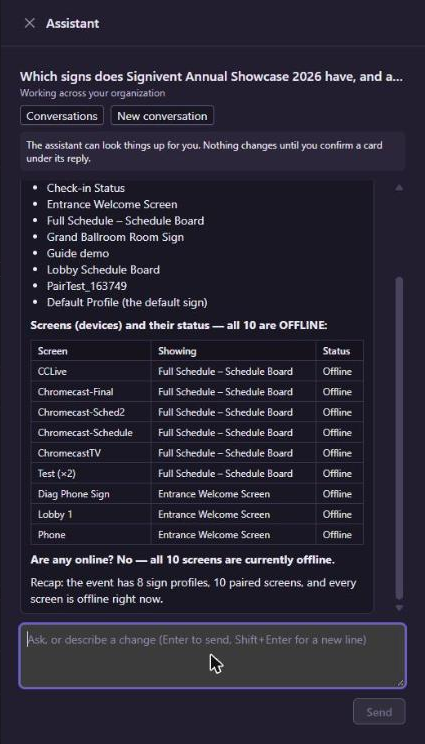
Answers use simple formatting: lists, bold for the important part, and links. A link to a dashboard page (for example a session or an attendee it mentions) opens that page here in the dashboard; a link to another website opens in a new tab.
Good questions name what you are after:
- "Which signs does the Annual Showcase have, and are any online?"
- "Is Riley Okafor registered for this event?"
- "Who is speaking in the opening keynote?"
- "What media do we have that the lobby sign could show?"
Most answers take 10 to 30 seconds. While it works, the Assistant shows what it is doing right now in plain words, such as Reading your request, Looking up the session's speakers or Working out the next step, with a dot for each step so far. After 10 seconds you also see how long it has been working.
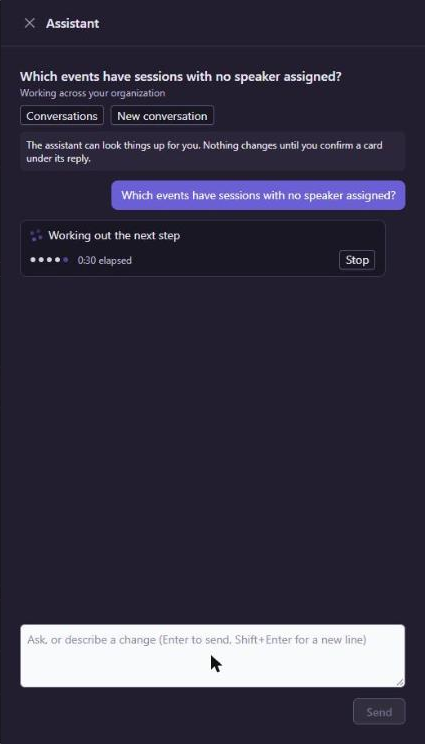
- Stop ends the turn. You see Stopped. and any change cards it already made stay, still waiting for you to confirm.
- You can close the panel or move to another page while it works. Open the Assistant again and the reply is there, or it carries on where it was.
- If something goes wrong you see what happened and a Try again button that sends the same message again.
The message box stays locked until the turn finishes or you stop it.
Ask for a change
Describe the change in plain words. The Assistant finds the records involved and answers with one or more Proposed change cards under its reply.
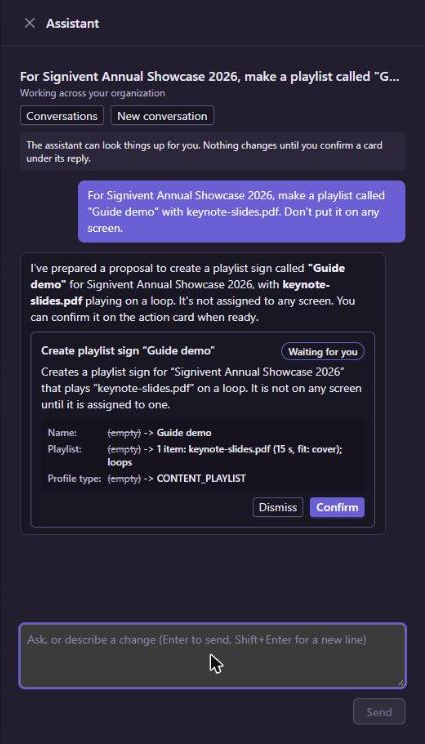
Each card shows:
- What it will do, in a sentence.
- Changes: the value now and the value after, field by field.
- Waiting for you: nothing has happened yet.
- Runs after: … when the card depends on an earlier card (for example, a speaker can only be added to a session once their speaker profile exists).
- Warnings, when there is something to know before you confirm (for example, a room is already booked). They appear just above Confirm.
- Open, when the card knows where the record lives in the dashboard: it takes you to that page, so you can check the record before or after you confirm. A card that adds something new shows Open once you confirm it and the new record exists, when that record has a page in the dashboard.
Read the cards before you confirm. The reply also points out anything to know first, for example that a sign is offline or that adding a speaker emails them.
Confirm or dismiss
| Button | What happens |
|---|---|
| Confirm | Makes that one change. The card turns to Done |
| Confirm all (n) | Makes every waiting change in the right order |
| Dismiss | Drops the card. Nothing is changed |
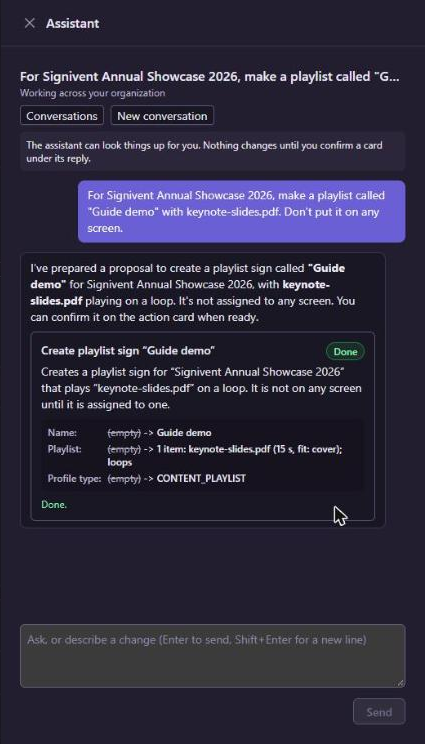
If a change fails, its card says why, and any card that depended on it is Refused rather than run on its own. Ask the Assistant again to try a fixed version.
Cards expire after 15 minutes. An expired card can't be confirmed: ask again for a fresh one.
What it can do today
| Area | Ask it to |
|---|---|
| Digital signs | Create a sign (profile), create a playlist of your media, put a sign or playlist on a screen, rename or update a screen or sign |
| Agenda | Change a session's title, time, room or description; change an agenda block; add or remove a session's speakers |
| People | Check whether someone is registered; register them on the event's walk-in ticket; make an attendee a speaker; update a speaker's profile |
| Events | Create an event; update an event's details |
When you mention people, the Assistant checks whether each one is already registered or already a speaker, and proposes the missing steps in order. For example, "Add Riley Okafor as a speaker on the keynote" for someone who isn't registered yet becomes: register Riley, make Riley a speaker, add Riley to the session.
What it won't do
- Delete anything, refund, charge or move money.
- Send emails or texts on its own. Some confirmed changes trigger the platform's usual emails (adding a speaker to a session sends the speaker the "you were added" email); the reply warns you when that will happen.
- Act outside your permissions or another organization's data.
Your conversations
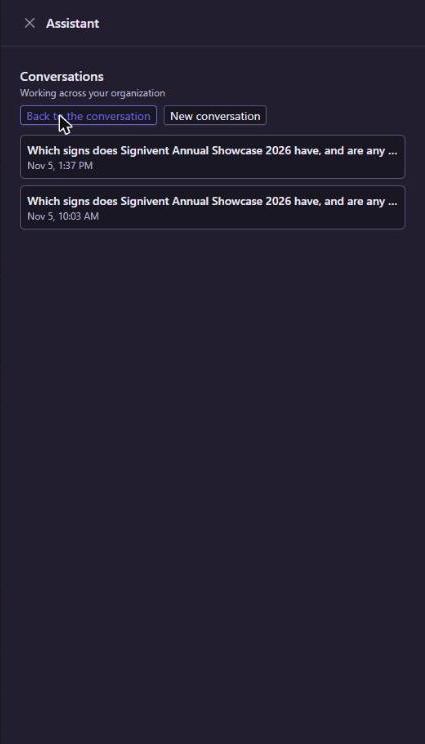
Click Conversations to reopen an earlier conversation, or New conversation to start fresh. Conversations are private to you.
Tips
- One request per message gives the clearest cards.
- Use names as they appear in the dashboard: "Lobby 1", "Entrance Welcome Screen", "The Future of Live Experiences".
- Media in a playlist plays as images and videos. A PDF shows as a single page, not as slides.
- If an answer looks wrong, ask it to "check again" or open the record in the dashboard: the Assistant reads the same data you see there.