Event raffles: prizes, entries, the draw and the screen
Run a free prize raffle at your event. Choose who can enter, let attendees enter in the Connect app, show the raffle on a sign, draw winners fairly and record who collected their prize.
A raffle gives prizes to attendees picked at random. You set it up in the event dashboard under Outreach > Gamification, attendees enter in the Connect app under More > Games, and a Game Board sign shows the prizes, the number of entries and the winners on your screens.
| Step | Where | Required | What it does |
|---|---|---|---|
| Create the raffle | Outreach > Gamification > New raffle | Yes | Name, official rules and at least one prize |
| Choose who can enter | The raffle's Setup tab | Yes | Self entry in the app, automatic entry, and the eligibility rules |
| Set the entry window | Setup tab | Optional | When entries open and close, in the event's time zone |
| Choose how winners are named | Setup tab | Yes (has a default) | The name format used on screens and in the app |
| Open the raffle | The raffle's header | Yes | Lets people enter and lets you draw |
| Show it on a screen | Digital Signage > Signs | Optional | A Game Board sign for the raffle |
| Schedule the draws | Setup tab > Prizes > Draw at | Optional | The server draws each prize on its own at its time |
| Draw | The raffle's Draw tab | Yes | Picks winners for every prize, or one prize at a time |
Raffles are free to enter
Every raffle form starts with this reminder, and it is the most important rule: don't charge for entry or require a purchase to take part. A draw people pay to enter can count as a lottery, which is regulated or illegal in many places. Signivent has no paid entry option.
Write official rules for each raffle: who can enter, the prizes, how and when winners are drawn, and how they are told and collect their prize. Attendees see your rules on the raffle in the app, always together with the line "Free to enter. No purchase necessary." Check the local rules on prize draws and prize value where your event takes place.
The raffle list
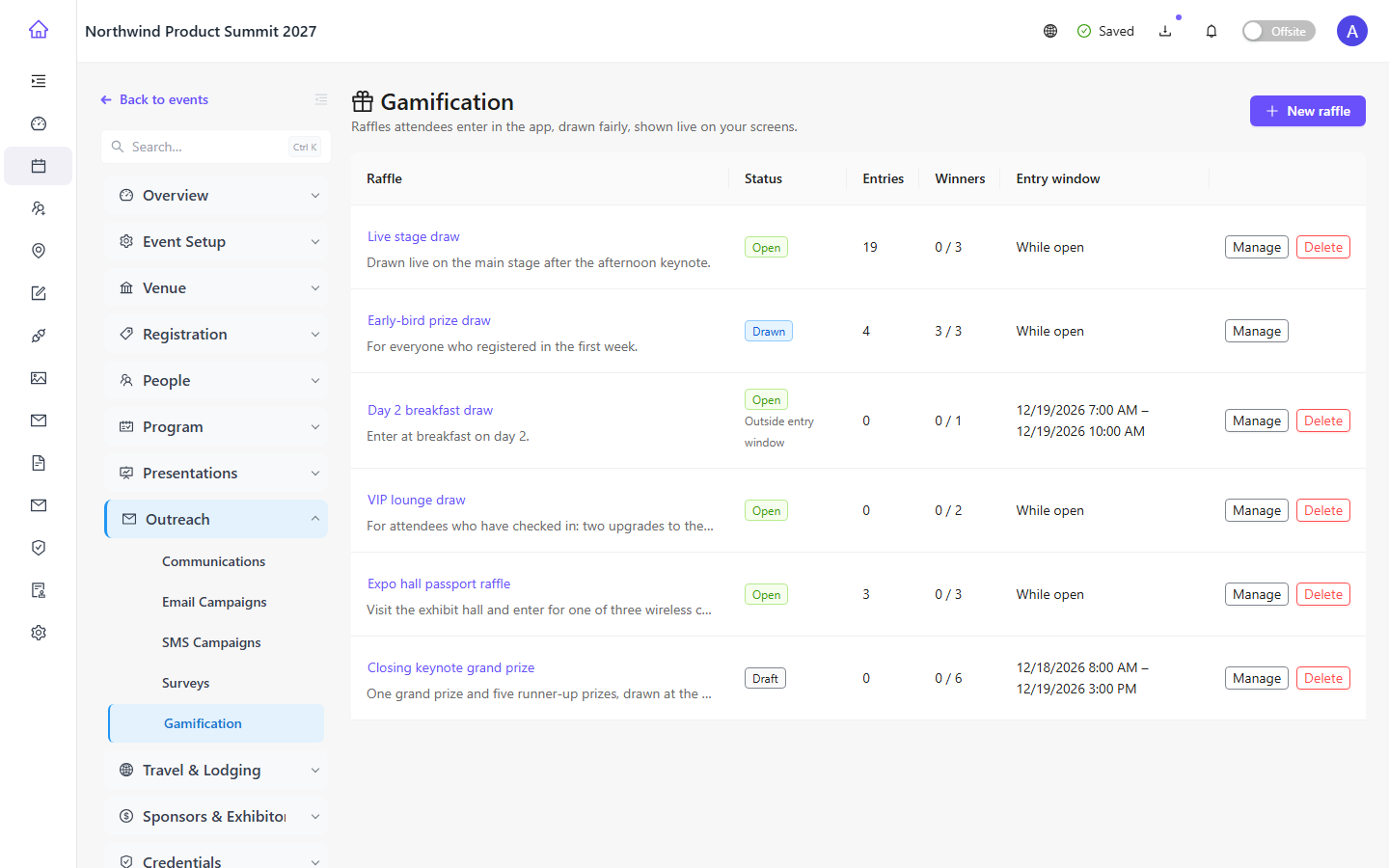
Open the event, then Outreach > Gamification. Each raffle shows its status, how many people entered, how many prizes have a winner (for example 0 / 3), and its entry window (While open when it has none).
| Status | Meaning | What you can do next |
|---|---|---|
| Draft | Being set up. Attendees don't see it. | Finish the setup, then Open the raffle |
| Open | Attendees can see it and enter (inside the entry window). "Outside entry window" under the status means the window hasn't started or has ended. | Draw winners, Close entries, or Back to draft if no one has won yet |
| Entries closed | No new entries; you can still draw. | Draw winners, or Reopen entries |
| Drawn | Every prize has a winner. | Mark prizes collected, redraw a winner, export the winners |
Manage opens a raffle on its Setup tab; clicking its name opens the Draw tab. Delete is only offered while a raffle has no winners.
Create a raffle
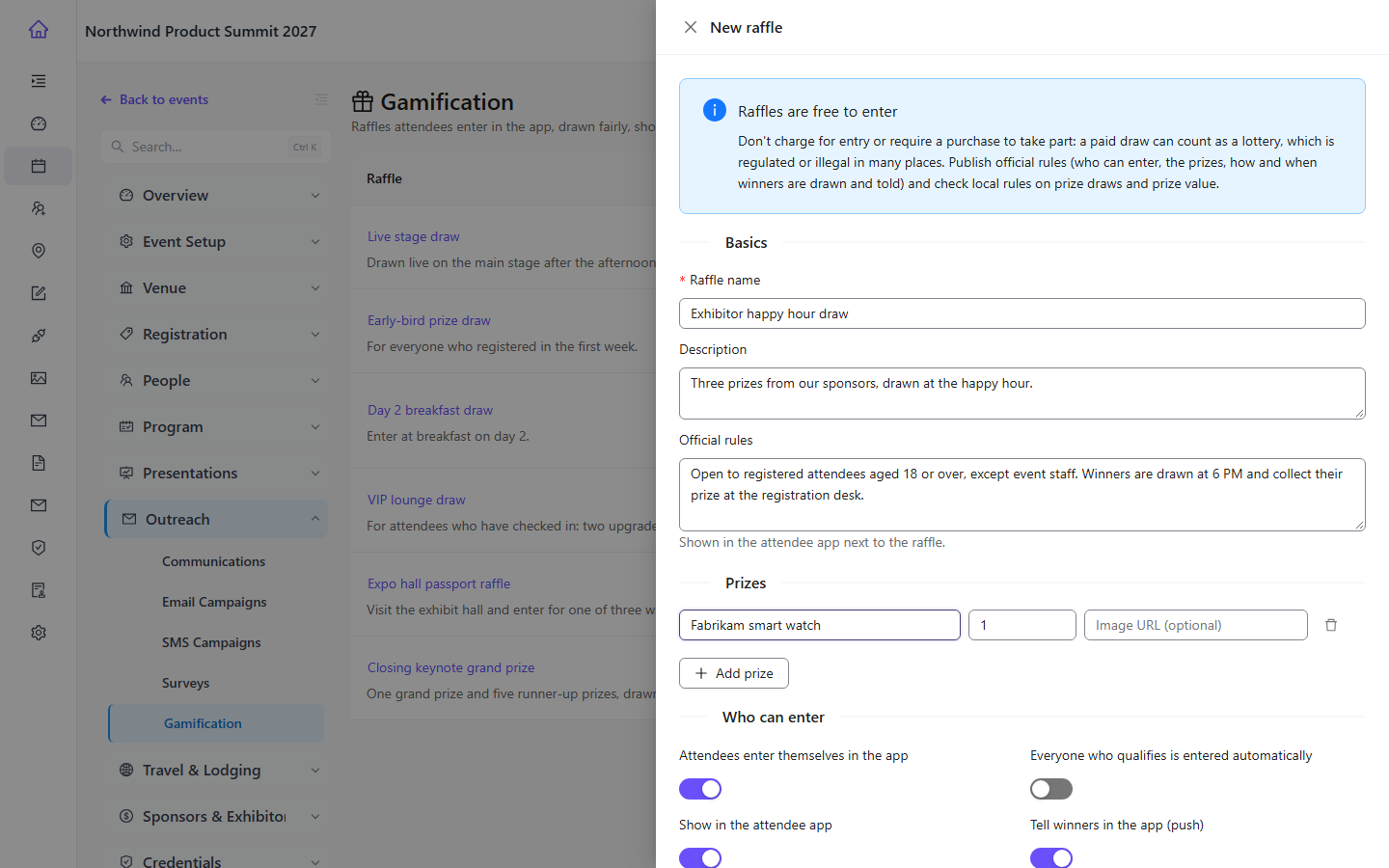
- Click New raffle. The form opens with the free-entry reminder at the top.
- Under Basics, give it a Raffle name, an optional Description, and your Official rules (shown in the attendee app next to the raffle).
- Under Prizes, add each prize with its name and How many of it there are. Choose picture picks the prize's picture from your media library (images only); a small thumbnail shows it next to the prize, and the Game Board sign and the win card show it too. Add prize adds another row. A raffle needs at least one prize before it can open.
- Set who can enter, the entry window and the name format (below), then click Save raffle.
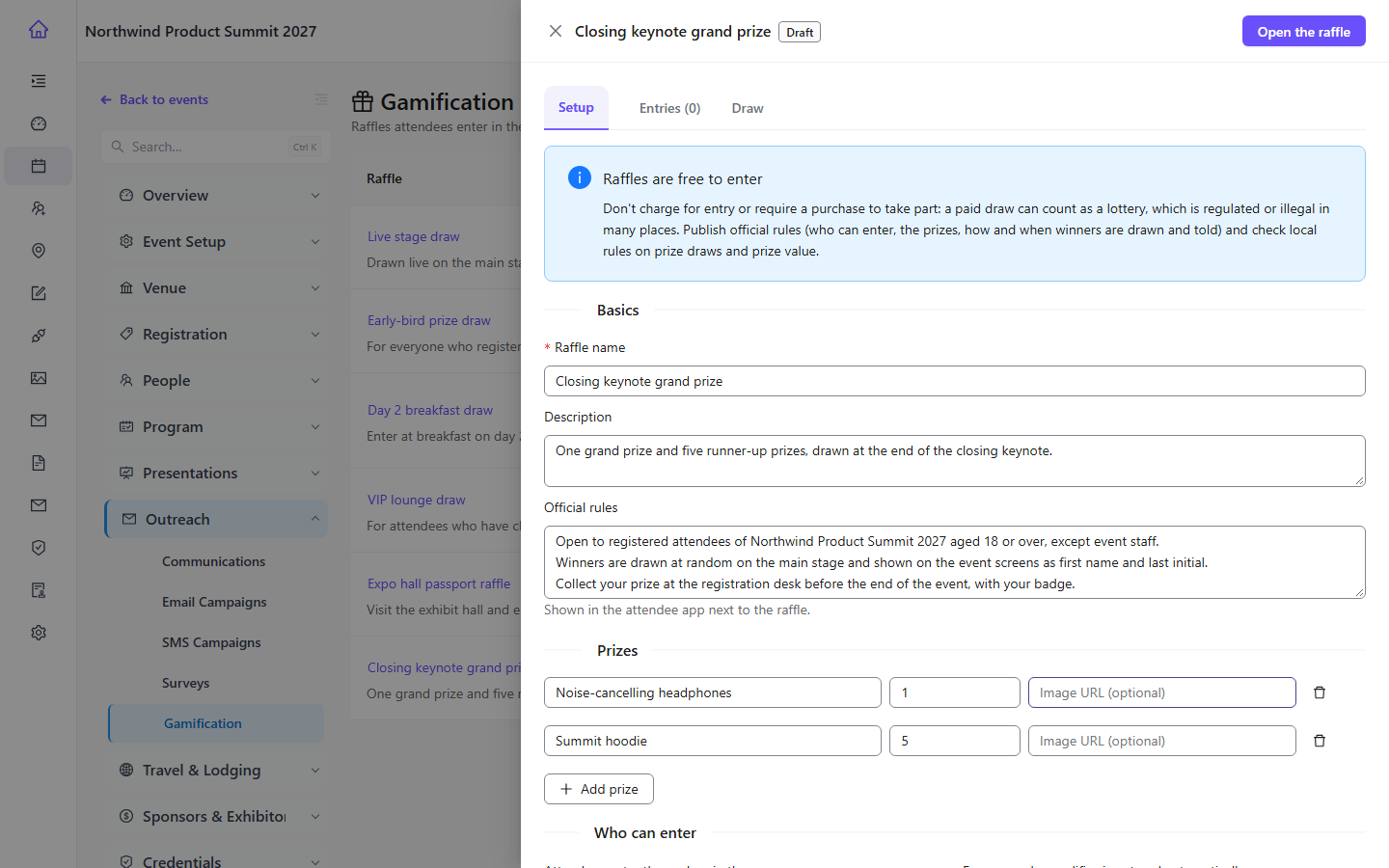
After you save, the raffle opens in a panel with three tabs, Setup, Entries and Draw, and its status actions in the header. A draft shows Open the raffle.
Draw prizes automatically at set times
Each prize can have a Draw at time, in the event's time zone. At that time the server draws that prize on its own; you don't need to be at the dashboard. A prize without a time is drawn by hand, as before. You can still press Draw early, and Redraw works the same.
- Quick-fill above the prizes sets every prize's time at once: "Draw one prize every 1 hour(s) starting 12:00 PM on the event's first day", then Fill draw times. Times are filled in the order the prizes are listed, and you can change any of them afterwards.
- A line under the prizes says what will happen, for example "8 prizes drawn automatically: every hour from 12:00 PM to 7:00 PM (Sat, Nov 28)."
- Once saved, each prize shows where it stands:
| Status | Meaning |
|---|---|
| Upcoming | Its time is still ahead ("Draws at 3:00 PM") |
| Due | Its time has passed and it has no winner yet. "Waiting: nobody can win yet" means no one in the draw could win at that moment; it is drawn as soon as someone can, or you can press Draw |
| Drawn | It has its winner (the winner's name is shown) |
| Collected | The winner picked it up |
The same status shows next to each prize on the Draw tab. In the draw record, an automatic draw has no person next to it and the reason "Scheduled draw".
If Draw at is missing from the form, your server does not have automatic draws yet; draw by hand as before.
Who can enter
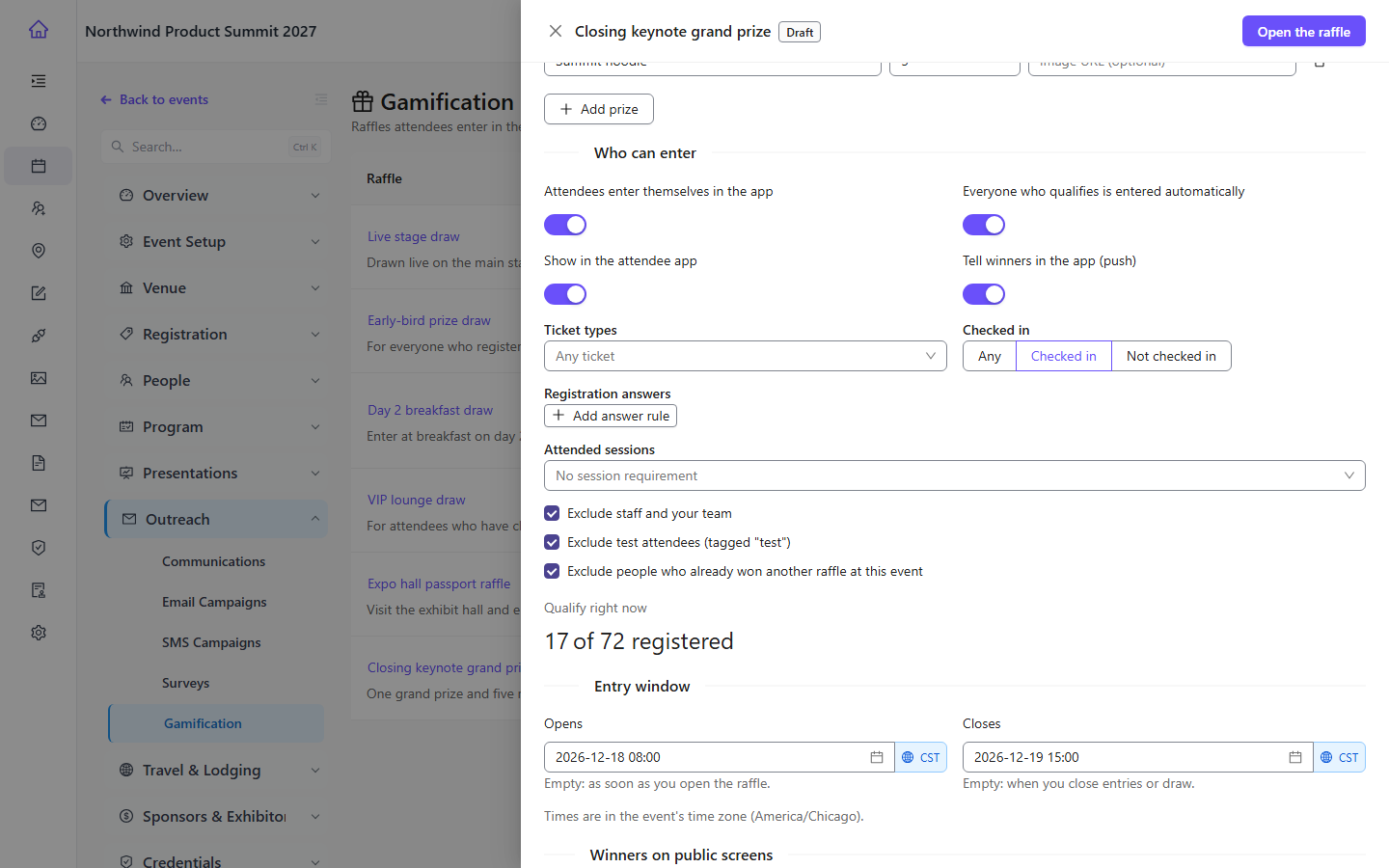
Four switches decide how people get into the draw:
| Switch | What it does |
|---|---|
| Attendees enter themselves in the app | Shows Enter the raffle in the Connect app to everyone who qualifies, while entries are open |
| Everyone who qualifies is entered automatically | Everyone who meets the rules when you draw is in the draw, whether or not they pressed Enter |
| Show in the attendee app | Lists the raffle under More > Games. Turn it off for a draw you only run on stage |
| Tell winners in the app (push) | Sends a "You won!" notification to winners who use the Connect app and allow event notifications |
You can switch on self entry, automatic entry or both. With automatic entry only, attendees see "Entry is automatic for eligible attendees." instead of a button.
Eligibility rules
The rules below the switches narrow who qualifies. Every rule you set must be met; rules you leave empty don't restrict anyone. Only people registered for the event can ever qualify.
| Rule | Choices |
|---|---|
| Ticket types | Any ticket, or only the ticket types you pick (staff tickets are marked "staff") |
| Checked in | Any, Checked in or Not checked in |
| Registration answers | Add answer rule: pick a registration question and the answers that qualify (any of them) |
| Attended sessions | Only people who attended the sessions you pick |
| Exclude staff and your team | Leaves out staff tickets and your organization's members |
| Exclude test attendees (tagged "test") | Leaves out test registrations |
| Exclude people who already won another raffle at this event | Spreads prizes across more people |
Qualify right now counts, live on the server, how many registered attendees meet the rules at this moment ("17 of 72 registered", for example). The count changes as people check in, attend sessions or register.
Entry window and winner names
- Opens: when entries start. Empty means as soon as you open the raffle.
- Closes: when entries stop. Empty means when you close entries or draw.
Times are in the event's time zone, shown next to each field.
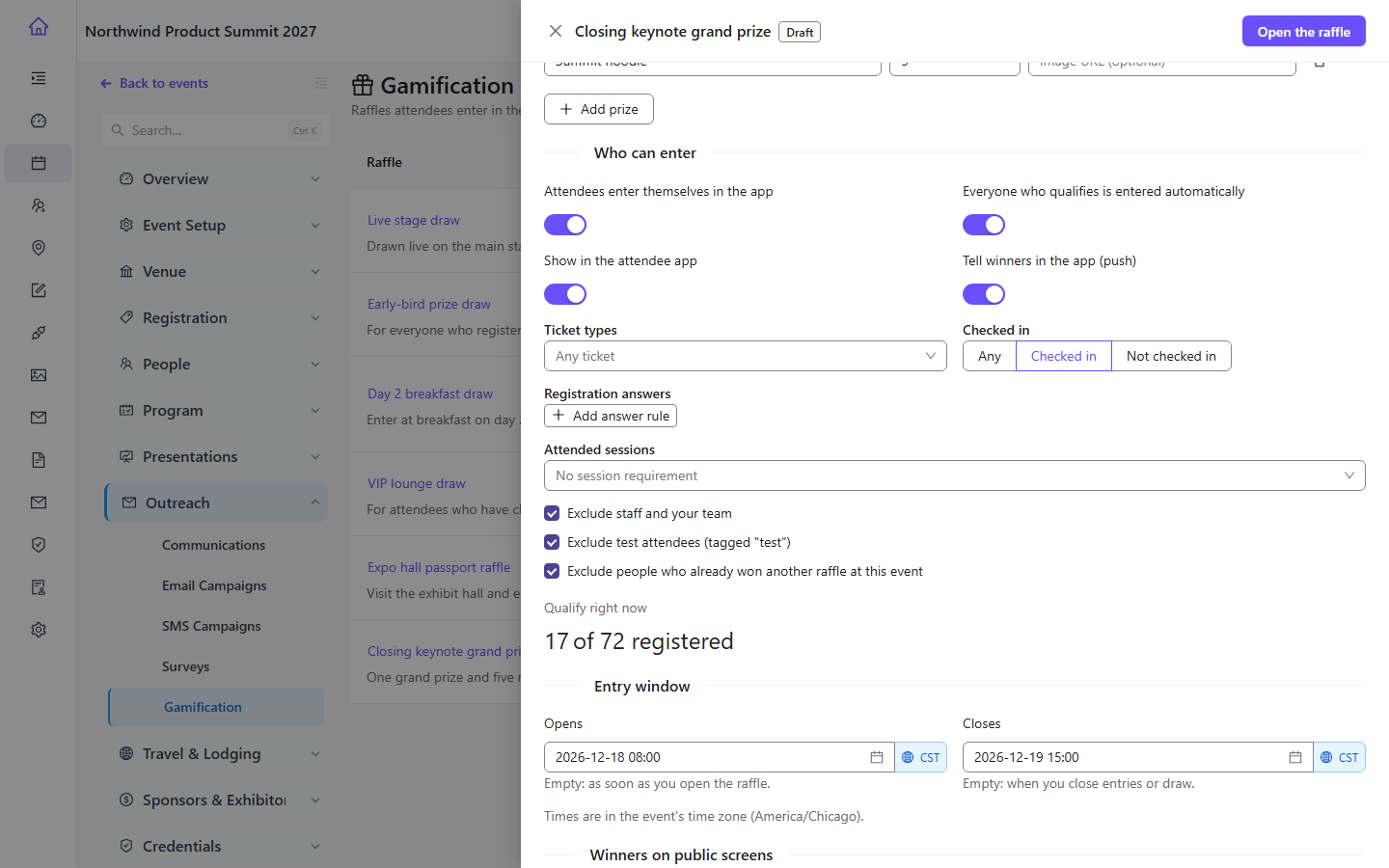
Winners on public screens sets how winners are named on signs and to other attendees. Email addresses are never shown.
| Format | Example |
|---|---|
| First name and last initial (default) | Maria G. |
| First name only | Maria |
| Initials | M.G. |
| Full name | Maria Gonzalez |
| Don't show names (prize only) | "Winner drawn" |
The winner always sees their own win in the app, whatever the format. In the dashboard you see the full name and email.
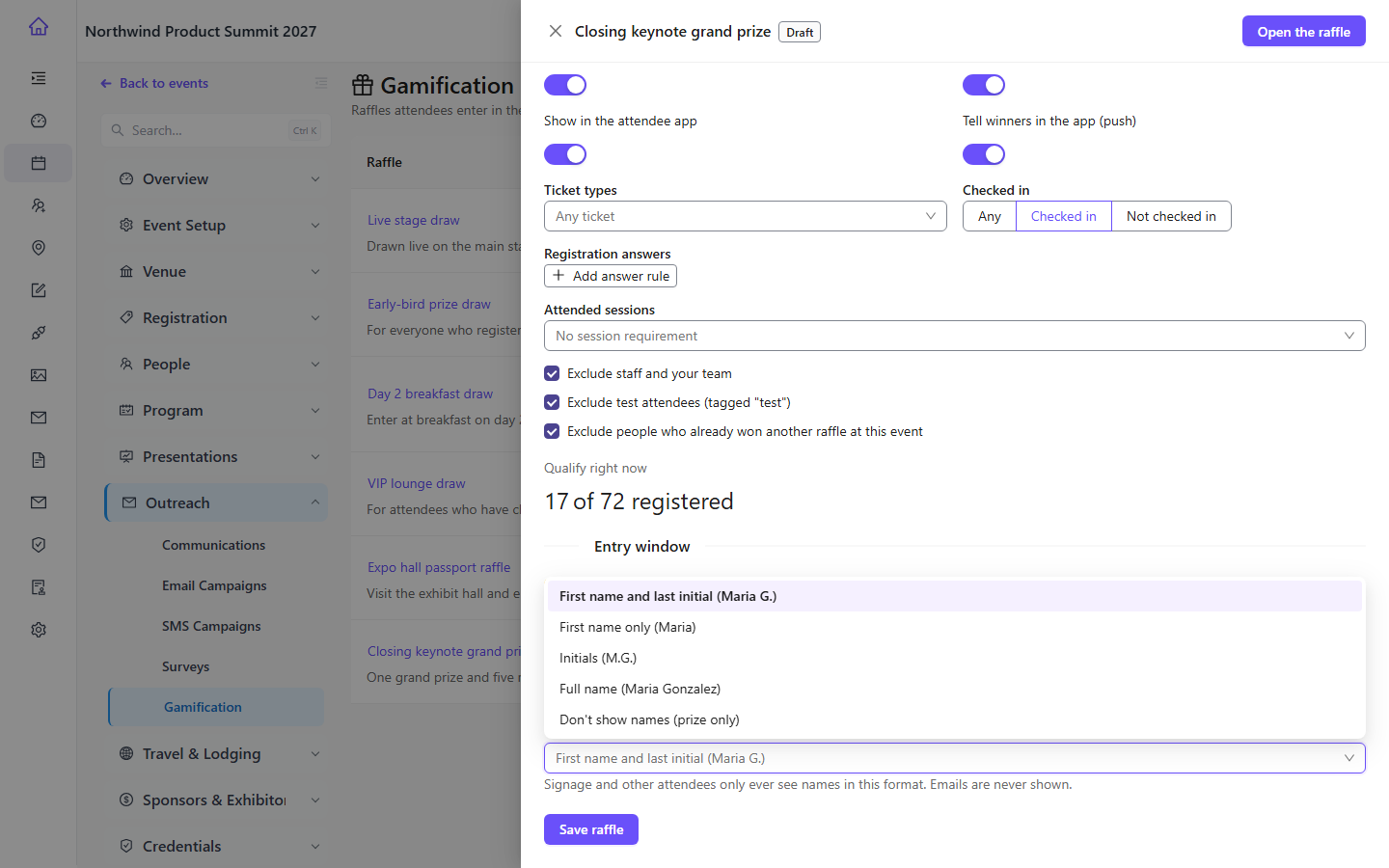
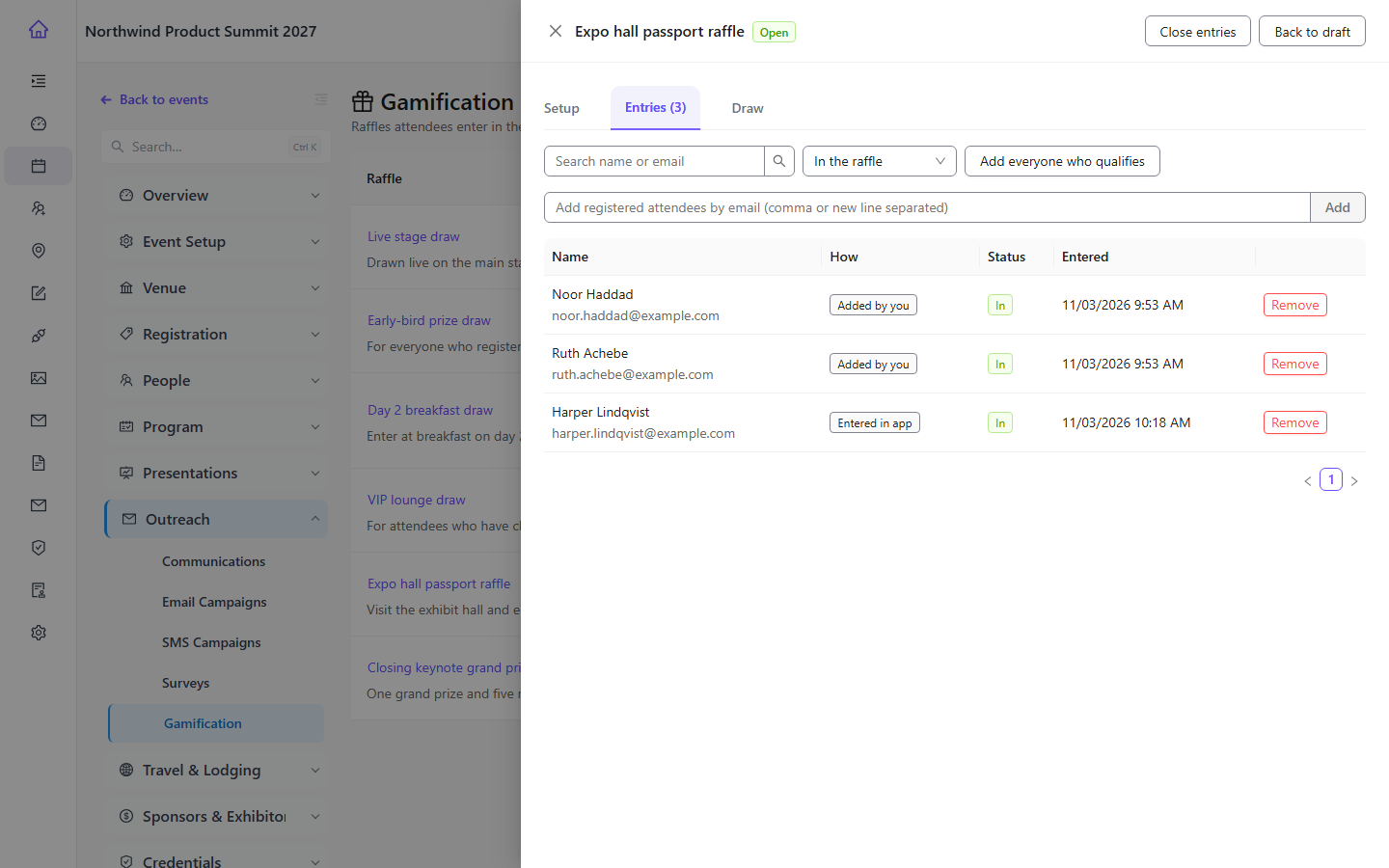
Open the raffle and watch the entries
Click Open the raffle in the raffle's header. From then on the header offers Close entries and, until someone has won, Back to draft. A closed raffle offers Reopen entries.
The Entries tab lists everyone in the draw, how they got in and their status:
| How | Meaning |
|---|---|
| Entered in app | The attendee pressed Enter the raffle |
| Added by you | You added them by email |
| Qualified | Added because they met the rules (Add everyone who qualifies, or automatic entry) |
| Status | Meaning |
|---|---|
| In | In the draw |
| Left | The attendee left the raffle in the app |
| Removed | You removed them; they can't enter again |
| Won | They won a prize; to take a prize back, redraw it instead of removing them |
Search by name or email, and filter In the raffle, Left or removed or Everyone. Add everyone who qualifies adds everyone who meets the rules right now. To add specific people, paste their emails (comma or new line separated) and click Add; only registered attendees are added, the rest are listed as skipped. People you add yourself are in the draw even if they don't meet the eligibility rules: that is your call.
Show the raffle on a screen
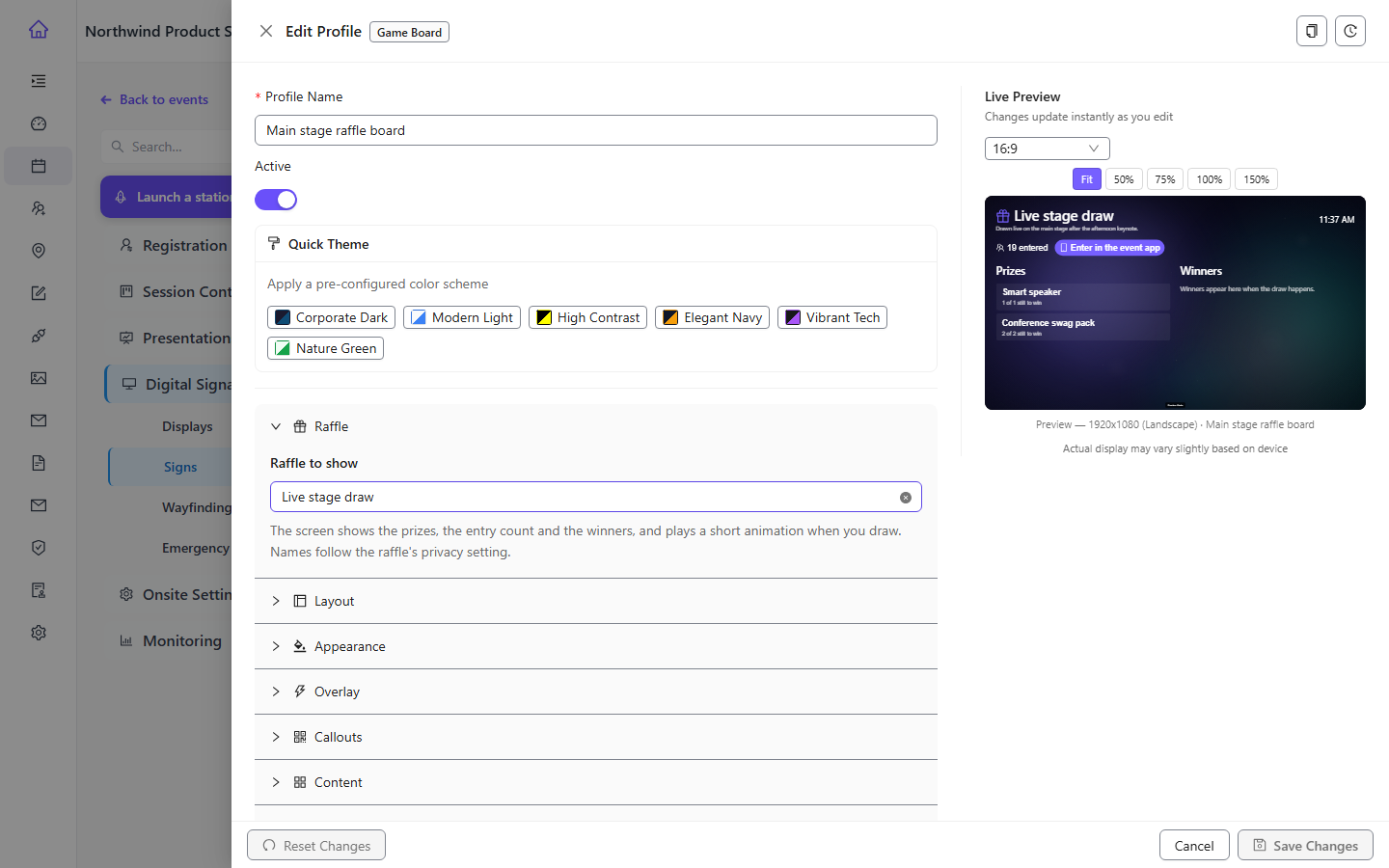
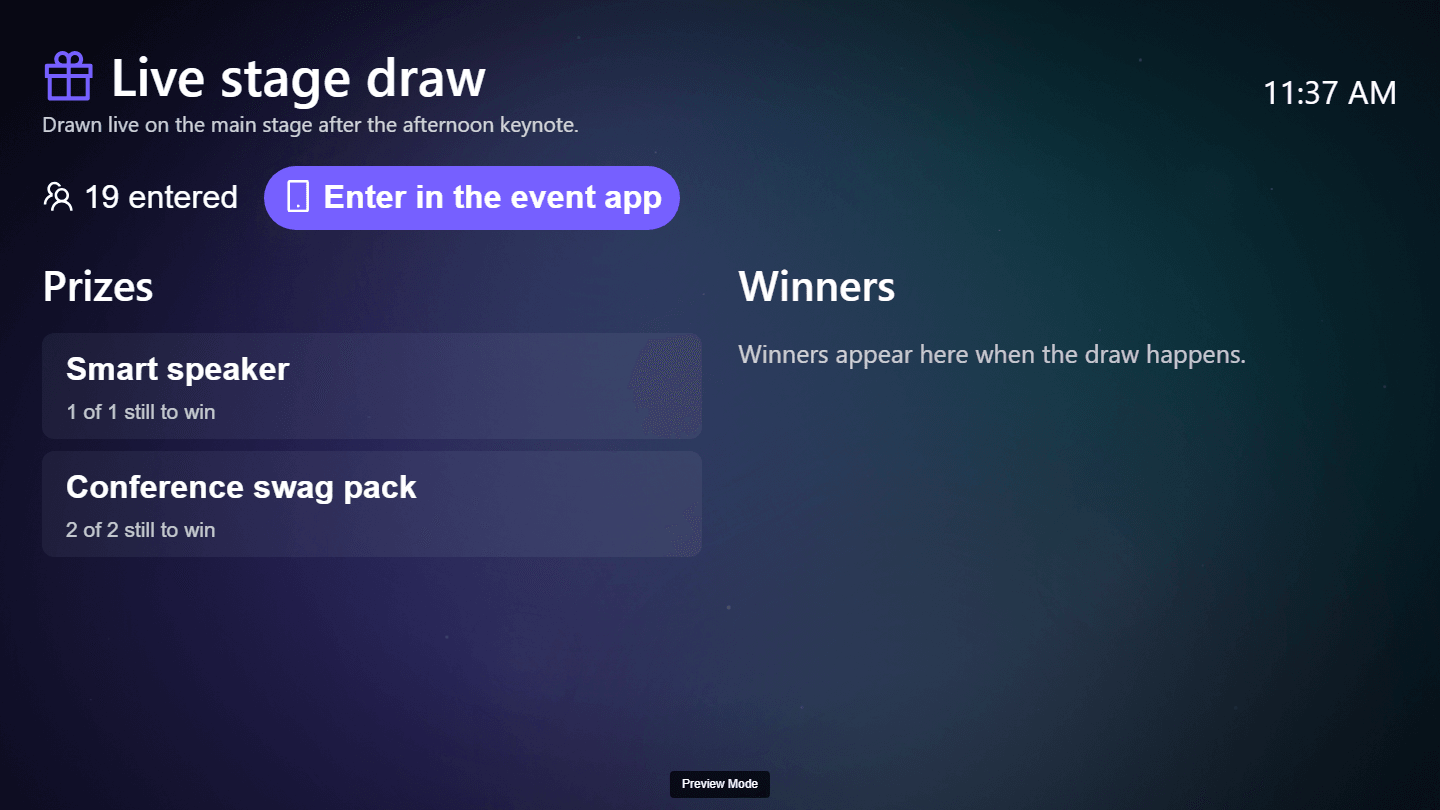
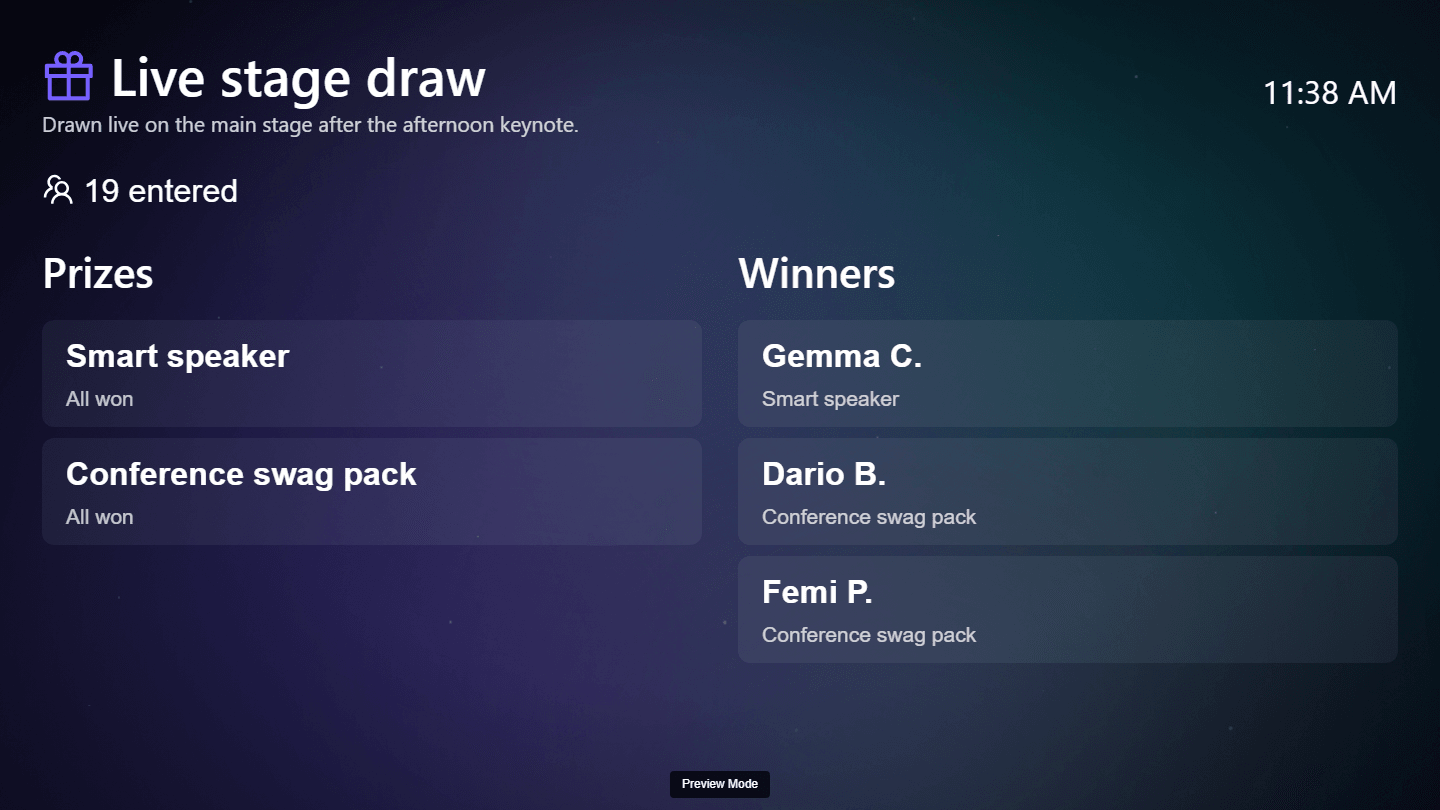
A Game Board sign shows one raffle: its prizes and how many are left, the number of entries, "Enter in the event app" while entries are open, and the winners.
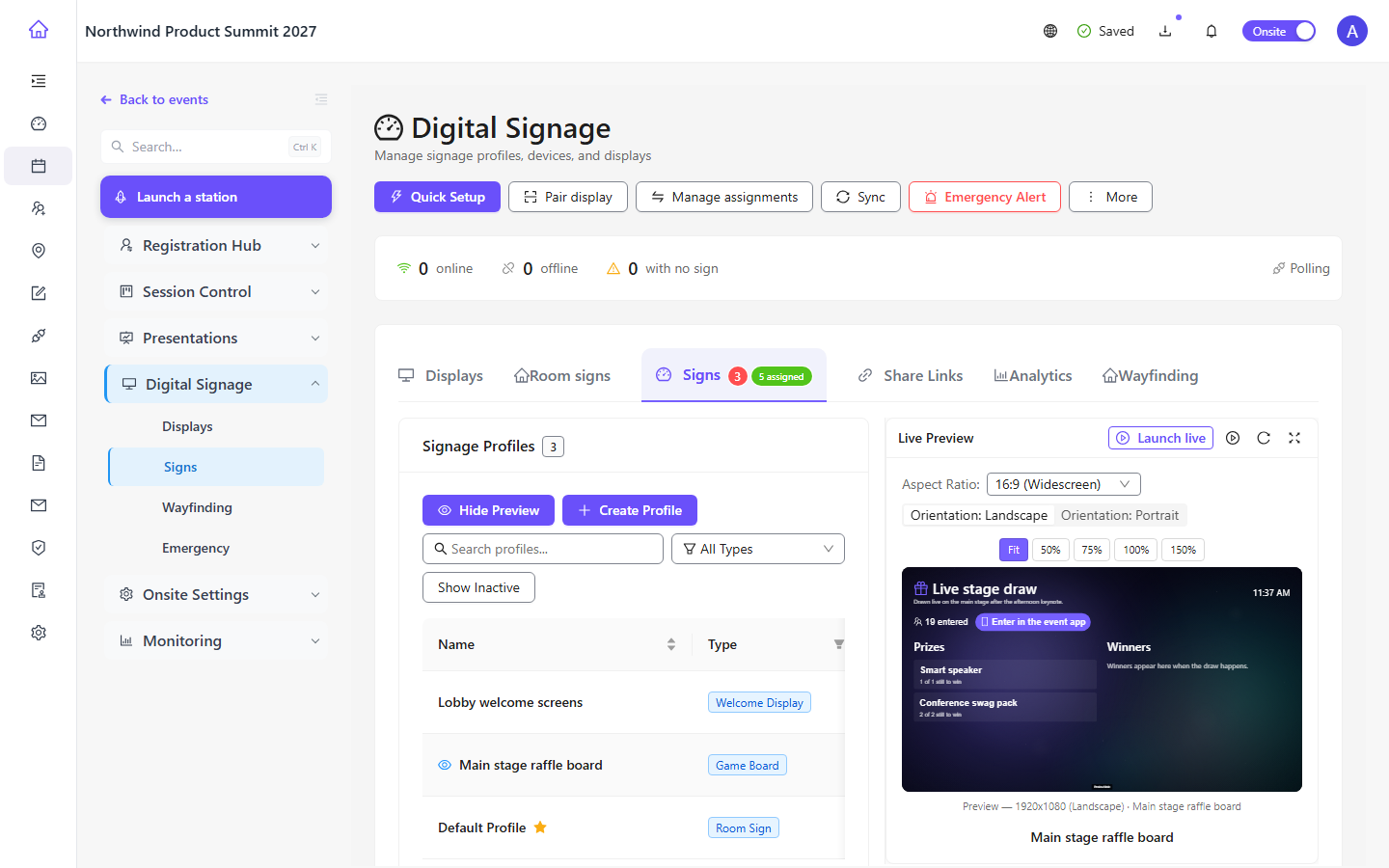
- Go to Onsite > Digital Signage > Signs and click Create Profile. Create New Profile has three steps: Choose Type (pick Game Board, "A live raffle: prizes, entries and winners, with a draw animation", best for stages and lobbies), Select Template, and Details (the sign's name).
- Open the sign's settings (... > Edit). In Edit Profile, the Raffle section is at the top: choose the Raffle to show, then Save Changes. The drawer's live preview shows the board.
- Assign the sign to your screens as you would any other sign (see Digital signage).
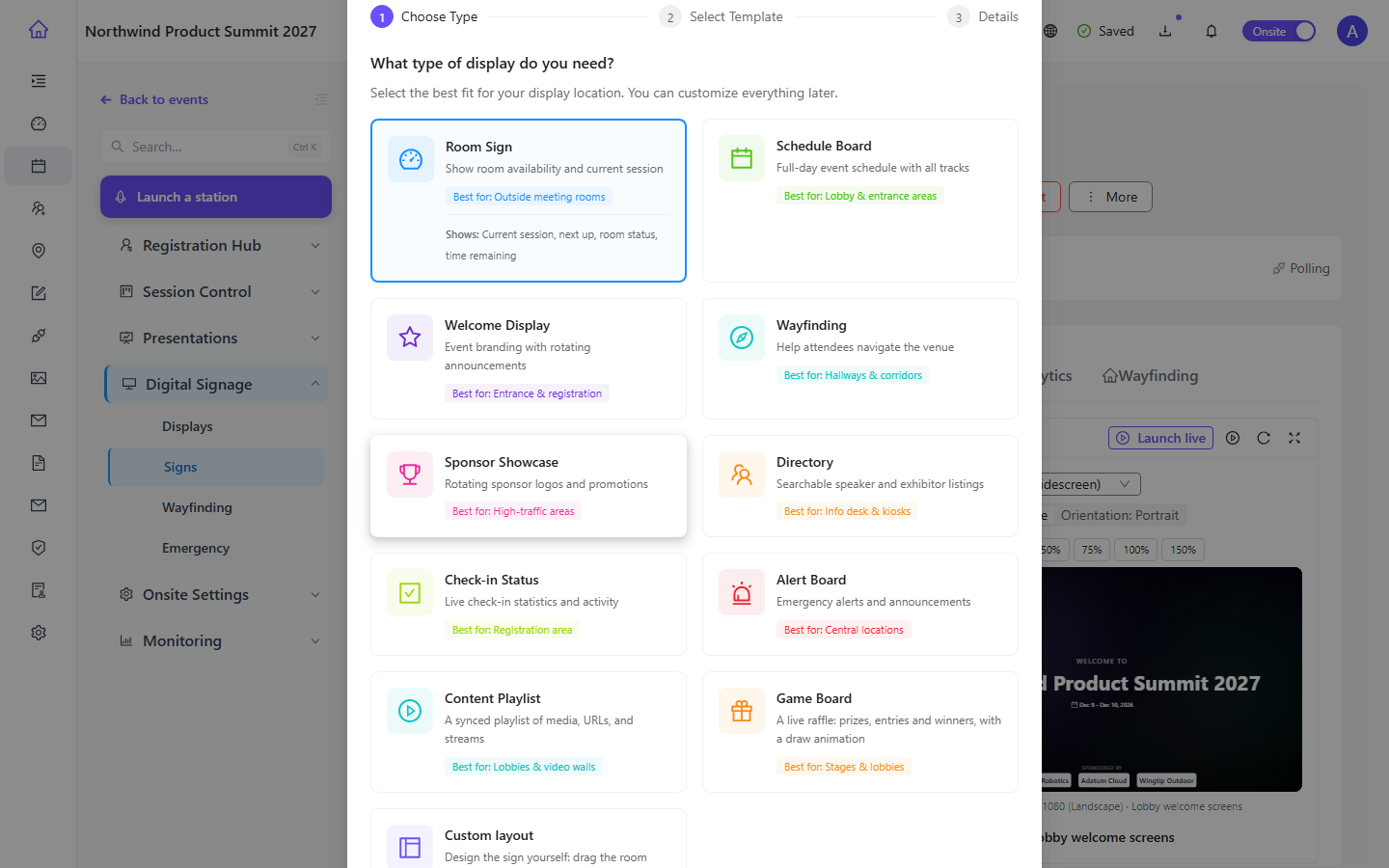
The Signs tab previews the sign, and Launch live opens it full size.
What the screen shows
Before the draw: the prizes with how many are still to win, the entry count and "Enter in the event app".
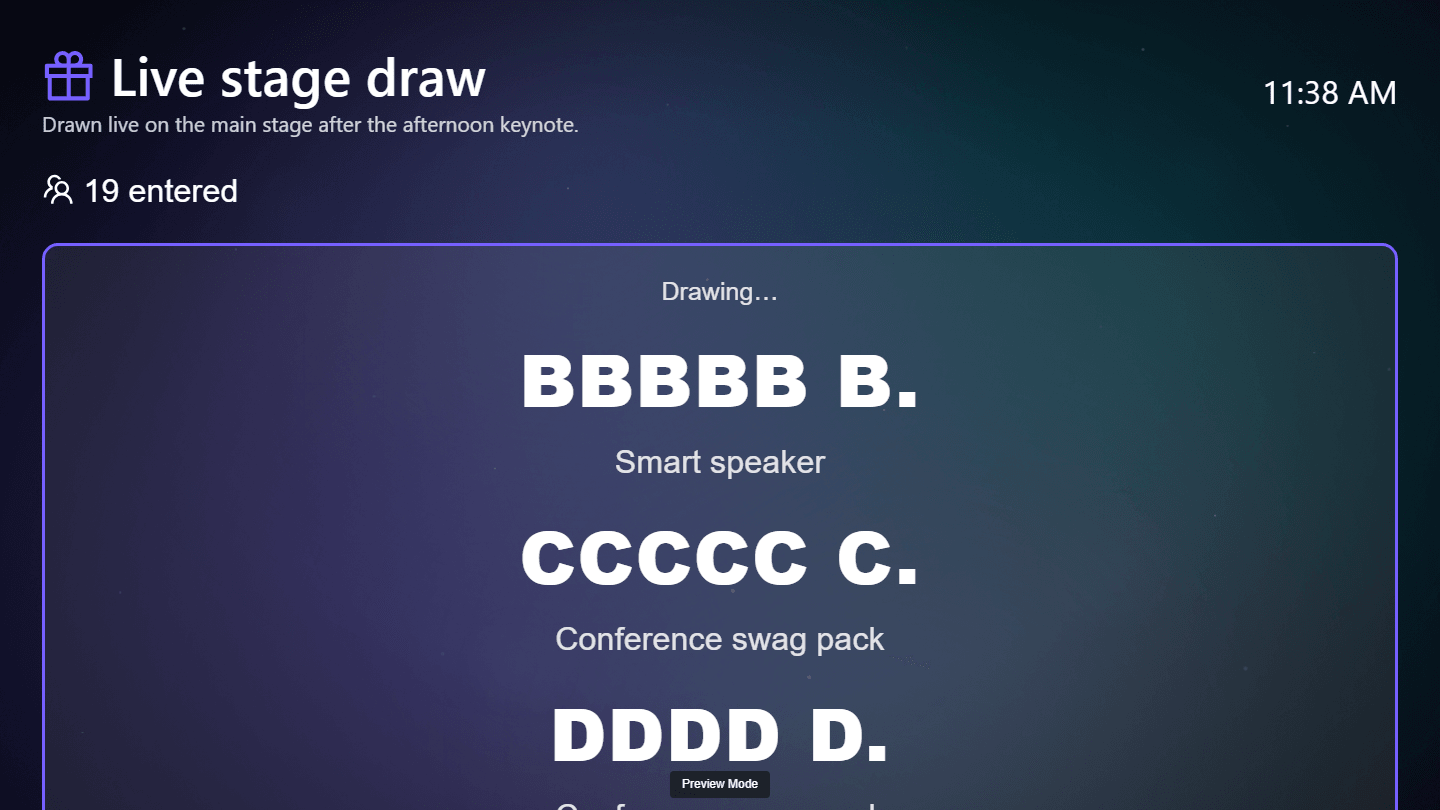
When you draw, the screen picks it up within about ten seconds and the win takes over the whole screen: the board dims, a card in the middle shuffles the new winners' names for a moment ("Drawing…"), then settles with "Congratulations!", the winner and the prize, with a glowing ring and confetti around it. The card stays up for 10 minutes so people who walk up later still see who won (the confetti and glow play only for the first seconds), then the board comes back with the winner listed. A newer draw replaces the card straight away. Screens set to reduce motion show the card without the shuffle, the confetti or the glow.
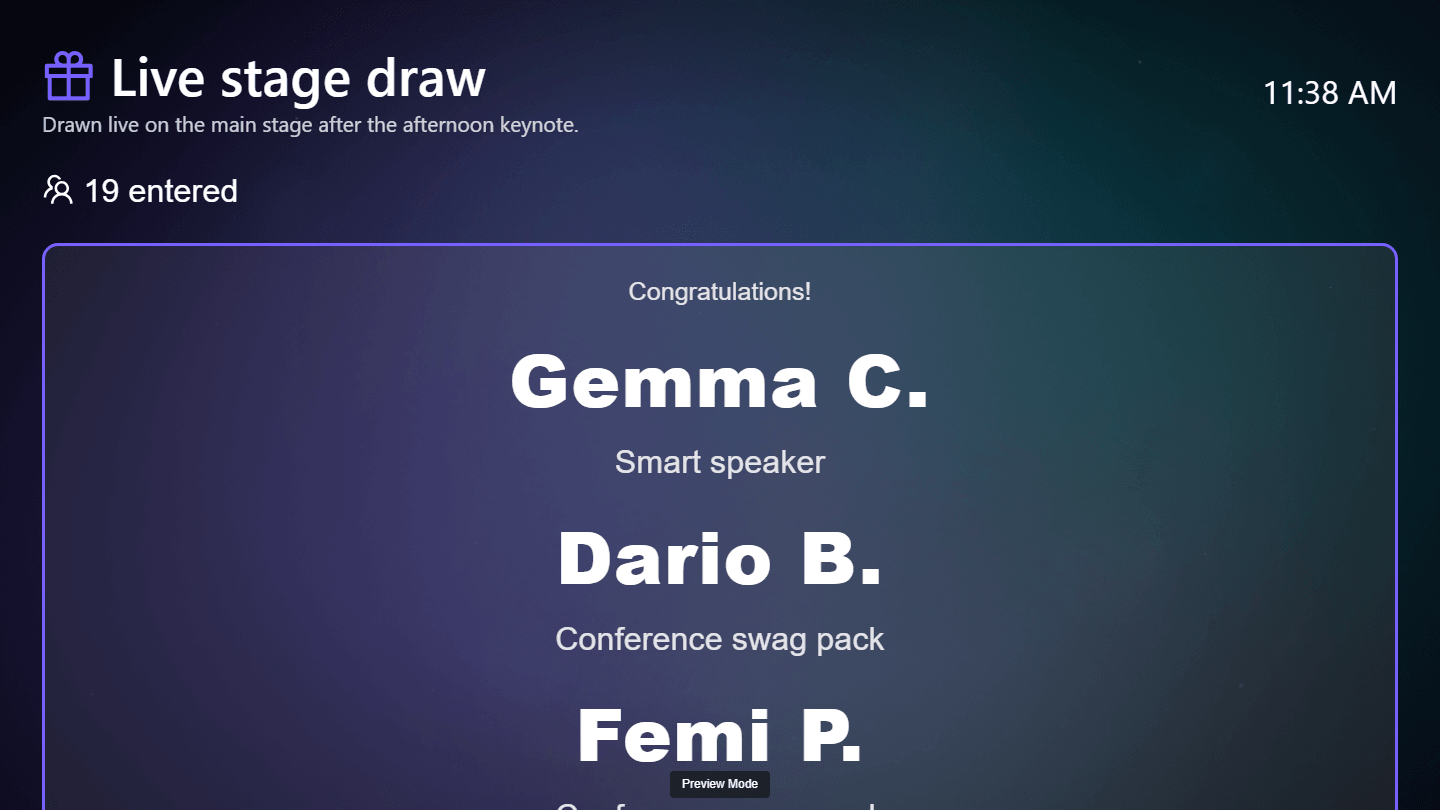
When the raffle has prizes with draw times, the prize list makes way for Up next: the next prize's picture and name, "Drawing at 3:00 PM" in the event's time zone, and a countdown ("in 12 min", then "in 45 s" in the last minute). Next to it, Still to win lists the remaining prizes in draw order with their pictures and times (prizes drawn by hand come last, without a time). When a prize is drawn, the win card takes over as above, with the prize's picture, and Up next moves on to the following prize. Once every scheduled prize is drawn, the board shows the prizes and winners as usual. A raffle without draw times looks exactly as before.
After the draw, the winners stay listed with their prizes, in the raffle's name format.
What attendees see in the Connect app
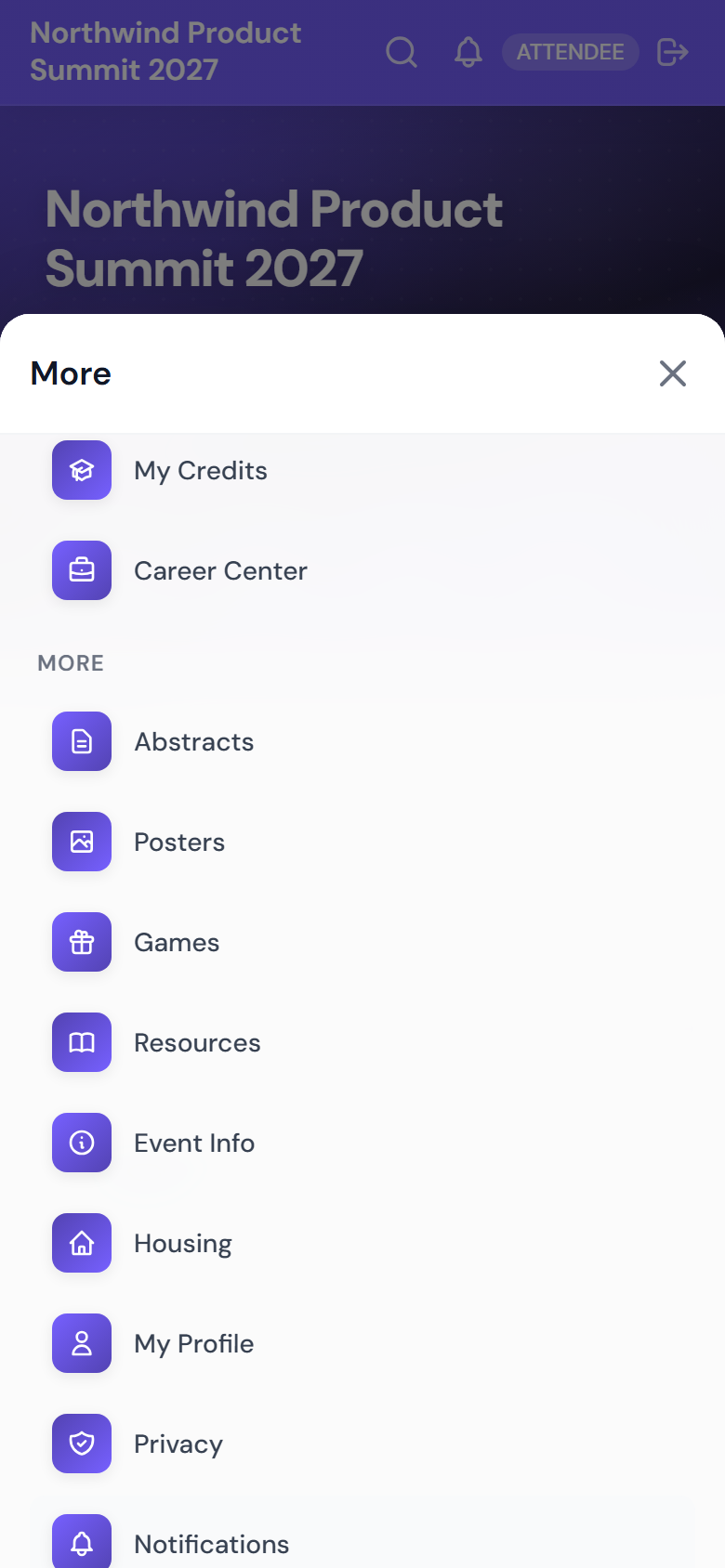
Attendees find raffles under More > Games. The menu item only appears when the event has a raffle shown in the app.
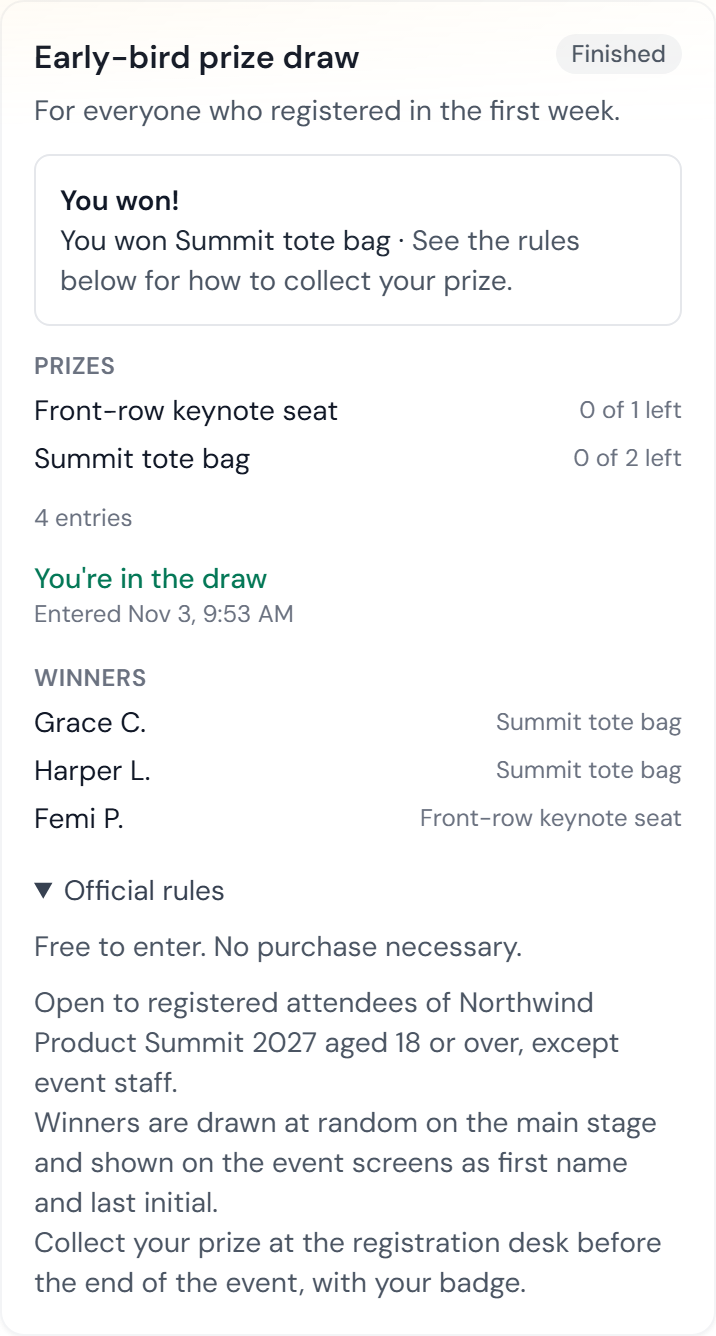
Games lists each raffle with its status (Open, Entries closed or Finished), description, prizes and how many are left, the entry count and the entry window, and Official rules (your rules plus "Free to enter. No purchase necessary."). The list refreshes every 30 seconds and stays on screen without a connection ("Showing the last games you loaded.").
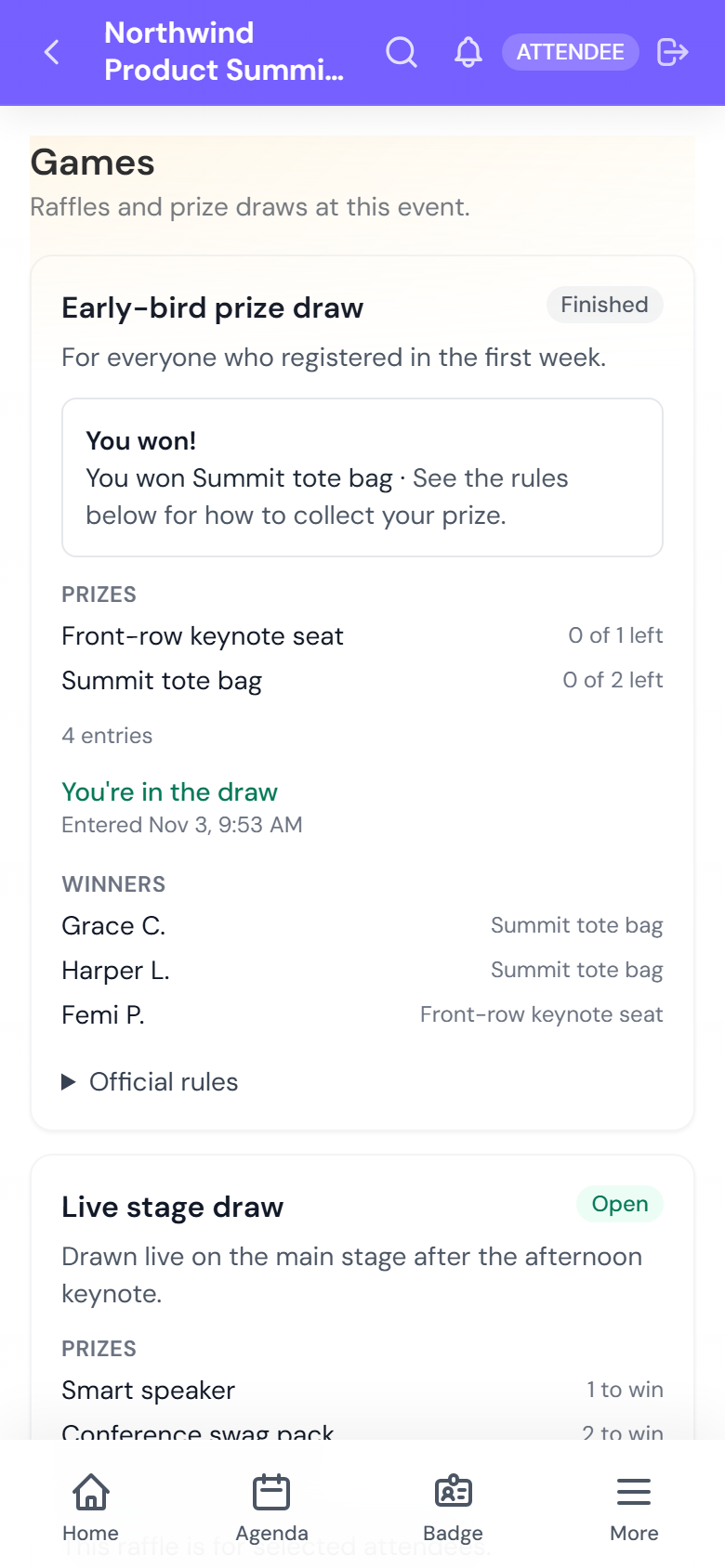
- When an attendee can enter, the card shows Enter the raffle. One tap enters them.
- Once in, the card says You're in the draw with the time they entered. While entries are open and they haven't won, they can Leave the raffle.
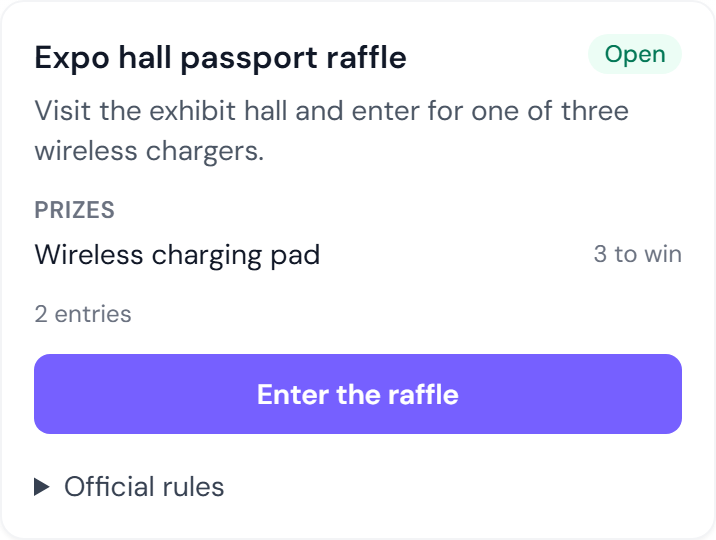
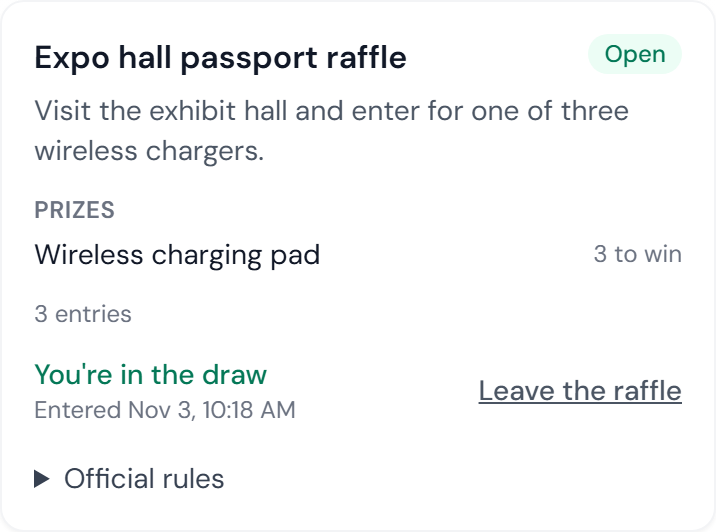
When an attendee can't enter, the card says why instead of showing the button:
| The card says | Why |
|---|---|
| This raffle is for selected attendees. | They don't meet the eligibility rules (for example, it is for checked-in attendees) |
| Entries aren't open yet. | The entry window hasn't started |
| Entries are closed. | The window has ended or you closed entries |
| Entry is automatic for eligible attendees. | Self entry is off; qualifying people are entered for them |
| Register for the event to enter. | They aren't registered for this event |
| The organizer removed your entry. | You removed them from the raffle |
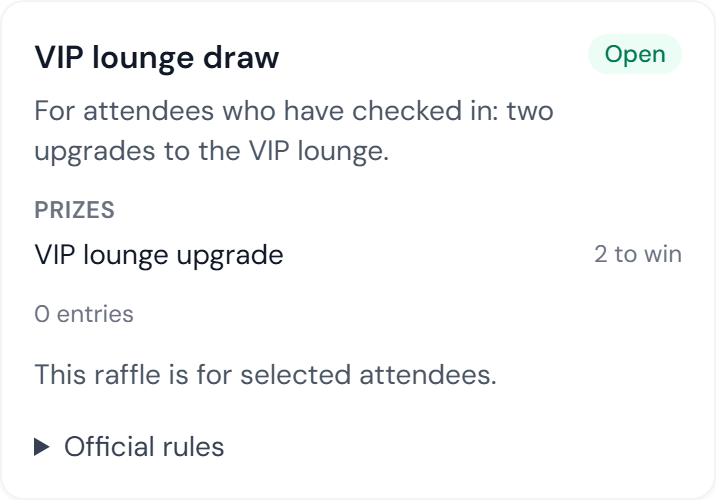
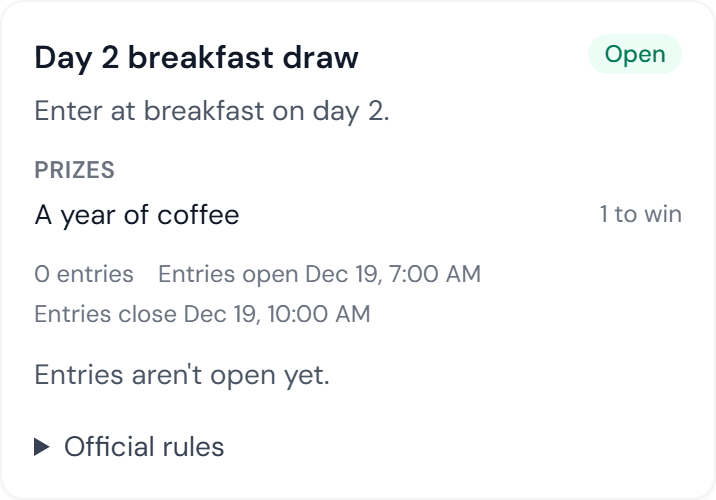
When they win, the card shows You won! with the prize, and "See the rules below for how to collect your prize." (or Collected once you mark it). The Winners list shows everyone's wins in the raffle's name format. If the raffle tells winners by push, they also get a "You won!" notification that opens this screen.
Draw the winners
Open the raffle's Draw tab. The raffle must be Open or Entries closed; a draft says "Open the raffle before drawing winners."
- Draw all remaining picks winners for every prize that still has one to give, after you confirm "Draw winners for every remaining prize now?".
- Draw next to a prize picks winners for that prize only, for example one prize after each session.
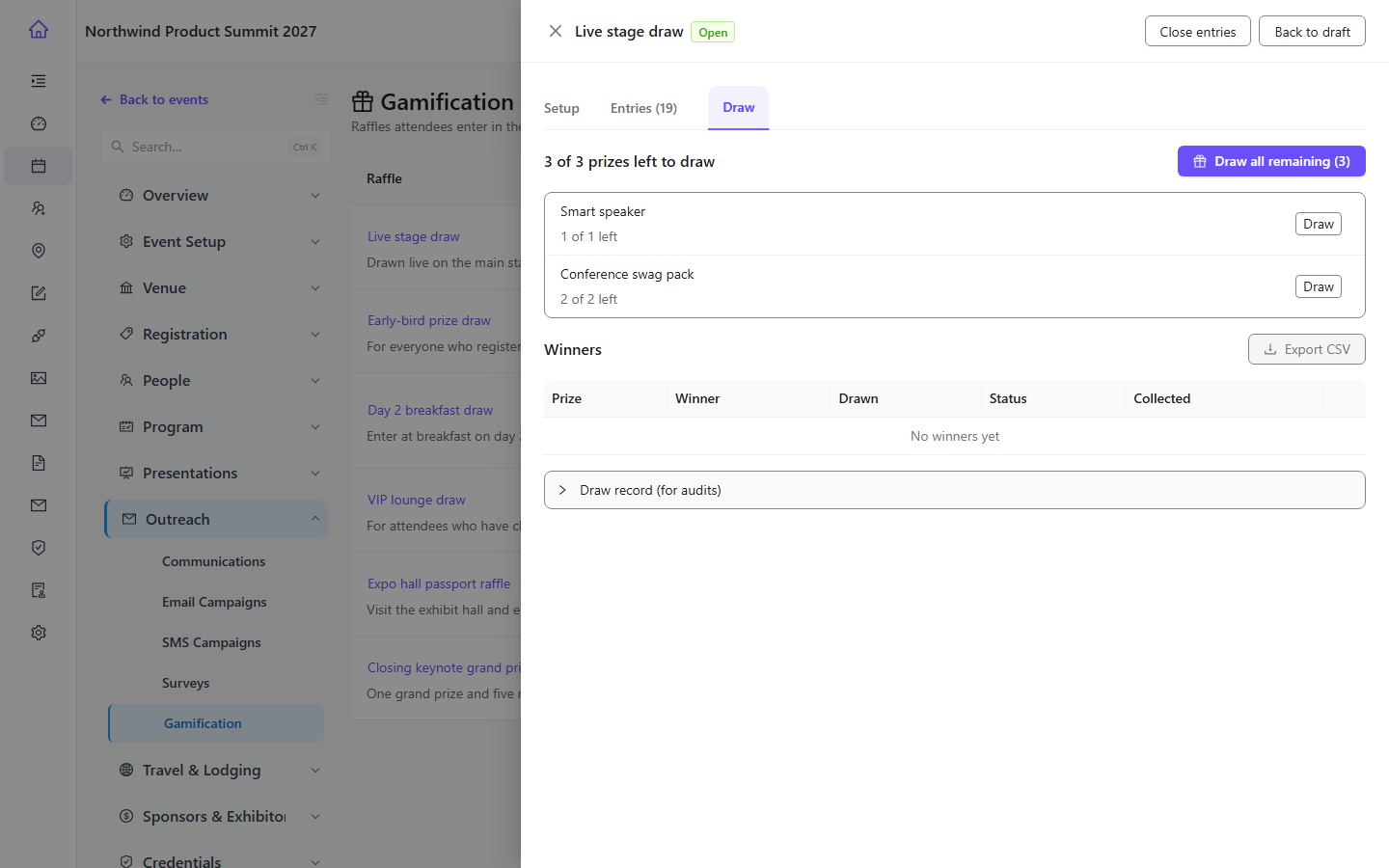
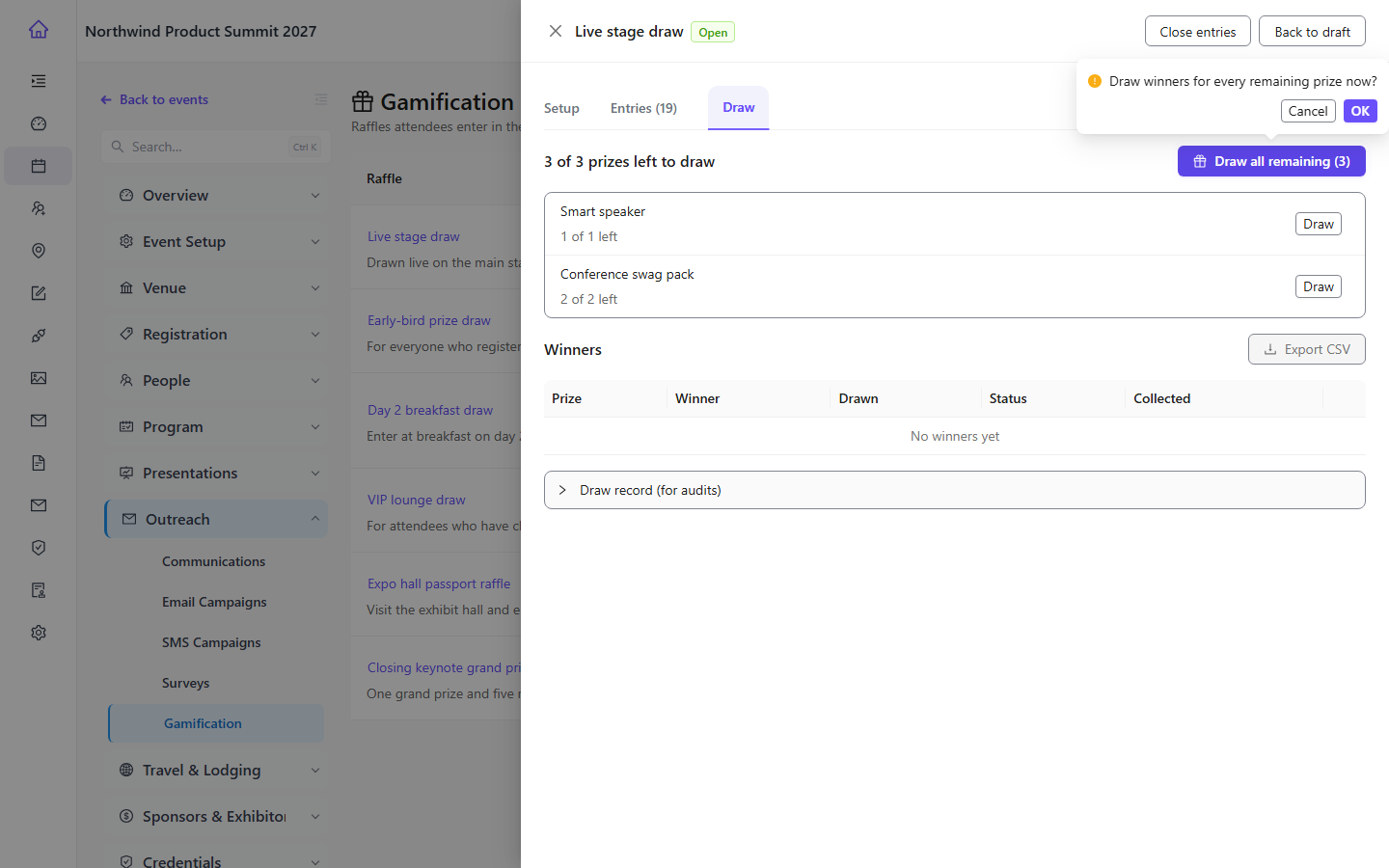
The draw happens on the server and is fair: everyone in the draw who can still win has the same chance, a person wins at most one prize per raffle (someone whose prize was redrawn can't win again in it), and pressing Draw twice (or a retry after a dropped connection) never draws twice. If fewer people can win than there are prizes, the rest stay undrawn and the page tells you how many.
Winners, redraws and collected prizes
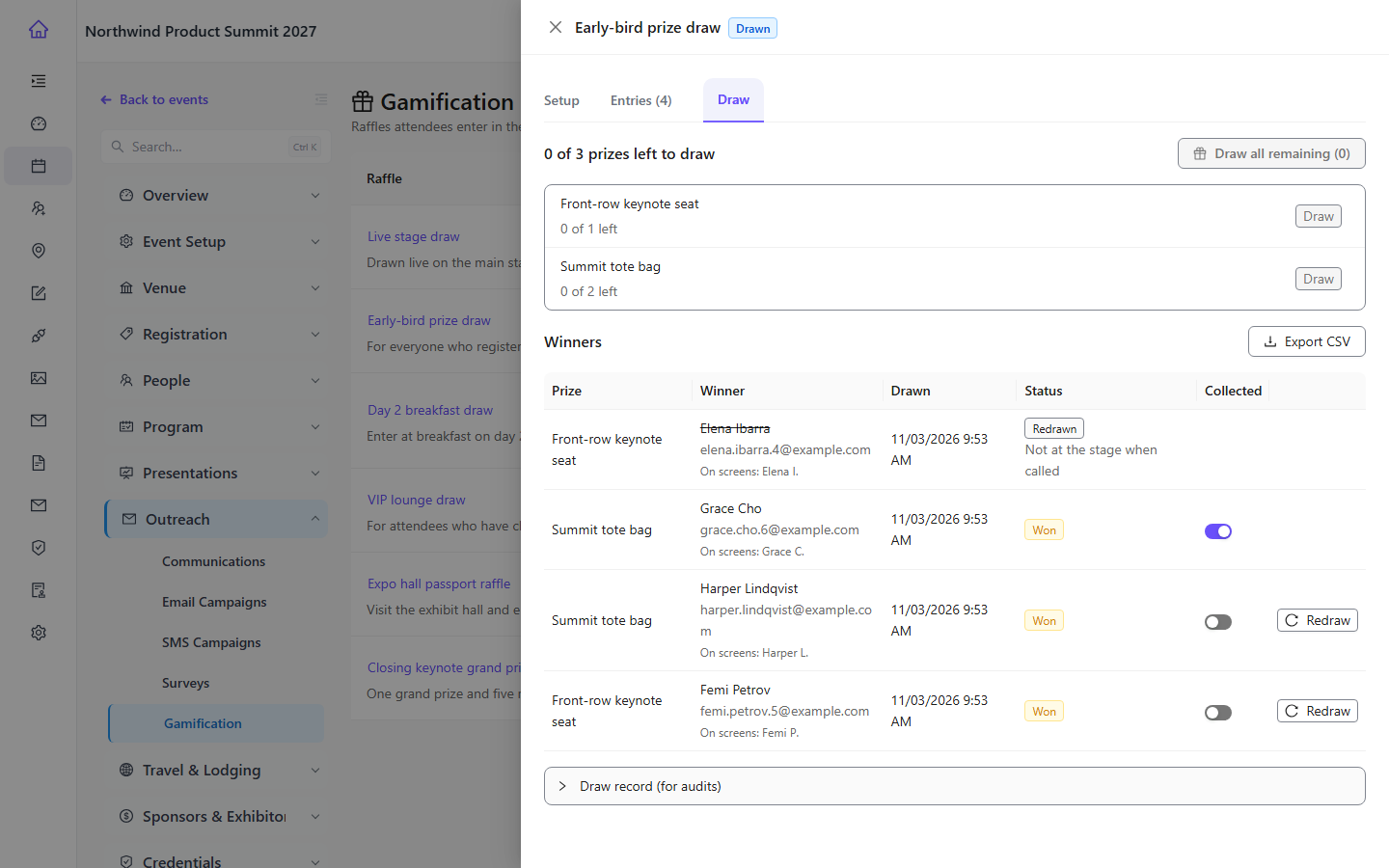
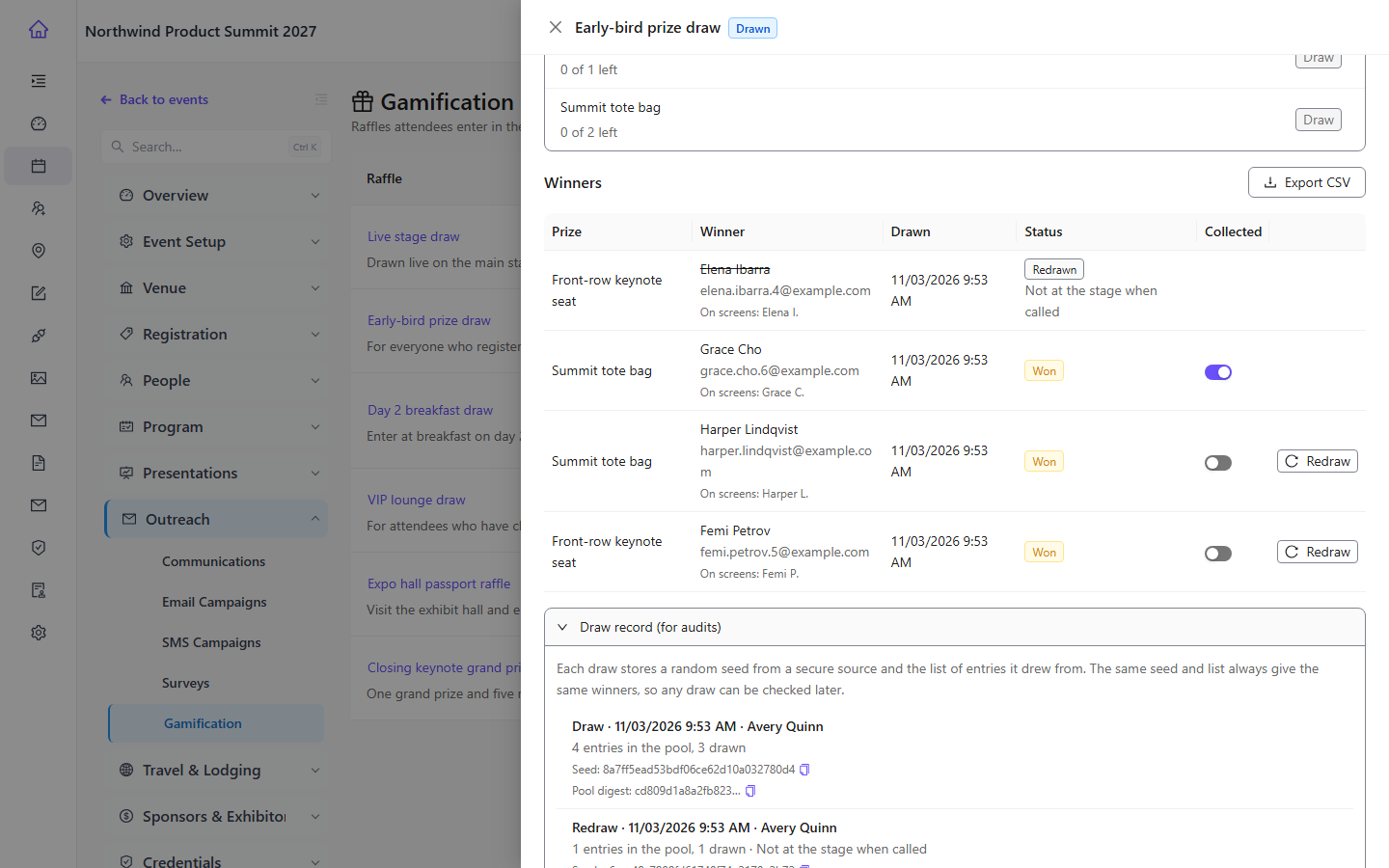
The Winners table shows each prize, the winner (with their email, for you only), how they appear on screens ("On screens: Harper L."), when they were drawn and their status.
- Collected: switch it on when the winner picks up the prize. The winner's app shows Collected.
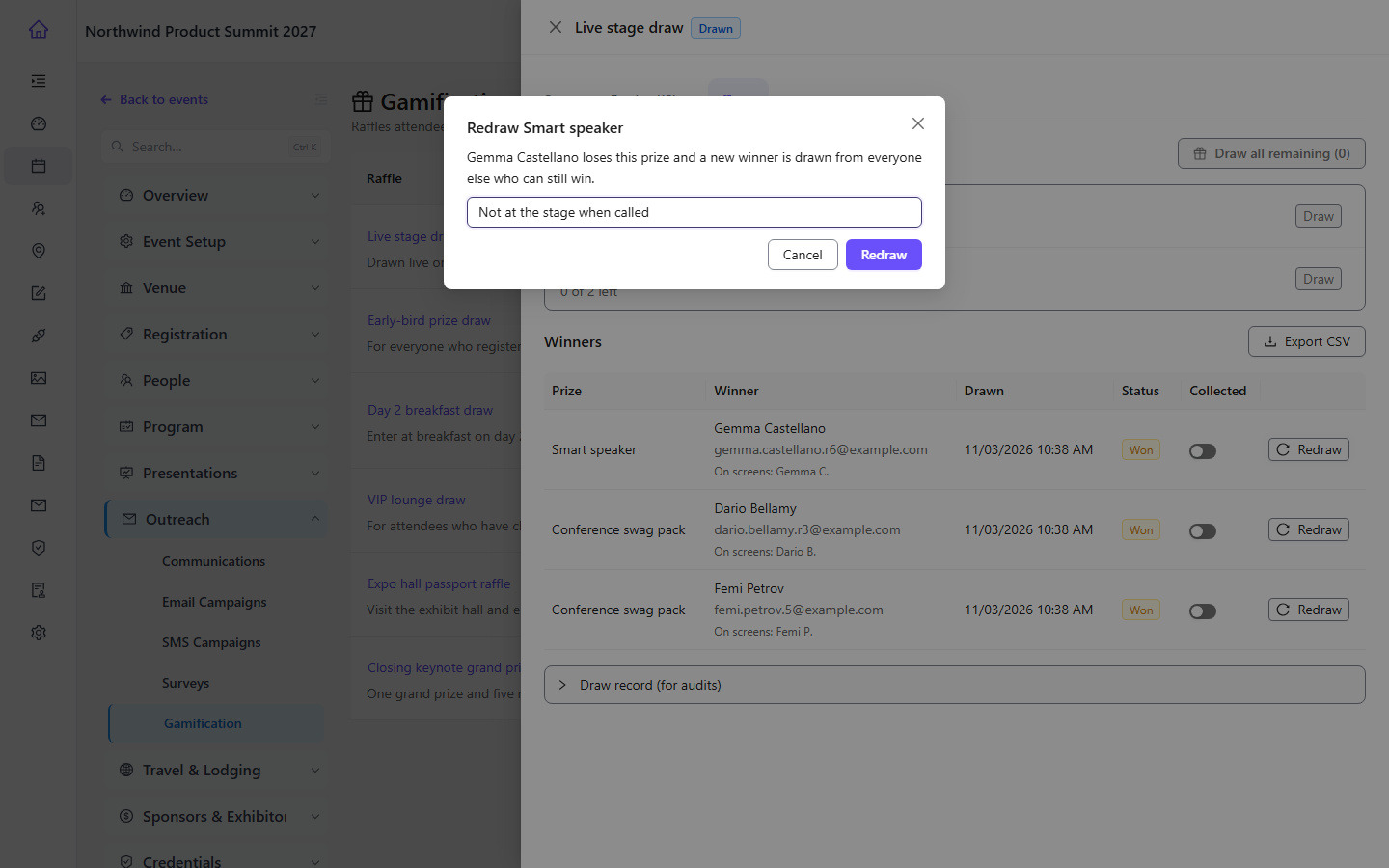
- Redraw: if a winner isn't there or can't accept, click Redraw, give a reason (for example "Not at the stage when called") and confirm. They lose the prize, it is marked Redrawn with your reason, and a new winner is drawn from everyone else who can still win. A collected prize can't be redrawn.
- Export CSV downloads the winners list.
There is no separate "publish" step: winners appear on Game Board signs and in the app as soon as they are drawn.
The draw record
Draw record (for audits) lists every draw and redraw: when, by whom, how many entries were in the pool and how many were drawn, and the draw's Seed and Pool digest. Each draw stores a random seed from a secure source and the list of entries it drew from; the same seed and list always give the same winners, so any draw can be checked later.
Data and permissions
- Raffles belong to the event. Team members who can manage the event can create, open, draw and redraw.
- Attendees only ever see winners in the raffle's name format. Signs receive names already formatted by the server, never emails.
- Every draw, redraw, entry, removal, collected prize and status change is recorded with who did it.
Troubleshooting
| You see | Why | Fix |
|---|---|---|
| "Add at least one prize before opening the raffle." | The raffle has no prize | Add a prize on the Setup tab |
| "Entries must close after they open." | Closes is before Opens | Fix the entry window |
| "Nobody in the raffle can win right now. Check the entries and the rules." | Everyone in the draw has won, left or been removed, or no one meets the rules | Check the Entries tab and the eligibility rules; add people or loosen a rule |
| "... prizes left without a winner: not enough people can win." | More prizes than people who can win | Add entries, then draw the remaining prizes |
| "A raffle with winners can't go back to draft." | Someone already won | Close entries instead |
| "This person won. Redraw their prize instead of removing them." | You tried to remove a winner | Use Redraw on the Draw tab |
| "A prize's quantity can't go below the winners it already has." | You lowered a prize's quantity under its winners | Redraw or keep the quantity |
| Games is missing from the app's More menu | The event has no raffle shown in the app | Open a raffle with Show in the attendee app on |
| An attendee can't enter | See the reason on their card (table above) | Adjust the rules or the window, or add them by email |
| The sign shows "Choose a raffle in this display's settings." | The Game Board sign has no raffle picked | Edit the sign > Raffle > Raffle to show |
| The sign lost its connection | It keeps showing the last board it loaded | Nothing to do; it updates when it reconnects |
| A prize shows Due, "Waiting: nobody can win yet" | At its time no one in the draw could win (no entries yet, or everyone has won) | Check the Entries tab; it is drawn once someone can, or press Draw |
| No Draw at field on the prizes | Your server does not have automatic draws yet | Draw by hand on the Draw tab |
| A winner didn't get a push | They don't use the Connect app, turned off event notifications, or the raffle's push switch is off | They still see the win under More > Games |