Event workflows and the job board
Find an event's approval workflows and event roles, and post job openings that attendees browse in the Career Center of the event app.
This guide covers two event pages that run in the background: Event Setup > Workflows, which sends changes to the right people for approval, and Mobile App > Job Board, which lists job openings in the event app.
Workflows
A workflow sends a change, such as a new registration, speaker or session, to the right people for approval, and notifies your team. Open Event Setup > Workflows. The page has three tabs:
| Tab | What it shows |
|---|---|
| My Approvals | Requests from this event that are waiting on you |
| All Instances | Every request the event's workflows have started, with its status |
| Templates | The workflows themselves: what starts them, their steps, and whether they are on |
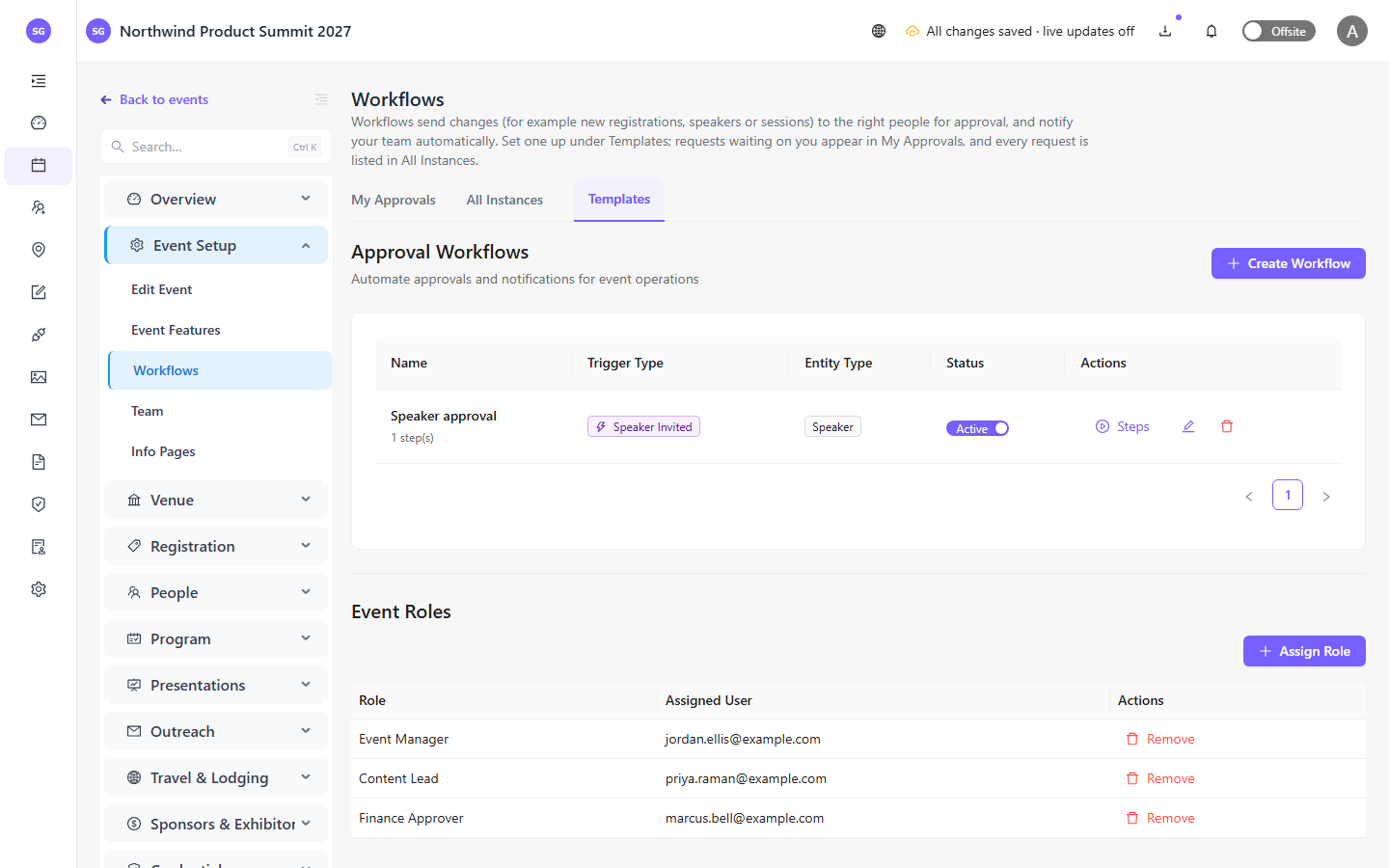
Below the workflows, Event Roles names who fills each approval role on this event (Event Manager, Content Lead, Registration Admin, Finance Approver, Operations Lead), so a workflow step that approves "by role" goes to that person.
Setting up a workflow (trigger, steps, approvers, deadlines and escalation), assigning event roles and answering requests are covered step by step in Approvals. Requests waiting on you from every event also gather on Approvals in the organization sidebar.
Job board
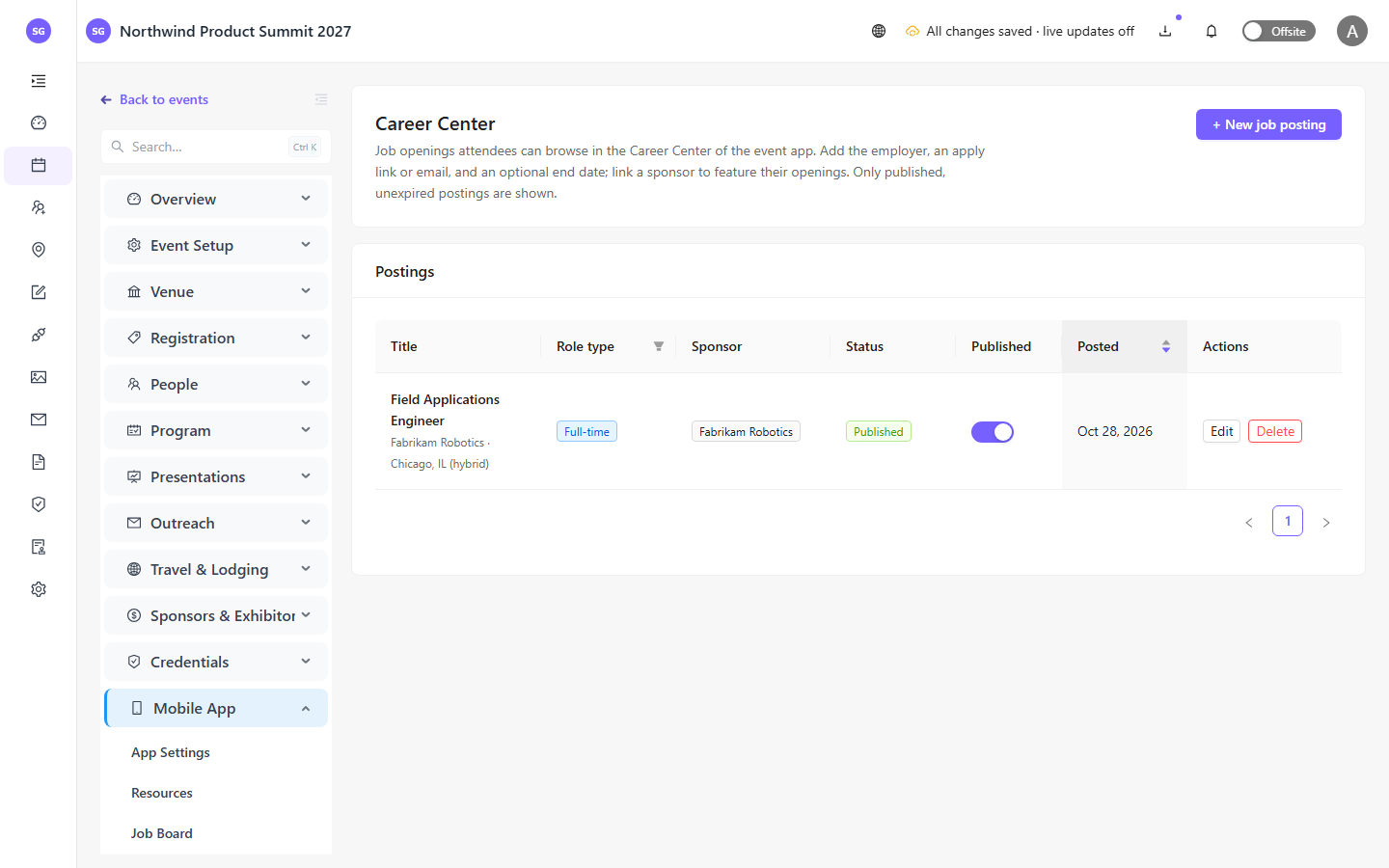
The Job Board lists openings that attendees can browse in the Career Center of the event app. Only postings that are published and not expired are shown to attendees; drafts and expired postings stay visible to you here.
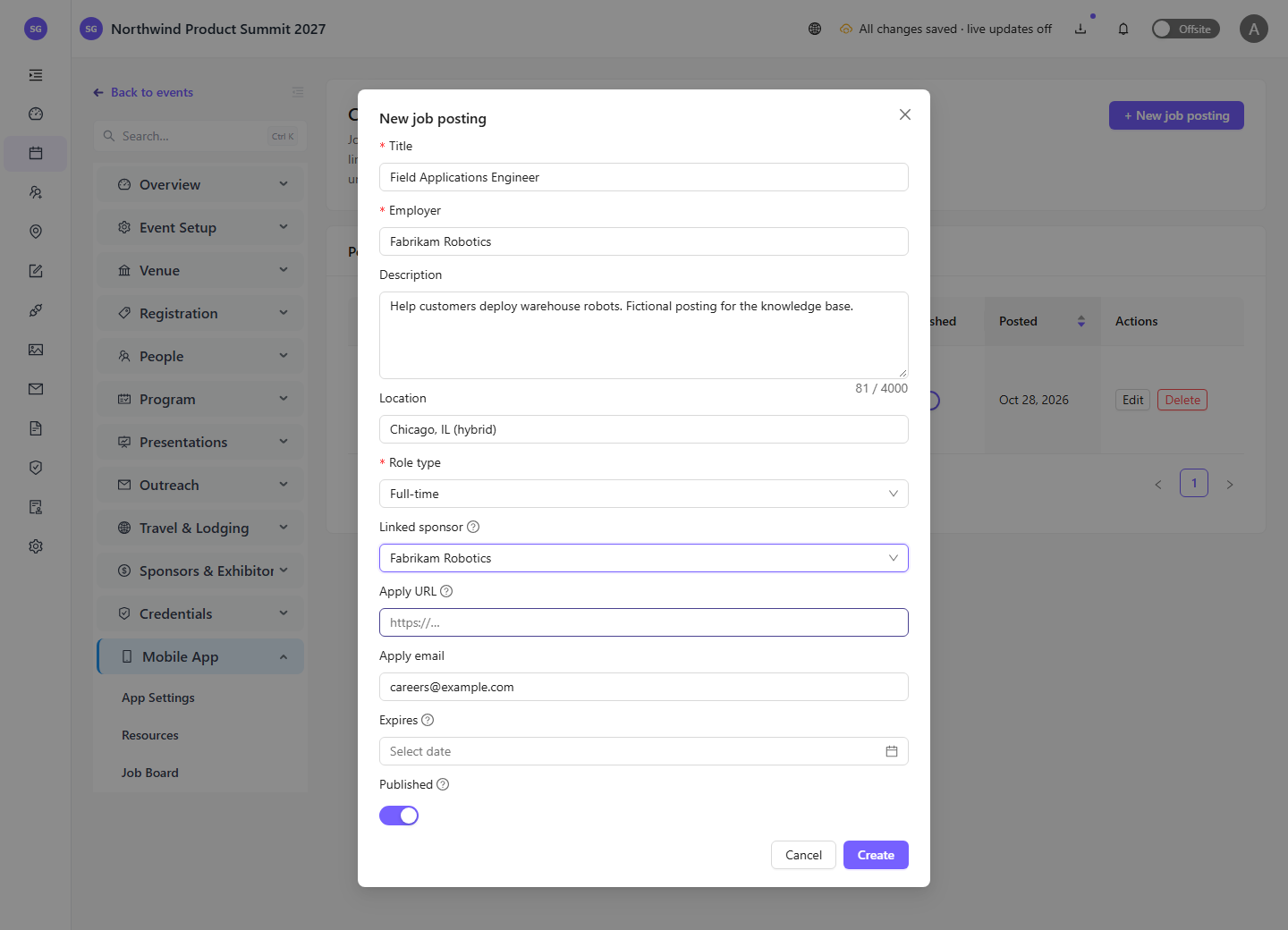
- Open Mobile App > Job Board (the page is titled Career Center) and click + New job posting.
- Enter the Title, the Employer and the Role type (Full-time, Part-time, Contract, Internship, Fellowship or Postdoctoral), and optionally a Description and Location.
- Optionally pick a Linked sponsor to show that exhibitor's branding on the posting's card.
- Add an Apply URL (starting with https://) or an Apply email. One of the two is required so candidates can apply.
- Optionally set Expires: the posting hides from attendees after that date.
- Leave Published on to show it now, or switch it off to keep a draft.
- Click Create.
The Postings list shows each posting's role type, sponsor, status (Published, Draft or Expired) and when it was posted. Use the Published switch on a row to publish or unpublish it (unpublishing hides it from the Career Center immediately), or Edit and Delete.
Who can do this
Organization admins, and members whose role lets them manage the event, can edit workflows and job postings. Approvers only see requests assigned to them.
Troubleshooting
| You see | Why | Fix |
|---|---|---|
| My Approvals is empty | No workflow is on, or none has started a request yet | Set one up under Templates and switch it on; see Approvals |
| Create does nothing on a job posting | No apply link or email | Add an Apply URL or an Apply email |
| A posting does not show in the app | It is a draft or has expired | Switch Published on, or clear or move the Expires date |