Lead retrieval
Decide what exhibitors see when they scan an attendee's badge, set up lead tiers and seats, and choose the privacy, consent and sharing rules for leads.
Exhibitors collect leads by scanning attendees' badges with the Connect app. Sponsors & Exhibitors > Lead Retrieval decides what they get from each scan, how many people per booth can scan, and the privacy rules around it.
Default settings, and making them editable
Exhibitors can scan as soon as the event has exhibitors. Until you change anything, the page says Using default lead settings: leads include name, email, company, job title and city, state and country. Phone and street address are shared only after you set up lead settings and turn them on.
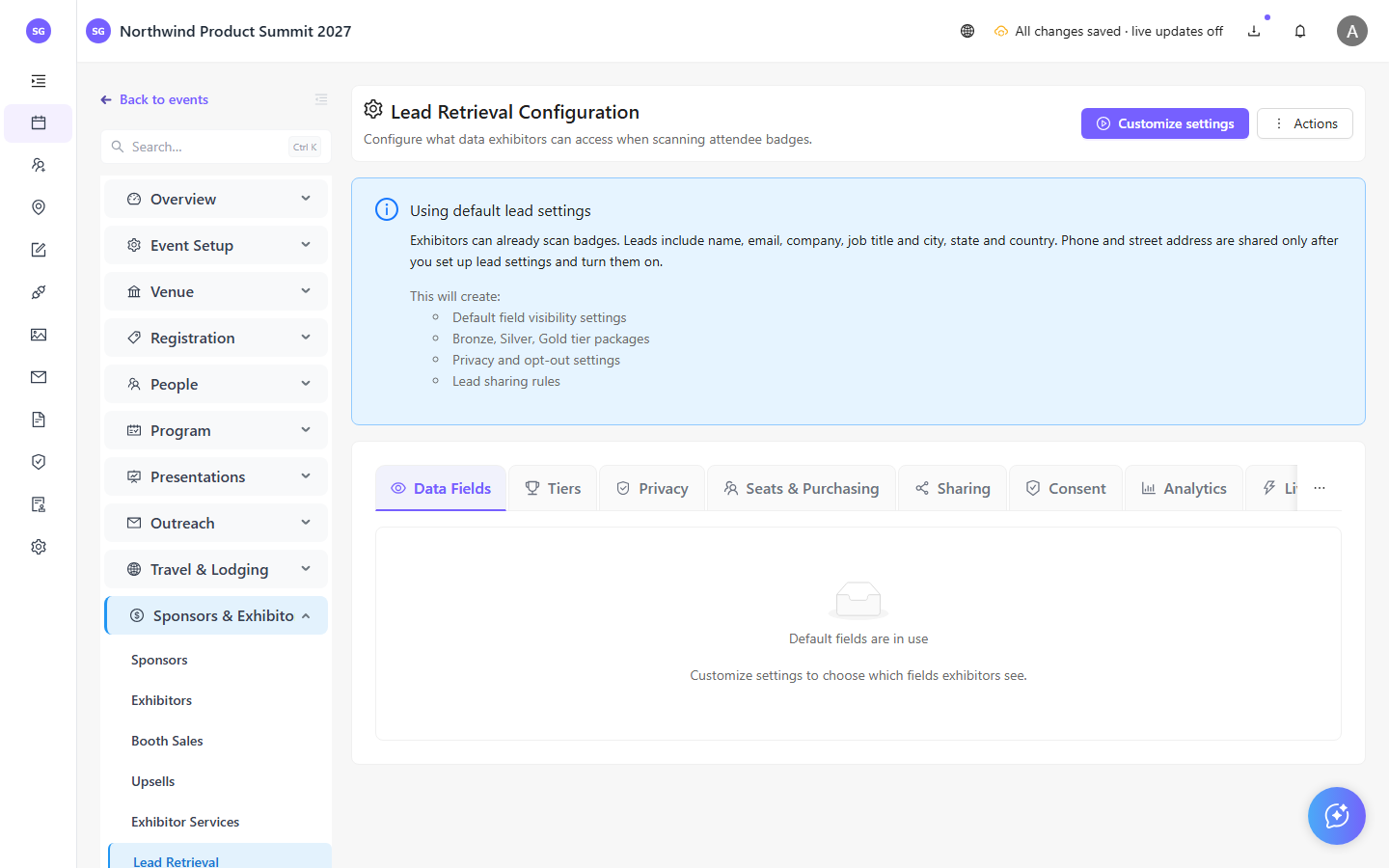
To change them:
- Click Customize settings.
- Read what will be created (field visibility, Bronze, Silver and Gold tiers, privacy and opt-out settings, and sharing rules) and click Create editable settings. Exhibitors keep scanning while you edit.
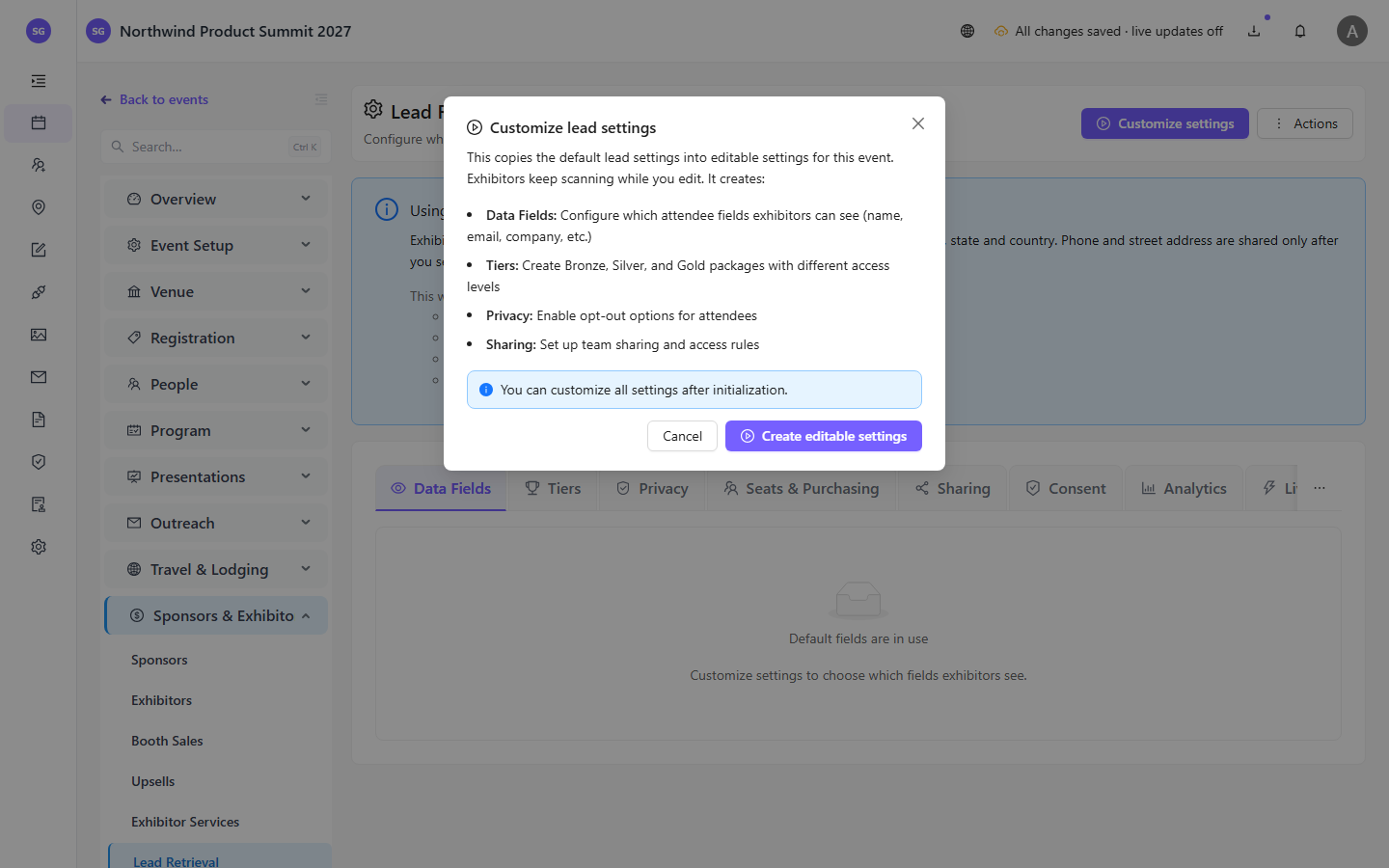
The tabs below then hold the settings. Save each tab with Save Changes (or Save); Reset discards unsaved edits.
Data Fields: what exhibitors see
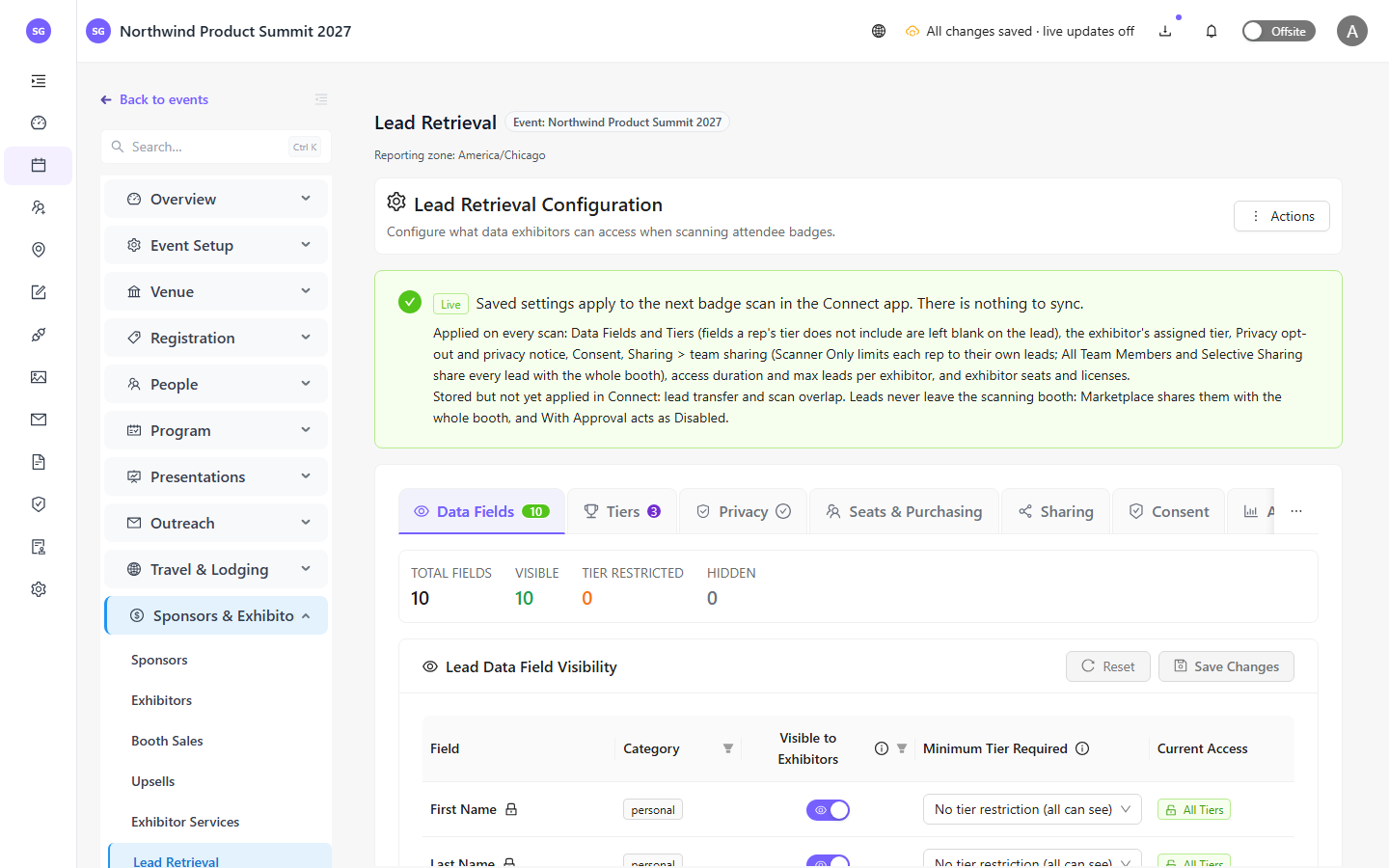
Each attendee field (first name, last name, email, company and so on) has a Visible to Exhibitors switch and a Minimum Tier Required. A field limited to Gold, for example, is only shown to exhibitors on the Gold tier or above. The totals at the top count visible, tier-restricted and hidden fields.
Tiers
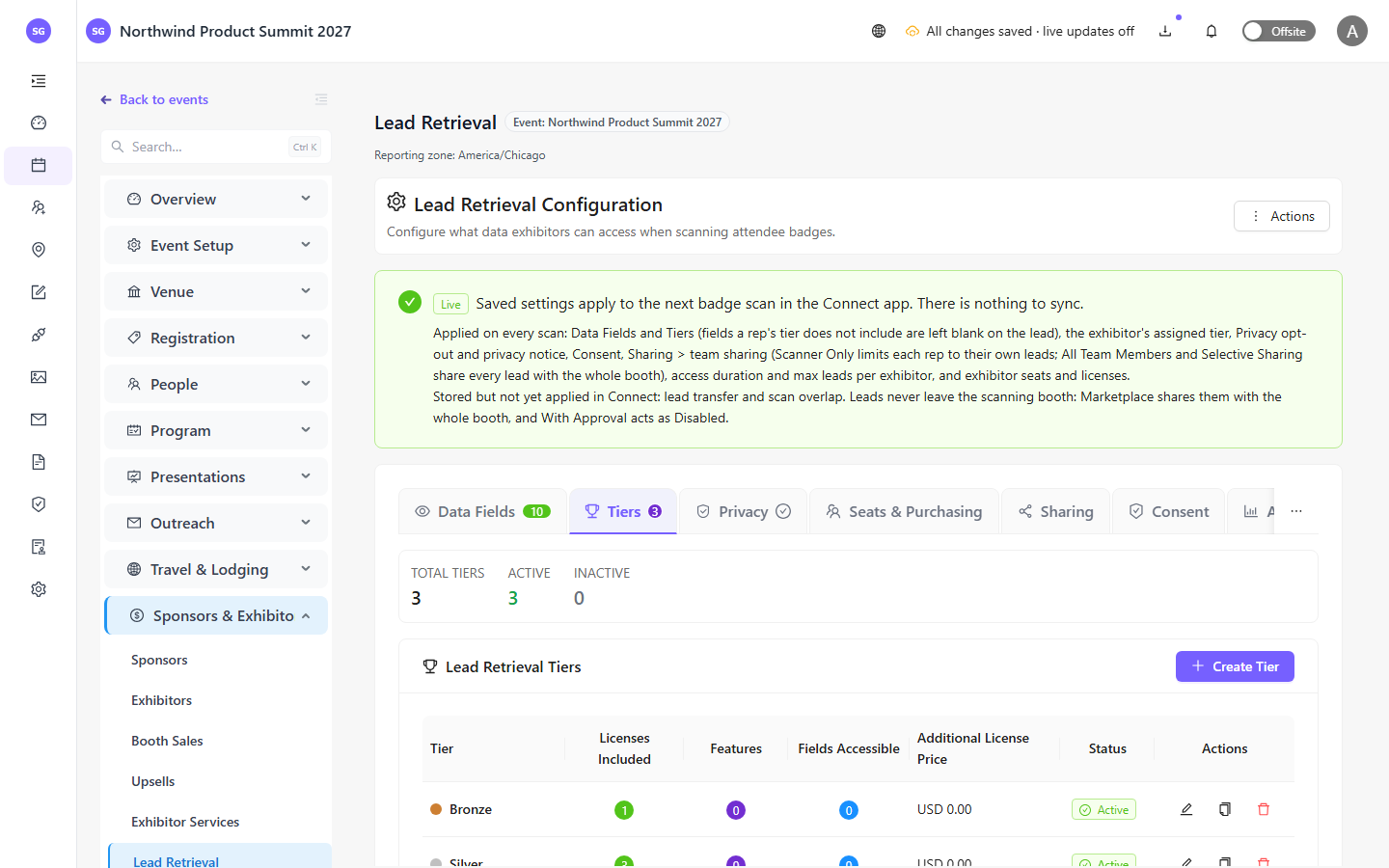
Tiers are lead retrieval packages, for example Bronze, Silver and Gold. Each has the number of Licenses Included (people who can scan), the features and fields it unlocks, and the price of an additional license. Click Create Tier to add one, or edit a row. Set an exhibitor's tier from Manage on the Exhibitors page (see Sponsors and exhibitors).
Seats & Purchasing
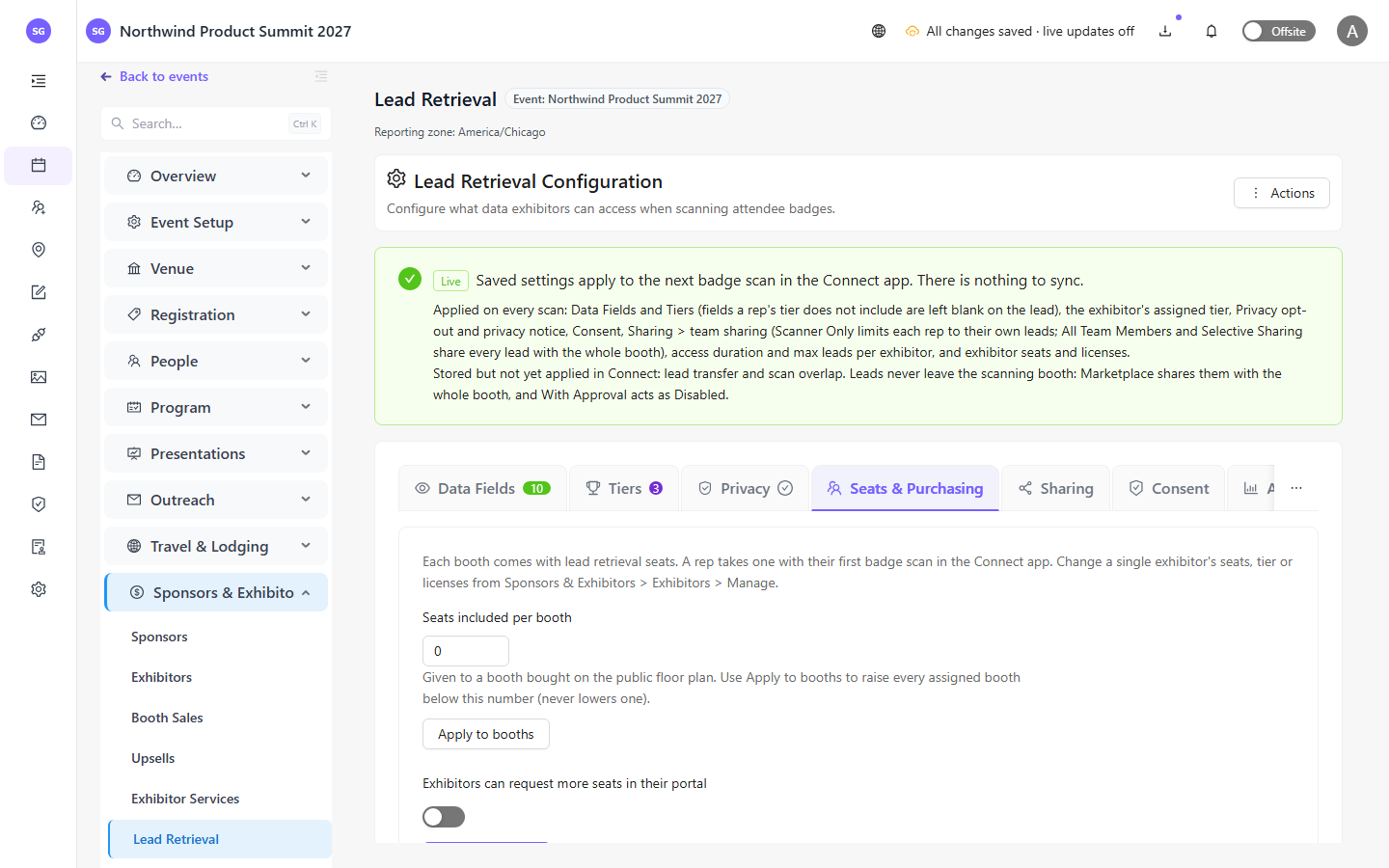
Each booth comes with lead retrieval seats. A rep takes one with their first badge scan in the Connect app.
- Set Seats included per booth. Booths bought on the public floor plan get this number.
- Click Apply to booths to raise every assigned booth that has fewer seats to this number (it never lowers one).
- Tick Exhibitors can request more seats in their portal to let them ask for more; you answer the requests from Manage on the Exhibitors page.
- Click Save seat policy.
Privacy
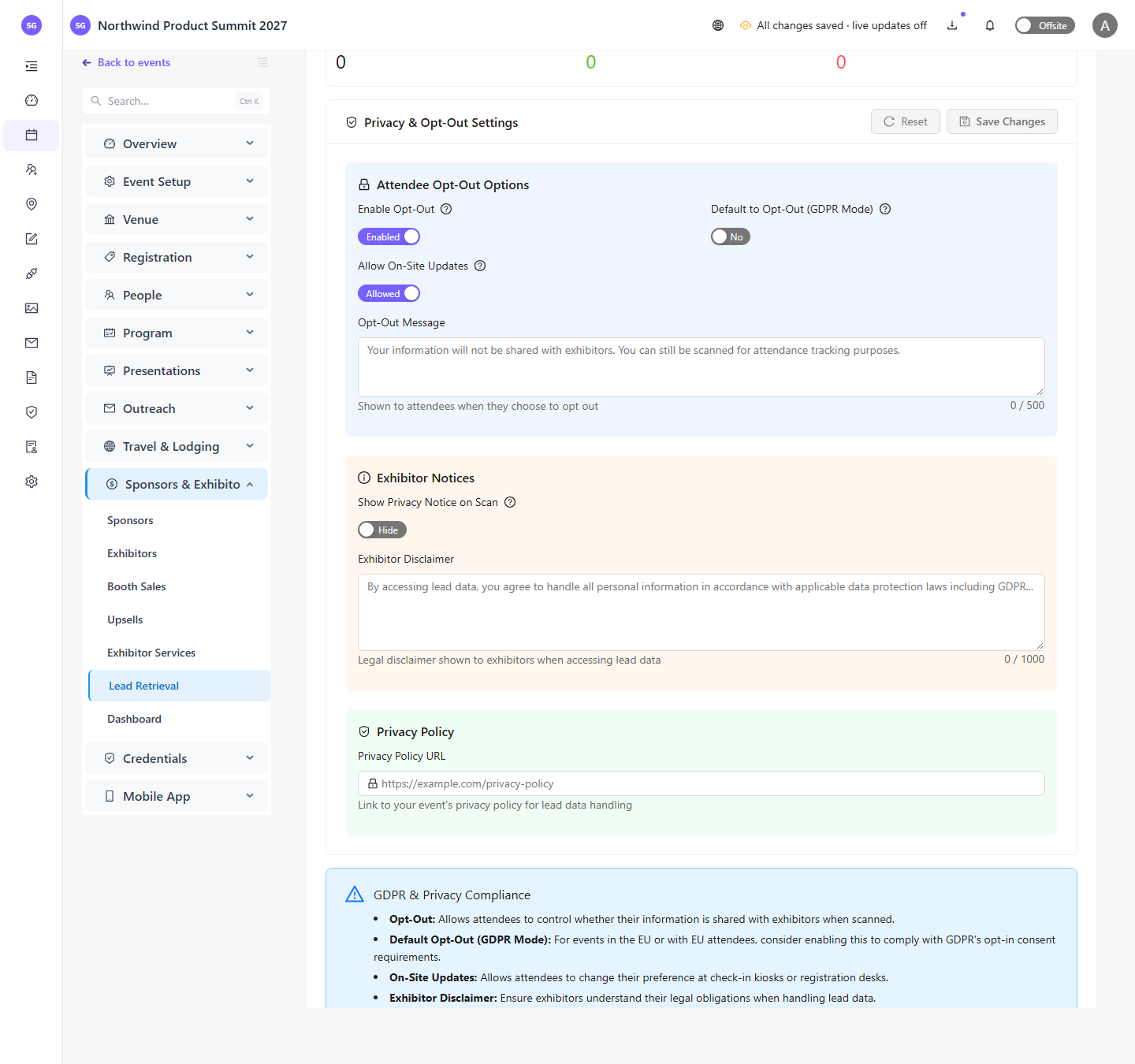
- Enable Opt-Out lets attendees choose not to be shared with exhibitors when scanned. Default to Opt-Out (GDPR Mode) makes not sharing the default; consider it for events in the EU or with EU attendees.
- Allow On-Site Updates lets attendees change their choice at check-in kiosks or the registration desk.
- Opt-Out Message is shown to attendees who opt out.
- Show Privacy Notice on Scan and the Exhibitor Disclaimer remind exhibitors of their legal obligations.
- Privacy Policy URL links your event's policy for lead data.
Sharing
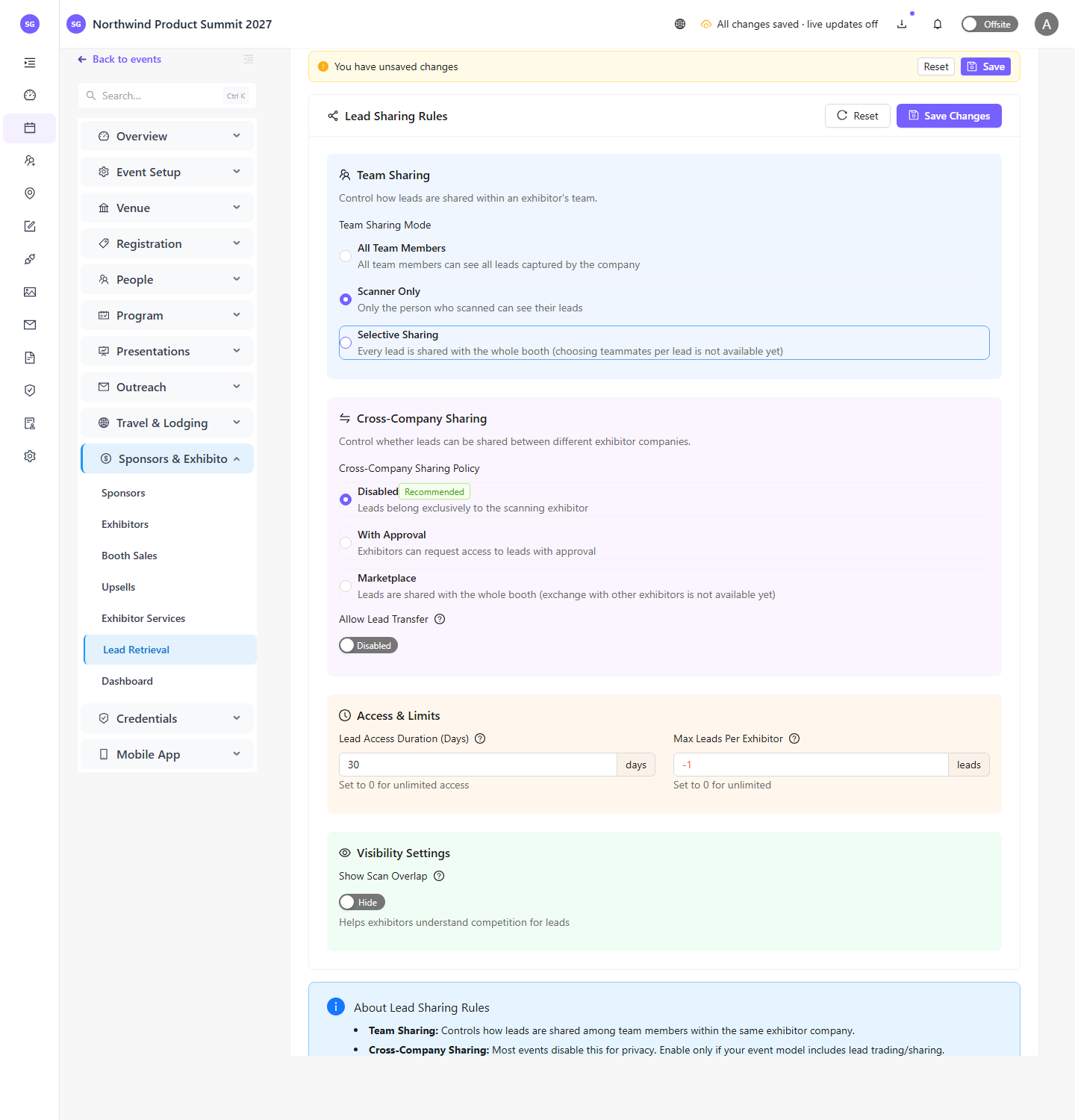
- Team Sharing Mode: All Team Members see every lead the company captured, Scanner Only limits each lead to the person who scanned it, or Selective Sharing, which for now shares every lead with the whole booth, like All Team Members (choosing teammates per lead is not available yet).
- Cross-Company Sharing Policy: Disabled (recommended; leads belong to the scanning exhibitor), With Approval, or Marketplace. Leads don't leave the scanning booth yet: Marketplace shares them with the whole booth, and With Approval acts as Disabled. Allow Lead Transfer lets an exhibitor hand leads to another company.
- Lead Access Duration (Days): how long after the event exhibitors can see their leads (0 for no limit). Max Leads Per Exhibitor caps captures (0 for no limit).
- Show Scan Overlap tells exhibitors when another exhibitor scanned the same attendee.
Consent
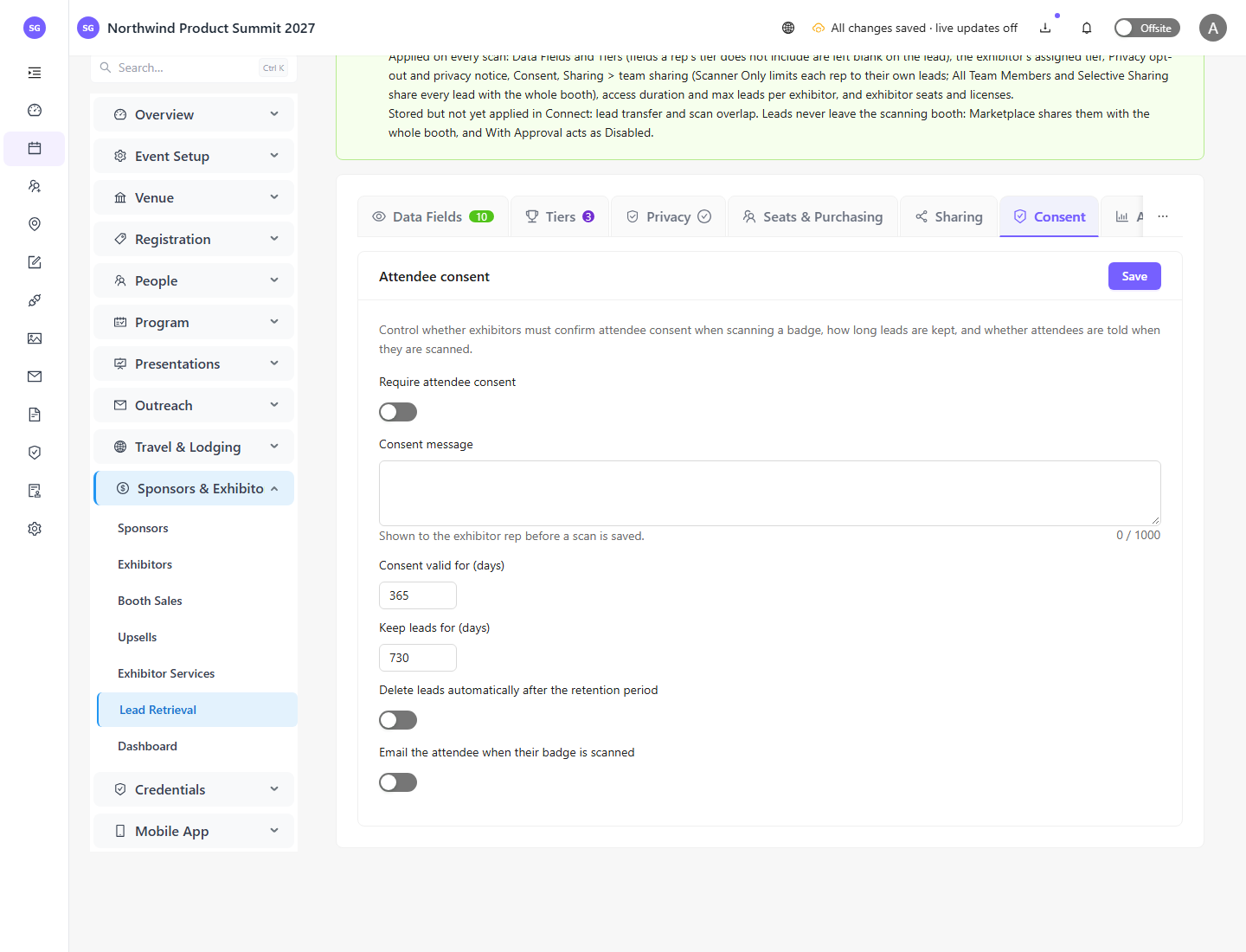
Turn on Require attendee consent to make the rep confirm the attendee agreed before a scan is saved, and write the Consent message they see. Set how long consent lasts, Keep leads for (days), whether leads are deleted automatically after that, and whether to Email the attendee when their badge is scanned. Click Save.
Analytics and Live Activity show scans as they happen, which exhibitors are capturing leads, and which have none yet. The same figures are on Sponsors & Exhibitors > Dashboard; see Sponsors and exhibitors.
Who can do this
Organization admins, and members whose role lets them manage exhibitors, can change lead retrieval settings. Exhibitors see their own seats and leads in the exhibitor portal and the Connect app.
Troubleshooting
| You see | Why | Fix |
|---|---|---|
| Exhibitors don't see phone numbers | Phone is off in the default settings | Click Customize settings, then turn Phone on in Data Fields |
| A rep can't scan: no seat free | All the booth's seats are taken | Raise the exhibitor's seats from Manage, or Apply to booths a higher default |
| A field shows for some exhibitors only | It has a minimum tier | Lower the Minimum Tier Required, or move the exhibitor up a tier |
| Leads disappeared after the event | The access duration or retention period ended | Raise Lead Access Duration or Keep leads for before it ends |