Upload your presentation, and keep your profile and disclosures up to date
Upload the slides for each talk, set your speaker profile and headshot, add your disclosures and expense claims, and check the event details from the speaker portal.
Everything you send the organizer before the event goes through the speaker portal: the slides for each talk, your profile and headshot, your disclosures and any expense claims. To open the portal, see The speaker portal.
Upload your presentation
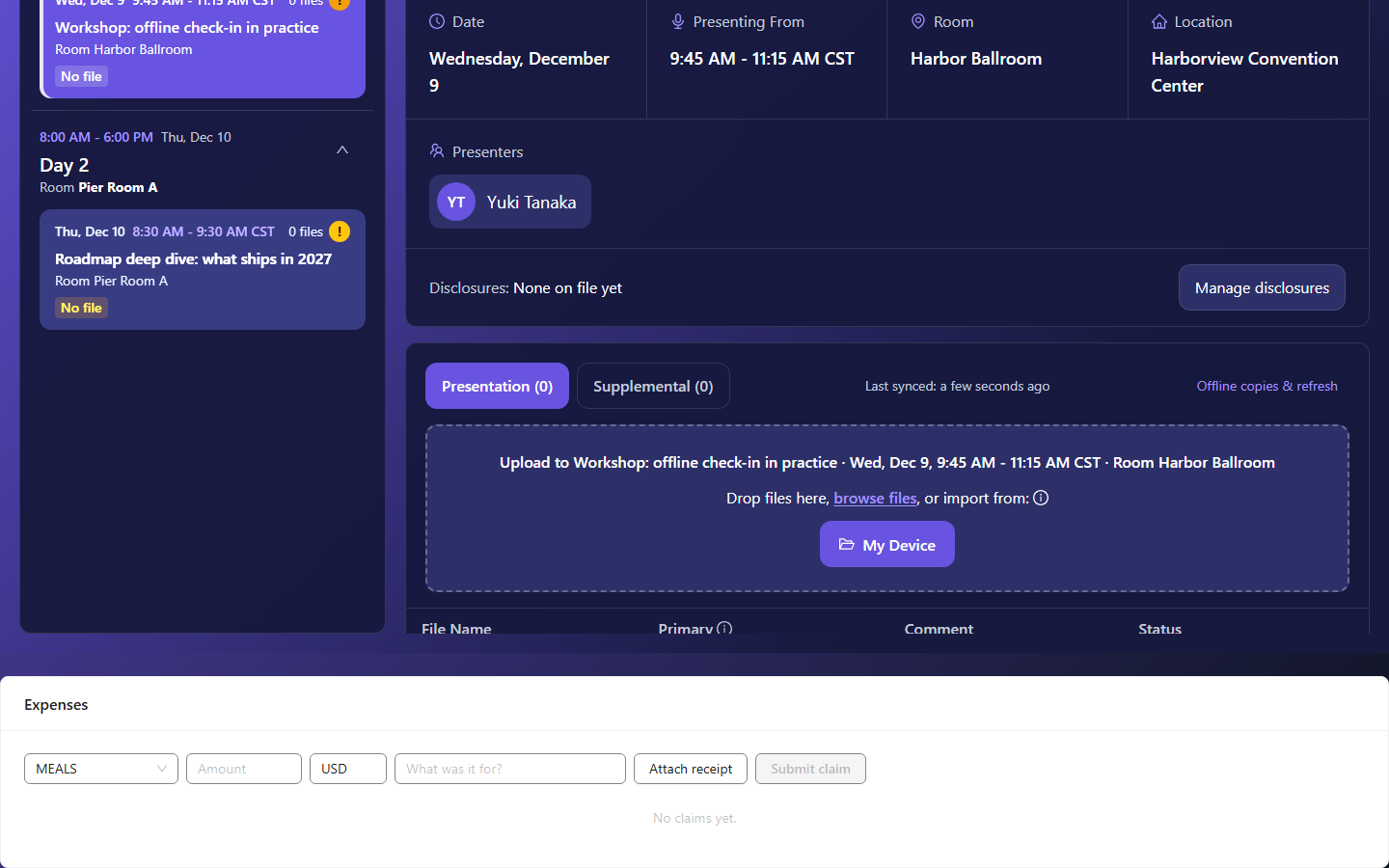
- In My Sessions, click the talk.
- Below the talk's details, choose Presentation for the slides you will present, or Supplemental for handouts and other extra files.
- Drop the file on the upload area, click browse files, or click My Device.
- Check the upload dialog: it names the talk, date and room you are uploading to, the space you have left, and the file types allowed (PDF, PowerPoint, Word, Excel and images). Click Upload 1 file to ... to send it.
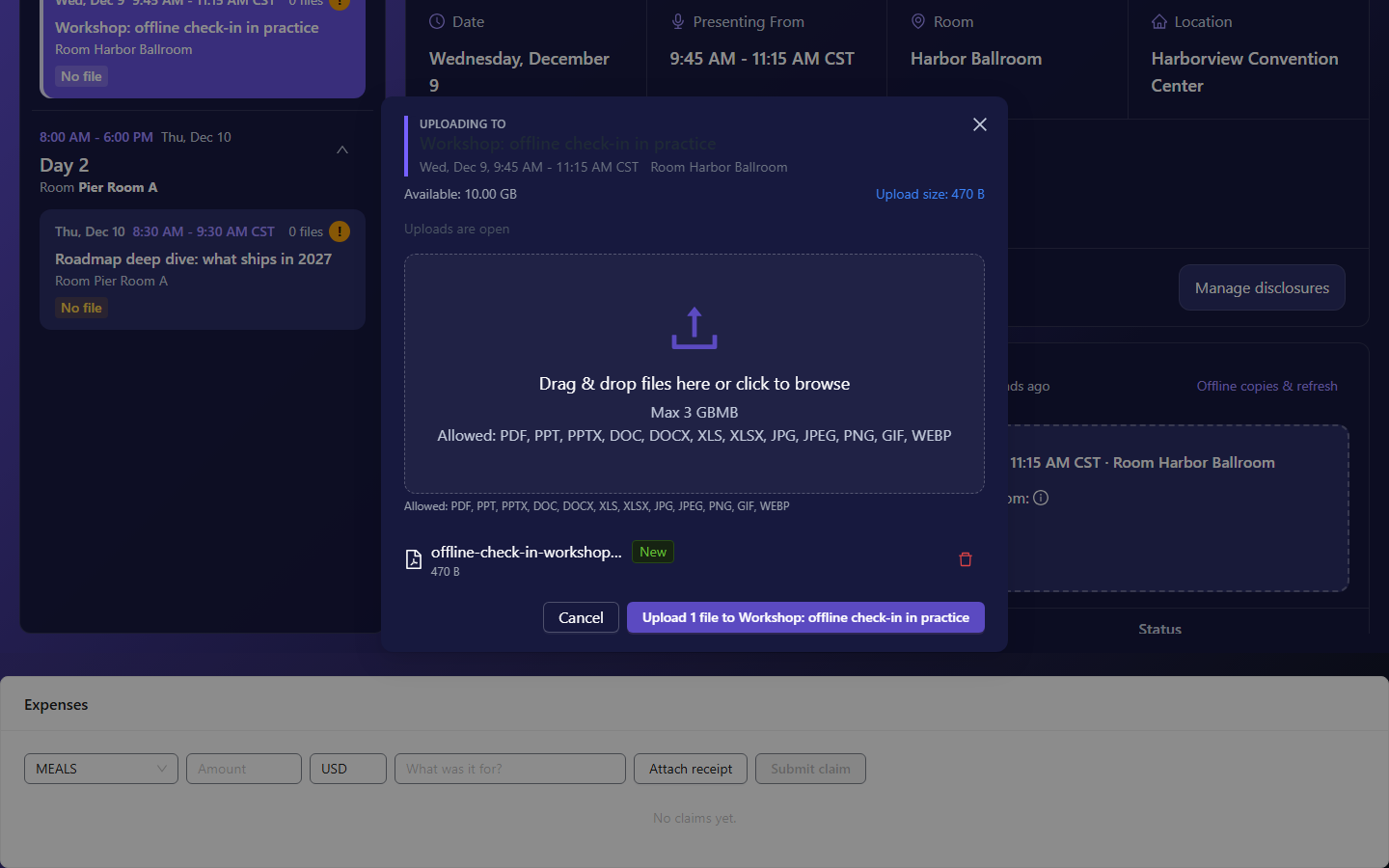
The dialog shows each file's progress. When it is done, the file appears in the talk's file list with its review Status, the talk's yellow No file marker goes, and Getting ready ticks Presentation uploaded. On a slow connection the dialog may say the file is saved on this device and sending in the background: keep the page open until it has gone.
If you upload more than one presentation file, mark the one to show on the day as Primary. To replace a file, upload the newer version. Last synced and Offline copies & refresh show when the list was last updated from the server.
Note: The upload dialog currently shows the size limit as "Max 3 GBMB", and the talk name in its header can be hard to read on the dark background. The limit is 3 GB.
Your profile and headshot
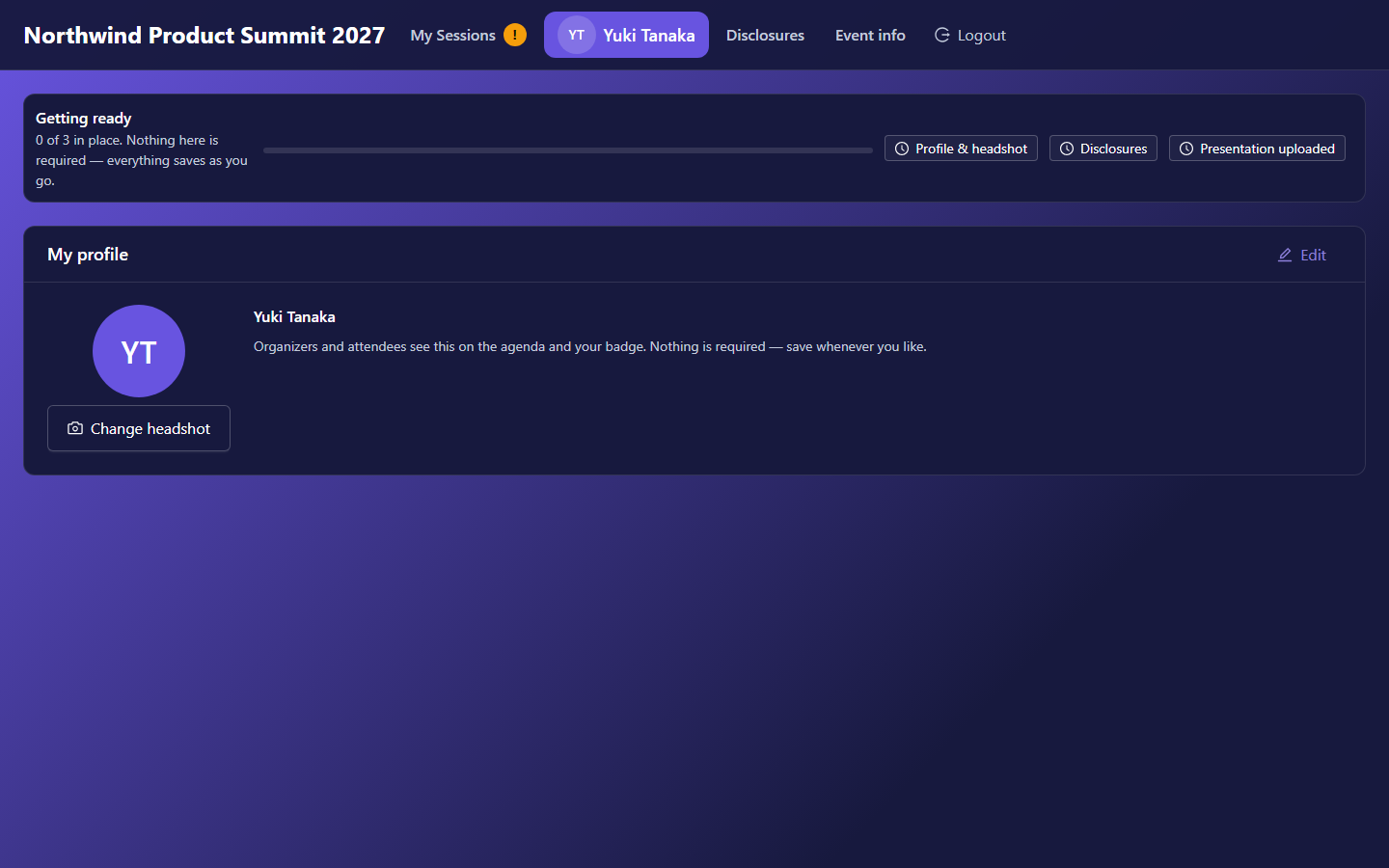
Click your name in the menu. My profile is what organizers and attendees see on the agenda and on your badge. Click Edit to change your details and bio, and Change headshot to upload a photo. Nothing is required; save whenever you like.
Your disclosures
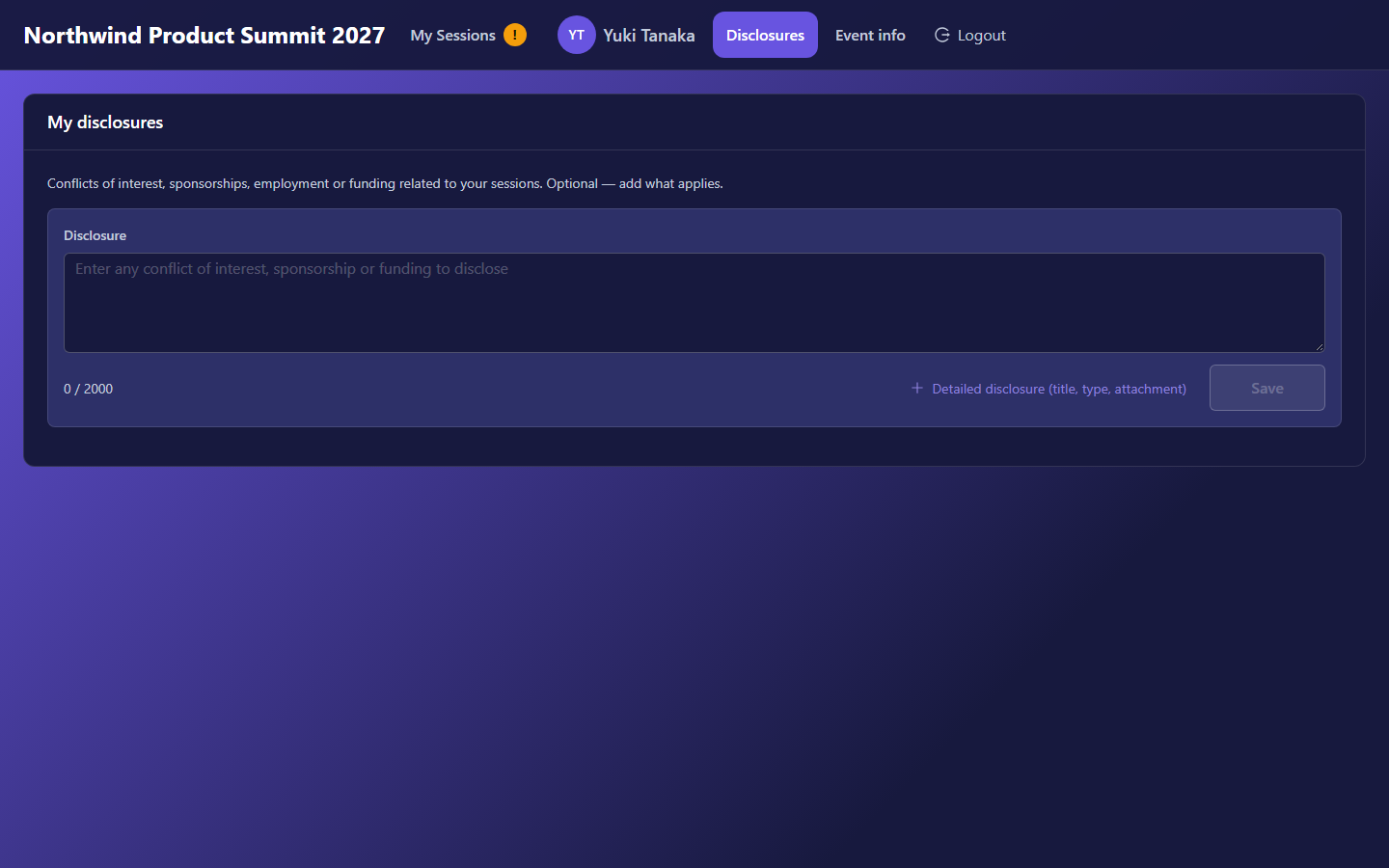
Click Disclosures in the menu (or Manage disclosures on a talk). My disclosures is for conflicts of interest, sponsorships, employment or funding related to your sessions. Write it in Disclosure (up to 2,000 characters), or add a Detailed disclosure with a title, type and attachment, then click Save. Add only what applies.
Expense claims
Expenses, at the bottom of the portal, is for claiming costs the organizer has agreed to cover. Pick the kind of expense (for example MEALS), enter the Amount and currency and what it was for, click Attach receipt, then Submit claim. Your claims and their status are listed underneath.
Event info
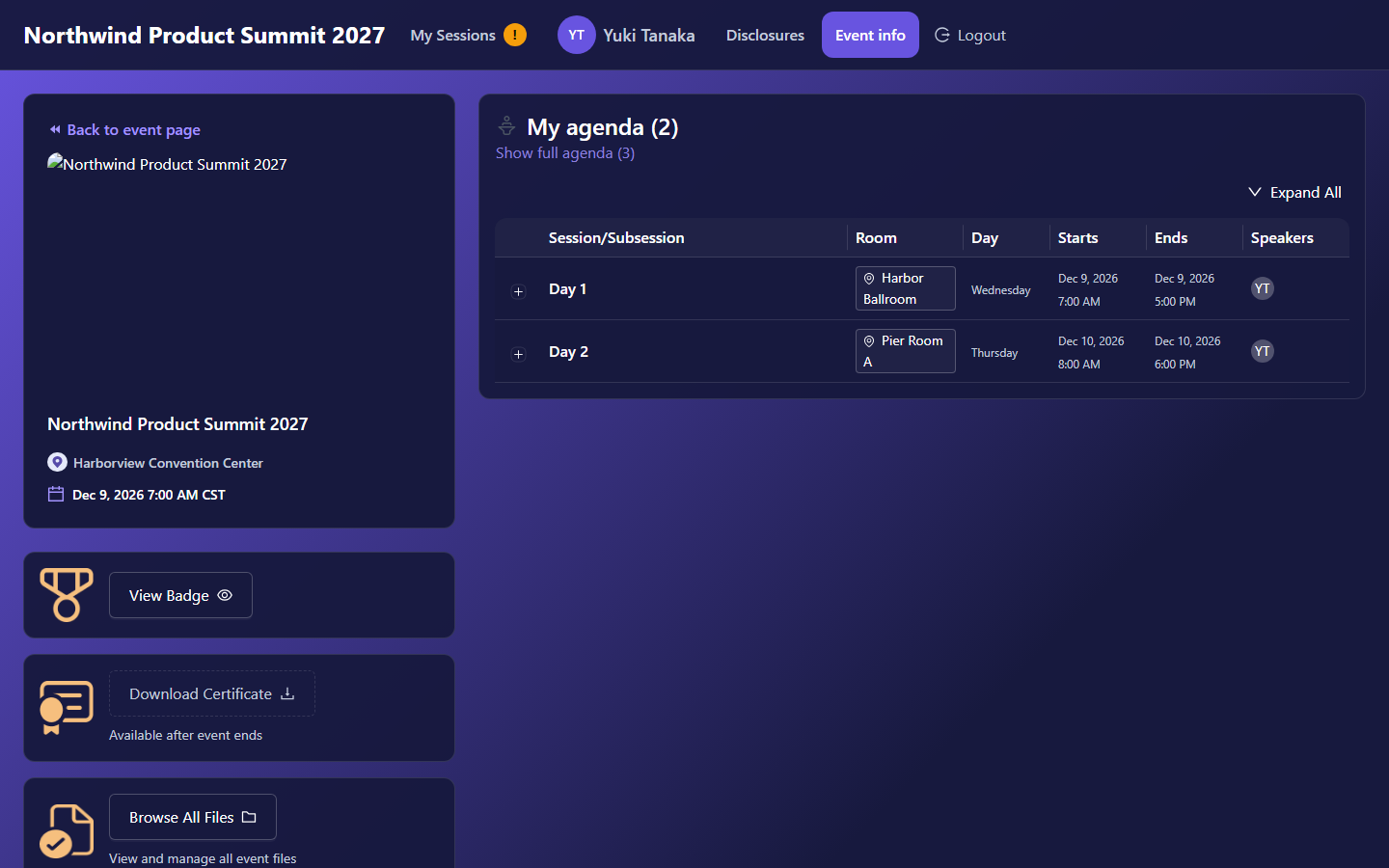
Event info shows the event's venue and start, View Badge, Download Certificate (available after the event ends), Browse All Files for the event, and My agenda: the agenda days you speak on, with Show full agenda for the rest.