Agreements and e-sign
Review and electronically sign the agreements between your organization and the platform, follow who still has to sign, decline with a reason, and download the signed copy.
Agreements is where your organization reviews and signs its agreements with the platform. When an agreement is sent to you, you get an email with a link to this page. Once electronic signing is on for your organization, Agreements also appears under Organization Settings in the sidebar.
Some agreements, such as an order form after you accept a proposal, are sent as a personal signing link instead, and anyone can sign them without an account. See Signing an agreement.
Check whether e-sign is on for your organization
Electronic signing is switched on per organization. Until it is on for yours, the page says Electronic signing is not available yet.
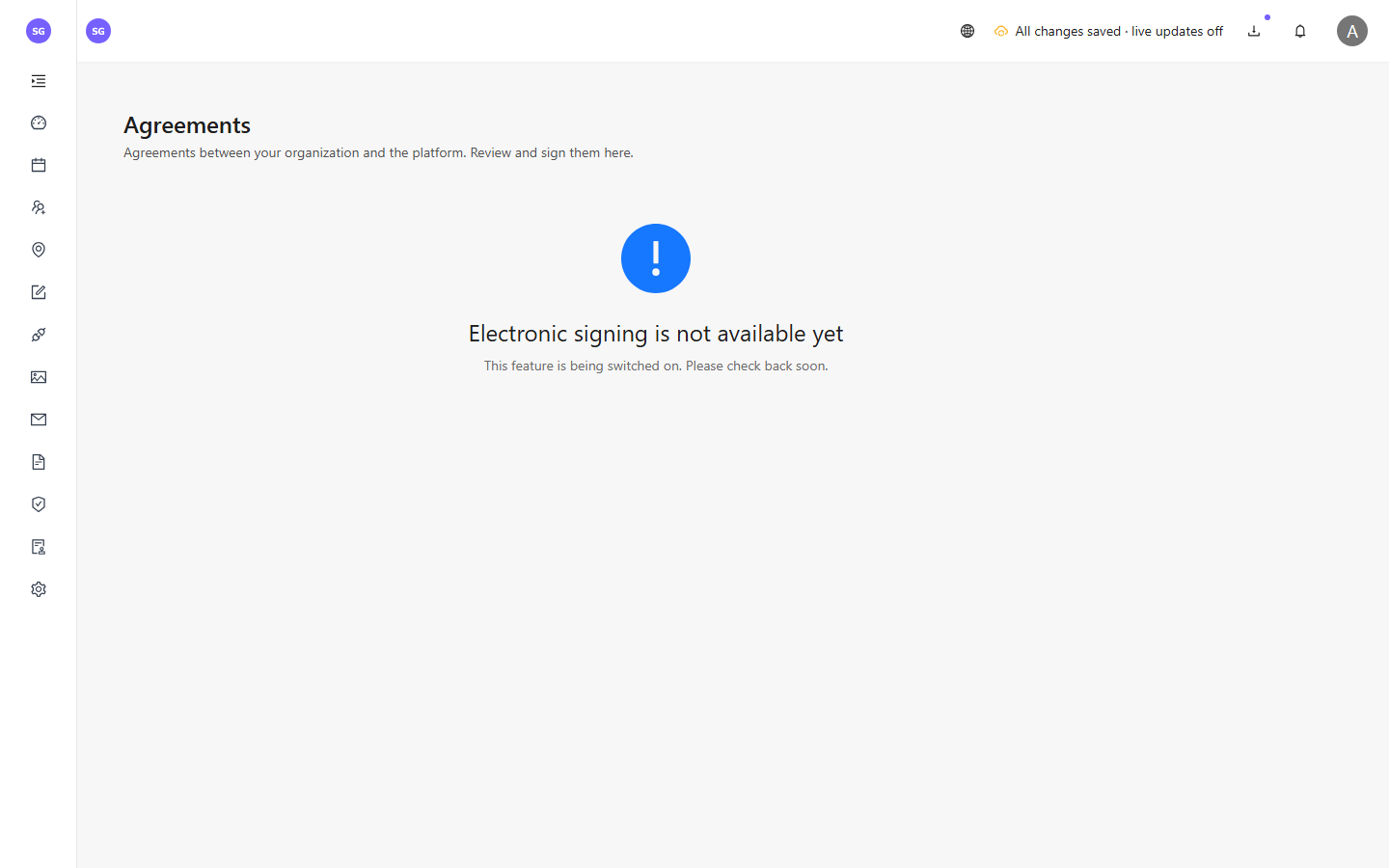
Nothing is waiting for you while you see this message. If you were told to sign something, contact support.
Find an agreement
When e-sign is on, the page lists every agreement sent to your organization. (The sample organization used for this guide has e-sign off, so the steps below describe the product rather than a captured screen.)
| Column | What it shows |
|---|---|
| Agreement | Its title. Click it to open it |
| Applies to | Organization, or Event with the event's name |
| Type | The kind of agreement |
| Status | Where it is, with Needs your signature when it is waiting for you |
| Sent, Completed | When it was sent and when everyone had signed |
Use the Status and Applies to filters to narrow the list.
Sign an agreement
- Click the agreement's title. The document opens with its type, what it applies to and the list of Signers.
- Read the document. If it does not display, use Reload document or Open in new tab.
- Under Sign this document, read the Electronic signature disclosure and tick the box to agree to it.
- Type your full legal name. The Signature preview shows how it will appear.
- Optionally tick Also draw my signature and draw it with your mouse, pen or finger. Clear starts the drawing again.
- Click Sign.
The status then shows Signed and, if others still have to sign, Waiting for the other signers (or the name of the person it is waiting for). When everyone has signed it shows Fully signed and Download signed copy.
Click All agreements to go back to the list.
Decline to sign
- Open the agreement and click Decline.
- Enter a Reason (shared with the sender).
- Confirm with Decline.
The page shows You declined to sign and the sender is told, with your reason.
Troubleshooting
| You see | Why | Fix |
|---|---|---|
| "Electronic signing is not available yet" | E-sign is not switched on for your organization | Contact support if you expected an agreement |
| "Tick the agreement box to continue." | The disclosure box is not ticked | Tick it, then Sign |
| "Type your full legal name to continue." | The name field is empty | Type your full legal name |
| "The document could not be signed" | The signature did not save | Try again; if it repeats, contact support |
| "This document was withdrawn by the sender" | The sender cancelled it | Wait for a new version or ask the sender |
| "Agreements could not be loaded" | The list failed to load | Click Try again |
| No Sign button on an agreement | It is not waiting for your signature, or it is already complete | Check Status and the Signers list |